2012 NISSAN QASHQAI Code
[x] Cancel search: CodePage 147 of 297
Downloaded from www.Manualslib.com manuals search engine Audio device without PIN code:
The Bluetooth connection will be automati-
cally connected without any further input.
Audio device with PIN code:
A new screen will appear. Assign the 4 digit
PIN code by turning the
to each code and press the
to confirm. Then select [Validate] and press
made.
The 4–digit PIN code is provided with the
audio device, see the owner’s manual of the
audio device.
3. On Bluetooth® audio/mobile phone devices. 1) Switch on the Bluetooth® connection, if not already switched on.
2) Switch on the search mode for Bluetooth® devices. If the search mode finds a device it
will be shown on the device display.
3) When a device is found use the
to select [My Car].
4) Enter the number code shown on the relevant device with the device’s own keypad, and
press the confirmation key on the device it-
self. Refer to the relevant Bluetooth® device
owner’s manual for further details.
When successfully paired a notification message
will be displayed, then the audio system display will return to the current audio source display.
During connection the following status icons will
be displayed (top left of the display): Signal
strength (), Battery status* () and Blue-
tooth “ON” ().
*: If the low battery message comes on, the
Bluetooth® device must be recharged soon.
The pairing procedure and operation may vary ac-
cording to device type and compatibility. See the
Bluetooth® owner’s manual for further details.
NOTE
For device details, see your audio/mobile
phone Owner’s Manual.
For assistance with the Bluetooth® audio/
mobile phone integration, please visit your lo-
cal NISSAN dealer.
[Select Device]:
The paired device list shows which Bluetooth® au-
dio or mobile phone devices have been paired or
registered with the Bluetooth® audio system. If the
list contains devices then select the appropriate de-
vice to connect to the Bluetooth® audio system.
The following symbols (where fitted) indicate the
capability of the registered device:
: Mobile phone integration
: Audio streaming (A2DP – Advanced Audio
Distribution Profile) [Delete Device]:
A registered device can be removed from the Blue-
tooth audio system. Select a registered device then
press
[On/Off]:
If Bluetooth® has been switched off a notification
message [On/Off] appears when you select [Blue-
tooth] from the setup menu screen, or press
.To
switch the Bluetooth® signal on, press
and a follow up screen will appear. Then select [On]
and press
tings menu screen.
Bluetooth® audio streaming main
operation
Turn the ignition switch to the Acc or ON position.
If the audio system was turned off while the Blue-
tooth® audio was playing, pressing the <
> but-
ton will start the Bluetooth® audio streaming.
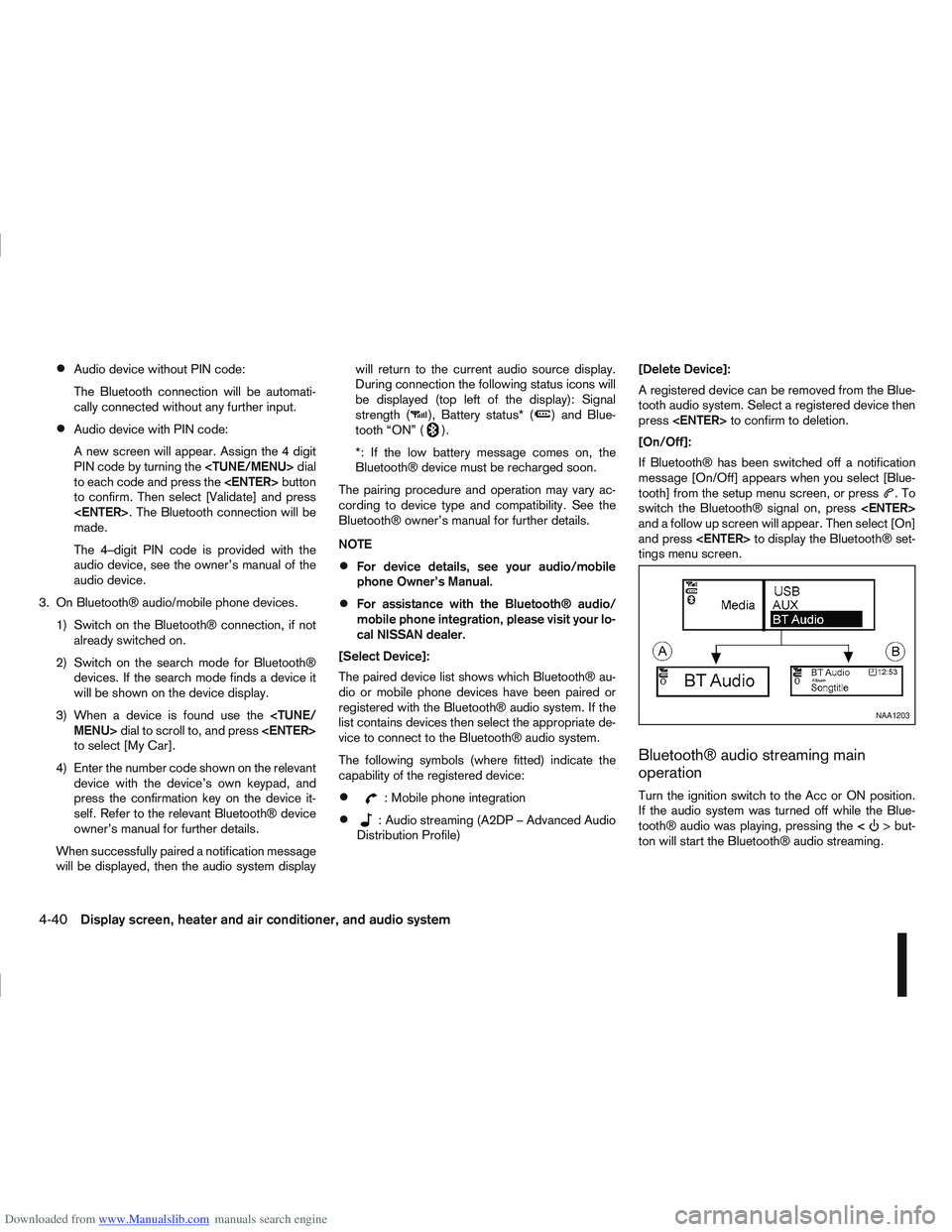
NAA1203
4-40Display screen, heater and air conditioner, and audio system
Page 149 of 297

Downloaded from www.Manualslib.com manuals search engine Specification chart
Supported mediaCD, CD-R, CD-RW
Supported file systems ISO9660 LEVEL1, ISO9660 LEVEL2, Romeo, Joliet
* ISO9660 Level 3 (packet writing) is not supported.
* Files saved using the Live File System Component (on a Windows Vista-based
computer) are not supported.
Supported versions*1 MP3 Version MPEG1, MPEG2, MPEG2.5
Sampling frequency 32 KHz - 44.1 KHz - 48 KHz
Bit rate 32, 40, 48, 56, 64, 80, 96, 112, 128, 144, 160, 192, 224, 256, 288, 320, 336,
384, 448, VBR. Kbps *4
WMA*3 Version WMA7, WMA8, WMA9
Sampling frequency 16 KHz, 22.05 KHz, 32 KHz, 44.1KHz, 48 KHz
Bit rate 48, 64, 80, 96, 128, 160, 192, 256, 320, VBR kbps *4
Tag information (Song title and Artist name) ID tag VER. 1.0, 1.1, 2.2, 2.3 (MP3 only)
WMA tag (WMA only)
Folder levels Folder levels: 8, Folders: 255 (including root folder), files: 512
Text character number limitation File Name: Min 11 Characters ( Max 30 Characters) ID3 TAG : Min 24
Characters. (Max 60 Characters)*
Displayable character codes*2 01:ASCll, 02: ISO-8859-1 03: UNICODE(UTF-16 BOM Big Endian), 04:
UNICODE(UTF-16 Ncn-BOM Big Endian), 05: UNICODE(UTF-8),
06:UNICODE(Non-UTF-16 BOM Little Endian), 07: SHIFT-JIS
*1 Files created with a combination of 48 kHz sampling frequency and 64 kbps bit rate cannot be played.
*2 Available codes depend on what kind of media, versions and information are going to be displayed.
*3 Protected WMA files (DRM) cannot be played.
*4 When VBR files are played, the playback time may not be displayed correctly. WMA7 and WMA8 are not applied to VBR.
*5 Support 128 Bytes but it depends on display width and character type.
4-42Display screen, heater and air conditioner, and audio system
Page 152 of 297
Downloaded from www.Manualslib.com manuals search engine Bluetooth®is a wireless radio communication stan-
dard. This system offers a hands-free facility for your
mobile telephone to enhance driving comfort.
NOTE
For models with NISSAN Connect system, see
the separately provided Owner’s Manual.
In order to use your mobile phone with the Blue-
tooth
®of the audio system, the mobile phone must
first be set-up. For details, see “Hands-free tele-
phone setup” later in this section. Once it has been
set-up, the hands-free mode is automatically acti-
vated on the registered mobile phone (via Blue-
tooth
®) when it comes into range.
A notification message on the audio display comes
on when the phone is connected, when an incoming
call is being received as well as when a call is initi-
ated.
When a call is active, the audio system, microphone
(located in the ceiling in front of the rear view mirror)
and the steering wheel switches enable hands-free
communication.
If the audio system is being used at the time, the
radio or CD mode will be muted and will stay muted
until the active call has ended.
If the Bluetooth
®system is unable to connect with
your mobile phone, this may occur because:
The mobile phone is too far away from the ve-
hicle.
The Bluetooth®mode on your mobile phone has
not been activated.
Your mobile phone has not been paired with the
Bluetooth®system of the audio unit.
The mobile phone does not support Bluetooth®
technology (BT Core v1.2, Hands Free Profile
v1.0 and Object Push Profile v1.0).
NOTE
For details, see your mobile phone’s Owner’s
Manual.
For assistance with your mobile phone inte-
gration, please visit your local NISSAN dealer.
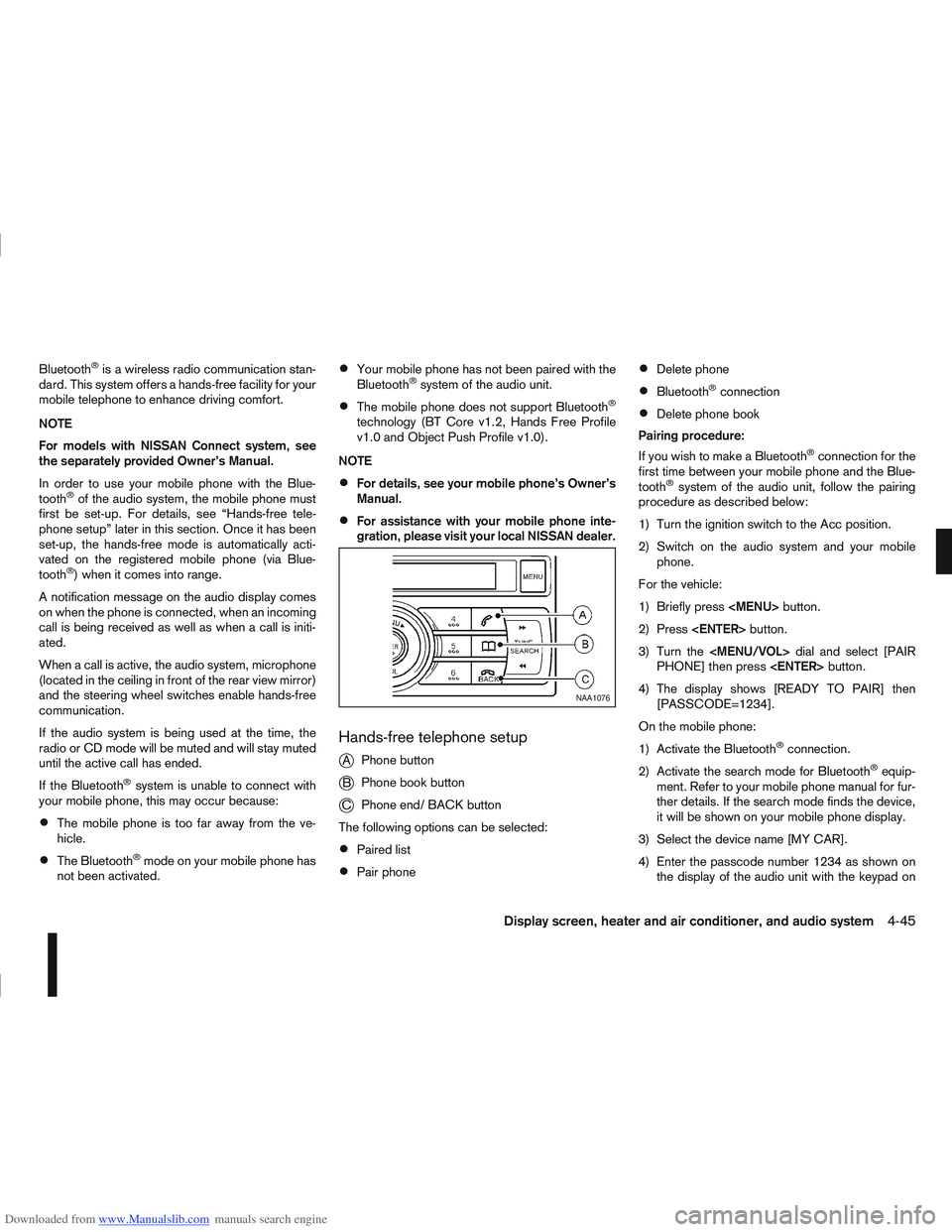
Hands-free telephone setup
j
A Phone button
jB Phone book button
jC Phone end/ BACK button
The following options can be selected:
Paired list
Pair phone
Delete phone
Bluetooth®connection
Delete phone book
Pairing procedure:
If you wish to make a Bluetooth
®connection for the
first time between your mobile phone and the Blue-
tooth
®system of the audio unit, follow the pairing
procedure as described below:
1) Turn the ignition switch to the Acc position.
2) Switch on the audio system and your mobile phone.
For the vehicle:
1) Briefly press
Page 153 of 297
![NISSAN QASHQAI 2012 Owners Manual Downloaded from www.Manualslib.com manuals search engine your mobile phone then press the confirmation
button on your mobile phone.
ActionScreen display
Press briefly <MENU>
button
↓ [PHONE SETUP]
P](/manual-img/5/56764/w960_56764-152.png "NISSAN QASHQAI 2012 Owners Manual Downloaded from www.Manualslib.com manuals search engine your mobile phone then press the confirmation
button on your mobile phone.
ActionScreen display
Press briefly <MENU>
button
↓ [PHONE SETUP]
P")
Downloaded from www.Manualslib.com manuals search engine your mobile phone then press the confirmation
button on your mobile phone.
ActionScreen display
Press briefly
Page 212 of 297

Downloaded from www.Manualslib.com manuals search engine Never allow passengers to stay in the vehicle
while it is on the jack.
Remove all loads before lifting the vehicle with
the jack.
Make sure to block the wheel diagonally op-
posite the flat tyre as described earlier in this
section.
CAUTION
The jack should be used on firm, level ground.
1. Place the jack directly under the jack-up point as illustrated so that the top of the jack contacts the
vehicle at the jack-up point.
2. Align the centre of both the jack head and the notches at the jack-up point as shown.
3. Fit the groove of the jack head between the two notches as shown. 4. Loosen each wheel nut by one or two turns
anticlockwise with the wheel wrench.
Do not remove the wheel nuts until the tyre is
off the ground.
Models with wheel lock nuts (where fitted):
If the wheel is equipped with a wheel lock nut,
insert the wheel lock key
j1 and loosen it as pre-
viously described.
The wheel lock nut can only be removed with the
wheel lock key. A key number is necessary if you
need to duplicate the wheel lock key.
Record the key number as shown on the key
code card on the “Security information” page at
the end of this manual and keep it in a safe place,
not in the vehicle. If you loose the wheel lock key,
see your NISSAN dealer for a duplicate with the
original wheel lock key code. Make sure to keep the lock key in the vehicle.
Otherwise, wheels cannot be removed and the
service cannot be performed.
5. To lift the vehicle, securely hold and turn the handle clockwise as shown.
6. Carefully raise the vehicle until the tyre clears the ground.
7. Remove the wheel nuts, then remove the wheel with the flat tyre.NCE256Z
Jack-up points
NCE143Z
NCE309
5–seater
NCE308
7–seater
In case of emergency6-5
Page 214 of 297
Downloaded from www.Manualslib.com manuals search engine 2. Store the subwoofer (where fitted) as it was origi-nally installed.
3. Install the retainer and replace the floor cover.
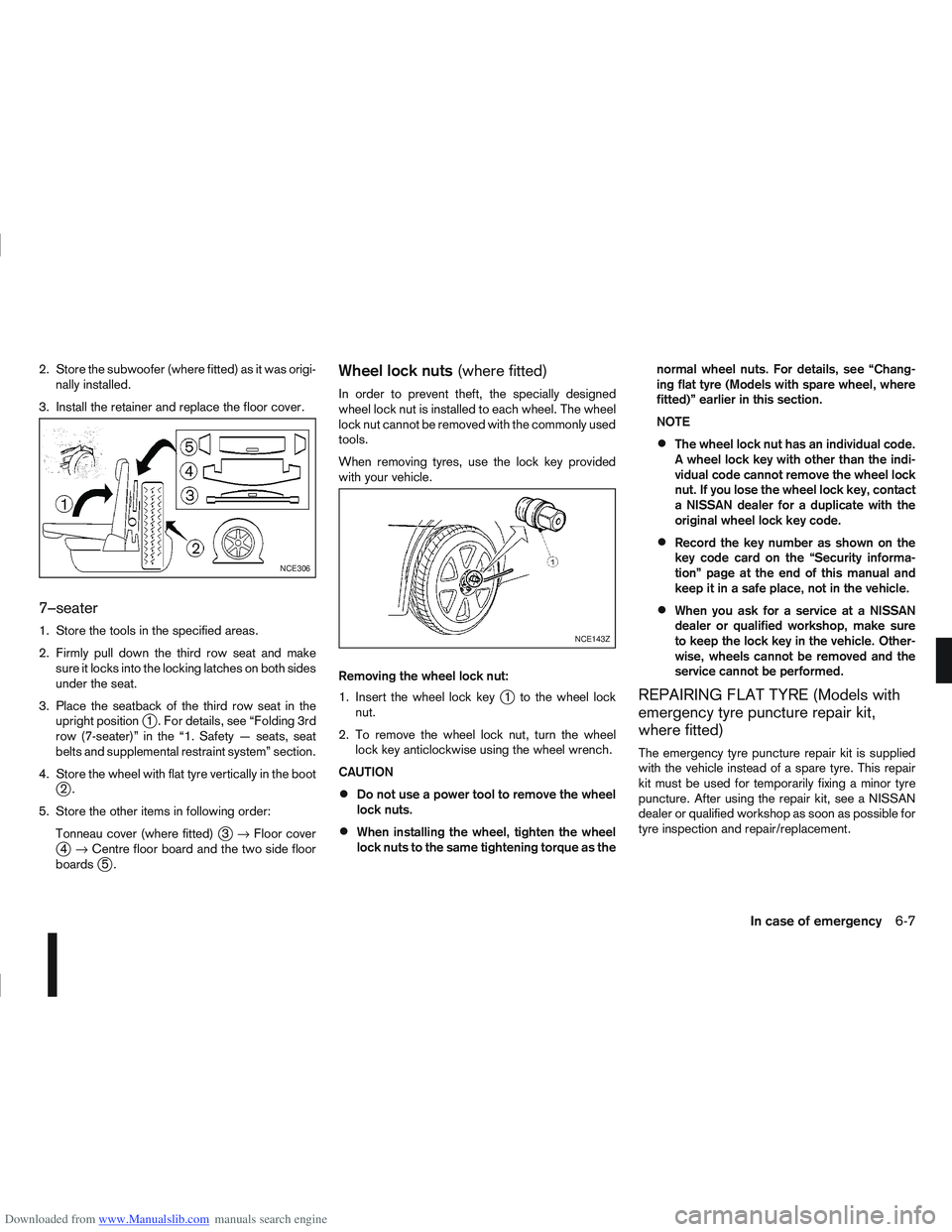
7–seater
1. Store the tools in the specified areas.
2. Firmly pull down the third row seat and make sure it locks into the locking latches on both sides
under the seat.
3. Place the seatback of the third row seat in the upright position
j1 . For details, see “Folding 3rd
row (7-seater)” in the “1. Safety — seats, seat
belts and supplemental restraint system” section.
4. Store the wheel with flat tyre vertically in the boot
j2.
5. Store the other items in following order: Tonneau cover (where fitted)
j3→ Floor coverj4→ Centre floor board and the two side floor
boardsj5.
Wheel lock nuts (where fitted)
In order to prevent theft, the specially designed
wheel lock nut is installed to each wheel. The wheel
lock nut cannot be removed with the commonly used
tools.
When removing tyres, use the lock key provided
with your vehicle.
Removing the wheel lock nut:
1. Insert the wheel lock key
j1 to the wheel lock
nut.
2. To remove the wheel lock nut, turn the wheel lock key anticlockwise using the wheel wrench.
CAUTION
Do not use a power tool to remove the wheel
lock nuts.
When installing the wheel, tighten the wheel
lock nuts to the same tightening torque as the normal wheel nuts. For details, see “Chang-
ing flat tyre (Models with spare wheel, where
fitted)” earlier in this section.
NOTE
The wheel lock nut has an individual code.
A wheel lock key with other than the indi-
vidual code cannot remove the wheel lock
nut. If you lose the wheel lock key, contact
a NISSAN dealer for a duplicate with the
original wheel lock key code.
Record the key number as shown on the
key code card on the “Security informa-
tion” page at the end of this manual and
keep it in a safe place, not in the vehicle.
When you ask for a service at a NISSAN
dealer or qualified workshop, make sure
to keep the lock key in the vehicle. Other-
wise, wheels cannot be removed and the
service cannot be performed.
REPAIRING FLAT TYRE (Models with
emergency tyre puncture repair kit,
where fitted)
The emergency tyre puncture repair kit is supplied
with the vehicle instead of a spare tyre. This repair
kit must be used for temporarily fixing a minor tyre
puncture. After using the repair kit, see a NISSAN
dealer or qualified workshop as soon as possible for
tyre inspection and repair/replacement.
NCE306
NCE143Z
In case of emergency6-7
Page 249 of 297

Downloaded from www.Manualslib.com manuals search engine Battery (Type A)
Check the fluid level in each cell. It should be be-
tween the UPPERj1 and LOWERj2 level lines.
If it is necessary to add fluid, add only distilled water
to bring the level to the indicator in each filler open-
ing. Do not overfill.
1. Remove the cell plugs
jA using a suitable tool.
j1 OK
j2ADD
2. Add distilled water up to the UPPER level line
j1.
If the side of the battery is not clear, check the
electrolyte water level by looking directly above
the cell, as illustrated.
3. Tighten cell plugs.
CAUTION
Do not overfill battery cells. Excessive electrolyte
may leak out of the battery during charging, and
cause paint damage.
Maintenance free battery (Type B)
For a maintenance free battery it is not required to
check the fluid level. However, NISSAN recom-
mends to visually check the green indicator
jA sta-
tus periodically. If it is not visible, replace the battery
as soon as possible.
Reinitialisation procedure after battery
reconnection
If the battery has been reconnected, check the fol-
lowing items:
Re-enter the anti-theft system code (where fit-
ted). For details, see the separately provided
NISSAN Connect Owner’s Manual.
Clock setting. For details, see “Vehicle informa-
tion display” in the “2. Instruments and controls”
section or the separately provided NISSAN Con-
nect (where fitted) Owner’s Manual.
The C-View® sunshade or power window sys-
tem may need to be reinitialised. For details, see
“C-View® glass roof (where fitted)” in the “2. In-
struments and controls” section or “Windows”
in the “2. Instruments and controls” section.
Models with Stop/Start System
Ensure that the battery fitted is the special bat-
tery that is enhanced with regard to the charge-
discharge capacity and life performance. Avoid
using any other battery for the Stop/Start Sys-
tem, as this may cause early deterioration of the
battery or a malfunction of the Stop/Start Sys-
tem. It is recommended that a Genuine NISSAN
battery is fitted. For more information, contact a
NISSAN dealer or qualified workshop.
If the battery terminal is disconnected (for bat-
tery replacement, etc.) and then reconnected,
there may be some delay before the Stop/Start
System reactivates.
DI0137MAZ
NDI688Z
Indicator
NDI920Z
8-18Maintenance and do-it-yourself
Page 290 of 297

Downloaded from www.Manualslib.com manuals search engine – Driving with automatic transmission ...................... 5-14, 5-17
– Driving with continuously variable transmission (Models withmanual shift) .................................................................. 5-14
– Driving with continuously variable transmission (Models without manual shift) .................................................................. 5-17
– Driving with manual transmission ................................... 5-12
– Manual transmission (ignition knob) ................................. 5-8
– Manual transmission (ignition switch) ............................... 5-6
Travelling or transferring your registration to another country .. 9-8
Trip computer ...................................................................... 2-16
Turbocharger system (Diesel engine models) ......................... 5-5
Turn signal switch ............................................................... 2-26
Twin trip odometer .............................................................. 2-16
Tyre
– Changing tyres and wheels ........................................... 8-33
– Emergency tyre puncture repair kit ......................... 6-7, 8-34
– Flat tyre ........................................................................\
... 6-2
– Repairing flat tyre ............................................................ 6-7
– Spare tyre ..................................................................... 8-33
– Temporary-use spare tyre ................................................ 6-2
– Types of tyres ................................................................ 8-31
– Tyre age ........................................................................\
8-33
– Tyre equipment .............................................................. 5-43
– Tyre inflation pressure ................................................... 8-31
– Tyre placard .................................................................... 9-9
– Tyre pressure (Trailer) ................................................... 5-36
– Tyre rotation .................................................................. 8-32
– Tyre wear and damage .................................................. 8-33
– Wheels and tyres ................................................... 8-31, 9-7
U
Ultrasonic sensor
– Alarm sensor ................................................................. 3-13
– Parking sensor .............................................................. 5-24
USB Memory operation ....................................................... 4-37 Using Intelligent Key system .................................................. 3-7
V
Vehicle identification .............................................................. 9-8
– Vehicle identification number (VIN) (chassis number) ....... 9-8
– Vehicle identification plate ................................................ 9-8
Vehicle information display .................................................. 2-11
Vehicle security .......................................................... 3-13, 5-38
– Alarm system ................................................................. 3-13
Vents ........................................................................\
.......... 4-12W
Warning/indicator lights and audible reminders ...................... 2-3
Warnings and alerts (Vehicle information display) ................ 2-12
Washing ........................................................................\
....... 7-2
Waxing ........................................................................\
.......... 7-2
Wheel
– Blocking the wheels ........................................................ 6-3
– Care of wheels ................................................................ 7-3
– Changing tyres and wheels ........................................... 8-33
– Getting the tools and spare wheel .................................... 6-3
– Installing the wheel .......................................................... 6-6
– Removing the wheel ........................................................ 6-4
– Removing the wheel cover ............................................... 6-4
– Stowing the wheel and tools ............................................ 6-6
– Wheel balance .............................................................. 8-33
– Wheel lock key code ....................................................... 6-7
– Wheel lock nuts ....................................................... 6-4, 6-7
– Wheels and tyres ................................................... 8-31, 9-7
Wheel lock nuts .................................................................... 6-7
Windows
– Power window — Driver’s side (Reinitialisationprocedure) .................................................................... 2-35
Index10-9