Page 208 of 489
●OK:
Select to accept the changes made and
return to the clock setting display.
After selection/settings, press the BACK button
or any other mode button to accept the changes.
Comfort & Convenience settings (if so
equipped)
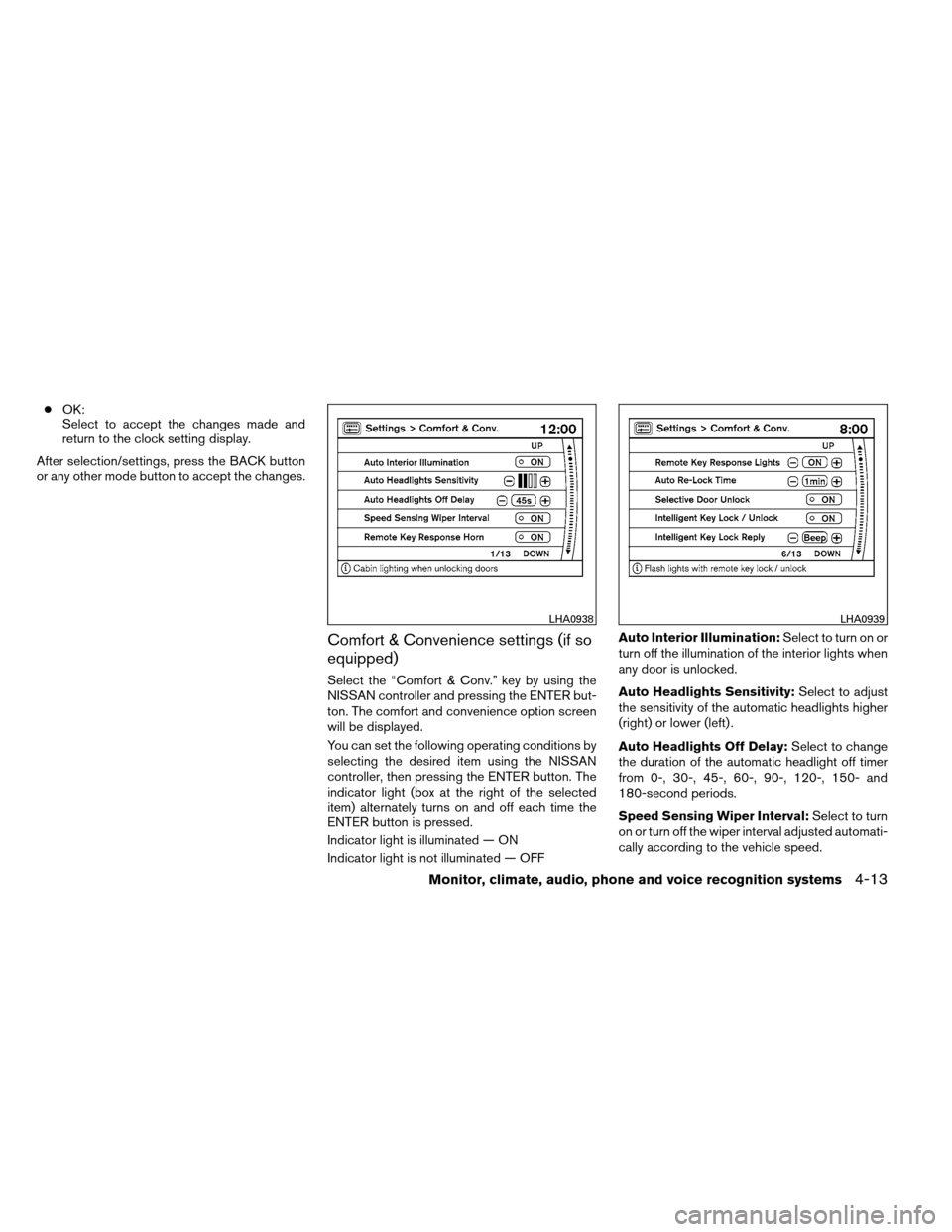
Select the “Comfort & Conv.” key by using the
NISSAN controller and pressing the ENTER but-
ton. The comfort and convenience option screen
will be displayed.
You can set the following operating conditions by
selecting the desired item using the NISSAN
controller, then pressing the ENTER button. The
indicator light (box at the right of the selected
item) alternately turns on and off each time the
ENTER button is pressed.
Indicator light is illuminated — ON
Indicator light is not illuminated — OFF Auto Interior Illumination:
Select to turn on or
turn off the illumination of the interior lights when
any door is unlocked.
Auto Headlights Sensitivity: Select to adjust
the sensitivity of the automatic headlights higher
(right) or lower (left) .
Auto Headlights Off Delay: Select to change
the duration of the automatic headlight off timer
from 0-, 30-, 45-, 60-, 90-, 120-, 150- and
180-second periods.
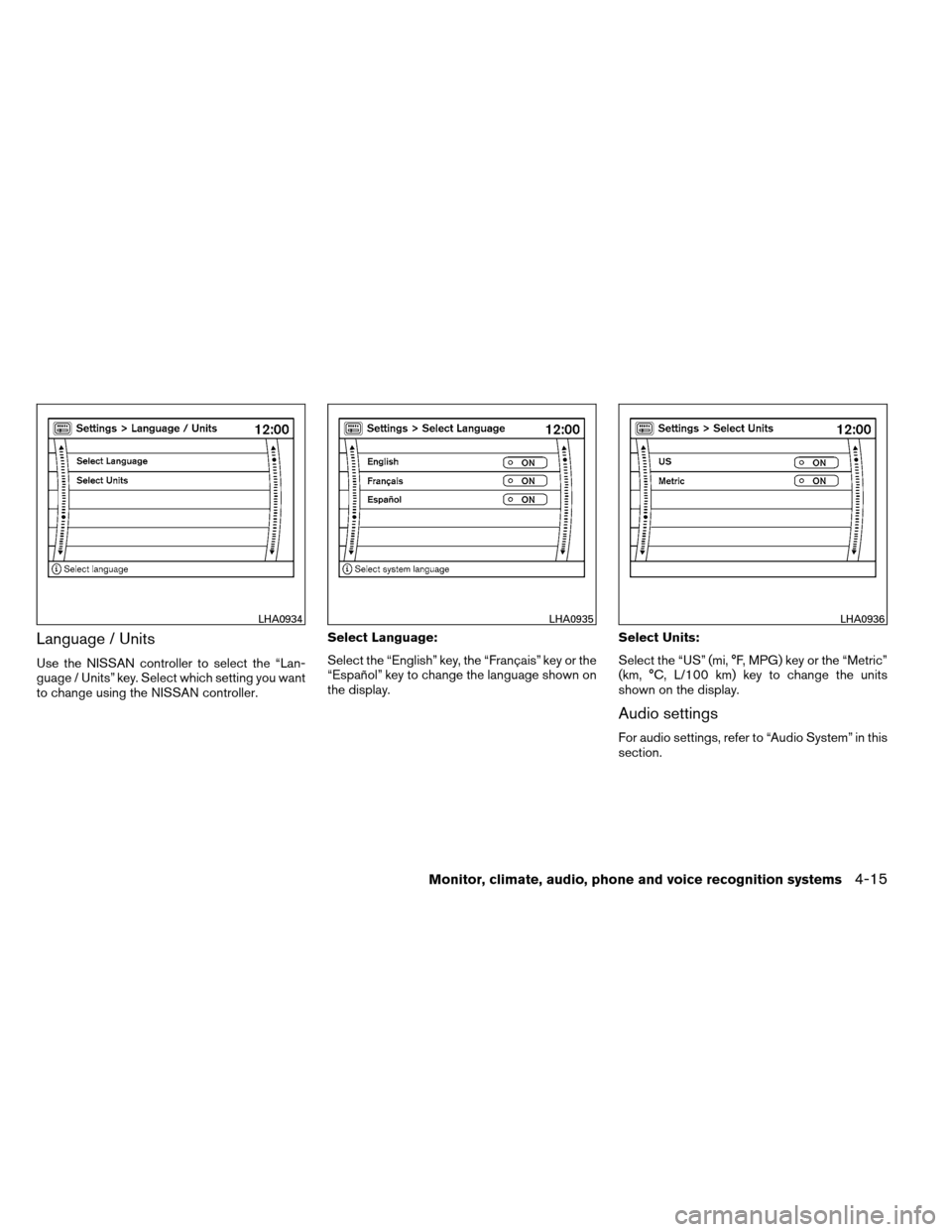
Speed Sensing Wiper Interval: Select to turn
on or turn off the wiper interval adjusted automati-
cally according to the vehicle speed.
LHA0938LHA0939
Monitor, climate, audio, phone and voice recognition systems4-13
Page 209 of 489
Remote Key Response Horn:Select to turn
on or turn off the horn beep mode used when the
LOCK button on the keyfob is pressed.
NOTE:
If you change the horn beep or the lamp
flash feature with the keyfob, the mode will
not be changed with the display. Use the
keyfob to return to the previous mode and
re-enable the display control. Remote Key Response Lights:
Select to turn
on or turn off the hazard indicator flash mode
used when the LOCK or UNLOCK button on the
keyfob is pressed.
NOTE:
If you change the horn beep or the lamp
flash feature with the keyfob, the mode will
not be changed with the display. Use the
keyfob to return to the previous mode and
re-enable the display control.
Auto Re-Lock Time: Select to set the length of
time before doors automatically re-lock.
Selective Door Unlock: When this item is
turned on, only the driver’s door is unlocked first
after the door unlock operation. When the door
handle request switch on the driver’s or front
passenger’s side door is pushed to be unlocked,
only the corresponding door is unlocked first. All
the doors can be unlocked if the door unlock
operation is performed again within 1 minute.
When this item is turned to off, all the doors will
be unlocked after the door unlock operation is
performed once.
Intelligent Key Lock / Unlock: Select to turn
on or turn off the door lock/unlock function by
pushing the door handle request switch. Intelligent Key Lock Reply:
Select to change
the sound of the Intelligent Key mode used when
a door handle request switch is pushed to lock.
Select to turn off all sounds made when a door
handle request switch is pushed, by selecting the
“OFF” key.
Intelligent Key Unlock Reply: Select to
change the sound of the Intelligent Key mode
used when a door handle request switch is
pushed to unlock.
Select to turn off all sounds made when a door
handle request switch is pushed, by selecting the
“OFF” key.
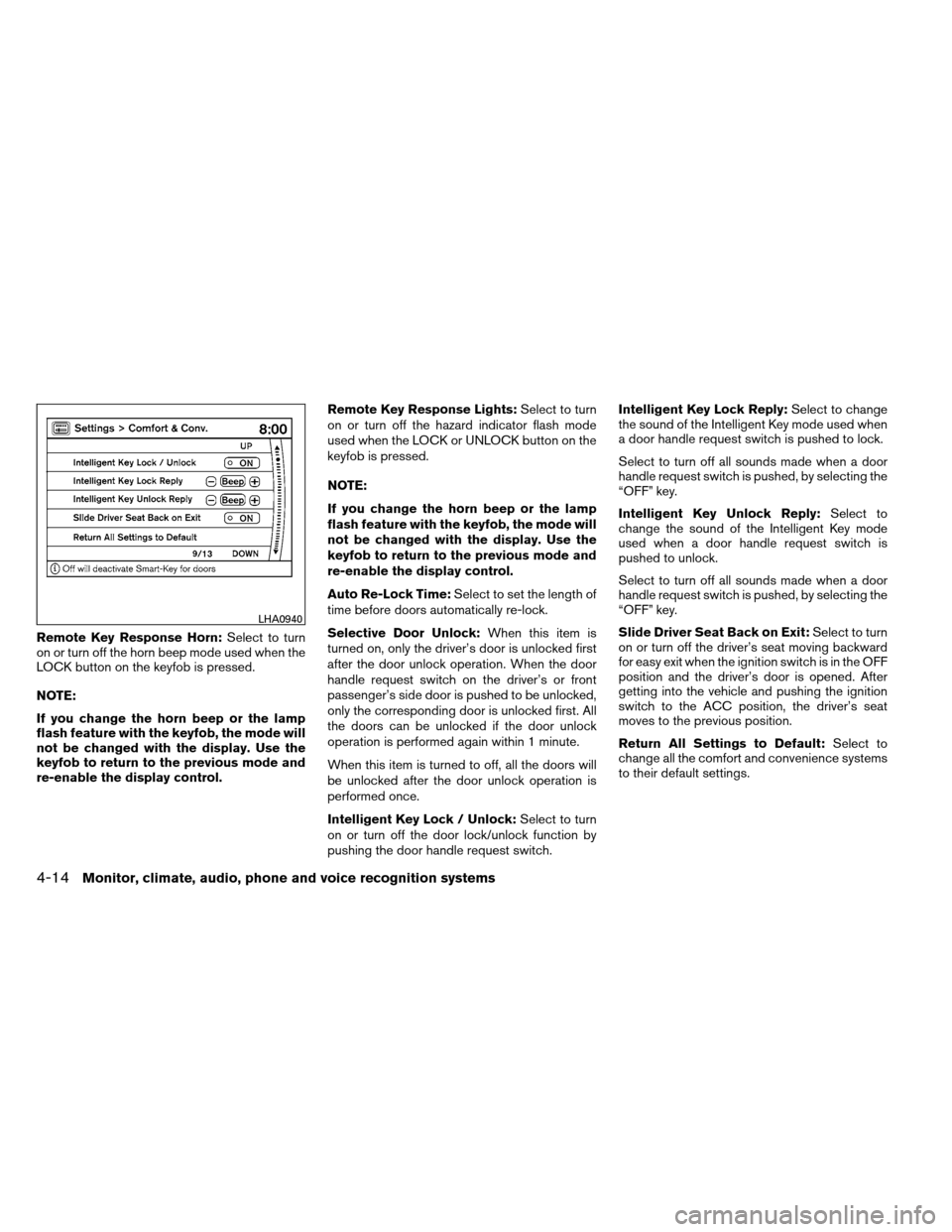
Slide Driver Seat Back on Exit: Select to turn
on or turn off the driver’s seat moving backward
for easy exit when the ignition switch is in the OFF
position and the driver’s door is opened. After
getting into the vehicle and pushing the ignition
switch to the ACC position, the driver’s seat
moves to the previous position.
Return All Settings to Default: Select to
change all the comfort and convenience systems
to their default settings.
LHA0940
4-14Monitor, climate, audio, phone and voice recognition systems
Page 210 of 489
Language / Units
Use the NISSAN controller to select the “Lan-
guage / Units” key. Select which setting you want
to change using the NISSAN controller.Select Language:
Select the “English” key, the “Français” key or the
“Español” key to change the language shown on
the display.
Select Units:
Select the “US” (mi, °F, MPG) key or the “Metric”
(km, °C, L/100 km) key to change the units
shown on the display.
Audio settings
For audio settings, refer to “Audio System” in this
section.
LHA0934LHA0935LHA0936
Monitor, climate, audio, phone and voice recognition systems4-15
Page 213 of 489
To help ensure safe driving, some functions can-
not be operated while driving.
The on-screen functions that are not available
while driving will be “grayed out” or muted.
Park the vehicle in a safe location and then oper-
ate the navigation system.
WARNING
●ALWAYS give your full attention to
driving.
● Avoid using vehicle features that could
distract you. If distracted, you could
lose control of your vehicle and cause
an accident.
Touch screen operation
With this system, the same operations as those
for the NISSAN controller are possible using the
touch screen operation.
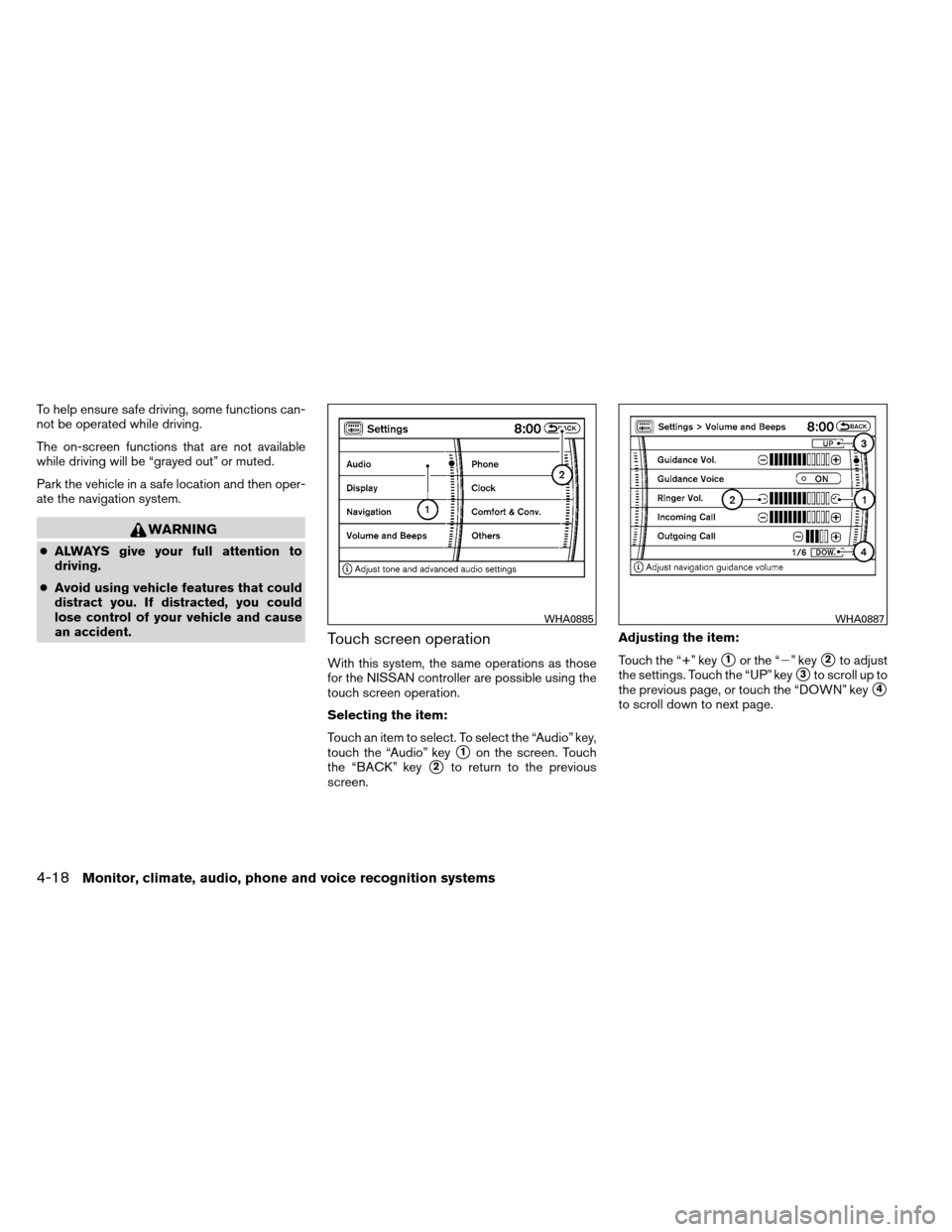
Selecting the item:
Touch an item to select. To select the “Audio” key,
touch the “Audio” key
�1on the screen. Touch
the “BACK” key
�2to return to the previous
screen. Adjusting the item:
Touch the “+” key
�1or the “�” key�2to adjust
the settings. Touch the “UP” key
�3to scroll up to
the previous page, or touch the “DOWN” key
�4
to scroll down to next page.
WHA0885WHA0887
4-18Monitor, climate, audio, phone and voice recognition systems
Page 215 of 489
2. Menu Selections:Shows the options to choose within that
menu screen (for example, Auto Interior Illu-
mination, etc.) .
3. UP/DOWN Movement Indicator: Shows that the NISSAN controller may be
used to move UP/DOWN on the screen and
select more options.
4. Screen Count: Shows the number of menu selections avail-
able for that screen (for example, 1/14) .
5. Footer/Information Line: Provides more information (if available)
about the menu selection currently high-
lighted (for example, Cabin lighting when
unlocking doors) .
HOW TO USE THE STATUS
BUTTON
To display the status of the audio, climate control
system, fuel consumption and navigation system,
press the STATUS button. The following information will appear when the
STATUS button is pressed:
Audio
→Audio and climate control system →
Audio, climate control temperature settings, av-
erage fuel economy and distance to empty →
Audio, climate control temperature settings and
Navigation System →Audio
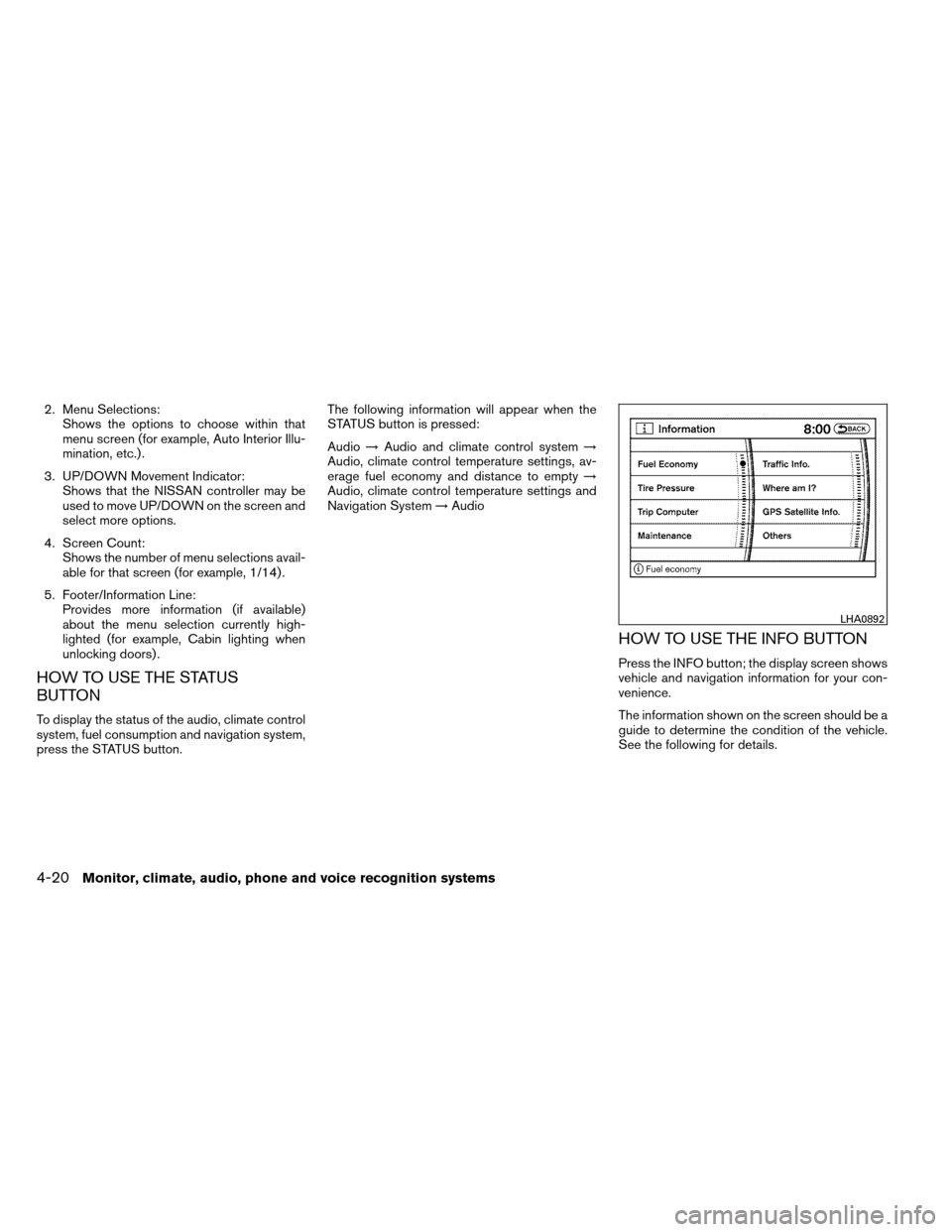
HOW TO USE THE INFO BUTTON
Press the INFO button; the display screen shows
vehicle and navigation information for your con-
venience.
The information shown on the screen should be a
guide to determine the condition of the vehicle.
See the following for details.
LHA0892
4-20Monitor, climate, audio, phone and voice recognition systems
Page 220 of 489
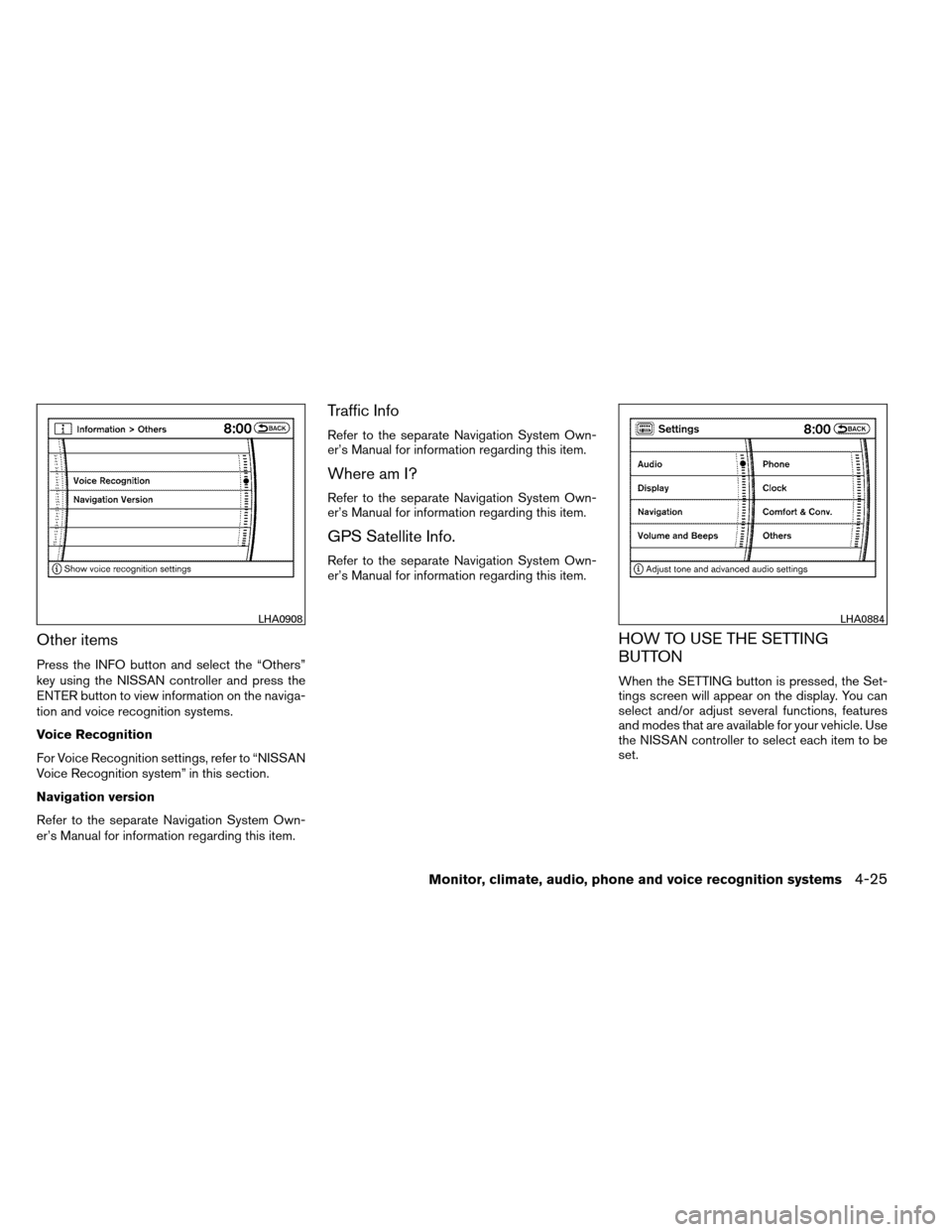
Other items
Press the INFO button and select the “Others”
key using the NISSAN controller and press the
ENTER button to view information on the naviga-
tion and voice recognition systems.
Voice Recognition
For Voice Recognition settings, refer to “NISSAN
Voice Recognition system” in this section.
Navigation version
Refer to the separate Navigation System Own-
er’s Manual for information regarding this item.
Traffic Info
Refer to the separate Navigation System Own-
er’s Manual for information regarding this item.
Where am I?
Refer to the separate Navigation System Own-
er’s Manual for information regarding this item.
GPS Satellite Info.
Refer to the separate Navigation System Own-
er’s Manual for information regarding this item.
HOW TO USE THE SETTING
BUTTON
When the SETTING button is pressed, the Set-
tings screen will appear on the display. You can
select and/or adjust several functions, features
and modes that are available for your vehicle. Use
the NISSAN controller to select each item to be
set.
LHA0908LHA0884
Monitor, climate, audio, phone and voice recognition systems4-25
Page 221 of 489
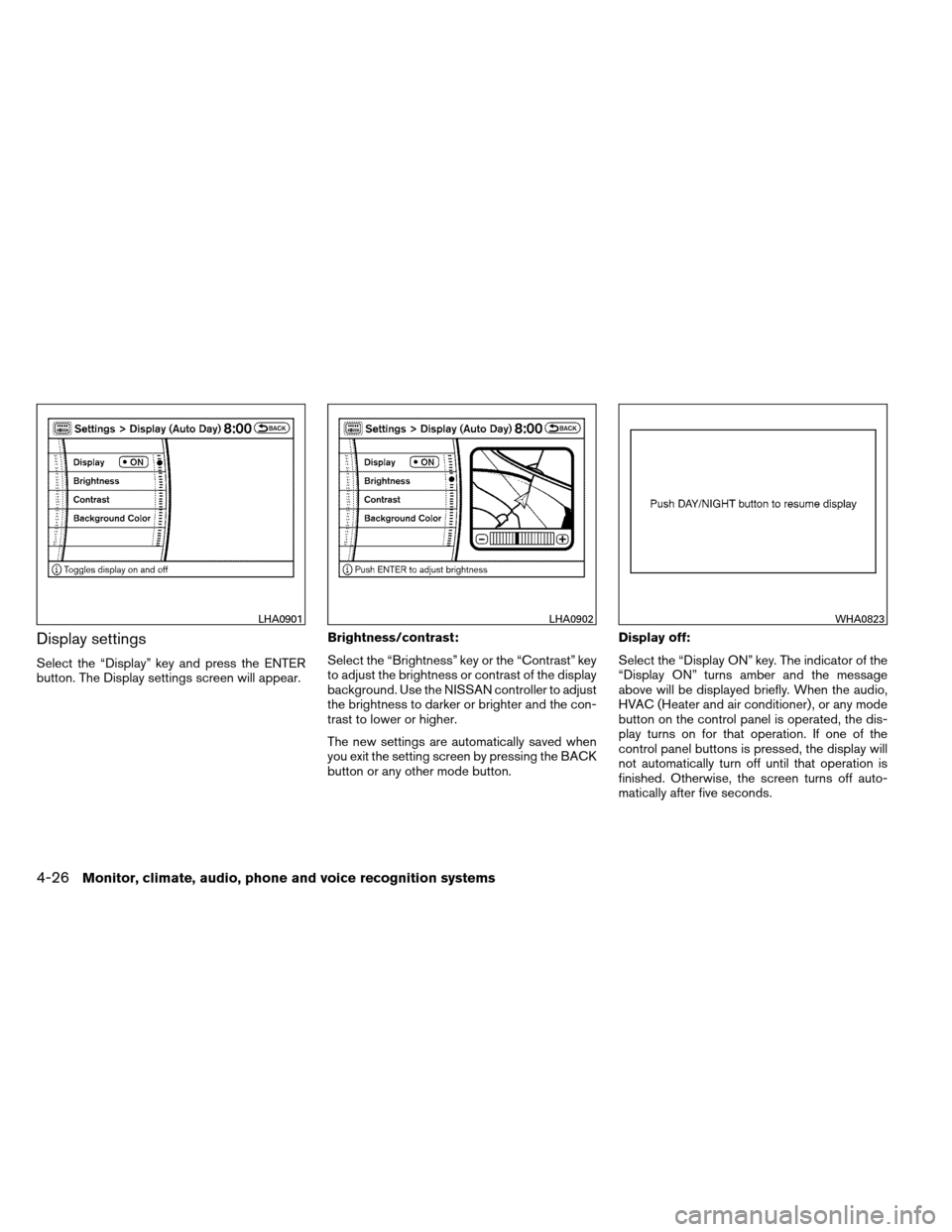
Display settings
Select the “Display” key and press the ENTER
button. The Display settings screen will appear.Brightness/contrast:
Select the “Brightness” key or the “Contrast” key
to adjust the brightness or contrast of the display
background. Use the NISSAN controller to adjust
the brightness to darker or brighter and the con-
trast to lower or higher.
The new settings are automatically saved when
you exit the setting screen by pressing the BACK
button or any other mode button.Display off:
Select the “Display ON” key. The indicator of the
“Display ON” turns amber and the message
above will be displayed briefly. When the audio,
HVAC (Heater and air conditioner) , or any mode
button on the control panel is operated, the dis-
play turns on for that operation. If one of the
control panel buttons is pressed, the display will
not automatically turn off until that operation is
finished. Otherwise, the screen turns off auto-
matically after five seconds.
LHA0901LHA0902WHA0823
4-26Monitor, climate, audio, phone and voice recognition systems
Page 222 of 489
To turn the screen on:● Press the SETTING button and select the
“Display” key and then select the “Display
ON” key. Then set the screen to on by press-
ing the ENTER button, or
● Hold the
OFF button for approxi-
mately two seconds and the message “re-
suming display” will appear and the “Display
ON” key will be automatically turned on (no
amber indicator) .
Background color:
Select the “Background Color” key; the display
color changes between day and night.
The new settings are automatically saved when
you exit the setting screen by pressing the BACK
button or any other mode button.
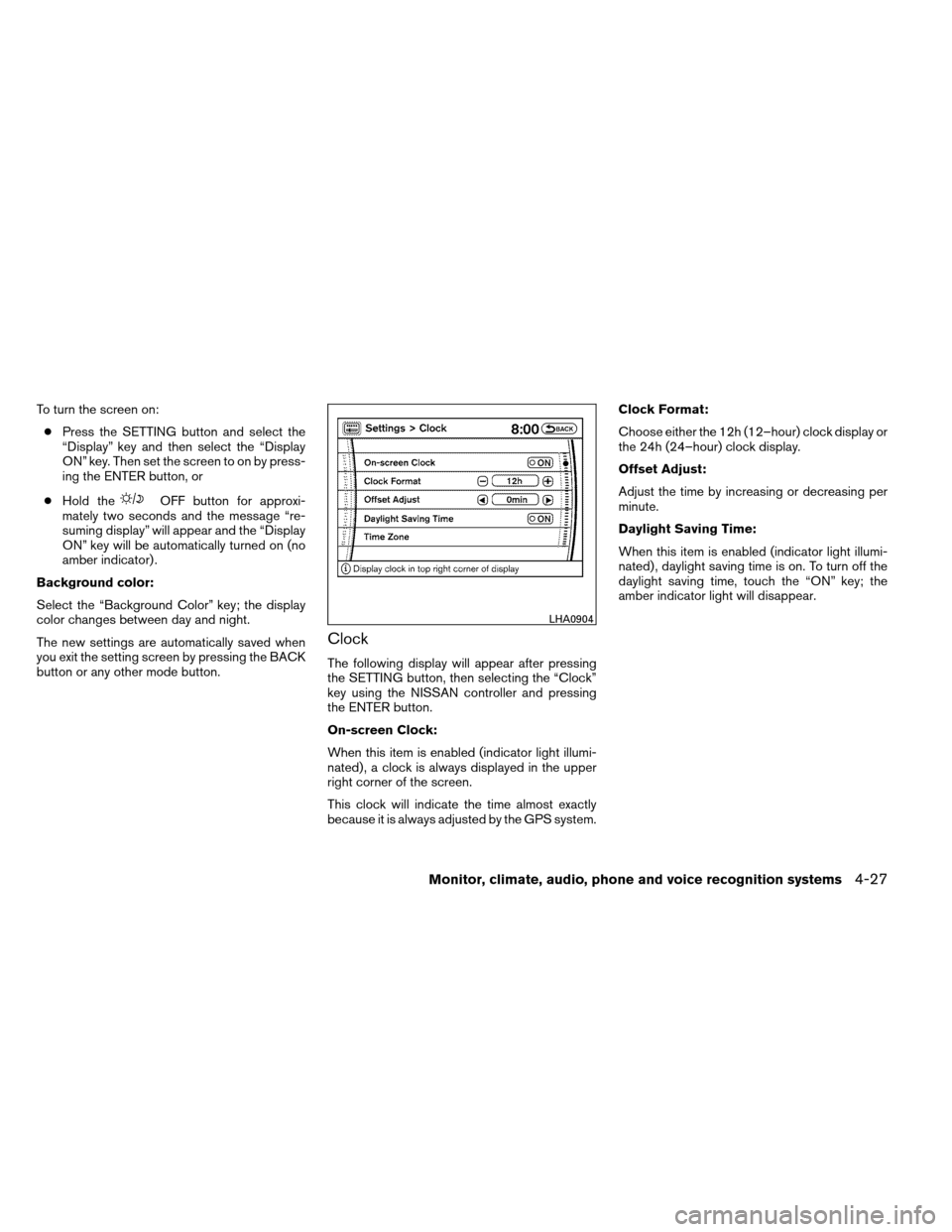
Clock
The following display will appear after pressing
the SETTING button, then selecting the “Clock”
key using the NISSAN controller and pressing
the ENTER button.
On-screen Clock:
When this item is enabled (indicator light illumi-
nated) , a clock is always displayed in the upper
right corner of the screen.
This clock will indicate the time almost exactly
because it is always adjusted by the GPS system. Clock Format:
Choose either the 12h (12–hour) clock display or
the 24h (24–hour) clock display.
Offset Adjust:
Adjust the time by increasing or decreasing per
minute.
Daylight Saving Time:
When this item is enabled (indicator light illumi-
nated) , daylight saving time is on. To turn off the
daylight saving time, touch the “ON” key; the
amber indicator light will disappear.
LHA0904
Monitor, climate, audio, phone and voice recognition systems4-27