2012 NISSAN ARMADA climate control
[x] Cancel search: climate controlPage 326 of 489
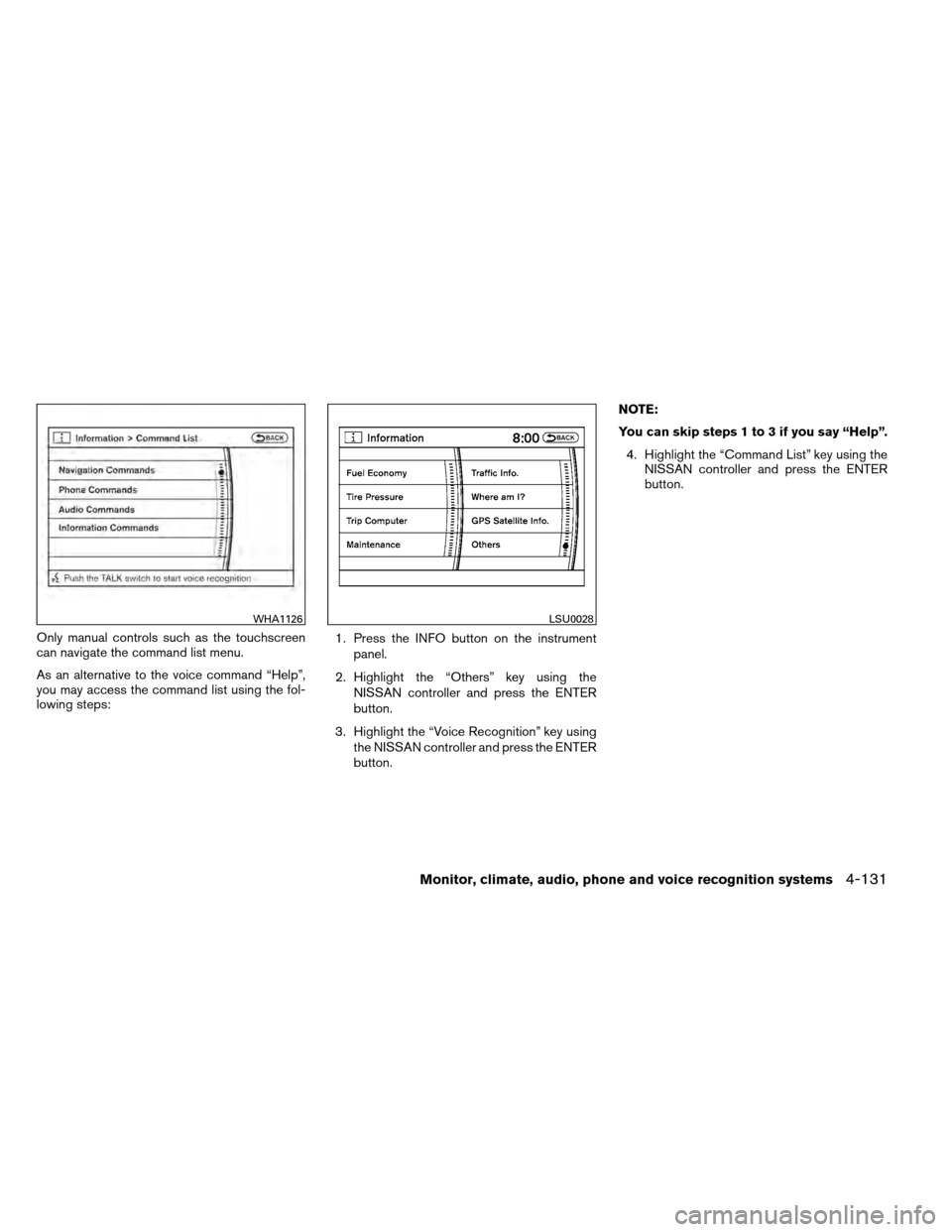
Only manual controls such as the touchscreen
can navigate the command list menu.
As an alternative to the voice command “Help”,
you may access the command list using the fol-
lowing steps:1. Press the INFO button on the instrument
panel.
2. Highlight the “Others” key using the NISSAN controller and press the ENTER
button.
3. Highlight the “Voice Recognition” key using the NISSAN controller and press the ENTER
button. NOTE:
You can skip steps 1 to 3 if you say “Help”.
4. Highlight the “Command List” key using the NISSAN controller and press the ENTER
button.
WHA1126LSU0028
Monitor, climate, audio, phone and voice recognition systems4-131
Page 327 of 489

5. Highlight a category using the NISSAN con-troller and press the ENTER button. The
command list for the category selected is
shown.
6. If necessary, scroll the screen using the NISSAN controller to view the entire list.
7. Press the BACK button to return to the previous screen.
WHA1126
4-132Monitor, climate, audio, phone and voice recognition systems
Page 330 of 489
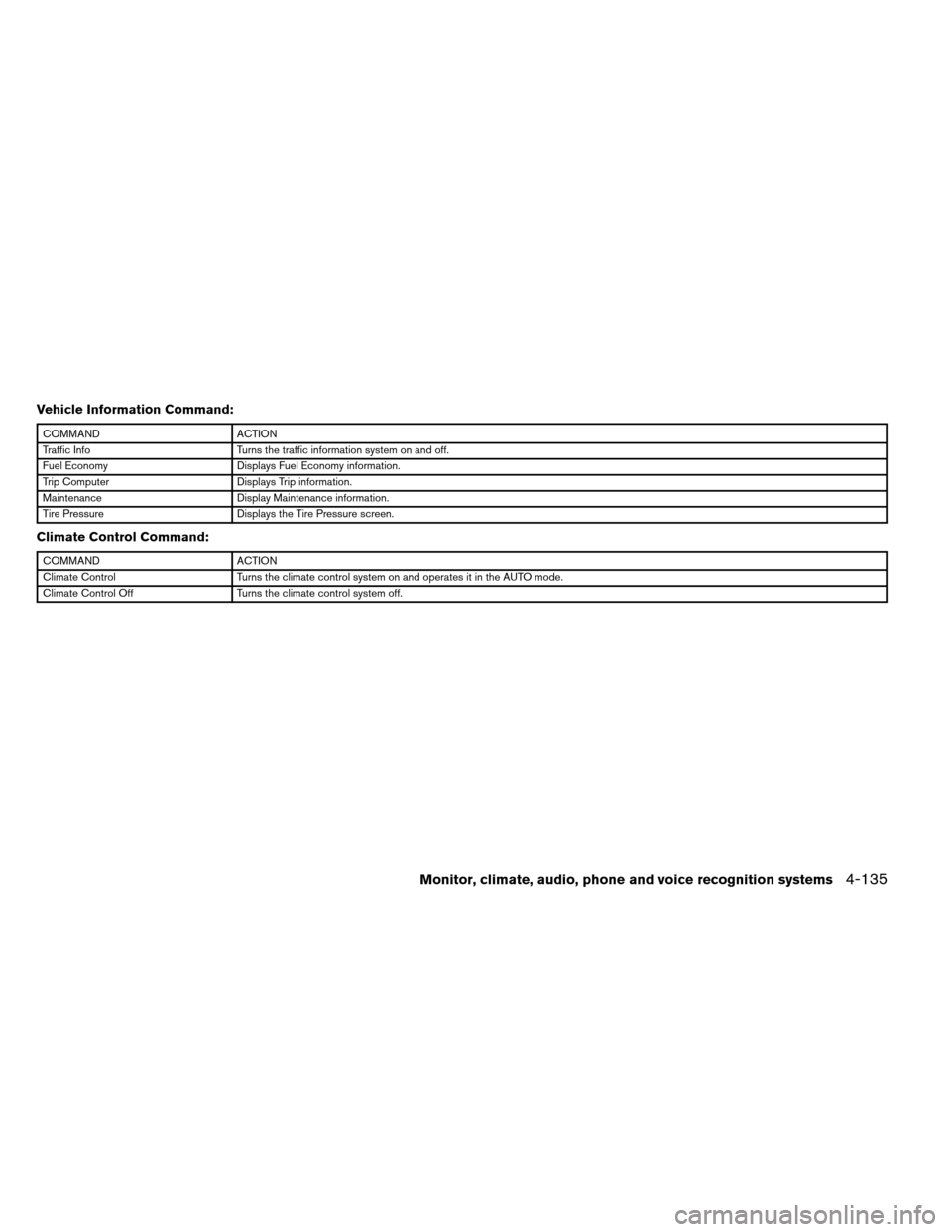
Vehicle Information Command:
COMMANDACTION
Traffic Info Turns the traffic information system on and off.
Fuel Economy Displays Fuel Economy information.
Trip Computer Displays Trip information.
Maintenance Display Maintenance information.
Tire Pressure Displays the Tire Pressure screen.
Climate Control Command:
COMMANDACTION
Climate Control Turns the climate control system on and operates it in the AUTO mode.
Climate Control Off Turns the climate control system off.
Monitor, climate, audio, phone and voice recognition systems4-135
Page 331 of 489
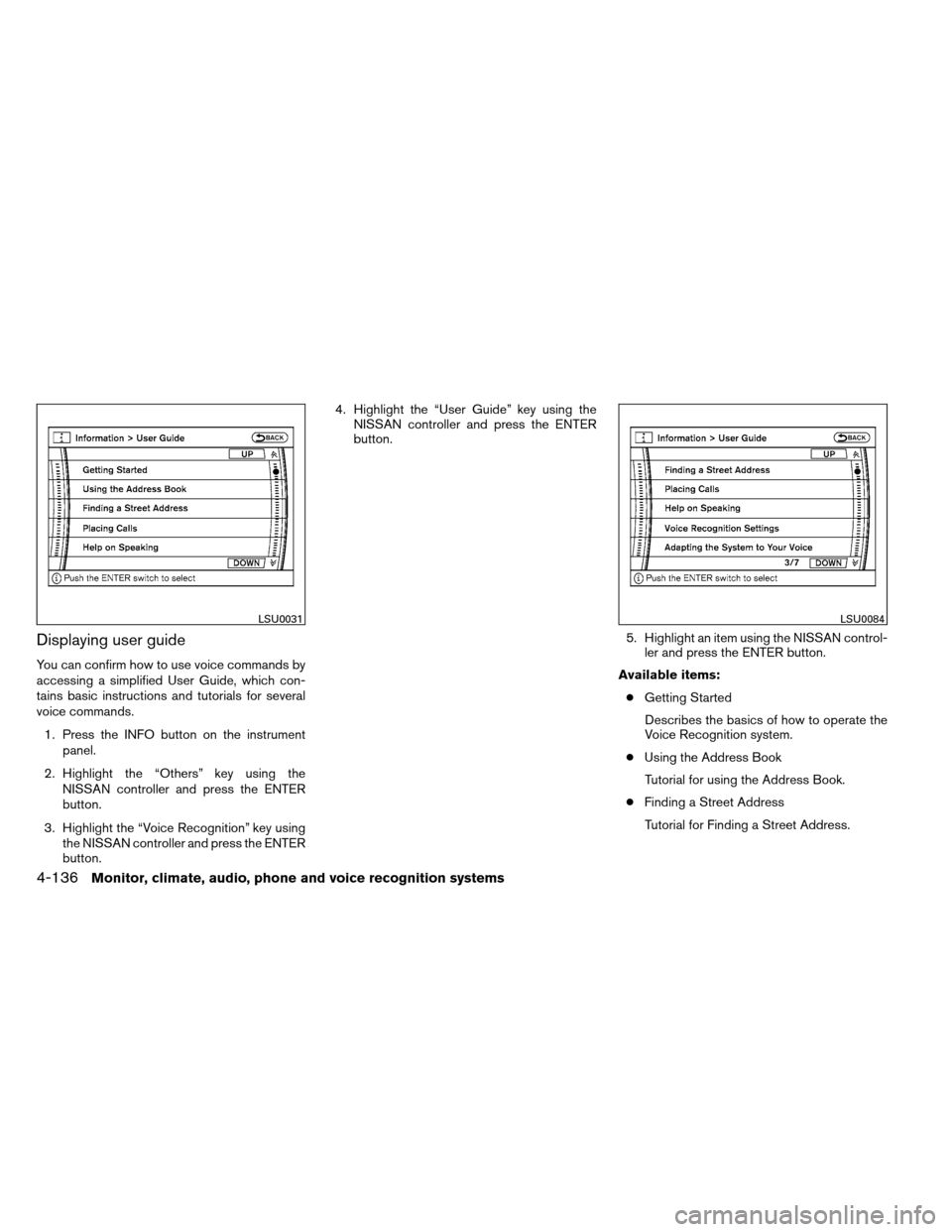
Displaying user guide
You can confirm how to use voice commands by
accessing a simplified User Guide, which con-
tains basic instructions and tutorials for several
voice commands.1. Press the INFO button on the instrument panel.
2. Highlight the “Others” key using the NISSAN controller and press the ENTER
button.
3. Highlight the “Voice Recognition” key using the NISSAN controller and press the ENTER
button. 4. Highlight the “User Guide” key using the
NISSAN controller and press the ENTER
button.
5. Highlight an item using the NISSAN control-ler and press the ENTER button.
Available items: ● Getting Started
Describes the basics of how to operate the
Voice Recognition system.
● Using the Address Book
Tutorial for using the Address Book.
● Finding a Street Address
Tutorial for Finding a Street Address.
LSU0031LSU0084
4-136Monitor, climate, audio, phone and voice recognition systems
Page 332 of 489
●Placing Calls
Tutorial for making a phone call by voice
command operation.
● Help on Speaking
Displays useful tips for how to correctly
speak commands in order for them to be
properly recognized by the system.
● Voice Recognition Settings
Describes the available Voice Recognition
settings.
● Adapting the System to Your Voice
Tutorial for adapting the system to your
voice.
USING THE SYSTEM
Initialization
When the ignition switch is placed in the ON
position, NISSAN Voice Recognition is initialized,
which takes a few seconds. When completed,
the system is ready to accept voice commands. If
the
switch is pressed before the initializa-
tion completes the display will show the mes-
sage: “Phonetic data downloaded. Please wait.”
or a beep sounds.
Before starting
To get the best performance from NISSAN Voice
Recognition, observe the following:
● Keep the interior of the vehicle as quiet as
possible. Close the windows to eliminate the
surrounding noises (traffic noises, vibration
sounds, etc.) , which may prevent the system
from recognizing the voice commands cor-
rectly.
● When the climate control is in the AUTO
mode, the fan speed decreases automati-
cally for easy recognition.
● Wait until a tone sounds before speaking a
command.
● Speak in a natural voice without pausing
between words.
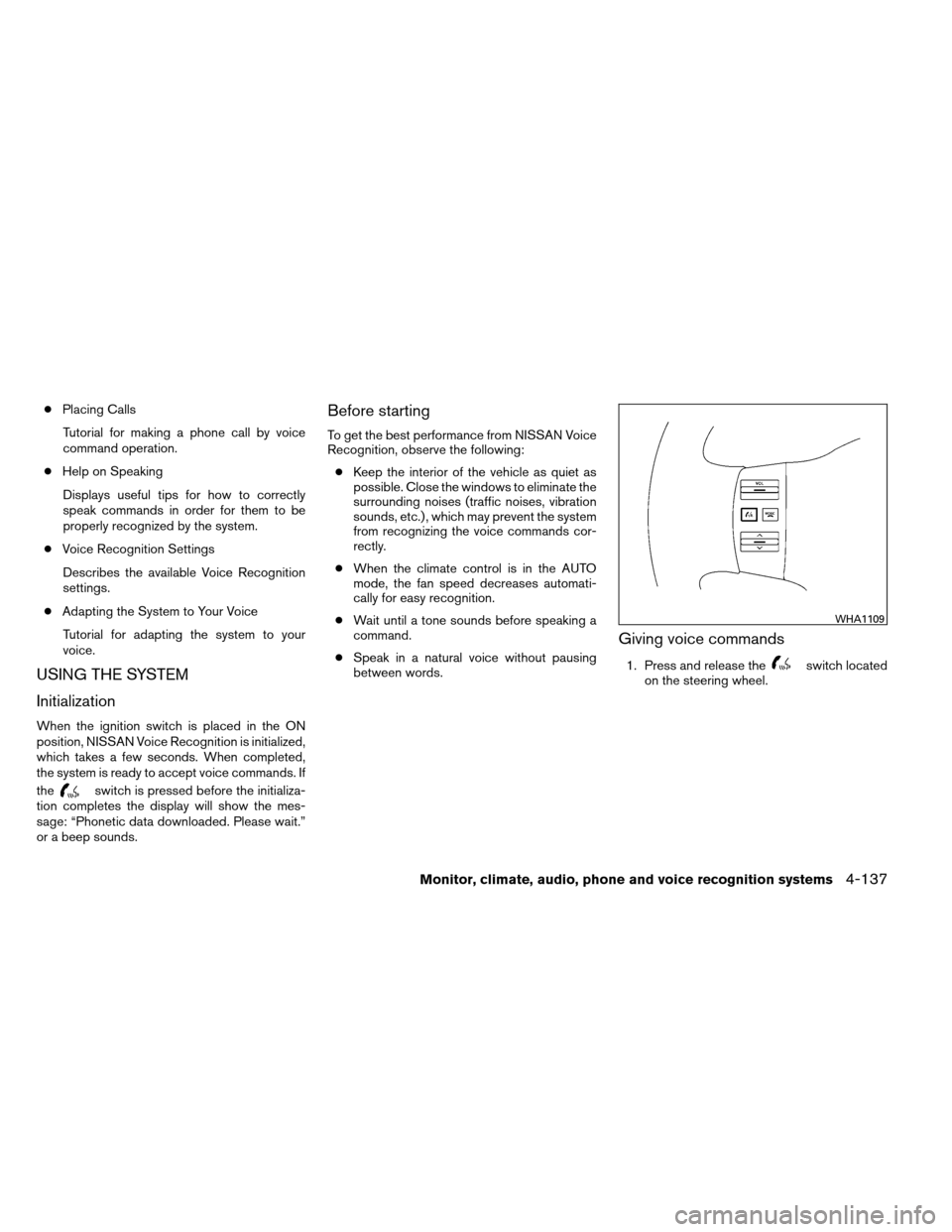
Giving voice commands
1. Press and release theswitch located
on the steering wheel.
WHA1109
Monitor, climate, audio, phone and voice recognition systems4-137
Page 333 of 489
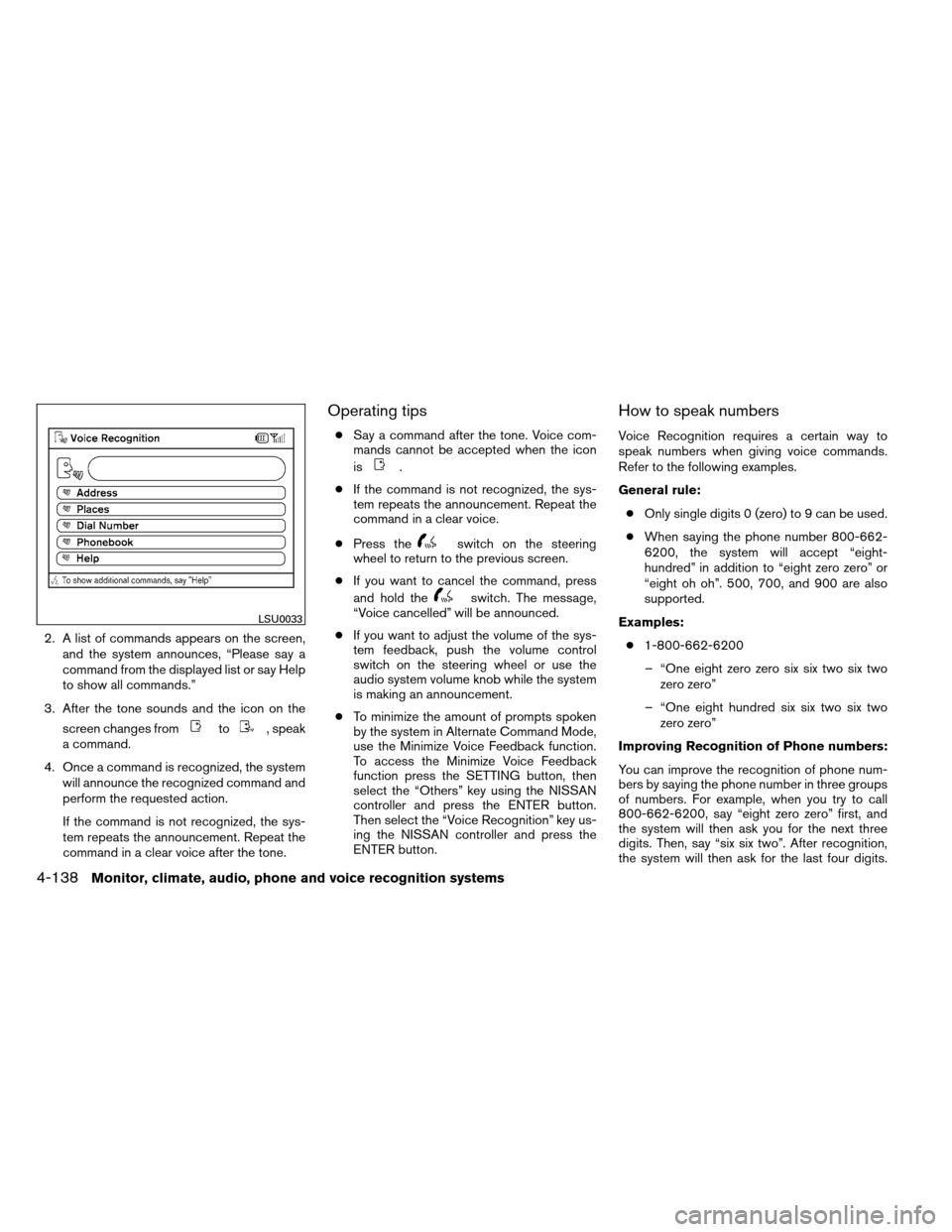
2. A list of commands appears on the screen,and the system announces, “Please say a
command from the displayed list or say Help
to show all commands.”
3. After the tone sounds and the icon on the screen changes from
to, speak
a command.
4. Once a command is recognized, the system will announce the recognized command and
perform the requested action.
If the command is not recognized, the sys-
tem repeats the announcement. Repeat the
command in a clear voice after the tone.
Operating tips
● Say a command after the tone. Voice com-
mands cannot be accepted when the icon
is
.
● If the command is not recognized, the sys-
tem repeats the announcement. Repeat the
command in a clear voice.
● Press the
switch on the steering
wheel to return to the previous screen.
● If you want to cancel the command, press
and hold the
switch. The message,
“Voice cancelled” will be announced.
● If you want to adjust the volume of the sys-
tem feedback, push the volume control
switch on the steering wheel or use the
audio system volume knob while the system
is making an announcement.
● To minimize the amount of prompts spoken
by the system in Alternate Command Mode,
use the Minimize Voice Feedback function.
To access the Minimize Voice Feedback
function press the SETTING button, then
select the “Others” key using the NISSAN
controller and press the ENTER button.
Then select the “Voice Recognition” key us-
ing the NISSAN controller and press the
ENTER button.
How to speak numbers
Voice Recognition requires a certain way to
speak numbers when giving voice commands.
Refer to the following examples.
General rule:
● Only single digits 0 (zero) to 9 can be used.
● When saying the phone number 800-662-
6200, the system will accept “eight-
hundred” in addition to “eight zero zero” or
“eight oh oh”. 500, 700, and 900 are also
supported.
Examples: ● 1-800-662-6200
– “One eight zero zero six six two six two zero zero”
– “One eight hundred six six two six two zero zero”
Improving Recognition of Phone numbers:
You can improve the recognition of phone num-
bers by saying the phone number in three groups
of numbers. For example, when you try to call
800-662-6200, say “eight zero zero” first, and
the system will then ask you for the next three
digits. Then, say “six six two”. After recognition,
the system will then ask for the last four digits.
LSU0033
4-138Monitor, climate, audio, phone and voice recognition systems
Page 334 of 489
Say, “six two zero zero”. Using this method of
phone digit entry can improve recognition perfor-
mance.
NOTE:
When speaking a house number, speak the
number “0” as “zero” or “oh”. If the letter
“O” is included in the house number, it will
not be recognized as “0” even if you speak
“oh” instead of “zero”.
Settings menu
The content of the Settings Menu differs when
the system is in the Alternate Command Mode.
Command List:
Displays the command list for Alternate Com-
mand Mode.
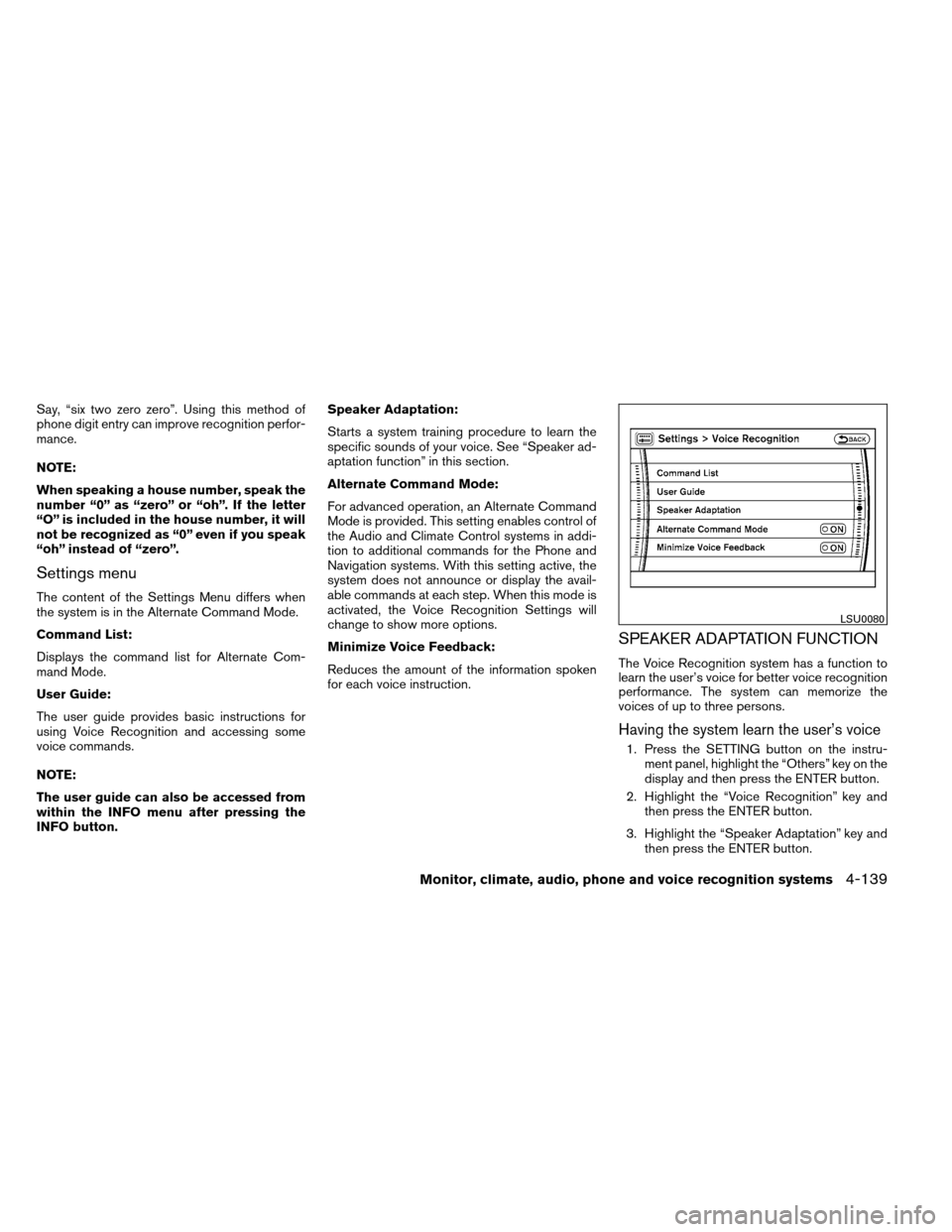
User Guide:
The user guide provides basic instructions for
using Voice Recognition and accessing some
voice commands.
NOTE:
The user guide can also be accessed from
within the INFO menu after pressing the
INFO button.Speaker Adaptation:
Starts a system training procedure to learn the
specific sounds of your voice. See “Speaker ad-
aptation function” in this section.
Alternate Command Mode:
For advanced operation, an Alternate Command
Mode is provided. This setting enables control of
the Audio and Climate Control systems in addi-
tion to additional commands for the Phone and
Navigation systems. With this setting active, the
system does not announce or display the avail-
able commands at each step. When this mode is
activated, the Voice Recognition Settings will
change to show more options.
Minimize Voice Feedback:
Reduces the amount of the information spoken
for each voice instruction.
SPEAKER ADAPTATION FUNCTION
The Voice Recognition system has a function to
learn the user’s voice for better voice recognition
performance. The system can memorize the
voices of up to three persons.
Having the system learn the user’s voice
1. Press the SETTING button on the instru-
ment panel, highlight the “Others” key on the
display and then press the ENTER button.
2. Highlight the “Voice Recognition” key and then press the ENTER button.
3. Highlight the “Speaker Adaptation” key and then press the ENTER button.
LSU0080
Monitor, climate, audio, phone and voice recognition systems4-139
Page 341 of 489
even if under-inflation has not reached the level to
trigger illumination of the TPMS low tire pressure
telltale.
Your vehicle has also been equipped with a
TPMS malfunction indicator to indicate when the
system is not operating properly. The TPMS mal-
function indicator is combined with the low tire
pressure telltale. When the system detects a
malfunction, the telltale will flash for approxi-
mately one minute and then remain continuously
illuminated. This sequence will continue upon
subsequent vehicle start-ups as long as the mal-
function exists. When the malfunction indicator is
illuminated, the system may not be able to detect
or signal low tire pressure as intended. TPMS
malfunctions may occur for a variety of reasons,
including the installation of replacement or alter-
nate tires or wheels on the vehicle that prevent
the TPMS from functioning properly. Always
check the TPMS malfunction telltale after replac-
ing one or more tires or wheels on your vehicle to
ensure that the replacement or alternate tires and
wheels allow the TPMS to continue to function
properly.
Additional information:● The TPMS does not monitor the tire
pressure of the spare tire. ●
The TPMS will activate only when the vehicle
is driven at speeds above 16 MPH (25
km/h) . Also, this system may not detect a
sudden drop in tire pressure (for example a
flat tire while driving) .
● The low tire pressure warning light does not
automatically turn off when the tire pressure
is adjusted in all 4 tires. After the tire is
inflated to the recommended pressure, the
vehicle must be driven at speeds above 16
MPH (25 km/h) to activate the TPMS and
turn off the low tire pressure warning light.
Use a tire pressure gauge to check the tire
pressure.
● The CHECK TIRE PRESSURE warning ap-
pears in the vehicle information display when
the low tire pressure warning light is illumi-
nated and low tire pressure is detected. The
CHECK TIRE PRESSURE warning turns off
when the low tire pressure warning light
turns off.
● The CHECK TIRE PRESSURE warning
does not appear if the low tire pressure
warning light illuminates to indicate a TPMS
malfunction. ●
Tire pressure rises and falls depending on
the heat caused by the vehicle’s operation
and the outside temperature. Low outside
temperature can lower the temperature of
the air inside the tire which can cause a
lower tire inflation pressure. This may cause
the low tire pressure warning light to illumi-
nate. If the warning light illuminates in low
ambient temperature, check the tire pres-
sure for all 4 tires.
● The Tire and Loading Information label (also
referred to as the vehicle placard or tire
inflation pressure label) is located in the
driver’s door opening.
● You can also check the pressure of all tires
(except the spare tire) on the display screen.
The order of the tire pressure figures dis-
played on the screen does not correspond
with the actual order of the tire position. See
“Tire pressure information” in the “Monitor,
climate, audio, phone, and voice recognition
systems” section.
For additional information, see “Low tire pressure
warning light” in the “Instruments and controls”
section, “Tire Pressure Monitoring System
(TPMS)” in the “In case of emergency” section.
5-4Starting and driving