2012 MINI COUPE ROADSTER CONVERTIBLE battery
[x] Cancel search: batteryPage 111 of 283
CONTROLSPractical interior accessories
110
Connecting electrical
appliances
In your MINI, when the engine is running or if the
ignition is switched on, you can use electrical
devices such as flashlights, car vacuum cleaners,
etc., up to approx. 140 watts at 12 volts, as long
as one of the following sockets is available.
Avoid damaging the sockets by attempting to
insert plugs of unsuitable shape or size.
Do not connect battery chargers to the
sockets installed in the vehicle at the
factory; otherwise you may cause damage to
the vehicle.<
Cigarette lighter socket
Remove the lighter or cover from the socket.
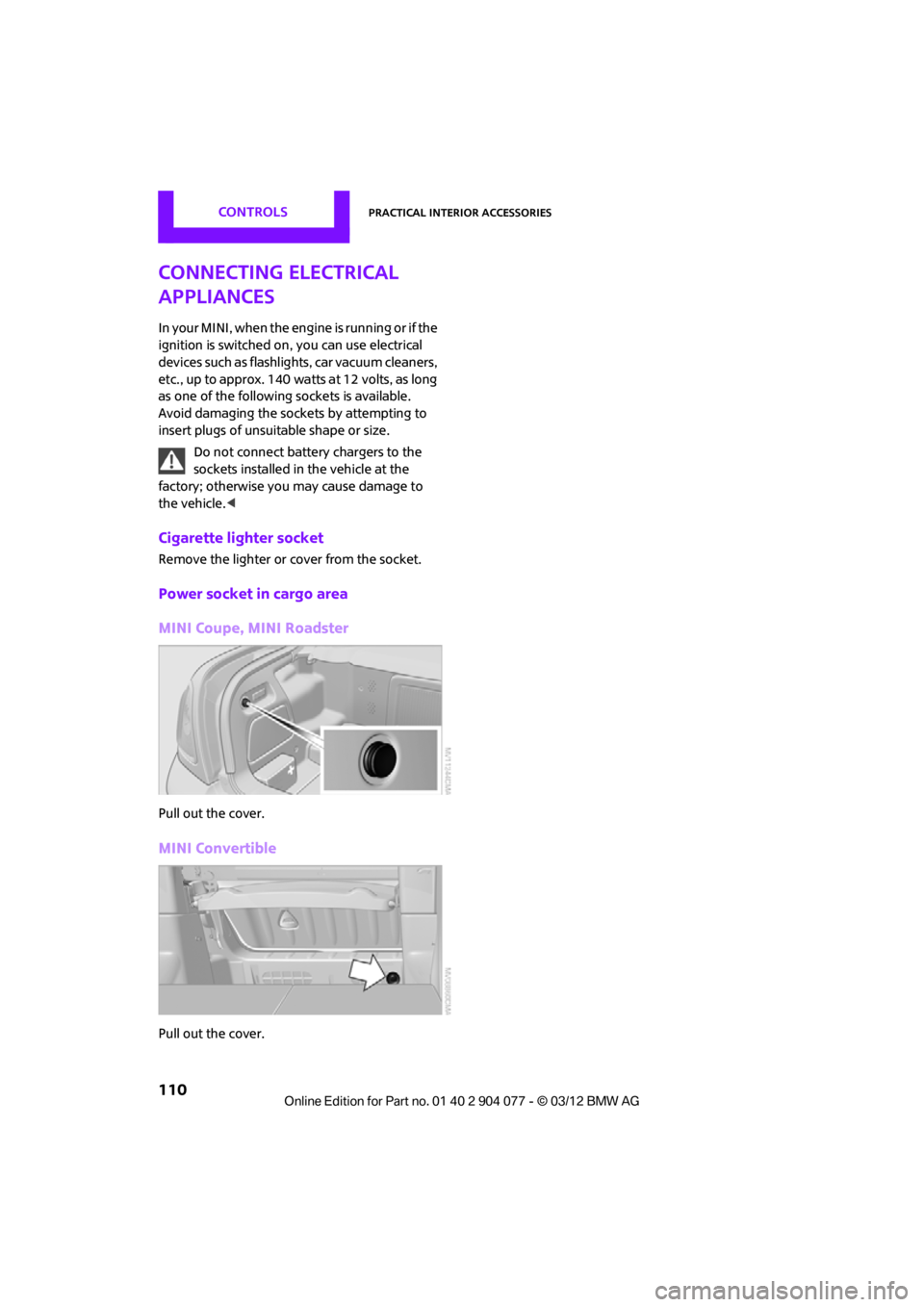
Power socket in cargo area
MINI Coupe, MINI Roadster
Pull out the cover.
MINI Convertible
Pull out the cover.
00320051004F004C00510048000300280047004C0057004C005200510003
Page 125 of 283

NAVIGATIONNavigation system
124
Navigation system
Vehicle equipment
In this chapter, all production, country, and
optional equipment that is offered in the model
range is described. Equipment is also described
that is not available because of, for example,
selected options or coun try version. This also
applies to safety relate d functions and systems.
General information
The navigation system can determine the pre-
cise position of the vehicle, with the aid of satel-
lites and vehicle sensors, and can reliably guide
you to every entered destination.
Enter data only with the vehicle station-
ary, and always give priority to the appli-
cable traffic regulations in the event of any con-
tradiction between traffic and road conditions
and the instructions issu ed by the navigation
system. Failure to take to this precaution can
place you in violation of the law and put vehicle
occupants and other ro ad users in danger.<
Selecting navigation
1."Navigation"
During route guidance, an arrow view or a map
view is displayed on the onboard computer.
Navigation data
Information on navigation data
1. "Navigation"
2. Open "Options".
3. "Navigation system version"
Information about the data version is displayed.
Updating the navigation data
General information
Navigation data are stored in the vehicle and
can be updated.
You may obtain current navigation data and the
enabling code at your MINI dealer.
Updating the data can take several hours,
depending on the volume of data.
> Update data while driving to reduce the
drain on the battery.
> The update is resumed automatically when
a trip is continued after an interruption.
> Only the main functions of the navigation
system are available during updating.
> You can inquire as to the status of the
update.
> The data are stored in the vehicle.
> After the updating process is complete, the
system restarts.
> The medium with the na vigation data can be
removed after the update.
00320051004F004C00510048000300280047004C0057004C005200510003
Page 144 of 283

What to do if…NAVIGATION
143
What to do if…
What to do if…
>The current position cannot be displayed?
The position is in an unrecognized region, in
a poor reception area, or the system is in the
process of determining the position. Recep-
tion is best when you have an unobstructed
view to the sky.
> The route guidance does not accept an
address without the street name?
A downtown area cannot be determined for
the town or city that has been entered. Input
any street in the select ed town/city and start
route guidance.
> The route guidance does not accept a
destination?
The destination data is not contained in the
navigation data. Select a destination that is
as close as possible to the original.
> The letters for a de stination cannot be
selected during destination entry?
Stored data do not contain the data of the
destination. Select a de stination that is as
close as possible to the original.
> The map view is displayed in grayscale?
When the traffic info map is activated, the
picture on the Control Display is switched to
a grayscale. This permits an optimized
depiction of traf fic information.
> Voice instructions ar e no longer issued
before intersections du ring route guidance?
The area has not been fully recorded yet, or
you have left the recommended route and
the system requires a few seconds to calcu-
late a new route suggestion.
> The navigation system does not react to
entries?
If the battery was disconnected, it takes
about 10 minutes before the system is once
again operational.
00320051004F004C00510048000300280047004C0057004C005200510003
Page 167 of 283

ENTERTAINMENTExternal devices
166
What to do if…
Information about suitable devices is available
at www.mini.com/connectivity.
Suitable mobile phones, refer to page 180.
Device not supported by vehicle.
> If necessary, perform a software update;
refer to page 166.
Device could not be paired or connected.
> Do the Bluetooth passkeys on the device
and vehicle match? Enter the same passkey
on the device and via the onboard
computer.
> A multi-digit passkey may be required.
> Is the passkey input taking longer than
30 seconds? Repeat th e pairing procedure.
> Are too many Bluetoot h devices connected
to the device or to the vehicle? If necessary,
delete the connections with other devices.
> Is the mobile phone in power economy
mode or does it only have a small amount of
battery charge remaining? Charge the
mobile phone in the snap-in adapter or via a
charging cable.
> Depending on the mobile phone, it may only
be possible to connect one device to the
vehicle. Unpair the connected device from
the vehicle and only pair and connect one
device.
> Is the device no longer responding? Switch
the device off an d back on again.
> Repeat the pairing procedure.
No music can be played.
> Start the program for playing music files on
the device and if necessary, select a track via
the device.
> Activate and deactivate the radio mute on
the radio control panel.
Music files only play quietly.
> Adjust volume settings on the device.
Videos cannot be played or can only be played
with a delayed audio output. >
Check the device compatibility. Information
is available at www.mini.com/connectivity.
Playback is interrupted by the press of a button
or other messages on the device.
> Switch off key tones and other acoustic
signal on the device.
Playback is interrupted by a phone call or traffic
report and does not automatically continue.
> Activate and deactivate the radio mute on
the radio control panel.
Playback is not possible when the mobile phone
is connected via Blueto oth audio and at the
same time via the extended connectivity of the
music player in the mobile phone.
> Disconnect one of the two connections, e.g.
the audio connection, refer to page 165,
and start playback again.
If you have gone through all items in the list and
still cannot activate the desired function please
contact the Hotline or your MINI dealer.
Software update
The vehicle supports various external devices,
depending on the software it is currently using.
A software update can enable the vehicle to
support, for example, new mobile phones or
new external devices.
Software updates and a ssociated, up-to-date
instructions are availa ble on the web page
www.mini.com/c onnectivity.
Displaying current version
The currently installed software is displayed.
1."Settings"
2. "Software update"
3. "Show current version"
Select the desired versio n to display additional
information.
00320051004F004C00510048000300280047004C0057004C005200510003
Page 173 of 283
COMMUNICATIONSHands-free device Bluetooth
172
>After identification, phone book entries are
imported from the mobile phone and/or SIM
card of the telephone, depending on the
telephone.
> Four mobile phones can be paired.
> Specific settings may be necessary in some
mobile phones, e.g. authorization or a
secure connection, re fer to the Owner's
Manual for the mobile phone.
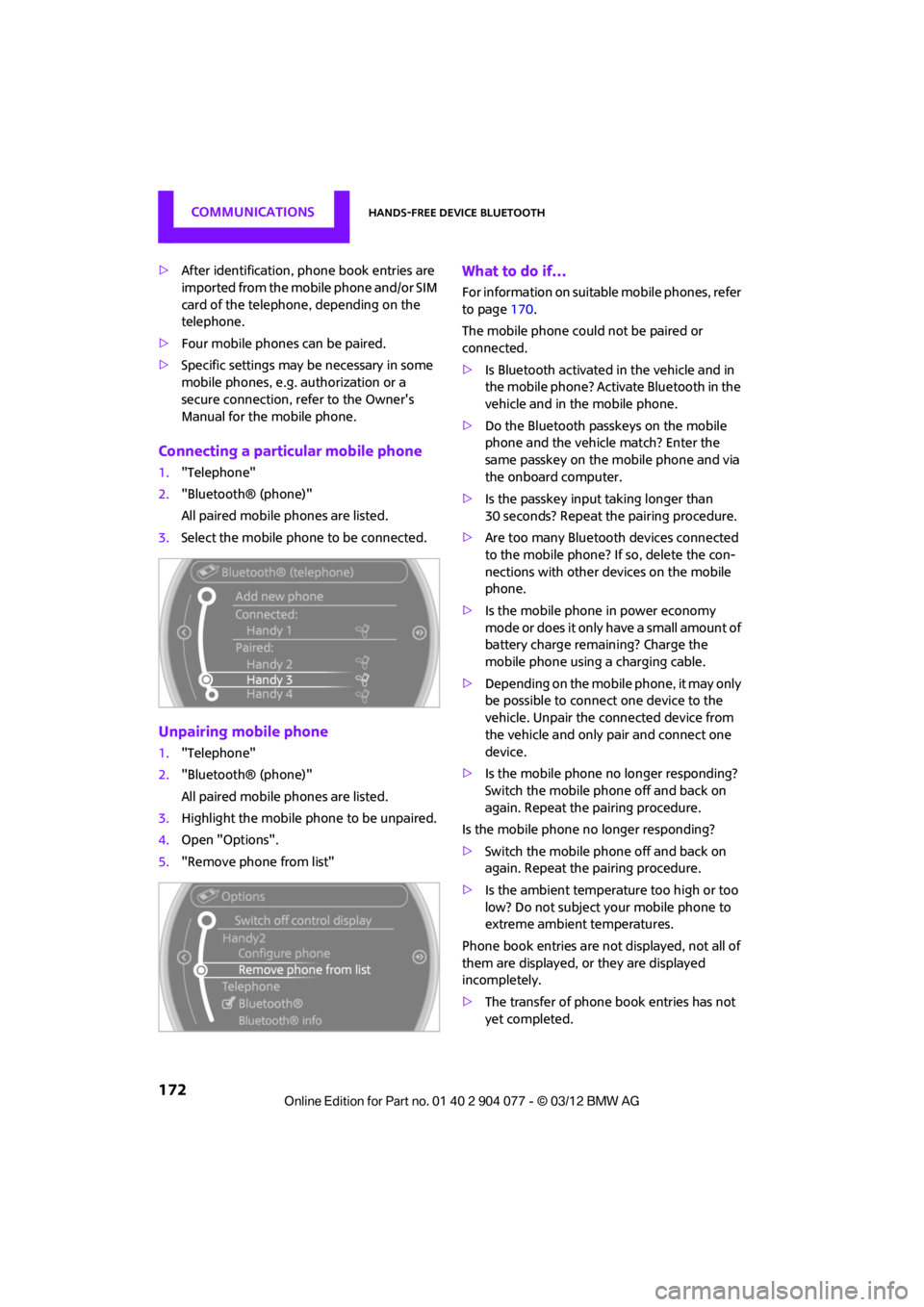
Connecting a particular mobile phone
1. "Telephone"
2. "Bluetooth® (phone)"
All paired mobile phones are listed.
3. Select the mobile phone to be connected.
Unpairing mobile phone
1."Telephone"
2. "Bluetooth® (phone)"
All paired mobile phones are listed.
3. Highlight the mobile phone to be unpaired.
4. Open "Options".
5. "Remove phone from list"
What to do if…
For information on suitab le mobile phones, refer
to page 170.
The mobile phone could not be paired or
connected.
> Is Bluetooth activated in the vehicle and in
the mobile phone? Activate Bluetooth in the
vehicle and in the mobile phone.
> Do the Bluetooth passkeys on the mobile
phone and the vehicle match? Enter the
same passkey on the mobile phone and via
the onboard computer.
> Is the passkey input taking longer than
30 seconds? Repeat th e pairing procedure.
> Are too many Bluetoot h devices connected
to the mobile phone? If so, delete the con-
nections with other devices on the mobile
phone.
> Is the mobile phone in power economy
m o d e o r d o e s i t o n l y have a small amount of
battery charge remaining? Charge the
mobile phone using a charging cable.
> Depending on the mobile phone, it may only
be possible to connect one device to the
vehicle. Unpair the connected device from
the vehicle and only pair and connect one
device.
> Is the mobile phone no longer responding?
Switch the mobile phone off and back on
again. Repeat the pairing procedure.
Is the mobile phone no longer responding?
> Switch the mobile phone off and back on
again. Repeat the pairing procedure.
> Is the ambient temperature too high or too
low? Do not subject your mobile phone to
extreme ambient temperatures.
Phone book entries are not displayed, not all of
them are displayed, or they are displayed
incompletely.
> The transfer of phone book entries has not
yet completed.
00320051004F004C00510048000300280047004C0057004C005200510003
Page 181 of 283
COMMUNICATIONSMobile phone preparation Bluetooth
180
Mobile phone preparation Bluetooth
Vehicle equipment
In this chapter, all production, country, and
optional equipment that is offered in the model
range is described. Equipment is also described
that is not available because of, for example,
selected options or coun try version. This also
applies to safety relate d functions and systems.
Overview
The concept
Mobile phones or other external devices, e.g.
audio players, can be connected to the vehicle
via Bluetooth.
Bluetooth® is a registered trademark of Blue-
tooth® SIG, Inc.
After being paired once, when the ignition is
switched on, these devices are automatically
detected as soon as they are present in the
vehicle and can be controlled via the onboard
computer, the buttons on the steering wheel,
and by voice.
Depending on whether they are functioning as a
telephone and/or as an audio source, external
devices can be used via the vehicle. The tele-
phone functions will be described below. Oper-
ation of audio functions, refer to page 163.
It may be necessary for some functions to be
activated by the mobile phone provider.
Only make entries when traffic conditions
permit. Do not hold the mobile phone in
your hand while you are driving; use the hands-
free system instead. If you do not observe this
precaution, your being distracted can endanger
vehicle occupants and other road users. <
Snap-in adapter
The snap-in adapter, refer to page191, makes it
possible to:
> Accommodate the mobile phone.
> Recharge its battery.
> Connect it to an exte rnal antenna of the
vehicle.
This assures a better network connection
and constant sound quality.
A mobile phone that is connected to the vehicle
should not be operated via the mobile phone
keypad; otherwise, ma lfunctions may occur.
Suitable mobile phones
For precise information as to which mobile
phones and external devices with Bluetooth
interfaces are supported by the mobile phone
preparation package, go to www.mini.com/
connectivity.
With a certain software version, these suitable
mobile phones support the vehicle functions
described below.
With other mobile phones or software versions,
malfunctions may occur.
It is possible to perform a software update, refer
to page 166.
Displaying vehicle identification number
and software part number
Checking which mobile phones are supported
by the mobile phone preparation requires the
vehicle identification number and software part
number. The software version of the mobile
phone may also be required.
1."Telephone"
2. Open "Options".
3. "Bluetooth® info"
4. "Display system information"
00320051004F004C00510048000300280047004C0057004C005200510003
Page 185 of 283
COMMUNICATIONSMobile phone preparation Bluetooth
184
Activate and connect the mobile phone in
vehicle, refer to page 182.
The mobile phone is used as an audio source if
no other device is connected as an audio source.
If a device is already connected as an audio
source:
1. Activate and connect the mobile phone in
vehicle, refer to page 182.
2. "Use for audio"
The mobile phone is connected as an audio
source. The previous audio source is no
longer connected to the vehicle.
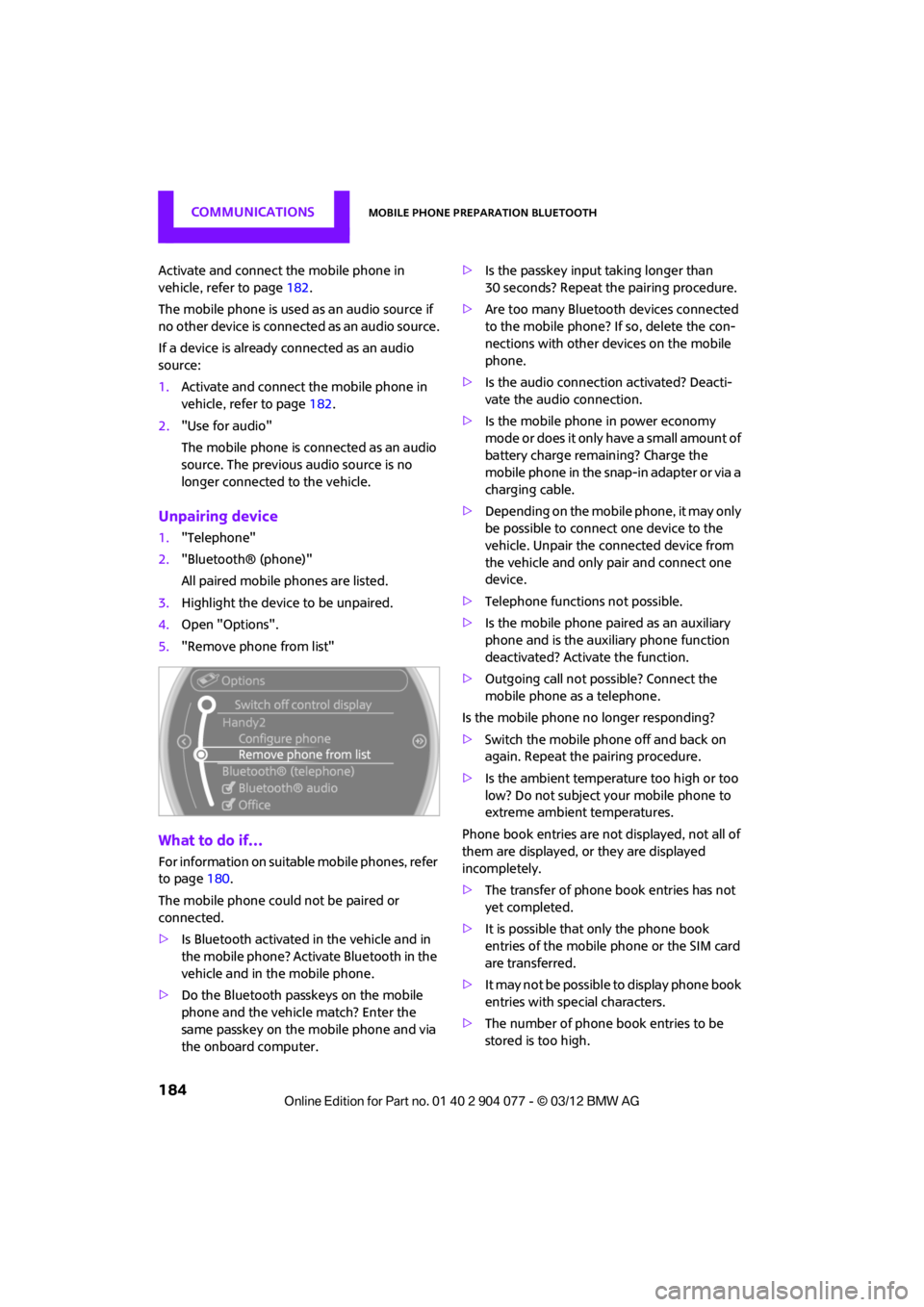
Unpairing device
1."Telephone"
2. "Bluetooth® (phone)"
All paired mobile phones are listed.
3. Highlight the device to be unpaired.
4. Open "Options".
5. "Remove phone from list"
What to do if…
For information on suitab le mobile phones, refer
to page 180.
The mobile phone could not be paired or
connected.
> Is Bluetooth activated in the vehicle and in
the mobile phone? Activate Bluetooth in the
vehicle and in the mobile phone.
> Do the Bluetooth passkeys on the mobile
phone and the vehicle match? Enter the
same passkey on the mobile phone and via
the onboard computer. >
Is the passkey input taking longer than
30 seconds? Repeat th e pairing procedure.
> Are too many Bluetoot h devices connected
to the mobile phone? If so, delete the con-
nections with other devices on the mobile
phone.
> Is the audio connection activated? Deacti-
vate the audio connection.
> Is the mobile phone in power economy
m o d e o r d o e s i t o n l y have a small amount of
battery charge remaining? Charge the
mobile phone in the snap-in adapter or via a
charging cable.
> Depending on the mobile phone, it may only
be possible to connect one device to the
vehicle. Unpair the connected device from
the vehicle and only pair and connect one
device.
> Telephone functions not possible.
> Is the mobile phone paired as an auxiliary
phone and is the auxiliary phone function
deactivated? Activate the function.
> Outgoing call not possible? Connect the
mobile phone as a telephone.
Is the mobile phone no longer responding?
> Switch the mobile phone off and back on
again. Repeat the pairing procedure.
> Is the ambient temperature too high or too
low? Do not subject your mobile phone to
extreme ambient temperatures.
Phone book entries are not displayed, not all of
them are displayed, or they are displayed
incompletely.
> The transfer of phone book entries has not
yet completed.
> It is possible that only the phone book
entries of the mobile phone or the SIM card
are transferred.
> It may not be possible to display phone book
entries with special characters.
> The number of phone book entries to be
stored is too high.
00320051004F004C00510048000300280047004C0057004C005200510003
Page 222 of 283
Engine compartmentMOBILITY
221
Engine compartment
Vehicle equipment
In this chapter, all production, country, and
optional equipment that is offered in the model
range is described. Equipment is also described
that is not available because of, for example,
selected options or count ry version. This also
applies to safety related functions and systems.
General information
Never attempt to perform any service or
repair operations on your vehicle without
the required professional technical training. If
you do not know how to follow the specified
instructions, then have the work carried out
by your MINI dealer. If this work is not carried
out properly, there is a danger of subsequent
damage and related safety hazards. <
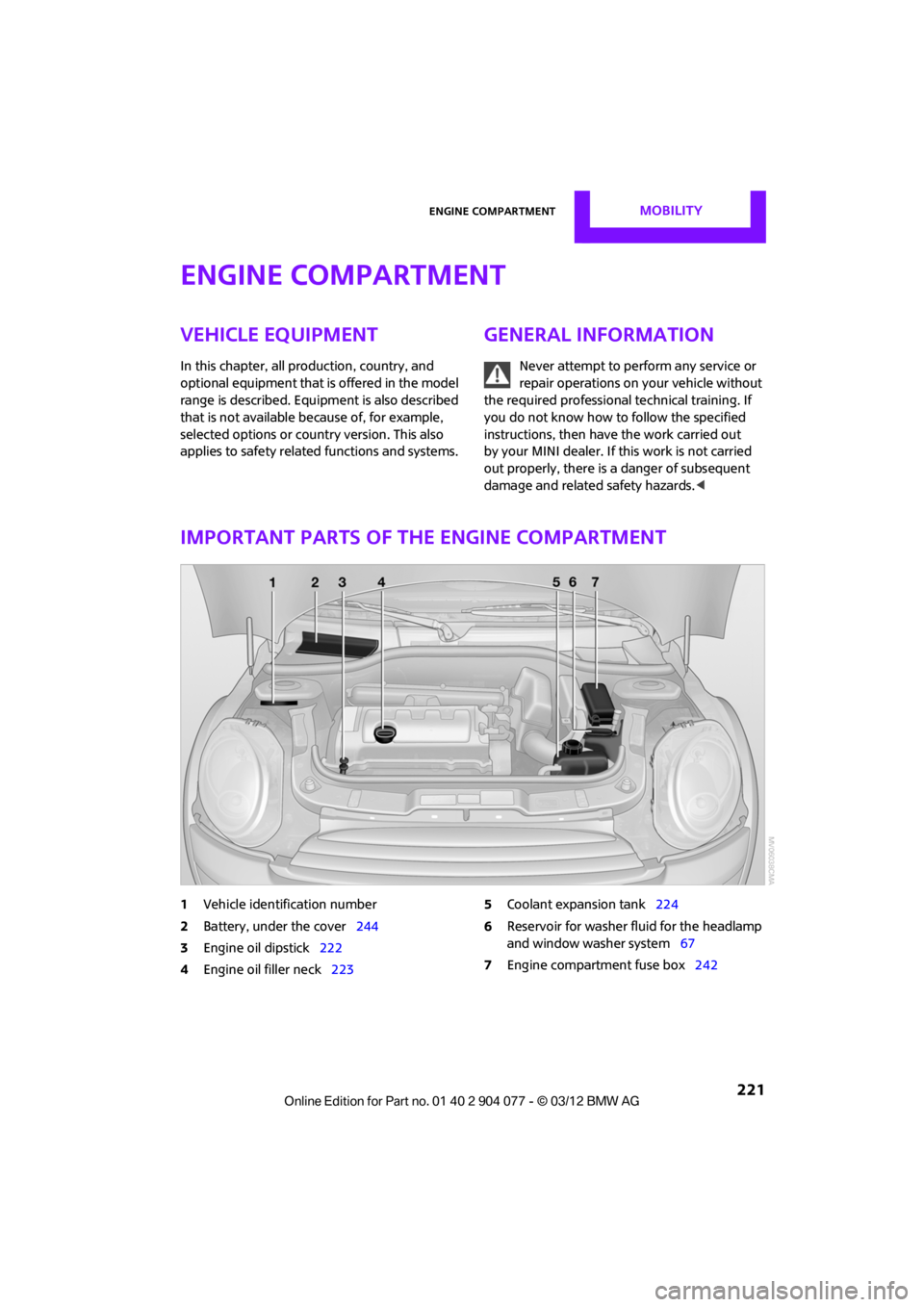
Important parts of the engine compartment
1Vehicle identification number
2 Battery, under the cover 244
3 Engine oil dipstick 222
4 Engine oil filler neck 223 5
Coolant expansion tank 224
6 Reservoir for washer fl uid for the headlamp
and window washer system 67
7 Engine compartment fuse box 242
00320051004F004C00510048000300280047004C0057004C005200510003