2012 MINI COUPE ROADSTER CONVERTIBLE stop start
[x] Cancel search: stop startPage 93 of 283

CONTROLSTechnology for driving comfort and safety
92
Declaration according to NHTSA/
FMVSS 138 Tire Pressure Monitoring
Systems
Each tire, including the spare, should be
checked monthly when cold and inflated to the
inflation pressure recommended by the vehicle
manufacturer on the vehicle placard or tire infla-
tion pressure label. If your vehicle has tires of a
different size than the size indicated on the vehi-
cle placard or tire inflation pressure label, you
should determine the proper tire inflation pres-
sure for those tires. As an added safety feature,
your vehicle has been equipped with a tire pres-
sure monitoring system TPMS that illuminates a
low tire pressure telltal e when one or more of
your tires are significantly underinflated.
Accordingly, when the low tire pressure telltale
illuminates, you should st op and check your tires
as soon as possible, and inflate them to the
proper pressure. Driving on a significantly
underinflated tire causes the tire to overheat
and can lead to tire fail ure. Underinflation also
reduces fuel efficiency and tire tread life and
may affect the vehicle’s handling and stopping
ability. Please note that the TPMS is not a substi-
tute for proper tire maintenance, and it is the
driver’s responsibility to maintain correct tire
pressure, even if underi nflation has not reached
the level sufficient to trigger illumination of the
TPMS low tire pressure telltale. The TPMS malfunction indicator is combined
with the low tire pressure telltale. When the sys-
tem detects a malfunction, the telltale will flash
for approximately one minute and then remain
continuously lit. This
sequence will continue
upon subsequent vehicle startups as long as the
malfunction exists. When the malfunction indi-
cator is illuminated, the system may not be able
to detect or signal low tire pressure as intended.
TPMS malfunctions may occur for a variety of
reasons, including the installation of replace-
ment or alternate tires or wheels on the vehicle
that prevent the TPMS from functioning prop-
erly. Always check the TP MS malfunction telltale
after replacing one or mo re tires or wheels on
your vehicle to ensure that the replacement or
alternate tires and wheels allow the TPMS to
continue to function properly.
00320051004F004C00510048000300280047004C0057004C005200510003
Page 100 of 283

LampsCONTROLS
99
>Turn on rear fog lamps:
Press the switch downward
To switch them off, pre ss the switch upward or
downward again.
Front fog lamps
The parking lamps or low beams must be
switched on for the fog lamps to operate. The
green indicator lamp lights up when the fog
lamps are switched on.
Depending on your vehicle's equipment, the fog
lamps are switched off when you activate the
headlamp flasher or switch on the high beams.
If the automatic headlamp control is acti-
vated, the low beams will come on auto-
matically when you switch on the fog lamps. <
Rear fog lamp
The low beams or parking lamps with fog lamps
must be switched on. The yellow indicator lamp
comes on when the rear fog lamp is switched on.
Instrument lighting
You can adjust the brightness of the instrument
lighting only when the parking lamps or the low
beams are on.
The intensity of the brightness changes up to a
predetermined end point, and then decreases.
Adjusting brightness
>Briefly press button: brightness changes in
stages.
> Press and hold the button. Brightness
changes in a continuous manner.
Interior lamps
The interior lighting, the footwell lamps and the
luggage compartment lighting are automati-
cally controlled.
To reduce the drain on the battery, a short
while after the ignition is switched off,
refer to Start/Stop button on page 60, all lights in
the vehicle's passenger compartment are
switched off. <
Switching interior lamps on/off manually
To switch the interior lamps on/off.
Press the switch.
To switch off the interior lamps permanently,
press the switch for about 3 seconds.
Reading lamps
To switch the readin g lamps on and off.
Press the switch.
00320051004F004C00510048000300280047004C0057004C005200510003
Page 136 of 283
Route guidanceNAVIGATION
135
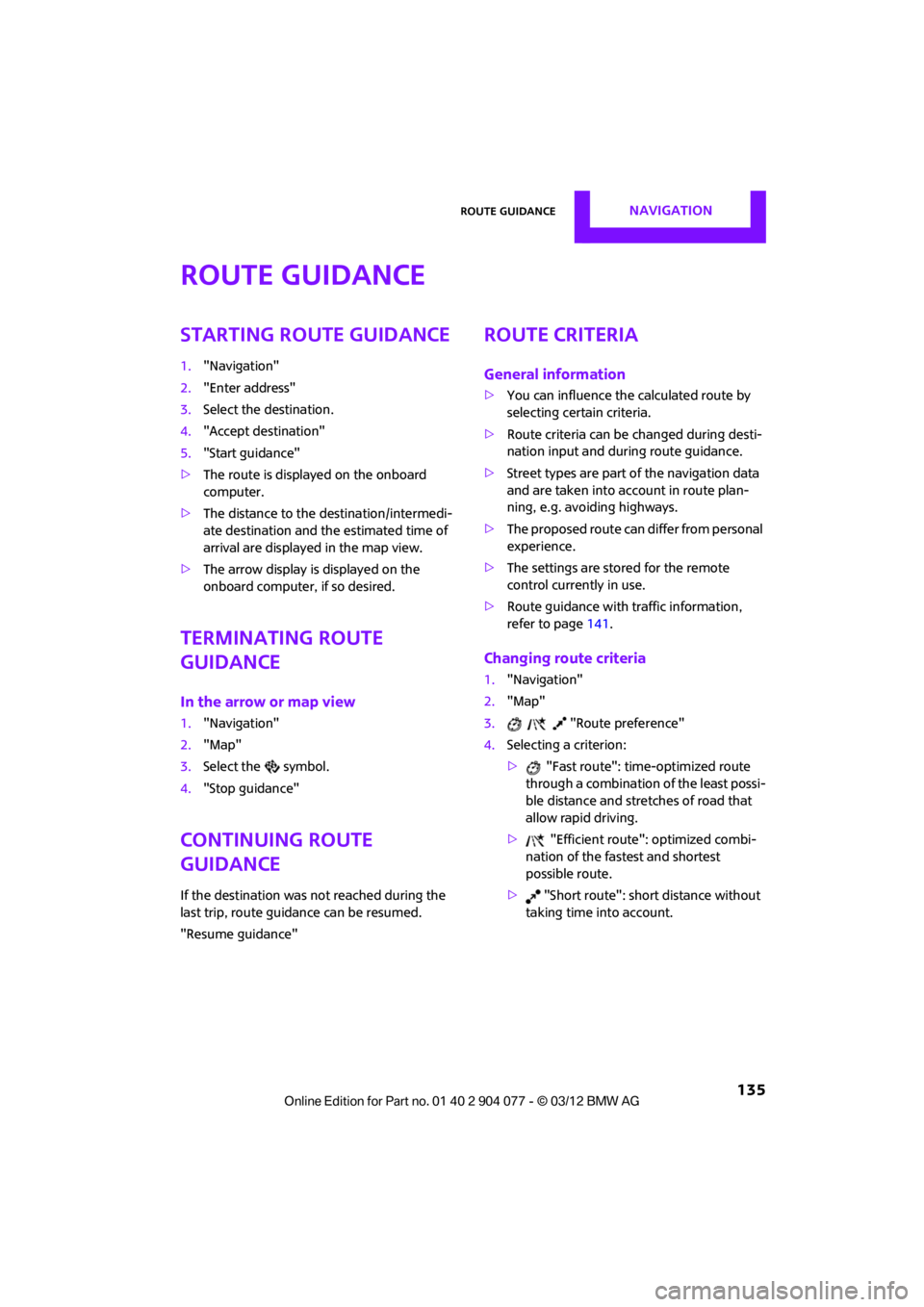
Route guidance
Starting route guidance
1."Navigation"
2. "Enter address"
3. Select the destination.
4. "Accept destination"
5. "Start guidance"
> The route is displayed on the onboard
computer.
> The distance to the destination/intermedi-
ate destination and th e estimated time of
arrival are displayed in the map view.
> The arrow display is displayed on the
onboard computer, if so desired.
Terminating route
guidance
In the arrow or map view
1."Navigation"
2. "Map"
3. Select the symbol.
4. "Stop guidance"
Continuing route
guidance
If the destination was not reached during the
last trip, route guid ance can be resumed.
"Resume guidance"
Route criteria
General information
> You can influence the calculated route by
selecting certain criteria.
> Route criteria can be changed during desti-
nation input and during route guidance.
> Street types are part of the navigation data
and are taken into account in route plan-
ning, e.g. avoiding highways.
> The proposed route can differ from personal
experience.
> The settings are stored for the remote
control currently in use.
> Route guidance with traffic information,
refer to page 141.
Changing route criteria
1."Navigation"
2. "Map"
3. "Route preference"
4. Selecting a criterion:
> "Fast route": time-optimized route
through a combination of the least possi-
ble distance and stre tches of road that
allow rapid driving.
> "Efficient route": optimized combi-
nation of the fastest and shortest
possible route.
> "Short route": shor t distance without
taking time into account.
00320051004F004C00510048000300280047004C0057004C005200510003
Page 139 of 283
NAVIGATIONRoute guidance
138
Planned route
After route guidance is started, the planned
route is displayed on the map.
Status boxes
Show/hide: press the MINI joystick.
>Upper status box: time, phone details, and
entertainment details.
> Lower status box: symb ol for active route
guidance, traffic inform ation status, arrival
time, and distance from destination.
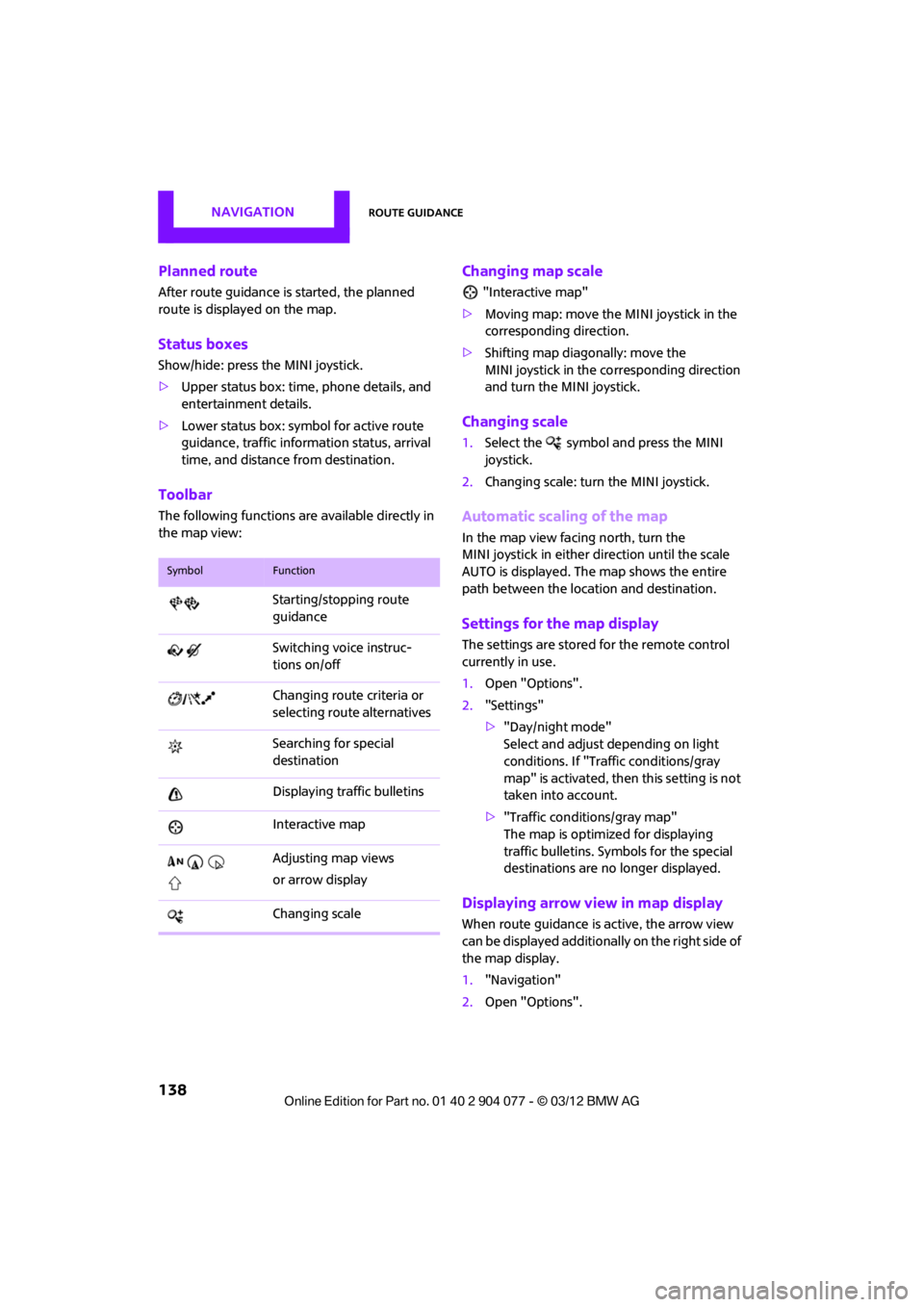
Toolbar
The following functions ar e available directly in
the map view:
Changing map scale
"Interactive map"
> Moving map: move the MINI joystick in the
corresponding direction.
> Shifting map diagonally: move the
MINI joystick in the co rresponding direction
and turn the MINI joystick.
Changing scale
1. Select the symbol and press the MINI
joystick.
2. Changing scale: turn the MINI joystick.
Automatic scaling of the map
In the map view facing north, turn the
MINI joystick in either direction until the scale
AUTO is displayed. The map shows the entire
path between the location and destination.
Settings for the map display
The settings are stored for the remote control
currently in use.
1.Open "Options".
2. "Settings"
>"Day/night mode"
Select and adjust depending on light
conditions. If "Traffic conditions/gray
map" is activated, then this setting is not
taken into account.
> "Traffic conditions/gray map"
The map is optimize d for displaying
traffic bulletins. Symbols for the special
destinations are no longer displayed.
Displaying arrow view in map display
When route guidance is active, the arrow view
can be displayed additionally on the right side of
the map display.
1. "Navigation"
2. Open "Options".
SymbolFunction
Starting/stopping route
guidance
Switching voice instruc-
tions on/off
Changing route criteria or
selecting route alternatives
Searching for special
destination
Displaying traffic bulletins
Interactive map
Adjusting map views
or arrow display
Changing scale
00320051004F004C00510048000300280047004C0057004C005200510003
Page 168 of 283
External devicesENTERTAINMENT
167
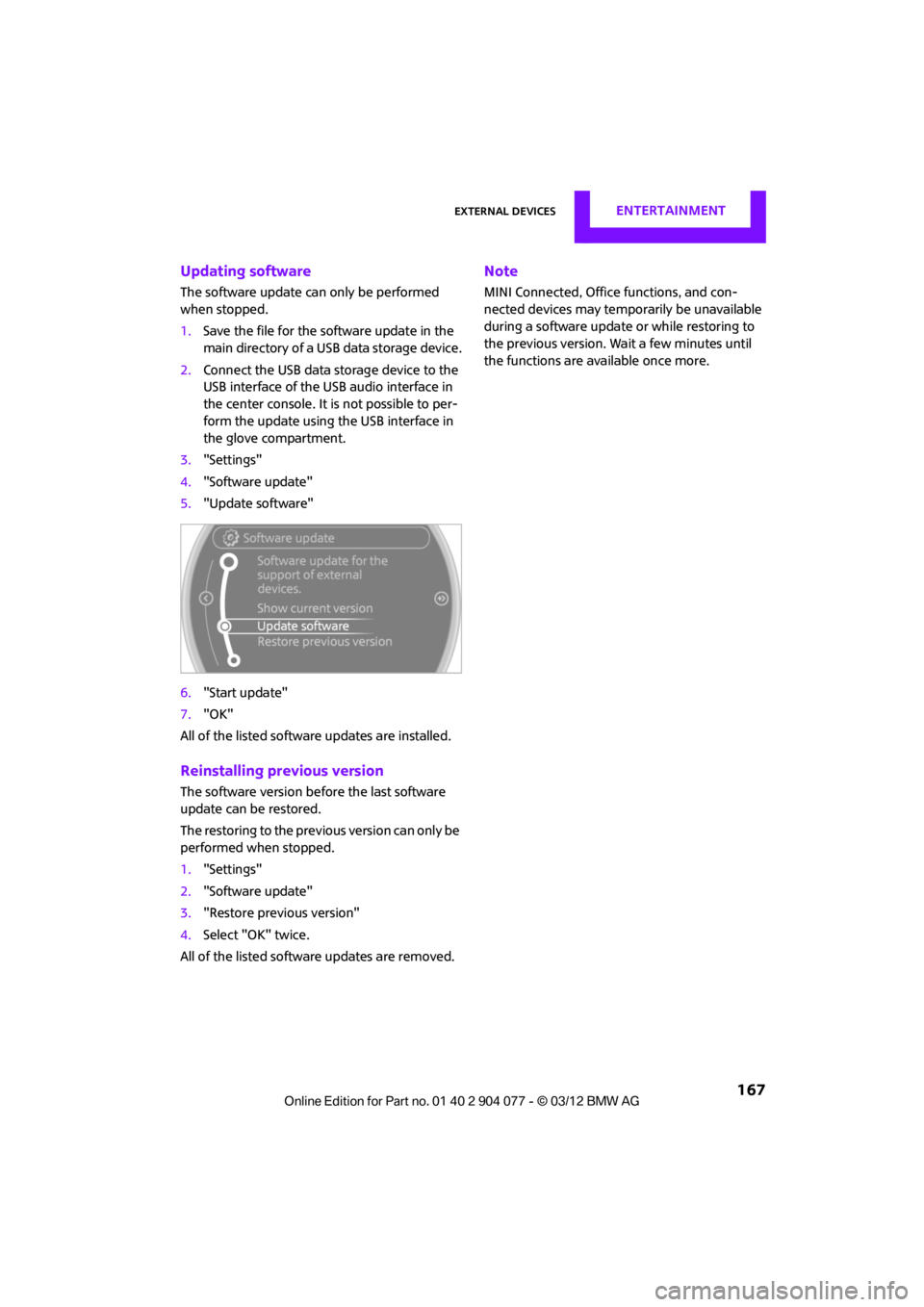
Updating software
The software update can only be performed
when stopped.
1.Save the file for the software update in the
main directory of a USB data storage device.
2. Connect the USB data storage device to the
USB interface of the USB audio interface in
the center console. It is not possible to per-
form the update using the USB interface in
the glove compartment.
3. "Settings"
4. "Software update"
5. "Update software"
6. "Start update"
7. "OK"
All of the listed software updates are installed.
Reinstalling previous version
The software version befo re the last software
update can be restored.
The restoring to the previous version can only be
performed when stopped.
1. "Settings"
2. "Software update"
3. "Restore previous version"
4. Select "OK" twice.
All of the listed software updates are removed.
Note
MINI Connected, Office functions, and con-
nected devices may temporarily be unavailable
during a software update or while restoring to
the previous version. Wait a few minutes until
the functions are available once more.
00320051004F004C00510048000300280047004C0057004C005200510003
Page 247 of 283
MOBILITYGiving and receiving assistance
246
Only attach the tow bar to the tow fittings,
as attachment to other vehicle parts can
lead to damage. <
Towing with a tow rope
When starting off in the towing vehicle, make
sure that the tow rope is taut.
To avoid jerking and the associated
stresses on vehicle components when
towing, always use nylon ropes or nylon straps.
Attach the tow rope to the tow fittings only, as
attaching it to other pa rts of the vehicle could
result in damage. <
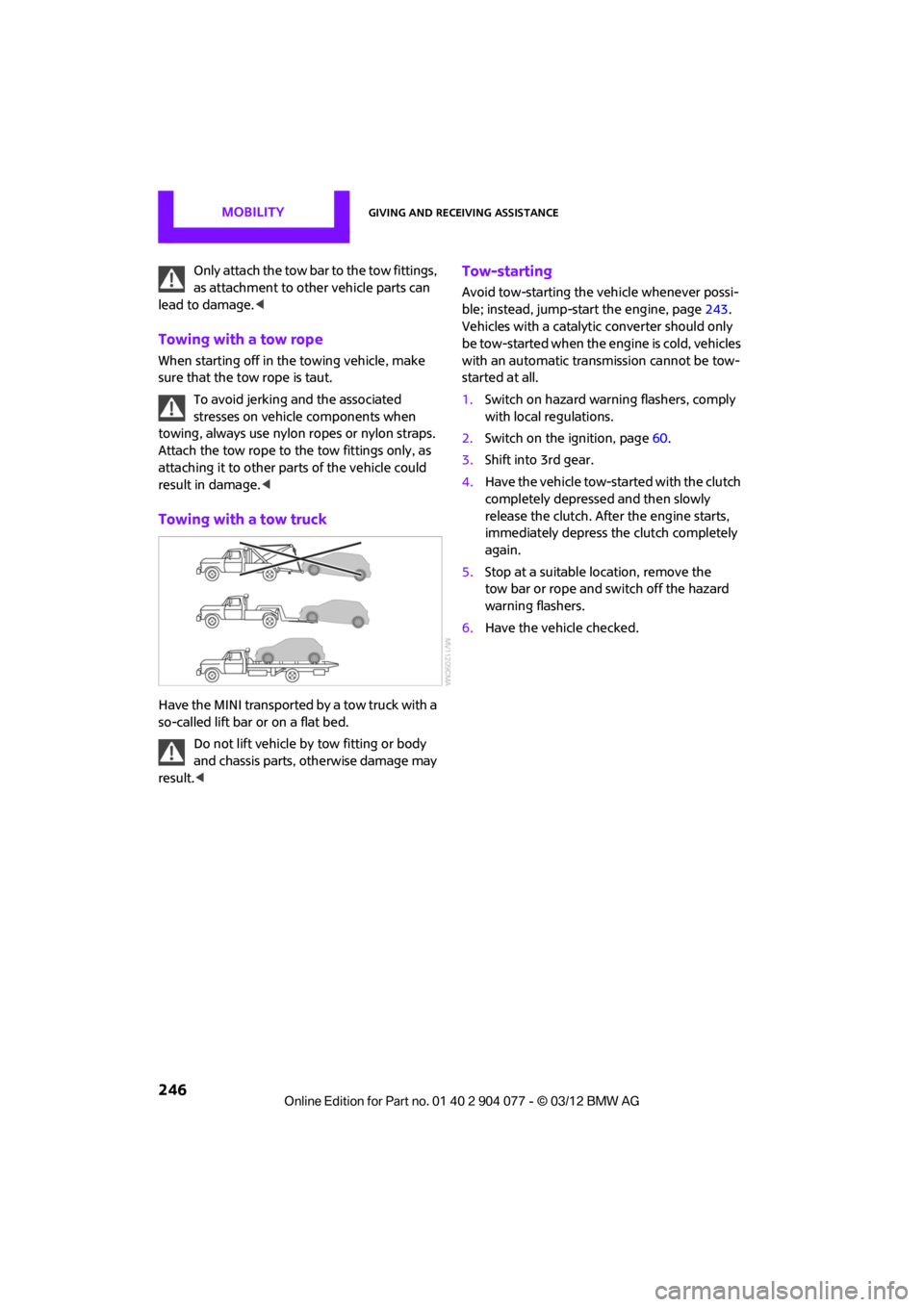
Towing with a tow truck
Have the MINI transported by a tow truck with a
so-called lift bar or on a flat bed.
Do not lift vehicle by tow fitting or body
and chassis parts, otherwise damage may
result. <
Tow-starting
Avoid tow-starting the vehicle whenever possi-
ble; instead, jump-start the engine, page 243.
Vehicles with a catalyti c converter should only
be tow-started when the engine is cold, vehicles
with an automatic transmission cannot be tow-
started at all.
1. Switch on hazard warning flashers, comply
with local regulations.
2. Switch on the ignition, page 60.
3. Shift into 3rd gear.
4. Have the vehicle tow-started with the clutch
completely depressed and then slowly
release the clutch. After the engine starts,
immediately depress the clutch completely
again.
5. Stop at a suitable location, remove the
tow bar or rope and switch off the hazard
warning flashers.
6. Have the vehicle checked.
00320051004F004C00510048000300280047004C0057004C005200510003
Page 265 of 283
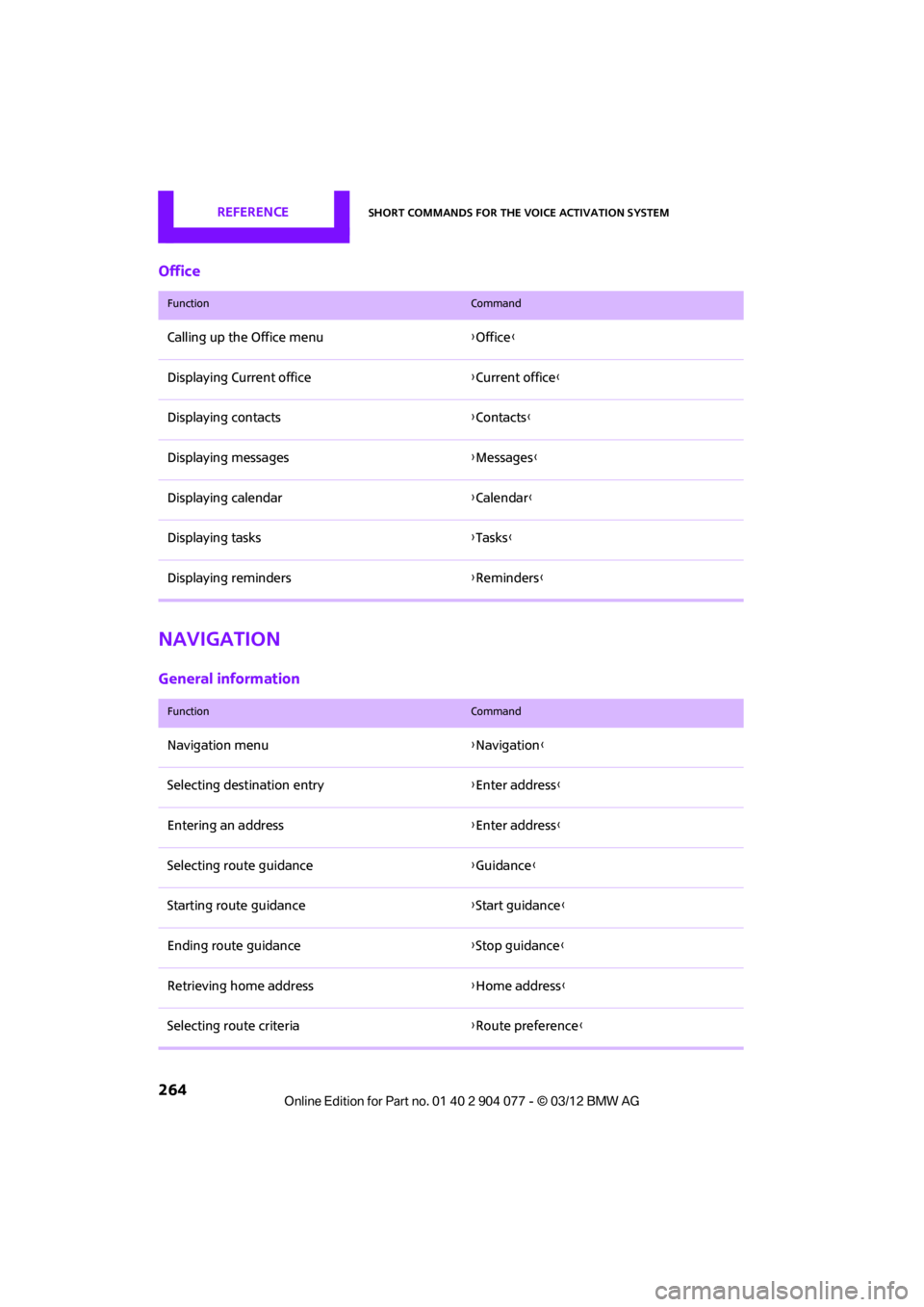
REFERENCEShort commands for the voice activation system
264
Office
Navigation
General information
FunctionCommand
Calling up the Office menu{Office }
Displaying Current office {Current office }
Displaying contacts {Contacts }
Displaying messages {Messages }
Displaying calendar {Calendar}
Displaying tasks {Tasks }
Displaying reminders {Reminders }
FunctionCommand
Navigation menu {Navigation }
Selecting destination entry {Enter address}
Entering an address {Enter address}
Selecting route guidance {Guidance }
Starting route guidance {Start guidance }
Ending route guidance {Stop guidance }
Retrieving home address {Home address }
Selecting route criteria {Route preference }
00320051004F004C00510048000300280047004C0057004C005200510003
Page 279 of 283

REFERENCEEverything from A to Z
278
Shiftlock
– automatic transmission, refer to Changing selector lever
positions 63
Short commands for the voice activation system 260
Short route in navigation, refer
to Selecting route 135
Shuffled, refer to Random
– CD player 158
Side airbags 93
Side turn signal
– replacing bulb 235
Side windows, refer to Windows 38
Signal horn, refer to Horn 10
Sitting safely 50
– airbags 50
– safety belts 50
– with head restraint 50
Size, refer to Dimensions 251
Slipstream deflector, refer to
Wind deflector 43,48
Slot for remote control 60
Smokers' package, refer to
Ashtray 109
Snap-in adapter
– inserting/removing 191
– use 180
Snap-in adapter, refer to
Center armrest storage
compartment 108
Snow chains 220
Socket, refer to Connecting electrical appliances 110
Socket for On-Board Diagnosis
OBD 226
Software update 166
Space-saver spare tire
– changing tires 239
– inflation pressure 209
Spare wheel, refer to Space-
saver spare tire 239 Speaking, refer to Voice
instructions from navigation
system 139
Special destinations 130
Special oils, refer to Approved engine oils 223
Speed 250
– with winter tires 220
Speed limit 79
– setting 79
Speed limit warning, refer to Speed limit 79
Speedo, refer to
Speedometer 12
Speedometer 12
Speed volume 147
Split-folding rear seats 118
Split rear backrest, refer to Split-folding rear seats 118
Sport button 85
Stability contro l, refer to
Dri v
ing
stability control
systems 83
Start/Stop button 60
– starting the engine 61
– switching off the engine 61
Starting, refer to Starting the engine 61
Starting assistance, refer to Jump-starting 243
Starting route guidance 135
Starting the engine 61
– Start/Stop button 60
Start-off assistance, refer to
– DSC 83
– Hill Assist 85
State/province, for navigation 126
Station, selecting
– radio 149
Status information on the Control Display 21
Status of this Owner's Manual at time of printing 4Steering wheel
55
– adjustment 55
– buttons on steering wheel 11
– lock 60
– shift paddles 64
Steptronic, refer to Automatic transmission with
Steptronic 62
Storage area
– cargo area 116
Storage compartment, front passenger side 108
Storage compartments 108
Storage space
– storage compartments 108
Storage space, refer to
– luggage compartment in the MINI Convertible 117
Storing a destination in the
address book 128
Storing the vehicle 230
Storing tires 220
Stowage, refer to Storage compartments 108
Summer tires, refer to Wheels
and tires 209
SW, waveband 149
Switches, refer to Cockpit 10
Switching off
– engine 61
Switching off the engine 61
– Start/Stop button 60
Switching on
– audio 146
– CD player 146
– radio 146
Switching the cooling function on and off 105
Symb ols4
–
status information 21
00320051004F004C00510048000300280047004C0057004C005200510003