2012 MINI COUPE ROADSTER CONVERTIBLE service
[x] Cancel search: servicePage 122 of 283
Things to remember when drivingDRIVING TIPS
121
Avoid high engine speeds
Use first gear only for driving off. In second and
higher gears, accelerate smoothly to a suitable
engine and road speed. In doing so, avoid high
engine speeds and shift up early.
When you reach your desired traveling speed,
shift to the highest suitable gear and drive at
constant speed.
As a rule: driving at lo w engine speeds lowers
fuel consumption and reduces wear.
Coasting
When approaching a red traffic light, take your
foot off the accelerator and let the car roll to a
stop in the highest gear possible.
On a downhill gradient, take your foot off the
accelerator and let the vehi cle coast in a suitable
gear.
Fuel supply is shut off automatically when the
vehicle is coasting.
Switch off the engine during lengthy
stops
Switch off the engine when stopping for lengthy
periods, e.g. at traffic lights, railroad crossings or
in traffic jams.
Switch off any features that are not
currently required
Features such as air conditioning, seat heaters
and the rear window defroster require a great
deal of energy and result in greater fuel con-
sumption, especially in city driving and during
Stop & Go operation. For this reason, switch off
these features if they are not really needed.
Have the vehicle serviced
Have your vehicle serviced regularly to achieve
good economy and a long vehicle life. The man-
ufacturer of your MINI recommends having the
vehicle serviced by a MINI dealer. Also note the
MINI Maintenance System, page 225.
00320051004F004C00510048000300280047004C0057004C005200510003
Page 138 of 283
Route guidanceNAVIGATION
137
1."Navigation"
2. "Route information"
3. "New route for:"
4. Turn the MINI joystick: enter the desired
mileage.
5. Press the MINI joystick.
Resuming the original route
If the route section should no longer be
bypassed:
1."Navigation"
2. "Route information"
3. "New route for:"
4. "Remove blocking"
Recommended refueling
The remaining driving ra nge is calculated, and
gas stations along the route are shown.
Even with the latest navigation data, informa-
tion on various points of interest may have
changed, e.g., service st ations may not be in
operation.
1. "Navigation"
2. "Route information"
3. "Recommended refuel"
A list of gas stations is displayed.
4. Select a gas station.
5. Select the symbol.
6. "Start guidance": th e guidance to the
selected gas station is started.
"Add as another destination": the gas sta-
tion is included in the route.
Map display
Displaying map view
1. "Navigation"
2. "Map"
Overview
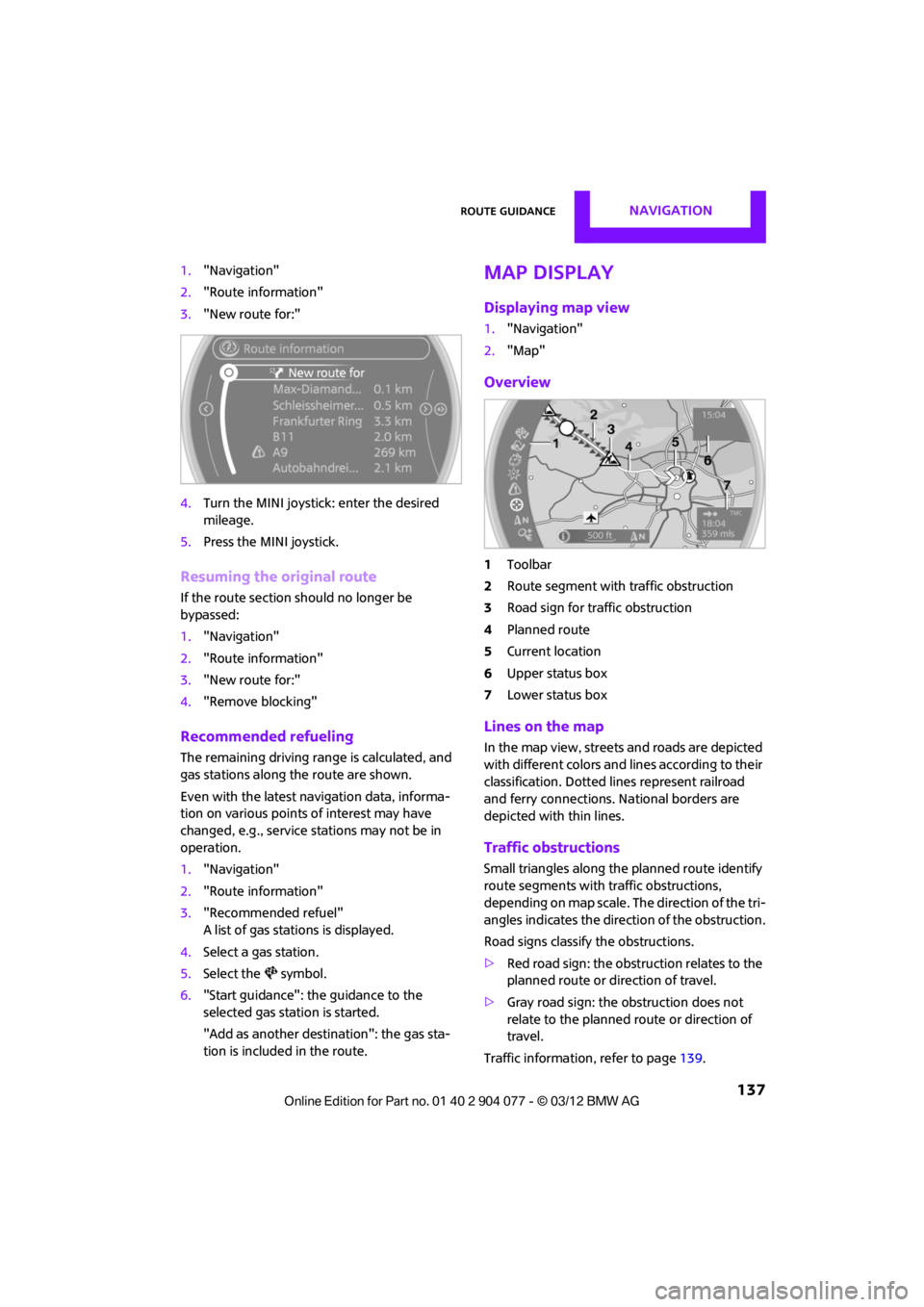
1Toolbar
2 Route segment with traffic obstruction
3 Road sign for traffic obstruction
4 Planned route
5 Current location
6 Upper status box
7 Lower status box
Lines on the map
In the map view, streets and roads are depicted
with different colors and lines according to their
classification. Dotted lines represent railroad
and ferry connections. National borders are
depicted with thin lines.
Traffic obstructions
Small triangles along the planned route identify
route segments with traffic obstructions,
depending on map scale. The direction of the tri-
angles indicates the dire ction of the obstruction.
Road signs classify the obstructions.
> Red road sign: the obstruction relates to the
planned route or direction of travel.
> Gray road sign: the obstruction does not
relate to the planned route or direction of
travel.
Traffic information, refer to page 139.
00320051004F004C00510048000300280047004C0057004C005200510003
Page 142 of 283
Route guidanceNAVIGATION
141
Traffic bulletins in the map
When the traffic info map is activated, the
picture on the Control Display is switched to a
grayscale. This permits an optimized depiction
of traffic information. The day/night mode is
disregarded in this sett ing. The symbols for the
special destinations ar e no longer displayed.
1. "Navigation"
2. "Map"
3. Open "Options".
4. "Settings"
5. "Traffic conditions/gray map"
Symbols in map view
The symbols of traffic ob structions are displayed
differently, depending on the scale of the map
and location of the traffic obstruction in relation
to the route.
Additional inform ation in the map
display
Depending on the map scale, the length, direc-
tion, and effects of a traffic obstruction are
depicted by traffic symbols in the map or by bars
along the planned route. The colors displayed
depend on the information sent by the traffic
information service.
> Red: traffic congestion
> Orange: stop-and-go traffic
> Yellow: heavy traffic
> Green: clear roads
> Gray: general traffic information such as
road construction
The colors displayed depend on the information
sent by the traffic information service.
Filtering of traffic bulletins
To set which traffic bulletins the system should
display:
1. "Navigation"
2. "Map"
3. Open "Options". 4.
"Traffic Info categories"
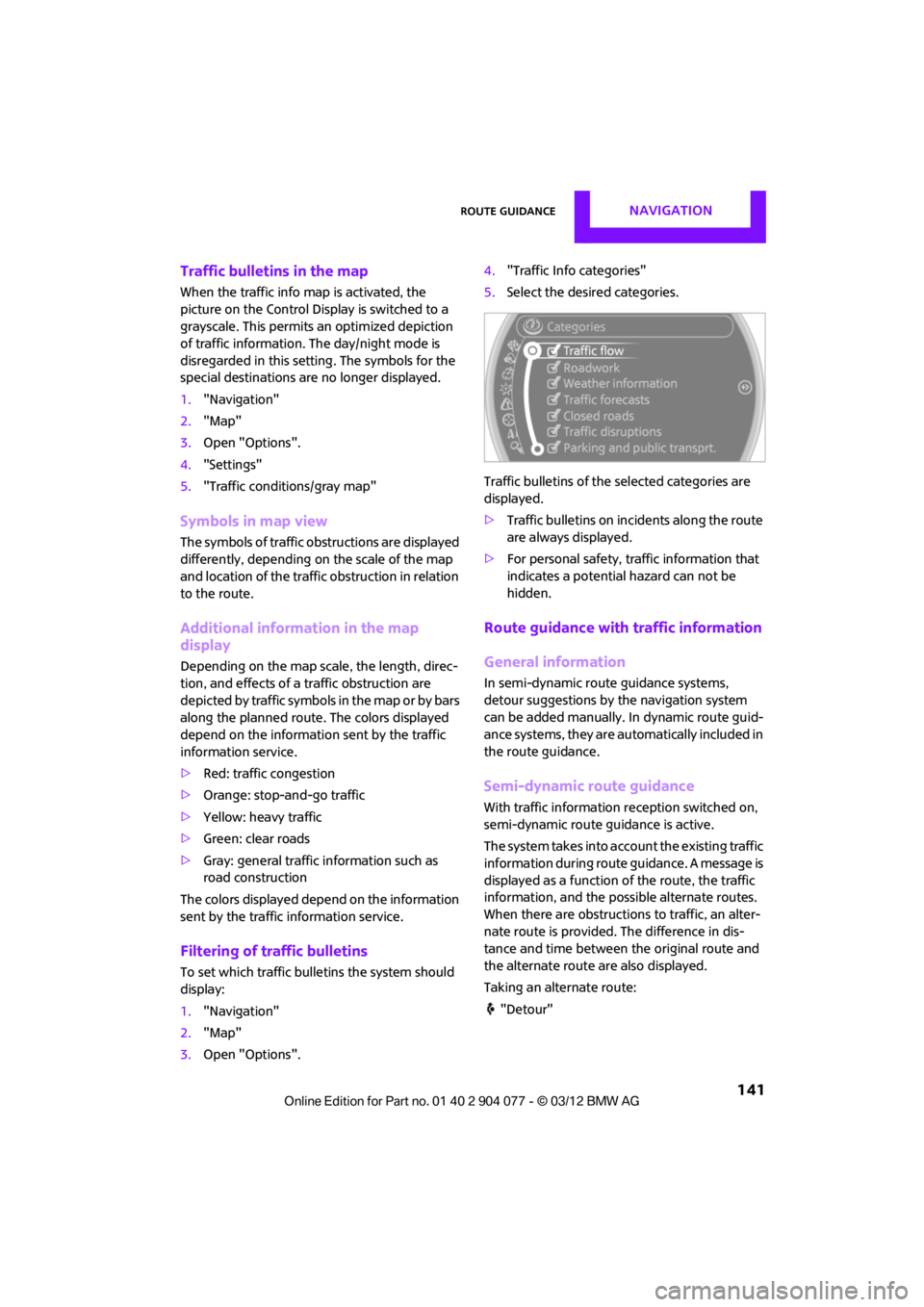
5. Select the desired categories.
Traffic bulletins of the selected categories are
displayed.
> Traffic bulletins on in cidents along the route
are always displayed.
> For personal safety, traffic information that
indicates a potential hazard can not be
hidden.
Route guidance with traffic information
General information
In semi-dynamic route guidance systems,
detour suggestions by the navigation system
can be added manually. In dynamic route guid-
ance systems, they are au tomatically included in
the route guidance.
Semi-dynamic route guidance
With traffic information reception switched on,
semi-dynamic route gu idance is active.
The system takes into account the existing traffic
information du ring route guidance. A message is
displayed as a function of the route, the traffic
information, an d the possible alternate routes.
When there are obstructions to traffic, an alter-
nate route is provided. The difference in dis-
tance and time between the original route and
the alternate route are also displayed.
Taking an alternate route:
"Detour"
00320051004F004C00510048000300280047004C0057004C005200510003
Page 175 of 283
COMMUNICATIONSHands-free device Bluetooth
174
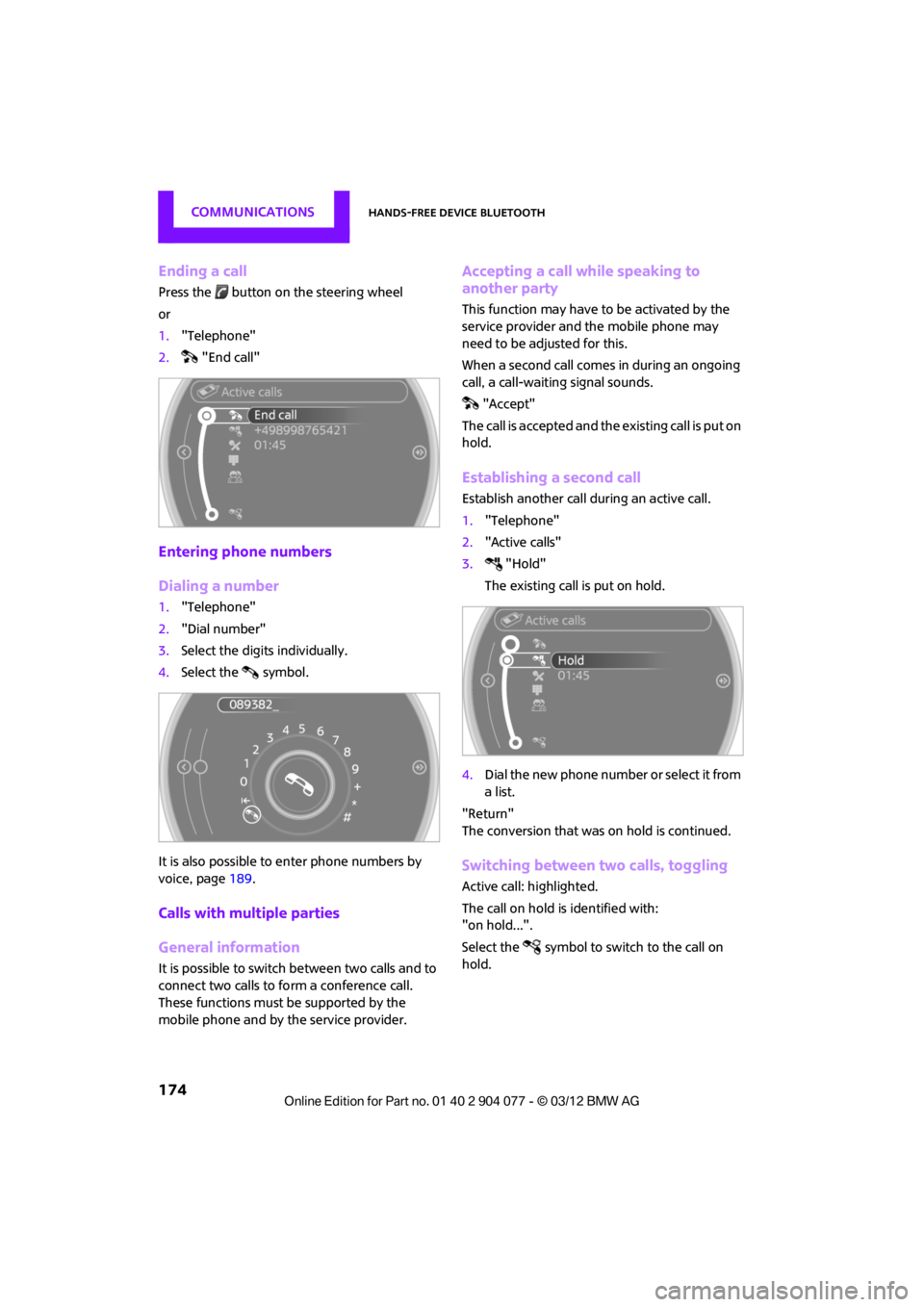
Ending a call
Press the button on the steering wheel
or
1."Telephone"
2. "End call"
Entering phone numbers
Dialing a number
1."Telephone"
2. "Dial number"
3. Select the digits individually.
4. Select the symbol.
It is also possible to enter phone numbers by
voice, page 189.
Calls with multiple parties
General information
It is possible to switch between two calls and to
connect two calls to fo rm a conference call.
These functions must be supported by the
mobile phone and by the service provider.
Accepting a call while speaking to
another party
This function may have to be activated by the
service provider and the mobile phone may
need to be adjusted for this.
When a second call comes in during an ongoing
call, a call-waiting signal sounds.
"Accept"
The call is accepted and the existing call is put on
hold.
Establishing a second call
Establish another call during an active call.
1. "Telephone"
2. "Active calls"
3. "Hold"
The existing call is put on hold.
4. Dial the new phone number or select it from
a list.
"Return"
The conversion that was on hold is continued.
Switching between two calls, toggling
Active call: highlighted.
The call on hold is identified with:
"on hold...".
Select the symbol to switch to the call on
hold.
00320051004F004C00510048000300280047004C0057004C005200510003
Page 176 of 283
Hands-free device BluetoothCOMMUNICATIONS
175
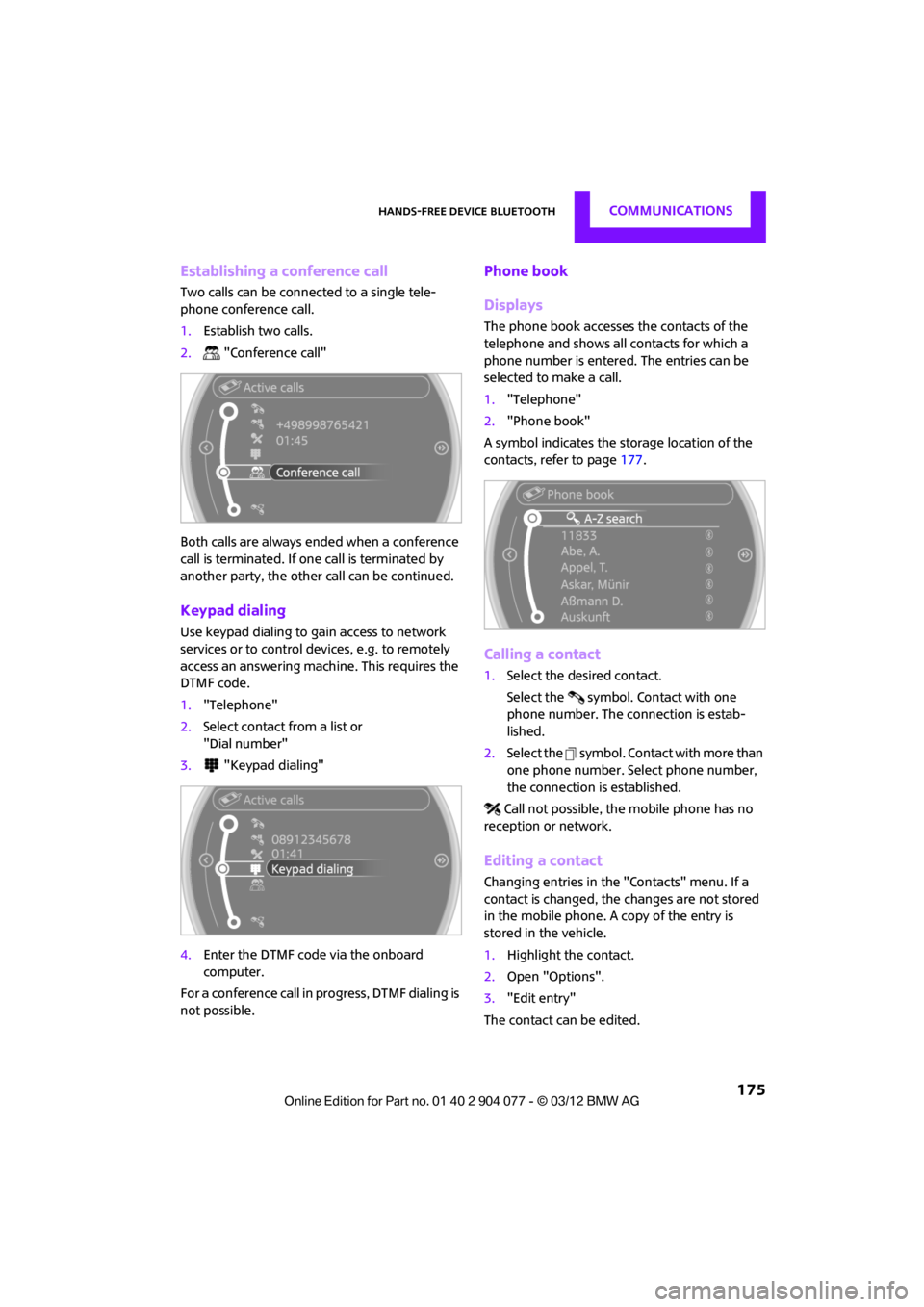
Establishing a conference call
Two calls can be connected to a single tele-
phone conference call.
1.Establish two calls.
2. "Conference call"
Both calls are always ended when a conference
call is terminated. If on e call is terminated by
another party, the other call can be continued.
Keypad dialing
Use keypad dialing to gain access to network
services or to control de vices, e.g. to remotely
access an answering machine. This requires the
DTMF code.
1. "Telephone"
2. Select contact from a list or
"Dial number"
3. "Keypad dialing"
4. Enter the DTMF code via the onboard
computer.
For a conference call in progress, DTMF dialing is
not possible.
Phone book
Displays
The phone book accesses the contacts of the
telephone and shows all contacts for which a
phone number is entered. The entries can be
selected to make a call.
1. "Telephone"
2. "Phone book"
A symbol indicates the storage location of the
contacts, refer to page 177.
Calling a contact
1.Select the desired contact.
Select the symbol. Contact with one
phone number. The connection is estab-
lished.
2. Select the symbol. Contact with more than
one phone number. Select phone number,
the connection is established.
Call not possible, the mobile phone has no
reception or network.
Editing a contact
Changing entries in the "Contacts" menu. If a
contact is changed, the changes are not stored
in the mobile phone. A copy of the entry is
stored in the vehicle.
1. Highlight the contact.
2. Open "Options".
3. "Edit entry"
The contact can be edited.
00320051004F004C00510048000300280047004C0057004C005200510003
Page 187 of 283
COMMUNICATIONSMobile phone preparation Bluetooth
186
Rejecting a call
"Reject"
The caller is redirected to the mailbox if it has
been activated.
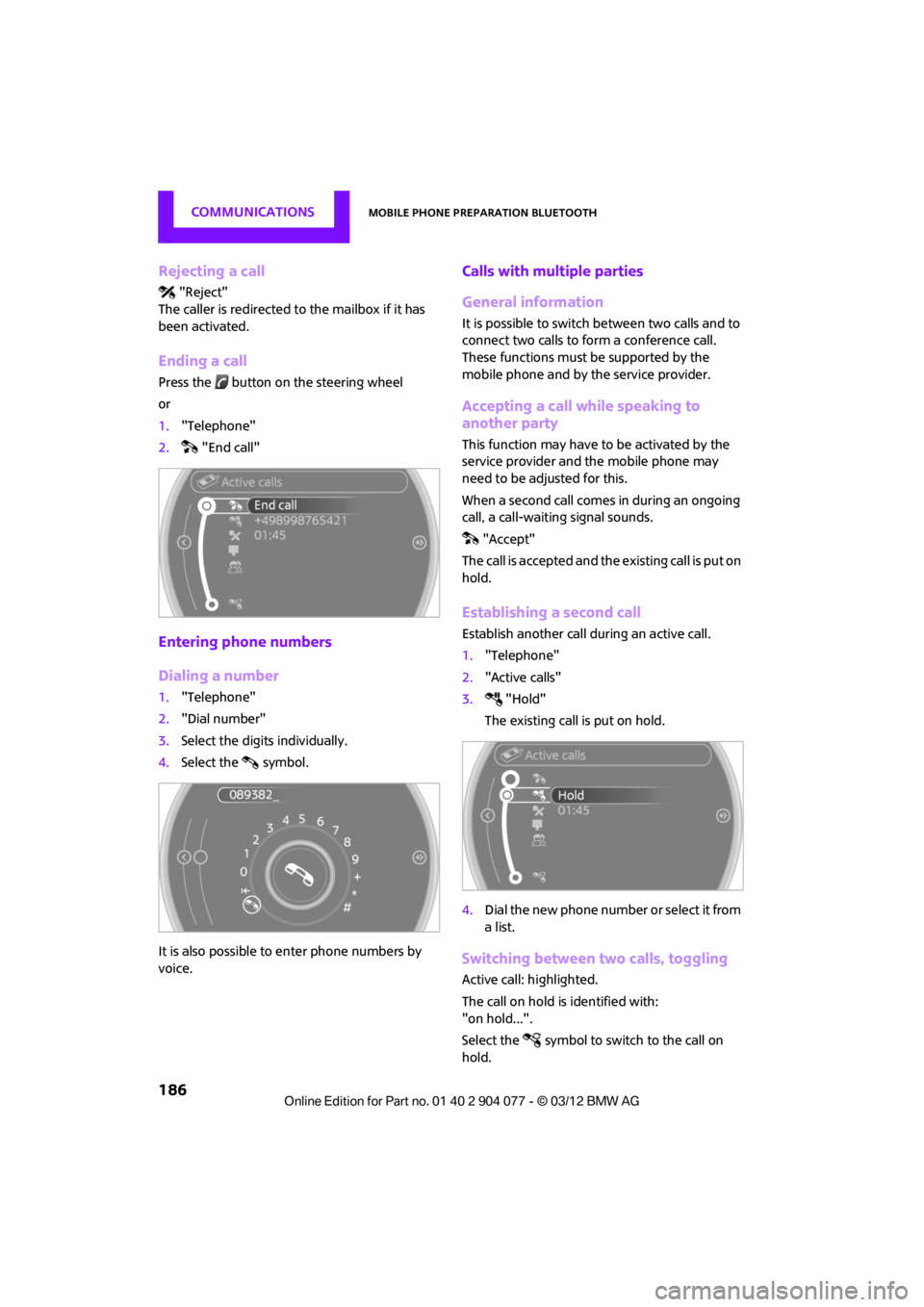
Ending a call
Press the button on the steering wheel
or
1. "Telephone"
2. "End call"
Entering phone numbers
Dialing a number
1."Telephone"
2. "Dial number"
3. Select the digits individually.
4. Select the symbol.
It is also possible to enter phone numbers by
voice.
Calls with mult iple parties
General information
It is possible to switch between two calls and to
connect two calls to form a conference call.
These functions must be supported by the
mobile phone and by the service provider.
Accepting a call while speaking to
another party
This function may have to be activated by the
service provider and the mobile phone may
need to be adjusted for this.
When a second call comes in during an ongoing
call, a call-waiting signal sounds. "Accept"
The call is accepted and the existing call is put on
hold.
Establishing a second call
Establish another call during an active call.
1. "Telephone"
2. "Active calls"
3. "Hold"
The existing call is put on hold.
4. Dial the new phone number or select it from
a list.
Switching between two calls, toggling
Active call: highlighted.
The call on hold is identified with:
"on hold...".
Select the symbol to switch to the call on
hold.
00320051004F004C00510048000300280047004C0057004C005200510003
Page 188 of 283
Mobile phone preparation BluetoothCOMMUNICATIONS
187
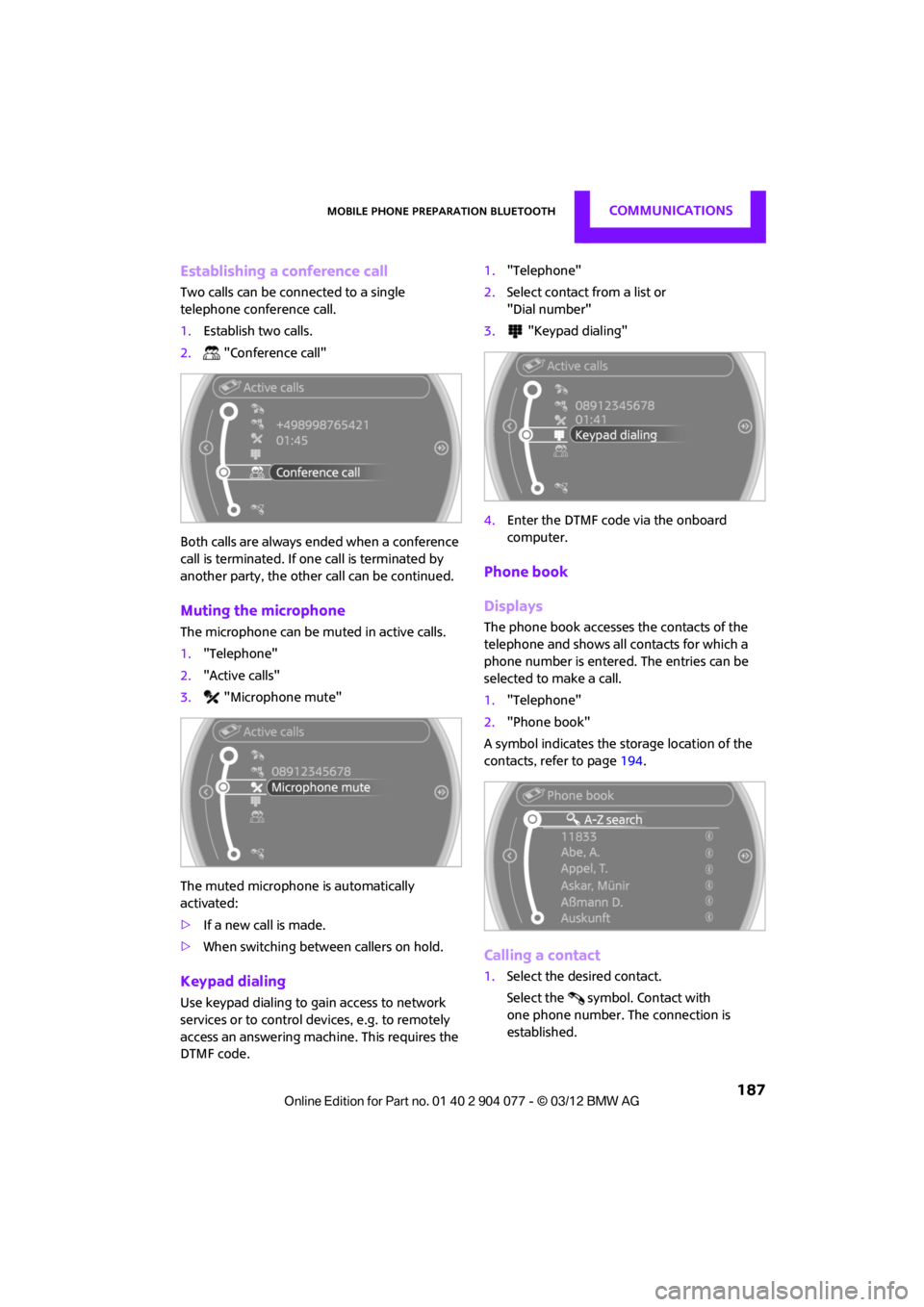
Establishing a conference call
Two calls can be connected to a single
telephone conference call.
1.Establish two calls.
2. "Conference call"
Both calls are always ended when a conference
call is terminated. If on e call is terminated by
another party, the other call can be continued.
Muting the microphone
The microphone can be muted in active calls.
1. "Telephone"
2. "Active calls"
3. "Microphone mute"
The muted microphone is automatically
activated:
> If a new call is made.
> When switching between callers on hold.
Keypad dialing
Use keypad dialing to gain access to network
services or to control de vices, e.g. to remotely
access an answering machine. This requires the
DTMF code. 1.
"Telephone"
2. Select contact from a list or
"Dial number"
3. "Keypad dialing"
4. Enter the DTMF code via the onboard
computer.
Phone book
Displays
The phone book accesses the contacts of the
telephone and shows all contacts for which a
phone number is entered. The entries can be
selected to make a call.
1. "Telephone"
2. "Phone book"
A symbol indicates the storage location of the
contacts, refer to page 194.
Calling a contact
1.Select the desired contact.
Select the symbol. Contact with
one phone number. The connection is
established.
00320051004F004C00510048000300280047004C0057004C005200510003
Page 197 of 283
COMMUNICATIONSOffice
196
Displaying contact pictures
Pictures stored with contacts are stored in the
vehicle when the mobile phone is connected to
the vehicle. The number of pictures transmitted
depends on the mobile phone. The mobile
phone must support this function.
1."Office"
2. "Contacts"
3. Open "Options".
4. "Configure Bluetooth®"
5. "Show images"
The display of all contact pictures is activated or
deactivated.
Deleting contacts
Only contacts that are stored in the vehicle are
deleted. The contacts on the mobile phone
cannot be deleted.
1. "Office"
2. "Contacts"
3. Highlight the contact.
4. "Options"
5. "Delete contact" or "Delete all contacts".
Messages
General information
The displaying of text messages and e-mails
depends on whether the mobile phone supports
transmission to the vehicle. Text messages and
e-mails may not be supported by the service
provider or the function may have to be sepa-
rately activated. After a mobile phone is paired
for the first time, the transmission may take sev-
eral minutes. Messages are only displayed com-
pletely when the vehicle is stopped. Messages
from the auxiliary phone are not transmitted.
Displaying messages
1."Office"
2. "Messages"
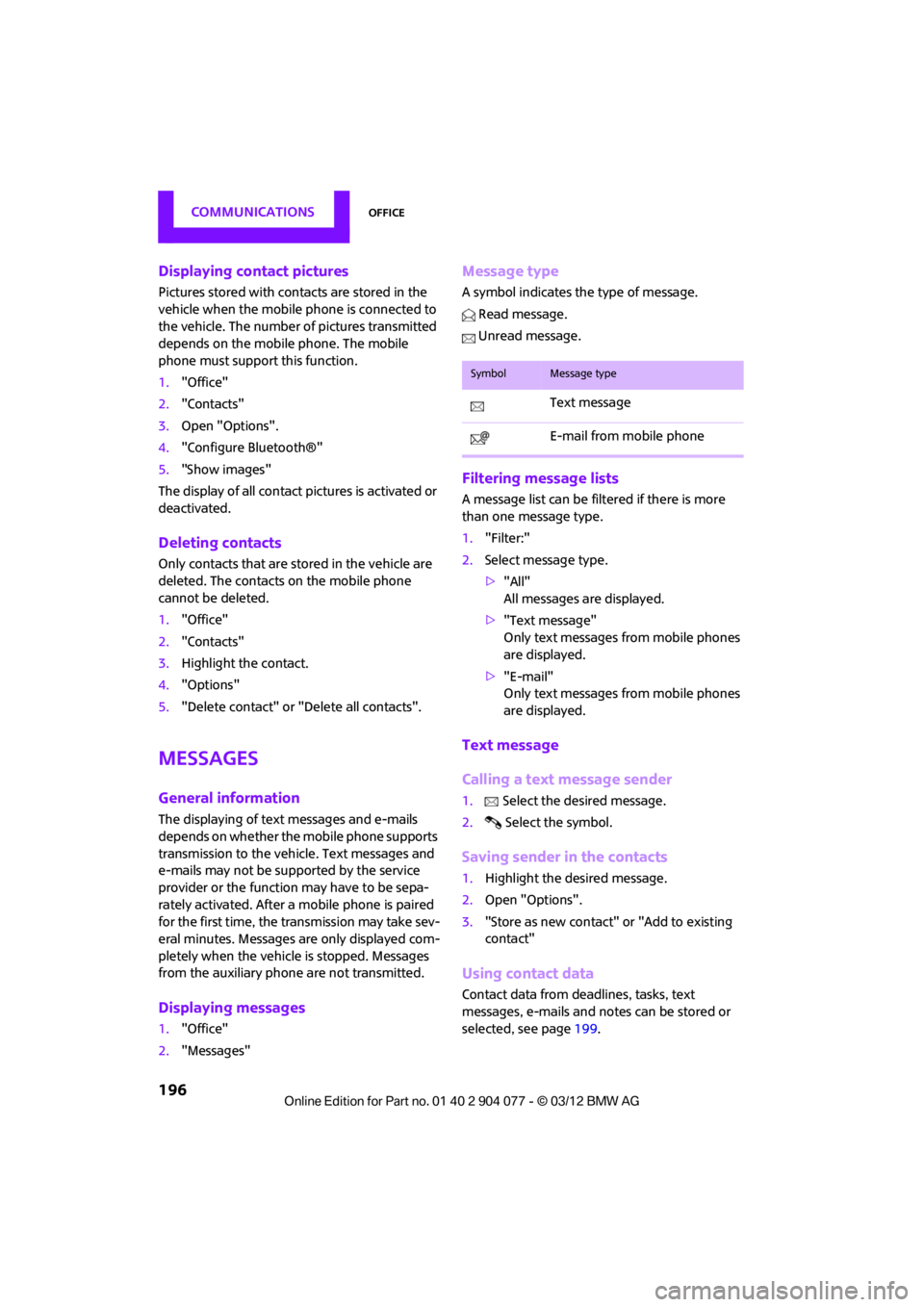
Message type
A symbol indicates the type of message.
Read message.
Unread message.
Filtering message lists
A message list can be filtered if there is more
than one message type.
1. "Filter:"
2. Select message type.
>"All"
All messages are displayed.
> "Text message"
Only text messages from mobile phones
are displayed.
> "E-mail"
Only text messages from mobile phones
are displayed.
Text message
Calling a text message sender
1. Select the desired message.
2. Select the symbol.
Saving sender in the contacts
1.Highlight the desired message.
2. Open "Options".
3. "Store as new contact" or "Add to existing
contact"
Using contact data
Contact data from deadlines, tasks, text
messages, e-mails and notes can be stored or
selected, see page 199.
SymbolMessage type
Text message
E-mail from mobile phone
00320051004F004C00510048000300280047004C0057004C005200510003