2012 MERCEDES-BENZ S-CLASS SEDAN remote control
[x] Cancel search: remote controlPage 148 of 536
Cordless headphones
Overview
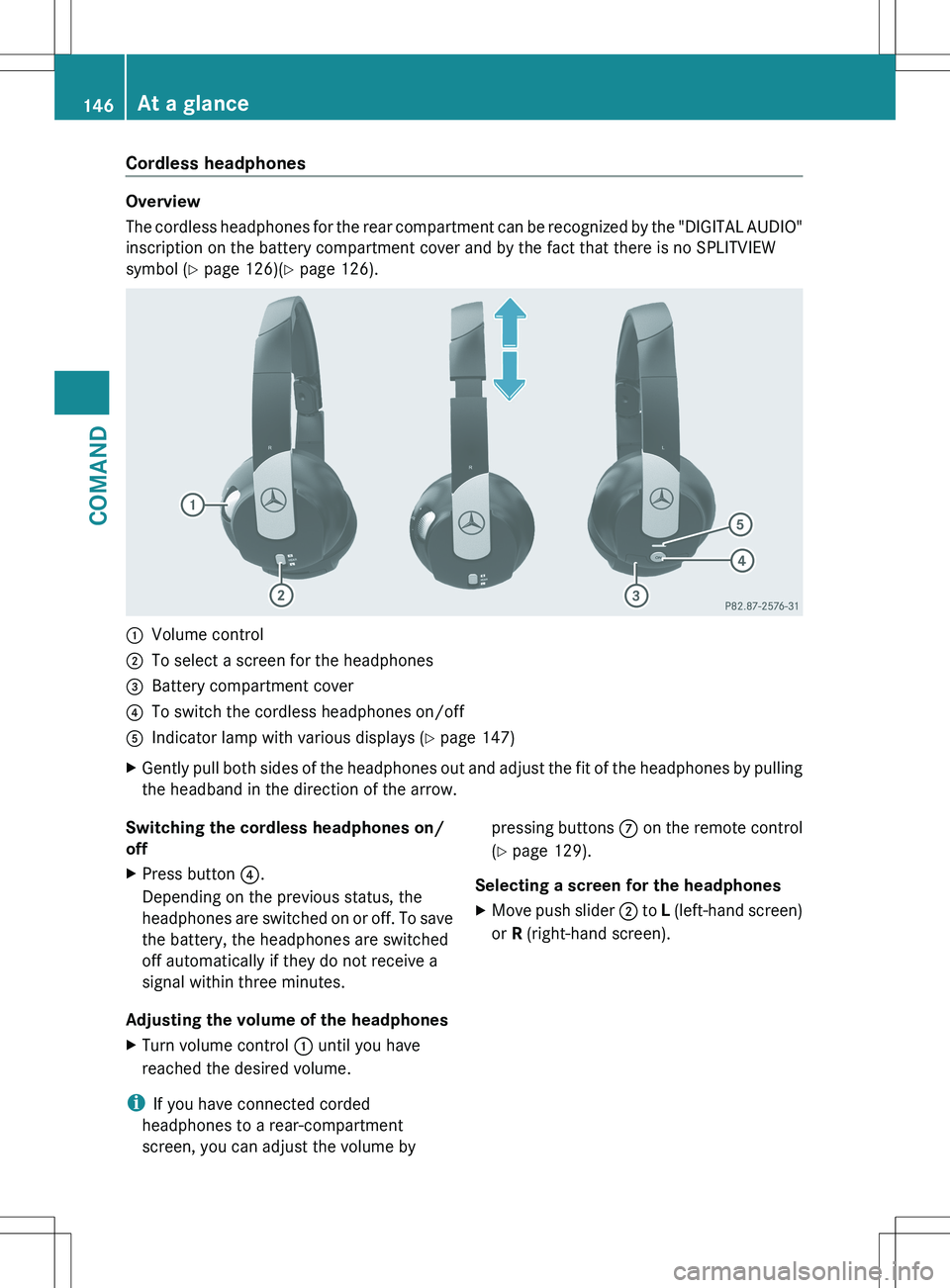
The cordless headphones for the rear compartment can be recognized by the "DIGITAL AUDIO"
inscription on the battery compartment cover and by the fact that there is no SPLITVIEW
symbol ( Y page 126)( Y page 126).
:Volume control;To select a screen for the headphones=Battery compartment cover?To switch the cordless headphones on/offAIndicator lamp with various displays ( Y page 147)XGently pull both sides of the headphones out and adjust the fit of the headphones by pulling
the headband in the direction of the arrow.Switching the cordless headphones on/
offXPress button ?.
Depending on the previous status, the
headphones are switched on or off. To save
the battery, the headphones are switched
off automatically if they do not receive a
signal within three minutes.
Adjusting the volume of the headphones
XTurn volume control : until you have
reached the desired volume.
i If you have connected corded
headphones to a rear-compartment
screen, you can adjust the volume by
pressing buttons C on the remote control
( Y page 129).
Selecting a screen for the headphonesXMove push slider ; to L (left-hand screen)
or R (right-hand screen).146At a glanceCOMAND
Page 149 of 536
Indicator lamp displays
The indicator lamp displays the following
possible stati for the batteries and
headphones:DisplayStatusGreenThe batteries are fine.RedThe batteries are almost
discharged.Continuou
sly lit
either
green or
redThe headphones are switched
on and connected to a screen.Flashes
either
green or
redThe headphones are
searching for the connection
to a screen.No display
(dark)The headphones are switched
off or the batteries are
discharged.
Connecting additional headphones
You can connect an additional set of corded
headphones to each rear-compartment
screen ( Y page 144).
Changing batteries
Batteries are required for the remote control
and for the two sets of cordless headphones.
Changing batteries ( Y page 251)
System settings
Display settings
Switching the display on/off
XSelect Vehicle by turning cVd the
COMAND controller and press W to
confirm.XSelect Display OFF by turning cVd the
COMAND controller and press W to
confirm.XTo switch on the display: press W or
cVd turn the COMAND controller.
Display design
Your COMAND display features optimized
designs for operation during daytime and
night-time hours. You can customize the
design to suit your personal preferences by
manually selecting day or night design or opt
for an automatic setting.
XSelect Vehicle by turning cVd the
COMAND controller and press W to
confirm.XSelect System by turning cVd the
COMAND controller and press W to
confirm.XSelect Display and press W to confirm.XSelect Day Mode , Night Mode or
Automatic by turning cVd the COMAND
controller and press W to confirm.
The # icon indicates the current setting.DesignExplanationDay ModeThe display is set
permanently to day
design.Night ModeThe display is set
permanently to night
design.AutomaticThe display design
changes depending on
the brightness around
the vehicle.
i In the Automatic setting, COMAND
evaluates the readings from the automatic
vehicle light sensor and switches between
the display designs automatically.
System settings147COMANDZ
Page 209 of 536
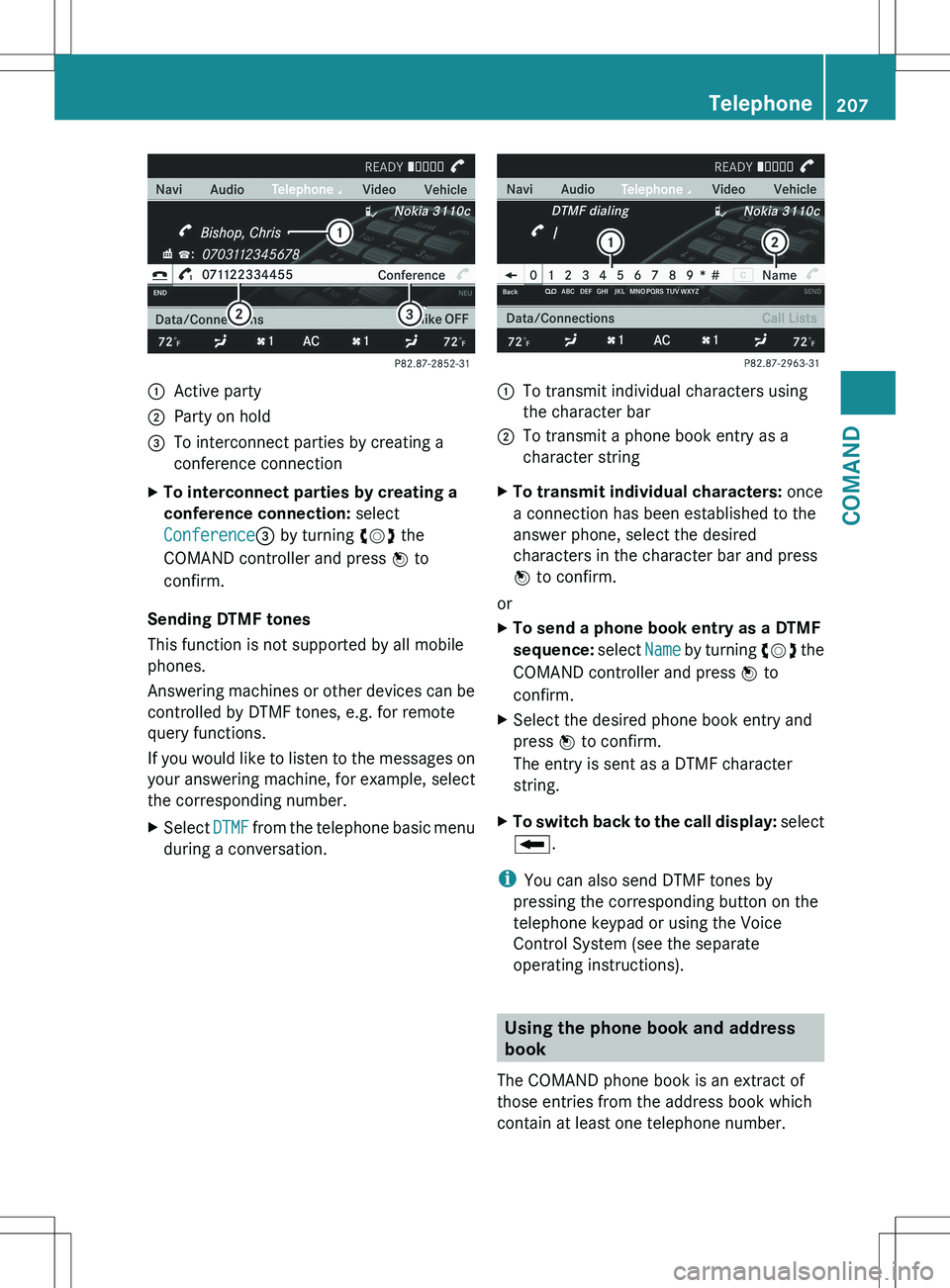
:Active party;Party on hold=To interconnect parties by creating a
conference connectionXTo interconnect parties by creating a
conference connection: select
Conference = by turning cVd the
COMAND controller and press W to
confirm.
Sending DTMF tones
This function is not supported by all mobile
phones.
Answering machines or other devices can be
controlled by DTMF tones, e.g. for remote
query functions.
If you would like to listen to the messages on
your answering machine, for example, select
the corresponding number.
XSelect DTMF from the telephone basic menu
during a conversation.:To transmit individual characters using
the character bar;To transmit a phone book entry as a
character stringXTo transmit individual characters: once
a connection has been established to the
answer phone, select the desired
characters in the character bar and press
W to confirm.
or
XTo send a phone book entry as a DTMF
sequence: select Name by turning cVd the
COMAND controller and press W to
confirm.XSelect the desired phone book entry and
press W to confirm.
The entry is sent as a DTMF character
string.XTo switch back to the call display: select
B .
i
You can also send DTMF tones by
pressing the corresponding button on the
telephone keypad or using the Voice
Control System (see the separate
operating instructions).
Using the phone book and address
book
The COMAND phone book is an extract of
those entries from the address book which
contain at least one telephone number.
Telephone207COMANDZ
Page 241 of 536

XConnect the external device with suitable
socket :, ; or =.
COMAND activates the device
automatically for sockets ; and =.
COMAND does not activate the device
automatically for socket :.
If you remove a device from sockets ; and
= , the No device connected message
appears.
i A connected iPod ®
or MP3 player should
not be simultaneously operated via the
Media Interface and the remote control
(e.g. Bluetooth ®
remote control), as this
may produce unpredictable results.
i Connecting a fully discharged iPod ®
or
MP3 player can result in an extended
initialization period.
Error messages appear while the device is
being activated if:
R COMAND does not support the device
connected.
R two devices are connected.
R the connected device consumes too much
power.
R the Media Interface connection is faulty.
i Consult an authorized Mercedes-Benz
Center if required.
Switching to Media Interface mode
General notes
In extreme cases, starting up individual
functions can take up to several minutes –
this depends on the external device and its
content (e.g. video podcasts).
Only use the original software to save files on
iPods or MP3 players. Otherwise, some or all
functions may not be available.
Option 1
XConnect an external device ( Y page 238).
COMAND activates the device. Following
this, the basic display appears if there are
any playable files on the data carrier.
or
XSelect Audio in the main function bar by
sliding ZV and turning cVd the COMAND
controller and press W to confirm.
If you had previously selected Media
Interface mode, this will now be activated.
If another audio source is switched on, you
can now switch to Media Interface mode in
the audio menu.XSelect Audio by sliding ZV and turning
cVd the COMAND controller and press
W to confirm.
The audio menu appears.XSelect Media Interface and press W to
confirm.
Option 2
XSelect Audio by sliding ZV and turning
cVd the COMAND controller and press
W to confirm.
The audio menu appears.XSelect Media Interface and press W to
confirm.
Option 3
XIn the media list, ( Y page 228) turn cVd
the COMAND controller to select the entryAudio239COMANDZ
Page 253 of 536
gradually. This enables you to determine
whether the system is able to play the
music at high volume without distorting it.
Rear Seat Entertainment System
General information
Important safety notes
GWARNING
The RSE CD/DVD player is a Class 1 laser
product. There is a danger of invisible laser
radiation when you open or damage the cover.
Do not remove the cover. The RSE CD/DVD
player does not contain any parts which can
be serviced by the user. For safety reasons,
have any necessary service work performed
by qualified personnel.
GWARNING
The driver should not wear a Rear Seat
Entertainment headset while operating the
vehicle under any circumstances. The use of
a headset while driving the vehicle could
drastically impair the ability to react to audible
traffic conditions (e.g. emergency sirens from
police/fire/ambulance, another car's horn,
etc.).
GWARNING
When not in use, headsets or external video
sources should be stored in a safe location
(e.g. one of the vehicle's storage
compartments) so that they are not loose
within the passenger compartment during
braking, vehicle maneuvers or a traffic
accident. Objects moving within the
passenger compartment could cause serious
personal injury to vehicle occupants.
GWARNING
Due to a potential choking hazard, wired
headset usage by children should only occur
with adult supervision.
Changing batteries
Batteries are required for the remote control
and for the two sets of cordless headphones.
GWARNING
Keep the batteries out of the reach of
children. Consult a doctor immediately if a
child should swallow a battery.
Do not dismantle, short-circuit or burn a
battery.
HEnvironmental note
Dispose of discharged batteries in an
environmentally responsible manner.
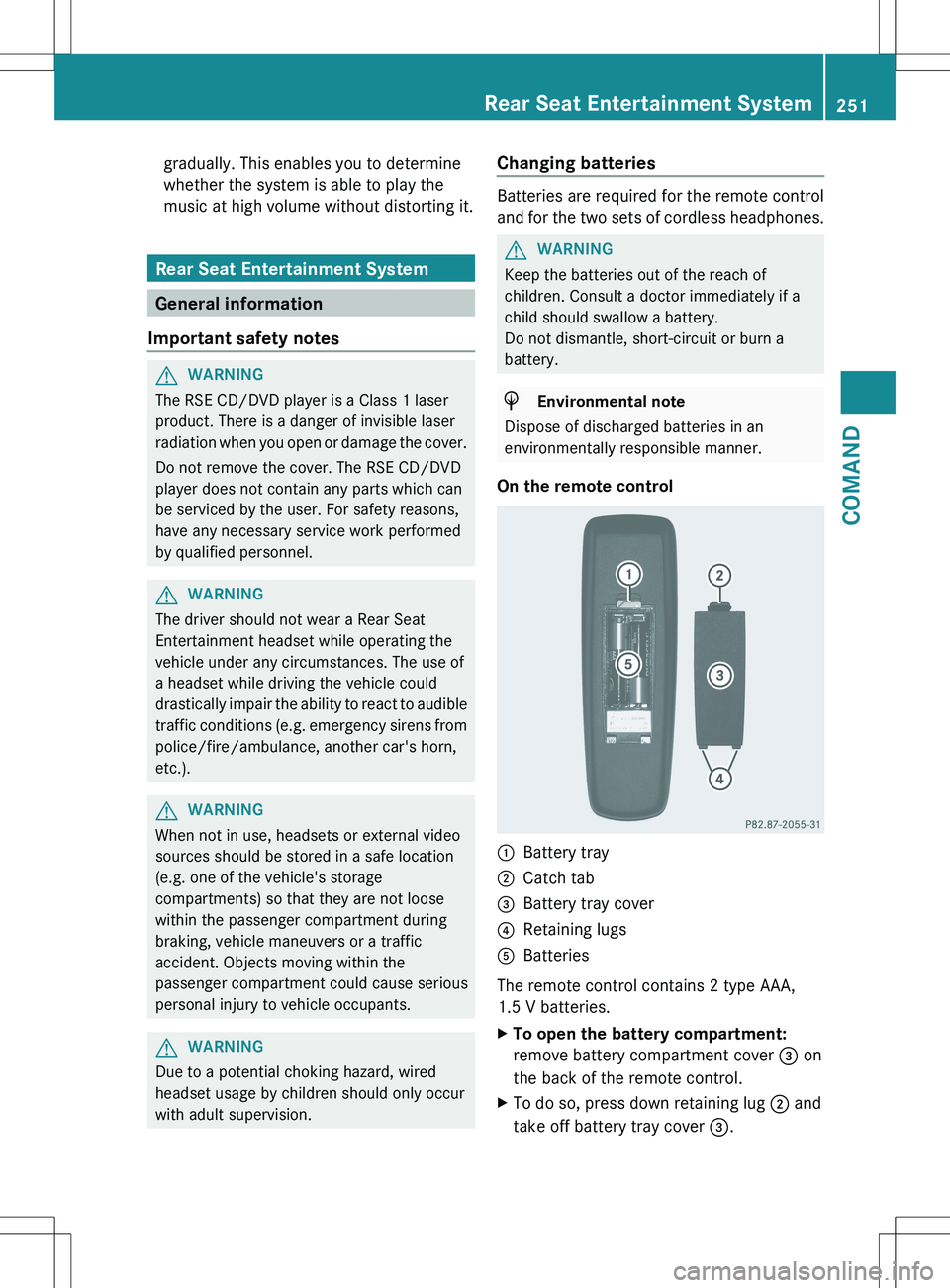
On the remote control
:Battery tray;Catch tab=Battery tray cover?Retaining lugsABatteries
The remote control contains 2 type AAA,
1.5 V batteries.
XTo open the battery compartment:
remove battery compartment cover = on
the back of the remote control.XTo do so, press down retaining lug ; and
take off battery tray cover =.Rear Seat Entertainment System251COMANDZ
Page 255 of 536
XTo set operation via the main
loudspeakers: press the R function
button on the center console once or twice.XSelect Audio by sliding ZV the COMAND
controller and press W to confirm.
The Audio menu appears.XSelect Rear by turning cVd the COMAND
controller and press W to confirm.
i
The headphones' volume setting does not
affect the main loudspeakers.
Adjusting the sound settings
You can select the sound settings in the audio
CD/DVD/MP3, video DVD and AUX modes.
XSwitch on an audio operating mode (e.g.
audio CD mode).XSelect Treble or Bass using
the :=; buttons on the remote
control and press the 9 button to confirm.
An adjustment scale appears.XSelect a setting using the 9:
buttons and press the 9 button to confirm.
Multiple users
Simultaneous use of the rear-
compartment disc drive
The two rear-compartment screens can be
operated almost entirely independently from
one another. However, there can be a conflict
in some menus if the two screens are used
simultaneously.
If the rear-compartment disc drive is being
used for both screens simultaneously,
selecting certain menus or settings on one of
the screens also affects the other screen.
The following functions affect both screens:
R changing playback options
R selecting a track (from a track list or folder)
R using the play, pause and stop functions
R fast forwarding/rewinding or scrolling
R calling up the DVD menu and navigating
within it
R setting the language, subtitles and camera
angle
R calling up interactive DVD content
The following functions affect only one
screen:
R audio and video functions as well as picture
settings
R switching between full screen and the
menu
Switching between operating modes
When you exit an operating mode (e.g. audio
CD mode), the current setting is saved. If you
call up this operating mode again later, there
are two possibilities:
R the operating mode has been changed on
the other screen.
R the operating mode has not been changed.
In the first case, the operating mode appears
as it is on the other screen.
In the second case, the setting appears on the
screen as it was when you last exited the
operating mode.
Picture settings
Overview
You can select these settings in video DVD
and AUX mode. Instructions for AUX mode
are detailed later ( Y page 263).
Adjusting the brightness, contrast and
color
XSwitch on video DVD mode ( Y page 246).XTo show the menu: press the 9 button
on the remote control.
or
XSelect Menu while the navigation menu
( Y page 246) is shown and press the 9
button to confirm.XIn both cases, select Video DVD using
the :=; buttons and press the
9 button to confirm.Rear Seat Entertainment System253COMANDZ
Page 256 of 536

XSelect Brightness , Contrast , Color or
Auto using the 9: buttons and
press 9 to confirm.
An adjustment scale appears.XSelect a setting using the 9:
buttons and press the 9 button to confirm.
Changing the picture format
XTo show the menu: press the 9 button
on the remote control.
or
XSelect Menu while the navigation menu
( Y page 246) is shown and press the 9
button to confirm.XSelect Video DVD using
the :=; buttons and press the
9 button to confirm.
The ä symbol in front of the Auto, 16:9
Optimized , 4:3 or Widescreen menu item
indicates the format currently set.XSelect a format using the 9:
buttons and press the 9 button to confirm.
System settings
Note
You can adjust almost all system settings
individually for each screen without affecting
the other screen. You make these settings
using the remote control.
Selecting the display language
XSelect System using the 9=;
buttons on the remote control and press
the 9 button to confirm.
You see the system menu on the selected
rear screen.XSelect Settings using the : button
and confirm with the 9 button.XSelect Language using the 9:
buttons and press the 9 button to confirm.
The list of languages appears. The # dot
indicates the current setting.XSelect a language using the 9:
buttons and press the 9 button to confirm.
The Rear Seat Entertainment System
activates the respective language.
Switching the display design
XSelect Settings using the : button
and confirm with the 9 button.XSelect Day Mode , Night Mode or
Automatic using the 9: buttons
and press the 9 button to confirm.
The ä icon indicates the current setting.DesignExplanationDay ModeThe display is set
permanently to day
design.Night ModeThe display is set
permanently to night
design.AutomaticThe display design
changes depending on
the vehicle instrument
cluster illumination.254Rear Seat Entertainment SystemCOMAND
Page 257 of 536
Setting the brightnessXSelect Settings using the : button
and confirm with the 9 button.XSelect Brightness using the 9:
buttons and press the 9 button to confirm.
A scale appears.XAdjust the brightness using the 9:
buttons and press the 9 button to confirm.
The brightness bar moves up or down. The
picture becomes lighter or darker in
accordance with the scale.
Showing/hiding the picture
XTo hide the picture: select Display OFF
in the system menu using the :;
buttons on the remote control and press
the 9 button to confirm.
The picture is hidden.XTo display the picture: press the 9
button.
Audio CD/DVD and MP3 mode
Safety note
GWARNING
The RSE CD/DVD player is a Class 1 laser
product. There is a danger of invisible laser
radiation when you open or damage the cover.
Do not remove the cover. The RSE CD/DVD
player does not contain any parts which can
be serviced by the user. For safety reasons,
have any necessary service work performed
by qualified personnel.
General notes
You will find information on the following
topics in the Audio section:
R notes on CDs/DVDs ( Y page 234)
R notes on MP3 mode ( Y page 233)
R notes on copyright ( Y page 234)
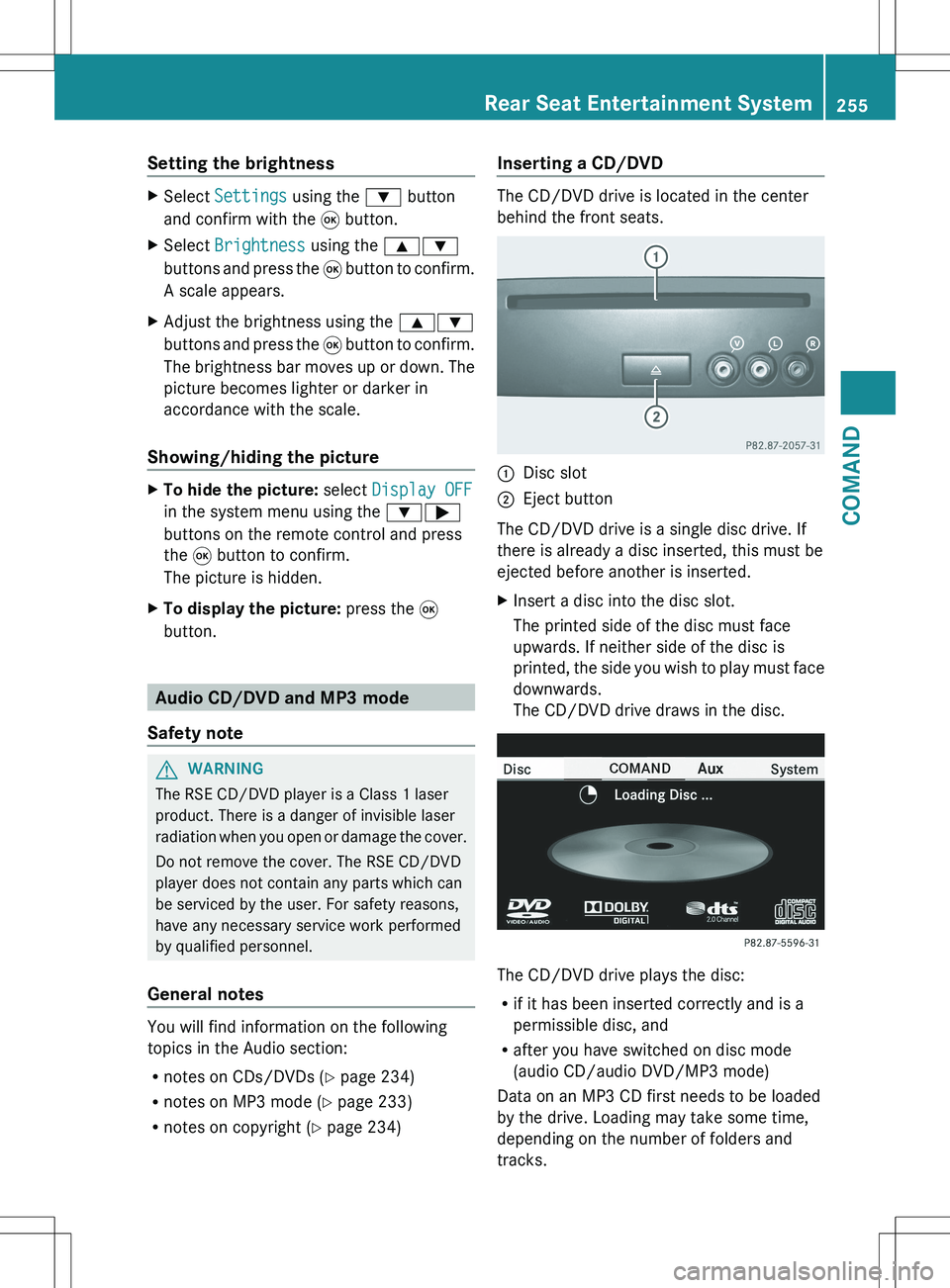
Inserting a CD/DVD
The CD/DVD drive is located in the center
behind the front seats.
:Disc slot;Eject button
The CD/DVD drive is a single disc drive. If
there is already a disc inserted, this must be
ejected before another is inserted.
XInsert a disc into the disc slot.
The printed side of the disc must face
upwards. If neither side of the disc is
printed, the side you wish to play must face
downwards.
The CD/DVD drive draws in the disc.
The CD/DVD drive plays the disc:
R if it has been inserted correctly and is a
permissible disc, and
R after you have switched on disc mode
(audio CD/audio DVD/MP3 mode)
Data on an MP3 CD first needs to be loaded
by the drive. Loading may take some time,
depending on the number of folders and
tracks.
Rear Seat Entertainment System255COMANDZ