2012 MERCEDES-BENZ S-Class display
[x] Cancel search: displayPage 260 of 536
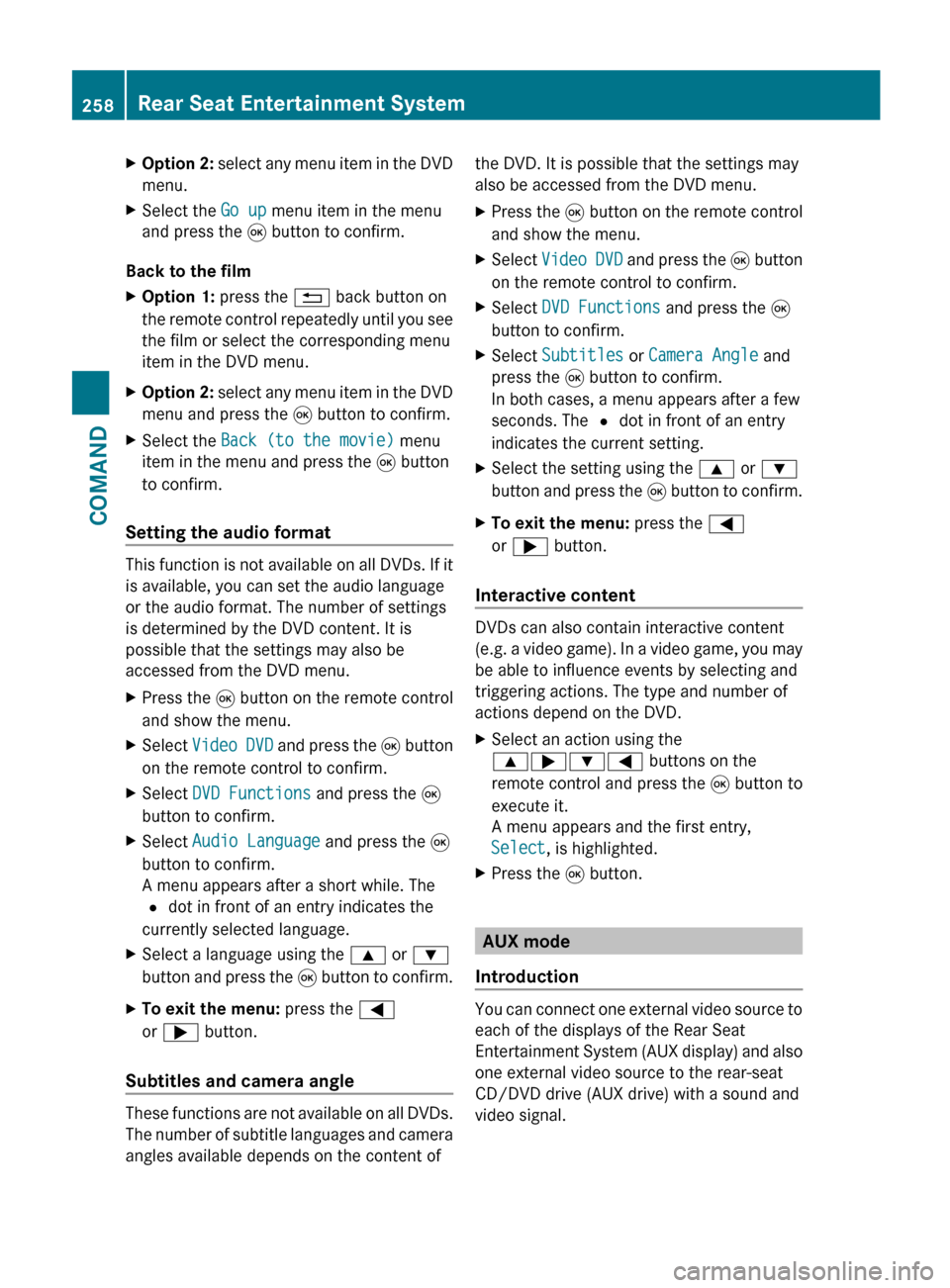
XOption 2: select any menu item in the DVD
menu.XSelect the Go up menu item in the menu
and press the 9 button to confirm.
Back to the film
XOption 1: press the % back button on
the remote control repeatedly until you see
the film or select the corresponding menu
item in the DVD menu.XOption 2: select any menu item in the DVD
menu and press the 9 button to confirm.XSelect the Back (to the movie) menu
item in the menu and press the 9 button
to confirm.
Setting the audio format
This function is not available on all DVDs. If it
is available, you can set the audio language
or the audio format. The number of settings
is determined by the DVD content. It is
possible that the settings may also be
accessed from the DVD menu.
XPress the 9 button on the remote control
and show the menu.XSelect Video DVD and press the 9 button
on the remote control to confirm.XSelect DVD Functions and press the 9
button to confirm.XSelect Audio Language and press the 9
button to confirm.
A menu appears after a short while. The
# dot in front of an entry indicates the
currently selected language.XSelect a language using the 9 or :
button and press the 9 button to confirm.XTo exit the menu: press the =
or ; button.
Subtitles and camera angle
These functions are not available on all DVDs.
The number of subtitle languages and camera
angles available depends on the content of
the DVD. It is possible that the settings may
also be accessed from the DVD menu.XPress the 9 button on the remote control
and show the menu.XSelect Video DVD and press the 9 button
on the remote control to confirm.XSelect DVD Functions and press the 9
button to confirm.XSelect Subtitles or Camera Angle and
press the 9 button to confirm.
In both cases, a menu appears after a few
seconds. The # dot in front of an entry
indicates the current setting.XSelect the setting using the 9 or :
button and press the 9 button to confirm.XTo exit the menu: press the =
or ; button.
Interactive content
DVDs can also contain interactive content
(e.g. a video game). In a video game, you may
be able to influence events by selecting and
triggering actions. The type and number of
actions depend on the DVD.
XSelect an action using the
9;:= buttons on the
remote control and press the 9 button to
execute it.
A menu appears and the first entry,
Select , is highlighted.XPress the 9 button.
AUX mode
Introduction
You can connect one external video source to
each of the displays of the Rear Seat
Entertainment System (AUX display) and also
one external video source to the rear-seat
CD/DVD drive (AUX drive) with a sound and
video signal.
258Rear Seat Entertainment SystemCOMAND
Page 261 of 536
Please see the corresponding operating
instructions for information on how to
operate the external video source.
For further details about external video
sources, please consult an authorized
Mercedes-Benz Center.
Connecting AUX equipment
AUX drive
The AUX drive jacks are located on the CD/
DVD drive on the right next to the CD/DVD
eject button ( Y page 258).
Displaying AUX
The AUX display jacks are on the side of the
screen ( Y page 139).
Audio and video connection
XInsert the audio plugs for the left and right
signals into the corresponding L and R
jacks.XInsert the video plug into the V jack.
Activating AUX mode
AUX drive
XSelect AUX in the menu using the
9=; buttons on the remote
control and press the 9 button to confirm.
The AUX menu appears.XSelect Source from the AUX menu and
press the 9 button to confirm.XSelect Disk Drive Aux and press the 9
button to confirm.
You will hear and see the content of the
external video source if it is connected to
the CD/DVD drive and switched to
playback. If no video image is available
from the AUX source connected, you will
see an audio menu.Displaying AUXXSelect the screen to which the external
video source is connected using the remote
control ( Y page 125).XSelect AUX in the menu using the
9=; buttons on the remote
control and press the 9 button to confirm.XSelect Source from the AUX menu and
press the 9 button to confirm.XSelect Display Aux and press the 9
button to confirm.
You will see and hear the content of the
video source if it is switched to playback. If
no video image is available from the AUX
source connected, you will see an audio
menu.
Selecting the active COMAND source
XSelect AUX in the menu using the
9=; buttons on the remote
control and press the 9 button to confirm.XSelect Source from the AUX menu and
press the 9 button to confirm.XSelect COMAND and press the 9 button to
confirm.
The audio or video mode selected in
COMAND is transmitted to the Rear Seat
Entertainment System.
Operation with an active COMAND
source
You can transfer an audio or video mode
selected in COMAND to the Rear Seat
Entertainment System.
i If you subsequently switch modes in
COMAND, the new source will not be
transmitted to the Rear Seat Entertainment
System.
XTo switch on the function in COMAND:
switch on the desired audio mode in
COMAND or show the menu in video DVD
mode.XSelect the menu item at the bottom left,
e.g. CD in audio CD mode, by sliding VÆRear Seat Entertainment System259COMANDZ
Page 262 of 536

and turning cVd the COMAND controller
and press W to confirm.XSelect Active Source for Rear and
press W to confirm.
In the status bar at the top, you will see the
headphones icon and the _ icon for the
source that has been switched on.XTo switch off the function in COMAND:
switch on the desired audio mode in
COMAND or show the menu in video DVD
mode.XSelect the menu item at the bottom left,
e.g. CD in audio CD mode, by sliding VÆ
and turning cVd the COMAND controller
and press W to confirm.XSelect Rear OFF _ and press W the
COMAND controller to confirm.
Adjusting the brightness, contrast or
color
XSelect Source in the rear-compartment
screen and press the 9 button on the
remote control to confirm.XSelect Display Aux or Disk Drive Aux
and press the 9 button to confirm.XSelect Brightness , Contrast or Color
and press the 9 button to confirm.
An adjustment scale appears.XSelect a setting using the 9 or :
button and press the 9 button to confirm.
Changing the picture format
XSelect Source in the AUX menu and press
the 9 button on the remote control to
confirm.XSelect Display Aux or Disk Drive Aux
and press the 9 button to confirm.XSelect Auto16:9 optimized , 4:3 or
Widescreen using the 9: buttons
and press the 9 button to confirm.
The ä icon in front of a menu item
indicates the current setting.Vehicle
Vehicle functions
General notes
In this menu, you can set the following vehicle
functions:
R ECO
R multicontour seat settings
R rear window blind
R EASY-ENTRY/EXIT feature
R exterior lighting delayed switch-off
R interior lighting delayed switch-off
R ambient lighting
R automatic folding mirror
R locator lighting
R automatic locking feature
R trunk lid opening height restriction
You can open the "Vehicle" menu in one of
two ways.
Opening the "Vehicle" menu from the
main area in the center of the display
:"Vehicle" menu item;Main areaXSelect Vehicle in the main function bar by
sliding XVY and turning cVd the
COMAND controller and press W to
confirm.
Main area ; is active.XSelect the individual vehicle functions by
sliding XVY or turning cVd the COMAND
controller and press W to confirm.260VehicleCOMAND
Page 267 of 536

turning cVd the COMAND controller and
press W to confirm.
The main area is active.XSelect the Automatic Locking function
by sliding XVY or turning cVd the
COMAND controller and press W to
confirm.
Activating/deactivating the trunk lid
opening height restriction
XTo activate/deactivate the trunk lid
opening height restriction: select
Vehicle in the main function bar by sliding
XVY and turning cVd the COMAND
controller and press W to confirm.
The main area is active.XSelect the Trunk Opening-height
Restriction function by sliding XVY or
turning cVd the COMAND controller and
press W to confirm.
Automatic climate control
Introduction to automatic climate
control
You can operate automatic climate control
using COMAND or the buttons on the upper
section of the center console ( Y page 291).
Several special automatic climate control
functions can only be adjusted using
COMAND.
You can access the automatic climate control
menu via the air-conditioning function bar.
To do so, make certain that the SmartKey is
in position 2 in the ignition lock.
Air-conditioning function bar
:To set the temperature, left;To set the air distribution, left=To set the airflow, left?Climate control main menu
( Y page 266)ATo set the airflow, rightBTo set the air distribution, rightCTo set the temperature, right
Setting the temperature
You can set the temperature separately for
the driver’s and front-passenger side.
XSelect left temperature display : or right
temperature display C in the air-
conditioning function bar by turning cVd
the COMAND controller and press W to
confirm.Vehicle265COMANDZ
Page 271 of 536

climate control for the driver and front
passenger.
Switching on operation of the rear-
compartment air conditioning from the
frontXSelect the climate control main menu in the
air-conditioning function bar by turning
cVd the COMAND controller and press
W to confirm.
The climate control menu opens.XSelect Rear Y and press W.
Rear appears in the main menu on the air-
conditioning function bar. The rear-
compartment air-conditioning system can
be controlled from the front.
Main menu for the rear-compartment air-
conditioning system
In the main menu for the rear-compartment
air-conditioning system, you can:
R switch back to front-compartment climate
control operation
R switch off the rear-compartment air
conditioning
R switch automatic mode for the rear-
compartment air conditioning on/off
XTo open the main menu: select the
climate control main menu in the air
conditioning function bar and press W.
The current setting is indicated by a # dot.
To switch back to operation of the rear-
compartment air-conditioning system from
the front:XIn the climate control main menu, select
Front Climate Control and press W.
The air-conditioning function bar shows the
climate control settings for the driver and
front passenger.
To switch off the rear-compartment air
conditioning:
XIn the climate control main menu, select
Rear Climate Control OFF and press
W .
To switch on automatic mode for the rear-
compartment air conditioning:
XIn the climate control main menu, select
Rear Automatic and press W.
Automatic mode for the rear-compartment
air-conditioning system is switched on.
Seats
Lumbar supports
The lumbar support in the backrest of the
driver's and front-passenger seats can be
adjusted to provide optimum support for your
back.
XTo select the seat: press the T
function button.
The main area of the COMAND display is
active. A scale appears.Vehicle269COMANDZ
Page 272 of 536
XTo move to the lower menu bar: select
by sliding ZVÆ the COMAND controller
and press W to confirm.
i
When you press the T function button,
the previously adjusted seat is active.
XTo adjust the lumbar support: select by
sliding XVY or turning cVd the COMAND
controller and press W to confirm.
Multicontour seat
i
Information about the components and
operating principles of COMAND can be
found on ( Y page 118).
The contour of the driver's seat and front-
passenger seat backrests can be individually
adjusted to provide optimum support for your
back. This is achieved by controlling the
pressure in the air chambers in the
multicontour seat.
The adjustments are made using the
COMAND display.
i When you adjust the multicontour seat,
you may hear the air being pumped in or
released.
You can adjust the following air cushions:
R seat side bolsters
R seat backrest side bolsters
R backrest curvature in the lumbar region
R backrest curvature in the upper back
region
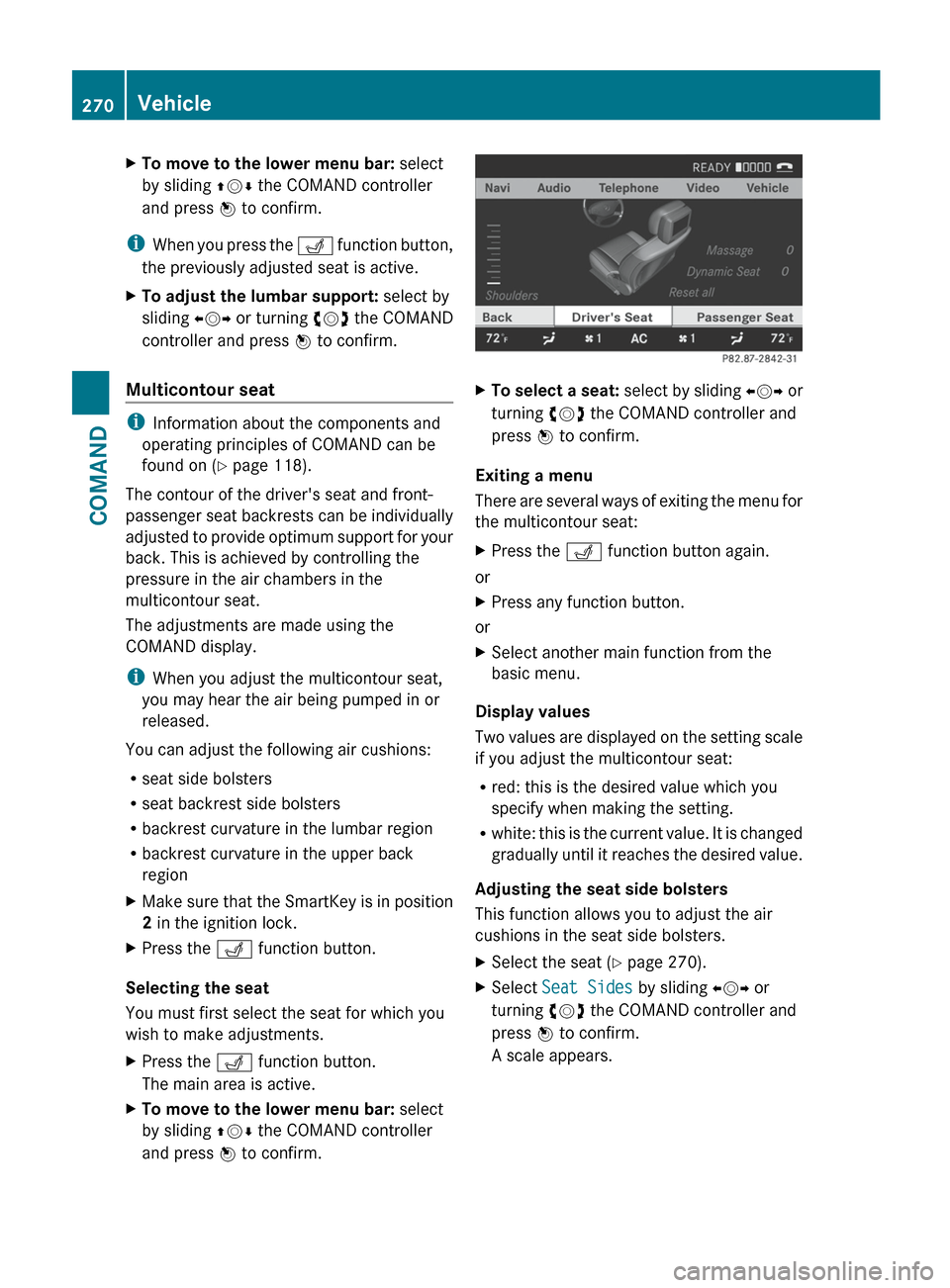
XMake sure that the SmartKey is in position
2 in the ignition lock.XPress the T function button.
Selecting the seat
You must first select the seat for which you
wish to make adjustments.
XPress the T function button.
The main area is active.XTo move to the lower menu bar: select
by sliding ZVÆ the COMAND controller
and press W to confirm.XTo select a seat: select by sliding XVY or
turning cVd the COMAND controller and
press W to confirm.
Exiting a menu
There are several ways of exiting the menu for
the multicontour seat:
XPress the T function button again.
or
XPress any function button.
or
XSelect another main function from the
basic menu.
Display values
Two values are displayed on the setting scale
if you adjust the multicontour seat:
R red: this is the desired value which you
specify when making the setting.
R white: this is the current value. It is changed
gradually until it reaches the desired value.
Adjusting the seat side bolsters
This function allows you to adjust the air
cushions in the seat side bolsters.
XSelect the seat ( Y page 270).XSelect Seat Sides by sliding XVY or
turning cVd the COMAND controller and
press W to confirm.
A scale appears.270VehicleCOMAND
Page 296 of 536

XTo deactivate: press the K rocker
switch up or down.
The indicator lamp in the à rocker
switch goes out.
or
XSet the air distribution using COMAND
( Y page 266).
The indicator lamp in the à rocker
switch goes out.
Controlling the rear-compartment
climate control automatically using the
front control panel
XTurn the SmartKey to position 2 in the
ignition lock.XActivate the Y rear compartment
function via COMAND ( Y page 268).
Rear-compartment climate control can be
controlled via the front control panel using
the Y rear compartment function.XSet the desired temperature.X To switch on: press rocker switch Ã
up or down.
The indicator lamp in the à rocker
switch lights up.XTo deactivate: press the K rocker
switch up or down.
The indicator lamp in the à rocker
switch goes out.
or
XSet the air distribution using COMAND
( Y page 266).
The indicator lamp in the à rocker
switch goes out.
i To return to the standard display, activate
the front climate control function via
COMAND ( Y page 268).
i The rear display changes to the standard
display automatically after five seconds.
Controlling the rear-compartment
climate control automatically using the
rear control panelXTurn the SmartKey to position 2 in the
ignition lock.XSet the desired temperature.X To activate: press rocker switch K up or
down and select AUTO(Y page 291).XTo deactivate: press rocker switch K up
or down and select MAN or
OFF (Y page 291).
Setting the temperature
Climate control climate zones
You can select different temperature settings
for the driver's and front-passenger sides as
well as for the left and right sides of the rear
compartment and the footwells.
Setting the front-compartment
temperature using the front control
panel
XTurn the SmartKey to position 2 in the
ignition lock.XTo increase/reduce: press the w
rocker switch up or down.
Only change the temperature setting in
small increments. Start at 72 ‡ (22 †).
i You can also use COMAND to set the
temperature ( Y page 265).
294Operating the climate control systemClimate control
Page 297 of 536
Setting the temperature in the rear
compartment using the front control
panelXTurn the SmartKey to position 2 in the
ignition lock.XActivate the Y rear compartment
function via COMAND ( Y page 268).
The rear-compartment climate control can
be controlled via the front control panel
using the Y rear compartment function.XTo increase/reduce: press the w
rocker switch up or down.
Only change the temperature setting in
small increments. Start at 72 ‡ (22 †).
i To return to the standard display, activate
the front climate control function via
COMAND ( Y page 268).
i The rear display changes to the standard
display automatically after five seconds.
Setting the temperature in the rear
compartment using the rear control
panel
XTurn the SmartKey to position 2 in the
ignition lock.XTo increase/reduce: press rocker
switch H or M up or down ( Y page 291).
Only change the temperature setting in
small increments. Start at 72 ‡ (22 †).
Setting the footwell temperature
The footwell temperature can be set via
COMAND ( Y page 268).
Setting the air distribution
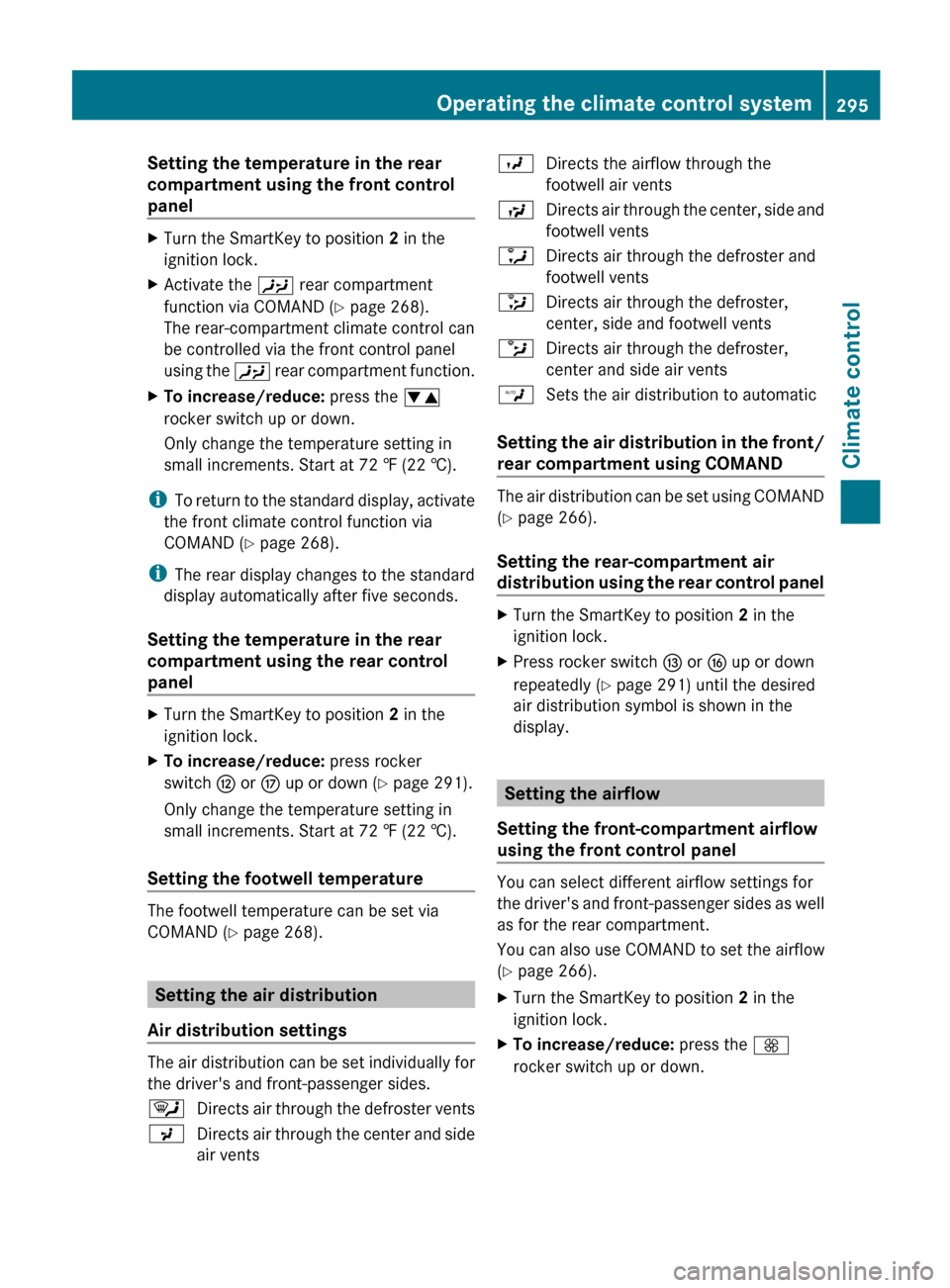
Air distribution settings
The air distribution can be set individually for
the driver's and front-passenger sides.
¯Directs air through the defroster ventsPDirects air through the center and side
air ventsODirects the airflow through the
footwell air ventsSDirects air through the center, side and
footwell ventsaDirects air through the defroster and
footwell vents_Directs air through the defroster,
center, side and footwell ventsbDirects air through the defroster,
center and side air ventsWSets the air distribution to automatic
Setting the air distribution in the front/
rear compartment using COMAND
The air distribution can be set using COMAND
( Y page 266).
Setting the rear-compartment air
distribution using the rear control panel
XTurn the SmartKey to position 2 in the
ignition lock.XPress rocker switch I or L up or down
repeatedly ( Y page 291) until the desired
air distribution symbol is shown in the
display.
Setting the airflow
Setting the front-compartment airflow
using the front control panel
You can select different airflow settings for
the driver's and front-passenger sides as well
as for the rear compartment.
You can also use COMAND to set the airflow
( Y page 266).
XTurn the SmartKey to position 2 in the
ignition lock.XTo increase/reduce: press the K
rocker switch up or down.Operating the climate control system295Climate controlZ