2012 MERCEDES-BENZ R-Class wheel speed
[x] Cancel search: wheel speedPage 200 of 368

Useful information
i This Operator's Manual describes all
models and all standard and optional
equipment of your vehicle available at the
time of publication of the Operator's
Manual. Country-specific differences are
possible. Please note that your vehicle may
not be equipped with all features
described. This also applies to safety-
related systems and functions.
i Please read the information on qualified
specialist workshops ( Y page 24).
Important safety notes
You will find an illustration of the instrument
cluster in the "At a glance" section
( Y page 29).
GWARNING
A driver's attention to the road and traffic
conditions must always be his/her primary
focus when driving.
For your safety and the safety of others,
selecting features through the multifunction
steering wheel should only be done by the
driver when traffic and road conditions permit
it to be done safely.
Bear in mind that at a speed of just 30 mph
(approximately 50 km/h ), your vehicle is
covering a distance of 44 feet (approximately
14 m) every second.
GWARNING
No messages will be displayed if either the
instrument cluster or the multifunction
display is inoperative.
As a result, you will not be able to see
information about your driving conditions,
such as
R speed
R outside temperature
R warning/indicator lamps
Rmalfunction/warning messages
R failure of any systems
Driving characteristics may be impaired.
If you must continue to drive, do so with added
caution. Contact an authorized Mercedes-
Benz Center as soon as possible.GWARNING
Malfunction and warning messages are only
indicated for certain systems and are
intentionally not very detailed. The
malfunction and warning messages are
simply a reminder with respect to the
operation of certain systems. They do not
replace the owner's and/or driver's
responsibility to maintain the vehicle's
operating safety. Have all required
maintenance and safety checks performed on
the vehicle. Bring the vehicle to an authorized
Mercedes-Benz Center to address the
malfunction and warning messages.
Displays and operation
Tachometer
The red band in the tachometer indicates the
engine's overrevving range.
! Do not drive in the overrevving range, as
this could damage the engine.
The fuel supply is interrupted to protect the
engine when the red band is reached.
Outside temperature display
The outside temperature display is in the
multifunction display ( Y page 200).
GWARNING
The outside temperature indicator is not
designed to serve as an ice-warning device
and is therefore unsuitable for that purpose.
Indicated temperatures just above the
freezing point do not guarantee that the road
198Displays and operationOn-board computer and displays
Page 201 of 368

surface is free of ice. The road may still be icy,
especially in wooded areas or on bridges.
Changes in the outside temperature are
displayed after a short delay.
Speedometer with segments
The segments in the speedometer indicate
which speed range is available.
DISTRONIC ( Y page 173) activated:
One or two segments in the set speed range
light up.
DISTRONIC detects a vehicle in front:
The segments between the speed of the
vehicle in front and the stored speed light up.
Operating the on-board computer
The on-board computer is activated as soon
as you turn the SmartKey to position 1 in the
ignition lock.
You can control the multifunction display and
the settings in the on-board computer using
the buttons on the multifunction steering
wheel.
:Multifunction display;~
Rejects or ends a call
Exits phone book/redial memory
6
Makes or accepts a call
Switches to the redial memory
WX
Selects submenus in the Settings
menu
Changes values
Adjusts the volume
?
Switches on the Voice Control
System; see the separate operating
instructions=VU
Selects a menu: scrolls back and
forth
A
Switches off the Voice Control
System; see the separate operating
instructions&*
Press briefly:
Scrolls back and forth within a menu
In the Audio menu: selects a stored
station, an audio track or a video
scene
In the Telephone menu: switches to
the phone book and selects a name
or a telephone number&*
Press and hold:
In the Audio menu: selects the
previous/next station or selects an
audio track using rapid scrolling
In the Telephone menu: starts rapid
scrolling through the phone bookDisplays and operation199On-board computer and displaysZ
Page 204 of 368
FunctionETrip computer menu (Y page 210)FTelephone menu (Y page 211)Standard display menu
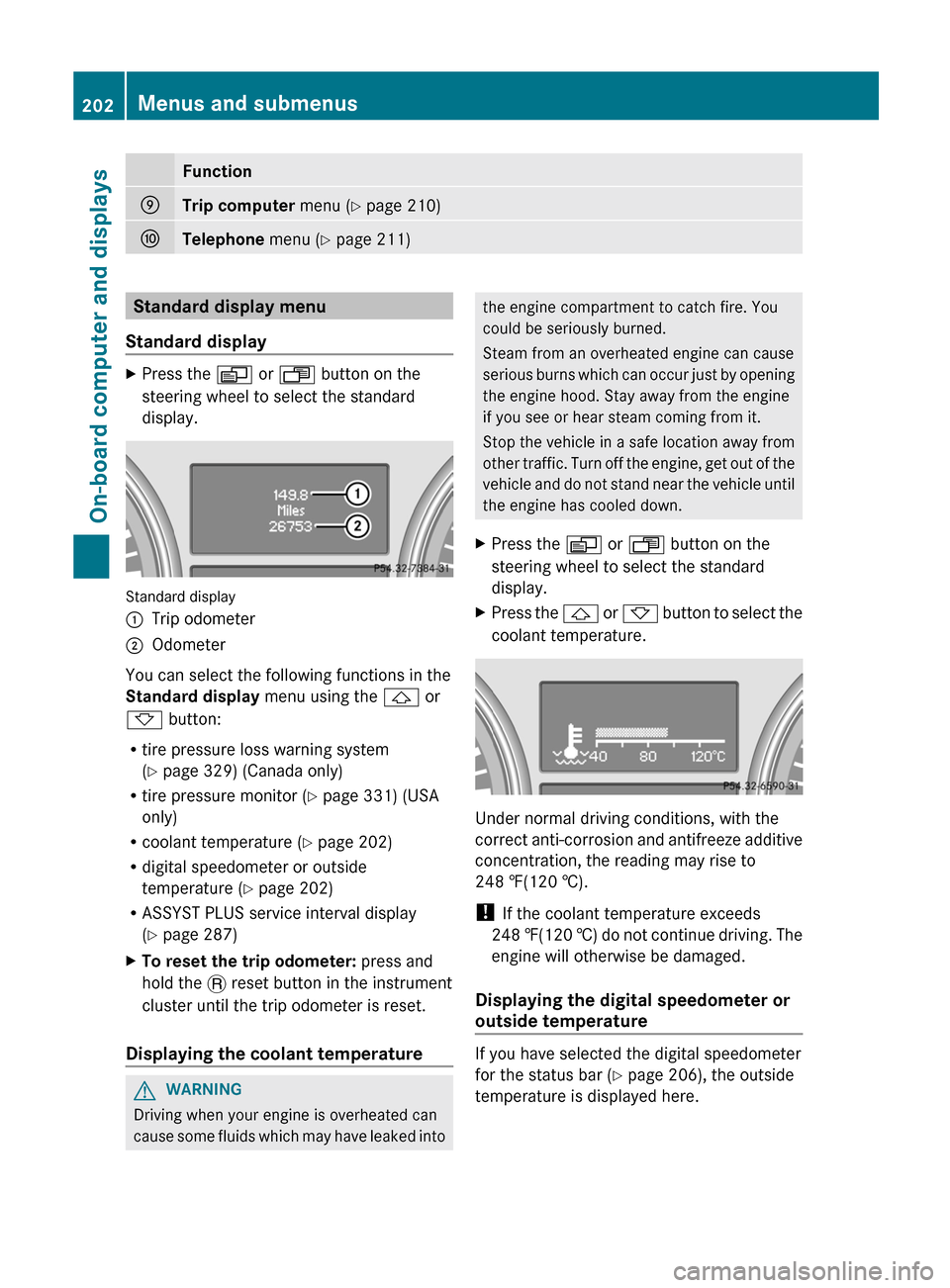
Standard displayXPress the V or U button on the
steering wheel to select the standard
display.
Standard display
:Trip odometer;Odometer
You can select the following functions in the
Standard display menu using the & or
* button:
R tire pressure loss warning system
( Y page 329) (Canada only)
R tire pressure monitor ( Y page 331) (USA
only)
R coolant temperature ( Y page 202)
R digital speedometer or outside
temperature ( Y page 202)
R ASSYST PLUS service interval display
( Y page 287)
XTo reset the trip odometer: press and
hold the . reset button in the instrument
cluster until the trip odometer is reset.
Displaying the coolant temperature
GWARNING
Driving when your engine is overheated can
cause some fluids which may have leaked into
the engine compartment to catch fire. You
could be seriously burned.
Steam from an overheated engine can cause
serious burns which can occur just by opening
the engine hood. Stay away from the engine
if you see or hear steam coming from it.
Stop the vehicle in a safe location away from
other traffic. Turn off the engine, get out of the
vehicle and do not stand near the vehicle until
the engine has cooled down.XPress the V or U button on the
steering wheel to select the standard
display.XPress the & or * button to select the
coolant temperature.
Under normal driving conditions, with the
correct anti-corrosion and antifreeze additive
concentration, the reading may rise to
248 ‡(120 †).
! If the coolant temperature exceeds
248 ‡(120 †) do not continue driving. The
engine will otherwise be damaged.
Displaying the digital speedometer or
outside temperature
If you have selected the digital speedometer
for the status bar ( Y page 206), the outside
temperature is displayed here.
202Menus and submenusOn-board computer and displays
Page 205 of 368

XPress the V or U button on the
steering wheel to select the standard
display.XPress the & or * button to select
digital speedometer or the outside
temperature.
Digital speedometer
Outside temperature
Audio menu
Selecting a radio station
i SIRIUS XM satellite radio acts like a
normal radio.
For more information on satellite radio
operation, see the separate operating
instructions.
You can only change the waveband and store
new stations using COMAND.
XSwitch on COMAND and select Radio (see
the separate operating instructions).XPress the V or U button on the
steering wheel to select the Audio menu.:Waveband 24;Current stationXTo select a stored station:
briefly press
the & or * button.XTo select a station from the station
list: press and briefly hold the & or
* button.XTo select a station using station
search 25
: press and briefly hold the &
or * button.
Operating audio player or audio media
Audio data from various audio devices or
media can be played, depending on the
equipment installed in the vehicle.
XSwitch on COMAND and select the audio
device or medium (see the separate
operating instructions).XPress the V or U button on the
steering wheel to select the Audio menu.
CD changer display (example)
:Current CD;Current track24
If current station ; has been stored, the memory position will also be displayed.
25 Only if no station list is received.Menus and submenus203On-board computer and displaysZ
Page 207 of 368

Settings menu
Introduction
The Settings menu can be used for:
R restoring the factory settings
R changing the instrument cluster settings
R changing the time/date settings 26
R changing the light settings
R changing the vehicle settings
R changing the convenience settings
Resetting to factory settings
For safety reasons, the Daytime Running
Lamps function in the Lighting submenu is
only reset when the engine is switched off.
XPress V or U on the steering wheel
to select the Settings menu.XPress and hold the . reset button on the
instrument cluster for approximately three
seconds.
A prompt appears in the multifunction
display asking you to confirm by pressing
the . reset button again.XPress the . reset button again.
The settings of most functions are restored
to the factory settings.
or
XIf you want to retain the settings, do not
press the . reset button a second time.
After approximately five seconds, the
Settings menu reappears.XPress the V or U button to select a
different menu.Instrument cluster
Selecting the unit of measurement for
distance
This function is only available in Canada.
The Display unit Speedometer/
Odometer function allows you to choose
whether certain displays appear in kilometers
or miles.
The selected unit of measurement for
distance applies to:
R the analog speedometer
R the odometer and the trip odometer
R the trip computer
R the navigation instruction in the
Navigation menu
R DISTRONIC
XPress the V or U button on the
steering wheel to select the Settings
menu.XPress the & button to call up the
selection of submenus.XPress the W or X button to select the
Instrument Cluster submenu.XPress the & button to select Display
Unit Speedometer/Odometer .XPress the W or X button to select
km or Miles as the unit of measurement for
distance.XPress the &, V or U button to
select a different display.
Selecting the unit of distance for the
digital speedometer
XPress V or U on the steering wheel
to select the Settings menu.XPress the & button to select submenus.XPress the W or X button to select the
Instrument cluster submenu.XPress the & button to display Display
unit Digital speedometer .26
This function is not available in vehicles with the navigation module.Menus and submenus205On-board computer and displaysZ
Page 208 of 368

XPress the W or X button to select
km or miles as the unit of measurement for
distance.XPress the &, V or U button to
select a different display.
Selecting the language
The Language: function allows you to select
the language for the instrument cluster.
XPress V or U on the steering wheel
to select the Settings menu.XPress the & button to select submenus.XPress W or X to select the
Instrument cluster submenu.XPress & to select Language .XPress the W or X button to select the
desired language.XPress the &, V or U button to
select a different display.
Selecting the status line display
XPress V or U on the steering wheel
to select the Settings menu.XPress the & button to select submenus.XPress W or X to select the
Instrument cluster submenu.XPress & to select Status line
display .XPress W or X to select the display in
the status line: speed ( Speed) or outside
temperature ( Outside temp. ).
The selected display now appears
constantly in the lower multifunction
display. When you scroll through the
Standard display menu (Y page 202), you
will see the display you have not selected.XPress the &, V or U button to
select a different display.
Time/date
This submenu is only available on vehicles
with no navigation module. To set the time
and the date for vehicles with a navigation
module, see the separate operating
instructions.
In the Time/date submenu, you can set the
time and date.XPress V or U on the steering wheel
to select the Settings... menu.XPress the & button to select submenus.XPress the W or X button to select the
Time/date submenu.XTo set the time: press & to select
Clock Set Hour or Clock Set
Minute(s) .
or
XTo set the date: press & to select
Date Set Day , Date Set Month or Date
Set Year .XPress W or X to set a value.XPress the &, V or U button to
select a different display.
Lights
Switching the daytime running lamps on/
off
This function is not available in Canada.
If you have activated the Daytime Running
Lights function and the light switch is in the
$ or à position, the daytime running
lamps are automatically switched on when
the engine is running.
In the dark, the following also light up:
R the low-beam headlamps
R the parking lamps
R the tail lamps
R the license plate lamp
R the side marker lamps
On vehicles with daytime running lamps, the
factory setting is On
XSwitch off the engine.XPress V or U on the steering wheel
to select the Settings menu.XPress the & button to select submenus.206Menus and submenusOn-board computer and displays
Page 210 of 368

XBefore leaving the vehicle, turn the
SmartKey to position 0 in the ignition lock.XTurn the SmartKey to position 2 in the
ignition lock and back to position 0.
The delayed switch-off is deactivated.
Delayed switch-off is reactivated the next
time you start the engine.
Activating/deactivating the interior
lighting delayed switch-off
If the Interior lighting Delayed Shut-
off function is activated and you remove the
SmartKey from the ignition lock, the interior
lighting remains on for 10 seconds.
XPress the V or U button on the
steering wheel to select the Settings
menu.XPress the & button to select submenus.XPress the W or X button to select the
Lighting submenu.XPress the & button to select Interior
Lighting Delayed Shut-off .XPress the W or X button to activate
or deactivate the Interior Lighting
Delay function.XPress the &, V or U button to
select a different display.
Vehicle
Activating/deactivating the automatic
door locking feature
If you select the Automatic Door Locking
function, the vehicle is centrally locked above
a speed of around 9 mph (15 km/h).
i For further information on the automatic
locking feature, see ( Y page 80).
XPress the V or U button on the
steering wheel to select the Settings
menu.XPress the & button to call up the
selection of submenus.XPress the W or X button to select the
Vehicle submenu.XPress the & button to select
Automatic Door Locking .XPress the W or X button to switch
Automatic Door Locking on or off.XPress the &, V or U button to
select a different display.
Activating/deactivating the acoustic
locking confirmation
If you activate the Acoustic Lock
Feedback function, an audible signal sounds
when the vehicle is locked or unlocked. When
unlocking, the signal sounds once. When
locking, it sounds three times.
XPress the V or U button on the
steering wheel to select the Settings
menu.XPress the & button to call up the
selection of submenus.XPress the W or X button to select the
Vehicle submenu.XPress the & button to select Acoustic
Lock Feedback .XPress the W or X button to switch
the Acoustic Lock Feedback function on
or off.XPress the &, V or U button to
select a different display.
Activating/deactivating the radar sensor
system
If the radar sensor system is switched off,
Blind Spot Assist (Y page 189) is deactivated.
i USA only: This device has been approved
by the FCC as a "Vehicular Radar System".
The radar sensor is intended for use in an
automotive radar system only. Removal,
tampering, or altering of the device will void
any warranties, and is not permitted by the
FCC. Do not tamper with, alter, or use in
any nonapproved way.
Any unauthorized modification to this
device could void the user's authority to
operate the equipment.
208Menus and submenusOn-board computer and displays
Page 212 of 368

If you have switched the function on and you
fold the exterior mirrors in using the button
on the door ( Y page 110), they will not fold
out automatically. The exterior mirrors can
then only be folded out using the button on
the door.XPress V or U on the steering wheel
to select the Settings menu.XPress the & button to select submenus.XPress the W or X button to select the
Convenience submenu.XPress & to select Fold In Mirrors
When Locking .XPress W or X to activate/deactivate
the Fold Mirrors In When Locking
function.XPress the &, V or U button to
select a different display.
Additional functions menu
Activating/deactivating the distance
warning function
This function is only available with
DISTRONIC.
XPress V or U on the steering wheel
to select the Additional functions menu.XPress the & or * button to select the
Distance warning function.XPress the W or X button to activate
or deactivate the Distance warning
system.
When the distance warning function
( Y page 68) is activated, the Ä symbol
is shown in the lower multifunction display.XPress the &, V or U button to
select a different display.
Activating/deactivating Blind Spot
Assist
Further information about Blind Spot Assist
( Y page 189).
XPress V or U on the steering wheel
to select the Additional functions menu.XPress the & or * button to select the
Blind Spot Assist function.XPress the W or X button to switch
Blind Spot Assist on or off.XPress the &, V or U button to
select a different display.
Trip computer menu
Trip computer "From start" or "From
reset"
The values in the From Start submenu refer
to the start of your journey, while those in the
From Reset submenu refer to the last time
you reset ( Y page 211) this submenu.
XPress the V or U button on the
steering wheel to select the trip
computer menu.XPress the & or * button to select
From Start or From Reset .
Trip computer "From start" (example)
:Distance;Time=Average speed?Average fuel consumption
The From Start trip computer is reset
automatically when:
R the ignition has been switched off for more
than four hours.
R 999 hours have been exceeded.
R 9,999 miles have been exceeded.
210Menus and submenusOn-board computer and displays