2012 MERCEDES-BENZ E-Class WAGON audio
[x] Cancel search: audioPage 220 of 396
Menus and submenus
Menu overview
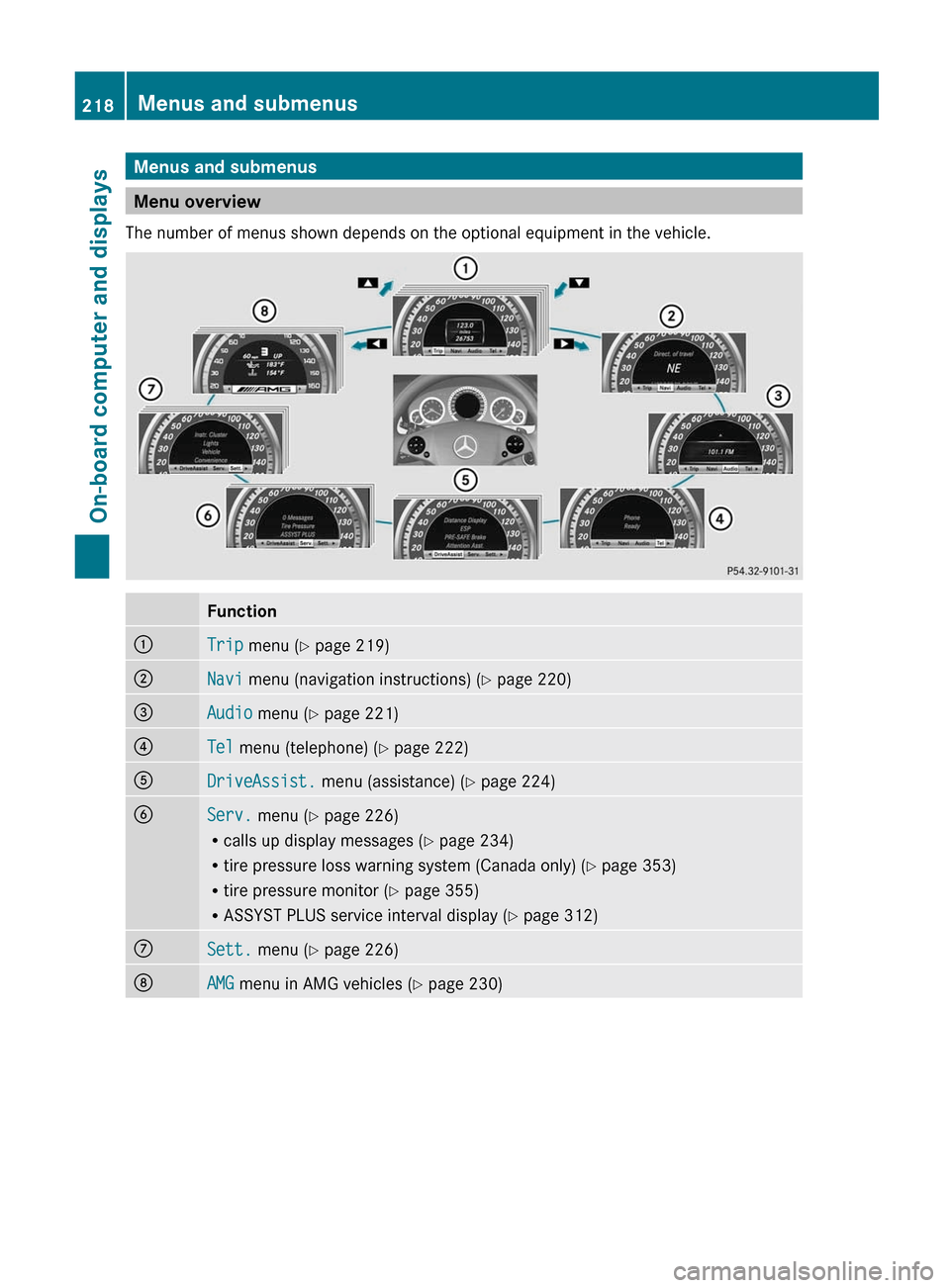
The number of menus shown depends on the optional equipment in the vehicle.
Function:Trip menu ( Y page 219);Navi menu (navigation instructions) ( Y page 220)=Audio menu ( Y page 221)?Tel menu (telephone) ( Y page 222)ADriveAssist. menu (assistance) ( Y page 224)BServ. menu ( Y page 226)
R calls up display messages ( Y page 234)
R tire pressure loss warning system (Canada only) ( Y page 353)
R tire pressure monitor ( Y page 355)
R ASSYST PLUS service interval display ( Y page 312)CSett. menu ( Y page 226)DAMG menu in AMG vehicles ( Y page 230)218Menus and submenusOn-board computer and displays
Page 223 of 396

direction ?. This decreases in size as you
approach the announced change of direction.
Change of direction announced with a
lane recommendation
Lane recommendations are only displayed if
the relevant data is available on the digital
map.:Road into which the change of direction
leads;Distance to change of direction and visual
distance display=Lane recommendation?Symbol for change of direction
On multi-lane roads, lane recommendation
= may be shown for the next change of
direction. Lanes may be added during a
change of direction.
Lane recommendation display (example)
:Uninterrupted lane;New lane during a change of direction
Other status indicators of the
navigation system
R O : you have reached the destination or
an intermediate destination.
R New Route... or Calculating Route : a
new route is being calculated.
R Off Map or Off Mapped Road : the vehicle
position is outside the area of the digital
map (off-map position).
R No Route : no route could be calculated to
the selected destination.
Audio menu
Selecting a radio station
i SIRIUS XM satellite radio acts like a
normal radio.
For more information on satellite radio
operation, see the separate operating
instructions.
You can only change the waveband and store
new stations using COMAND.
XSwitch on COMAND and select Radio (see
the separate operating instructions).XPress the = or ; button on the
steering wheel to select the Audio menu.:Waveband;Station 22XTo select a stored station:
briefly press
the 9 or : button.XTo select a station from the station
list: press and briefly hold the 9
or : button.XTo select a station using station
search 23
: press and briefly hold the 9
or : button.22
If the station has been stored, the memory position will also be displayed.
23 Only if no station list is received.Menus and submenus221On-board computer and displaysZ
Page 224 of 396
Operating audio player or audio media
Audio data from various audio devices or
media can be played, depending on the
equipment installed in the vehicle.
XSwitch on COMAND and select the audio
device or medium (see the separate
operating instructions).XPress the = or ; button on the
steering wheel to select the Audio menu.
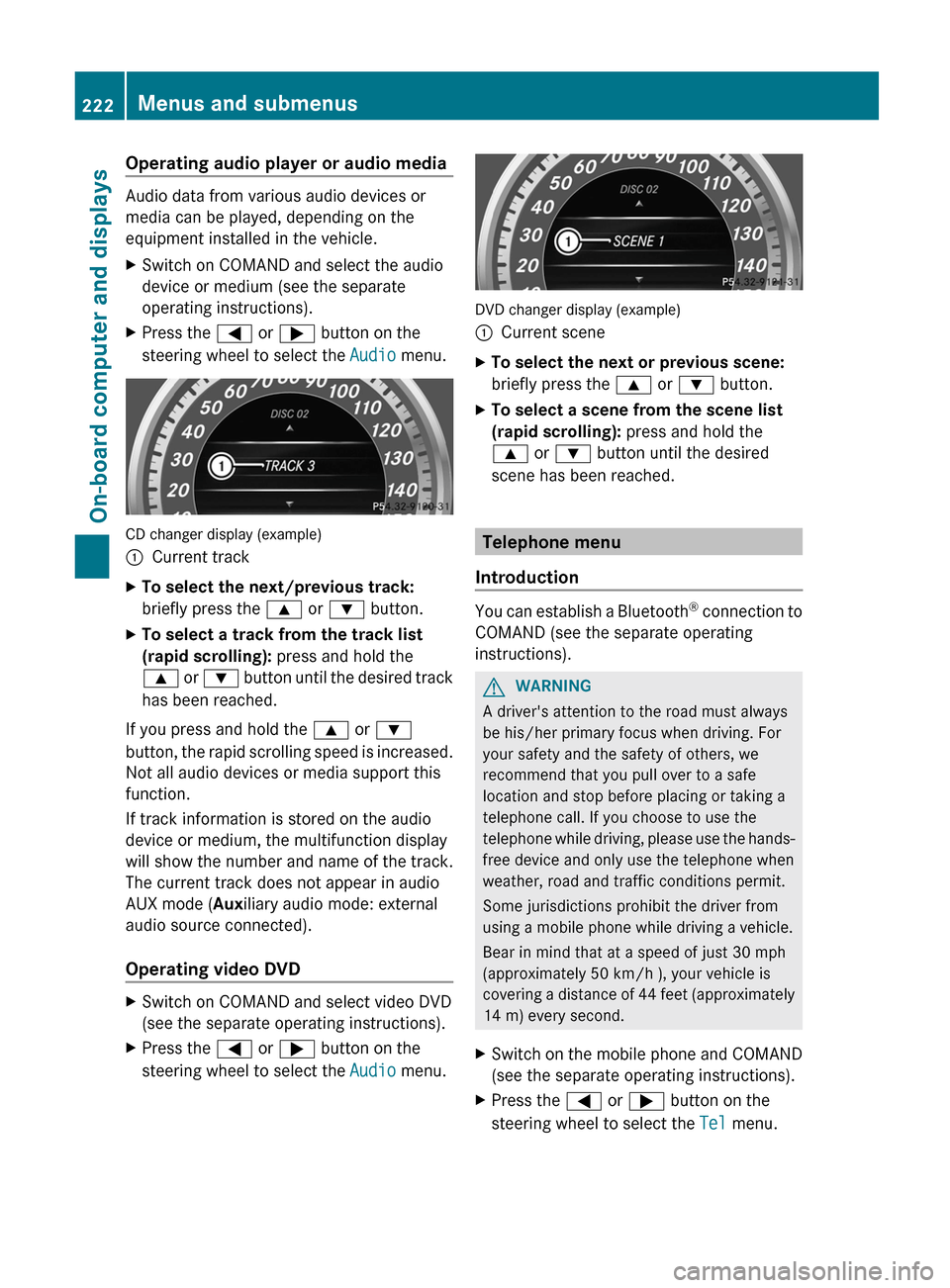
CD changer display (example)
:Current trackXTo select the next/previous track:
briefly press the 9 or : button.XTo select a track from the track list
(rapid scrolling): press and hold the
9 or : button until the desired track
has been reached.
If you press and hold the 9 or :
button, the rapid scrolling speed is increased.
Not all audio devices or media support this
function.
If track information is stored on the audio
device or medium, the multifunction display
will show the number and name of the track.
The current track does not appear in audio
AUX mode ( Auxiliary audio mode: external
audio source connected).
Operating video DVD
XSwitch on COMAND and select video DVD
(see the separate operating instructions).XPress the = or ; button on the
steering wheel to select the Audio menu.
DVD changer display (example)
:Current sceneXTo select the next or previous scene:
briefly press the 9 or : button.XTo select a scene from the scene list
(rapid scrolling): press and hold the
9 or : button until the desired
scene has been reached.
Telephone menu
Introduction
You can establish a Bluetooth ®
connection to
COMAND (see the separate operating
instructions).
GWARNING
A driver's attention to the road must always
be his/her primary focus when driving. For
your safety and the safety of others, we
recommend that you pull over to a safe
location and stop before placing or taking a
telephone call. If you choose to use the
telephone while driving, please use the hands-
free device and only use the telephone when
weather, road and traffic conditions permit.
Some jurisdictions prohibit the driver from
using a mobile phone while driving a vehicle.
Bear in mind that at a speed of just 30 mph
(approximately 50 km/h ), your vehicle is
covering a distance of 44 feet (approximately
14 m) every second.
XSwitch on the mobile phone and COMAND
(see the separate operating instructions).XPress the = or ; button on the
steering wheel to select the Tel menu.222Menus and submenusOn-board computer and displays
Page 225 of 396

You will see one of the following display
messages in the multifunction display:
R Telephone Ready or the name of the
network provider: the mobile phone has
found a network and is ready to receive.
R Phone No Service : no network is
available, or the mobile phone is searching
for a network.
Accepting a call
If someone calls you when you are in the Tel
menu, a display message appears in the
multifunction display, for example:
XPress the 6 button on the steering
wheel to accept an incoming call.
If you are not in the Tel menu, you can still
accept a call.
Rejects or ends a call
XPress the ~ button on the steering
wheel.
If you are not in the Tel menu, you can still
reject or end a call.
Dialing a number from the phone book
If your mobile phone is able to receive calls,
you can search for and dial a number from the
phone book in COMAND at any time.
XCopy the telephone book of the mobile
phone into the audio system or to COMAND
(see the separate operating instructions).
Copy the telephone book of the mobile
phone to COMAND (see the separate
operating instructions).XPress the = or ; button on the
steering wheel to select the Tel menu.XPress the 9, : or a button to call
up the phone book.XPress the 9 or : button to select the
desired name.
To start scrolling rapidly, press and hold the
9 or : button for longer than one
second. After a short time, the rapid scroll
speeds up.
Rapid scrolling stops when you release the
button or reach the end of the list.XIf only one telephone number is stored
for a name: press the 6 or a button
to start dialing.
or
XIf there is more than one number for a
particular name: press the 6 or a
button to display the numbers.XPress the 9 or : button to select the
number you want to dial.XPress the 6 or a button to start
dialing.
or
XIf you do not want to make a call: press
the ~ or % button.
Redialing
The on-board computer saves the last names
or numbers dialed in the redial memory.
XPress the = or ; button on the
steering wheel to select the Tel menu.XPress the 6 button to switch to the
redial memory.XPress the 9 or : button to select the
desired name or number.XPress the 6 or a button to start
dialing.
or
XIf you do not want to make a call: press
the ~ or % button.Menus and submenus223On-board computer and displaysZ
Page 277 of 396

XTo open: pull handle : and open glove box
flap ;.XTo close: fold glove box flap ; upwards
until it engages.
The glove box can only be locked and
unlocked using the mechanical key.
XTo lock: insert the mechanical key into the
lock and turn it 90° clockwise to position
2 .XTo unlock: insert the mechanical key into
the lock and turn it 90° counter-clockwise
to position 1.
Eyeglasses compartment
There is a compartment to stow eyeglasses
in the headliner on the driver's side.
XTo open: pull down eyeglasses
compartment : by the handle.
Stowage compartment in the center
console
i A stowage compartment is located under
the cup holder at the front of the center
console.
XTo open: slide cover : forwards until it
engages.XRemove the cup holder at the front of the
center console ( Y page 289).
Stowage compartment under the armrest
i Depending on the vehicle's equipment, a
USB connection and an AUX IN connection
or a Media Interface are installed in the
stowage compartment. A Media Interface
is a universal interface for mobile audio
equipment, e.g. for an iPod ®
or MP3 player
(see the separate COMAND operating
instructions).
Stowage areas275Stowing and featuresZ
Page 299 of 396

GWARNING
A malfunction in the system has been
detected if one of the following conditions
occurs:
R the indicator lamp in the SOS button does
not light up during the system self-
diagnosis.
R the indicator lamp in the F Roadside
Assistance button does not light up during
the system self-diagnosis.
R The indicator lamp in the ï information
button does not light up during self-
diagnosis of the system.
R the indicator lamp in the SOS button,
F Roadside Assistance button or ï
information button continues to be lit red
after the system self-diagnosis.
R The Tele Aid Inoperative or Tele Aid
Not Activated message appears in the
multifunction display after the system self-
test.
If a malfunction is indicated as outlined above,
the system may not operate as expected. In
the event of an emergency, assistance must
be summoned by other means.
Have the system checked at the nearest
authorized Mercedes-Benz Center or contact
the following service hotlines:
R USA: Mercedes-Benz Customer Assistance
Center under
1-800-FOR-MERCedes(1-800-367-6372)
or 1-888-990-9007
R Canada: Customer Service at
1-888-923-8367
Emergency call
Important safety notes
! A license agreement must exist in order
to activate the mbrace service. Ensure that
your system is activated and ready for use,
and press the ï MB Info call button to
register. If any of the steps mentioned is
not carried out, the system may not be
activated.
If you have questions about the activation,
contact one of the following telephone
assistance services:
R USA: Mercedes-Benz Customer
Assistance Center under
1-800-FOR-MERCedes
(1-800-367-6372) or 1-888-990-9007
R Canada: Customer Service at
1-888-923-8367
An emergency call is dialed automatically if
an air bag or Emergency Tensioning Device is
triggered.
i An mbrace emergency call that has been
initiated automatically cannot be
terminated by the customer.
An emergency call can also be initiated
manually.
As soon as the emergency call has been
initiated, the indicator lamp in the SOS button
flashes. The Connecting Call message
appears on the multifunction display.
The audio output is muted.
Once a connection has been established, the
Call Connected message appears in the
multifunction display.
All important information on the emergency
is transmitted, for example:
R current location of the vehicle (as
determined by the GPS system)
R vehicle identification number
R information on the type of emergency
Shortly after the emergency call has been
initiated, a voice connection is automatically
established between the Mercedes-Benz
Customer Assistance Center and the vehicle
occupants. If the vehicle occupants respond,
the Mercedes-Benz Customer Assistance
Center attempts to get more information on
the emergency.
i If no vehicle occupant answers, an
ambulance is immediately sent to the
vehicle.Features297Stowing and featuresZ
Page 300 of 396

GWARNING
If the indicator lamp in the SOS button is
flashing continuously and no voice
connection to the Mercedes-Benz Customer
Assistance Center was established, then the
mbrace system could not initiate an
emergency call (e.g. the relevant cellular
phone network is not available).
The message Call Failed appears in the
multifunction display for approximately
10 seconds.
Should this occur, assistance must be
summoned by other means.
Making an emergency call
XTo initiate an emergency call
manually: press cover : briefly to open
it.XPress SOS button ; briefly.
The indicator lamp in SOS button ;
flashes until the emergency call is
concluded.XWait for a voice connection to the
Mercedes-Benz Customer Assistance
Center.XAfter the emergency call is ended, close
cover :.GWARNING
If you feel in any way in jeopardy when in the
vehicle (e.g. smoke or fire in the vehicle,
vehicle in a dangerous road location), please
do not wait for voice contact after you have
pressed the SOS button. Carefully leave the
vehicle and move to a safe location. The
Mercedes-Benz Customer Assistance Center
will automatically contact local emergency
officials with the vehicle's approximate
location if they receive an automatic SOS
signal and cannot make voice contact with the
vehicle occupants.
Roadside Assistance buttonXPress and hold Roadside Assistance
button : for more than two seconds.
This initiates a call to the Mercedes-Benz
Customer Assistance Center. The indicator
lamp in Roadside Assistance button :
flashes while the call is active. The
Connecting Call message appears in the
multifunction display. The audio output is
muted.
If a connection can be established, the Call
Connected message appears in the
multifunction display.
If a cellular phone network is available and
there is sufficient GPS reception, the mbrace
system transmits data to the Mercedes-Benz
Customer Assistance Center, for example:
R current location of the vehicle
R vehicle identification number
i The COMAND display shows that an
mbrace call is active. During the call, you
can change to the navigation menu by
pressing the NAVI button on COMAND, for
example.
Voice output is not available.
298FeaturesStowing and features
Page 301 of 396

A voice connection is established between
the Mercedes-Benz Customer Assistance
Center and the vehicle occupants.XDescribe the type of assistance needed.
The Mercedes-Benz Customer Assistance
Center either sends a qualified Mercedes-
Benz technician or organizes for your vehicle
to be transported to the nearest authorized
Mercedes-Benz Center. You may be charged
for services such as repair work and/or
towing. Further details are available in your
mbrace manual.
i The mbrace system failed to initiate a
Roadside Assistance call if:
R the indicator lamp in Roadside
Assistance button : is flashing
continuously.
R no voice connection to the Mercedes-
Benz Customer Assistance Center was
established.
This may be because the corresponding
mobile phone network is not available.
The Call Failed message appears in the
multifunction display.
XTo end a call: press the ~ button on the
multifunction steering wheel.
or
XPress the corresponding button for ending
a phone call on COMAND.
MB Info call button
XPress and hold MB Info call button : for
more than two seconds.
This initiates a call to the Mercedes-Benz
Customer Assistance Center. The indicator
lamp in MB Info call button : flashes while
the connection is being established. The
Connecting Call message appears in the
multifunction display. The audio output is
muted.
If a connection can be established, the Call
Connected message appears in the
multifunction display.
If a cellular phone network is available and
there is sufficient GPS reception, the mbrace
system transmits data to the Mercedes-Benz
Customer Assistance Center, for example:
R current location of the vehicle
R vehicle identification number
i The COMAND display shows that an
mbrace call is active. During the call, you
can change to the navigation menu by
pressing the NAVI button on COMAND, for
example.
Voice output is not available.
A voice connection is established between
the Mercedes-Benz Customer Assistance
Center and the vehicle occupants. You can
obtain information on how to operate your
vehicle's systems, on the location of the
nearest authorized Mercedes-Benz Center,
and on further products and services offered
by Mercedes-Benz USA.
Further details on the mbrace system can be
found under http://www.mbusa.com 26
.
Log in under "Owners Online".
i The mbrace system failed to initiate an
MB Info call if:
R the indicator lamp in MB Info call
button : is flashing continuously.
R no voice connection to the Mercedes-
Benz Customer Assistance Center was
established.
26 USA only.Features299Stowing and featuresZ