2012 MERCEDES-BENZ E-Class COUPE lane
[x] Cancel search: lanePage 194 of 352

There will be either no or only a weak course-
correcting brake application if:
R there are vehicles or obstacles, e.g. crash
barriers, located on both sides of your
vehicle.
R a vehicle approaches you too closely at the
side.
R you have adopted a sporty driving style with
high cornering speeds.
R you clearly brake or accelerate.
R a driving safety system intervenes, e.g.
ESP ®
or PRE-SAFE ®
Brake.
R ESP ®
is switched off.
R a loss of tire pressure or a defective tire is
detected.
Switching on Active Blind Spot AssistXMake sure that the radar sensor system
( Y page 210) and Active Blind Spot Assist
( Y page 207) are activated in the on-board
computer.XTurn the SmartKey to position 2 in the
ignition lock.
Warning lamps : light up red in the
exterior mirrors for approximately 1.5
seconds and then turn yellow.
Active Lane Keeping Assist
Important safety notes
Active Lane Keeping Assist monitors the area
in front of your vehicle by means of a camera
at the top of the windshield. Active Lane
Keeping Assist detects lane markings on the
road and warns you before you leave your
lane unintentionally. If you do not react to the
warning, a lane-correcting application of the
brakes can bring the vehicle back into the
original lane.
:Active Lane Keeping Assist camera
If you have selected the Display Unit
Speed-/Odometer (Y page 208) function in
the on-board computer and select km as the
unit of measurement, Active Lane Keeping
Assist is active from speeds of 60 km/h. If
the miles display unit is selected, the
assistance range begins at 40 mph.
GWARNING
Active Lane Keeping Assist does not keep
your vehicle in its lane. It is only an aid and
may detect the lane markings on the road
incorrectly or not at all.
The system may be impaired or may not
function if:
R several or no lane markings for a single lane
are present.
R there is poor visibility, e.g. due to
insufficient illumination of the road, or due
to snow, rain, fog or spray.
R there is glare, e.g. from oncoming traffic,
the sun, or reflection from other vehicles.
R the windshield is dirty, fogged up or
covered, for instance by a sticker, in the
vicinity of the camera.
R the lane markings are worn away, dark or
covered up, e.g. by dirt or snow.
R the distance to the vehicle in front is too
small and the lane markings thus cannot be
detected.
R the lane markings on the road are unclear,
e.g. near roadworks.
192Driving systemsDriving and parking
Page 195 of 352

Rthe lane markings change quickly, e.g.
lanes branch off, cross one another or
merge.
R the road is narrow and winding.
Active Lane Keeping Assist cannot detect
road and traffic conditions. It is not a
substitute for attentive driving. You are
responsible for the vehicle's speed, braking in
good time, and steering correctly. Always
adapt your driving style to suit the prevailing
road and weather conditions. Always pay
attention to traffic conditions and your
surroundings. Otherwise, you may fail to
recognize dangers in time, cause an accident
and injure yourself and others.
Warning vibration in the steering wheel
A warning can be given when a front wheel
passes over a lane marking. You will be
warned by means of intermittent vibration in
the steering wheel for up to 1.5 seconds.
In order that you are warned only when
necessary and in good time if you cross the
lane marking, the system recognizes certain
conditions and warns you accordingly.
The warning vibration occurs earlier if:
R you approach the outer lane marking on a
bend.
R the road has very wide lanes, e.g. a
freeway.
R the system recognizes solid lane markings.
The warning vibration occurs later if:
R the road has narrow lanes.
R you cut the corner on a bend.
No warning vibration occurs if:
R you clearly and actively steer, brake or
accelerate.
R you cut the corner on a sharp bend.
R a driving safety system intervenes, e.g.
ABS, BAS or ESP ®
.
R you switch on the turn signals. In this event,
the warnings are suppressed for a certain
period of time.Lane-correcting brake application
If you leave your lane under certain
circumstances the vehicle will brake briefly
on one side. This is meant to assist you in
bringing the vehicle back to the original lane.
This function is available in the range between
40 mph and 120 mph (60 km/h to
200 km/h).
A lane-correcting brake application can only
be made after driving over a solid,
recognizable lane marking. Before this, a
warning must be given by means of
intermittent vibration in the steering wheel.
In addition, a lane with lane markings on both
sides must be recognized. The brake
application also slightly reduces vehicle
speed.
If a lane-correcting brake application occurs,
the following, for example, appears in the
multifunction display:
i A further lane-correcting brake
application can only occur after your
vehicle has returned to the original lane.
GWARNING
Active Lane Keeping Assist does not keep
your vehicle in its lane. It is only an aid
designed to assist driving. It is not a substitute
for attentive driving. In some cases, the lane-
correcting brake application is not sufficient
to bring your vehicle back to the original lane.
In such cases, you must steer the vehicle
yourself to ensure that it does not leave the
lane.
Active Lane Keeping Assist does not detect
road and traffic conditions. Always make sure
that there is sufficient distance to the side for
other traffic or obstacles. In rare cases,
unclear markings or particular structures on
Driving systems193Driving and parkingZ
Page 196 of 352
the roadway can be recognized as solid lane
markings. An inappropriate brake application,
e.g. after intentionally driving over a solid lane
marking, may be interrupted at any time by
steering slightly in the opposite direction.
Active Lane Keeping Assist cannot take
weather conditions into account.
You are responsible for the driving at
appropriate speeds, braking in good time, and
steering correctly. Always adapt your driving
style to suit the prevailing road and weather
conditions. Always pay attention to traffic
conditions and your surroundings. Otherwise,
you may fail to recognize dangers in time,
cause an accident and injure yourself and
others.
No lane-correcting brake application occurs
if:
R you clearly and actively steer, brake or
accelerate.
R you cut the corner on a sharp bend.
R you switch on the turn signals.
R a driving safety system intervenes, e.g.
ESP ®
, PRE-SAFE ®
Brake or Active Blind
Spot Assist.
R you have adopted a sporty driving style with
high cornering speeds or high rates of
acceleration.
R ESP ®
is switched off.
R the transmission is not in position D.
R a loss of tire pressure or a defective tire has
been detected and displayed.
Active Lane Keeping Assist does not detect
traffic situations or road users. An
inappropriate brake application may be
interrupted at any time if you:
R steer slightly in the opposite direction.
R use a turn signal.
R clearly brake or accelerate.A lane-correcting brake application is
interrupted automatically if:
R a driving safety system intervenes, e.g.
ESP ®
, PRE-SAFE ®
Brake or Active Blind
Spot Assist.
R lane markings can no longer be recognized.
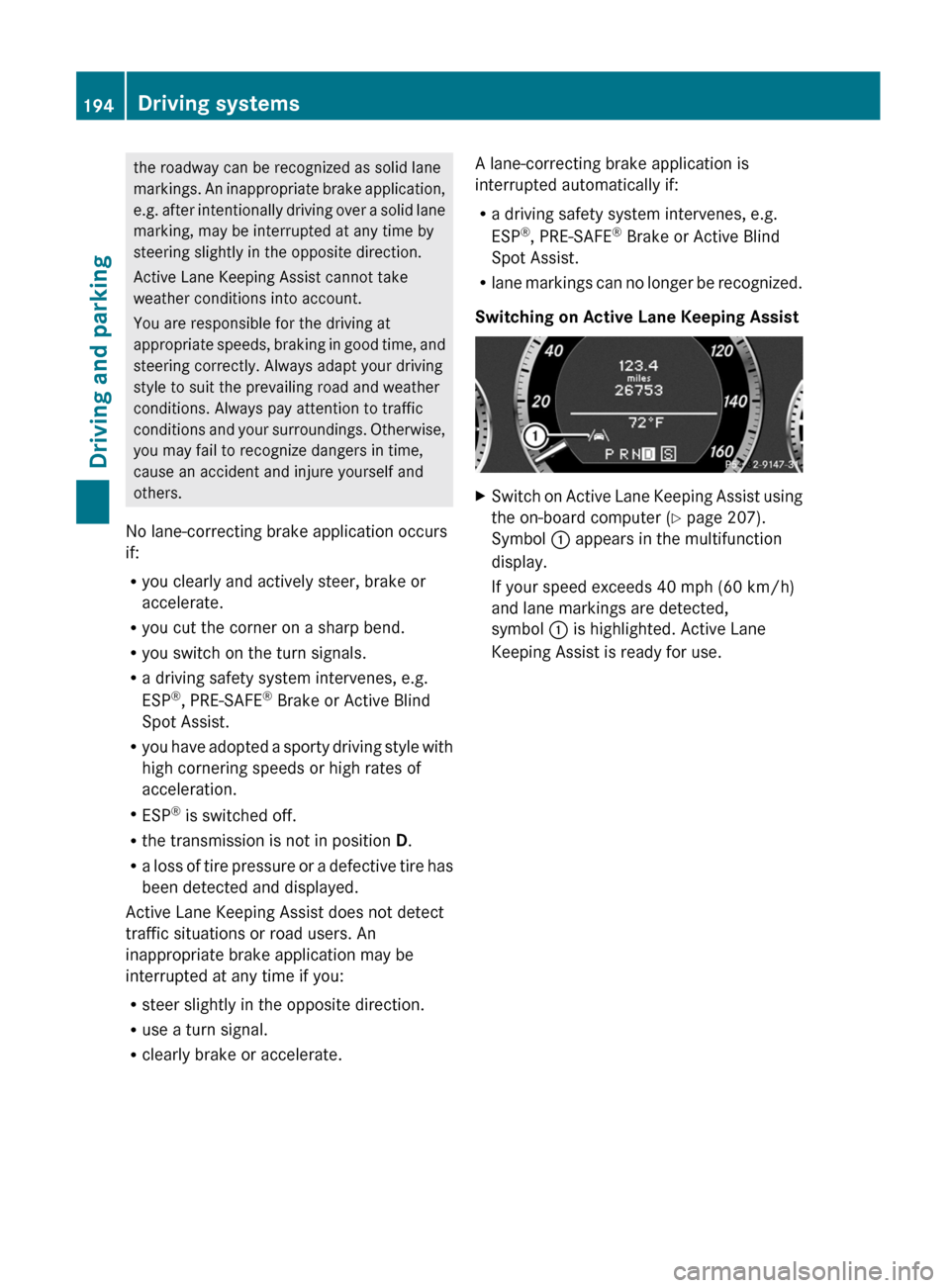
Switching on Active Lane Keeping AssistXSwitch on Active Lane Keeping Assist using
the on-board computer ( Y page 207).
Symbol : appears in the multifunction
display.
If your speed exceeds 40 mph (60 km/h)
and lane markings are detected,
symbol : is highlighted. Active Lane
Keeping Assist is ready for use.194Driving systemsDriving and parking
Page 201 of 352

XTo show menu bar ;: press the =
or ; button on the steering wheel.
The following messages may appear in the
multifunction display:
X j YParking Guidance ( Y page 181)_Adaptive Highbeam Assist
( Y page 120)ÀATTENTION ASSIST ( Y page 185)ÃLane Keeping Assist ( Y page 188) or
Active Lane Keeping Assist
( Y page 192)HOLDHOLD function ( Y page 176)ÄPRE-SAFE ®
Brake ( Y page 65)Displays and operation199On-board computer and displaysZ
Page 204 of 352

Resetting values
You can reset the values of the following
functions:
R Trip odometer
R Trip computer "From start"
R Trip computer "From reset"
XPress the = or ; button on the
steering wheel to select the Trip menu.XPress the 9 or : button to select the
function that you wish to reset.XPress a.
Resetting the trip computer "From start" (example)
XPress : to select Yes and press a
to confirm.
Navigation system menu
Displaying navigation instructions
In the Navi menu, the multifunction display
shows navigation instructions. For more
information, see the separate operating
instructions.
XSwitch on COMAND (see the separate
operating instructions).XPress the = or ; button on the
steering wheel to select the Navi menu.Route guidance inactive:Direction of travel;Current road
Route guidance active
No change of direction announced
:Distance to the destination;Distance to the next change of direction=Current road?Symbol for "follow the road's course"
Change of direction announced without a
lane recommendation
:Road into which the change of direction
leads;Distance to change of direction and visual
distance display=Current road?Symbol for change of direction
When a change of direction has been
announced, you will see visual distance
display ; next to the symbol for change of
202Menus and submenusOn-board computer and displays
Page 205 of 352

direction ?. This decreases in size as you
approach the announced change of direction.
Change of direction announced with a
lane recommendation
Lane recommendations are only displayed if
the relevant data is available on the digital
map.:Road into which the change of direction
leads;Distance to change of direction and visual
distance display=Lane recommendation?Symbol for change of direction
On multi-lane roads, lane recommendation
= may be shown for the next change of
direction. Lanes may be added during a
change of direction.
Lane recommendation display (example)
:Uninterrupted lane;New lane during a change of direction
Other status indicators of the
navigation system
R O : you have reached the destination or
an intermediate destination.
R New Route... or Calculating Route : a
new route is being calculated.
R Off Map or Off Mapped Road : the vehicle
position is outside the area of the digital
map (off-map position).
R No Route : no route could be calculated to
the selected destination.
Audio menu
Selecting a radio station
i SIRIUS XM satellite radio acts like a
normal radio.
For more information on satellite radio
operation, see the separate operating
instructions.
You can only change the waveband and store
new stations using COMAND.
XSwitch on COMAND and select Radio (see
the separate operating instructions).XPress the = or ; button on the
steering wheel to select the Audio menu.:Waveband;Station 16XTo select a stored station:
briefly press
the 9 or : button.XTo select a station from the station
list: press and briefly hold the 9
or : button.XTo select a station using station
search 17
: press and briefly hold the 9
or : button.16
If the station has been stored, the memory position will also be displayed.
17 Only if no station list is received.Menus and submenus203On-board computer and displaysZ
Page 208 of 352

Assistance menu
Introduction
In the DriveAssist. menu you can:
R show the distance display
R activate/deactivate ESP ®
R activate/deactivate PRE-SAFE ®
Brake
R activate/deactivate ATTENTION ASSIST
R activate/deactivate Blind Spot Assist or
Active Blind Spot Assist
R activate/deactivate Lane Keeping Assist or
Active Lane Keeping Assist
Showing the distance display
This function is only available with
DISTRONIC PLUS.
XPress the = or ; button on the
steering wheel to select the DriveAssist
menu.XPress the 9 or : button to select
Distance Display .XPress a.
The DISTRONIC PLUS distance display
( Y page 172) appears in the multifunction
display.Deactivating/activating ESP ®GWARNING
Never switch off the ESP when you see the
ESP warning lamp ä flashing in the
instrument cluster. In this case proceed as
follows:
R When driving off, apply as little throttle as
possible.
R While driving, ease up on the accelerator
pedal.
R Adapt your speed and driving style to the
prevailing road conditions.
Failure to observe these guidelines could
cause the vehicle to skid. The ESP cannot
prevent accidents resulting from excessive
speed.
For further information about ESP ®
, see
( Y page 63).
XStart the engine.XPress = or ; on the steering wheel
to select the DriveAssist menu.XPress the 9 or : button to select
ESP .XPress the a button.XTo deactivate: press a again.
The å warning lamp in the instrument
cluster comes on.GWARNING
When the å ESP OFF warning lamp lights
up, ESP is switched off.
When the ä ESP warning lamp and the
å ESP OFF warning lamp are on
continuously, ESP is not operational due to a
malfunction.
When ESP is switched off or not operational,
the vehicle's stability during standard driving
maneuvers is reduced.
Adapt your driving style to suit the prevailing
road conditions/weather conditions and to
the non-operating status of ESP.
206Menus and submenusOn-board computer and displays
Page 209 of 352
XTo activate: press a again.
The å warning lamp in the instrument
cluster goes out.
Activating/deactivating PRE-SAFE ®
Brake
PRE-SAFE ®
Brake is only available in vehicles
with DISTRONIC PLUS.
XPress the = or ; button on the
steering wheel to select the DriveAssist
menu.XPress 9 or : to select PRE-SAFE
Brake .XPress a.
The current selection is displayed.XTo activate/deactivate: press a
again.
When PRE-SAFE ®
Brake ( Y page 65) is
activated, the multifunction display shows
the Ä symbol as long as the HOLD
function is not activated ( Y page 176).
Vehicles with Parking Guidance: if
PARKTRONIC is activated and you are driving
at a speed under 22 mph (35 km/h) the j
symbol for Parking Guidance is displayed
instead of the Ä symbol.
Activating/deactivating ATTENTION
ASSIST
XPress the = or ; button on the
steering wheel to select the DriveAssist
menu.XPress the 9 or : button to select
Attention Asst. .XPress a.
The current selection is displayed.XTo activate/deactivate: press a
again.
When ATTENTION ASSIST ( Y page 185) is
activated, the À symbol appears in the
multifunction display when the ignition is on.
Activating/deactivating Blind Spot
Assist
You can use the Blind Spot Asst. function
to activate or deactivate Blind Spot Assist
( Y page 186) or Active Blind Spot Assist
( Y page 189).
XPress = or ; on the steering wheel
to select the DriveAssist menu.XPress 9 or : to select Blind Spot
Asst. .XPress a.
If the function is activated, the monitored
areas are shown in red in the multifunction
display.XTo activate/deactivate: press a
again.
Activating/deactivating Lane Keeping
Assist
You can use the Lane Keep. Asst. function
to activate/deactivate Lane Keeping Assist
( Y page 188) or Active Lane Keeping Assist
( Y page 192).
XPress the = or ; button on the
steering wheel to select the DriveAssist
menu.XPress the 9 or : button to select
Lane Keep. Asst. .XPress a.
If the function is activated, the road
markings are shown in red in the
multifunction display.XTo activate/deactivate: press a
again.
If Lane Keeping Assist or Active Lane keeping
Assist is activated, the multifunction display
shows the à symbol when the ignition is
switched on.
Menus and submenus207On-board computer and displaysZ