2012 MERCEDES-BENZ B-CLASS light
[x] Cancel search: lightPage 180 of 340

Lanes
:
White guide line without turning the
steering wheel, vehicle width including
the exterior mirrors (static)
; Yellow lane marking tires at current
steering wheel angle,
vehicle width to the
outer side of the wheels (dynamic)
= Red guide line for the vehicle width
including the exterior mirrors, for current
steering wheel angle (dynamic)
? Bumper Guide lines
?
Bumper
A Red guide line at a distance of
approximately 10 in (0.25 m
) from the
rear of the vehicle
B Yellow guide line at a distance of
approximately
13 ft (
4.0 m) from the rear
of the vehicle
C Vehicle center axle (marker assistance)
D Yellow guide line at a distance of
approximately 3 ft (1.0 m ) from the rear
of the vehicle The lanes and guide lines are only displayed
if you have engaged reverse gear.
The distance specifications only apply to
objects that are at ground level.
Additional displays on vehicles with PARKTRONIC
and COMAND
:
Front warning display
; Additional PARKTRONIC measurement
operational readiness indicator
= Rear warning display
Vehicles with PARKTRONIC and
COMAND: if PARKTRONIC is operational
(Y page 169), an additional operational
readiness indicator will appear in COMAND
display ;.If the PARKTRONIC warning
displays are active or light up, warning
displays : and
=
are also active or light up
correspondingly in the COMAND display.
Reverse parking function X
Make sure that the rear view camera is
activated and the "Reverse parking"
function is selected; see the separate
operating instructions for the audio
system/COMAND.
The lane and the guide lines are shown.178
Driving systems
Driving and parking
ProCarManuals.com
Page 184 of 340
monitored area. If you then switch on the
corresponding turn signal to change lanes,
you will also receive a visual and audible
collision warning.
For
this purpose, Blind Spot
Assist uses sensors in the rear bumper.
For Blind Spot Assist to assist you when
driving, the radar sensor system must be:
R activated(Y page 199)
R operational
Monitoring range of the sensors
In particular, the detection of obstacles can
be impaired if:
R dirt on the sensors or anything else
covering the sensors
R there is poor visibility, e.g. due to fog, heavy
rain or snow
R a narrow vehicle traveling in front, e.g. a
motorbike or bicycle
R the road has very wide lanes
R the road has narrow lanes
R you are not driving in the middle of the lane
R there are barriers or similar lane borders
Vehicles in the monitoring range are then not
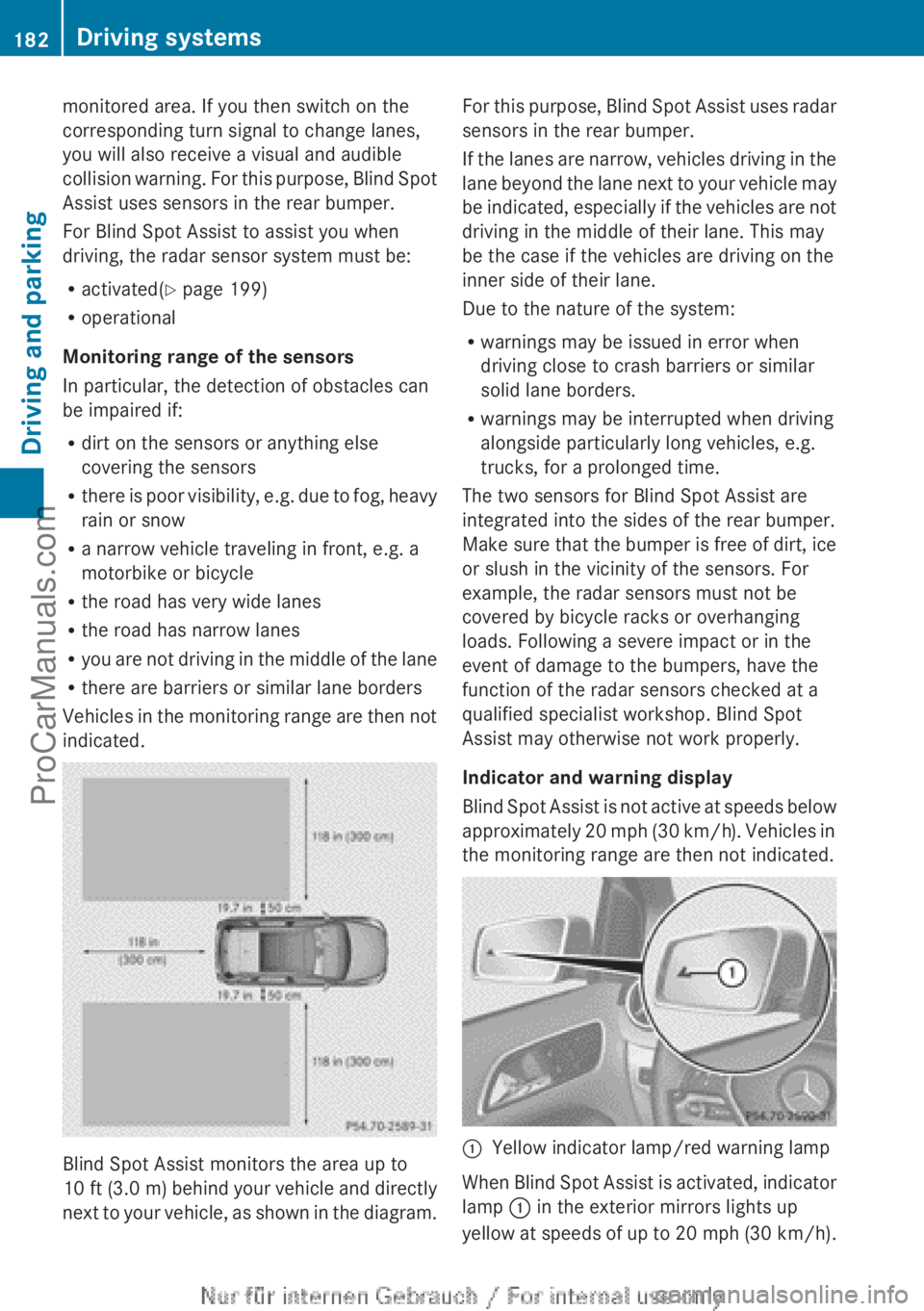
indicated. Blind Spot Assist monitors the area up to
10 ft (
3.0 m
) behind your vehicle and directly
next to your vehicle, as shown in the diagram. For this purpose, Blind Spot Assist uses radar
sensors in the rear bumper.
If the
lanes
are narrow, vehicles driving in the
lane beyond the lane next to your vehicle may
be indicated, especially if the vehicles are not
driving in the middle of their lane. This may
be the case if the vehicles are driving on the
inner side of their lane.
Due to the nature of the system:
R warnings may be issued in error when
driving close to crash barriers or similar
solid lane borders.
R warnings may be interrupted when driving
alongside particularly long vehicles, e.g.
trucks, for a prolonged time.
The two sensors for Blind Spot Assist are
integrated into the sides of the rear bumper.
Make sure that the bumper is free of dirt, ice
or slush in the vicinity of the sensors. For
example, the radar sensors must not be
covered by bicycle racks or overhanging
loads. Following a severe impact or in the
event of damage to the bumpers, have the
function of the radar sensors checked at a
qualified specialist workshop. Blind Spot
Assist may otherwise not work properly.
Indicator and warning display
Blind Spot Assist is not active at speeds below
approximately 20 mph (30 km/h). Vehicles in
the monitoring range are then not indicated. :
Yellow indicator lamp/red warning lamp
When Blind Spot Assist is activated, indicator
lamp : in the exterior mirrors lights up
yellow at speeds
of up to 20 mph (30 km/h).182
Driving systems
Driving and parking
ProCarManuals.com
Page 185 of 340

At speeds above 20 mph (30 km/h) the
indicator lamp
goes
out and Blind Spot Assist
is operational.
If a vehicle is detected within the monitoring
range of Blind Spot Assist at speeds above
20 mph (30 km/h), warning lamp : on the
corresponding side lights up red. This warning
is always emitted when a vehicle enters the
blind spot monitoring range from behind or
from the side. When you overtake a vehicle,
the warning only occurs if the difference in
speed is less than 7 mph (12 km/h).
The yellow indicator lamp goes out if reverse
gear is engaged. In this event, Blind Spot
Assist is no longer active.
The brightness of the indicator/warning
lamps is adjusted automatically according to
the ambient light.
Collision warning
If a vehicle is detected in the monitoring range
of Blind Spot Assist and you switch on the
corresponding turn signal, a double warning
tone sounds. Red warning lamp : flashes. If
the turn signal remains on, vehicles detected
are indicated by the flashing of red warning
lamp :. There are no further warning tones.
Switching on Blind Spot Assist
X Make sure that the radar sensor system
(Y page 199) and Blind Spot Assist
(Y page 195)
are
activated in the on-board
computer.
X Turn the SmartKey to position 2 in the
ignition lock.
Warning lamps : in the exterior mirrors
light up red for approximately
1.5 seconds and then turn yellow.
Lane Keeping Assist General notes
Lane Keeping Assist monitors the area in
front of
your
vehicle by means of a camera at
the top of the windshield. Lane Keeping Assist
detects lane markings on the road and warns you before you leave your lane
unintentionally.
:
Lane Keeping Assist camera
If you select km on the on-board computer in
the Display Unit Speed-/Odometer:
function ( Y page 196), Lane Keeping Assist
is active starting
at a speed of 60 km/h. If the
miles display unit is selected, the assistance
range begins at 40 mph.
Important safety notes G
WARNING
Lane Keeping Assist may not always clearly
recognize lane markings.
In this case, Lane Keeping Assist may:
R give an unnecessary warning
R not give a warning
There is a risk of an accident.
Always pay particular attention to the traffic
situation and stay in lane, in particular if
warned by Lane Keeping Assist. G
WARNING
The Lane Keeping Assist warning does not
return the vehicle to the original lane. There
is a risk of an accident.
You should always steer, brake or accelerate
yourself, in particular if warned by Lane
Keeping Assist.
If you fail to adapt your driving style, Lane
Keeping Assist can
neither reduce the risk of
an accident nor override the laws of physics.
Lane Keeping Assist cannot take into account
the road, traffic and weather conditions. Lane Driving systems
183
Driving and parking Z
ProCarManuals.com
Page 186 of 340
Keeping Assist is merely an aid. You are
responsible for the distance to the vehicle in
front, for vehicle speed, for braking in good
time and for staying in your lane.
The Lane Keeping Assist does not keep the
vehicle in the lane.
The system may be impaired or may not
function if:
R
there is poor visibility, e.g. due to
insufficient illumination of
the road, or due
to snow, rain, fog or spray
R there is glare, e.g. from oncoming traffic,
the sun or reflections (e.g. when the road
surface is wet)
R the windshield is dirty, fogged up, damaged
or covered, for instance by a sticker, in the
vicinity of the camera
R there are no, several or unclear lane
markings for a lane, e.g. in areas with road
construction work
R the lane markings are worn away, dark or
covered up, e.g. by dirt or snow
R the distance to the vehicle in front is too
small and the lane markings thus cannot be
detected
R the lane markings change quickly, e.g.
lanes branch off, cross one another or
merge
R the road is narrow and winding
R there are strong shadows cast on the lane
A warning may be given if a front wheel
passes over a lane marking. It will warn you
by means of intermittent vibration in the
steering wheel for up to 1.5 seconds.
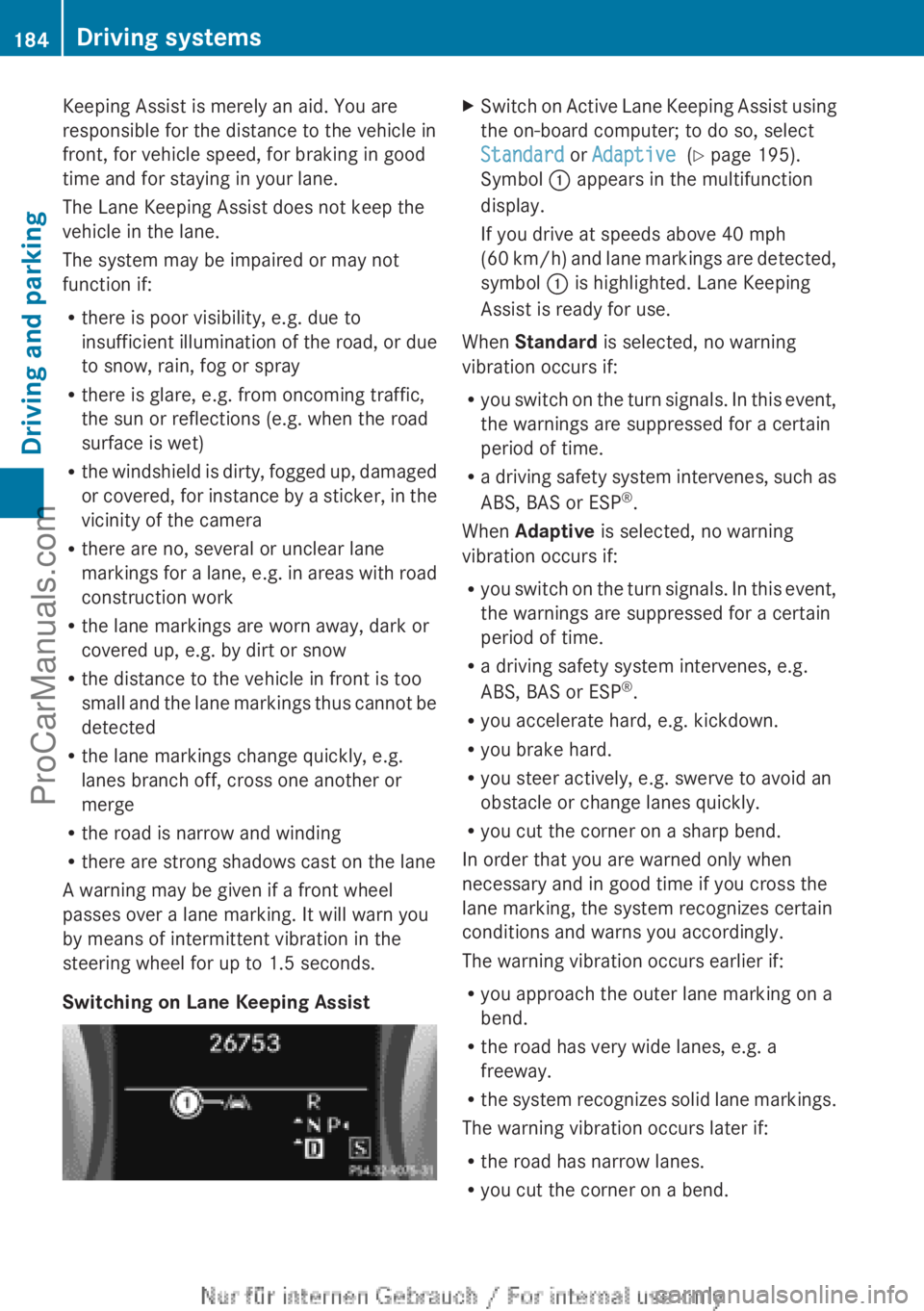
Switching on Lane Keeping Assist X
Switch on Active Lane Keeping Assist using
the on-board computer; to do so, select
Standard or Adaptive (Y page 195).
Symbol : appears in the multifunction
display.
If you drive at speeds above 40 mph
(60 km/h
) and lane markings are detected,
symbol : is highlighted. Lane Keeping
Assist is ready for use.
When Standard is selected, no warning
vibration occurs if:
R you switch on
the turn signals. In this event,
the warnings are suppressed for a certain
period of time.
R a driving safety system intervenes, such as
ABS, BAS or ESP ®
.
When Adaptive is selected, no warning
vibration occurs if:
R you switch on the turn signals. In this event,
the warnings are suppressed for a certain
period of time.
R a driving safety system intervenes, e.g.
ABS, BAS or ESP ®
.
R you accelerate hard, e.g. kickdown.
R you brake hard.
R you steer actively, e.g. swerve to avoid an
obstacle or change lanes quickly.
R you cut the corner on a sharp bend.
In order that you are warned only when
necessary and in good time if you cross the
lane marking, the system recognizes certain
conditions and warns you accordingly.
The warning vibration occurs earlier if:
R you approach the outer lane marking on a
bend.
R the road has very wide lanes, e.g. a
freeway.
R the system recognizes solid lane markings.
The warning vibration occurs later if:
R the road has narrow lanes.
R you cut the corner on a bend.184
Driving systems
Driving and parking
ProCarManuals.com
Page 188 of 340

Useful information
i This Operator's Manual describes all
models and all standard and optional
equipment of your vehicle available at the
time of publication of the Operator's
Manual. Country-specific differences are
possible. Please note
that your vehicle may
not be equipped with all features
described. This also applies to safety-
related systems and functions.
i Read the information on qualified
specialist workshops: ( Y page 24).Important safety notes
G
WARNING
If you operate information systems and
communication equipment integrated in the
vehicle while driving, you will be distracted
from traffic conditions. You could also lose
control of the vehicle. There is a risk of an
accident.
Only operate the equipment when the traffic
situation permits. If
you are not sure that this
is possible, park the vehicle paying attention
to traffic conditions and operate the
equipment when the vehicle is stationary. G
WARNING
If the instrument cluster has failed or
malfunctioned, you may not recognize
function restrictions in systems relevant to
safety. The operating safety of your vehicle
may be impaired. There is a risk of an
accident.
Drive on carefully. Have the vehicle checked
at a qualified specialist workshop
immediately.
You must observe the legal requirements for
the country in
which you are currently driving
when operating the on-board computer.
The on-board computer only shows messages
or warnings from certain systems in the multifunction display. You should therefore
make sure your vehicle is operating safely at
all times. Otherwise, a vehicle that is not
operating safely may cause an accident.
For an overview, see the instrument panel
illustration (
Y page 29). Displays and operation
Instrument cluster lighting
The lighting in the instrument cluster, in the
displays and the controls in the vehicle
interior can be
adjusted using the brightness
control knob.
The brightness control knob is located on the
bottom left of the instrument cluster
(Y page 29).
X Turn the brightness control knob clockwise
or counter-clockwise.
If the light switch is set to Ã, T or
L, the brightness is dependent upon
the brightness of the ambient light.
i The light sensor
in the instrument cluster
automatically controls the brightness of
the multifunction display.
In daylight, the displays in the instrument
cluster are not illuminated. Coolant temperature display
G
WARNING
Driving when your engine is overheated can
cause some fluids
which may have leaked into
the engine compartment to catch fire. You
could be seriously burned.
Steam from an overheated engine can cause
serious burns which can occur just by opening
the engine hood. Stay away from the engine
if you see or hear steam coming from it.
Stop the vehicle in a safe location away from
other traffic. Turn off the engine, get out of the
vehicle and do not stand near the vehicle until
the engine has cooled down. 186
Displays and operation
On-board computer and displays
ProCarManuals.com
Page 189 of 340

!
A display message
is shown if the coolant
temperature is too high.
If the coolant temperature is over
248 ‡(120 †), do not continue driving. The
engine will otherwise be damaged.
The coolant temperature gage is in the
instrument cluster on the right-hand side.
Under normal operating conditions and with
the specified coolant level, the coolant
temperature may rise to 248 ‡ (120 †). Tachometer
! Do not drive in the overrevving range, as
this could damage the engine.
The red band
in the tachometer indicates the
engine's overrevving range.
The fuel supply is interrupted to protect the
engine when the red band is reached. Outside temperature display
You should pay special attention to road
conditions when temperatures are around
freezing point.
The outside temperature display is in the
multifunction display.
Changes in the outside temperature are
displayed after a short delay. Speedometer with segments
The segments in the speedometer indicate
which speed range is available.
R Cruise control activated ( Y page 157):
The segments light up from the stored
speed to the maximum speed.
R DISTRONIC PLUS activated (Y page 159):
One or two segments in the set speed
range light up.
R DISTRONIC PLUS detects
a vehicle in front:The segments between the speed of the
vehicle in front and the stored speed light
up. Operating the on-board computer
Overview :
Multifunction display
; Switches on the Voice Control System;
see the separate operating instructions
= Right control panel
? Left control panel
A Back button
X To activate the on-board computer: turn
the SmartKey to position 1 in the ignition
lock.
You
can control the multifunction display and
the settings in the on-board computer using
the buttons on the multifunction steering
wheel. Displays and operation
187
On-board computer and displays Z
ProCarManuals.com
Page 191 of 340

A
Drive program (Y page 141)
B Transmission position ( Y page 141)
X To show menu bar ?: press the =
or ; button on the steering wheel.
Menu bar ? disappears after a few seconds.
Text field = shows the selected menu or
submenu as well as display messages.
i You can set the time using the audio
system or COMAND; see the separate
operating instructions.
The following messages may appear in the
multifunction display:
XjY Active Parking Assist (Y page 172)
CRUISE Cruise Control (Y page 157)
è Rear window wiper ( Y page 112)
_ Adaptive Highbeam Assist
(Y page 102)
À ATTENTION ASSIST (Y page 180)
à Lane Keeping Assist (Y page 183)
ë HOLD function ( Y page 167)
Ä Distance warning function
(Y page 233) Menus and submenus
Menu overview
Operating the on-board computer
(Y page 187).
Depending on the equipment installed in the
vehicle, you can call up the following menus:
R Trip menu (Y page 189)
R Navi menu (navigation instructions)
(Y page 191)
R Audio menu (Y page 192)
R Tel (telephone) menu ( Y page 193)
R DriveAssist (Assistance) menu
(Y page 194)
R Serv menu (Y page 196)
R Sett menu (Y page 196) The
Audio, Navi and
Tel
menus differ slightly
in vehicles with Audio 20 and in vehicles with
COMAND. The examples given in this
Operator's Manual apply to vehicles
equipped with COMAND. Trip menu
Standard display X
Press and hold the % button on the
steering wheel until the Trip menu with
trip odometer : and odometer ; is
shown.
Trip computer "From Start" or "From
Reset" Example: trip computer "From Start"
:
Distance
; Time
= Average speed
? Average fuel consumption
X Press the = or ; button on the
steering wheel to select the Trip menu.
X Press the 9 or : button to select
From Start or From Reset.
The values in the From Start submenu are
calculated from the start of a journey, while
the values in the From Reset submenu are
calculated from the last time the submenu
was reset ( Y page 190). Menus and submenus
189
On-board computer and displays Z
ProCarManuals.com
Page 197 of 340
X
Start the engine.
X Press the = or ; button on the
steering wheel to select the DriveAssist
menu.
X Press the 9 or : button to select
ESP.
X Press the a button.
X To deactivate: press a again.
The å warning lamp in the instrument
cluster lights up.
X To activate: press a again.
The å warning lamp in the instrument
cluster goes out.
Switching the distance warning
function on and off X
Press the = or ; button on the
steering wheel to select the DriveAssist
menu.
X Press 9 or : to select Distance
Warning.
X Press the a button.
The current selection is displayed.
X To activate/deactivate: press the a
button again.
When the distance warning function is
activated, the multifunction display shows
the Ä symbol if the HOLD function is not
activated (Y page 167).
Vehicles with Active Parking Assist: if
PARKTRONIC is activated
and you are driving
at a speed under 22 mph (35 km/h), the j
Active Parking Assist symbol is shown instead
of the Ä symbol ( Y page 172).
Further information on the distance warning
function ( Y page 60). Activating/deactivating ATTENTION
ASSIST X
Press the = or ; button on the
steering wheel to select the DriveAssist
menu.
X Press 9 or : to select Attention
Asst.
X Press the a button.
The current selection is displayed.
X To activate/deactivate: press the a
button again.
When ATTENTION ASSIST (Y page 180) is
activated, the À symbol appears in the
multifunction display when
the ignition is on.
Activating/deactivating Blind Spot
Assist X
Press the = or ; button on the
steering wheel to select the DriveAssist
menu.
X Press 9 or :
to select Blind Spot
Assist.
X Press the a button.
The current selection is displayed.
X To activate/deactivate: press the a
button again.
For further information about Blind Spot
Assist, see (Y page 181).
When the Blind Spot Assist: Sensors
Deactivated message is shown, the radar
sensors are deactivated.
X Switch on the radar sensor system
(Y page 199).
Activating/deactivating Lane Keeping
Assist X
Press the = or ; button on the
steering wheel to select the DriveAssist
menu.
X Press 9 or : on the steering wheel
to select Lane Keep. Asst. Menus and submenus
195
On-board computer and displays Z
ProCarManuals.com