Page 154 of 257
152
4. SETUP
GS450h/250 (EE) NAVI 30C48E
13.12.17 15:42
1Press the “MENU” button on the Re-
mote Touch, then select “Setup”.
2Select “Vehicle” on the “Setup”
screen.
3Select “Maintenance” on the “Vehi-
cle settings” screen.
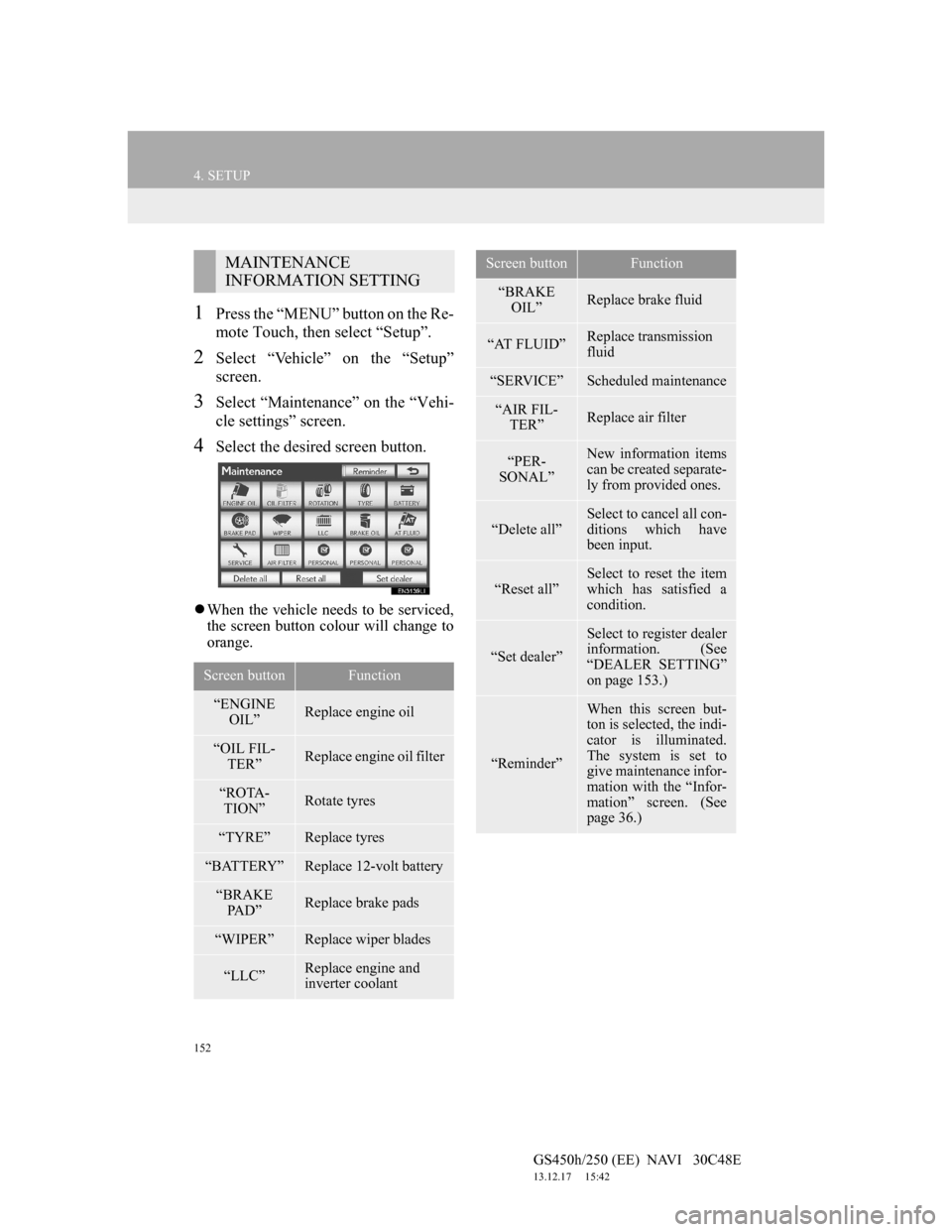
4Select the desired screen button.
When the vehicle needs to be serviced,
the screen button colour will change to
orange.
MAINTENANCE
INFORMATION SETTING
Screen buttonFunction
“ENGINE
OIL”Replace engine oil
“OIL FIL-
TER”Replace engine oil filter
“ROTA-
TION”Rotate tyres
“TYRE”Replace tyres
“BATTERY”Replace 12-volt battery
“BRAKE
PA D ”Replace brake pads
“WIPER”Replace wiper blades
“LLC”Replace engine and
inverter coolant
“BRAKE
OIL”Replace brake fluid
“AT FLUID”Replace transmission
fluid
“SERVICE”Scheduled maintenance
“AIR FIL-
TER”Replace air filter
“PER-
SONAL”New information items
can be created separate-
ly from provided ones.
“Delete all”
Select to cancel all con-
ditions which have
been input.
“Reset all”Select to reset the item
which has satisfied a
condition.
“Set dealer”
Select to register dealer
information. (See
“DEALER SETTING”
on page 153.)
“Reminder”
When this screen but-
ton is selected, the indi-
cator is illuminated.
The system is set to
give maintenance infor-
mation with the “Infor-
mation” screen. (See
page 36.)
Screen buttonFunction
Page 159 of 257

157
GS450h/250 (EE) NAVI 30C48E
13.12.17 15:42
3
NAVIGATION SYSTEM
5. GPS (GLOBAL POSITIONING SYSTEM)
1. LIMITATIONS OF THE NAVIGATION SYSTEM
The Global Positioning System (GPS)
developed and operated by the U.S. De-
partment of Defense provides an accu-
rate current position, normally using 4
or more satellites, and in some case 3
satellites. The GPS system has a certain
level of inaccuracy. While the naviga-
tion system will compensate for this
most of the time, occasional positioning
errors of up to 100 m (300 feet) can and
should be expected. Generally, position
errors will be corrected within a few
seconds.When the vehicle is receiving signals
from satellites, the “GPS” mark appears
at the top left of the screen.
The GPS signal may be physically ob-
structed, leading to inaccurate vehicle
position on the map screen. Tunnels, tall
buildings, trucks, or even the placement
of objects on the instrument panel may
obstruct the GPS signals.
The GPS satellites may not send signals
due to repairs or improvements being
made to them.
Even when the navigation system is re-
ceiving clear GPS signals, the vehicle
position may not be shown accurately or
inappropriate route guidance may occur
in some cases.
This navigation system calculates
the current position using satellite
signals, various vehicle signals, map
data, etc. However, an accurate posi-
tion may not be shown depending on
satellite conditions, road configura-
tion, vehicle condition or other cir-
cumstances.
NOTICE
The installation of window tinting
may obstruct the GPS signals. Most
window tinting contains some metal-
lic content that will interfere with
GPS signal reception of the antenna
in the instrument panel. We advise
against the use of window tinting on
vehicles equipped with navigation
systems.
Page 162 of 257
160
5. GPS (GLOBAL POSITIONING SYSTEM)
GS450h/250 (EE) NAVI 30C48E
13.12.17 15:42
2. MAP DATABASE VERSION AND COVERED AREA
1Press the “MENU” button on the Re-
mote Touch.
2Select “Navi”, and select “Menu” if
the map screen is displayed.
3Select “Map data”.
4The “Map data” screen will be dis-
played.
MAP INFORMATION
Coverage areas and legal informa-
tion can be displayed and map data
can be updated.
INFORMATION
Map data updates are available for a
fee. Contact any authorized Lexus
dealer or repairer and most auto parts
stores or another qualified profes-
sional for further information.
The “Map data” screen displays
“Map version” and “Map update
ID”. This data is needed to perform a
map data update.
Page 166 of 257
164
GS450h/250 (EE) NAVI 30C48E
13.12.17 15:42
1. SPEECH COMMAND SYSTEM OPERATION
1. SPEECH COMMAND SYSTEM
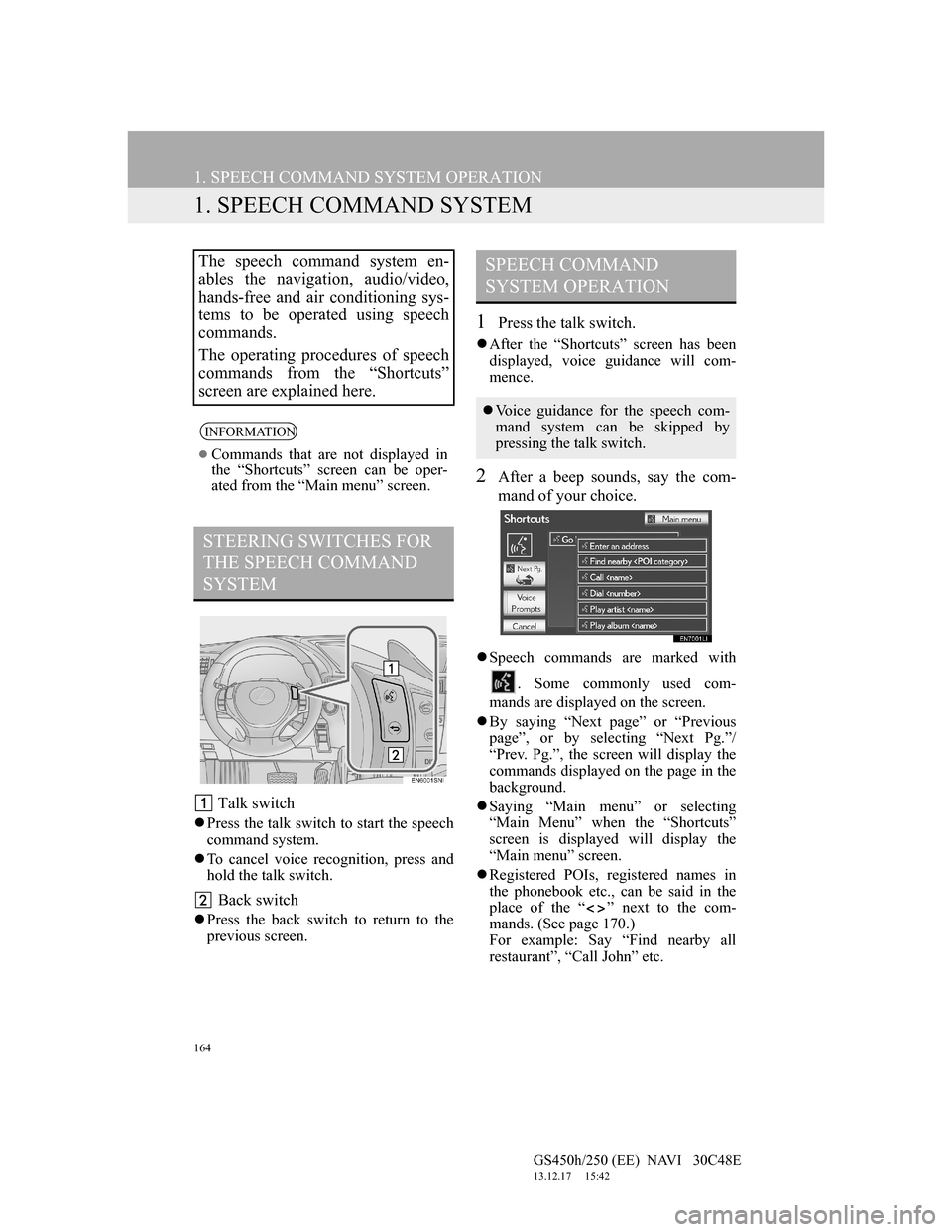
Talk switch
Press the talk switch to start the speech
command system.
To cancel voice recognition, press and
hold the talk switch.
Back switch
Press the back switch to return to the
previous screen.
1Press the talk switch.
After the “Shortcuts” screen has been
displayed, voice guidance will com-
mence.
2After a beep sounds, say the com-
mand of your choice.
Speech commands are marked with
. Some commonly used com-
mands are displayed on the screen.
By saying “Next page” or “Previous
page”, or by selecting “Next Pg.”/
“Prev. Pg.”, the screen will display the
commands displayed on the page in the
background.
Saying “Main menu” or selecting
“Main Menu” when the “Shortcuts”
screen is displayed will display the
“Main menu” screen.
Registered POIs, registered names in
the phonebook etc., can be said in the
place of the “ ” next to the com-
mands. (See page 170.)
For example: Say “Find nearby all
restaurant”, “Call John” etc.
The speech command system en-
ables the navigation, audio/video,
hands-free and air conditioning sys-
tems to be operated using speech
commands.
The operating procedures of speech
commands from the “Shortcuts”
screen are explained here.
INFORMATION
Commands that are not displayed in
the “Shortcuts” screen can be oper-
ated from the “Main menu” screen.
STEERING SWITCHES FOR
THE SPEECH COMMAND
SYSTEM
SPEECH COMMAND
SYSTEM OPERATION
Voice guidance for the speech com-
mand system can be skipped by
pressing the talk switch.
Page 168 of 257
166
1. SPEECH COMMAND SYSTEM OPERATION
GS450h/250 (EE) NAVI 30C48E
13.12.17 15:42
MICROPHONE
It is unnecessary to speak directly
into the microphone when giving a
command.INFORMATION
Wait for the confirmation beep before
speaking a command.
Speech commands may not be recog-
nized if:
• Spoken too quickly.
• Spoken at a low or high volume.
• The roof or windows are open.
• Passengers are talking while speech
commands are spoken.
• The air conditioning speed is set
high.
• The air conditioning vents are
turned towards the microphone.
In the following conditions, the sys-
tem may not recognize the command
properly and using speech commands
may not be possible:
• The command is incorrect or
unclear. Note that certain words,
accents or speech patterns may be
difficult for the system to recognize.
• There is excessive background
noise, such as wind noise.
Page 192 of 257
190
1. CONNECTED SERVICES
GS450h/250 (EE) NAVI 30C48E
13.12.17 15:42
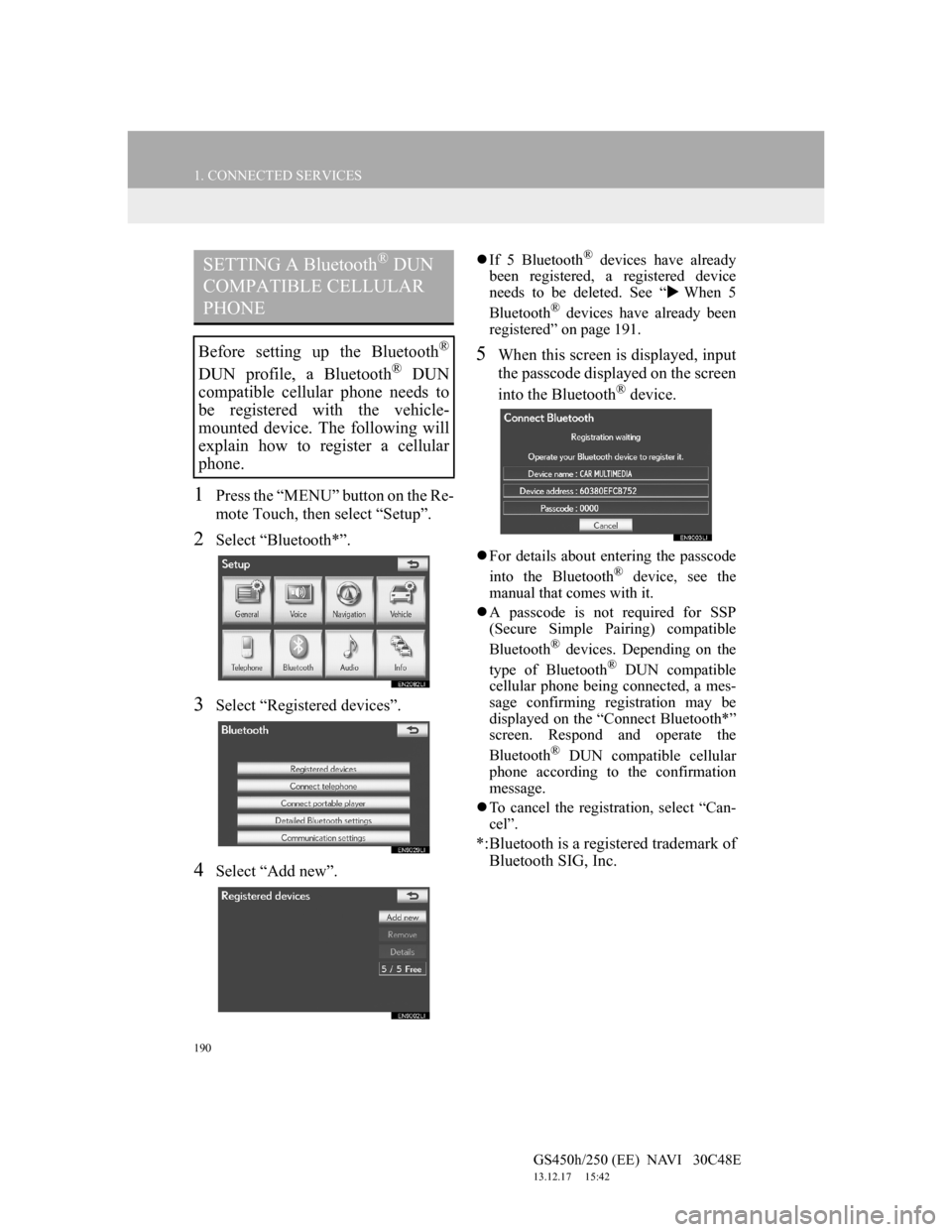
1Press the “MENU” button on the Re-
mote Touch, then select “Setup”.
2Select “Bluetooth*”.
3Select “Registered devices”.
4Select “Add new”.
If 5 Bluetooth® devices have already
been registered, a registered device
needs to be deleted. See “When 5
Bluetooth
® devices have already been
registered” on page 191.
5When this screen is displayed, input
the passcode displayed on the screen
into the Bluetooth
® device.
For details about entering the passcode
into the Bluetooth® device, see the
manual that comes with it.
A passcode is not required for SSP
(Secure Simple Pairing) compatible
Bluetooth
® devices. Depending on the
type of Bluetooth® DUN compatible
cellular phone being connected, a mes-
sage confirming registration may be
displayed on the “Connect Bluetooth*”
screen. Respond and operate the
Bluetooth
® DUN compatible cellular
phone according to the confirmation
message.
To cancel the registration, select “Can-
cel”.
*:Bluetooth is a registered trademark of
Bluetooth SIG, Inc.
SETTING A Bluetooth® DUN
COMPATIBLE CELLULAR
PHONE
Before setting up the Bluetooth®
DUN profile, a Bluetooth® DUN
compatible cellular phone needs to
be registered with the vehicle-
mounted device. The following will
explain how to register a cellular
phone.
Page 211 of 257
7
209
1
2
3
4
5
6
7
GS450h/250 (EE) NAVI 30C48E
13.12.17 15:42
1. 12.3-INCH
DISPLAY-OVERVIEW ............... 210
12.3-INCH DISPLAY OPERATION ..... 211
2. INITIAL SCREEN .......................... 212
SETTING THE OPENING IMAGE ...... 212
3. “Menu” SCREEN ............................ 214
4. BASIC SCREENS ........................... 215
SWITCHING THE BASIC SCREEN .... 215
TO DISPLAY ON THE “Main Display” 215
Bluetooth
® CONNECTION STATUS ... 215
AUDIO/VIDEO SYSTEM ..................... 216
AIR CONDITIONING SYSTEM .......... 217
VEHICLE INFORMATION .................. 220
5. INTERRUPTION SCREENS ......... 222
SWITCHING THE INTERRUPTION
SCREEN .............................................. 222
HANDS-FREE SYSTEM
(FOR CELLULAR PHONE) ............... 222
112.3-INCH DISPLAY
OPERATION
12.3-INCH DISPLAY
Page 212 of 257
210
GS450h/250 (EE) NAVI 30C48E
13.12.17 15:42
1. 12.3-INCH DISPLAY OPERATION
1. 12.3-INCH DISPLAY-OVERVIEW
The 12.3-inch display has a display area which is 1.5 times wider than that of
the 8-inch display.
FULL SCREEN DISPLAY
The initial screen and “Menu” screen fill the entirety of the display area.
SPLIT-SCREEN DISPLAY
Different information can be displayed on the left and right of the screen. For
example, audio, air conditioning or consumption information screens can be
displayed and operated while the map screen is being displayed.
The large screen on the left of the display is called the “Main Display”, and the
small screen to the right is called the “Side Display”.


