2012 KIA Rio disc
[x] Cancel search: discPage 166 of 385

491
Features of your vehicle
To defrost outside windshield
1. Set the fan speed to the highest(extreme right) position.
2. Set the temperature to the extreme hot position.
3. Select the position.
4. The outside (fresh) air will be selected automatically.
Defogging logic
To reduce the probability of fogging up
inside of the windshield, the air intake or
air conditioning are controlled automati-
cally according to certain conditions such
as or position. To cancel or
return to the defogging logic, do the fol-
lowings.
Manual climate control system
1. Turn the ignition switch to the ON posi-tion.
2. Turn the mode selection knob to the defrost position ( ).
3. Push the air intake control button at least 5 times within 3 seconds.
The indicator light in the air intake control
button will blink 3 times with 0.5 second
of interval. It indicates that the defogging
logic is canceled or returned to the pro-
grammed status.
If the battery has been discharged or dis-
connected, it resets to the defog logic
status.
OUB041134OUB041137
Page 173 of 385
Features of your vehicle
98
4
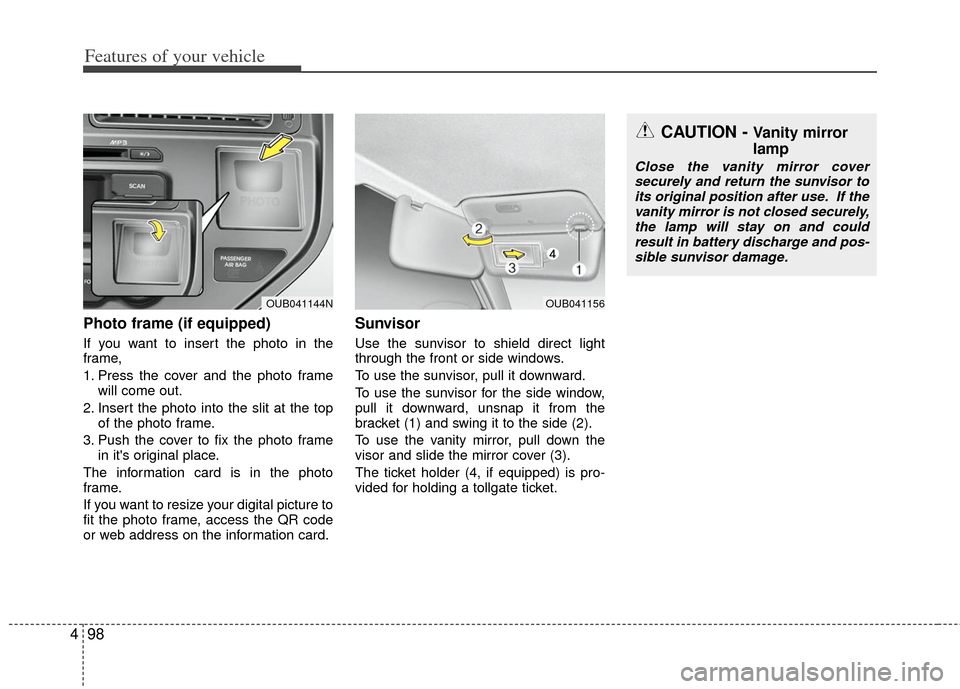
Photo frame (if equipped)
If you want to insert the photo in the
frame,
1. Press the cover and the photo frame
will come out.
2. Insert the photo into the slit at the top of the photo frame.
3. Push the cover to fix the photo frame in it's original place.
The information card is in the photo
frame.
If you want to resize your digital picture to
fit the photo frame, access the QR code
or web address on the information card.
Sunvisor
Use the sunvisor to shield direct light
through the front or side windows.
To use the sunvisor, pull it downward.
To use the sunvisor for the side window,
pull it downward, unsnap it from the
bracket (1) and swing it to the side (2).
To use the vanity mirror, pull down the
visor and slide the mirror cover (3).
The ticket holder (4, if equipped) is pro-
vided for holding a tollgate ticket.
OUB041156
CAUTION - Vanity mirror
lamp
Close the vanity mirror cover securely and return the sunvisor to its original position after use. If thevanity mirror is not closed securely,the lamp will stay on and couldresult in battery discharge and pos- sible sunvisor damage.
OUB041144N
Page 174 of 385

499
Features of your vehicle
Power outlet (if equipped)
The power outlet is designed to provide
power for mobile telephones or other
devices designed to operate with vehicle
electrical systems. The devices should
draw less than 10 amps with the engine
running.
Use the power outlet only when the
engine is running and remove the acces-
sory plug after use. Using the accessory
plug for prolonged periods of time with
the engine off could cause the battery to
discharge.
Only use 12V electric accessories which
are less than 10A in electric capacity.
Adjust the air-conditioner or heater to the
lowest operating level when using the
power outlet.Close the cover when not in use.
Some electronic devices can cause elec-
tronic interference when plugged into a
vehicle’s power outlet. These devices
may cause excessive audio static and
malfunctions in other electronic systems
or devices used in your vehicle.
Shopping bag holder
Do not hang a bag weighing more than
3 kg (7 lbs.). It may cause damage to
the shopping bag holder.
Do not hang the frail objects when you drive rough road, the objects may be
damaged.
Digital clock and calendar
(if equipped)
Whenever the battery terminals or relat-
ed fuses are disconnected, you must
reset the clock and the calendar.
When the ignition switch is in the ACC or
ON position, the clock buttons operate as
follows:
WARNING - Electric shock
Do not put a finger or a foreign ele-
ment (pin, etc.) into a power outlet
and do not touch with a wet hand.
You may get an electric shock.
OUB041159OUB041157
Page 178 of 385

4103
Features of your vehicle
Steering wheel audio control
(if equipped)
The steering wheel audio control button
is installed to promote safe driving.
Do not operate the audio remote control
buttons simultaneously.
VOLUME (+/-) (1)
Push the lever up to increase volume.
Push the lever down to decrease vol-ume.
MODE (3)
Press the button to select Radio or CD
(compact disc).
MUTE (4)
Press the MUTE button to cancel thesound.
Press the MUTE button again to acti- vate the sound.
SEEK/PRESET ( / ) (2)
The SEEK/PRESET button has different
functions base on the system mode. For
the following functions the button should
be pressed for 0.8 second or more.
RADIO mode
It will function as the AUTO SEEK select
button.
CDP/USB/iPod
®mode
It will function as the FF/REW button.
iPod
®is a registered trademark of Apple
Inc.
If the SEEK button is pressed for less
than 0.8 second, it will work as follows in
each mode. RADIO mode
It will function as the PRESET STATION
select buttons.
CDP/USB/iPod
®mode
It will function as the TRACK UP/DOWN
button.
Detailed information for audio control
buttons is described in the following
pages in this section.
Bluetooth®Wireless Technology
(if equipped)
You can use a compatible phone via
using the Bluetooth®Wireless technolo-
gy. Detailed information for the
Bluetooth®Wireless Technology is
described in the Audio system section.
OUB041163
Page 182 of 385

4107
Features of your vehicle
Care of disc (if equipped)
If the temperature inside the car is toohigh, open the car windows for ventila-
tion before using your car audio.
It is illegal to copy and use MP3/WMA/AAC/WAVE files without
permission. Use CDs that are created
only by lawful means.
Do not apply volatile agents such as benzene and thinner, normal cleaners
and magnetic sprays made for ana-
logue disc onto CDs.
To prevent the disc surface from get- ting damaged. Hold and carry CDs by
the edges or the edges of the center
hole only.
Clean the disc surface with a piece of soft cloth before playback (wipe it from
the center to the outside edge).
Do not damage the disc surface or attach pieces of sticky tape or paper
onto it.
Make sure on undesirable matter other than CDs are inserted into the CD
player (Do not insert more than one
CD at a time).
Keep CDs in their cases after use to protect them from scratches or dirt. Depending on the type of CD-R/CD-
RW CDs, certain CDs may not operate
normally according to manufacturing
companies or making and recording
methods. In such circumstances, if you
still continue to use those CDs, they
may cause the malfunction of your car
audio system.
✽ ✽ NOTICE- Playing an
Incompatible Copy-Protected
Audio CD
Some copy protected CDs, which do not
comply with the international audio CD
standards (Red Book), may not play on
your car audio. Please note that if you
try to play copy protected CDs and the
CD player does not perform correctly
the CDs maybe defective, not the CD
player.
NOTE:
Order of playing files (folders) :
1. Song playing order : to sequen-
tially.
2. Folder playing order :
❋ If no song file is contained in the
folder, that folder is not displayed.
Page 190 of 385
![KIA Rio 2012 3.G Owners Manual 4115
Features of your vehicle
Phone List
The names of up to 5 paired phones will
be displayed.
A [ ] is displayed in front of the currently
connected phone.
Select the desired name to setup the
select](/manual-img/2/2935/w960_2935-189.png "KIA Rio 2012 3.G Owners Manual 4115
Features of your vehicle
Phone List
The names of up to 5 paired phones will
be displayed.
A [ ] is displayed in front of the currently
connected phone.
Select the desired name to setup the
select")
4115
Features of your vehicle
Phone List
The names of up to 5 paired phones will
be displayed.
A [ ] is displayed in front of the currently
connected phone.
Select the desired name to setup the
selected phone.
Connecting a phone
Select [Phone List] Select mobile
phone through TUNE knob Select
[Connect Phone]
➀Select a mobile phone that is not cur-
rently connected.
➁ Connect the selected mobile phone.
\bConnection completion is displayed.
❈ If a phone is already connected, dis-
connect the currently connected
phone and select a new phone to con-
nect.
Disconnecting a connected phone
Select [Phone List] Select mobile
phone through TUNE knob Select
[Disconnect Phone]
➀Select the currently connected mobile
phone.
➁ Disconnect the selected mobile
phone.
\bDisconnection completion is dis-
played.
Changing connection sequence
(Priority)
This is used to change the order (priori-
ty) of automatic connection for the paired
mobile phones.
Select [Phone List] Select [Priority]
through TUNE knob Select No. 1
Priority mobile phone
➀Select [Priority].
➁ From the paired phones, select the
phone desired for No.1 priority.
\b The changed priority sequence is dis-
played.
❈ Once the connection sequence (priori-
ty) is changed, the new no. 1 priority
mobile phone will be connected.
- when the no. 1 priority cannot be con- nected: Automatically attempts to con-
nect the most recently connected
phone.
- Cases when the most recently con- nected phone cannot be connected:
Attempts to connect in the order in
which paired phones are listed.
- The connected phone will automati- cally be changed to No. 1 priority.
Page 191 of 385
![KIA Rio 2012 3.G Owners Manual Features of your vehicle
116
4
Delete
Select [Phone List] Select mobile
phone through TUNE knob Select
[Delete]
➀Select the desired mobile phone.
➁Delete the selected mobile phone.
\bDeletion co](/manual-img/2/2935/w960_2935-190.png "KIA Rio 2012 3.G Owners Manual Features of your vehicle
116
4
Delete
Select [Phone List] Select mobile
phone through TUNE knob Select
[Delete]
➀Select the desired mobile phone.
➁Delete the selected mobile phone.
\bDeletion co")
Features of your vehicle
116
4
Delete
Select [Phone List] Select mobile
phone through TUNE knob Select
[Delete]
➀Select the desired mobile phone.
➁Delete the selected mobile phone.
\bDeletion completion is displayed.
❈ When attempting to delete a currently
connected phone, the phone is first
disconnected.
Contacts Download
This feature is used to download con-
tacts and call histories into the audio sys-
tem.
Select [Contacts Download] Select
through
TUNEknob
Auto Download
When connecting a mobile phone, it is
possible to automatically download new
Contacts and Call Histories.
Select [Auto Download] Set /
through TUNE knob
Audio Streaming
Songs (files) saved in your Bluetooth®
wireless technology mobile phone can
be played through the audio system.
Select [Audio Streaming] Set / through TUNE knob
Outgoing Volume
This is used to set the volume of your
voice as heard by the other party while
on a Bluetooth
®wireless technology
handsfree call.
Select [Outgoing Volume] Set vol-
ume through
TUNEknob
❈ Even while on a call, the volume can
be changed by using the
key.SEEK
TRACK
Off
On
Off
On
CAUTION
The download feature may not be
supported in some mobilephones.
If a different operation is per- formed while Contacts are beingdownloaded, downloading will bediscontinued. Contacts already downloaded will be saved.
When downloading new Contacts, delete all previously savedContacts before starting down- load.CAUTION
The Bluetooth®wireless technolo-
gyaudio streaming feature may not be supported in some mobilephones.
CAUTION
When you delete a mobile phone, the mobile phone contacts willalso be erased.
For stable Bluetooth
®communi-
cation, delete the mobile phone from the audio and also delete theaudio from your mobile phone.
Page 192 of 385
![KIA Rio 2012 3.G Owners Manual 4117
Features of your vehicle
Bluetooth®wireless technology
System Off
This feature is used when you do not
wish to use the Bluetooth®wireless tech-
nology system.
Select [Bluetooth System Off] Set](/manual-img/2/2935/w960_2935-191.png "KIA Rio 2012 3.G Owners Manual 4117
Features of your vehicle
Bluetooth®wireless technology
System Off
This feature is used when you do not
wish to use the Bluetooth®wireless tech-
nology system.
Select [Bluetooth System Off] Set")
4117
Features of your vehicle
Bluetooth®wireless technology
System Off
This feature is used when you do not
wish to use the Bluetooth®wireless tech-
nology system.
Select [Bluetooth System Off] Set
through TUNE knob
❈ If a phone is already connected, dis-
connect the currently connected phone
and turn the Bluetooth
®wireless tech-
nology system off.
Using the Bluetooth®wireless
technology System
To use Bluetooth wireless technology
when the system is currently off, follow
these next steps.
®wireless tech-
nology through the Key
Press the key Screen Guidance
❈ Moves to the screen where Bluetooth®
wireless technology func tions can be
used and displays guidance.
®wireless tech-
nology through the Key
Press the key Select [Phone]
through TUNE knob or key
➀A screen asking whether to turn on
Bluetooth®wireless technology will be
displayed.
➁ On the screen, select to turn on
Bluetooth®wireless technology and
display guidance.
❈ If the Bluetooth
®wireless technology
system is turned on, the system will
automatically try to connect the most
recently connected Bluetooth
®wire-
less technology mobile phone.
YES
4
SETUP
SETUP
PHONE
PHONE
CAUTION
Bluetooth® wireless technology
connection may become intermit- tently disconnected in some mobile phones. Follow these next steps totry again.
1) Turn the Bluetooth
®wireless
technology function within the mobile phone ON/OFF and try toconnect again.
2) Turn the mobile phone power ON/OFF and try to connect again.
3) Completely remove the mobile phone battery, reboot, and thentry to connect again.
4) Reboot the audio system and try to connect again
5) Delete all paired devices in your mobile phone and the audio sys-tem and pair again for use.