2012 KIA PICANTO audio
[x] Cancel search: audioPage 647 of 840

Features of your vehicle
148
4
Using CD Player
1. Button (CD)
If the CD is loaded, turns to CD mode.
If no CD, it displays “No Media” for 3 sec-
onds and returns to the previous mode.
2. Button
Press button for less than
0.8 seconds to play from the beginning of current song.
Press button for less than 0.8 seconds and press again within
1 second to play the previous song. Press button for 0.8 seconds
or longer to initiate reverse directionhigh speed sound search of currentsong.
Press button for less than 0.8 seconds to play the next song.
Press button for 0.8 seconds or longer to initiate forward directionhigh speed sound search of currentsong.
3. Button (RANDOM)Press this button for less than 0.8 sec-
onds to activate ‘RDM’ mode and more
than 0.8 seconds to activate ‘ALL RDM’
mode.
RDM : Only files/tracks in a folder/disc are played back in a random sequence.
ALL RDM (MP3/WMA Only) : All files in a disc are played back in the random
sequence.
4. Button (REPEAT)
Press this button for less than 0.8 sec-
onds to activate 'RPT' mode and more
than 0.8 seconds to activate 'FLD RPT'
mode.
RPT : Only a track (file) is repeatedly played back. FLD RPT (MP3/WMA Only) : Only files
in a folder are repeatedly played back.
5. Button (CD Eject)
Push button for less than 0.8 sec-
onds to eject the CD during CD playback.
This button is enabled when ignition switch
is off.
6. CD Slot
Insert a CD label side up and gently push
in whilst ignition switch is on ACC or ON.
The audio automatically switches to CD
mode and begins to play the CD.
If the audio was turned off, audio power
will automatically turned on as the CD is
inserted.
This audio only recognizes 12cm-size, CD- DA (Audio CD) or ISO data-CD (MP3 CD).
If UDF data-CD or non-CD (e.g. DVD) isinserted, "Reading Error" message will
be displayed and the disc will be ejected.2
1
SEEK
TRACK
SEEK
TRACK
SEEK
TRACK
SEEK
TRACK
SEEK
TRACKTRACK
MEDIA
TA_EU_CD
CAUTION
Do not insert a CD if CD indicator is
lit.
Page 648 of 840

4149
Features of your vehicle
7. Button
Play each song in the CD for 10 seconds. To
cancel SCAN Play, press this button again.
8. Button
Displays the information of the current song.
Audio CD : Disc Title/Artist, Track Title/Artist, Total Track.
MP3 CD : File Name, Title, Artist, Album, Folder, Total Files (Not dis-
played if the information is unavailable
on the CD or file.) 9. knob
& Button
Turn this knob clockwise to browse
songs after current song, or counter-
clockwise to browse songs before cur-
rent song. To play the displayed song,
press the knob.
Pressing this knob without turning enters to AUDIO CONTROL mode.
10. Button
Press button to move to child folder of the current folder and
display the first song in the folder.
Press knob to move to the fold-
er displayed. It will play the first song in
the folder.
Press button to move to parent folder of the current folder and
display the first song in the folder.
Press knob to move to the fold-
er displayed. NOTE:
Order of playing files (folders) :
1. Song playing order : to sequen-
tially.
PTY
FOLDER
PTY
FOLDER
FOLDER
ENTER
INFO
SCAN
TA_EU_CD
Page 650 of 840

4151
Features of your vehicle
CAUTION IN USING
USB DEVICE
To use an external USB device, make sure the device is not con-nected when starting up the vehi-cle. Connect the device afterstarting up.
If you start the engine when the USB device is connected, it maydamage the USB device. (USBflashdrives are very sensitive to
electric shock.)
If the engine is started up or turned off whilst the external USBdevice is connected, the external USB device may not work.
It may not play inauthentic MP3 or WMA files.
1) It can only play MP3 files with the compression rate between8Kbps~320Kbps.
2) It can only play WMA music files with the compression ratebetween 8Kbps~320Kbps.
Take precautions for static electrici- ty when connecting or disconnect-ing the external USB device.
(Continued)
(Continued) An encrypted MP3 PLAYER is not recognizable.
Depending on the condition of the external USB device, the con-
nected external USB device can be unrecognizable.
When the formatted byte/sector setting of External USB device isnot either 512BYTE or 2048BYTE,
then the device will not be recog- nized.
Use only a USB device formatted to FAT 12/16/32.
USB devices without USB I/F authentication may not be recog-nizable.
Make sure the USB connection terminal does not come in contactwith the human body or other
objects.
If you repeatedly connect or dis- connect the USB device in a shortperiod of time, it may break the device.
You may hear a strange noise when connecting or disconnect-ing a USB device.
(Continued)(Continued) If you disconnect the external USB device during playback in USBmode, the external USB device canbe damaged or may malfunction.
Therefore, disconnect the externalUSB device when the audio is turned off or in another mode. (e.g,
Radio or CD)
Depending on the type and capacity of the external USB device or the
type of the files stored in the device,there is a difference in the timetaken for recognition of the device.
Do not use the USB device for pur-
poses other than playing music files.
Playing videos through the USB is
not supported.
Use of USB accessories such as rechargers or heaters using USB
I/F may lower performance or cause trouble.
If you use devices such as a USB hub purchased separately, thevehicle’s audio system may not
recognize the USB device. In that case, connect the USB devicedirectly to the multimedia termi-nal of the vehicle.
(Continued)
Page 651 of 840

Features of your vehicle
152
4
(Continued)
If the USB device is divided by logical drives, only the music fileson the highest-priority drive arerecognized by car audio.
Devices such as MP3 Player/ Mobile phone/Digital camera canbe unrecognizable by standardUSB I/F can be unrecognizable.
Charging through the USB may not be supported in some mobiledevices.
❋ A car exclusive cable is requiredto use the iPod.
Some non-standard USB devices (METAL COVER TYPE USB) can beunrecognizable.
Some USB flash memory readers (such as CF, SD, microSD, etc.) orexternal-HDD type devices can be unrecognizable.
Music files protected by DRM (DIGITAL RIGHTS MANAGEMENT)are not recognizable.
The data in the USB memory may be lost whilst using this audio.Always back up important data on
a personal storage device.
(Continued)
(Continued) Please avoid using USB memory products which can be used askey chains or mobile phone
accessories as they could causedamage to the USB jack. Pleasemake certain only to use plug type
connector products as shown below.
Page 653 of 840
Features of your vehicle
154
4
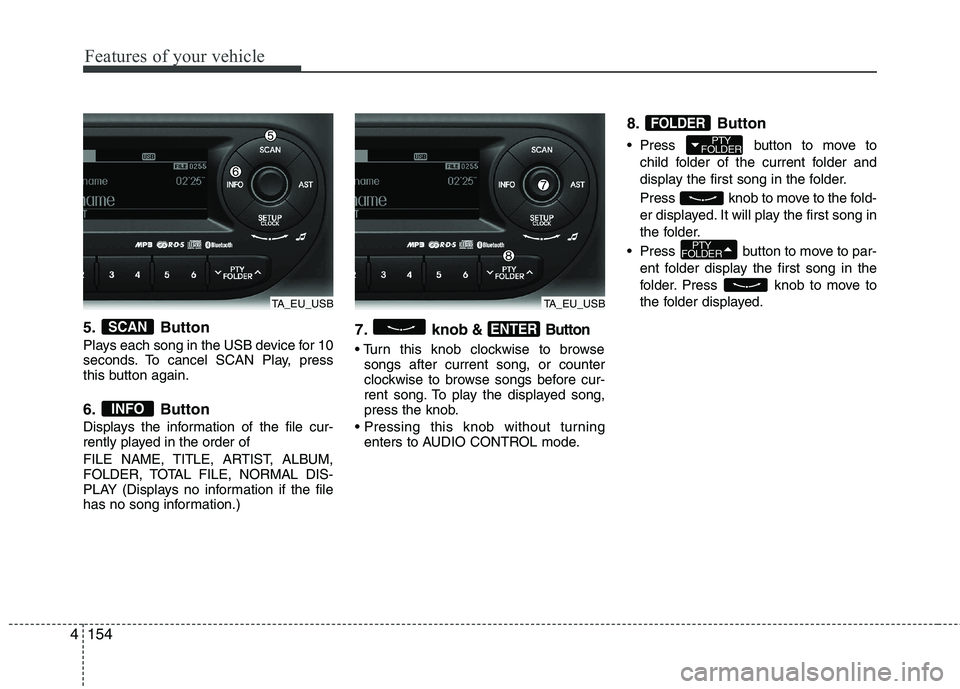
5. Button
Plays each song in the USB device for 10
seconds. To cancel SCAN Play, press
this button again.
6. Button
Displays the information of the file cur-
rently played in the order of
FILE NAME, TITLE, ARTIST, ALBUM,
FOLDER, TOTAL FILE, NORMAL DIS-
PLAY (Displays no information if the file
has no song information.) 7. knob& Button
songs after current song, or counter
clockwise to browse songs before cur-
rent song. To play the displayed song,
press the knob.
enters to AUDIO CONTROL mode. 8. Button
Press button to move to
child folder of the current folder and
display the first song in the folder.
Press knob to move to the fold-
er displayed. It will play the first song in
the folder.
Press button to move to par- ent folder display the first song in the
folder. Press knob to move to
the folder displayed.
PTY
FOLDER
PTY
FOLDER
FOLDER
ENTER
INFO
SCAN
TA_EU_USBTA_EU_USB
Page 654 of 840

4155
Features of your vehicle
✽✽NOTICE FOR USING THE
iPod DEVICE
Some iPod models might not sup- port the communication protocol
and the files will not be played.
Supported iPod models:
- iPod Mini
- iPod 4th(Photo) ~ 6th(Classic)
generation
- iPod Nano 1st~4th generation
- iPod Touch 1st~2nd generation
The order of search or playback of songs in the iPod can be different
from the order searched in the
audio system.
If the iPod disabled due to its own malfunction, reset the iPod. (Reset:
Refer to iPod manual)
An iPod may not operate normally
on low battery.
Some iPod devices, such as the
iPhone, can be connected through the
Bluetooth
®interface. The device
must have audio Bluetooth®capabili-
ty (such as for stereo headphone
Bluetooth
®). The device can play, but
it will not be controlled by the audio
system.
CAUTION IN USING THE
iPod DEVICE
The Kia iPod Power Cable is needed in order to operate iPodwith the audio buttons on the audio system. The USB cable pro-
vided by Apple may cause mal-function and should not be usedfor Kia vehicles.
❋ The Kia iPod Power Cable maybe purchased through your KiaDealership.
When connecting iPod with the iPod Power Cable, insert the con-
nector to the multimedia socket completely. If not inserted com-pletely, communications betweeniPod and audio may be interrupted.
When adjusting the sound effects of the iPod and the audio system, thesound effects of both devices willoverlap and might reduce or distort the quality of the sound.
Deactivate (turn off) the equalizer function of an iPod when adjust-ing the audio system’s volume,and turn off the equalizer of the
audio system when using theequalizer of an iPod.
(Continued)
(Continued) When the iPod cable is connected, the system can be switched to AUXmode even without iPod deviceand may cause noise. Disconnect
the iPod cable when you are not using the iPod device.
When not using iPod with car audio, detach the iPod cable from
iPod. Otherwise, iPod may remainin accessory mode, and may not work properly.
When connecting the iPod, use theUSB/AUX terminals.
When disconnecting the iPod, disconnect both the USB/AUX ter-minal.
The iPod exclusive cable must be connected to both the USB/AUXterminals for iPod charging and
operations to be supported.
Detachable USB/AUXAll-in-one USB/AUX
Page 656 of 840
4157
Features of your vehicle
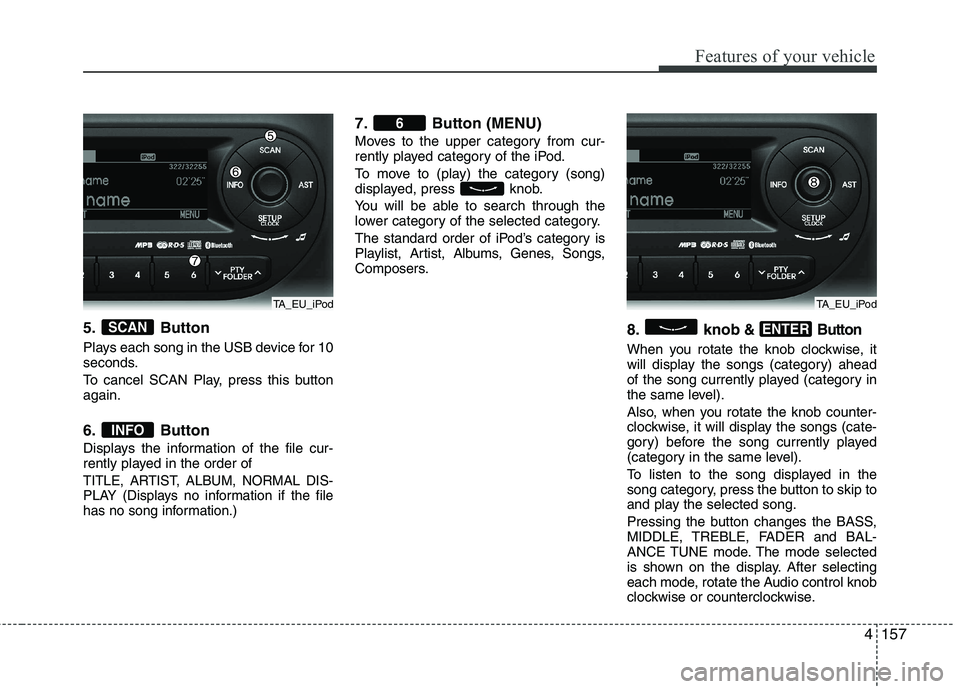
5. Button
Plays each song in the USB device for 10
seconds.
To cancel SCAN Play, press this button again.
6. Button
Displays the information of the file cur-
rently played in the order of
TITLE, ARTIST, ALBUM, NORMAL DIS-
PLAY (Displays no information if the file
has no song information.)
7. Button (MENU)
Moves to the upper category from cur-
rently played category of the iPod.
To move to (play) the category (song)
displayed, press knob.
You will be able to search through the
lower category of the selected category.
The standard order of iPod’s category is
Playlist, Artist, Albums, Genes, Songs,
Composers.8. knob
& Button
When you rotate the knob clockwise, it
will display the songs (category) ahead
of the song currently played (category in
the same level).
Also, when you rotate the knob counter-
clockwise, it will display the songs (cate-
gory) before the song currently played
(category in the same level).
To listen to the song displayed in the
song category, press the button to skip to
and play the selected song.
Pressing the button changes the BASS,
MIDDLE, TREBLE, FADER and BAL-
ANCE TUNE mode. The mode selected
is shown on the display. After selecting
each mode, rotate the Audio control knob
clockwise or counterclockwise.
ENTER
6
INFO
SCAN
TA_EU_iPodTA_EU_iPod
Page 657 of 840

Features of your vehicle
158
4
CAUTION IN USING
BLUETOOTH ®
MOBILE
PHONE
Do not use a mobile phone or per- form Bluetooth®settings (e.g.
pairing a phone) whilst driving.
Some Bluetooth
®-enabled phones
may not be recognized by the system or fully compatible withthe system.
Before using Bluetooth
®related
features of the audio system, refer your phone’s User’s Manual for phone-side Bluetooth
®opera-
tions.
The phone must be paired to the audio system to use Bluetooth®
related features.
You will not be able to use the
hands-free feature when yourphone (in the car) is outside of
the mobile service area (e.g. in atunnel, in a underground, in a mountainous area, etc.).
If the mobile phone signal is poor or the vehicles interior noise is
too loud, it may be difficult to hearthe other person’s voice during a call.
(Continued)
(continued) Do not place the phone near or inside metallic objects, otherwise
communications with Bluetooth
®
system or mobile service stationscan be disturbed.
While a phone is connected through Bluetooth
®your phone
may discharge quicker than usual for additional Bluetooth
®-related
operations.
Some mobile phones or other devices may cause interferencenoise or malfunction to audio
system. In this case, store thedevice in a different location mayresolve the situation.
Please save your phone name in English, or your phone name may
not be displayed correctly.