2012 KIA Optima radio
[x] Cancel search: radioPage 211 of 382

Features of your vehicle
124
4
Satellite radio receptionYou may experience difficulties in receiv-
ing SIRIUS®satellite radio signals in the
following situations.
If you are driving in a tunnel or a cov- ered parking area.
If you are driving beneath the top level of a multi-level freeway.
If you drive under a bridge.
If you are driving next to a tall vehicle (such as a truck or a bus) that blocks
the signal.
If you are driving in a valley where the surrounding hills or peaks block the
signal from the satellite. If you are driving on a mountain road
where is the signal blocked by moun-
tains.
If you are driving in an area with tall trees that block the signal (30 ft. / 10m
or more), for example on an road that
goes through a dense forest.
The signal can become weak in some areas that are not covered by the SIR-
IUS
®Satellite Radio repeater network.
NOTE:
There may be other unforeseen cir-
cumstances leading to reception
problems with the SIRIUS
®satellite
radio signal.
SATELITE2SATELITE1
Page 212 of 382

4125
Features of your vehicle
Using a cellular phone or a two-wayradio
When a cellular phone is used inside the
vehicle, noise may be produced from the
audio equipment. This does not mean
that something is wrong with the audio
equipment. In such a case, use the cellu-
lar phone at a place as far as possible
from the audio equipment.
Care of discs
If the temperature inside the vehicle is too high, open the vehicle windows for
ventilation before using your vehicle
audio.
It is illegal to copy and use MP3/WMA files without permission. Use CDs that
are created only by lawful means.
Do not apply volatile agents such as benzene and thinner, normal cleaners
and magnetic sprays made for ana-
logue disc onto CDs.
To prevent the disc surface from get- ting damaged. Hold and carry CDs by
the edges or the edges of the center
hole only.
Clean the disc surface with a piece of soft cloth before playback (wipe it from
the center to the outside edge).
Do not damage the disc surface or attach pieces of sticky tape or paper
onto it.
Make sure objects other than CDs are not inserted into the CD player (Do not
insert more than one CD at a time). Keep CDs in their cases after use to
protect them from scratches or dirt.
Depending on the type of CD-R/CD- RW CDs, certain CDs may not operate
normally according to manufacturing
companies or making and recording
methods. In such circumstances, if you
still continue to use those CDs, they
may cause the malfunction of your
vehicle audio system.
✽ ✽ NOTICE- Playing an
Incompatible Copy
Protected Audio CD
Some copy protected CDs, which do not
comply with the international audio CD
standards (Red Book), may not play on
your vehicle audio. Please note that if
you try to play copy protected CDs and
the CD player does not perform correct-
ly the CDs maybe defective, not the CD
player.
WARNING
Do not use a cellular phone while
driving. Stop at a safe location to
use a cellular phone.
CAUTION
When using a communication sys-
tem such a cellular phone or a radioset inside the vehicle, a separateexternal antenna must be fitted. When a cellular phone or a radio setis used with an internal antennaalone, it may interfere with the vehi-cle's electrical system and adverse-ly affect safe operation of the vehi-cle.
Page 213 of 382
Features of your vehicle
126
4
■
■
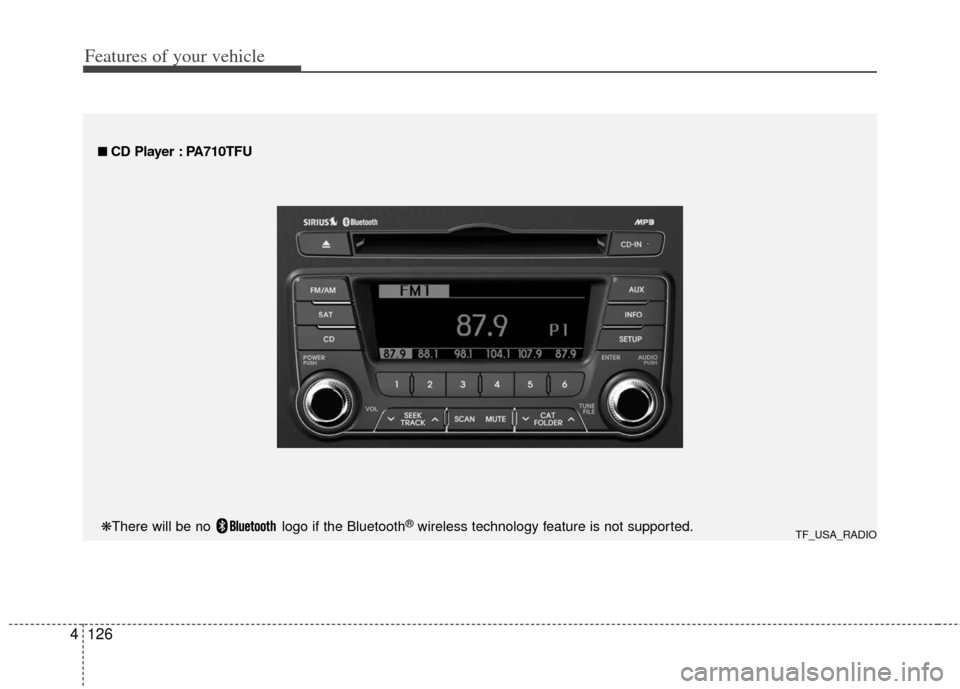
CD Player : PA710TFU
TF_USA_RADIO❋There will be no logo if the Bluetooth®wireless technology feature is not supported.
Page 214 of 382

4127
Features of your vehicle
Using RADIO, SETUP, VOLUME
and AUDIO CONTROL
1. Button
The FM/AM button toggles between FM
and AM. Listed below are the paths as
the system switches from FM to AM and
back to FM.
FM/AM : FM1
➟FM2➟AM➟FM1...
2. Button & Knob
Turns the audio system on/off whenthe ignition switch is on ACC or ON.
If the knob is turned clockwise/counter- clockwise, the volume will increase
/decrease.
3. Button
When the is pressed, it will
automatically tune to the next lower
station.
When the is pressed, it will
automatically tune to the next higher
station.
4. Button
When the button is pressed, it auto- matically scans the radio stations
upwards.
The SCAN feature steps through each station, starting from the initial station,
for 5 seconds.
Press the button again to stop the scan feature and to listen to the
currently selected channel.
5. Button
When the button is pressed, stops sound
and “Audio Mute” is displayed on LCD.
6. PRESET Buttons
Press ~ buttons lessthan 0.8 seconds to play the station
saved in each button. Press ~ button more
than 0.8 seconds or longer to save the
current station to the respective button
with a beep.
7. Button
Press this button to enter SETUP mode,
If no action is taken for 8 seconds, it will
return to previous mode.
In “SETUP” mode, rotate the TUNE knob
to move the cursor between items, and
push the TUNE knob to select.
SETUP
61
61
MUTE
SCAN
SCAN
SEEK
SEEK
SEEK
VOLPOWER
FM/AM
TF_USA_RADIO
TF_USA_RADIO
TF_USA_RADIO
Page 215 of 382

Features of your vehicle
128
4
Select whether long file names are scrolled
continuously (On) or just once (Off).
(Speed Dependent Volume Control)
Select this item to turn the SDVC feature
On or Off. If it is turned ON, volume level
is adjusted automatically according to
the vehicle speed.
Select default display of MP3 play infor-
mation. “Folder/File” or “Artist/Title” can
be selected.
Select default display of SIRIUS
®
Satellite Radio mode. “Cat./Ch.” or
“Artist/Title” can be selected.
Select this item to enter BLUETOOTH
®
Wireless Technology setup mode. Refer
to “BLUETOOTH®Wireless Technology
PHONE OPERATION” section for
detailed information.
8. & Knob
Rotate the knob clockwise or counter-
clock wise to increase or decrease from
current frequency.
(AM 10kHz, FM 200kHz)
Pressing the button changes the BASS,
MIDDLE, TREBLE, FADER and BAL-
ANCE TUNE mode. The mode selected
is shown on the display. After selecting
each mode, rotate the Audio control knob
clockwise or counterclockwise.
To increase the BASS, rotate the knob
clockwise, while to decrease the BASS,
rotate the knob counterclockwise.
Audio ControlTUNE
TF_USA_RADIO
Page 220 of 382
4133
Features of your vehicle
CAUTION IN USING
USB DEVICE
To use an external USB device,
make sure the device is not con-nected when starting up the vehi-cle. Connect the device afterstarting up.
If you start the engine when the USB device is connected, it maydamage the USB device. (USBflashdrives are very sensitive toelectric shock.)
If the engine is started up or turned off while the external USBdevice is connected, the externalUSB device may not work.
It may not play inauthentic MP3 or WMA files.
1) It can only play MP3 files with the compression rate between8Kbps~320Kbps.
2) It can only play WMA music files with the compression ratebetween 8Kbps~320Kbps.
Take precautions for static electrici- ty when connecting or disconnect-ing the external USB device.
(Continued)
(Continued) An encrypted MP3 PLAYER is not recognizable.
Depending on the condition of the external USB device, the con-nected external USB device canbe unrecognizable.
When the formatted byte/sector setting of External USB device isnot either 512BYTE or 2048BYTE,then the device will not be recog- nized.
Use only a USB device formatted to FAT 12/16/32.
USB devices without USB I/F authentication may not be recog-nizable.
Make sure the USB connection terminal does not come in contactwith the human body or otherobjects.
If you repeatedly connect or dis- connect the USB device in a shortperiod of time, it may break thedevice.
You may hear a strange noise when connecting or disconnect-ing a USB device.
(Continued)(Continued) If you disconnect the external USB device during playback in USBmode, the external USB device canbe damaged or may malfunction. Therefore, disconnect the externalUSB device when the audio is turned off or in another mode. (e.g,Radio, SIRIUS or CD)
Depending on the type and capac- ity of the external USB device orthe type of the files stored in thedevice, there is a difference in the time taken for recognition of thedevice.
Do not use the USB device for pur- poses other than playing musicfiles.
Use of USB accessories such as rechargers or heaters using USBI/F may lower performance orcause trouble.
If you use devices such as a USB hub purchased separately, thevehicle’s audio system may not recognize the USB device. In thatcase, connect the USB devicedirectly to the multimedia termi- nal of the vehicle.
(Continued)
Page 227 of 382

Features of your vehicle
140
4
Satellite Radio channels:SIRIUS®Satellite Radio has over 130
channels, including 69 channels of 100%
commercial-free music, plus sports, news,
talk and entertainment available nationwide
in your vehicle. For more information and a
complete list of SIRIUS
®Satellite Radio
channels, visit sirius.com in the United
States, sirius-canada.ca in Canada, or call
SIRIUS at 1-888-539-7474.
Satellite
Radioreception factors:
To receive the satellite signal, your vehi-
cle has been equipped with a satellite
radio antenna located on the roof of your
vehicle. The vehicle roof provides the
best location for an unobstructed, open
view of the sky, a requirement of a satel-
lite radio system. Like AM/FM, there are
several factors that can affect satellite
radio reception performance:
Antenna obstructions: For optimal reception performance, keep the anten-
na clear of snow and ice build-up and
keep luggage and other material as far
away from the antenna as possible.
Terrain: Hills, mountains, tall buildings, bridges, tunnels, freeway overpasses,
parking garages, dense tree foliage
and thunderstorms can interfere with
your reception.
SIRIUS®Satellite Radio service:
SIRIUS®Satellite Radio is a subscrip-
tion-
based satellite radio service that broad-
casts music, sports, news and entertain-
ment programming to radio receivers,
which are available for installation in
motor vehicles or factory installed, as
well as for the home, portable and wire-
less devices, and through an Internet
connection on personal computer.
Vehicles that are equipped with a factory
installed SIRIUS
®Satellite Radio system
include:
Hardware and an introductory trial sub- scription term, which begins on the
date of sale or lease of the vehicle.
For a small upgrade fee, access to SIRIUS
®music channels, and other
select channels over the Internet using
any computer connected to the
Internet (U.S. customers only).
For information on extended subscrip-
tion terms, contact SIRIUS
®at 1-888-
539-7474.
NOTE:
Satellite Radio requires SIRIUS®com-
patible receiver and a subscription serv-
ice fee after trial period.
Vehicles without a factory-installed
radio receiver require hardware pur-
chase and installation. Please see your
dealer for further details. All fees and
programming subject to change.
Subscriptions governed by the SIRIUS
Terms & Conditions available at
www
.sirius.com / service terms.
Available only in the 48 contiguous
United States and the District of
Columbia. Service available in Canada;
see www
.siriuscanada.caKia shall not be responsible for any
such programming changes.
Satellite Radio Electronic Serial
Number (ESN):This 12-digit Satellite
Serial Number is needed to re-activate,
modify or track your satellite radio
account. You will need this number when
communicating with SIRIUS
® Satellite
Radio.
SIRIUS®Satellite Radio information (if equipped)
Page 228 of 382

4141
Features of your vehicle
Using SIRIUS®Satellite Radio
Your Kia vehicle is equipped with a 3
month complimentary period of SIRIUS®
Satellite Radio so you have access to
over 130 channels of music, information,
and entertainment programming.
Activation
In order to extend or reactivate your sub-
scription to SIRIUS®Satellite Radio, you
will need to contact SIRIUS®Customer
Care at 1-888-539-7474. Have your 12
digit SID (Sirius
®Identification Number)/ESN
(Electronic Serial Number) ready. To retrieve
the SID/ESN, turn on the radio, press the
[SAT] button, and tune to channel zero. Please note that the vehicle will need to
be turned on, in Sirius mode, and have
an unobstructed view of the sky in order
for the radio to receive the activation sig-
nal.
1. Button(SIRIUS®
Satellite Radio)
Press the button to switch to
SIRIUS®Satellite Radio. It cycles
through the different bands as noted
below.
SAT1
➟SAT2➟SAT3➟SAT1...
2. Button (CHANNEL)
Press button for less than
0.8 seconds to select previous or next
channel.
Press button for 0.8 sec-
onds or longer to continuously move to
previous or next channel.
If “CATEGORY” Icon is displayed at the top of the screen, channel up/down is
done through the channels within cur-
rent category.
3. Button
When the button is pressed, itautomatically scans the radio stations
upwards. The SCAN feature steps through every
channel, starting from the initial chan-
nel, for ten seconds.
Press the button again to stop the scan feature and to listen to the
currently selected channel.
If "CATEGORY" Icon is displayed at the top of the screen, channel chang-
ing is done through the channels with-
in current category.
4. Button (CATEGORY)
Press button to enter the
Category List Mode. The display will
indicate the category items, highlight
the category that the current channel
belongs to.
In the Category List Mode, press these buttons to navigate category list.
Press Button to select the lowest channel in highlighted category.
If channel is selected by selecting cat- egory "CATEGORY" Icon is displayed
at the top of the screen.
ENTER
CAT
CAT
SCAN
SCAN
SCAN
SEEK
SEEK
SEEK
SAT
SAT
TF_USA_SIRIUS