2012 KIA Optima eco
[x] Cancel search: ecoPage 222 of 382

4135
Features of your vehicle
Using USB device
1. Button (USB or AUX)
If the auxiliary device is connected, it
switches to AUX or USB mode to play
the sound from the auxiliary player.
If there is no auxiliary device, then the
message “No Media” will become dis-
played on the LCD for 3 seconds and
returns to previous mode.
2. Button (RANDOM)
Press this button for less than 0.8 sec-onds to play songs randomly in current
folder.
Press this button for 0.8 seconds or longer to play songs randomly in entire
USB device. To cancel RANDOM play, press this
button again.
3. Button (REPEAT)
Press this button for less than 0.8 sec-onds to repeat current song.
Press this button for 0.8 seconds or longer to repeat all songs in current folder.
To cancel REPEAT, press this button again.
4. Button
Press the button for less
than 0.8 seconds to play from the
beginning of the current song.
Press the button for less than 0.8 sec
onds and press it again within 1 sec-
ond to move to and play the previous
song.
Press the button for 0.8 seconds or
longer to play the song in reverse
direction in fast speed.
Press the button for less
than 0.8 seconds to move to the next
song. Press the button for 0.8 seconds
or longer to play the song in forward
direction in fast speed.5. Button
Plays each song in the USB device for 10
seconds.
To cancel SCAN Play, press this button
again.
6. Button
Displays the information of the file cur-
rently played in the order of
FILE NAME
➟ TITLE ➟ ARTIST ➟ALBUM ➟ FOLDER ➟ TOTAL FILE ➟NORMAL DISPLAY ➟ FILE NAME…
(Displays no information if the file has no
song information.)
INFO
SCAN
TRACK
T TRACK
TRACK
2
1
AUX
TF_USA_USBTF_USA_USB
Page 225 of 382

Features of your vehicle
138
4
Using iPod®
❋
iPod®is a trademark of Apple Inc.
1. Button (iPod®)
If iPod®is connected, it switches to the
iPod®mode from the previous mode to
play the song files stored in the iPod®.
If there is no iPod®connected, then it dis-
plays the message "No Media" for 3 sec-
onds and returns to the previous mode.
2. Button (RANDOM)
Press this button for less than 0.8 sec-
onds to shuffle order of all songs in
current category. (Song Random) Press this button for 0.8 seconds or
longer to shuffle order of albums in cur-
rent category. (Album Random)
To cancel RANDOM Play, press this button again.
3. Button (REPEAT)
Repeats the song currently played.
4. Button
Press the button for less
than 0.8 seconds to play from the
beginning of the song currently played.
Press the button for less than 0.8 sec-
onds and press it again within 1 sec-
ond to move to and play the previous
track.
Press the button for 0.8 seconds or
longer to play the song in reverse
direction in fast speed.
Press the button for less
than 0.8 seconds to move to the next
track.
Press the button for 0.8 seconds or
longer to play the song in forward direc-
tion in fast speed.
5. Button
Plays each song in the iPod®device for
10 seconds.
To cancel SCAN Play, press this button
again.
6. Button (MENU)
Moves to the upper category from cur-
rently played category of the iPod®.
To move to (play) the category (song)
displayed, press knob.
You will be able to search through the
lower category of the selected category.
The standard order of iPod
®’s category is
SONGS➟ALBUMS➟ARTISTS➟GEN-
RES➟iPod®
TUNE
6
SCAN
TRACK
T TRACK
TRACK
2
1
AUX
TF_USA_iPod TF_USA_iPod
Page 228 of 382

4141
Features of your vehicle
Using SIRIUS®Satellite Radio
Your Kia vehicle is equipped with a 3
month complimentary period of SIRIUS®
Satellite Radio so you have access to
over 130 channels of music, information,
and entertainment programming.
Activation
In order to extend or reactivate your sub-
scription to SIRIUS®Satellite Radio, you
will need to contact SIRIUS®Customer
Care at 1-888-539-7474. Have your 12
digit SID (Sirius
®Identification Number)/ESN
(Electronic Serial Number) ready. To retrieve
the SID/ESN, turn on the radio, press the
[SAT] button, and tune to channel zero. Please note that the vehicle will need to
be turned on, in Sirius mode, and have
an unobstructed view of the sky in order
for the radio to receive the activation sig-
nal.
1. Button(SIRIUS®
Satellite Radio)
Press the button to switch to
SIRIUS®Satellite Radio. It cycles
through the different bands as noted
below.
SAT1
➟SAT2➟SAT3➟SAT1...
2. Button (CHANNEL)
Press button for less than
0.8 seconds to select previous or next
channel.
Press button for 0.8 sec-
onds or longer to continuously move to
previous or next channel.
If “CATEGORY” Icon is displayed at the top of the screen, channel up/down is
done through the channels within cur-
rent category.
3. Button
When the button is pressed, itautomatically scans the radio stations
upwards. The SCAN feature steps through every
channel, starting from the initial chan-
nel, for ten seconds.
Press the button again to stop the scan feature and to listen to the
currently selected channel.
If "CATEGORY" Icon is displayed at the top of the screen, channel chang-
ing is done through the channels with-
in current category.
4. Button (CATEGORY)
Press button to enter the
Category List Mode. The display will
indicate the category items, highlight
the category that the current channel
belongs to.
In the Category List Mode, press these buttons to navigate category list.
Press Button to select the lowest channel in highlighted category.
If channel is selected by selecting cat- egory "CATEGORY" Icon is displayed
at the top of the screen.
ENTER
CAT
CAT
SCAN
SCAN
SCAN
SEEK
SEEK
SEEK
SAT
SAT
TF_USA_SIRIUS
Page 229 of 382
Features of your vehicle
142
4
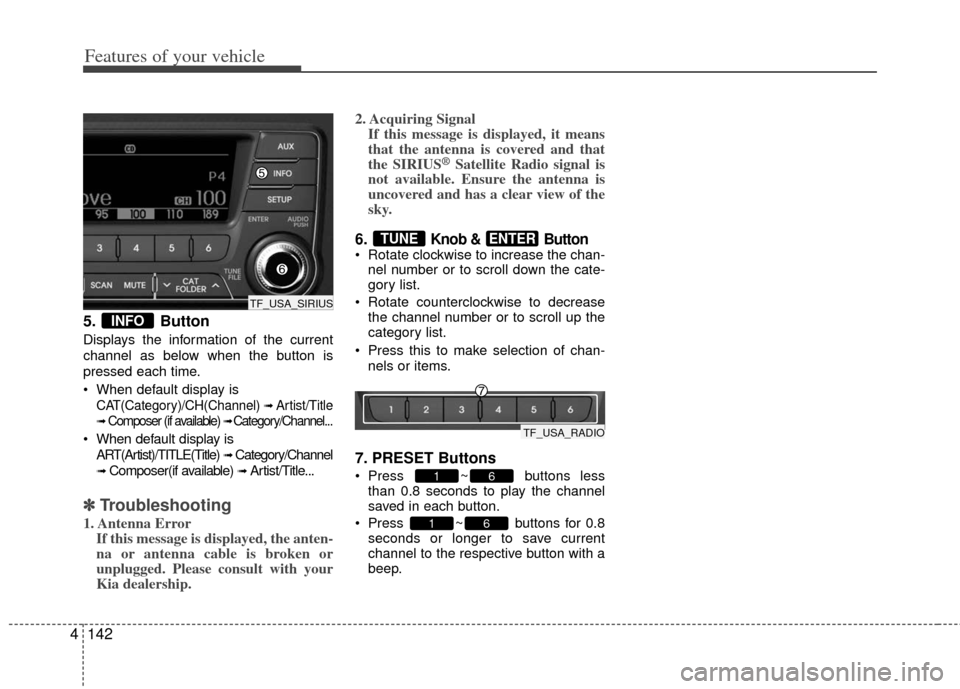
5. Button
Displays the information of the current
channel as below when the button is
pressed each time.
When default display is
CAT(Category)/CH(Channel) ➟ Artist/Title
➟Composer (if available) ➟ Category/Channel...
When default display is
ART(Artist)/TITLE(Title)
➟ Category/Channel
➟ Composer(if available) ➟ Artist/Title...
✽ ✽ Troubleshooting
1. Antenna Error
If this message is displayed, the anten-
na or antenna cable is broken or
unplugged. Please consult with your
Kia dealership. 2. Acquiring Signal
If this message is displayed, it means
that the antenna is covered and that
the SIRIUS
®Satellite Radio signal is
not available. Ensure the antenna is
uncovered and has a clear view of the
sky.
6. Knob & Button Rotate clockwise to increase the chan-
nel number or to scroll down the cate-
gory list.
Rotate counterclockwise to decrease the channel number or to scroll up the
category list.
Press this to make selection of chan- nels or items.
7. PRESET Buttons
Press ~ buttons lessthan 0.8 seconds to play the channel
saved in each button.
Press ~ buttons for 0.8 seconds or longer to save current
channel to the respective button with a
beep.
61
61
ENTERTUNE
INFO
TF_USA_SIRIUS
TF_USA_RADIO
Page 230 of 382

4143
Features of your vehicle
NOTE:
If you need more information about
Kia’s Bluetooth®wireless technology.
Contact kia website “www.kia.com”
(OWNERS>General Info>BLUETOOTH
wireless technology).
CAUTION IN USING
BLUETOOTH®WIRELESS
TECHNOLOGY CELLU-
LAR PHONE
Do not use a cellular phone or
perform Bluetooth®wireless tech-
nology settings (e.g. pairing a phone) while driving.
Some Bluetooth
®wireless tech-
nology-enabled phones may not be recognized by the system or fully compatible with the system.
Before using Bluetooth
®wireless
technology related features of the audio system, refer your phone’sUser’s Manual for phone-sideBluetooth
®wireless technology
operations.
The phone must be paired to the audio system to use Bluetooth®
wireless technology related fea-
tures.
You will not be able to use the hands-free feature when yourphone (in the car) is outside ofthe cellular service area (e.g. in a tunnel, in a underground, in amountainous area, etc.).
(Continued)
(Continued) If the cellular phone signal is poor or the vehicles interior noise istoo loud, it may be difficult to hearthe other person’s voice during acall.
Do not place the phone near or inside metallic objects, otherwise
communications with Bluetooth
®
wireless technology system orcellular service stations can be disturbed.
While a phone is connected through Bluetooth
®wireless tech-
nology your phone may dis- charge quicker than usual foradditional Bluetooth
®wireless
technology-related operations.
Some cellular phones or other devices may cause interferencenoise or malfunction to audiosystem. In this case, storing thedevice in a different location mayresolve the situation.
Page 231 of 382

Features of your vehicle
144
4
BLUETOOTH®PHONE OPERATION
(if equipped)
1. button : Raises or lowers speaker volume.
2. button : Activates voice recognition.
3. button : Places and transfers calls.
4. button : Ends calls or cancels func- tions.
n What is Bluetooth®wireless
technology?
Bluetooth®wireless technology is a wire-
less technology that allows multiple
devices to be connected in a short range,
low-powered devices like hands-free,
stereo headset, steering remote control,
etc. For more information, visit the
Bluetooth
®wireless technology website
at www.Bluetooth.com
■General Features
®
wireless technology hands-free and
stereo-headset features.
- HANDS-FREE feature: Making or receiving calls wirelessly through
voice recognition.
- STEREO-HEADSET feature: Playing music from cellular phones (that sup-
ports A2DP feature) wirelessly.
Bluetooth
®wireless technology system
supports 3 types of languages:
English
Canadian French
US Spanish
✽ ✽ NOTICE
• The phone must be paired to the sys-
tem before using Bluetooth®wireless
technology features.
• Only one selected (linked) cellular phone can be used with the system at a time.
• Some phones are not fully compatible with this system.
• The Bluetooth
®wireless technology
word mark and logos are registered
trademarks owned by Bluetooth
®
wireless technology SIG, Inc. and any
use of such marks by Kia is under
license. A Bluetooth
®wireless tech-
nology enabled cell phone is required
to use Bluetooth
®wireless technology.
VOLUME
4
3
1
2
Page 236 of 382
4149
Features of your vehicle
Contacts Sync (Automatic Phonebook
download setting)
While in ADVANCED menu, select
“Contacts” to automatically save the
contacts and call history in your mobile
phone each time you connect a mobile
device, select ON. If you do not wish for
automatic download, select OFF.
It’s not available to make a phone call by
Bluetooth
®wireless technologyaudio sys-
tem while the phonebook is being down-
loaded.
Language of Bluetooth®wireless technol-
ogy voice recognition
While in ADVANCED menu, press
“Language”. To change the language,
select the desired language and press
the button.
Bluetooth
®wireless technology sys-
tem off
While in ADVANCED menu, press “BT Off ”
To turn off the Bluetooth
®wireless tech-
nology System.
■Voice Recognition Activation
in the Bluetooth®wireless technology
System can be activated in the follow-
ing conditions:
- Button Activation
The voice recognition system will be
active when the button is pressed
and after the sound of a Beep.
- Active Listening The voice recognition system will be
active for a period of time when the
Voice Recognition system has asked
for a customer response.
from zero to nine while number greater
than ten will not be recognized.
tion mode in following cases : When
pressing the button and saying
“cancel” following the beep. When not
making a call and pressing the
button. When voice recognition has
failed 3 consecutive times.
will announce what commands are
available.
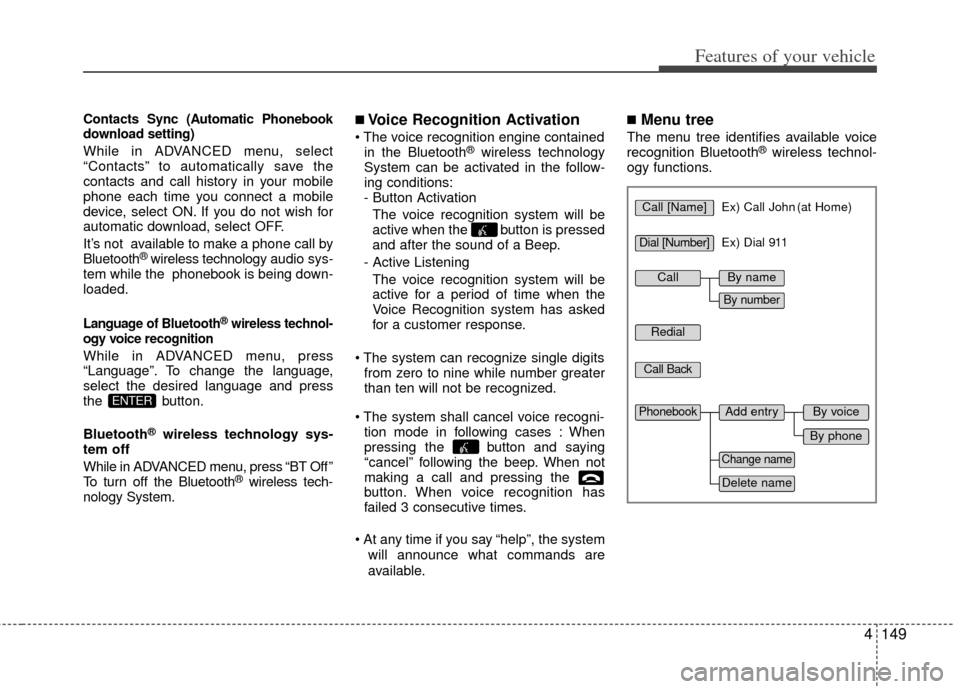
■Menu tree
The menu tree identifies available voice
recognition Bluetooth®wireless technol-
ogy functions.
ENTER
Call [Name]Ex) Call John (at Home)
Ex) Dial 911
Dial [Number]
Redial
Call Back
Add entryPhonebook
Change name
Delete name
By phone
By voice
CallBy name
By number
Page 237 of 382

Features of your vehicle
150
4
■Making a Phone Call
➀Press button.
➁Say the following command.
- Call
- Call
- Call
- Call
Note:
Calls can be immediately connected
to contacts who name or voice tag are
saved in the phonebook(or contacts).
A phone call can be made by speaking
names registered in the audio system.
➀Press button.
➁Say “Call”.
\bSay “By name” when prompted.
➃Say desired name (in Phonebook or
voice tag).
➄Say desired location (phone number
type). Only stored locations can be
selected.
➅ Say “Yes” to confirm and make a call.
✽
✽
Tip
■Voice Operation
To get the best performance out of the
Voice Recognition System, observe the
followings:
- Keep the interior of the vehicle as quiet as possible. Close the window
to eliminate surrounding noise
(traffic noise, vibration sounds,
etc), which may disturb recogniz-
ing the voice command correctly.
- Speak a command after a beep sound within 5 seconds. Otherwise
the command will not be received
properly.
- Speak in a natural voice without pausing between words.
- While receiving voice commands, press the button on the steer-
ing wheel remote controller to ter-
minate guidance. Voice command
will convert back to waiting mode
to allow the user to say a new voice
command.