Page 265 of 522

4-88Monitor, climate, audio, phone and voice recognition systems
Music Box®settings
To set the Music Box®to your preferred
settings, select the “Menu”key during
playback, and the “Music Box Settings”
key with the INFINITI controller, and then
push the ENTERbutton.
Music Box Used/Free Space: Information about “Saved Album”,“Saved
Track” and“Remaining Time” is displayed.
Automatic Recording:
When this item is turned on, the Music
Box
®automatically starts recording when
a CD is inserted.
Delete Songs from Music Box:
Deletes the current song, selected songs or
albums by choosing from the list, or all
songs/albums in the Music Box
®.
Recording Quality:
Set the recording quality of 105 kbps or
132 kbps. The default is set to 105 kbps.
CDDB Version (models with navigation
system)/Gracenote Database Version
(models without navigation system):
The version of the built-in Gracenote
Database is displayed.
Gracenote
NOTE:
. The information contained in the Grace-
note Database is not fully guaranteed.
. The service of the Gracenote Database
on the Internet may be stopped with-
out prior notice for maintenance.
End-User License Agreement
USE OF THIS PRODUCT IMPLIES ACCEP-
TANCE OF THE TERMS BELOW.
Gracenote MusicID
®Terms of Use
This application or device contains soft-
ware from Gracenote, Inc. of Emeryville,
California (“Gracenote”). The software from
Gracenote (the “Gracenote Software”) en-
ables this application to perform disc and/
or file identification and obtain music-
related information, including name, artist,
track, and title information (“ Gracenote
Data”) from online servers or embedded
databases (collectively, “Gracenote Ser-
vers”) and to perform other functions. You
may use Gracenote Data only by means of
the intended End-User functions of this
application or device. You agree that you
will use Gracenote Data, the Gracenote Software, and Gracenote Servers for your
own personal non-commercial use only.
You agree not to assign, copy, transfer or
transmit the Gracenote Software or any
Gracenote Data to any third party. YOU
AGREE NOT TO USE OR EXPLOIT GRACE-
NOTE DATA, THE GRACENOTE SOFTWARE,
OR GRACENOTE SERVERS, EXCEPT AS EX-
PRESSLY PERMITTED HEREIN.
You agree that your non-exclusive license
to use the Gracenote Data, the Gracenote
Software, and Gracenote Servers will ter-
minate if you violate these restrictions. If
your license terminates, you agree to cease
any and all use of the Gracenote Data, the
Gracenote Software, and Gracenote Ser-
vers. Gracenote reserves all rights in
Gracenote Data, the Gracenote Software,
and the Gracenote Servers, including all
ownership rights. Under no circumstances
will Gracenote become liable for any
payment to you for any information that
you provide.
You agree that Gracenote, Inc. may enforce
its rights under this Agreement against you
directly in its own name.
The Gracenote service uses a unique
identifier to track queries for statistical
purposes. The purpose of a randomly
Page 279 of 522

4-102Monitor, climate, audio, phone and voice recognition systems
.Cancel Mute
This will appear after “Mute”is se-
lected. Mute will be canceled.
. Switch Call*
Select “Switch Call” to answer another
incoming call. By selecting “Hang up”,
you can end a call and can speak to a
caller who is on hold again.
* This function may not be usable,
depending on the model of phone
To adjust the person’s voice to be louder or
quieter, push the volume control switch (+
or −) on the steering wheel or turn the
volume control knob on the instrument
panel while talking on the phone. This
adjustment is also available in the SETTING
mode.
JVH0136M
PHONE SETTING
To set up the Bluetooth®Hands-Free
Phone System to your preferred settings,
push the SETTING button on the instrument
panel and select the “PHONE”key.
Edit Vehicle Phonebook
To edit the vehicle phonebook, use the
same procedure as described in “Vehicle
phonebook” (P.4-97).
Delete Phonebook
The vehicle phonebook entries can be
deleted all at the same time or one by one.
Download Handset Phonebook
Download the contacts registered in a
Bluetooth®cellular phone. Availability of
this function depends on each cellular
phone. The memory downloading proce-
dure from the cellular phone also varies
according to each cellular phone. See
cellular phone Owner’s Manual for details.
When “Auto Download” is active, the
system will automatically re-download the
entries registered in the phone everytime it
is paired with the vehicle, even after you
delete the entries from your vehicle’ s
handset memory.
Volume & Ringtone
The following kinds of phone volume can
be set.
. Ringtone/Incoming Call/Outgoing Call
To increase or decrease the volume,
select the “Ringtone”, “Incoming Call”
or “Outgoing Call” key and adjust it
with the INFINITI controller.
. Automatic Hold
When this function is activated, an
incoming phone call is automatically
held.
Page 318 of 522
SAA2547
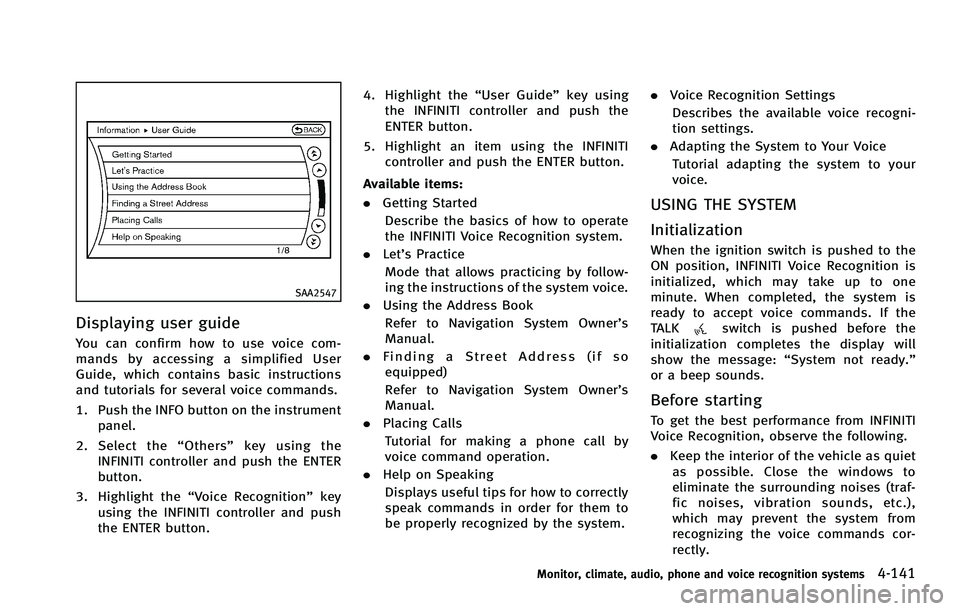
Displaying user guide
You can confirm how to use voice com-
mands by accessing a simplified User
Guide, which contains basic instructions
and tutorials for several voice commands.
1. Push the INFO button on the instrumentpanel.
2. Select the “Others” key using the
INFINITI controller and push the ENTER
button.
3. Highlight the “Voice Recognition” key
using the INFINITI controller and push
the ENTER button. 4. Highlight the
“User Guide”key using
the INFINITI controller and push the
ENTER button.
5. Highlight an item using the INFINITI controller and push the ENTER button.
Available items:
. Getting Started
Describe the basics of how to operate
the INFINITI Voice Recognition system.
. Let’s Practice
Mode that allows practicing by follow-
ing the instructions of the system voice.
. Using the Address Book
Refer to Navigation System Owner’s
Manual.
. Finding a Street Address (if so
equipped)
Refer to Navigation System Owner’s
Manual.
. Placing Calls
Tutorial for making a phone call by
voice command operation.
. Help on Speaking
Displays useful tips for how to correctly
speak commands in order for them to
be properly recognized by the system. .
Voice Recognition Settings
Describes the available voice recogni-
tion settings.
. Adapting the System to Your Voice
Tutorial adapting the system to your
voice.
USING THE SYSTEM
Initialization
When the ignition switch is pushed to the
ON position, INFINITI Voice Recognition is
initialized, which may take up to one
minute. When completed, the system is
ready to accept voice commands. If the
TALK
switch is pushed before the
initialization completes the display will
show the message: “System not ready.”
or a beep sounds.
Before starting
To get the best performance from INFINITI
Voice Recognition, observe the following.
. Keep the interior of the vehicle as quiet
as possible. Close the windows to
eliminate the surrounding noises (traf-
fic noises, vibration sounds, etc.),
which may prevent the system from
recognizing the voice commands cor-
rectly.
Monitor, climate, audio, phone and voice recognition systems4-141
Page 322 of 522
SAA2552
8. The system requests that you repeat acommand after a tone.
9. After the tone sounds and the icon on the screen changes from
to,
speak the command that the system
requested.
10. When the system has recognized the voice command, the voice of the user is
learned.
Push the
switch or BACK button to
return to the previous screen.
If the system has learned the command
correctly, the voice command status on the
right side of the command turns from “None”
to“Stored”.
SAA2553
Speaker Adaptation function settings:
Edit User Name
Edit the user name using the keypad
displayed on the screen.
Delete Voice Data
Resets the user’ s voice that the voice
recognition system has learned.
Continuous Learning
When this item is turned to ON, you can
have the system learn the voice commands
in succession, without selecting com-
mands one by one.
Monitor, climate, audio, phone and voice recognition systems4-145
