2012 Hyundai Sonata reset
[x] Cancel search: resetPage 139 of 411

457
Features of your vehicle
✽
✽NOTICE• If the vehicle is not on level ground or
the battery power has been interrupt-
ed, the “Distance to empty” function
may not operate correctly.
The trip computer may not register
additional fuel if less than 1.6 gallons (6
liters) of fuel are added to the vehicle.
• The fuel consumption and distance to empty values may vary significantly
based on driving conditions, driving
habits, and condition of the vehicle.
• The distance to empty value is an esti- mate of the available driving distance.
This value may differ from the actual
driving distance available.
Vehicle settingWhen the vehicle is at a standstill, press-
ing the TRIP button for more than 2 sec-
onds with the engine start/stop button in
the ON position or engine running, the
LCD screen on the cluster will change to
the vehicle setting mode.
You can change the item by pressing the
TRIP button and choose the item by
pressing the RESET button.
Auto door lockOff - The auto door lock operation will be
canceled.
Speed - All doors will be automatically
locked when the vehicle speed
exceeds 9.3mph (15km/h).
Shift Lever (if equipped) -
All doors will be automatically locked if
the shift lever is shifted from the P(Park)
position to the R(Reverse), N(Neutral) or
D(Drive) position.Auto door unlockOff - The auto door unlock operation will
be canceled.
Key Out - All doors will be automatically
unlocked when the ignition
key is removed from ignition
switch (or smart key is
removed from the smart key
holder).
Door - All doors will be automatically
unlocked if the driver's door is
unlocked inside.
Shift Lever (if equipped) -
All doors will be automatically unlocked if
the shift lever is shifted to the P(Park)
position.
OYF049232N
Page 186 of 411
Features of your vehicle104
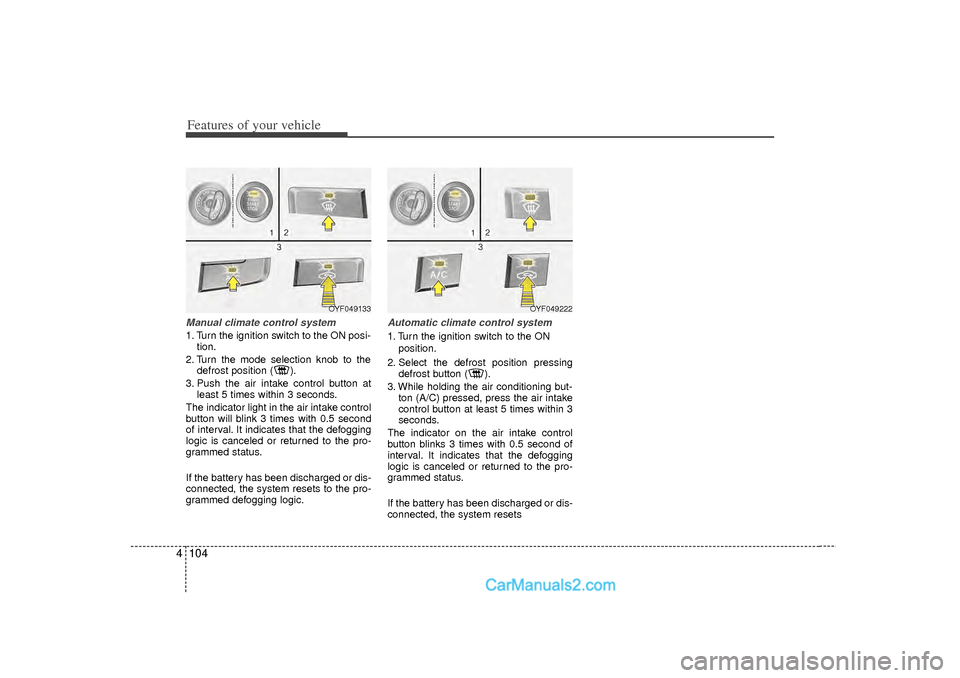
4Manual climate control system1. Turn the ignition switch to the ON posi-
tion.
2. Turn the mode selection knob to the defrost position ( ).
3. Push the air intake control button at least 5 times within 3 seconds.
The indicator light in the air intake control
button will blink 3 times with 0.5 second
of interval. It indicates that the defogging
logic is canceled or returned to the pro-
grammed status.
If the battery has been discharged or dis-
connected, the system resets to the pro-
grammed defogging logic.
Automatic climate control system1. Turn the ignition switch to the ON position.
2. Select the defrost position pressing defrost button ( ).
3. While holding the air conditioning but- ton (A/C) pressed, press the air intake
control button at least 5 times within 3
seconds.
The indicator on the air intake control
button blinks 3 times with 0.5 second of
interval. It indicates that the defogging
logic is canceled or returned to the pro-
grammed status.
If the battery has been discharged or dis-
connected, the system resets
OYF049222
OYF049133
Page 191 of 411
4 109
Features of your vehicle
Digital clock (if equipped)Whenever the battery terminals or relat-
ed fuses are disconnected, you must
reset the time.
When the ignition switch is in the ACC or
ON position, the clock buttons operate as
follows:
Hour (1)Pressing the H button with your finger, a
pencil or similar object will advance the
time displayed by one hour.Minute (2)Pressing the M button with your finger, a
pencil or similar object will advance the
time displayed by one minute.Display conversionTo change the 12 hour format to the 24
hour format, press the “H” and “M” but-
tons at the same time for more than 3
seconds.
For example, if the “H” and “M” buttons
are pressed for more than 3 seconds
while the time is 10:15 p.m., the display
will be changed to 22:15.
❈For the type of the clock built in the
audio or navigation, refer to a separately supplied manual.
Clothes hanger (if equipped)To use the hanger, pull down the upper
portion of hanger.
OYF049224
WARNING
Do not adjust the clock while driv-
ing. You may lose your steering
control and cause an accident that
results in severe personal injury or
death.
OUN026348
CAUTION
Do not hang heavy clothes, because it may damage the hook.
Page 195 of 411
4 113
Features of your vehicle
SYSTEM CONTROLLERS AND
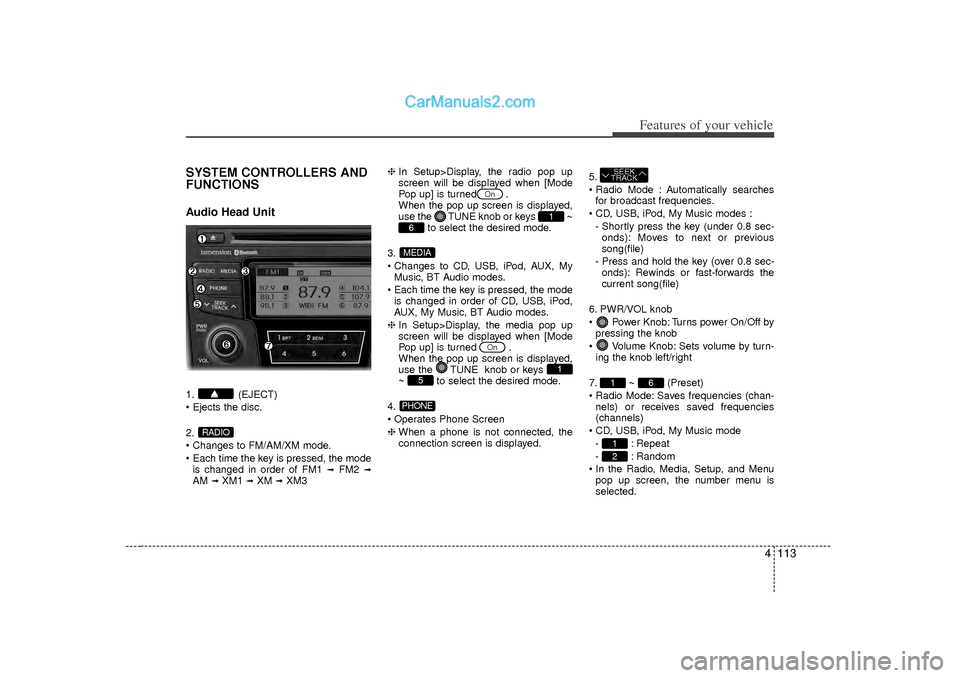
FUNCTIONSAudio Head Unit1. (EJECT)
Ejects the disc.
2.
Changes to FM/AM/XM mode.
Each time the key is pressed, the modeis changed in order of FM1
➟
FM2
➟
AM
➟XM1
➟XM
➟XM3 ❈
In Setup>Display, the radio pop up
screen will be displayed when [Mode
Pop up] is turned .
When the pop up screen is displayed,
use the TUNE knob or keys
~
to select the desired mode.
3.
Changes to CD, USB, iPod, AUX, My Music, BT Audio modes.
Each time the key is pressed, the mode is changed in order of CD, USB, iPod,
AUX, My Music, BT Audio modes.
❈ In Setup>Display, the media pop up
screen will be displayed when [Mode
Pop up] is turned .
When the pop up screen is displayed,
use the TUNE knob or keys
~ to select the desired mode.
4.
Operates Phone Screen
❈ When a phone is not connected, the
connection screen is displayed. 5.
Radio Mode : Automatically searches
for broadcast frequencies.
CD, USB, iPod, My Music modes : - Shortly press the key (under 0.8 sec-onds): Moves to next or previous
song(file)
- Press and hold the key (over 0.8 sec- onds): Rewinds or fast-forwards the
current song(file)
6. PWR/VOL knob
Power Knob: Turns power On/Off by pressing the knob
Volume Knob: Sets volume by turn- ing the knob left/right
7. ~ (Preset)
Radio Mode: Saves frequencies (chan- nels) or receives saved frequencies
(channels)
CD, USB, iPod, My Music mode - : Repeat
- : Random
In the Radio, Media, Setup, and Menu pop up screen, the number menu is
selected.
21
6
1SEEK
TRACK
PHONE
5
1
On
MEDIA6
1
On
RADIO
Page 196 of 411
Features of your vehicle114
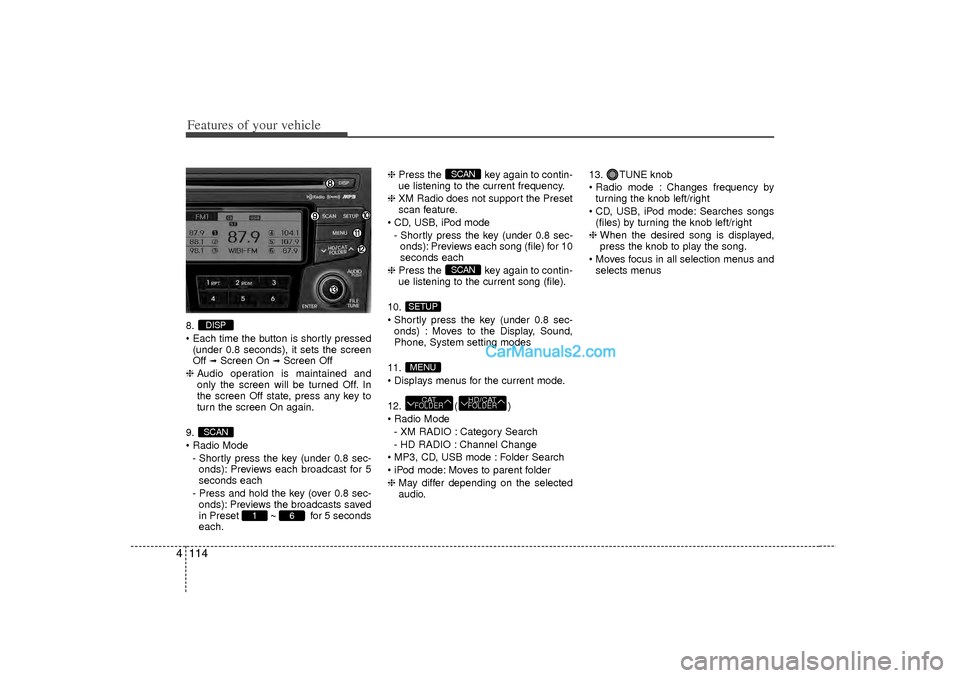
48.
Each time the button is shortly pressed
(under 0.8 seconds), it sets the screen
Off
➟Screen On
➟Screen Off
❈ Audio operation is maintained and
only the screen will be turned Off. In
the screen Off state, press any key to
turn the screen On again.
9.
Radio Mode - Shortly press the key (under 0.8 sec-onds): Previews each broadcast for 5
seconds each
- Press and hold the key (over 0.8 sec- onds): Previews the broadcasts saved
in Preset ~ for 5 seconds
each. ❈
Press the key again to contin-
ue listening to the current frequency.
❈ XM Radio does not support the Preset
scan feature.
CD, USB, iPod mode - Shortly press the key (under 0.8 sec-onds): Previews each song (file) for 10
seconds each
❈ Press the key again to contin-
ue listening to the current song (file).
10.
Shortly press the key (under 0.8 sec- onds) : Moves to the Display, Sound,
Phone, System setting modes
11.
Displays menus for the current mode.
12. ( )
Radio Mode - XM RADIO : Category Search
- HD RADIO : Channel Change
MP3, CD, USB mode : Folder Search
iPod mode: Moves to parent folder
❈ May differ depending on the selected
audio. 13. TUNE knob
Radio mode : Changes frequency by
turning the knob left/right
CD, USB, iPod mode: Searches songs (files) by turning the knob left/right
❈ When the desired song is displayed,
press the knob to play the song.
Moves focus in all selection menus and selects menus
HD/CATFOLDER
CATFOLDERMENUSETUP
SCANSCAN
6
1
SCANDISP
Page 210 of 411
Features of your vehicle128
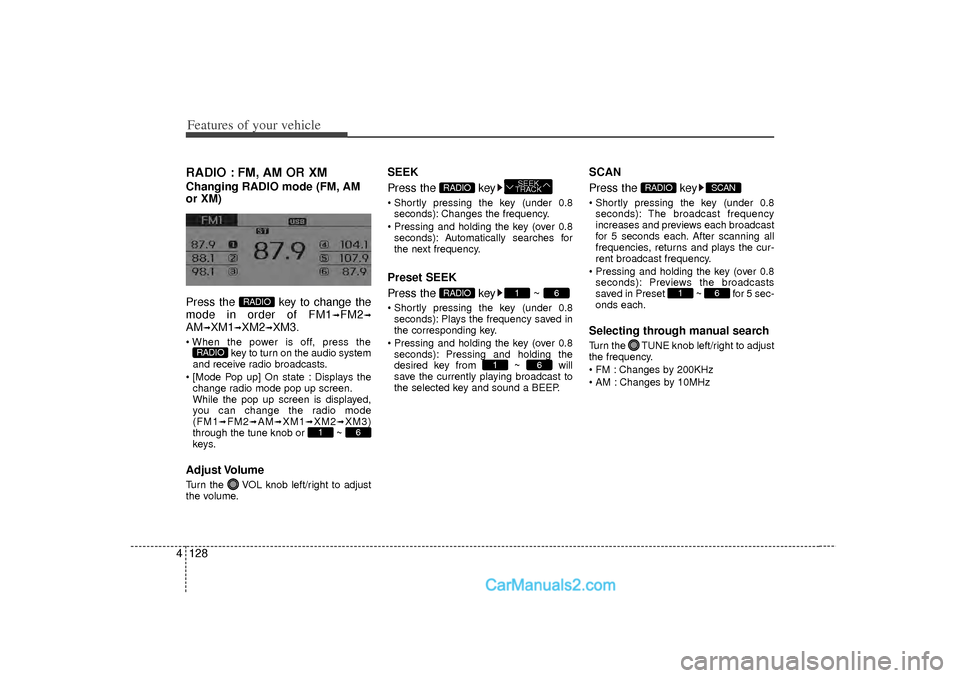
4RADIO : FM, AM OR XMChanging RADIO mode (FM, AM
or XM)
Press the key to change the
mode in order of FM1
➟FM2
➟
AM
➟XM1
➟XM2
➟XM3.
When the power is off, press the
key to turn on the audio system
and receive radio broadcasts.
[Mode Pop up] On state : Displays the change radio mode pop up screen.
While the pop up screen is displayed,
you can change the radio mode
(FM1
➟FM2
➟AM
➟XM1
➟XM2
➟XM3)
through the tune knob or ~
keys.
Adjust VolumeTurn the VOL knob left/right to adjust
the volume.
SEEK
Press the key Shortly pressing the key (under 0.8 seconds): Changes the frequency.
Pressing and holding the key (over 0.8 seconds): Automatically searches for
the next frequency.Preset SEEK
Press the key ~ Shortly pressing the key (under 0.8seconds): Plays the frequency saved in
the corresponding key.
Pressing and holding the key (over 0.8 seconds): Pressing and holding the
desired key from ~ will
save the currently playing broadcast to
the selected key and sound a BEEP.
SCAN
Press the key Shortly pressing the key (under 0.8seconds): The broadcast frequency
increases and previews each broadcast
for 5 seconds each. After scanning all
frequencies, returns and plays the cur-
rent broadcast frequency.
Pressing and holding the key (over 0.8 seconds): Previews the broadcasts
saved in Preset ~ for 5 sec-
onds each.Selecting through manual searchTurn the TUNE knob left/right to adjust
the frequency.
FM : Changes by 200KHz
AM : Changes by 10MHz
6
1
SCAN
RADIO
6
1
6
1
RADIO
SEEK
TRACK
RADIO
6
1
RADIO
RADIO
Page 213 of 411
4 131
Features of your vehicle
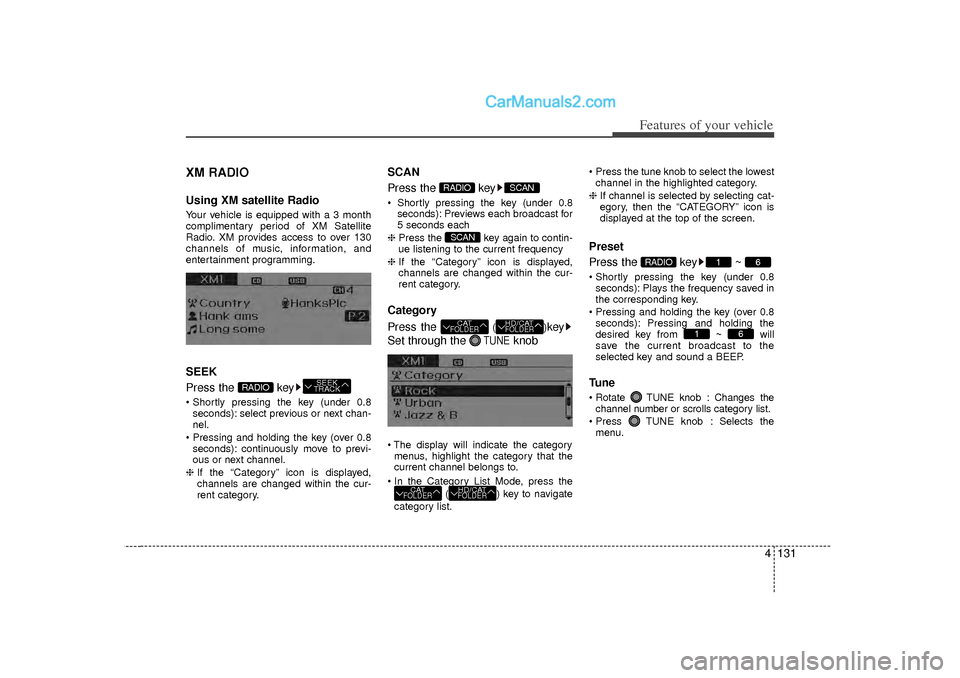
XM RADIOUsing XM satellite RadioYour vehicle is equipped with a 3 month
complimentary period of XM Satellite
Radio. XM provides access to over 130
channels of music, information, and
entertainment programming.SEEK
Press the key Shortly pressing the key (under 0.8seconds): select previous or next chan-
nel.
Pressing and holding the key (over 0.8 seconds): continuously move to previ-
ous or next channel.
❈ If the “Category” icon is displayed,
channels are changed within the cur-
rent category.
SCAN
Press the key Shortly pressing the key (under 0.8
seconds): Previews each broadcast for
5 seconds each
❈ Press the key again to contin-
ue listening to the current frequency
❈ If the “Category” icon is displayed,
channels are changed within the cur-
rent category.Category
Press the
()
key
Set through the
TUNE
knob
The display will indicate the category menus, highlight the category that the
current channel belongs to.
In the Category List Mode, press the ( ) key to navigate
category list. Press the tune knob to select the lowest
channel in the highlighted category.
❈ If channel is selected by selecting cat-
egory, then the “CATEGORY” icon is
displayed at the top of the screen.
Preset
Press the key ~ Shortly pressing the key (under 0.8
seconds): Plays the frequency saved in
the corresponding key.
Pressing and holding the key (over 0.8 seconds): Pressing and holding the
desired key from ~ will
save the current broadcast to the
selected key and sound a BEEP.Tune Rotate TUNE knob : Changes thechannel number or scrolls category list.
Press TUNE knob : Selects the menu.
6
1
6
1
RADIO
HD/CATFOLDER
CATFOLDER
HD/CATFOLDER
CATFOLDERSCAN
SCAN
RADIO
SEEK
TRACK
RADIO
Page 218 of 411
Features of your vehicle136
4\b
\b
NOTICE FOR USING THE
iPod
®DEVICE
• Some iPod models may not support
communication protocol and files
may not properly play.
Supported iPod models:
- iPod Mini
- iPod 4th(Photo) ~ 6th(Classic)
generation
- iPod Nano 1st~4th generation
- iPod Touch 1st~2nd generation
• The order of search or playback of songs in the iPod can be different
from the order searched in the
audio system.
• If the iPod disabled due to its own malfunction, reset the iPod. (Reset:
Refer to iPod manual)
• An iPod may not operate normally on low battery.
• Some iPod devices, such as the iPhone, can be connected through the
Bluetooth
®
interface. The device
must have audio Bluetooth
®capabili-
ty (such as for stereo headphone
Bluetooth
®). The device can play, but
it will not be controlled by the audio
system. (Continued)(Continued)
• To use iPod features within the audio,
use the cable provided upon purchas-
ing an iPod device.
• Skipping or improper operation may occur depending on the characteris-
tics of your iPod/Phone device.
• If your iPhone is connected to both the Bluetooth
®and USB, the sound
may not be properly played. In your
iPhone, select the Dock connector or
Bluetooth
®to change the sound out-
put (source).
CAUTION IN USING THE
iPod
®DEVICE
When connecting iPod with the
iPod Power Cable, insert the con-nector to the multimedia socketcompletely. If not inserted com- pletely, communications betweeniPod and audio may be interrupted.
When adjusting the sound effects of the iPod and the audio system, thesound effects of both devices willoverlap and might reduce or distortthe quality of the sound.
Deactivate (turn off) the equalizer function of an iPod when adjust-ing the audio system’s volume, and turn off the equalizer of theaudio system when using the equalizer of an iPod.
When not using iPod with car audio, detach the iPod cable fromiPod. Otherwise, iPod may remainin accessory mode, and may not work properly.