2012 Hyundai Santa Fe reset
[x] Cancel search: resetPage 159 of 419

Features of your vehicle
80
4
Adjusting the driver and passenger side
temperature individually
1. Press the DUAL button to operate the
driver and passenger side temperature
individually. Also, if the passenger side
temperature control knob is operated,
it will automatically change to the
DUAL mode as well.
2. Operate the left temperature control to adjust the driver side temperature.
Operate the right temperature control to
adjust the passenger side temperature.
When the driver’s side temperature is set
to the highest (HI) or lowest (Lo) temper-
ature setting, the DUAL mode is deacti-
vated for maximum heating or cooling. Adjusting the driver and passenger side
temperature equally
1. Press the DUAL button again to deac-
tivate DUAL mode. The passenger
side temperature will be set to the
same temperature as the driver side.
2. Operate the driver side temperature control switch. The driver and passen-
ger side temperature will be adjusted
equally.
Temperature conversion
You can switch the temperature mode
between Centigrade to Fahrenheit as fol-
lows:
While pressing the MODE button, press
the DUAL button for 3 seconds or more.
The display will change from Fahrenheit
to Centigrade, or from Centigrade to
Fahrenheit.
If the battery has been discharged or dis-
connected, the temperature mode dis-
play will reset to Fahrenheit.Outside thermometer
The current outside temperature is dis-
played in 1°F (1°C) increments. The tem-
perature range is between -40°F ~ 140°F
(-40°C ~ 60°C).
The outside temperature on the display may not change immediately like a
general thermometer to prevent the
driver from being inattentive.
OCM052148OCM040069N
Page 167 of 419

Features of your vehicle
88
4
Defogging logic
To reduce the possibility of fogging up
inside of the windshield, the air intake or
air conditioning are controlled automati-
cally according to certain conditions such
as or position. To cancel or
return to the defogging logic, do the fol-
lowing.
Automatic climate control system
1. Turn the ignition switch to the ON posi-
tion.
2. Select the defroster position by press- ing the defroster button ( ).
3. While pressing the air conditioning button (A/C), press the air intake con-
trol button (Recirculated air button) at
least 5 times within 3 seconds.
The A/C display blinks 3 times with 0.5
second of interval. It indicates that the
defogging logic is canceled or returned to
the programmed status.
If the battery has been discharged or dis-
connected, it resets to the defog logic
status. When the air conditioner or heater is on,
the cluster ionizer turns on automatically
as follows:
mode
The CLEAN mode deodorizes smells
and cleans the air.
mode
The ION mode cleans the air.
The cycling between CLEAN and ION
modes are performed automatically by
the Automatic Climate Control System to
maintain optimum system performance.
Also, the cluster ionizer turns off auto-
matically, when the air conditioner or
heater is turned off.
OCM040165N
CLUSTER IONIZER
(IF EQUIPPED)
Clean mode
(CLEAN) ION mode
(ION)
Page 176 of 419

497
Features of your vehicle
D280600AUN
Digital clock (if equipped)
Whenever the battery terminals or relat-
ed fuses are disconnected, you must
reset the time.
When the ignition switch is in the ACC or
ON position, the clock buttons operate as
follows:
HOUR (1)
Pressing the “H” button will advance
the time displayed by one hour.
MINUTE (2)
Pressing the “M” button will advance
the time displayed by one minute.
D280603AUN
RESET (3, if equipped)
To clear away minutes, press the “R”
button with your finger, a pencil or sim-
ilar object. Then the clock will be set
precisely on the hour.
For example, if the “R” button is
pressed while the time is between 9:01
and 9:29, the display will be reset to
9:00.
9:01 ~ 9:29 display changed to 9:00
9:30 ~ 9:59 display changed to 10:00
Display conversion:
To change the 12 hour format to the 24
hour format, press the “R” button for
more than 4 seconds.
For example, if the “R” button is
pressed for more than 4 seconds while
the time is 10:15 p.m., the display will
be changed to 22:15.
D281400BFD
Aux, USB and iPod®
If your vehicle has an aux and/or
USB(universal serial bus) port or iPod
port, you can use an aux port to connect
audio devices and an USB port to plug in
an USB and also an iPod port to plug in
an iPod.
✽ ✽NOTICE
When using a portable audio device
connected to the power outlet, noise may
occur during playback. If this happens,
use the power source of the portable
audio device.
❈ iPod®is a trademark of Apple Inc.
WARNING
Do not adjust the clock while driv-
ing. You may lose your steering
control and cause severe personal
injury or accidents.
OCM052116AOCM040177
Page 182 of 419

4103
Features of your vehicle
MODE (1)
Press the button to select Radio, CD
(compact disc), USB or AUX.
The mode button will scroll in this order:
FM1 - FM2 / AM / XM1-XM3 / CD (if loaded)
/ USB (if connected) / AUX (if connected to
AUX input jack)
SEEK ( / ) (2)
If the SEEK button is pressed for 0.8 sec-
ond or more, it will work as follows in
each mode.
RADIO mode
It will function as the SEEK select button.
CD PLAYER (CDP) mode
It will function as the FF/REW button.
CD CHANGER (CDC) mode
It will function as the DISC UP/DOWN
button. (If more than one CD is loaded in
the head unit)If the SEEK button is pressed for less
than 0.8 second, it will work as follows in
each mode.
RADIO mode
It will function as the PRESET STATION
select buttons.
CD PLAYER (CDP) mode
It will function as the TRACK UP/DOWN
button.
CD CHANGER (CDC) mode
It will function as the TRACK UP/DOWN
button of the CD that is currently playing.
VOL (+/ -) (3)
• Press the up button (+) to increase vol-
ume.
Press the down button (-) to decrease volume.
Detailed information for audio control
buttons is described in the following
pages in this section.
VOICE RECOGNITION (VR) mode (4)
Detailed information is described in the
following pages in this section.
D300800AFD
How car audio works
AM and FM radio signals are broadcast
from transmitter towers located around your
city. They are intercepted by the radio anten-
na on your car. This signal is then received
by the radio and sent to your car speakers.
When a strong radio signal has reached
your vehicle, the precise engineering of
your audio system ensures the best pos-
sible quality reproduction. However, in
some cases the signal coming to your
vehicle may not be strong and clear. This
can be due to factors such as the dis-
tance from the radio station, closeness of
other strong radio stations or the pres-
ence of buildings, bridges or other large
obstructions in the area.
JBM001
FM reception
Page 186 of 419

4107
Features of your vehicle
1. Power ON/OFF Button & Volume ControlKnob
2. FM Selection Button
3. AM Selection Button
4. Automatic Channel Selection Button
5. Preset Button
6. SCAN Button
7. SETUP Button
8. Manual Channel Selector & Sound Quality Control Knob
RADIO, SET UP, VOLUME, AUDIO CONTROL
■PA910
■PA960
Page 187 of 419

Features of your vehicle
108
4
1. Power ON/OFF Button & Volume Control
Knob
4. Automatic Channel Selection Button
5. Preset Button
6. SCAN Button
7. SETUP Button
8. Manual Channel Selector & Sound Quality Control Knob
9. FM/AM Selection Button
■PA965
Page 188 of 419

4109
Features of your vehicle
1.Power ON/OFF Button & Volume
Control Knob
Turns the radio ON/OFF when the IGNI-
TION SWITCH is on ACC or ON. If the
button is turned to the right, it increases
the volume and left, decreases the vol-
ume.
2. FM Selection Button (Non RSE Version)
Turns to FM mode and toggles FM1 and
FM2 when the button is pressed each
time. FM1 or FM2 is displayed on the
LCD.
3. AM Selection Button (Non RSE Version)
Pressing the [AM] button selects the AM
band. AM Mode is displayed on the LCD.
4. Automatic Channel SelectionButton
When the [SEEK ] button is pressed,
it increases the band frequency to auto-
matically select channel. Stops at the
previous frequency if no channel is
found.
When the [TRACK ] button is press- ed, it reduces the band frequency to
automatically select channel. Stops at
the previous frequency if no channel is
found.
5. Preset Button
Push [1]~[6] buttons less than 0.8 sec-
ond to play the channel saved in each
button. Push Preset button for 0.8 sec-
ond or longer to save current channel to
the respective button with a beep.
6. SCAN Button
If this button is pressed, the frequencies
will become increased and receive the
corresponding broadcasts. This function
will play the frequencies for 5 seconds
(XM MODE:10 seconds) each and find
other broadcasts as the frequency
increases.
Press the button again when desiring to
continue listening to the currently playing
broadcast.
7. SETUP Button
Press this button to turn to the adjust-
ment mode option.
If no action is taken for 5 seconds after
pressing the button, it will return to the
previous play mode. (After entering
SETUP mode, move between items
using the left, right and PUSH functions
of the [TUNE] knob.)
■ ■
PA910 (SINGLE CD RADIO)
The setup change in the order of
SCROLL
➟ SDVC ➟ PHONE ➟ RETURN
➟ P.BASS ➟ XM...
■ ■
PA960/PA965 (CD CHANGER RADIO)
The setup changes in the order of
SCROLL
➟ SURROUND ➟ PHONE ➟
XM...
This function is used to display charac-
ters longer than the LCD text display and
can be turned ON/OFF through the
SEARCH/ENTER (AUDIO/TUNE) but-
ton.
Page 201 of 419
Features of your vehicle
122
4
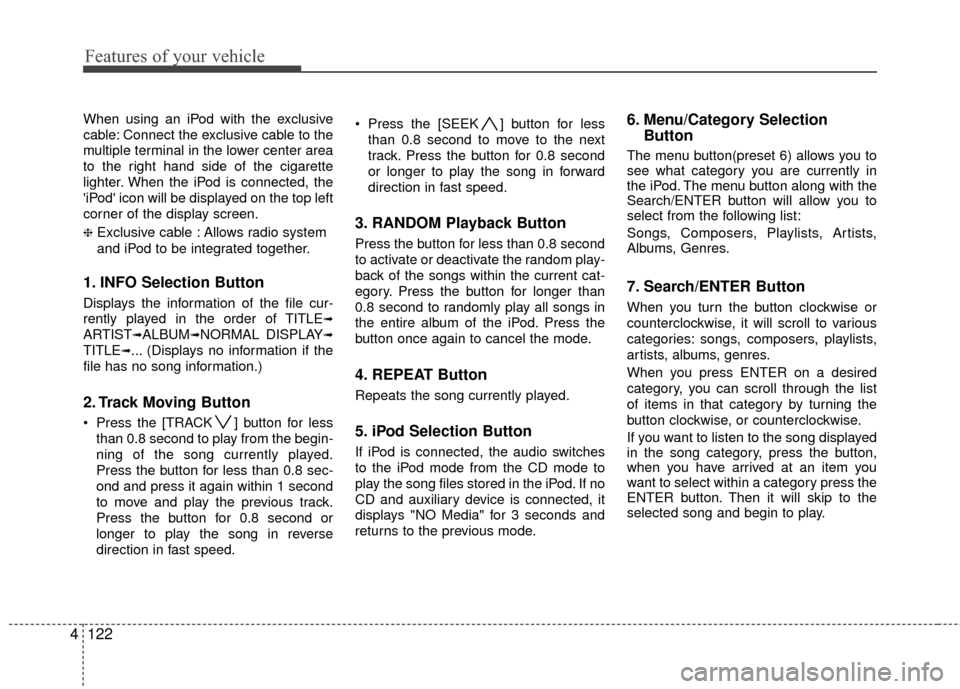
When using an iPod with the exclusive
cable: Connect the exclusive cable to the
multiple terminal in the lower center area
to the right hand side of the cigarette
lighter. When the iPod is connected, the
'iPod' icon will be displayed on the top left
corner of the display screen.
❈Exclusive cable : Allows radio system
and iPod to be integrated together.
1. INFO Selection Button
Displays the information of the file cur-
rently played in the order of TITLE
➟
ARTIST➟ALBUM➟NORMAL DISPLAY➟
TITLE➟... (Displays no information if the
file has no song information.)
2. Track Moving Button
Press the [TRACK ] button for less than 0.8 second to play from the begin-
ning of the song currently played.
Press the button for less than 0.8 sec-
ond and press it again within 1 second
to move and play the previous track.
Press the button for 0.8 second or
longer to play the song in reverse
direction in fast speed. Press the [SEEK ] button for less
than 0.8 second to move to the next
track. Press the button for 0.8 second
or longer to play the song in forward
direction in fast speed.
3. RANDOM Playback Button
Press the button for less than 0.8 second
to activate or deactivate the random play-
back of the songs within the current cat-
egory. Press the button for longer than
0.8 second to randomly play all songs in
the entire album of the iPod. Press the
button once again to cancel the mode.
4. REPEAT Button
Repeats the song currently played.
5. iPod Selection Button
If iPod is connected, the audio switches
to the iPod mode from the CD mode to
play the song files stored in the iPod. If no
CD and auxiliary device is connected, it
displays "NO Media" for 3 seconds and
returns to the previous mode.
6. Menu/Category Selection Button
The menu button(preset 6) allows you to
see what category you are currently in
the iPod. The menu button along with the
Search/ENTER button will allow you to
select from the following list:
Songs, Composers, Playlists, Artists,
Albums, Genres.
7. Search/ENTER Button
When you turn the button clockwise or
counterclockwise, it will scroll to various
categories: songs, composers, playlists,
artists, albums, genres.
When you press ENTER on a desired
category, you can scroll through the list
of items in that category by turning the
button clockwise, or counterclockwise.
If you want to listen to the song displayed
in the song category, press the button,
when you have arrived at an item you
want to select within a category press the
ENTER button. Then it will skip to the
selected song and begin to play.