2012 Hyundai Accent Air
[x] Cancel search: AirPage 155 of 370

477
Features of your vehicle
For maximum defrosting, set the tem-perature control to the extreme
right/hot position and the fan speed
control to the highest speed.
If warm air to the floor is desired while defrosting or defogging, set the mode
to the floor-defrost position.
Before driving, clear all snow and ice from the windshield, rear window, out-
side rear view mirrors, and all side win-
dows.
Clear all snow and ice from the hood and air inlet in the cowl grill to improve
heater and defroster efficiency and to
reduce the probability of fogging up the
inside of the windshield.
Manual climate control system
To defog inside windshield
1. Set the fan speed to the desired posi- tion.
2. Select desired temperature.
3. Select the or position.
4. The outside (fresh) air will be selected automatically. If the position is
selected, air conditioning will also be
selected automatically.
If the air conditioning and/or outside
(fresh) air position are not selected auto-
matically, press the corresponding button
manually.
WINDSHIELD DEFROSTING AND DEFOGGING
WARNING- Windshield heating
Do not use the or position
during cooling operation in
extremely humid weather. The dif-
ference between the temperature of
the outside air and that of the wind-
shield could cause the outer sur-
face of the windshield to fog up,
causing loss of visibility. In this
case, set the mode selection knob
or button to the position and
fan speed control knob or button to
the lower speed.
ORB040075N
Page 156 of 370
Features of your vehicle
78
4
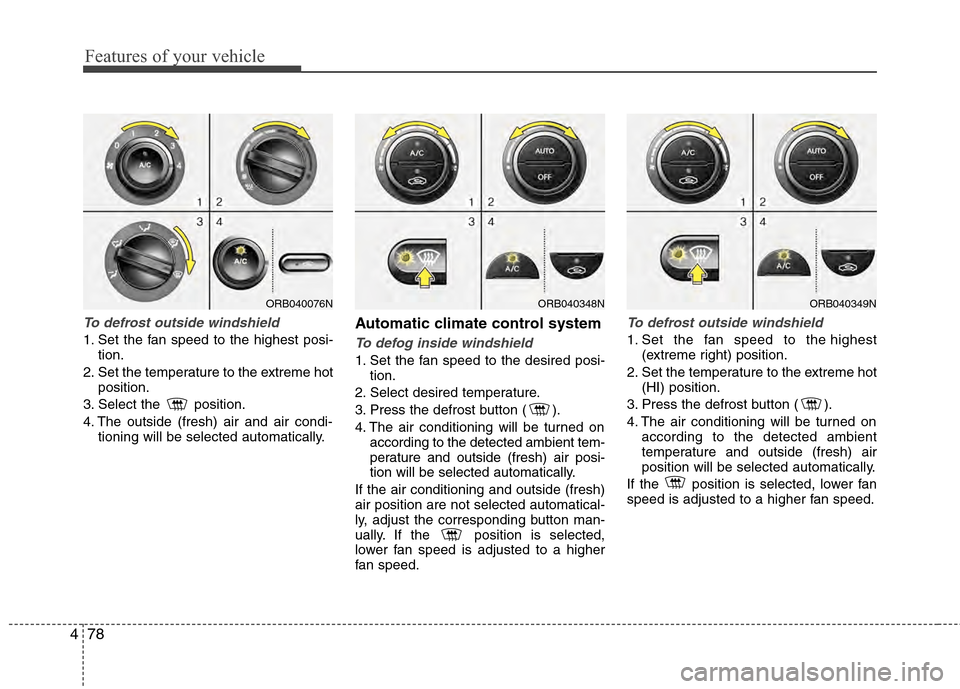
To defrost outside windshield
1. Set the fan speed to the highest posi-
tion.
2. Set the temperature to the extreme hot position.
3. Select the position.
4. The outside (fresh) air and air condi- tioning will be selected automatically.
Automatic climate control system
To defog inside windshield
1. Set the fan speed to the desired posi-tion.
2. Select desired temperature.
3. Press the defrost button ( ).
4. The air conditioning will be turned on according to the detected ambient tem-
perature and outside (fresh) air posi-
tion will be selected automatically.
If the air conditioning and outside (fresh)
air position are not selected automatical-
ly, adjust the corresponding button man-
ually. If the position is selected,
lower fan speed is adjusted to a higher
fan speed.
To defrost outside windshield
1. Set the fan speed to the highest (extreme right) position.
2. Set the temperature to the extreme hot (HI) position.
3. Press the defrost button ( ).
4. The air conditioning will be turned on according to the detected ambient
temperature and outside (fresh) air
position will be selected automatically.
If the position is selected, lower fan
speed is adjusted to a higher fan speed.
ORB040348NORB040349NORB040076N
Page 157 of 370

479
Features of your vehicle
Defogging logic
To reduce the probability of fogging up
the inside of the windshield, the air intake
or air conditioning are controlled auto-
matically according to certain conditions
such as or position. To cancel or
return the defogging logic, do the follow-
ing.
Manual climate control system
1. Turn the ignition switch to the ON posi-tion.
2. Select the defrost button ( ).
3. Press the air intake control button at least 5 times within 3 seconds.
The indicator on the air intake button
blinks 3 times with 0.5 second of interval.
It indicates that the defogging logic is
canceled or returned to the programmed
status.
If the battery has been discharged or dis-
connected, it resets to the defog logic
status.
Automatic climate control system
1. Turn the ignition switch to the ON posi- tion.
2. Press the defrost button ( ).
3. While holding the air conditioning (A/C) button pressed, press the air
intake control button (recirculated air
position) at least 5 times within 3 sec-
onds.
The A/C display blinks 3 times with 0.5
second of interval. It indicates that the
defogging logic is canceled or returned to
the programmed status.
If the battery has been discharged or dis-
connected, it resets to the defog logic
status.
ORB040077NORB040350N
Page 162 of 370

Features of your vehicle
84
4
Power outlet
The power outlet is designed to provide
power for mobile telephones or other
devices designed to operate with vehicle
electrical systems. The devices should
draw less than 10 amps with the engine
running.
CAUTION
Use the power outlet only when
the engine is running and removethe accessory plug after use. Using the accessory plug for pro-longed periods of time with theengine off could cause the bat- tery to discharge.
Only use 12V electric accessories which are less than 10A in elec-tric capacity.
Adjust the air-conditioner or heater to the lowest operatinglevel when using the power outlet.
Close the cover when not in use. Some electronic devices can cause electronic interferencewhen plugged into a vehicle’s power outlet. These devices maycause excessive audio static and malfunctions in other electronicsystems or devices used in yourvehicle.
WARNING
Do not put a finger or a foreign ele-
ment (pin, etc.) into a power outlet
and do not touch with a wet hand.
You may get an electric shock.
CAUTION
Always have the switch in the off position when the vanity mirrorlamp is not in use. If the sunvisoris closed without the lamp off, itmay discharge the battery or damage the sunvisor.
Always use the sunvisor exten- sion, after swing the sunvisor tothe side.
WARNING
For your safety, do not obstruct your
vision when using the sunvisor.
ORB041084N
Page 188 of 370
Features of your vehicle
110
4
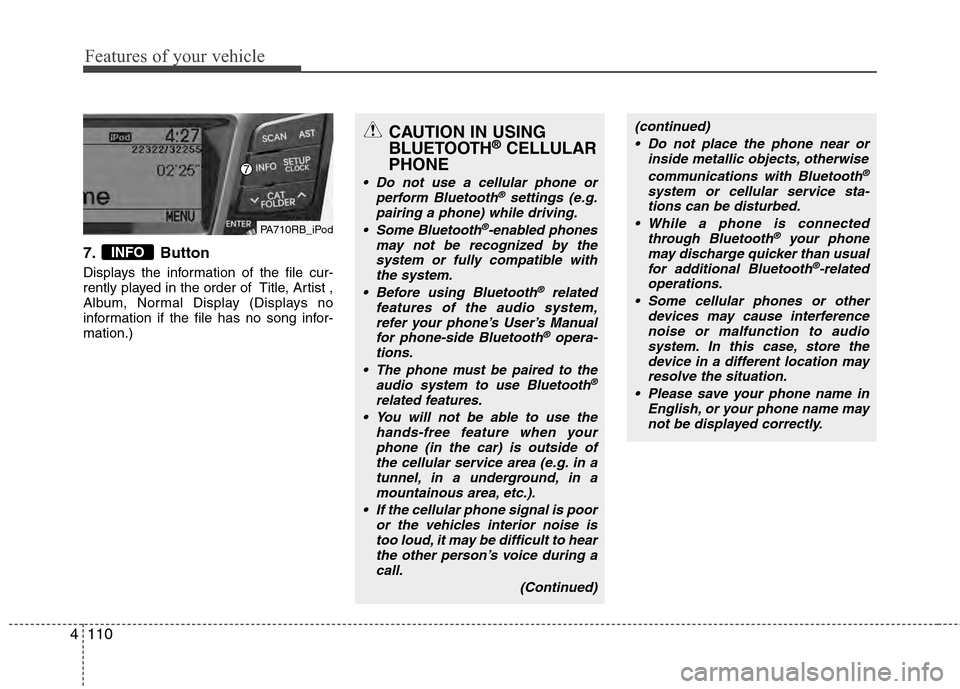
7. Button
Displays the information of the file cur-
rently played in the order of Title, Artist ,
Album, Normal Display (Displays no
information if the file has no song infor-
mation.)
INFO
PA710RB_iPod
CAUTION IN USING
BLUETOOTH®CELLULAR
PHONE
Do not use a cellular phone or
perform Bluetooth®settings (e.g.
pairing a phone) while driving.
Some Bluetooth
®-enabled phones
may not be recognized by the system or fully compatible withthe system.
Before using Bluetooth
®related
features of the audio system, refer your phone’s User’s Manual for phone-side Bluetooth
®opera-
tions.
The phone must be paired to the audio system to use Bluetooth®
related features.
You will not be able to use the hands-free feature when yourphone (in the car) is outside ofthe cellular service area (e.g. in atunnel, in a underground, in amountainous area, etc.).
If the cellular phone signal is poor or the vehicles interior noise istoo loud, it may be difficult to hearthe other person’s voice during a call.
(Continued)
(continued) Do not place the phone near or inside metallic objects, otherwise
communications with Bluetooth
®
system or cellular service sta-tions can be disturbed.
While a phone is connected through Bluetooth
®your phone
may discharge quicker than usual for additional Bluetooth
®-related
operations.
Some cellular phones or other devices may cause interferencenoise or malfunction to audiosystem. In this case, store thedevice in a different location may resolve the situation.
Please save your phone name in English, or your phone name maynot be displayed correctly.
Page 189 of 370

4111
Features of your vehicle
BLUETOOTH®PHONE OPERATION
(if equipped)
1. button : Raises or lowers speak- er volume.
2. button : Places and transfers calls.
3. button : Ends calls or cancels func- tions.
4. button : Activates voice recognition.
■What is Bluetooth®?
Bluetooth®is a wireless technology that
allows multiple devices to be connected
in a short range, low-powered devices
like hands-free, stereo headset, wireless
remocon, etc. For more information, visit
the
Bluetooth®website at www.Bluetooth.com
■General Features
This audio system supports Bluetooth®hands-free and stereo-
headset features.
- HANDS-FREE feature: Making or receiving calls wirelessly through
voice recognition.
- STEREO-HEADSET feature: Playing music from cellular phones (that sup-
ports A2DP feature) wirelessly.
Voice recognition engine of the Bluetooth
®system supports 3 types of
languages:
English
Canadian French
US Spanish
✽ ✽ NOTICE
• The phone must be paired to the sys-
tem before using Bluetooth®features.
• Only one selected (linked) cellular phone can be used with the system at a time.
• Some phones are not fully compatible with this system.
• The Bluetooth
® word mark and logos
are registered trademarks owned by
Bluetooth
®SIG, Inc. and any use of
such marks by Hyundai is under
license. A Bluetooth enabled cell
phone is required to use Bluetooth
®
wireless technology.
■Receiving a Phone Call
When receiving a phone call, a ringtone
is audible from speakers and the audio
system changes into telephone mode.
When receiving a phone call, “Incoming
call” message and incoming phone num-
ber (if available) are displayed on the
audio.
- Press button on the steering wheel.
- Press button on the steering wheel.
- Use VOLUME buttons on the steering
wheel.
Call):
- Press and hold button on the steering wheel until the audio system
transfers a call to the phone.
VOLUME
1
4
2
3
Page 190 of 370
Features of your vehicle
112
4
■Talking on the Phone
When talking on the phone, “Active Call”
message and the other party’s phone
number (if available) are displayed on the
audio.
- Press button on the steering wheel.
✽ ✽
NOTICE
In the following situations, you or the
other party may have difficulty hearing
each other:
1. Speaking at the same time, your voice
may not reach each other parties. (This
is not a malfunction.) Speak alternate-
ly with the other party on the phone.
2. Keep the Bluetooth
®volume to a low
level. High-level volume may result in
distortion and echo.
3. When driving on a rough road.
4. When driving at high speeds.
5. When the window is open.
6. When the air conditioning vents are facing the microphone.
7. When the sound of the air condition- ing fan is loud.
■Bluetooth®Audio Music Streaming
The audio system supports Bluetooth®
A2DP (Audio Advanced Distribution
Profile) and AVRCP (Audio Video
Remote Control Profile) technologies.
Both profiles provide steaming of music
via compatible “PAIRED” Bluetooth
®
Cellular phone.
To stream music from the Bluetooth® cel-
lular phone, play your music files on your
cellular phone according to your cellular
phone user’s manual and press the button on the audio system until
“MP3 play” is displayed on the LCD.
The audio system head unit displays
‘MP3 MODE’.
NOTE:
all music and sound files your cellu-
lar phone supports can be played
by the audio system.
®compatible cellular
phones must include A2DP and
AVRCP capabilities.
AVRCP compatible Bluetooth
®cellular phones may not
play music through the audio sys-
tem initially. These cellular phones
may need to have the Bluetooth
®
streaming enabled, for example;
i.e : Menu
➟Filemanager➟Music➟Option➟Play via Bluetooth
cellular phone for more information.
To cancel Bluetooth
®cellular phone
music streaming, stop music play-
back on the cellular phone or
change the audio mode to AM, FM,
XM, CD, iPod, etc.
CD/AUX
Page 191 of 370

4113
Features of your vehicle
■Phone Setup
All Bluetooth®related operations can be
performed in PHONE menu.
1) Push the button to enter SETUP mode.
2) Rotate the knob to move the cursor between items and push the button to select "Phone"
3) Rotate the knob to move the cursor between items and push the button to select a desired item.
Before using Bluetooth®features, the
phone must be paired with the audio sys-
tem. Up to 5 phones can be paired with
the system.
NOTE:
• The pairing procedure of the phone varies according to each phone
model. Before attempting to pair
phone, please see your phone’s
User’s Guide for instructions.
• Once pairing with the phone is com- pleted, there is no need to pair with
that phone again unless the phone
is deleted manually from the audio
system (refer “Deleting a Phone”
section) or the vehicle’s information
is removed from the phone.
\bPress button to enter SETUP
mode.
➁Select “Phone”, then “Pair” in PHONE
menu.
➂The audio displays “Device : [ACCENT]
Passkey: 0000”
➃Search and select the device name in
your mobile phone to starting the pair-
ing process.
NOTE:
• If the phone is paired with two ormore vehicles of the same model,
some phones may not handle
Bluetooth
®devices of that name
correctly. In this case, you may need
to change the name displayed on
your phone.
For example, if the vehicles' name is
HMC CAR, you may need to change
the name displayed on you phone
from HMC_CAR to JOHNS_CAR or
HMC CAR_1 to avoid ambiguity.
Refer to your phone User’s Guide, or
contact your cellular carrier or phone
manufacturer for instructions.
SETUP
ENTER
TUNE
ENTER
TUNE
SETUP