Page 175 of 370
497
Features of your vehicle
Select this item to enter Clock setup
mode. Adjust the hour and press thebutton to set. Adjust the minute
and press the button to complete
and exit from clock adjustment mode.
Pressing the button while in
power off, screen will allow the user to
make immediately adjustments to the
clock.
Press the button for more than
3 seconds while in power off/on, you can
enter the time setup screen directly. (PowerBass)
This function creates virtual sound
effects and allows adjustments to the
Bass level.
Off
➟Low ➟Mid ➟High ➟ Off...
❈ AM Mode is not supported.
Select this item to enter PHONE setup
mode. Refer to “BLUETOOTH PHONE
OPERATION” section for detailed infor-
mation.
SETUP
SETUP
ENTER
ENTER
Page 176 of 370
Features of your vehicle
98
4
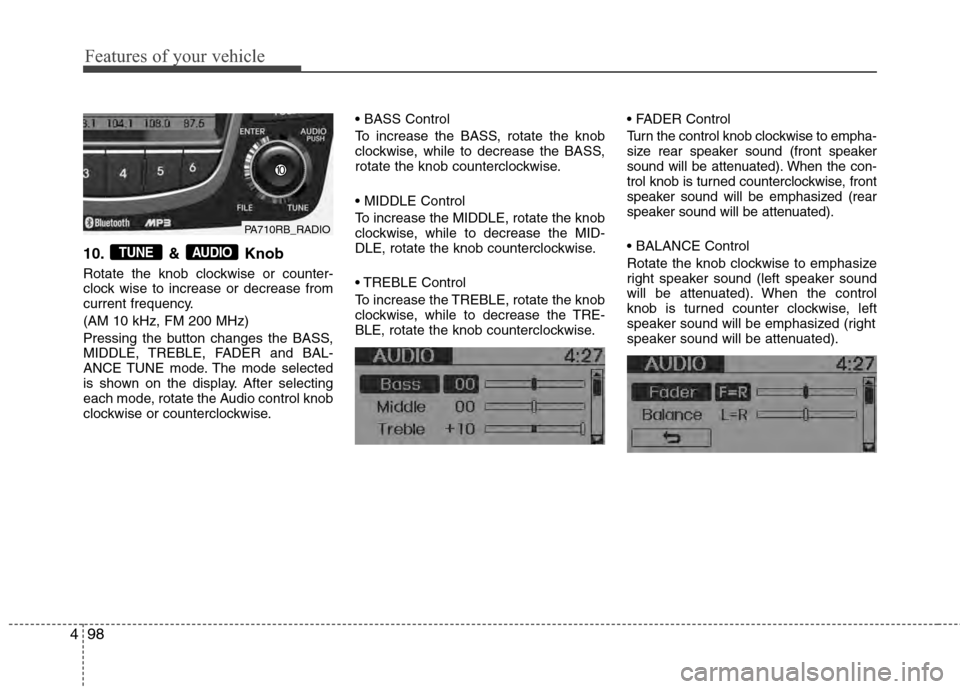
10. & Knob
Rotate the knob clockwise or counter-
clock wise to increase or decrease from
current frequency.
(AM 10 kHz, FM 200 MHz)
Pressing the button changes the BASS,
MIDDLE, TREBLE, FADER and BAL-
ANCE TUNE mode. The mode selected
is shown on the display. After selecting
each mode, rotate the Audio control knob
clockwise or counterclockwise.
To increase the BASS, rotate the knob
clockwise, while to decrease the BASS,
rotate the knob counterclockwise.
To increase the MIDDLE, rotate the knob
clockwise, while to decrease the MID-
DLE, rotate the knob counterclockwise.
Control
To increase the TREBLE, rotate the knob
clockwise, while to decrease the TRE-
BLE, rotate the knob counterclockwise.
Turn the control knob clockwise to empha-
size rear speaker sound (front speaker
sound will be attenuated). When the con-
trol knob is turned counterclockwise, front
speaker sound will be emphasized (rear
speaker sound will be attenuated).
Rotate the knob clockwise to emphasize
right speaker sound (left speaker sound
will be attenuated). When the control
knob is turned counter clockwise, left
speaker sound will be emphasized (right
speaker sound will be attenuated).AUDIOTUNE
PA710RB_RADIO
Page 177 of 370

499
Features of your vehicle
Using XM satellite Radio
Your vehicle is equipped with 3 months
complimentary period of XM Satellite
Radio. XM provides access to over 130
channels of music, information, and
entertainment programming.
1. Button
Turns to XM Satellite Radio Mode. XM
mode toggles in order to XM1➟XM2➟XM3➟XM1... when the button is pressed
each time.
2. Button
Push button for less than 0.8
second to select previous channel.
Push button for 0.8 second or longer to continuously move to pre-
vious channel.
Push button for less than 0.8 second to select next channel. Push button for 0.8 second
or longer to continuously move to next
channel.
Radio ID : Seek or Tune to XM channel 0 to display the Radio ID.
3. PRESET Buttons
Push ~ buttons less than
0.8 second to play the channel saved in
each button. Push Preset button for 0.8
second or longer to save current channel
to the respective button with a beep.
4. Knob
While listening to XM broadcast, rotate
this control to the right or left to search
other channels while listening to current
channel. (Turn to the right to search high-
er channels and left, lower channels)
5. Button
Press to hear a brief sampling of all
channel. To cancel the scan mode, press
the button once again.
6. Button (CATEGORY)
Push button to search previ-
ous category.
Push button to search next category. To listen to the displayed cat-
egory, press the / button.
To scan channel in displayed category,
press the button.
To search channel in displayed catego-
ry, press buttons or turn the knob clockwise/counterclock-
wise. (CATEGORY icon is will be
turned on in Category mode)
TUNE
SEEK
SCAN
SETUPTUNE
CATFOLDER
CATFOLDER
CAT
SCAN
TUNE
61
SEEK
TRACK
SEEK
TRACK
SEEK
TRACK
SEEK
TRACK
SEEK
XM
PA710RB_XMPA710RB_XM
PA710RB_XM
Page 179 of 370

4101
Features of your vehicle
Using CD Player
1. Button (CD)
If the CD is loaded, turns to CD mode.
If no CD, it displays “No Media” for 3 sec-
onds and returns to the previous mode.
2.Button
Press button for less than
0.8 seconds to play from the beginning
of current song.
Press button for less than 0.8 seconds and press again within
1 second to play the previous song. Press button for 0.8 seconds
or longer to initiate reverse direction high
speed sound search of current song.
Press button for less than 0.8 seconds to play the next song.
Press button for 0.8 seconds or longer to initiate forward direction high
speed sound search of current song.
3. Button (RANDOM)
Press this button for less than 0.8 seconds
to activate ‘RDM’ mode and more than 0.8
seconds to activate ‘ALL RDM’ mode.
RDM : Only files/tracks in a folder/discare played back in a random sequence.
ALL RDM (MP3/WMA Only) : All files in a disc are played back in the random
sequence.
4. Button (REPEAT)
Press this button for less than 0.8 seconds
to activate 'RPT' mode and more than 0.8
seconds to activate 'FLD RPT' mode.
RPT : Only a track (file) is repeatedlyplayed back.
FLD RPT (MP3/WMA Only) : Only files in a folder are repeatedly played back.
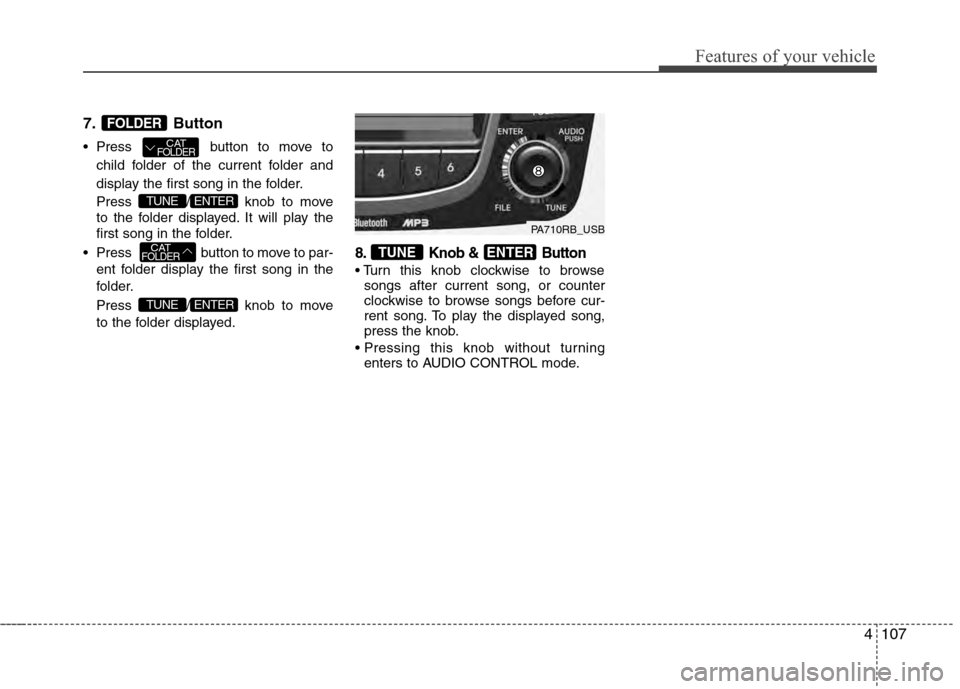
5. Knob & Button
Turn this knob clockwise to browsesongs after current song, or counter-
clockwise to browse songs before cur-
rent song. To play the displayed song,
press the knob.
Pressing this knob without turning enters to AUDIO CONTROL mode.
6. CD Eject Button
Press button to eject the CD.This button works regardless of ignition
switch status.
ENTERTUNE
2
1
SEEK
TRACK
SEEK
TRACK
SEEK
TRACK
SEEK
TRACK
SEEK
TRACK
TRACK
CD/AUX
PA710RB_CD
PA710RB_CD
Page 185 of 370
4107
Features of your vehicle
7.Button
Press button to move to
child folder of the current folder and
display the first song in the folder.
Press / knob to move
to the folder displayed. It will play the
first song in the folder.
Press button to move to par- ent folder display the first song in the
folder.
Press / knob to move
to the folder displayed.
8. Knob & Button
songs after current song, or counter
clockwise to browse songs before cur-
rent song. To play the displayed song,
press the knob.
enters to AUDIO CONTROL mode.
ENTERTUNE
ENTERTUNE
CATFOLDER
ENTERTUNE
CATFOLDER
FOLDER
PA710RB_USB
Page 187 of 370
4109
Features of your vehicle
Using iPod®
❋
iPod®is a trademark of Apple Inc.
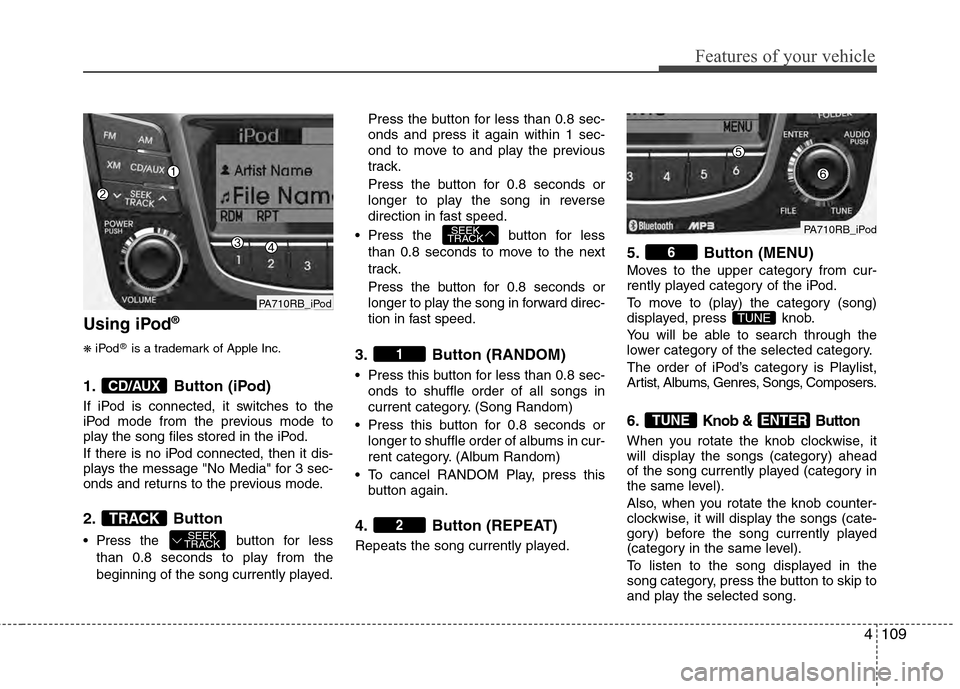
1. Button (iPod)
If iPod is connected, it switches to the
iPod mode from the previous mode to
play the song files stored in the iPod.
If there is no iPod connected, then it dis-
plays the message "No Media" for 3 sec-
onds and returns to the previous mode.
2.Button
Press the button for less
than 0.8 seconds to play from the
beginning of the song currently played. Press the button for less than 0.8 sec-
onds and press it again within 1 sec-
ond to move to and play the previous
track.
Press the button for 0.8 seconds or
longer to play the song in reverse
direction in fast speed.
Press the button for less than 0.8 seconds to move to the next
track.
Press the button for 0.8 seconds or
longer to play the song in forward direc-
tion in fast speed.
3. Button (RANDOM)
Press this button for less than 0.8 sec-onds to shuffle order of all songs in
current category. (Song Random)
Press this button for 0.8 seconds or longer to shuffle order of albums in cur-
rent category. (Album Random)
To cancel RANDOM Play, press this button again.
4. Button (REPEAT)
Repeats the song currently played.
5. Button (MENU)
Moves to the upper category from cur-
rently played category of the iPod.
To move to (play) the category (song)
displayed, press knob.
You will be able to search through the
lower category of the selected category.
The order of iPod’s category is Playlist,
Artist, Albums, Genres, Songs, Composers.
6.Knob & Button
When you rotate the knob clockwise, it
will display the songs (category) ahead
of the song currently played (category in
the same level).
Also, when you rotate the knob counter-
clockwise, it will display the songs (cate-
gory) before the song currently played
(category in the same level).
To listen to the song displayed in the
song category, press the button to skip to
and play the selected song.
ENTERTUNE
TUNE
6
2
1
SEEK
TRACK
SEEK
TRACKTRACK
CD/AUX
PA710RB_iPod
PA710RB_iPod
Page 259 of 370
613
What to do in an emergency
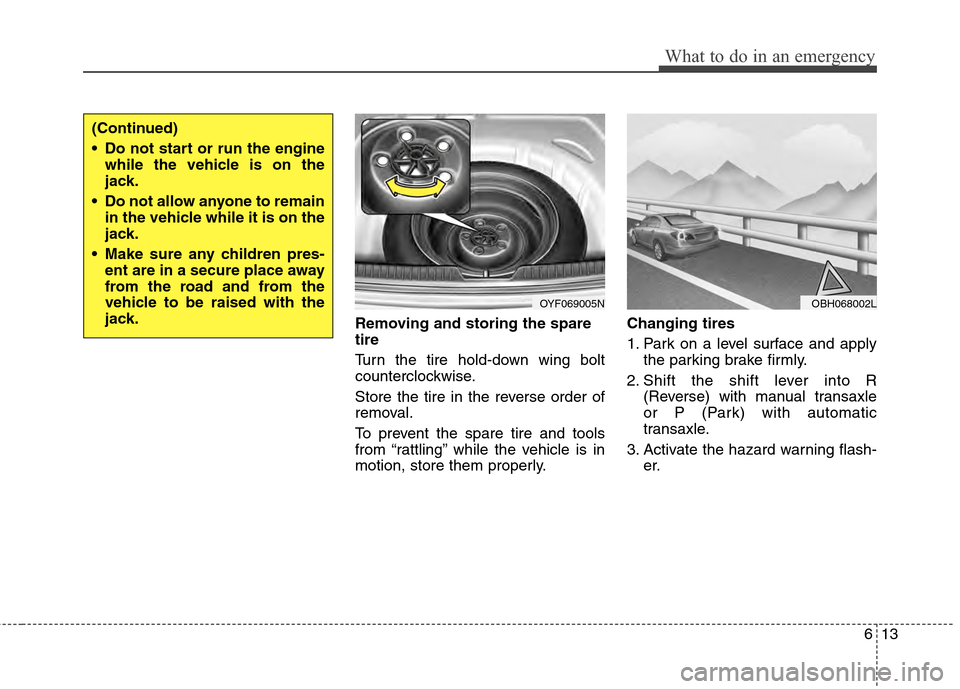
Removing and storing the spare
tire
Turn the tire hold-down wing bolt
counterclockwise.
Store the tire in the reverse order of
removal.
To prevent the spare tire and tools
from “rattling” while the vehicle is in
motion, store them properly.Changing tires
1. Park on a level surface and apply
the parking brake firmly.
2. Shift the shift lever into R (Reverse) with manual transaxle
or P (Park) with automatic
transaxle.
3. Activate the hazard warning flash- er.
OYF069005N
(Continued)
Do not start or run the enginewhile the vehicle is on the
jack.
Do not allow anyone to remain in the vehicle while it is on the
jack.
Make sure any children pres- ent are in a secure place away
from the road and from the
vehicle to be raised with the
jack.
OBH068002L
Page 260 of 370
What to do in an emergency
14
6
4. Remove the wheel lug nut wrench,
jack, jack handle, and spare tire
from the vehicle.
5. Block both the front and rear of the wheel that is diagonally opposite
the jack position. 6. Loosen the wheel lug nuts coun-
terclockwise one turn each, but do
not remove any nut until the tire
has been raised off the ground.
1JBA6504
WARNING- Changing a tire
To prevent vehicle movementwhile changing a tire, always
set the parking brake fully,
and always block the wheel
diagonally opposite the wheel
being changed.
We recommend that the wheels of the vehicle be
blocked, and that no person
remain in a vehicle that is
being jacked.
ORBC060003