Page 211 of 441
210
uuAudio System Basic OperationuPlaying the XM
® Radio
Features
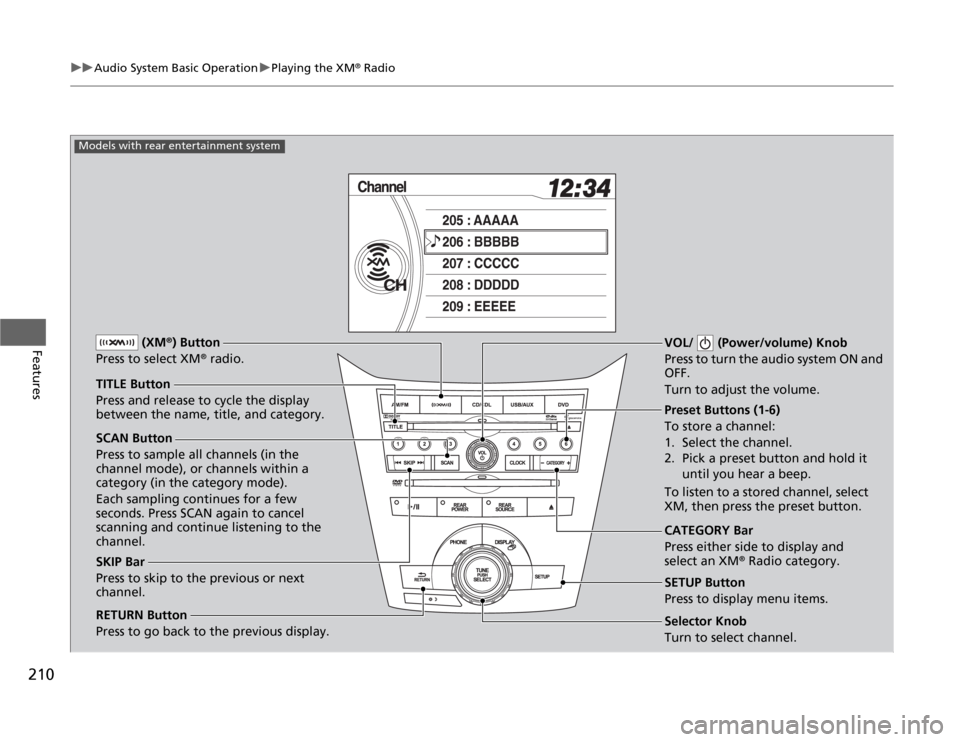
SCAN Button
Press to sample all channels (in the
channel mode), or channels within a
category (in the category mode).
Each sampling continues for a few
seconds. Press SCAN again to cancel
scanning and continue listening to the
channel.VOL/ (Power/volume) Knob
Press to turn the audio system ON and
OFF.
Turn to adjust the volume.
Preset Buttons (1-6)
To store a channel:
1. Select the channel.
2. Pick a preset button and hold it
until you hear a beep.
To listen to a stored channel, select
XM, then press the preset button.
SKIP Bar
Press to skip to the previous or next
channel.CATEGORY Bar
Press either side to display and
select an XM
® Radio category. TITLE Button
Press and release to cycle the display
between the name, title, and category. (XM
®) Button
Press to select XM
® radio.
RETURN Button
Press to go back to the previous display.
Selector Knob
Turn to select channel. SETUP Button
Press to display menu items.
Models with rear entertainment system
Page 212 of 441
211
uuAudio System Basic OperationuPlaying the XM
® Radio
Features
1.Press the button to select the XM
® radio band (XM1 or XM2).
2.Press and hold the TITLE button to switch between the channel mode and
category mode.
If you press the SETUP button, rotate to select XM Mode, and press . You
can select channel mode or category mode by turning and pressing the selector
knob.
3.Select a channel using the TUNE ( ), SKIP, CATEGORY, SCAN, or preset buttons.
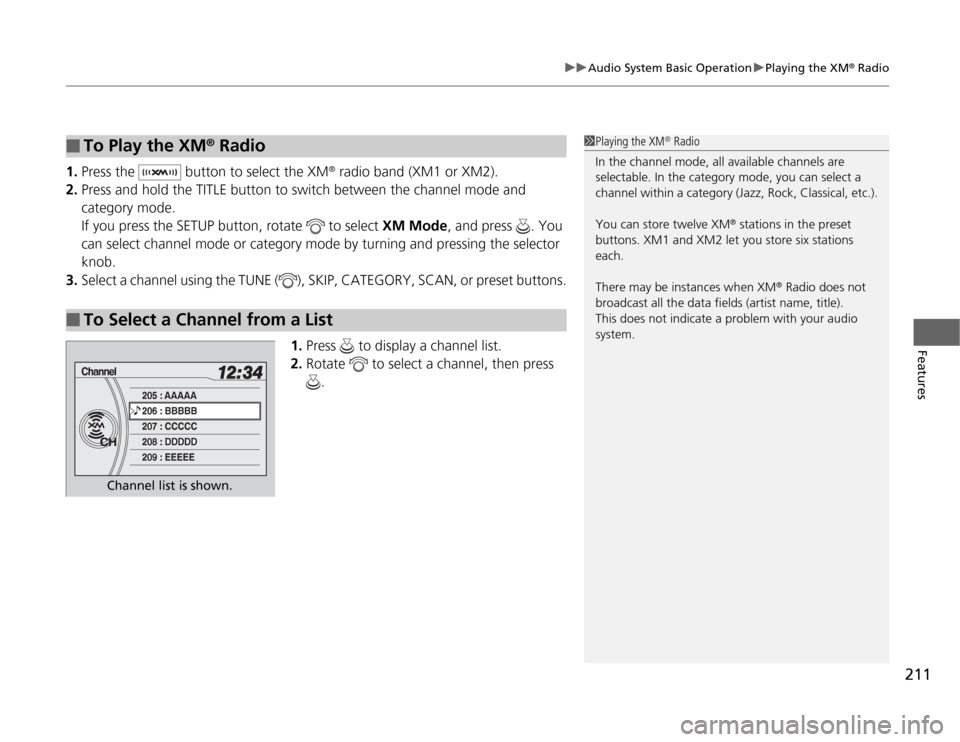
1.Press to display a channel list.
2.Rotate to select a channel, then press
.
■
To Play the XM
® Radio
■
To Select a Channel from a List
1Playing the XM
® Radio
In the channel mode, all available channels are
selectable. In the category mode, you can select a
channel within a category (Jazz, Rock, Classical, etc.).
You can store twelve XM
® stations in the preset
buttons. XM1 and XM2 let you store six stations
each.
There may be instances when XM
® Radio does not
broadcast all the data fields (artist name, title).
This does not indicate a problem with your audio
system.
Channel list is shown.
Page 244 of 441

243
uuRear Entertainment System
*uOperating the System
Continued
Features
■
System Controls and Menus for DVD (Power) Button
Press to turn on the system.DVD Button
Press to watch a DVD.
(Light) Button
Press to illuminate
the buttons and
bars for a few
seconds.
SKIP Bar
Press or to
change chapters.
(Play/Pause) Button
Press to pause or play a DVD.
TITLE/SCROLL Button
Press to display the status of the
DVD that is currently playing.MENU Button
The following options appear when you
play a DVD and press the MENU button:
Top Menu
Menu
Play Mode Audio
Subtitle
Angle
Search/NumInput Title
Chapter
NumInput Repeat
Pause/Play
Stop
Return
SETUP Button
The following options appear when you
play a DVD and press the SETUP button:
Disp Adjust
( P.249)Brightness
Contrast
Black Level
Color CANCEL Button
Press to go back to
the previous display
or operation.3, 4, , and ENTER Buttons
Use 3, 4, , or to highlight
a menu item, and press the
ENTER Button to make a
selection.
Tint
Normal
Wide
Zoom
Full Aspect Ratio
( P.249)
PERSONAL SURROUND ( P.249)
Language ( P.250)
Page 246 of 441
Continued
245
uuRear Entertainment System
*uOperating the System
Features
Auto Play On:
1.Rotate to select Auto Play On, then press .
2.The check mark disappears, and the auto play feature turns off.
uWith this feature off, the DVD does not automatically start playing when the
disc is inserted. Press button to play.
Title/Chapter Search:
1.Rotate to select Title Search or Chapter Search, then press .
2.Rotate to select a title or chapter number, then press .■
TITLE/SCROLL button on the remote
Press the TITLE/SCROLL button while the DVD is playing to see the current status of
title, chapter, elapsed time, angle, subtitle, audio, and sound characteristics.
■
MENU button on the remote
Press the MENU button while the DVD is
playing to see the available options.
Use the 3, 4, , and buttons to highlight
the option and then press the ENTER button.
1TITLE/SCROLL button on the remote
Press the TITLE/SCROLL button again to return.
Page 249 of 441
248
uuRear Entertainment System
*uOperating the System
Features
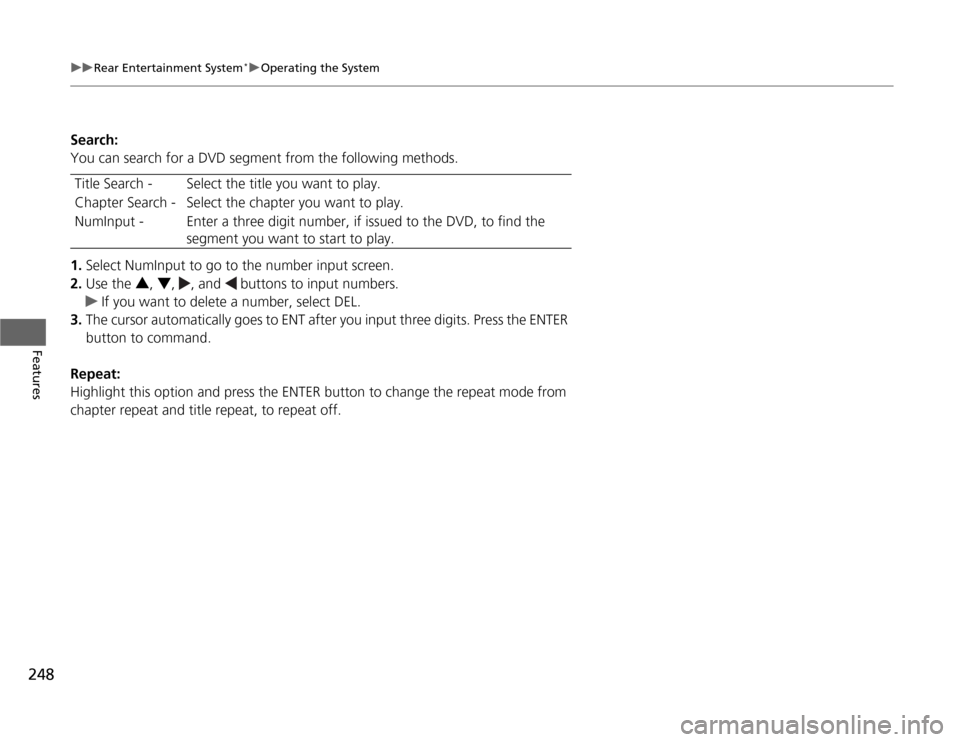
Search:
You can search for a DVD segment from the following methods.
1.Select NumInput to go to the number input screen.
2.Use the 3, 4, , and buttons to input numbers.
uIf you want to delete a number, select DEL.
3.The cursor automatically goes to ENT after you input three digits. Press the ENTER
button to command.
Repeat:
Highlight this option and press the ENTER button to change the repeat mode from
chapter repeat and title repeat, to repeat off.Title Search - Select the title you want to play.
Chapter Search - Select the chapter you want to play.
NumInput - Enter a three digit number, if issued to the DVD, to find the
segment you want to start to play.
Page 250 of 441
249
uuRear Entertainment System
*uOperating the System
Continued
Features
■
SETUP button on the remote
Press the SETUP button while the DVD is
playing to see the available options.
Use the 3, 4, , and buttons to highlight
the option and then press the ENTER button.
Disp Adjust:
You can adjust the overhead screen’s brightness, contrast, black level, color, and
tint. To return to the default display setting, select Reset.
After you make all the adjustments, the screen goes back to the top SETUP screen,
or press the CANCEL button to return.
Aspect Ratio:
You can select the screen mode with a different aspect ratio from Normal, Wide,
Zoom and Full. After you select the mode, it takes about one second to return to the
play mode with the selected ratio.
Personal Surround:
You can select the sound effect mode that fits the DVD’s audio source from Music,
Cinema, and Voice. Select Off to turn this feature off.
Page 252 of 441
251
uuRear Entertainment System
*uOperating the System
Continued
Features
■
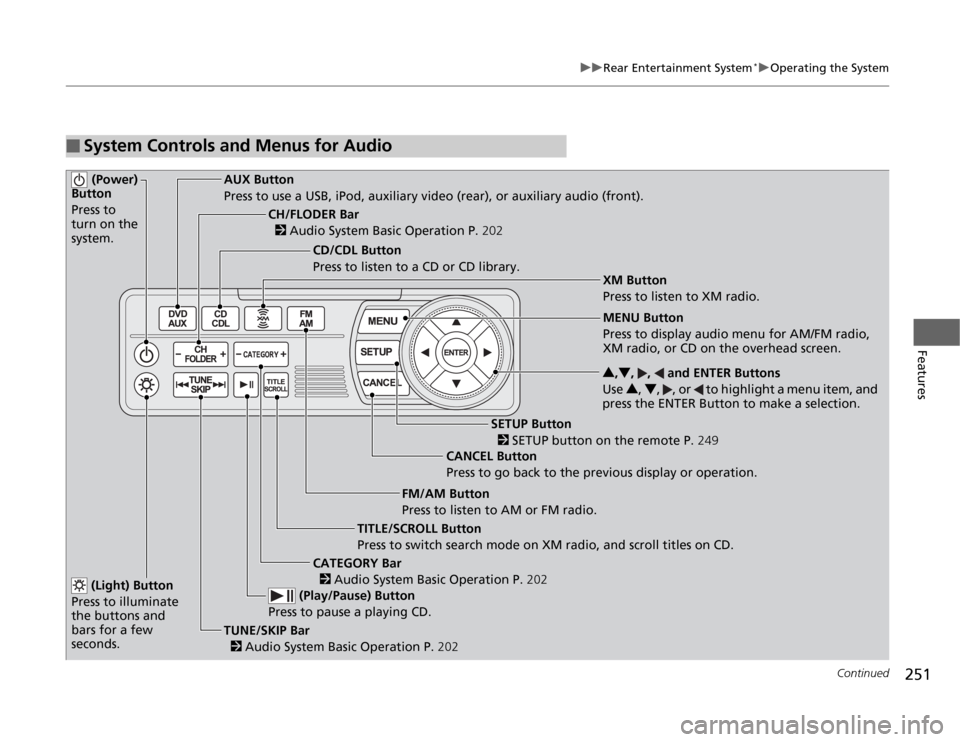
System Controls and Menus for Audio (Power)
Button
Press to
turn on the
system.
AUX Button
Press to use a USB, iPod, auxiliary video (rear), or auxiliary audio (front).
(Light) Button
Press to illuminate
the buttons and
bars for a few
seconds.TUNE/SKIP Bar
2 Audio System Basic Operation P.202 (Play/Pause) Button
Press to pause a playing CD.
TITLE/SCROLL Button
Press to switch search mode on XM radio, and scroll titles on CD.CANCEL Button
Press to go back to the previous display or operation.3,4, , and ENTER Buttons
Use 3, 4, , or to highlight a menu item, and
press the ENTER Button to make a selection.
CATEGORY Bar
2 Audio System Basic Operation P.202
CH/FLODER Bar
2 Audio System Basic Operation P.202
CD/CDL Button
Press to listen to a CD or CD library.
FM/AM Button
Press to listen to AM or FM radio.
SETUP Button
2 SETUP button on the remote P.249 XM Button
Press to listen to XM radio.
MENU Button
Press to display audio menu for AM/FM radio,
XM radio, or CD on the overhead screen.
Page 258 of 441

257
Continued
Features
HomeLink
® Universal Transceiver
*
The HomeLink
® Universal Transceiver can be programmed to operate up to three
remote controlled devices around your home, such as garage doors, lighting, or
home security systems.
Refer to the safety information that comes with your garage door opener to test that
the safety features are functioning properly. If you do not have the safety
information, contact the manufacturer.
Before programming HomeLink, make sure that people and objects are out of the
way of the garage or gate to prevent potential injury or damage.
When programming a garage door opener, park just outside the garage door’s
path.
Training HomeLink
If you have not trained any of the buttons in
HomeLink before, you should erase any
previously learned codes. To do this:
•Press and hold the two outside buttons for
about 20 seconds, until the red indicator
blinks. Release the buttons, and proceed to
step 1.
•If you are training the second or third
button, go directly to step 1.
■
Important Safety Precautions
1HomeLink
® Universal Transceiver
HomeLink® is a registered trademark of Johnson
Controls., Inc.
Before programming HomeLink to operate a garage
door opener, confirm that the opener has an external
entrapment protection system, such as an “electronic
eye,” or other safety and reverse stop features. If it
does not, HomeLink may not be able to operate it.
Red
Indicator
* Not available on all models