Page 148 of 333

147
uuAudio without Navigation SystemuPlaying an iPod®
Continued
Features
Playing an iPod ®
Connect the iPod ® using your dock connector to the USB adapter cable, then press
the AUX button. 2 USB Adapter Cable P. 137
AUX Button
Press to select iPod® (if connected).
Button
Press to go back to the previous display.
(Power) Button
Press to turn the audio system
ON and OFF.
Selector Knob
Turn to adjust the volume. Press
and turn to select an item, then
press to set your selection. USB Indicator
Comes on when an iPod
® is connected.
/ SEEK Buttons
Press or to change songs.
Button
Press to set your selection.
TITLE Button Press to display the text data.
RDM (Random) Button ● Press to play all available files in a
selected list (playlists, artists,
albums or songs) in random order.
● Press two times to play all available
albums in a selected list (playlists,
artists, albums or songs) in random
order.
● To turn off shuffle mode, press and
hold the button.
RPT (Repeat) Button ●
Press to replay a file continuously.
● To turn off repeat, press the button
again.
Page 150 of 333

149
uuAudio without Navigation SystemuPlaying a USB Flash Drive
Continued
Features
Playing a USB Flash Drive
Your audio system reads and plays sound files on a USB flash drive in either MP3,
WMA or AAC*1
format.
Connect your USB flash drive to the USB adapter cable, then press the AUX button. 2 USB Adapter Cable P. 137
*1:Only AAC format files recorded with iTunes ® are playable on this unit.
AUX Button
Press to select USB flash drive (if connected).
SCAN Button You will get a 10-second sampling of each file.
● Press to sample all files in the current folder.
● Press two times to sample the first file in each of
the main folders.
● To turn off scan, press and hold the button.
(Power) Button
Press to turn the audio system
ON and OFF.
Selector Knob Turn to adjust the volume. Press and turn to select an item, then
press to set your selection. USB Indicator
Comes on when a USB flash
drive is connected.
/ Button
Press to skip to the next folder, and
to skip to the b eginning of the
previous folder.
/ SEEK Buttons
Press or to change files.
TITLE Button
Press to display the text data.
RDM (Random) Button ● Press to play all files in random order.
● Press two times to play all files in the
current folder in random order.
● To turn off random, press and hold
the button.
RPT (Repeat) Button ● Press to replay a file continuously.
● Press two times to replay all files in the current folder.
● To turn off repeat, press and hold the button.
Page 154 of 333
153
uuAudio with Navigation System*uAudio System Basic Operation
Features
There are three backgrounds to choose
from when displaying sound levels:
Level: The sound level is shown with the vertical bars.
Spectrum Analysis: The sound level appears as ripples of water.
Off
Each time you touch the Background icon, the screen changes.
Use the joystick to select an icon on the screen
and access some audio functions.
Push left, right, up, or down to select an item.
Press to set your selection.
■Selecting the Background
■Operation with the Joystick
Joystick
Page 157 of 333

156
uuAudio with Navigation System*uPlaying a CD
Features
Playing a CD
Your audio system supports audio CDs, CD-Rs and CD-RWs in either MP3 or WMA
format. With the CD loaded, press the CD/AUX button or touch the CD icon.
SCAN Button You will get a 10-second
sampling of each song. ●
Press to sample all tracks on
the CD (all files in the current
folder in MP3 or WMA).
● Press two times to sample the
first file in each folder on the
CD (MP3 or WMA).
● To turn off scan, press and
hold the button. FOLDER Bar
Press to skip to the
next folder, and to
skip to the beginning
of the previous folder in MP3 or WMA.
3
4
CD Icon
Touch to play a CD.
VOL/PWR (Volume/Power) Knob
Press to turn the audio system
ON and OFF.
Turn to adjust the volume.
Navigation Display
CD/AUX Button
Press to play a CD.
RDM (Random) Button● Press to play all tracks/files on a CD
in random order.
● Press and hold to play all files in
the current folder (MP3 or WMA) in
random order.
● To turn off random, press the
button again.
RPT (Repeat) Button
● Press to replay a track/file
continuously.
● Press and hold to replay all
files in the current folder (MP3 or WMA).
● To turn off repeat, press the
button again.
AUDIO Button
Press to display the audio mode on the navigation screen.
/ (Skip) Buttons
Press or to change
tracks (files in MP3 or WMA).
Joystick
/ (Rewind/Fast
Forward) Buttons Press and hold to move
rapidly within a track/file.
Page 175 of 333
uuBluetooth® HandsFreeLink ®*uUsing HFL
174
Features
• To hear general HFL information and help, say “Tutorial.”
• Say “Hands-free help” or “Help” any time to get help or hear a list of commands.
The multi-information display notifies you
when there is an incoming call.
■Help Features
■HFL Status Display
1Bluetooth® HandsFreeLink ®*
Bluetooth ® Wireless Technology
The Bluetooth ® word mark and logos are registered
trademarks owned by Bluetooth SIG, Inc., and any
use of such marks by Honda Motors Co., Ltd., is
under license. Other trademarks and trade names are
those of their respective owners.
Signal Strength HFL Mode
Battery Level Status
Roam
Status Phone Dialing
1HFL Status Display
The information that appears on the multi-
information display varies between phone models.
You can change the system language to English,
French, or Spanish.
2 Customized Features P. 90
* Not available on all models
Page 178 of 333

Continued177
uuBluetooth® HandsFreeLink ®*uHFL Menus
Features
■
To pair a cell phone
1. If no phone has been paired to the syst em before, HFL gives you information
about how to pair the first phone.
If a phone has already been paired: say “Phone Setup” and “Pair” after the HFL
prompts.
2. Follow the HFL prompts and put your phone in discovery or search mode.
uHFL gives you a four-digit code and begins searching for your phone.
3. When your phone finds a Bluetooth® device, select HFL from the options and
enter the four-digit code.
4. Follow the HFL prompts and name the newly paired phone.
■ To rename a paired phone
1. Say “Phone Setup.”
2. Say “Edit” after the prompts.
3. Follow the HFL prompts and rename the phone.
uIf there is more than one phone paired to the system, HFL asks you which
phone’s name you want to change.
■ To delete a paired phone
1. Say “Phone Setup.”
2. Say “Delete” after the prompts.
3. Follow the HFL prompts.
uHFL asks you which phone you want to delete.
■Phone Setup1Phone Setup
Press the button and wait for a beep before
giving a command. Your Bluetooth -compatible phone must be paired to
HFL before you can make and receive hands-free calls.
Phone Pairing Tips:
• You cannot pair your phone while the vehicle is moving.
• Your phone must be in the discoverable or search
mode when pairing the phone. Refer to your phone's manual.
• Up to six phones can be paired.
• Your phone's battery may drain faster when it is
paired to HFL.
• If your phone is not ready for pairing or not found
by the system within three minutes, the system will
time out and returns to idle.
Page 179 of 333
uuBluetooth® HandsFreeLink ®*uHFL Menus
178
Features
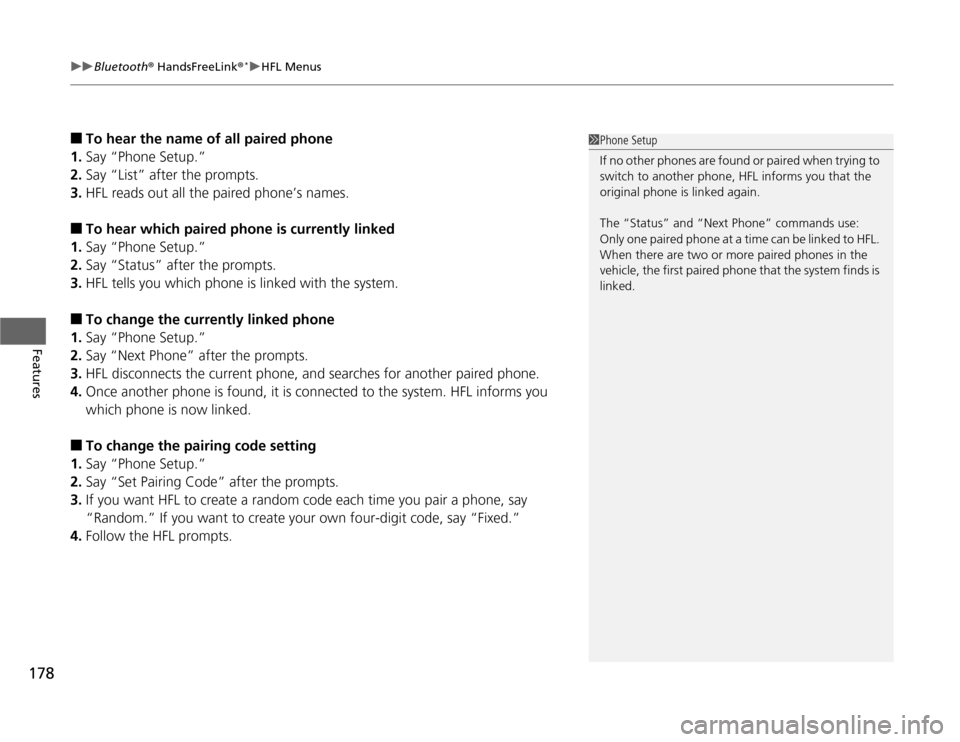
■ To hear the name of all paired phone
1. Say “Phone Setup.”
2. Say “List” after the prompts.
3. HFL reads out all the paired phone’s names.
■ To hear which paired phone is currently linked
1. Say “Phone Setup.”
2. Say “Status” after the prompts.
3. HFL tells you which phone is linked with the system.
■ To change the currently linked phone
1. Say “Phone Setup.”
2. Say “Next Phone” after the prompts.
3. HFL disconnects the current phone, and searches for another paired phone.
4. Once another phone is found, it is connected to the system. HFL informs you
which phone is now linked.
■ To change the pairing code setting
1. Say “Phone Setup.”
2. Say “Set Pairing Code” after the prompts.
3. If you want HFL to create a random code each time you pair a phone, say
“Random.” If you want to create your own four-digit code, say “Fixed.”
4. Follow the HFL prompts.1Phone Setup
If no other phones are found or paired when trying to
switch to another phone, HFL informs you that the
original phone is linked again.
The “Status” and “Next Phone” commands use:
Only one paired phone at a time can be linked to HFL.
When there are two or more paired phones in the
vehicle, the first paired phone that the system finds is
linked.
Page 209 of 333
208
uuWhen DrivinguShifting
Driving
Shifting
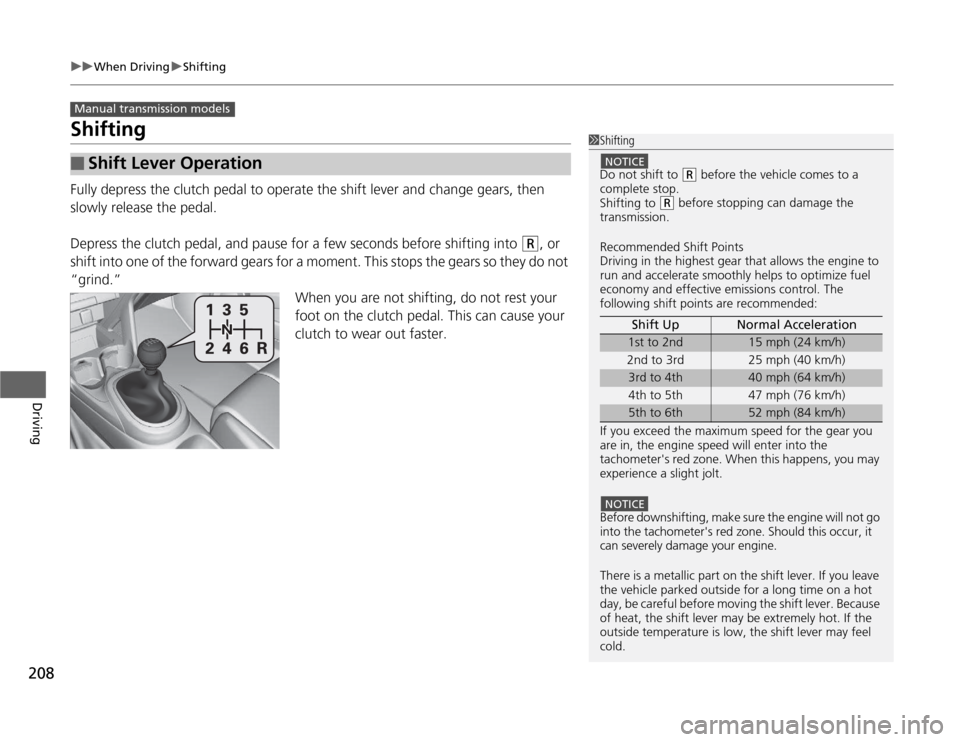
Fully depress the clutch pedal to operate the shift lever and change gears, then
slowly release the pedal.
Depress the clutch pedal, and pause for a few seconds before shifting into
(R, or
shift into one of the forward gears for a moment. This stops the gears so they do not
“grind.” When you are not shifting, do not rest your
foot on the clutch pedal. This can cause your
clutch to wear out faster.
■Shift Lever Operation
Manual transmission models
1Shifting
Do not shift to
(R before the vehicle comes to a
complete stop.
Shifting to
(R before stopping can damage the
transmission. Recommended Shift Points
Driving in the highest gear that allows the engine to
run and accelerate smoothly helps to optimize fuel
economy and effective emissions control. The
following shift points are recommended:
If you exceed the maximum speed for the gear you
are in, the engine speed will enter into the
tachometer's red zone. When this happens, you may
experience a slight jolt.
Before downshifting, make sure the engine will not go
into the tachometer's red zone. Should this occur, it
can severely damage your engine.
There is a metallic part on the shift lever. If you leave the vehicle park ed outside for a long time on a hot
day, be careful before moving the shift lever. Because
of heat, the shift lever may be extremely hot. If the
outside temperature is low, the shift lever may feel cold. Shift Up Normal Acceleration
1st to 2nd15 mph (24 km/h)
2nd to 3rd 25 mph (40 km/h)
3rd to 4th40 mph (64 km/h)
4th to 5th 47 mph (76 km/h)
5th to 6th52 mph (84 km/h)
NOTICE
NOTICE

