Page 152 of 345
151
uuAudio System Basic Operation*uPlaying a CD
Continued
Features
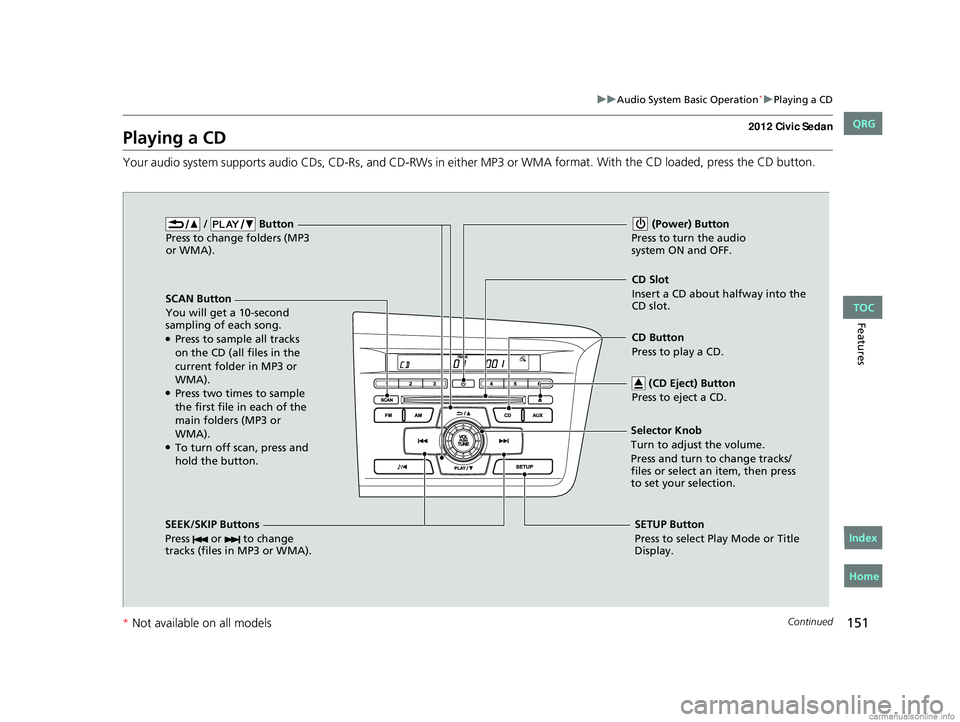
Playing a CD
Your audio system supports audio CDs, CD -Rs, and CD-RWs in either MP3 or WMA format. With the CD loaded, press the CD button.
/ Button
Press to change folders (MP3
or WMA).
SCAN Button
You will get a 10-second
sampling of each song.
●Press to sample all tracks
on the CD (all files in the
current folder in MP3 or
WMA).
●Press two times to sample
the first file in each of the
main folders (MP3 or
WMA).
●To turn off scan, press and
hold the button. (Power) Button
Press to turn the audio
system ON and OFF.
CD Slot
Insert a CD about halfway into the
CD slot.
SEEK/SKIP Buttons
Press or to change
tracks (files in MP3 or WMA).
SETUP Button
Press to select Play Mode or Title
Display.
Selector Knob
Turn to adjust the volume.
Press and turn to change tracks/
files or select an item, then press
to set your selection.
CD Button
Press to play a CD.
(CD Eject) Button
Press to eject a CD.
CIVIC 4D-31TR3600.book 151 ページ 2011年2月14日 月曜日 午後2時51分
TOC
Home
QRG
Index
* Not availabl eon allmo dels
Page 153 of 345
uuAudio System Basic Operation*uPlaying a CD
152
Features
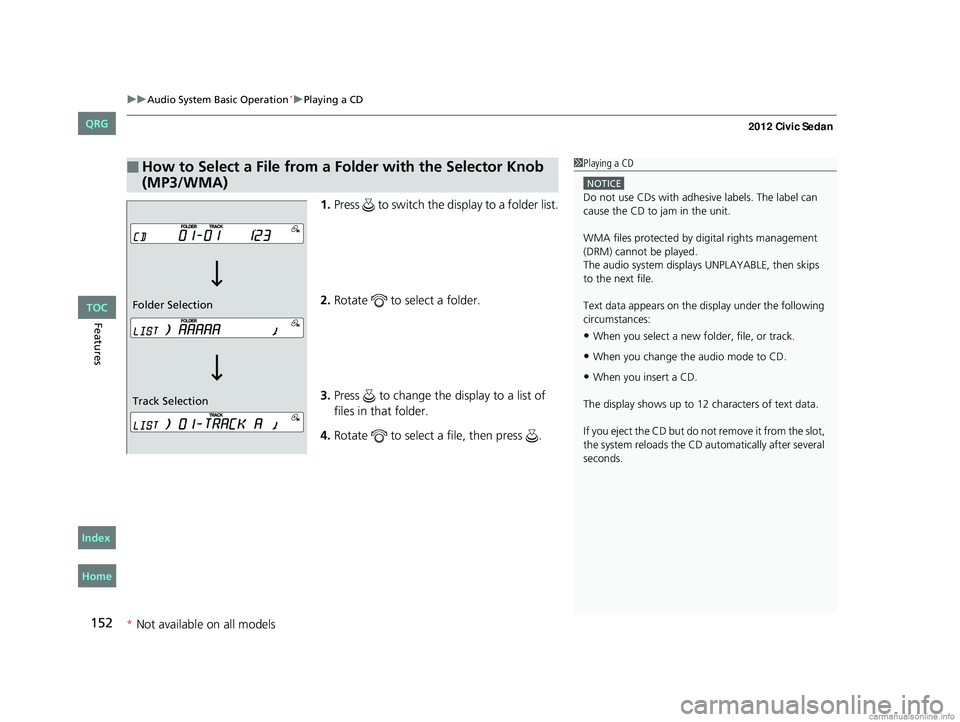
1. Press to switch the display to a folder list.
2. Rotate to select a folder.
3. Press to change the display to a list of
files in that folder.
4. Rotate to select a file, then press .
■How to Select a File from a Fo lder with the Selector Knob
(MP3/WMA)1 Playing a CD
NOTICE
Do not use CDs with adhesive labels. The label can
cause the CD to jam in the unit.
WMA files protected by di gital rights management
(DRM) cannot be played.
The audio system displays UNPLAYABLE, then skips
to the next file.
Text data appears on the di splay under the following
circumstances:
•When you select a new folder, file, or track.
•When you change the audio mode to CD.
•When you insert a CD.
The display shows up to 12 ch aracters of text data.
If you eject the CD but do not remove it from the slot,
the system reloads the CD automatically after several
seconds.
Track Selection Folder Selection
CIVIC 4D-31TR3600.book 152 ページ 2011年2月14日 月曜日 午後2時51分
TOC
* Not availabl eon allmo dels
Home
QRG
Index
Page 159 of 345
158
uuAudio System Basic Operation*uPlaying the AM/FM Radio
Features
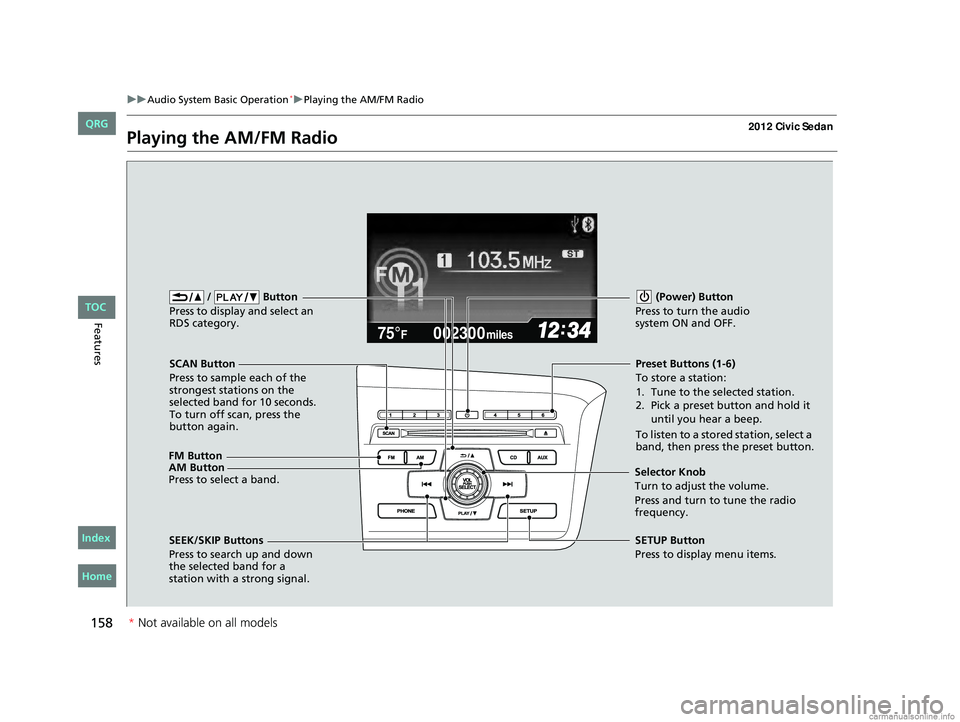
Playing the AM/FM Radio
002300
75°F miles
FM Button / Button
Press to display and select an
RDS category.
SCAN Button
Press to sample each of the
strongest stations on the
selected band for 10 seconds.
To turn off scan, press the
button again. (Power) Button
Press to turn the audio
system ON and OFF.Preset Buttons (1-6)
To store a station:
1. Tune to the selected station.
2. Pick a preset button and hold it until you hear a beep.
To listen to a stored station, select a
band, then press the preset button.
SEEK/SKIP Buttons
Press to search up and down
the selected band for a
station with a strong signal. SETUP Button
Press to display menu items.
Selector Knob
Turn to adjust the volume.
Press and turn to tune the radio
frequency.
AM Button
Press to select a band.
CIVIC 4D-31TR3600.book 158 ページ 2011年2月14日 月曜日 午後2時51分
TOC
Home
QRG
Index
*
Not av ailable on all mo dels
Page 162 of 345

161
uuAudio System Basic Operation*uPlaying a CD
Continued
Features
Playing a CD
Your audio system supports audio CDs, CD-Rs and CD-RWs in either MP3 or WMA format. With the CD loaded, press the CD button.
002300
75°F miles
Genre AAA 1’23’’
Track AAA
Artist AAA
/ Button
Press to skip to the next
folder, and to skip to
the beginning of the previous
folder in MP3 or WMA.
SCAN Button
You will get a 10-second
sampling of each song.
●Press to sample all tracks
on the CD (all files in the
current folder in MP3 or
WMA).
●Press two times to sample
the first file in each of the
main folders (MP3 or
WMA).
●To turn off scan, press and
hold the button. (Power) Button
Press to turn the audio
system ON and OFF.
CD Slot
Insert a CD about halfway into the
CD slot.
SEEK/SKIP Buttons
Press or to change
tracks (files in MP3 or WMA).
SETUP Button
Press to display menu items.
Selector Knob
Turn to adjust the volume.
Press and turn to select an item,
then press to set your selection. CD Button
Press to play a CD.
(CD Eject) Button
Press to eject a CD.
CIVIC 4D-31TR3600.book 161 ページ 2011年2月14日 月曜日 午後2時51分
TOC
* Not availabl eon allmo dels
Home
QRG
Index
Page 163 of 345
uuAudio System Basic Operation*uPlaying a CD
162
Features
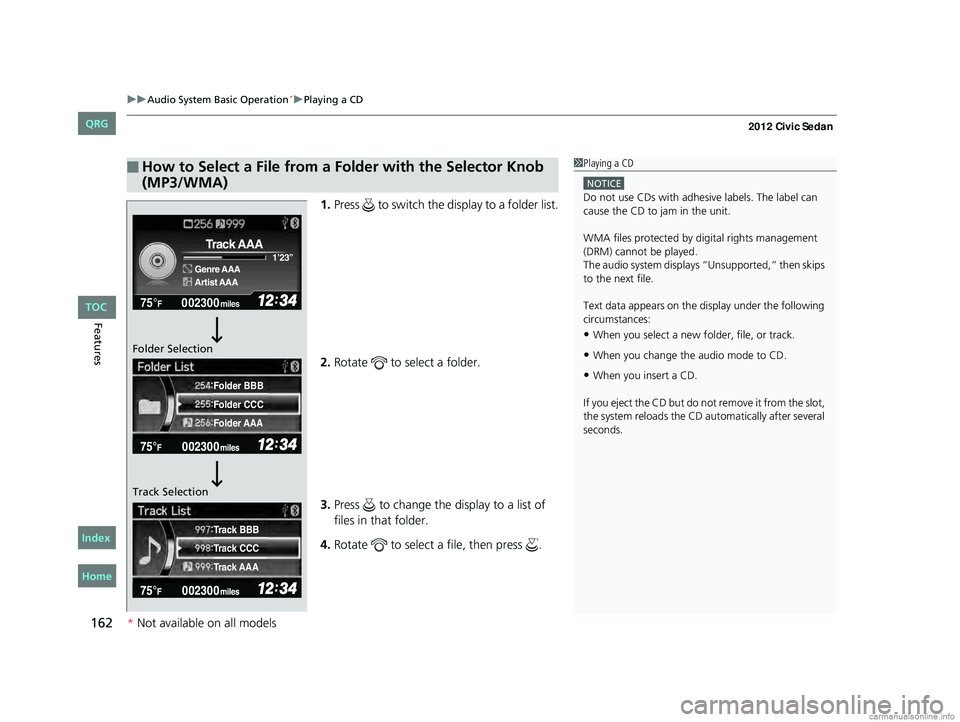
1. Press to switch the display to a folder list.
2. Rotate to select a folder.
3. Press to change the display to a list of
files in that folder.
4. Rotate to select a file, then press .
■How to Select a File from a Fo lder with the Selector Knob
(MP3/WMA)1 Playing a CD
NOTICE
Do not use CDs with adhesive labels. The label can
cause the CD to jam in the unit.
WMA files protected by di gital rights management
(DRM) cannot be played.
The audio system displays “Unsupported,” then skips
to the next file.
Text data appears on the di splay under the following
circumstances:
•When you select a new folder, file, or track.
•When you change the audio mode to CD.
•When you insert a CD.
If you eject the CD but do not remove it from the slot,
the system reloads the CD automatically after several
seconds.
002300
75°F miles
Genre AAA 1’23’’
Track AAA
Artist AAA
Folder CCC
Folder AAA Folder BBB
Track CCC
Track AAA Track BBB
Folder Selection
Track Selection
CIVIC 4D-31TR3600.book 162 ページ 2011年2月14日 月曜日 午後2時51分
TOC
*
Not availabl eon allmo dels
Home
QRG
Index
Page 168 of 345

167
uuAudio System Basic Operation*uPlaying a USB Flash Drive
Continued
Features
Playing a USB Flash Drive
Your audio system reads and plays sound files on a USB flash drive in either MP3, WMA or AAC*1 format.
Connect your USB flash drive to the USB adapter cable, then press the AUX button.
2 USB Adapter Cable P. 145
*1:Only AAC format files recorded with iTunes® are playable on this unit.
002300
75°F miles
Genre AAA 1’23’’
File AAA
Artist AAA
123 456
/ Button
Press to skip to the next
folder, and to skip to
the beginning of the previous
folder.
SCAN Button
You will get a 10-second
sampling of each file.
●Press to sample all files in
the current folder.
●Press two times to sample
the first file in each of the
main folders.
●To turn off scan, press and
hold the button. (Power) Button
Press to turn the audio
system ON and OFF.
SEEK/SKIP Buttons
Press or to change files.SETUP Button
Press to display menu items.
Selector Knob
Turn to adjust the volume.
Press and turn to select an item, then
press to set your selection. AUX Button
Press to select USB flash drive
(if connected).
USB Indicator
Comes on when a USB flash drive
is connected.
CIVIC 4D-31TR3600.book 167 ページ 2011年2月14日 月曜日 午後2時51分
TOC
*
Not available on all models
Home
QRG
Index
Page 174 of 345
173
uuAudio Error Messages*uiPod®/USB Flash Drive
Features
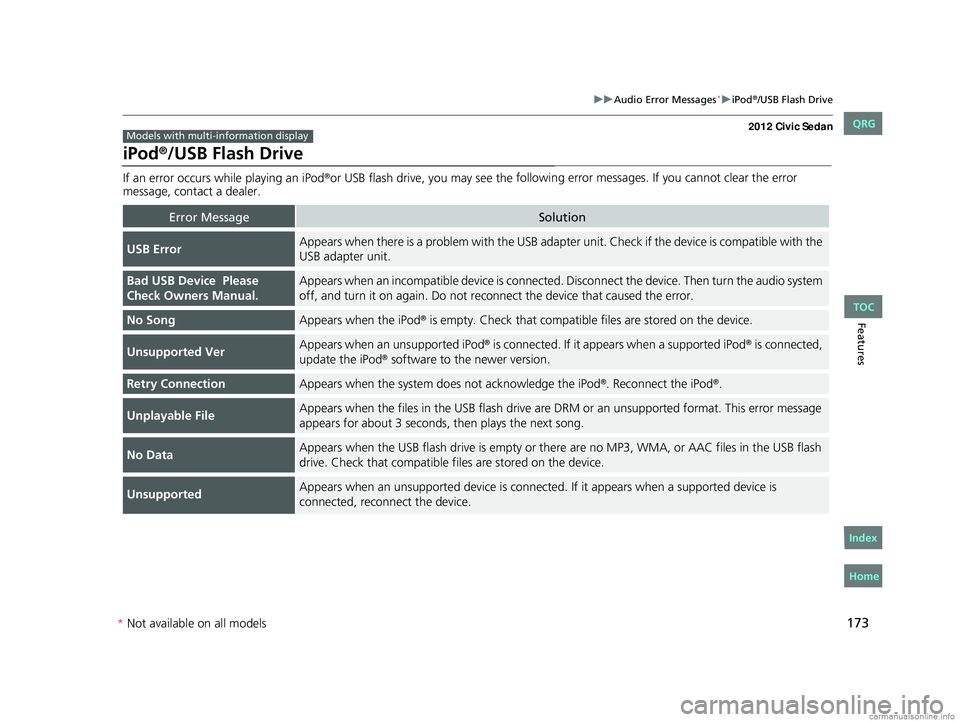
iPod®/USB Flash Drive
If an error occurs while playing an iPod®or USB flash drive, you may see the following error messages. If you cannot clear the error
message, contact a dealer.
Error MessageSolution
USB ErrorAppears when there is a problem with the USB adapter unit. Check if the device is compatible with the
USB adapter unit.
Bad USB Device Please
Check Owners Manual.Appears when an incompatib le device is connected. Disconnect the device. Then turn the audio system
off, and turn it on again. Do not reco nnect the device that caused the error.
No SongAppears when the iPod® is empty. Check that compatible files are stored on the device.
Unsupported VerAppears when an unsupported iPod® is connected. If it appears when a supported iPod® is connected,
update the iPod® software to the newer version.
Retry ConnectionAppears when the system do es not acknowledge the iPod®. Reconnect the iPod®.
Unplayable FileAppears when the files in the USB flash drive are DRM or an unsupported format. This error message
appears for about 3 seconds, then plays the next song.
No DataAppears when the USB flash drive is empty or there are no MP3, WMA, or AAC files in the USB flash
drive. Check that compatible fi les are stored on the device.
UnsupportedAppears when an unsupported device is connected. If it appears when a supported device is
connected, reconnect the device.
Models with multi-information display
CIVIC 4D-31TR3600.book 173 ページ 2011年2月14日 月曜日 午後2時51分
* Not available on all models
TOC
Home
QRG
Index
Page 202 of 345
201
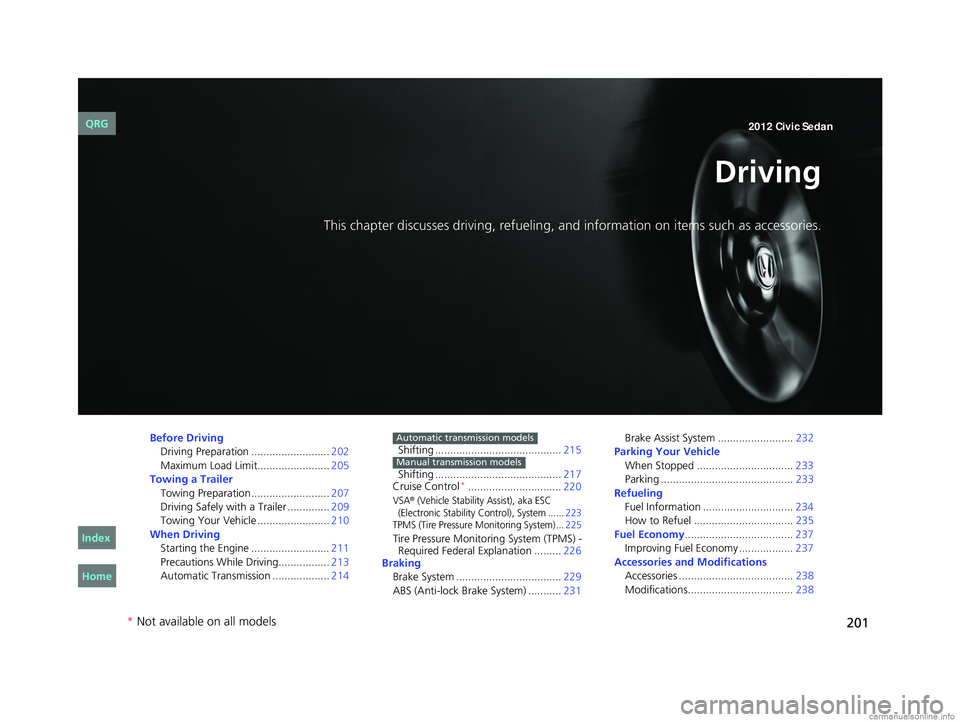
Driving
This chapter discusses driving, refueling, and information on items such as accessories.
Before Driving
Driving Preparation .......................... 202
Maximum Load Limit........................ 205
Towing a Trailer Towing Preparation .......................... 207
Driving Safely with a Trailer .............. 209
Towing Your Vehicle ........................ 210
When Driving
Starting the Engine .......................... 211
Precautions While Driving................. 213
Automatic Transmission ................... 214Shifting ..........................................
215
Shifting .......................................... 217
Cruise Control
*............................... 220
VSA® (Vehicle Stability Assist), aka ESC
(Electronic Stability Control), System ...... 223
TPMS (Tire Pressure Monitoring System) ... 225
Tire Pressure Monitoring System (TPMS) -
Required Federal Explanation ......... 226
Braking
Brake System ................................... 229
ABS (Anti-lock Brake System) ........... 231
Automatic transmission models
Manual transmission models
Brake Assist System ......................... 232
Parking Your Vehicle When Stopped ................................ 233
Parking ............................................ 233
Refueling Fuel Information .............................. 234
How to Refuel ................................. 235
Fuel Economy .................................... 237
Improving Fuel Economy .................. 237
Accessories and Modifications
Accessories ...................................... 238
Modifications................................... 238
* Not available on all models
CIVIC 4D-31TR3600.book 201 ページ 2011年2月14日 月曜日 午後2時51分
Home
QRG
Index 2012 Civic Sedan