2012 GMC SIERRA 1500 remote control
[x] Cancel search: remote controlPage 251 of 556
Black plate (41,1)GMC Sierra Owner Manual - 2012 - CRC - 11/15/11
Infotainment System 7-41
If a DVD is playing and the screen
is raised to its locked position, the
screen remains on. This is normal,
and the DVD continues to play
through the previous audio source.
Use the remote control power button
or eject the disc to turn off the
screen.
The overhead console contains the
infrared transmitters for the wireless
headphones and the infrared
receivers for the remote control.
They are located at the rear of the
console.
Notice:Avoid directly touching
the video screen, as damage may
occur. See “Cleaning the Video
Screens” later in this section for
more information.Remote Control
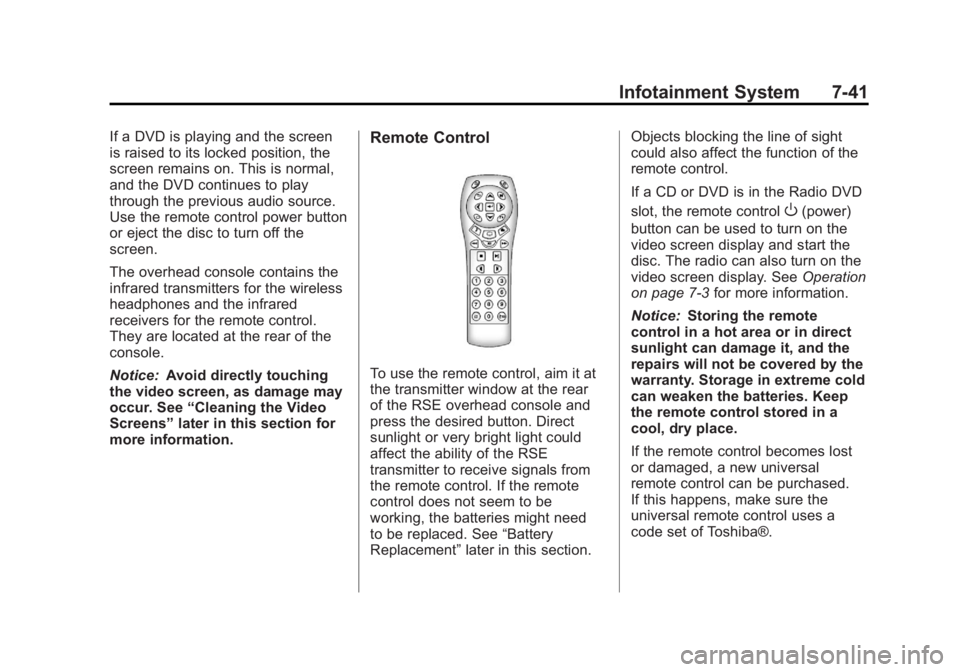
To use the remote control, aim it at
the transmitter window at the rear
of the RSE overhead console and
press the desired button. Direct
sunlight or very bright light could
affect the ability of the RSE
transmitter to receive signals from
the remote control. If the remote
control does not seem to be
working, the batteries might need
to be replaced. See “Battery
Replacement” later in this section. Objects blocking the line of sight
could also affect the function of the
remote control.
If a CD or DVD is in the Radio DVD
slot, the remote control
O(power)
button can be used to turn on the
video screen display and start the
disc. The radio can also turn on the
video screen display. See Operation
on page 7‑3 for more information.
Notice: Storing the remote
control in a hot area or in direct
sunlight can damage it, and the
repairs will not be covered by the
warranty. Storage in extreme cold
can weaken the batteries. Keep
the remote control stored in a
cool, dry place.
If the remote control becomes lost
or damaged, a new universal
remote control can be purchased.
If this happens, make sure the
universal remote control uses a
code set of Toshiba®.
Page 252 of 556
Black plate (42,1)GMC Sierra Owner Manual - 2012 - CRC - 11/15/11
7-42 Infotainment System
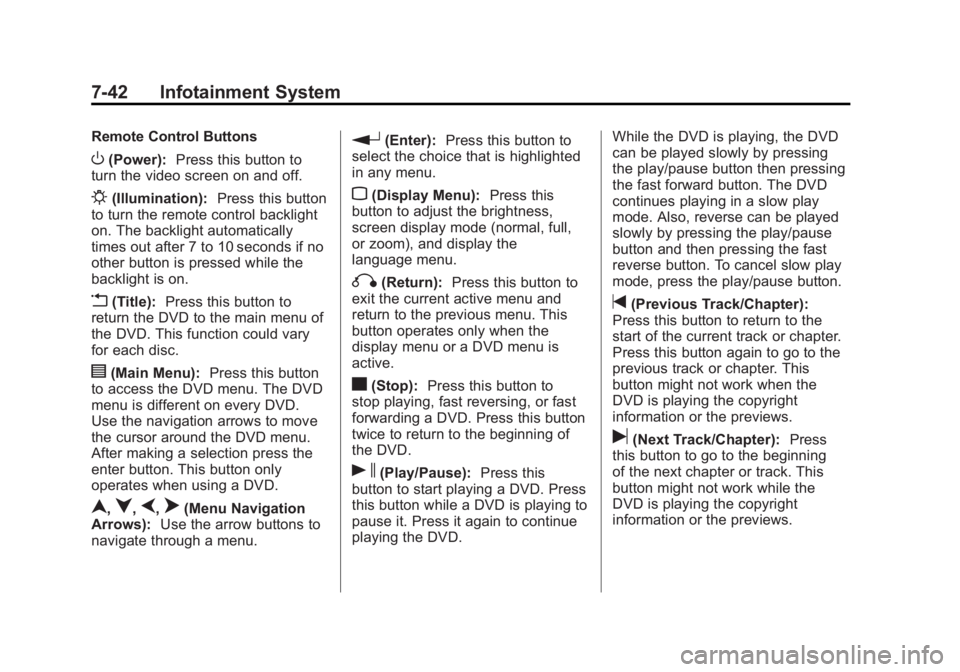
Remote Control Buttons
O(Power):Press this button to
turn the video screen on and off.
P(Illumination): Press this button
to turn the remote control backlight
on. The backlight automatically
times out after 7 to 10 seconds if no
other button is pressed while the
backlight is on.
v(Title): Press this button to
return the DVD to the main menu of
the DVD. This function could vary
for each disc.
y(Main Menu): Press this button
to access the DVD menu. The DVD
menu is different on every DVD.
Use the navigation arrows to move
the cursor around the DVD menu.
After making a selection press the
enter button. This button only
operates when using a DVD.
n,q,p,o(Menu Navigation
Arrows): Use the arrow buttons to
navigate through a menu.
r(Enter): Press this button to
select the choice that is highlighted
in any menu.
z(Display Menu): Press this
button to adjust the brightness,
screen display mode (normal, full,
or zoom), and display the
language menu.
q(Return): Press this button to
exit the current active menu and
return to the previous menu. This
button operates only when the
display menu or a DVD menu is
active.
c(Stop): Press this button to
stop playing, fast reversing, or fast
forwarding a DVD. Press this button
twice to return to the beginning of
the DVD.
s(Play/Pause): Press this
button to start playing a DVD. Press
this button while a DVD is playing to
pause it. Press it again to continue
playing the DVD. While the DVD is playing, the DVD
can be played slowly by pressing
the play/pause button then pressing
the fast forward button. The DVD
continues playing in a slow play
mode. Also, reverse can be played
slowly by pressing the play/pause
button and then pressing the fast
reverse button. To cancel slow play
mode, press the play/pause button.
t(Previous Track/Chapter):
Press this button to return to the
start of the current track or chapter.
Press this button again to go to the
previous track or chapter. This
button might not work when the
DVD is playing the copyright
information or the previews.
u(Next Track/Chapter): Press
this button to go to the beginning
of the next chapter or track. This
button might not work while the
DVD is playing the copyright
information or the previews.
Page 253 of 556
Black plate (43,1)GMC Sierra Owner Manual - 2012 - CRC - 11/15/11
Infotainment System 7-43
r(Fast Reverse):Press this
button to quickly reverse the DVD or
CD. To stop fast reversing a DVD
video, press the play/pause button.
To stop fast reversing a DVD audio
or CD, release the fast reverse
button. This button might not work
when the DVD is playing the
copyright information or the
previews.
[(Fast Forward): Press this
button to fast forward the DVD or
CD. To stop fast forwarding a DVD
video, press the play/pause button.
To stop fast forwarding a DVD audio
or CD, release the fast forward
button. This button might not work
while the DVD is playing the
copyright information or the
previews.
e(Audio): Press this button to
change audio tracks on DVDs that
have this feature when the DVD is
playing. The format and content of
this function vary for each disc.
{(Subtitles): Press this button to
turn on or off subtitles and to move
through subtitle options when a
DVD is playing. The format and
content of this function vary for
each disc.
AUX (Auxiliary): Press this button
to switch the system between the
DVD player and an auxiliary source.
2(Camera): Press this button to
change camera angles on DVDs
that have this feature while a DVD is
playing. The format and content of
this function vary for each disc.
1 through 0 (Numeric Keypad):
The numeric keypad provides the
capability of direct chapter or track
number selection.
\(Clear): Press this button within
three seconds after entering a
numeric selection, to clear all
numerical inputs.
}10 (Double Digit Entries): Press
this button to select chapter or track
numbers greater than nine. Press
this button before entering the
number.
Battery Replacement
To change the remote control
batteries, do the following:
1. Slide the rear cover back on the remote control.
2. Replace the two batteries in the compartment. Make sure they
are installed correctly using the
diagram on the inside of the
remote control.
3. Replace the battery cover.
If the remote control is to be stored
for a long period of time, remove the
batteries and keep them in a cool,
dry place.
Page 254 of 556
Black plate (44,1)GMC Sierra Owner Manual - 2012 - CRC - 11/15/11
7-44 Infotainment System
Tips and Troubleshooting Chart
ProblemRecommended Action
There is no power. The ignition might not be turned to ON/RUN or
ACC/ACCESSORY.
The picture does not fill the screen. There are black
borders on the top and bottom or on both sides, or the
picture looks stretched out. Check the display mode settings in the setup menu by
pressing the display menu button on the remote control.
In auxiliary mode, the picture moves or scrolls. Check the auxiliary input connections at both devices.
The remote control does not work. Check to make sure there is no obstruction between the
remote control and the transmitter window.
Check the batteries to make sure they are not dead or
installed incorrectly.
After stopping the player, and pushing Play, sometimes
the DVD starts where it left off and sometimes at the
beginning. If the stop button was pressed one time, the DVD player
resumes playing where the DVD was stopped. If the
stop button was pressed two times, the DVD player
begins to play from the beginning of the DVD.
The auxiliary source is running, but there is no picture or
sound. Check that the RSE video screen is in the auxiliary
source mode.
Check the auxiliary input connections at both devices.
Page 389 of 556
Black plate (3,1)GMC Sierra Owner Manual - 2012 - CRC - 11/15/11
Vehicle Care 10-3
California Proposition
65 Warning
Most motor vehicles, including this
one, contain and/or emit chemicals
known to the State of California to
cause cancer and birth defects or
other reproductive harm. Engine
exhaust, many parts and systems,
many fluids, and some component
wear by-products contain and/or
emit these chemicals.
California Perchlorate
Materials Requirements
Certain types of automotive
applications, such as airbag
initiators, safety belt pretensioners,
and lithium batteries contained in
Remote Keyless Entry transmitters,
may contain perchlorate materials.
Special handling may be necessary.
For additional information, see
www.dtsc.ca.gov/hazardouswaste/
perchlorate.
Accessories and
Modifications
Adding non‐dealer accessories or
making modifications to the vehicle
can affect vehicle performance and
safety, including such things as
airbags, braking, stability, ride and
handling, emissions systems,
aerodynamics, durability, and
electronic systems like antilock
brakes, traction control, and stability
control. These accessories or
modifications could even cause
malfunction or damage not covered
by the vehicle warranty.
Page 435 of 556
Black plate (49,1)GMC Sierra Owner Manual - 2012 - CRC - 11/15/11
Vehicle Care 10-49
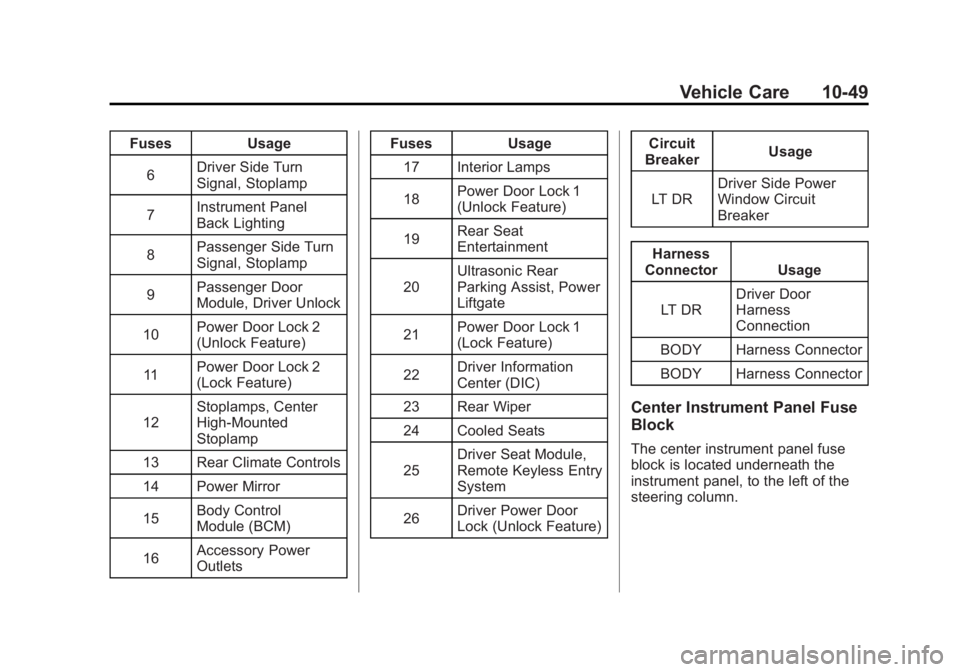
FusesUsage
6 Driver Side Turn
Signal, Stoplamp
7 Instrument Panel
Back Lighting
8 Passenger Side Turn
Signal, Stoplamp
9 Passenger Door
Module, Driver Unlock
10 Power Door Lock 2
(Unlock Feature)
11 Power Door Lock 2
(Lock Feature)
12 Stoplamps, Center
High‐Mounted
Stoplamp
13 Rear Climate Controls
14 Power Mirror
15 Body Control
Module (BCM)
16 Accessory Power
Outlets Fuses
Usage
17 Interior Lamps
18 Power Door Lock 1
(Unlock Feature)
19 Rear Seat
Entertainment
20 Ultrasonic Rear
Parking Assist, Power
Liftgate
21 Power Door Lock 1
(Lock Feature)
22 Driver Information
Center (DIC)
23 Rear Wiper
24 Cooled Seats
25 Driver Seat Module,
Remote Keyless Entry
System
26 Driver Power Door
Lock (Unlock Feature) Circuit
Breaker Usage
LT DR Driver Side Power
Window Circuit
Breaker
Harness
Connector Usage
LT DR Driver Door
Harness
Connection
BODY Harness Connector
BODY Harness Connector
Center Instrument Panel Fuse
Block
The center instrument panel fuse
block is located underneath the
instrument panel, to the left of the
steering column.
Page 538 of 556
Black plate (4,1)GMC Sierra Owner Manual - 2012 - CRC - 11/15/11
14-4 OnStar
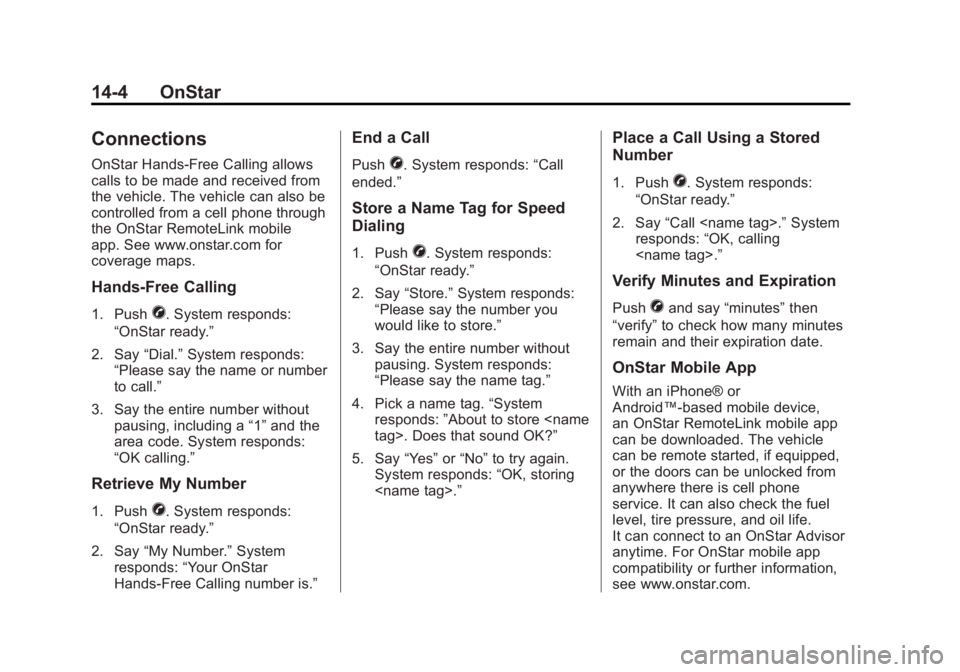
Connections
OnStar Hands-Free Calling allows
calls to be made and received from
the vehicle. The vehicle can also be
controlled from a cell phone through
the OnStar RemoteLink mobile
app. See www.onstar.com for
coverage maps.
Hands-Free Calling
1. PushX. System responds:
“OnStar ready.”
2. Say “Dial.”System responds:
“Please say the name or number
to call.”
3. Say the entire number without pausing, including a “1”and the
area code. System responds:
“OK calling.”
Retrieve My Number
1. PushX. System responds:
“OnStar ready.”
2. Say “My Number.” System
responds: “Your OnStar
Hands-Free Calling number is.”
End a Call
PushX. System responds: “Call
ended.”
Store a Name Tag for Speed
Dialing
1. PushX. System responds:
“OnStar ready.”
2. Say “Store.” System responds:
“Please say the number you
would like to store.”
3. Say the entire number without pausing. System responds:
“Please say the name tag.”
4. Pick a name tag. “System
responds: ”About to store
5. Say “Yes”or“No” to try again.
System responds: “OK, storing
Place a Call Using a Stored
Number
1. PushX. System responds:
“OnStar ready.”
2. Say “Call
responds: “OK, calling
Verify Minutes and Expiration
PushXand say “minutes” then
“verify” to check how many minutes
remain and their expiration date.
OnStar Mobile App
With an iPhone® or
Android™-based mobile device,
an OnStar RemoteLink mobile app
can be downloaded. The vehicle
can be remote started, if equipped,
or the doors can be unlocked from
anywhere there is cell phone
service. It can also check the fuel
level, tire pressure, and oil life.
It can connect to an OnStar Advisor
anytime. For OnStar mobile app
compatibility or further information,
see www.onstar.com.
Page 540 of 556
Black plate (6,1)GMC Sierra Owner Manual - 2012 - CRC - 11/15/11
14-6 OnStar
OnStar service cannot work unless
your vehicle is in a place where
OnStar has an agreement with a
wireless service provider for service
in that area, and the wireless
service provider has coverage,
network capacity, reception, and
technology compatible with OnStar’s
service. Service involving location
information about the vehicle cannot
work unless GPS signals are
available, unobstructed, and
compatible with the OnStar
hardware. OnStar service may not
work if the OnStar equipment is not
properly installed or it has not been
properly maintained. If equipment or
software is added, connected,
or modified, OnStar service may not
work. Other problems beyond
OnStar ’s control may prevent
service such as hills, tall buildings,
tunnels, weather, electrical system
design and architecture of the
vehicle, damage to the vehicle in a
crash, or wireless phone network
congestion or jamming. See
Radio Frequency Statement on
page 13‑20 for information
regarding Part 15 of the Federal
Communications Commission (FCC)
rules and Industry Canada
Standards RSS-GEN/210/220/310.
Services for People with
Disabilities
Advisors provide services to help
subscribers with physical disabilities
and medical conditions.
Push
Qfor help with:
.Locating a gas station with an
attendant to pump gas.
.Finding a hotel, restaurant, etc.,
that meets accessibility needs.
.Providing directions to the
closest hospital or pharmacy in
urgent situations.
TTY Users
OnStar has the ability to
communicate to the deaf,
hard‐of‐hearing, or speech‐impaired
customers while in the vehicle. The available dealer‐installed TTY
system can provide in-vehicle
access to all of the OnStar services,
except Virtual Advisor and OnStar
Turn‐by‐Turn Navigation.
Onstar.com
The website provides access to
account information, manages the
OnStar subscription, and allows
viewing of videos of each service.
Get subscription plan pricing and
sign up for OnStar Vehicle
Diagnostics. Click on the
“My
Account” tab on the home page.
OnStar Personal Identification
Number (PIN)
A PIN is needed to access some of
the OnStar services, like Remote
Door Unlock and Stolen Vehicle
Assistance. You will be prompted to
change the PIN the first time when
speaking with an Advisor. To
change the OnStar PIN, call OnStar
and provide the Advisor with the
current number.