2012 GMC SAVANA USB
[x] Cancel search: USBPage 186 of 424
Black plate (16,1)GMC Savana Owner Manual - 2012 - 2nd - 11/15/11
7-16 Infotainment System
¨SEEK:Press to go to the next
track. Press and hold or press
multiple times to continue moving
forward through tracks.
sREV (Reverse): Press and hold
to reverse playback quickly. Sound
is heard at a reduced volume and
the elapsed time of the file displays.
Release
sREV to resume playing.
\FWD (Fast Forward): Press
and hold to advance playback
quickly. Sound is heard at a reduced
volume and the elapsed time of the
file displays. Release
\FWD to
resume playing. The elapsed time of
the file displays.
S c(Previous Folder): Press
the softkey below the
S ctab to
go to the first track in the previous
folder.
c T(Next Folder): Press the
softkey below the
c Ttab to go to
the first track in the next folder. RDM (Random):
Press to listen
to tracks in random, rather than
sequential order. To use random, do
one of the following:
For the Radio with CD (MP3) and
Radio with USB and CD (MP3):
1. Press the softkey positioned
under the RDM tab until Random
Current Disc displays.
2. Press the softkey again to turn off random play.
h(Music Navigator): Press the
softkey below the
htab to play
the files in order by artist or album.
The player scans the disc to
sort the files by artist and album
ID3 tag information. It can take
several minutes to scan the disc
depending on the number of files on
the disc. The radio may begin
playing while it is scanning in the
background. When the scan is finished, the disc
begins playing files in order by
artist. The current artist playing is
shown on the second line of the
display. Once all songs by that artist
are played, the player moves to the
next artist in alphabetical order and
begins playing files by that artist.
To listen to files by another artist,
press the softkey located below
either arrow tab. The disc goes to
the next or previous artist in
alphabetical order. Continue
pressing either softkey below the
arrow tab until the desired artist
displays.
To change from playback by artist to
playback by album:
1. Press the softkey located below
the Sort By tab.
2. Press one of the softkeys below the Album tab from the sort
screen.
3. Press the softkey below the Back tab to return to the main
music navigator screen.
Page 188 of 424
Black plate (18,1)GMC Savana Owner Manual - 2012 - 2nd - 11/15/11
7-18 Infotainment System
O(Power/Volume):Turn clockwise
or counterclockwise to increase
or decrease the volume of the
portable player. Additional volume
adjustments might have to be made
from the portable device if the
volume is not loud or soft enough.
BAND: Press to listen to the radio
when a portable audio device is
playing. The portable audio device
continues playing.
CD/AUX (CD/Auxiliary): Press to
play a CD when a portable audio
device is playing. Press again and
the system begins playing audio
from the connected portable audio
player. If a portable audio player is
not connected, “No Input Device
Found” displays.Using the USB Port
Radios with a USB port can control
a USB storage device or an iPod®
using the radio buttons and knobs.
See“Playing an MP3” inCD Player
on page 7‑12 for information about
how to connect and control a USB
storage device or an iPod.
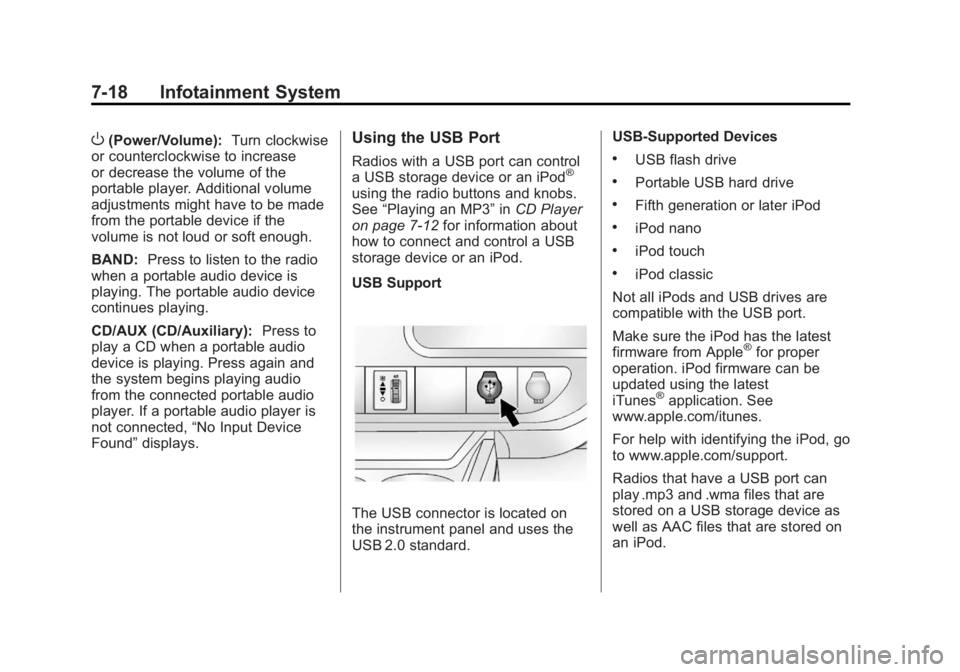
USB Support
The USB connector is located on
the instrument panel and uses the
USB 2.0 standard. USB‐Supported Devices
.USB flash drive
.Portable USB hard drive
.Fifth generation or later iPod
.iPod nano
.iPod touch
.iPod classic
Not all iPods and USB drives are
compatible with the USB port.
Make sure the iPod has the latest
firmware from Apple
®for proper
operation. iPod firmware can be
updated using the latest
iTunes
®application. See
www.apple.com/itunes.
For help with identifying the iPod, go
to www.apple.com/support.
Radios that have a USB port can
play .mp3 and .wma files that are
stored on a USB storage device as
well as AAC files that are stored on
an iPod.
Page 189 of 424
Black plate (19,1)GMC Savana Owner Manual - 2012 - 2nd - 11/15/11
Infotainment System 7-19
USB‐Supported File and Folder
Structure
The radio supports:
.Up to 700 folders.
.Up to eight folders in depth.
.Up to 65,535 files.
.Folder and file names up to
64 bytes.
.Files with an .mp3 or .wma file
extension.
.AAC files stored on an iPod.
.FAT16.
.FAT32.
Connecting a USB Storage
Device or iPod
The USB port can be used to
control an iPod or a USB storage
device.
To connect a USB storage device,
connect the device to the USB port
located on the instrument panel.To connect an iPod, connect one
end of the USB cable that came
with the iPod to the iPod’s dock
connector and connect the other
end to the USB port located on the
instrument panel. If the vehicle is on
and the USB connection works,
“OK
to disconnect” and a GM logo may
appear on the iPod, and iPod
appears on the radio display. The
iPod music appears on the radio
display and begins playing.
The iPod charges while it is
connected to the vehicle if the
vehicle is in the ACC/ACCESSORY
or ON/RUN position. When the
vehicle is turned off, the iPod
automatically powers off and will not
charge or draw power from the
vehicle's battery.
If you have an older iPod model that
is not supported, it can still be used
by connecting it to the auxiliary
input jack using a standard 3.5 mm
(1/8 in) stereo cable. See “Using the
Auxiliary Input Jack” earlier for more
information.
Using the Radio to Control a
USB Storage Device or iPod
The radio can control a USB
storage device or an iPod using the
radio buttons and knobs, and
display song information on the
radio display.
f(Tune): Turn to select files.
©SEEK:Press to go to the start of
the track, if more than 10 seconds
have played. Press and hold or
press multiple times to continue
moving backward through tracks.
¨SEEK: Press to go to the next
track. Press and hold or press
multiple times to continue moving
forward through tracks.
sREV (Reverse): Press and hold
to reverse playback quickly. Sound
is heard at a reduced volume.
Release
sREV to resume playing.
The elapsed time of the file
displays.
Page 190 of 424
GMC Savana Owner Manual - 2012 - 2nd - 11/15/11
7-20 Infotainment System
\FWD (Fast Forward):Press
and hold to advance playback
quickly. Sound is heard at a reduced
volume. Release
\")
Black plate (20,1)GMC Savana Owner Manual - 2012 - 2nd - 11/15/11
7-20 Infotainment System
\FWD (Fast Forward):Press
and hold to advance playback
quickly. Sound is heard at a reduced
volume. Release
\FWD to
resume playing. The elapsed time of
the file displays.
4(Information): Press to display
additional information about the
selected track.
Using Softkeys to Control a
USB Storage Device or iPod
The five softkeys below the radio
display are used to control the
functions listed below.
To use the softkeys:
1. Press the first or fifth softkey below the radio display to
display the functions listed
below, or press the softkey
below the function if it is
currently displayed.
2. Press the softkey below the tab with the function on it to use that
function.
j(Pause): Press the softkey belowjto pause the track. The tab
appears raised when pause is being
used. Press the softkey below
j
again to resume playback.
Back: Press the softkey below the
Back tab to go back to the main
display screen on an iPod, or the
root directory on a USB storage
device.
c(Folder View): Press the
softkey below
cto view the
contents of the current folder on the
USB drive. To browse and select
files:
1. Press the softkey below
c.
2. Turn
fto scroll through the list
of folders.
3. Press
fto select the desired
folder. If there is more then one
folder, repeat Steps 1 and 2 until
the desired folder is reached. 4. Turn
fto scroll through the files
in the selected folder.
5. Press
fto select the desired file
to be played.
To skip through large lists, the five
softkeys can be used to navigate in
the following order:
.First softkey, first item in the list.
.Second softkey, 1% through the
list each time the softkey is
pressed.
.Third softkey, 5% through the list
each time the softkey is pressed.
.Fourth softkey, 10% through the
list each time the softkey is
pressed.
.Fifth softkey, end of the list.
Page 191 of 424
Black plate (21,1)GMC Savana Owner Manual - 2012 - 2nd - 11/15/11
Infotainment System 7-21
h(Music Navigator):Press the
softkey below
hto view and
select a file on an iPod, using the
iPod's menu system. Files are
sorted by:
.Playlists
.Artists
.Albums
.Genres
.Songs
.Composers
To select files:
1. Press the softkey below
h.
2. Turn
fto scroll through the list
of menus.
3. Press
fto select the
desired menu. 4. Turn
fto scroll through the
folders or files in the
selected menu.
5. Press
fto select the desired file
to be played.
To skip through large lists, the five
softkeys can be used to navigate in
the following order:
.First softkey, first item in the list.
.Second softkey, 1% through the
list each time the softkey is
pressed.
.Third softkey, 5% through the list
each time the softkey is pressed.
.Fourth softkey, 10% through the
list each time the softkey is
pressed.
.Fifth softkey, end of the list. Repeat Functionality
To use Repeat:
Press the softkey below
"or'
to select between Repeat All and
Repeat Track.
"(Repeat All):
Press the softkey
below
"to repeat all tracks. The
tab appears lowered when Repeat
All is being used. This is the default
mode when a USB storage device
or iPod is first connected.
'(Repeat Track): Press the
softkey below
'to repeat one
track. The tab appears raised when
Repeat Track is being used.
Shuffle Functionality
To use Shuffle:
Press the softkey below
>,2,
C, or=to select between
Shuffle Off, Shuffle All Songs/
Shuffle Songs, Shuffle Album,
or Shuffle Folder.
Page 192 of 424

Black plate (22,1)GMC Savana Owner Manual - 2012 - 2nd - 11/15/11
7-22 Infotainment System
>(Shuffle Off):Press the
softkey below
2to turn shuffle
off. This is the default mode when a
USB storage device or iPod is first
connected.
2(Shuffle All Songs/Shuffle
Songs): Press the softkey below
=orCto shuffle all songs on
the USB storage device or iPod.
C(Shuffle Album): Press the
softkey below
>to shuffle all
songs in the current album on
an iPod.
=(Shuffle Folder): Press the
softkey below
>to shuffle all
songs in the current folder on a USB
storage device.
Phone
Bluetooth
For vehicles equipped with
Bluetooth capability, the system can
interact with many cell phones,
allowing:
.Placement and receipt of calls in
a hands-free mode.
.Sharing of the cell phone’s
address book or contact list with
the vehicle.
To minimize driver distraction,
before driving, and with the vehicle
parked:
.Become familiar with the
features of the cell phone.
Organize the phone book and
contact lists clearly and delete
duplicate or rarely used entries.
If possible, program speed dial
or other shortcuts.
.Review the controls and
operation of the infotainment
system.
.Pair cell phone(s) to the vehicle.
The system may not work with
all cell phones. See “Pairing”in
this section for more information.
.If the cell phone has voice
dialing capability, learn to use
that feature to access the
address book or contact list. See
“Voice Pass-Thru” in this section
for more information.
.See “Storing and Deleting Phone
Numbers” in this section for
more information.
{WARNING
When using a cell phone, it can
be distracting to look too long or
too often at the screen of the
phone or the infotainment
(navigation) system. Taking your
eyes off the road too long or too
often could cause a crash
resulting in injury or death. Focus
your attention on driving.