Page 28 of 406

Keyless Vehicle MessageAction / Description
STEERING LOCK
ENGAGED. TURN
STEERING WHEEL—Displays when you need to
turn the steering wheel in
order to disengage the
steering lock.
STEERING
MALFUNCTION SERVICE
NOWAmberContact your authorized
dealer.
STEERING
MALFUNCTION STOP
SAFELYRedStop the vehicle in a safe
place. Contact your authorized
dealer.
FORD KEYFREE KEY
INSIDE VEHICLE
AmberDisplays to remind you that
the key is in the trunk. Refer
toPush button start system
in theDrivingchapter for
more information.
FORD KEYFREE NO KEY
DETECTED
—Displayed if the key is not
detected by the system. Refer
toPush button start system
in theDrivingchapter for
more information.
FORD KEYFREE SWITCH
IGNITION OFF PRESS
POWERRedRefer toPush button start
systemin theDriving
chapter for more information.
FORD KEYFREE KEY NOT
INSIDE CARRedRefer toPush button start
systemin theDriving
chapter for more information.
FORD KEYFREE PRESS
BRAKE TO START
—Displays as a reminder to
apply the brake pedal when
starting the vehicle. Refer to
Push button start systemin
theDrivingchapter for more
information.
Instrument Cluster
28
2012 Focus(foc)
Owners Guide, 1st Printing
USA(fus)
Page 29 of 406

Keyless Vehicle MessageAction / Description
KEY BATTERY LOW
REPLACE SOON
—Displays when the key battery
is low. Change the battery as
soon as possible. Refer to he
Locks and Securitychapter
for more information.
FORD KEYFREE PLACE
KEY IN KEY HOLDER
—Displays when the key needs
to be inserted into the backup
slot. Refer toPush button
start systemin theDriving
chapter for more information.
Lighting MessageAction / Description
BRAKE LAMP BULB
FAULT—Displays when the brake lamp
bulb has burned out. Contact
your authorized dealer.
DIPPED BEAM BULB
FAULT
—Displays when the low beam
headlamp bulb has burned
out. Contact your authorized
dealer.
HEADLMAP
MALFUNCTION SERVICE
REQUIREDAmberDisplays when an electrical
system problem occurs with
the headlamp system. Contact
your authorized dealer.
Maintenance MessageAction / Description
ENGINE OIL CHANGE
DUE
—Displays when the engine oil
life is depleted and requires a
change. SeeEngine oilin the
Maintenance and
specificationschapter for
more information.
ENGINE MALFUNCTION
SERVICE NOWAmberEngine service is required.
Contact your authorized
dealer.
Instrument Cluster
29
2012 Focus(foc)
Owners Guide, 1st Printing
USA(fus)
Page 30 of 406

Maintenance MessageAction / Description
BRAKE FLUID LEVEL LOW
SERVICE NOW
RedIndicates the brake fluid level
is low and the brake system
should be inspected
immediately. Refer toBrake
fluidin theMaintenance
and Specificationschapter.
Contact your authorized
dealer.
WASHER FLUID LEVEL
LOW
—Displays when the washer
fluid is low and needs to be
refilled. Refer toWindshield
washer fluidin the
Maintenance and
Specificationschapter.
BRAKE SYSTEM
MALFUNCTION STOP
SAFELYRedDisplays when the brake
system needs servicing. Stop
the vehicle in a safe place.
Contact your authorized
dealer.
HIGH ENGINE
TEMPERATURE STOP
SAFELY
RedDisplays when the engine
temperature is too high. Stop
the vehicle in a safe place and
allow to engine to cool. If the
problem persists, contact your
authorized dealer.
MyKey�MessageAction / Description
MYKEY ACTIVE DRIVE
SAFELY—Displays when MyKey�is
active.
MYKEY NOT CREATED
—Displays during key
programming when MyKey�
cannot be programmed.
Instrument Cluster
30
2012 Focus(foc)
Owners Guide, 1st Printing
USA(fus)
Page 31 of 406
MyKey�MessageAction / Description
MYKEY SPEED LIMITED
TO XX
—Displays when starting the
vehicle and MyKey�is in use
and the MyKey speed limit is
on. Refer toMyKey�in the
Locks and Securitychapter
for more information.
MYKEY VEHICLE NEAR
TOP SPEED
AmberDisplays when a MyKey�is in
use and the MyKey speed
limit is on and the vehicle
speed is approaching 80 mph
(130 km/h). Refer toMyKey�
in theLocks and Security
chapter for more information.
MYKEY BUCKLE UP TO
UNMUTE AUDIO
—Displays when a MyKey�is in
use and Belt-Minder�is
activated. Refer toMyKey�in
theLocks and Security
chapter for more information.
MYKEY PARK AID
CANNOT BE
DEACTIVATED—Displays when a MyKey�is in
use and park aid is activated.
Refer toMyKey�in theLocks
and Securitychapter for
more information.
KEY IS ALREADY A
MYKEY
—Displays when trying to create
a MyKey�with a key already
designated as a MyKey�.
Refer toMyKey�in theLocks
and Securitychapter for
more information.
MYKEY PLACE KEY IN
KEY HOLDER
—Displays when programming a
MyKey�. Refer toMyKey�in
theLocks and Security
chapter for more information.
Instrument Cluster
31
2012 Focus(foc)
Owners Guide, 1st Printing
USA(fus)
Page 32 of 406
MyKey�MessageAction / Description
MYKEY ESC CANNOT BE
DEACTIVATED
—Displays when a MyKey�is
active and trying to disable
ESC. Refer toMyKey�in the
Locks and Securitychapter
for more information.
Park Aid MessageAction / Description
PARKING AID
MALFUNCTION SERVICE
REQUIREDAmberDisplays when the system has
detected a condition that
requires service. Contact your
authorized dealer.
Park Brake MessageAction / Description
PARK BRAKE APPLIED
RedDisplays when the parking
brake is set, the engine is
running and the vehicle is
driven more than 3 mph
(5 km/h). If the warning stays
on after the parking brake is
released.
Power Steering MessageAction / Description
STEERING LOSS STOP
SAFELY
RedThe power steering system is
not working. Stop the vehicle
in a safe place. Contact your
authorized dealer.
STEERING ASSIST FAULT
SERVICE REQUIRED
AmberThe power steering system
required service. Stop the
vehicle in a safe place.
Contact your authorized
dealer.
Instrument Cluster
32
2012 Focus(foc)
Owners Guide, 1st Printing
USA(fus)
Page 41 of 406
Note:To scroll through the following menus and make adjustments,
press
/or/. Pressto return to the previous screen
or
to advance to the next screen. At any time, you can press MENU
to close the menu screen.
•Radio:Scroll to select Radio mode and then move right to enter the
menu. Scroll to select from:
•Scan:Select to hear a brief sampling of all available radio stations.
•Set Category:Select to choose a specific music category in FM
mode. You can then search for stations only playing this kind of
music.Note:RBDS/RDS text must be turn on before “Set
Category” will appear.
•RBDS/RDS Text:Select to turn Radio Broadcast Digital Signal
text on to view additional broadcast data.Note:This feature
defaults to off, but it must be turned on in order for you to choose
and set a category. When this feature is activated, all of your text
will scroll on one line. To see all of your text, press the Info soft
key.
•SIRIUS (if equipped):Scroll to select SIRIUS and then move right
to enter the menu. Scroll to select from:
•Scan:Select for a brief sampling of all available channels.
•Show ESN:Select to view your Satellite Radio Electronic Serial
Number (ESN). You will need this number when communicating
with SIRIUS�to activate, modify or track your satellite radio
account.
•Channel Guide:Select to view a listing of available satellite radio
channels. Press OK or
to enter the Channel Guide and then
scroll through available channels. In this guide, you can choose to
Tune Channel, Skip Channel or Lock Channel by pressing the OK
button when the desired channel is selected. Once a channel has
been skipped or locked, you can only access those channels by
pressing Direct and entering in the channel number. Locking or
unlocking a channel also requires you to enter your PIN.
•Set Category:Select to scroll through a list of available SIRIUS�
channel categories (Pop, Rock, News, etc.)Note:If you select a
category, the seek and scan functions will only stop on channels in
that category.
Entertainment Systems
41
2012 Focus(foc)
Owners Guide, 1st Printing
USA(fus)
Page 43 of 406
•Display Settings:Scroll to select Display Settings and then move
right to enter the menu. Select to set the Language of the display or
the Temp. Setting.
4.Sound menu:Press access Treble, Bass, Fade (if equipped) and
Balance menu options. Use
/to cycle through the various options.
When the desired option is chosen, press
/to increase or
decrease the levels. Press OK to set or MENU to exit.
5.Memory presets:To save a station, tune to the desired station. Press
and hold a preset button until the information pop-up timer expires and
stored preset # pop-up appears.
6.On/Off/Volume:Press to turn the system on or off. Turn to adjust the
volume.
7.PHONE:Press to access SYNC�phone features if available. Refer to
the SYNC�section for more information. If your vehicle is not equipped
with SYNC�. the display will read MUTE and will mute the playing
media.
8.AUX:Press to access LINE IN (auxiliary input jack) mode or SYNC�
media mode (if equipped).
9.SIRIUSPress repeatedly to access SAT1, SAT2 and SAT3 satellite
radio modes (if equipped). You may also be able to select on-screen
options (via the soft keys) of Replay, Direct and Info.
10.RADIO:Press repeatedly to select AM1/AM2AST/FM1/FM2AST
frequency bands. Use the soft keys to select from possible on-screen
options of: Mute (mutes your current playing media), AST (Autostore
feature), Manual Tune (select to manually tune up/down the frenquency
band) or Info (provides additional information if available). You can also
press RADIO to return to the radio base screen when browsing.
Autostore feature:The autostore feature allows you to store the 10
strongest local stations available from the AM and FM frequency bands.
To use, press the AST soft key at the bottom of the screen. The display
will read ‘Hold to start autostore’. Continue holding the button until
‘Autostoring’ appears in the display. When the search is complete, the
sound will return and the 10 strongest stations will be stored in the
memory presets (and overwrite any stations previously stored in the AST
band). You can also manually store stations in the AST band. When the
AST band is active, simply tune to the desired station and press and hold
a memory preset. The new station will be saved and will override the
previously saved station.
Entertainment Systems
43
2012 Focus(foc)
Owners Guide, 1st Printing
USA(fus)
Page 44 of 406
11.CD:Press to enter CD mode. Use the soft keys to select from
possible on-screen options of play/pause, Rpt (repeat), and Shuff
(shuffle).
12.
/(Reverse/Fast forward):Press to access the
previous/next track. Press and hold for a fast reverse or advance through
a track.
13.
(Eject):Press to eject a CD.
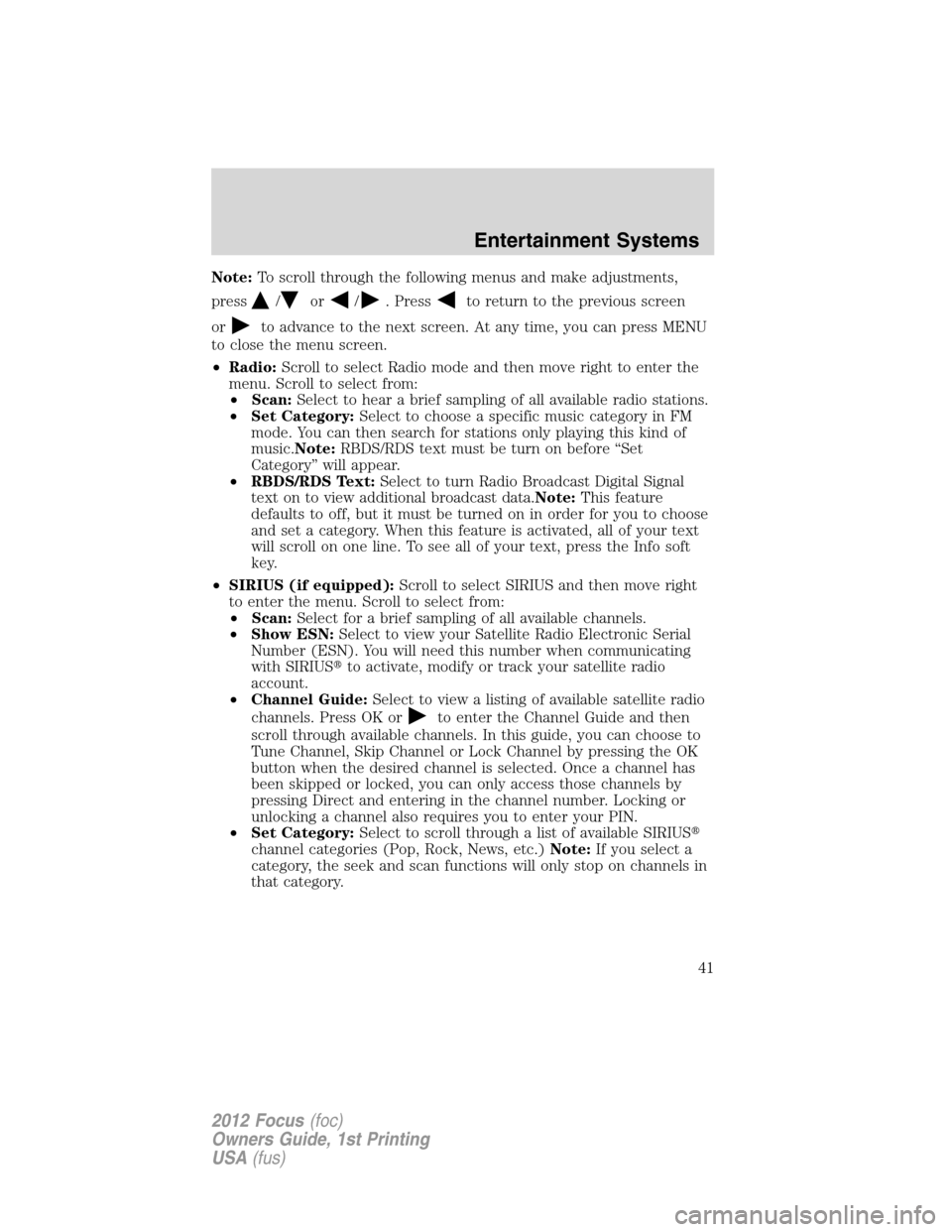
14–17. Soft keys:Press to choose
the corresponding selection (if
available) in the display.
XXX XXX XXX XXX
17161514
Entertainment Systems
44
2012 Focus(foc)
Owners Guide, 1st Printing
USA(fus)