Page 92 of 406
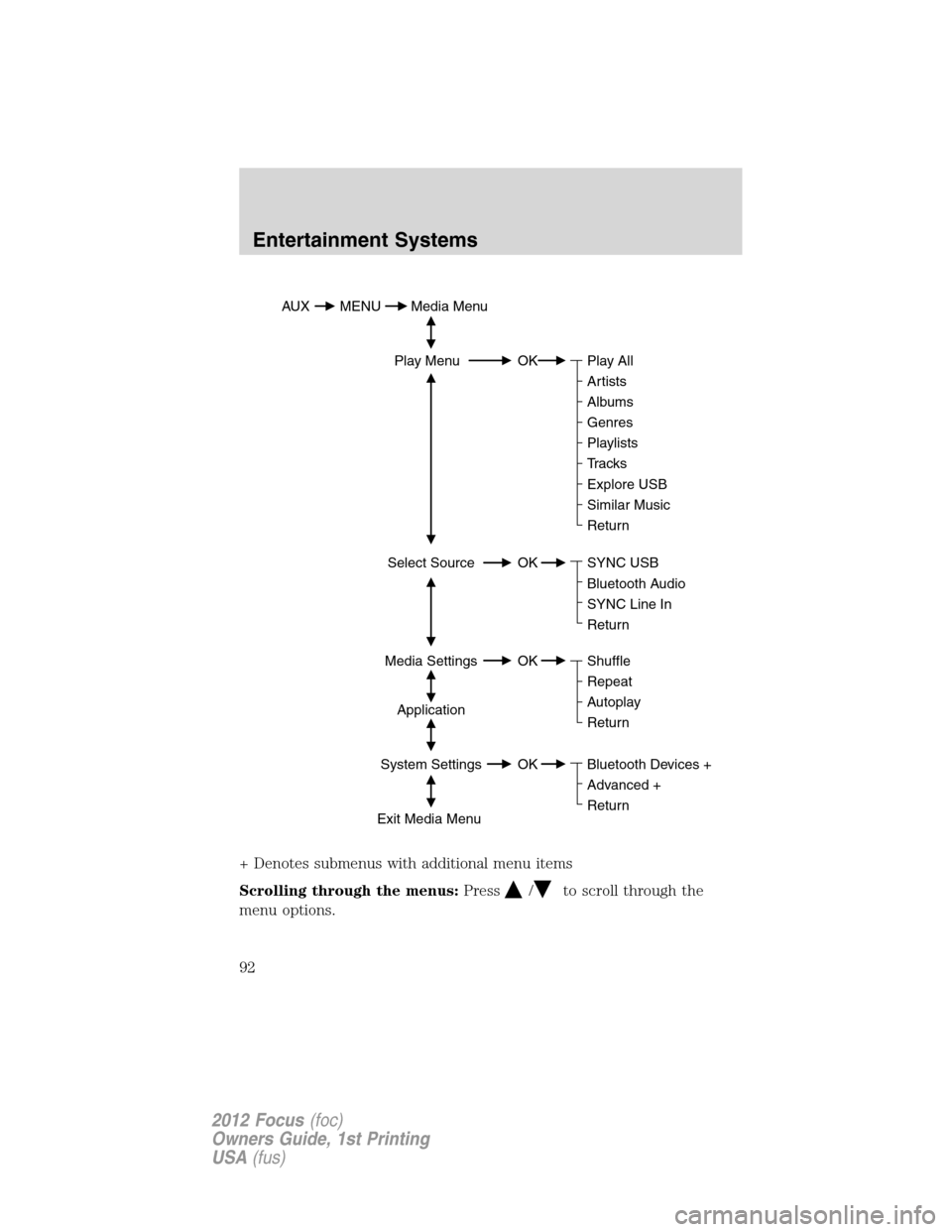
+ Denotes submenus with additional menu items
Scrolling through the menus:Press
/to scroll through the
menu options.
AUX MENU Media Menu
Play Menu OK
Select Source OK
Media Settings OK
Application
System Settings OK
Exit Media Menu Play All
Artists
Albums
Genres
Playlists
Tracks
Explore USB
Similar Music
Return
Bluetooth Devices +
Advanced +
Return Shuffle
Repeat
Autoplay
Return SYNC USB
Bluetooth Audio
SYNC Line In
Return
Entertainment Systems
92
2012 Focus(foc)
Owners Guide, 1st Printing
USA(fus)
Page 93 of 406
Accessing the features of your media menu
SYNC’s media menu allows you to select which source you would like to
listen to, how you would like to play your music (by artist, genre, shuffle,
repeat, etc.), and also if you need to add, connect or delete devices.
To access your media menu:
1. Press AUX and then MENU to access theMedia Menu.
2. Scroll to cycle through the following features:
Play Menu: Allows you to play your music by artist, album, genre,
playlists, tracks, similar music or to simply, play all. You can also choose
to Explore USB to view the supported digital music files on your playing
device.
Refer toPlay Menulater in this section for more information.
Select Source: Allows you to select and play music from your USB port,
auxiliary input jack (line in) or stream music from yourBluetooth
enabled phone. Press OK to select and then scroll to choose from:
•*USB: Press OK to access music plugged into your USB port.
SYNC will also allow you to plug in devices to charge them (if
supported by your device).
•Bluetooth Audio:This is a phone dependent featurewhich
allows you to stream music playing on yourBluetoothenabled
phone. If supported by your device, you can press
SEEKto
access the previous/next track.
•Line in: Press OK to select and play music from your portable
music player over the vehicle’s speakers.Note:If you have already
connected a device to the USB port, you cannot access the line in
feature. Some digital media players require both USB and Line in
ports to stream data and music separately.
* Once connected, SYNC will index any readable media files. (The
time required to complete this depends on the size of the media
content being indexed.) IfAutoplayis on, you can access media
files randomly as they are indexed. If turned off, indexed media is
not available until the indexing process is complete. SYNC is
capable of indexing thousands of average size media and will notify
you if the maximum indexing file size is reached.
Entertainment Systems
93
2012 Focus(foc)
Owners Guide, 1st Printing
USA(fus)
Page 94 of 406
Media Settings: Allows you to choose to shuffle or repeat your music in
addition to setting your Autoplay settings. Press OK to select and then
scroll to choose from:
•Shuffle: Press OK to shuffle available media files in the current
playlist.Note:To shuffle all media tracks, you must selectPlay All
in the Play Menu and then select Shuffle.
•Repeat: Press OK to repeat any song.
•Autoplay: Press OK to listen to music which has already been
randomly indexed during the indexing process.
Note:Once these selections are turned on, they will remain on
until turned off. Some digital media players require both USB and
Line in ports to stream data and music separately.
Applications (if available):You can download new software
applications (if available) and then load the desired applications onto
SYNC through your USB port. Please refer to www.SyncMyRide.com or
www.syncmaroute.ca for more information.
System Settings: Allows you to accessBluetoothDevice menu listings
(add, connect, set as primary, on/off, delete) as well as Advanced menu
listings (prompts, languages, defaults, master reset, install application
and system information).
•Please refer toSystem Settingsin this chapter for complete
information.
Exit Media Menu: Press OK when this appears to exit the media menu.
Accessing your play menu
The Play menu allows you to select and play your media by artist, album,
genre, playlist, track, similar music or even to explore what is on your
USB device.
To access:
1. Press AUX and then MENU to access theMedia Menu.
2. Scroll to select thePlay Menuand press OK.
3. If there are no media files to access, the display will indicate there is
no media. If there are media files, you will then have the following
options to scroll through and select from:
Play All: Allows you to play all indexed media (tracks) from your
playing device in flat file mode, one at a time in numerical order.
Entertainment Systems
94
2012 Focus(foc)
Owners Guide, 1st Printing
USA(fus)
Page 97 of 406
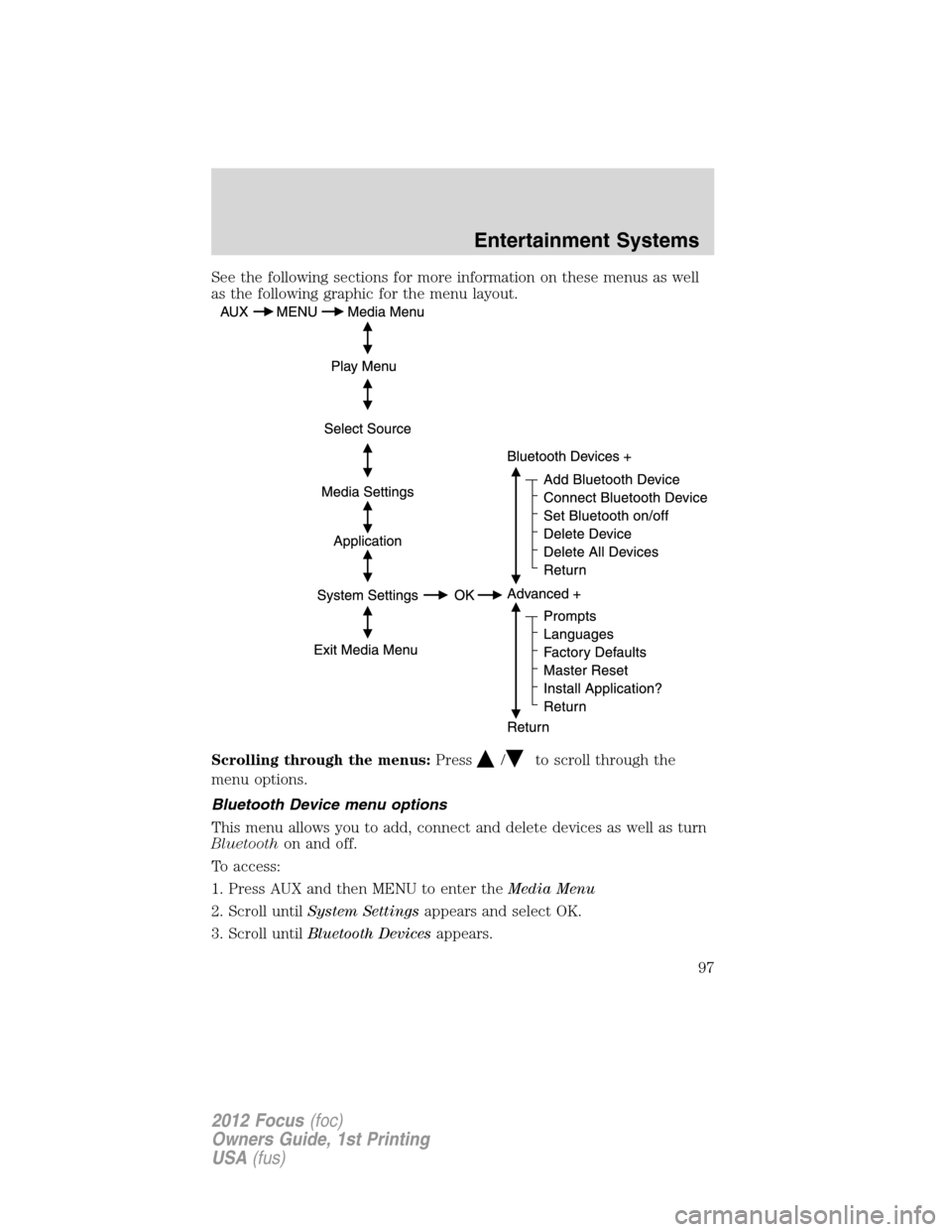
See the following sections for more information on these menus as well
as the following graphic for the menu layout.
Scrolling through the menus:Press
/to scroll through the
menu options.
Bluetooth Device menu options
This menu allows you to add, connect and delete devices as well as turn
Bluetoothon and off.
To access:
1. Press AUX and then MENU to enter theMedia Menu
2. Scroll untilSystem Settingsappears and select OK.
3. Scroll untilBluetooth Devicesappears.
Entertainment Systems
97
2012 Focus(foc)
Owners Guide, 1st Printing
USA(fus)
Page 98 of 406
4. Press OK and then scroll to select from the following:
Add Bluetooth Device: This is a speed dependent featurewhich
allows you to pair additional devices to the system.
1. Press OK to select and press OK again whenFind SYNCappears
in the display.
2. Follow the directions in your phone’s user guide to put your
phone into discovery mode. A six digit PIN will appear in the
display.
3. When prompted on your phone’s six digit display, enter the PIN.
You can now change SYNC sources to BT Audio and stream music
from your device.
Connect Bluetooth Device: Allows you to connect a previously paired
Bluetoothenabled phone.
1. Press OK to select and view a list of devices.
2. Scroll until the desired device is chosen and press OK to connect
the device.
Set Bluetooth On/Off: Allows you to turn theBluetoothfeature on /off.
•Press OK and scroll to toggle between On and Off. When the
desired selection is chosen, press OK.
Note:Turning OffBluetoothwill disconnect allBluetoothdevices
and deactivate allBluetoothfeatures.
Delete Device: Allows you to delete a paired media device.
•Press OK and scroll to select the device. Press OK to confirm.
Delete All Devices: Allows you to delete all previously paired devices.
•Press OK to select.
Return: Press OK to exit the current menu.
Advanced menu options
This menu allows you to access settings such as prompts, language,
performing a master reset as well as returning to factory defaults.
To access:
1. Press AUX and then MENU to access theMedia Menu.
2. Scroll untilSystem Settingsappears and select OK.
3. Scroll untilAdvancedappears.
Entertainment Systems
98
2012 Focus(foc)
Owners Guide, 1st Printing
USA(fus)
Page 136 of 406
WARNING:Never adjust the steering wheel when the vehicle is
moving.
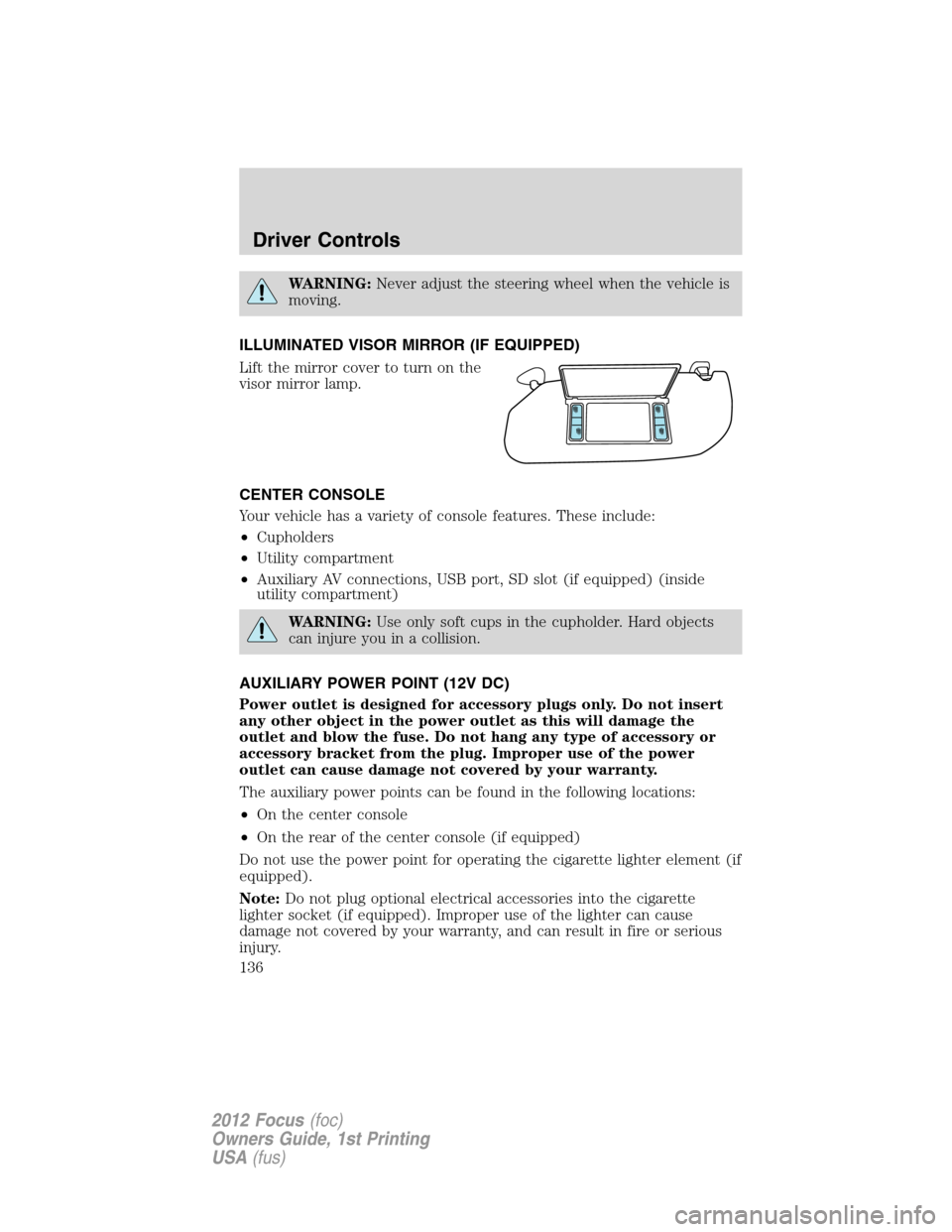
ILLUMINATED VISOR MIRROR (IF EQUIPPED)
Lift the mirror cover to turn on the
visor mirror lamp.
CENTER CONSOLE
Your vehicle has a variety of console features. These include:
•Cupholders
•Utility compartment
•Auxiliary AV connections, USB port, SD slot (if equipped) (inside
utility compartment)
WARNING:Use only soft cups in the cupholder. Hard objects
can injure you in a collision.
AUXILIARY POWER POINT (12V DC)
Power outlet is designed for accessory plugs only. Do not insert
any other object in the power outlet as this will damage the
outlet and blow the fuse. Do not hang any type of accessory or
accessory bracket from the plug. Improper use of the power
outlet can cause damage not covered by your warranty.
The auxiliary power points can be found in the following locations:
•On the center console
•On the rear of the center console (if equipped)
Do not use the power point for operating the cigarette lighter element (if
equipped).
Note:Do not plug optional electrical accessories into the cigarette
lighter socket (if equipped). Improper use of the lighter can cause
damage not covered by your warranty, and can result in fire or serious
injury.
Driver Controls
136
2012 Focus(foc)
Owners Guide, 1st Printing
USA(fus)
Page 336 of 406
Working with the engine on
1. For vehicles equipped with an automatic transmission, set the parking
brake and shift to P (Park). For vehicles equipped with a manual
transmission, set the parking brake, press and hold the clutch pedal,
place the gearshift in N (Neutral), and release the clutch pedal.
2. Block the wheels.
WARNING:To reduce the risk of vehicle damage and/or
personal burn injuries, do not start your engine with the air
cleaner removed and do not remove it while the engine is running.
OPENING THE HOOD
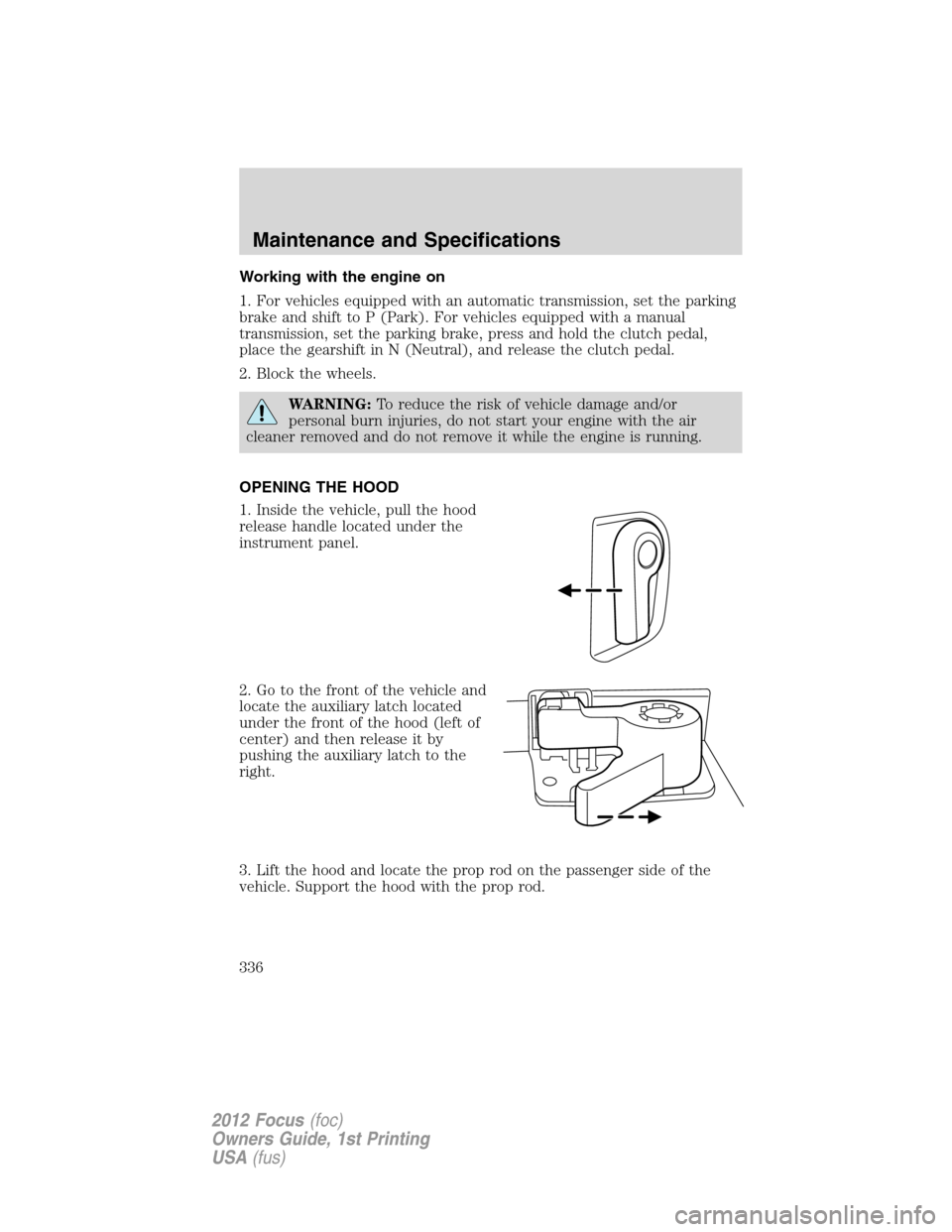
1. Inside the vehicle, pull the hood
release handle located under the
instrument panel.
2. Go to the front of the vehicle and
locate the auxiliary latch located
under the front of the hood (left of
center) and then release it by
pushing the auxiliary latch to the
right.
3. Lift the hood and locate the prop rod on the passenger side of the
vehicle. Support the hood with the prop rod.
Maintenance and Specifications
336
2012 Focus(foc)
Owners Guide, 1st Printing
USA(fus)
Page 369 of 406
MAINTENANCE PRODUCT SPECIFICATIONS AND CAPACITIES
Item CapacityFord Part Name or
EquivalentFord Part Number / Ford
Specification
Brake fluid (and clutch
fluid–if equipped)Between MIN
and MAX on
reservoirMotorcraft�High
Performance DOT 3
Motor Vehicle Brake
FluidPM-1-C /
WSS-M6C62-A or
WSS-M6C65-A1
Door latch, hood latch,
auxiliary hood latch,
trunk latch, seat
tracks.—Multi-Purpose Grease
(Lithium grease)XG-4 or XL-5 or equivalent
/
ESB-M1C93-B
Lock cylinder —Motorcraft�Penetrating
and Lock LubricantXL-1 /
None
Automatic transmission
fluid1.9 quarts
(1.8L)
1
Motorcraft�Dual Clutch
Transmission Fluid
2
XT-11-QDC
Manual transmission
fluid1.9 quarts
(1.8L)
1
Motorcraft�Full
Synthetic Manual
Transmission FluidBOT350-M3 /
WSS-M2C200-D2
Maintenance and Specifications
369
2012 Focus(foc)
Owners Guide, 1st Printing
USA(fus)