Page 58 of 102
VEHICLE SETTINGS
Vehicle settings allow to you access and make adjustments to many
features (if available) such as:
•Ambient lighting
•Vehicle Health Report (if equipped, U.S. only): Refer toVehicle
Health Reportin theSYNC�Services and Appschapter in this
supplement.
•Rear View Camera
•Enable Valet Mode
•Edit Door Keypad code
Ambient lighting (if equipped)
When activated, ambient lighting will illuminate footwells and cupholders
with a choice of colors. To access:
1. Press Menu > Vehicle > Ambient lighting.
2. Touch the desired color.
3. Use the scroll bar to increase/decrease the intensity.
To turn the feature on/off, simply press the power button (
).
Rearview camera (if equipped)
The rear-view camera provides a video image of the area behind the
vehicle.
1. Press Menu > Vehicle > Reverse camera.
2. Select from the following settings:
•Rear camera delay•Visual park aid alert
•Guideline
Valet mode
Valet mode allows you to lock the system so that none of your
information on the system can be accessed until it is unlocked with the
correct PIN.
1. Press Menu > Vehicle > Valet mode.
2. Select ‘Enable valet mode’.
3. When prompted, enter a four digit PIN.
Note:After you press to ‘Continue’ the system will be locked until the
correct PIN is entered again.
Menu features
58
2012 HMI-1 Gen 2(fd1)
Supplement, 1st Printing
USA(fus)
Page 59 of 102
Note:If you are locked out and need to reset the PIN, you can enter
3681 and the system will unlock.
Changing your door keypad code (if equipped)
To change the keypad code for your keyless entry keypad system:
1. Press Menu > Vehicle > Edit door keypad code.
2. Enter your current factory code and, when prompted, enter the new
code you would like.
Active Park Assist (if equipped)
When activated, your system will display directions for you regarding the
active park assist process.
For complete information on this system, please refer toActive Park
Assistin theDrivingchapter of your Owner’s Guide.
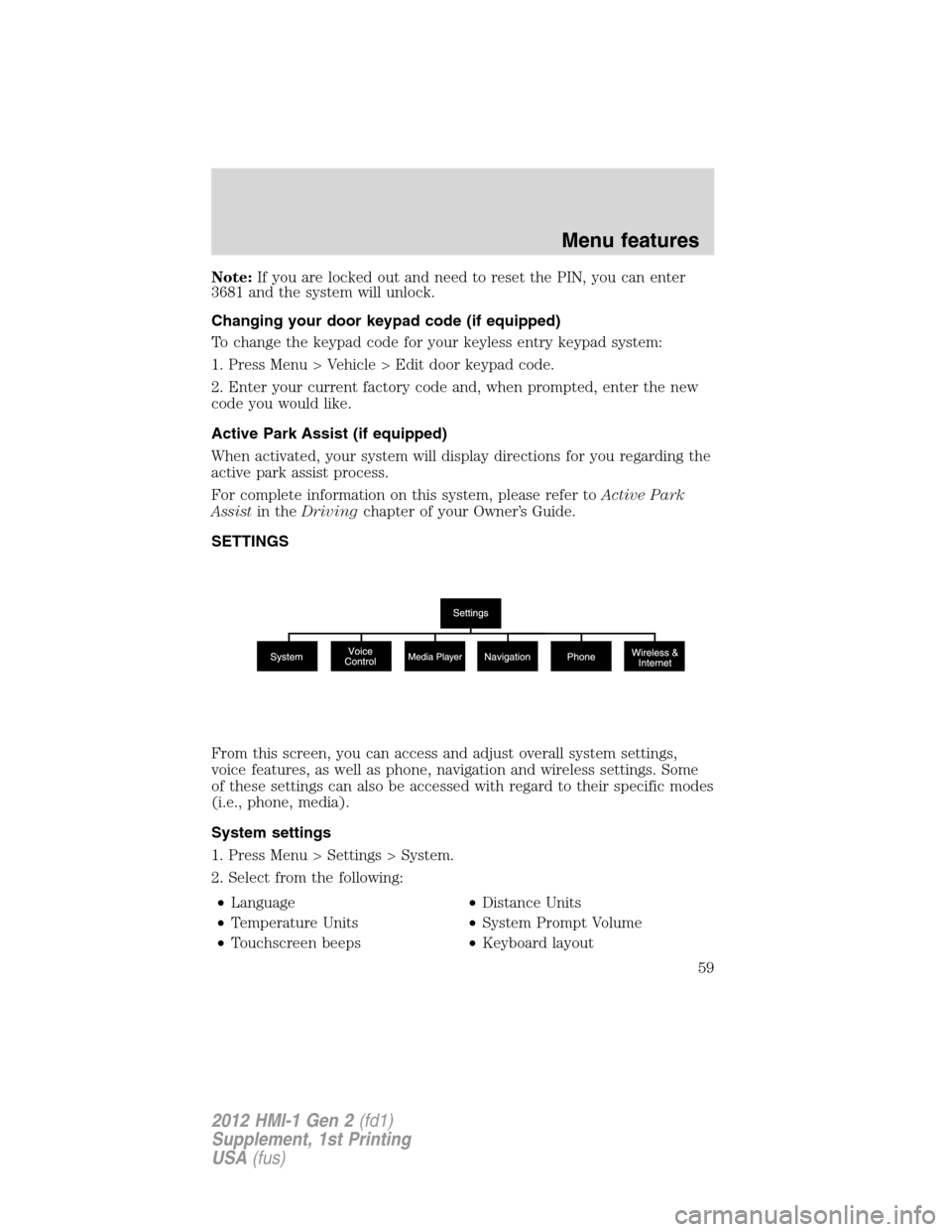
SETTINGS
From this screen, you can access and adjust overall system settings,
voice features, as well as phone, navigation and wireless settings. Some
of these settings can also be accessed with regard to their specific modes
(i.e., phone, media).
System settings
1. Press Menu > Settings > System.
2. Select from the following:
•Language•Distance Units
•Temperature Units•System Prompt Volume
•Touchscreen beeps•Keyboard layout
Menu features
59
2012 HMI-1 Gen 2(fd1)
Supplement, 1st Printing
USA(fus)
Page 68 of 102
•Distributes air through the windshield defroster vents and
demister vents.
10.Manual controls:Select any of the following airflow distribution
modes:
•
:Distributes air through the windshield defroster vents,
demister vents, floor vents and rear seat floor vents, and provide
outside air to reduce window fogging.
•
:Distributes air through the instrument panel vents.
•
:Distributes air through the instrument panel vents,
demister vents, floor vents and rear seat floor vents.
•
:Distributes air through the demister vents, floor vents and
rear seat floor vents.
11.Driver settings:Depending on your vehicle and option package, you
may have the following features:
•Touch the red or blue arrow to increase or decrease the
temperature.
•Touch
to control the heated seat (if equipped). Refer to the
Seat and Safety Restraintschapter of theOwner’s Guide
•Touch
to control the cooled seat (if equipped). Refer to the
Seat and Safety Restraintschapter of theOwner’s Guide
•Touch and hold MyTemp to select a temperature you would like
the vehicle to remember and maintain for you.
•Touch
to activate your heated steering wheel (if equipped).
Note:The steering wheel is not heated between the 10 o’clock and
2 o’clock positions.
REAR CONTROLS (IF EQUIPPED)
If ‘Rear’ appears in the lower right corner when your climate screen is
active, you have rear climate controls. When the arrow icon is down
(
), you have access to the rear controls and they will display along
on the bottom of the screen under the Rear Climate heading.
•Press
to turn on/off the Rear Climate controls.
Climate features
68
2012 HMI-1 Gen 2(fd1)
Supplement, 1st Printing
USA(fus)
Page 78 of 102
MAP MODE
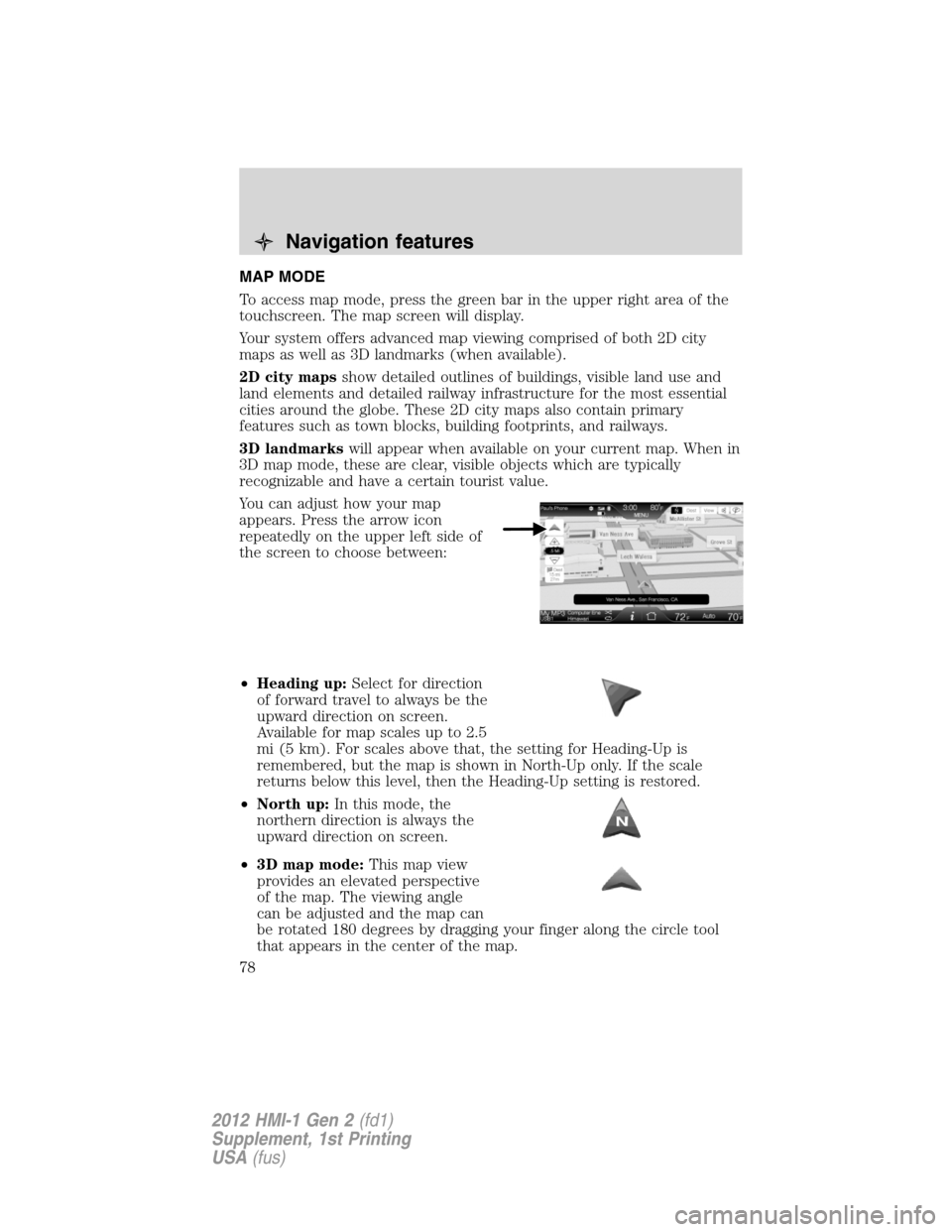
To access map mode, press the green bar in the upper right area of the
touchscreen. The map screen will display.
Your system offers advanced map viewing comprised of both 2D city
maps as well as 3D landmarks (when available).
2D city mapsshow detailed outlines of buildings, visible land use and
land elements and detailed railway infrastructure for the most essential
cities around the globe. These 2D city maps also contain primary
features such as town blocks, building footprints, and railways.
3D landmarkswill appear when available on your current map. When in
3D map mode, these are clear, visible objects which are typically
recognizable and have a certain tourist value.
You can adjust how your map
appears. Press the arrow icon
repeatedly on the upper left side of
the screen to choose between:
•Heading up:Select for direction
of forward travel to always be the
upward direction on screen.
Available for map scales up to 2.5
mi (5 km). For scales above that, the setting for Heading-Up is
remembered, but the map is shown in North-Up only. If the scale
returns below this level, then the Heading-Up setting is restored.
•North up:In this mode, the
northern direction is always the
upward direction on screen.
•3D map mode:This map view
provides an elevated perspective
of the map. The viewing angle
can be adjusted and the map can
be rotated 180 degrees by dragging your finger along the circle tool
that appears in the center of the map.
Navigation features
78
2012 HMI-1 Gen 2(fd1)
Supplement, 1st Printing
USA(fus)
Page 101 of 102
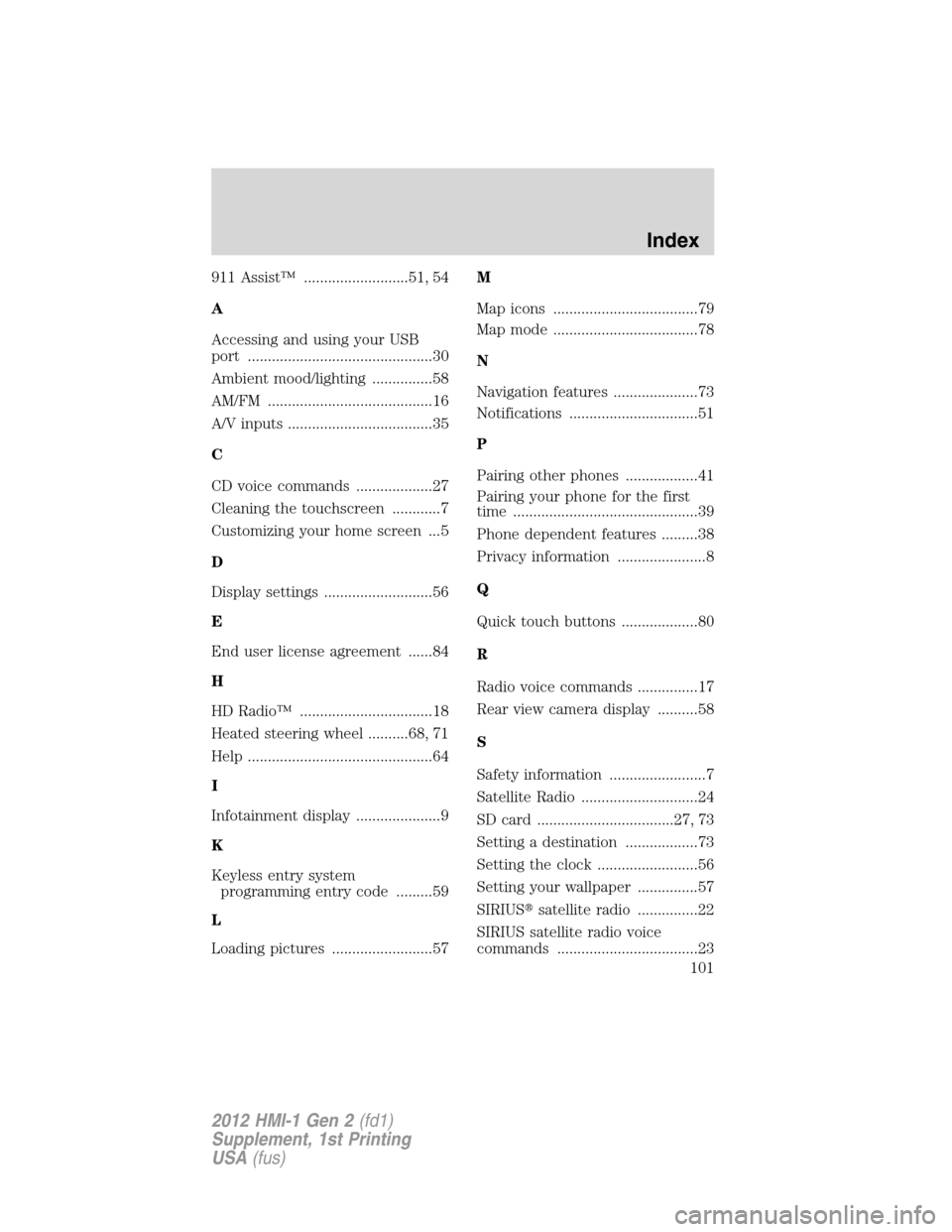
911 Assist™ ..........................51, 54
A
Accessing and using your USB
port ..............................................30
Ambient mood/lighting ...............58
AM/FM .........................................16
A/V inputs ....................................35
C
CD voice commands ...................27
Cleaning the touchscreen ............7
Customizing your home screen ...5
D
Display settings ...........................56
E
End user license agreement ......84
H
HD Radio™ .................................18
Heated steering wheel ..........68, 71
Help ..............................................64
I
Infotainment display .....................9
K
Keyless entry system
programming entry code .........59
L
Loading pictures .........................57M
Map icons ....................................79
Map mode ....................................78
N
Navigation features .....................73
Notifications ................................51
P
Pairing other phones ..................41
Pairing your phone for the first
time ..............................................39
Phone dependent features .........38
Privacy information ......................8
Q
Quick touch buttons ...................80
R
Radio voice commands ...............17
Rear view camera display ..........58
S
Safety information ........................7
Satellite Radio .............................24
SD card ..................................27, 73
Setting a destination ..................73
Setting the clock .........................56
Setting your wallpaper ...............57
SIRIUS�satellite radio ...............22
SIRIUS satellite radio voice
commands ...................................23
Index
101
2012 HMI-1 Gen 2(fd1)
Supplement, 1st Printing
USA(fus)