Page 128 of 395
CARGO AREA FEATURES
The rear seatbacks have a fold down feature to allow
increased cargo capacity.
Push down the release button, located at the outboard
top of the seatback and move the seatback to its folded-
down position to provide a flat load floor cargo area.
When returning the seatback to its upright position, push
rearward until the seatback is properly latched.
Rear Seat Release Buttons
126 UNDERSTANDING THE FEATURES OF YOUR VEHICLE
Page 131 of 395
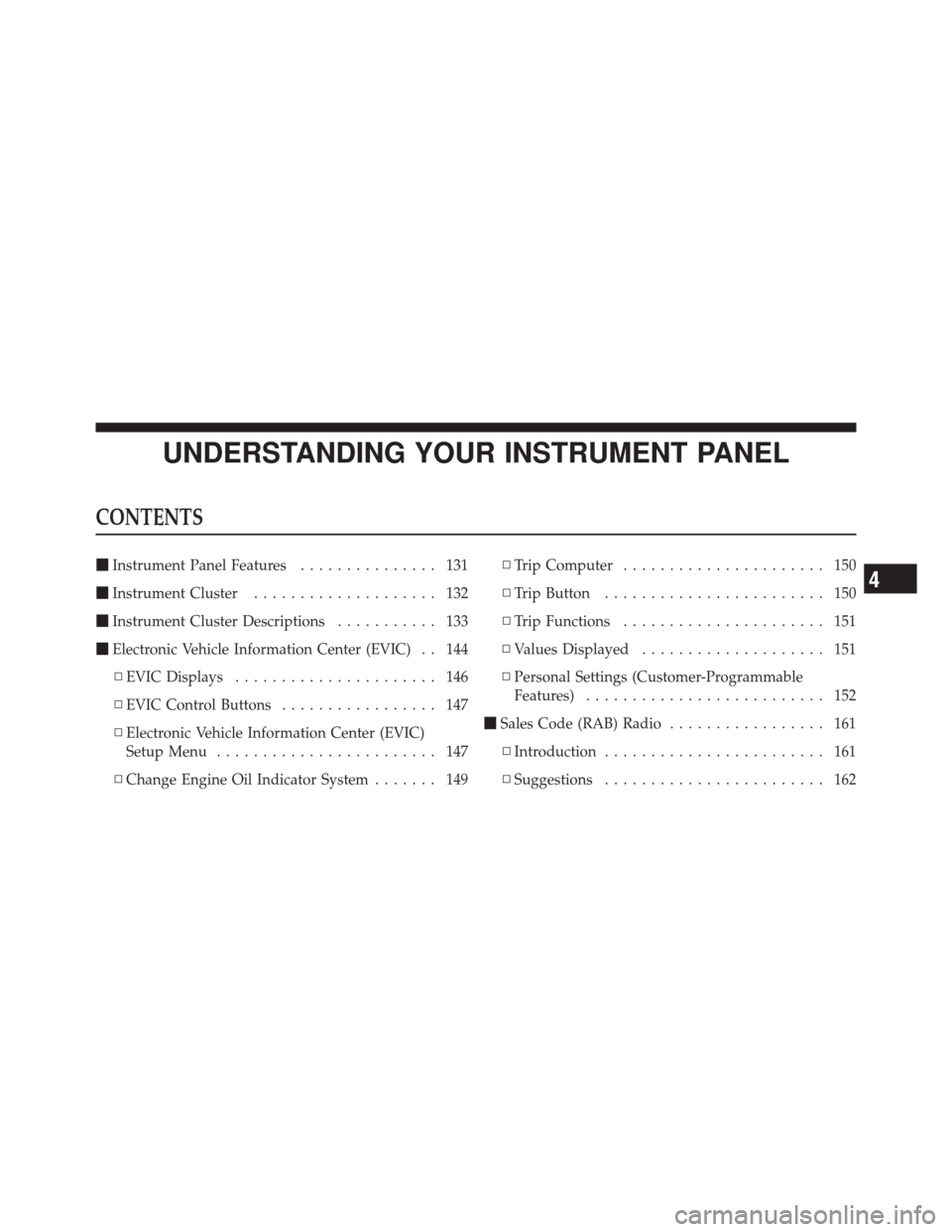
UNDERSTANDING YOUR INSTRUMENT PANEL
CONTENTS
�Instrument Panel Features ............... 131
� Instrument Cluster .................... 132
� Instrument Cluster Descriptions ........... 133
� Electronic Vehicle Information Center (EVIC) . . 144
▫ EVIC Displays ...................... 146
▫ EVIC Control Buttons ................. 147
▫ Electronic Vehicle Information Center (EVIC)
Setup Menu ........................ 147
▫ Change Engine Oil Indicator System ....... 149▫
Trip Computer ...................... 150
▫ Trip Button ........................ 150
▫ Trip Functions ...................... 151
▫ Values Displayed .................... 151
▫ Personal Settings (Customer-Programmable
Features) .......................... 152
� Sales Code (RAB) Radio ................. 161
▫ Introduction ........................ 161
▫ Suggestions ........................ 162
4
Page 149 of 395

EVIC Control Buttons
Press theMENU ESC button briefly to access the menu
and/or go to next screen or to confirm the required menu
option. Press and hold the MENU ESCbutton (approxi-
mately one second) to return to the main screen.
Press the +button to scroll upward through the dis-
played menu and the related options or to increase the
displayed value.
Press the –button to scroll downward through the
displayed menu and the related options or to decrease
the value displayed.
NOTE: Buttons+and –activate different functions
according to the following situations:
•To scroll the menu options upwards or downwards.
•To increase or decrease values during settings. NOTE:
When opening one of the front doors, the EVIC
display will turn on the clock and the miles or kilometers
covered (for versions/markets, where provided) for a
few seconds.
Electronic Vehicle Information Center (EVIC)
Setup Menu
The menu comprises a series of functions arranged in a
cycle. Press the +and –buttons to access the different
options and settings (setup).
The setup menu can be activated by pressing the MENU
ESC button. Single presses on buttons +or –will scroll
through the setup menu options. The menu includes the
following functions:
•Speed Beep
•Trip B Data
•Set Time
4
UNDERSTANDING YOUR INSTRUMENT PANEL 147
Page 155 of 395

2. Briefly press theMENU ESCbutton to go back to the
menu screen or press and hold the MENU ESC(approxi-
mately one second) to go back to the main screen without
storing settings.
Speed Beep (Speed Limit)
With this function it is possible to set the car speed limit
(mph or km/h); when this limit is exceeded the driver is
immediately alerted.
To set the speed limit, proceed as follows:
1. Briefly press the MENU ESCbutton. The display will
show the message (Speed Beep).
2. Press the +or –button to select speed limit activation
(On) or deactivation (Off).
3. When the function is activated (On), briefly press the
MENU ESC button to display the presently set activation
speed. Pressing the +or –buttons selects the speed limit.
Press MENU ESC to confirm selection. NOTE:
Selection is possible between 20 and 125 mph or
km/h, depending on the selected unit. The setting will
increase/decrease by five units each time the +/–button
is pressed. Press and hold the +/–button to increase/
decrease the setting rapidly. Save the setting by briefly
pressing the button when you approach the required
setting.
•Briefly press the MENU ESCbutton to go back to the
menu screen, or press and hold the MENU ESCbutton
(approximately one second) to go back to the main
screen without storing the settings.
To cancel the setting, proceed as follows:
1. Briefly press the MENU ESCbutton. “On” will flash
on the display.
2. Press the –button. “Off” will flash on the display.4
UNDERSTANDING YOUR INSTRUMENT PANEL 153
Page 161 of 395

Language (Selecting The Language)
The messages can be displayed in the following lan-
guages: Italian, English, German, Portuguese, Spanish,
French, Dutch, Polish.
To set the required language, proceed as follows:
1. Briefly press theMENU ESCbutton. The previously
set “language” will flash on the display.
2. Press the +or –button for setting.
3. Briefly press the MENU ESCbutton to go back to the
menu screen, or press and hold the MENU ESCbutton
(approximately one second) to go back to the main screen
without storing the settings.
Buzzer Volume (Adjusting The Failure/Warning
Buzzer Volume)
With this function the volume of the buzzer accompany-
ing any failure/warning indication can be adjusted to
one of eight volume levels. To adjust the volume proceed as follows:
1. Briefly press the
MENU ESCbutton. The previously
set volume “level” will flash on the display.
2. Press the +or –button for setting.
3. Briefly press the MENU ESCbutton to go back to the
menu screen, or press and hold the MENU ESCbutton
(approximately one second) to go back to the main screen
without storing the settings.
Button Volume (Button Volume Adjustment)
This function may be used to adjust the volume of the
beep accompanying the buttons. MENU ESC,+ or –can
be adjusted according to 8 levels.
To adjust the volume, proceed as follows:
1. Briefly press the MENU ESCbutton. The previously
set volume “level” will flash on the display.
2. Press the +or –button for setting.
4
UNDERSTANDING YOUR INSTRUMENT PANEL 159
Page 168 of 395
BUTTONGENERAL FUNCTIONS MODE
(Information Button) Song, Artist, Album, Genre, Playlist,
Folder information (if available) in CD,
Media Player and Satellite (if so
equipped); Toggles RBDS information
in FM
MENU Advanced functions adjustment Menu activation: short button press
Adjustment type selection: press
orAdjustment of values: press
or
+Vol/–VolVolume adjustment Press + button: volume increase Press –
button: volume decrease
BUTTON RADIO FUNCTIONS MODE
Radio Station Search:
•Automatic Search
•Manual SearchAutomatic search: press buttons
or
(long press for fast forward)
Manual search: press buttons
or
(long press for fast forward)
166 UNDERSTANDING YOUR INSTRUMENT PANEL
Page 171 of 395

Audio Section
•
Mute/pause function
•Soft mute function
•Loudness function
•Graphic 7 band equalizer (if equipped)
•Separate bass/treble tone adjustment
•Right/left channel balancing
•Front/rear fader
Functions And Adjustments
Turning The Car Radio On
The car radio comes on when the(ON/OFF) button
is pressed briefly. When the car radio is turned on and the on volume limit
is on, the volume is limited to a setting of five even if it
had been set higher when previously used.
Turning The Car Radio Off
Press and hold (approximately 2 seconds) the
(ON/OFF) button to turn the radio off.
Selecting The Radio Functions
By pressing the TUNER button briefly and repeatedly,
the following audio sources can be selected cyclically:
•AM, FM and Satellite Bands (if equipped)
Selecting The CD Function
By briefly pressing the MEDIA button, the CD audio
source can be selected (only if a CD is loaded).
Volume Adjustment
To adjust the volume, press the buttons +Vol or –Vol to
increase/decrease the volume.
4
UNDERSTANDING YOUR INSTRUMENT PANEL 169
Page 172 of 395

Mute/Pause Function
Press thebutton briefly to activate the MUTE
function. The volume will gradually decrease and the
wording “TUNER Mute” will be shown on the display
(in radio mode) or “CD Pause” (in CD mode).
Press the
button again to deactivate the MUTE
function. The volume will gradually increase until it
reaches the previously set level.
When the volume level is changed using the dedicated
controls, the Mute function is deactivated and the vol-
ume is adjusted to the new level selected.
Audio Adjustment
The functions that can be selected from the audio menu
change depending on the context: AM/FM/MEDIA/
SATELLITE.
Press the AUDIO button briefly to change the Audio
functions. After the AUDIO button is first pressed, the display will show the Bass level value for the source
activated at that time (e.g. in FM mode the display will
show the wording “FM Bass +2”).
Use the buttons
orto scroll through the Menu
functions. To change the setting of the selected function,
use the
orbuttons.
The current status of the selected function appears on the
display.
The functions managed by the Audio Menu are:
•BASS (Bass adjustment)
•TREBLE (Treble adjustment)
•BALANCE (right/left Balance adjustment)
•FADER (front/rear Balance adjustment)
•LOUDNESS (Loudness function activation/
deactivation)
170 UNDERSTANDING YOUR INSTRUMENT PANEL