Page 142 of 594
Making A Phone Or Audio Device A Favorite
•
Touch the “Settings” soft-key,
•Touch the “Phone/Bluetooth�” soft-key,
•Touch the + soft-key located to the right of the device
name,
•The options pop-up will be displayed,
•Touch the “Make Favorite” soft-key; you will see the
chosen device move to the top of the list,
•Touch the X to exit out of the Settings screen.
Phonebook Download — Automatic Phonebook
Transfer From Mobile Phone
If equipped and specifically supported by your phone,
Uconnect™ Phone automatically downloads names (text
names) and number entries from the mobile phone’sphonebook. Specific Bluetooth�
Phones with Phone Book
Access Profile may support this feature. See Uconnect™
website for supported phones.
•To call a name from a downloaded mobile phonebook,
follow the procedure in “Call by Saying a Name”
section.
•Automatic download and update, if supported, begins
as soon as the Bluetooth� wireless phone connection is
made to the Uconnect™ Phone, for example, after you
start the vehicle.
•A maximum of 1000 entries per phone will be down-
loaded and updated every time a phone is connected
to the Uconnect™ Phone.
•Depending on the maximum number of entries down-
loaded, there may be a short delay before the latest
downloaded names can be used. Until then, if avail-
able, the previously downloaded phonebook is avail-
able for use.
140 UNDERSTANDING THE FEATURES OF YOUR VEHICLE
Page 148 of 594
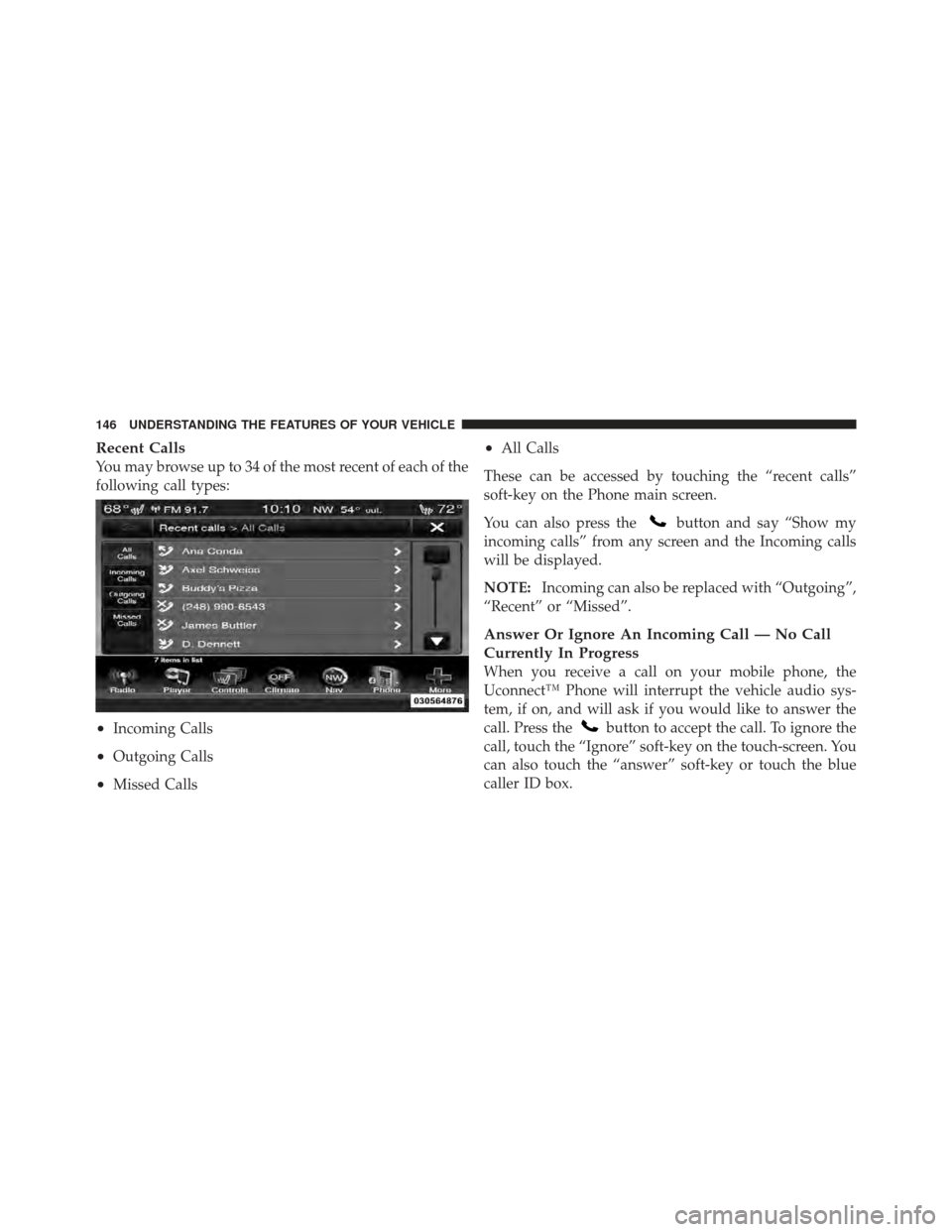
Recent Calls
You may browse up to 34 of the most recent of each of the
following call types:
•Incoming Calls
•Outgoing Calls
•Missed Calls
•All Calls
These can be accessed by touching the “recent calls”
soft-key on the Phone main screen.
You can also press the
button and say “Show my
incoming calls” from any screen and the Incoming calls
will be displayed.
NOTE: Incoming can also be replaced with “Outgoing”,
“Recent” or “Missed”.
Answer Or Ignore An Incoming Call — No Call
Currently In Progress
When you receive a call on your mobile phone, the
Uconnect™ Phone will interrupt the vehicle audio sys-
tem, if on, and will ask if you would like to answer the
call. Press the
button to accept the call. To ignore the
call, touch the “Ignore” soft-key on the touch-screen. You
can also touch the “answer” soft-key or touch the blue
caller ID box.
146 UNDERSTANDING THE FEATURES OF YOUR VEHICLE
Page 150 of 594
Join Calls
When two calls are in progress (one active and one on
hold), touch the “Join Calls” soft-key on the Phone main
screen to combine all calls into a Conference Call.
Call Termination
To end a call in progress, momentarily press the
button or the end soft-key. Only the active call(s) will be
terminated and if there is a call on hold, it will become
the new active call. If the active call is terminated by the
far end, a call on hold may not become active automati-
cally. This is cell phone-dependent.
Redial
•
Press the “Redial” soft-key,
•or press theand after the “Listening” prompt and
the following beep, say “Redial”,
•After the “Listening” prompt and the following beep,
say “Redial”,
•The Uconnect™ Phone will call the last number that
was dialed from your mobile phone.
Call Continuation
Call continuation is the progression of a phone call on the
Uconnect™ Phone after the vehicle ignition key has been
switched to OFF.
NOTE: The call will remain within the vehicle audio
system until the phone becomes out of range for the
Bluetooth� connection. It is recommended to press the
“transfer” soft-key when leaving the vehicle.
Uconnect™ Phone Features
Emergency Assistance
If you are in an emergency and the mobile phone is
reachable:
•Pick up the phone and manually dial the emergency
number for your area.
148 UNDERSTANDING THE FEATURES OF YOUR VEHICLE
Page 154 of 594
•Touch the “Display” soft-key, then scroll down to
Voice Response Length,
•Select either “Brief” or “Detailed” by touching the box
next to the selection. A check-mark will appear to
show your selection.
Phone And Network Status Indicators
Uconnect™ Phone will provide notification to inform
you of your phone and network status when you are
attempting to make a phone call using Uconnect™
Phone. The status is given for network signal strength
and phone battery strength.
Dialing Using The Mobile Phone Keypad
You can dial a phone number with your mobile phone
keypad and still use the Uconnect™ Phone (while dialing
via the mobile phone keypad, the user must exercise
caution and take precautionary safety measures). By
dialing a number with your paired Bluetooth�mobile
phone, the audio will be played through your vehicle’s audio system. The Uconnect™ Phone will work the same
as if you dial the number using voice command.
NOTE:
Certain brands of mobile phones do not send the
dial ring to the Uconnect™ Phone to play it on the vehicle
audio system, so you will not hear it. Under this situa-
tion, after successfully dialing a number the user may feel
that the call did not go through even though the call is in
progress. Once your call is answered, you will hear the
audio.
Mute/Un-Mute (Mute OFF)
When you mute the Uconnect™ Phone, you will still be
able to hear the conversation coming from the other
party, but the other party will not be able to hear you. In
order to mute the Uconnect™ Phone simply touch the
Mute button on the Phone main screen.
152 UNDERSTANDING THE FEATURES OF YOUR VEHICLE
Page 156 of 594
•low road noise,
•smooth road surface,
•fully closed windows,
•dry weather condition.
•Even though the system is designed for users speaking
in North American English, French, and Spanish ac-
cents, the system may not always work for some.
•When navigating through an automated system such
as voice mail, or when sending a page, before speaking
the digit string, make sure to say “Send”.
•Storing names in your favorites phonebook when the
vehicle is not in motion is recommended.
•Phonebook (Mobile and Favorites) name recognition
rate is optimized when the entries are not similar.
•You can say “O” (letter “O”) for “0” (zero).
•Even though international dialing for most number
combinations is supported, some shortcut dialing
number combinations may not be supported.
•In a convertible vehicle, system performance may be
compromised with the convertible top down.
Far End Audio Performance
•
Audio quality is maximized under:
•low-to-medium blower setting,
•low-to-medium vehicle speed,
•low road noise,
•smooth road surface,
•fully closed windows,
•dry weather conditions, and
•operation from the driver’s seat.
154 UNDERSTANDING THE FEATURES OF YOUR VEHICLE
Page 157 of 594
•Performance, such as audio clarity, echo, and loudness
to a large degree rely on the phone and network, and
not the Uconnect™ Phone.
•Echo at the far end can sometimes be reduced by
lowering the in-vehicle audio volume.
•In a convertible vehicle, system performance may be
compromised with the convertible top down.
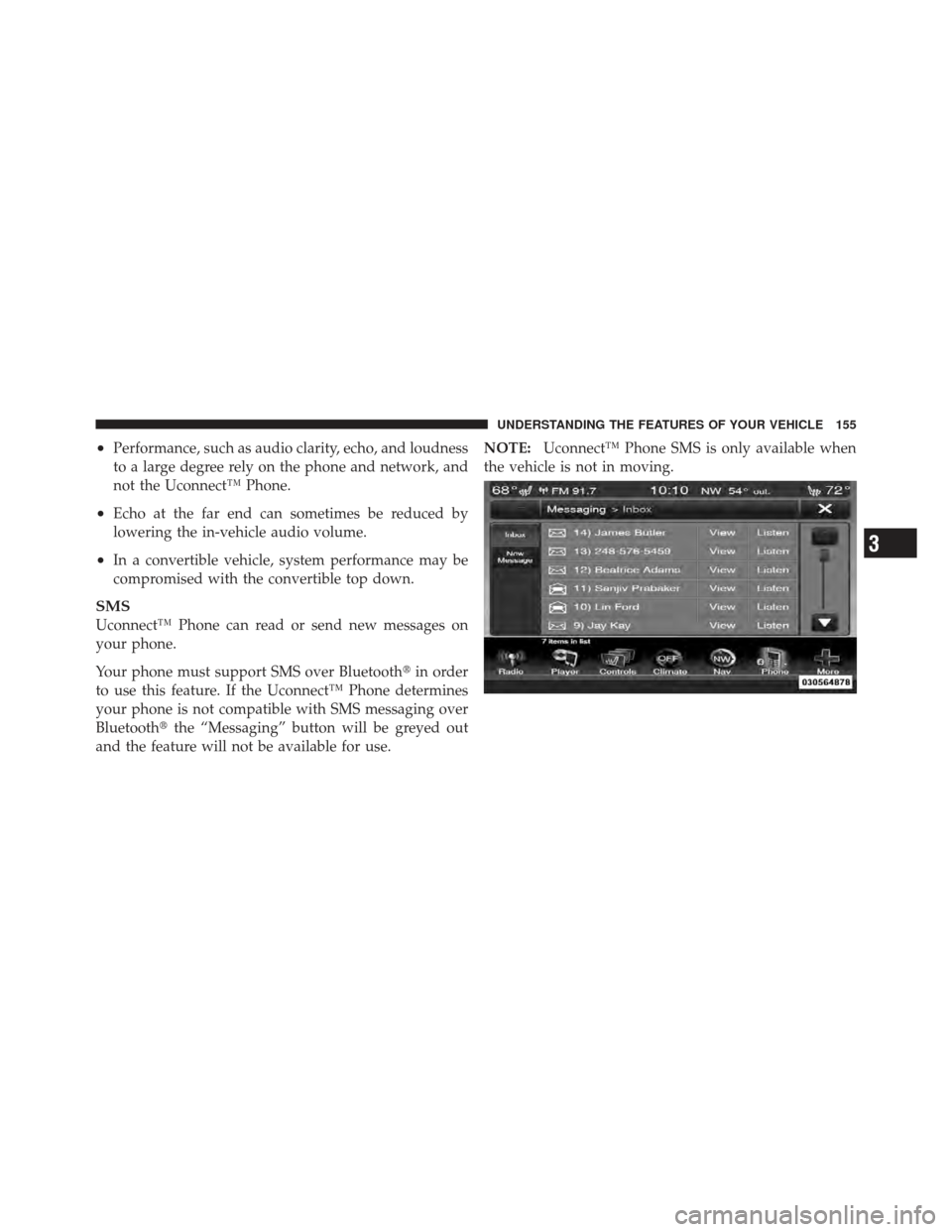
SMS
Uconnect™ Phone can read or send new messages on
your phone.
Your phone must support SMS over Bluetooth�in order
to use this feature. If the Uconnect™ Phone determines
your phone is not compatible with SMS messaging over
Bluetooth� the “Messaging” button will be greyed out
and the feature will not be available for use. NOTE:
Uconnect™ Phone SMS is only available when
the vehicle is not in moving.
3
UNDERSTANDING THE FEATURES OF YOUR VEHICLE 155
Page 169 of 594
Changing the Volume
1. Start a dialogue by pressing the Voice Command
button.
2. Say a command (e.g., “Help”).
3. Use the ON/OFF VOLUME rotary knob to adjust the
volume to a comfortable level while the Voice Command
system is speaking. Please note the volume setting for
Voice Command is different than the audio system.
Starting Voice Recognition (VR) Session in
Radio/Player Modes
In this mode, you can say the following commands:
NOTE: The commands can be said on any screen when
a call is not active after pushing the Uconnect™ Voice
Command
button.
Disc
To switch to the disc mode, say “Change source to Disc”.
This command can be given in any mode or screen:
•“Track” (#) (to change the track)
3
UNDERSTANDING THE FEATURES OF YOUR VEHICLE 167
Page 173 of 594
NOTE:
1. You can replace the album, artist, song, genre, playlist,
podcast and audio book names with any corresponding
names on the current device that is playing.
2. You can replace “8” with any track on the CD that is
currently playing. Command is only available when CD
is playing.3. Playlist, Podcast and audio book commands are only
available when the iPod is connected and playing.
4. VR commands, Albums, Artists, and Genre names are
based on the music database provided by Gracenote.
5. Available Voice Commands are shown in bold face
and shaded grey.
3
UNDERSTANDING THE FEATURES OF YOUR VEHICLE 171