Page 207 of 594
Lane Change Assist
Tap the lever up or down once, without moving beyond
the detent, and the turn signal (right or left) will flash
three times then automatically turn off.
High/Low Beam Switch
Push the multifunction lever away from you to switch
the headlights to high beam. Pull the multifunction lever
toward you to switch the headlights back to low beam.
Flash-To-Pass
You can signal another vehicle with your headlights by
lightly pulling the multifunction lever toward you. This
will turn on the high beam headlights until the lever is
released.
NOTE:If the multifunction lever is held in the flash-to-
pass position for more than 15 seconds, the high beams
will shut off.
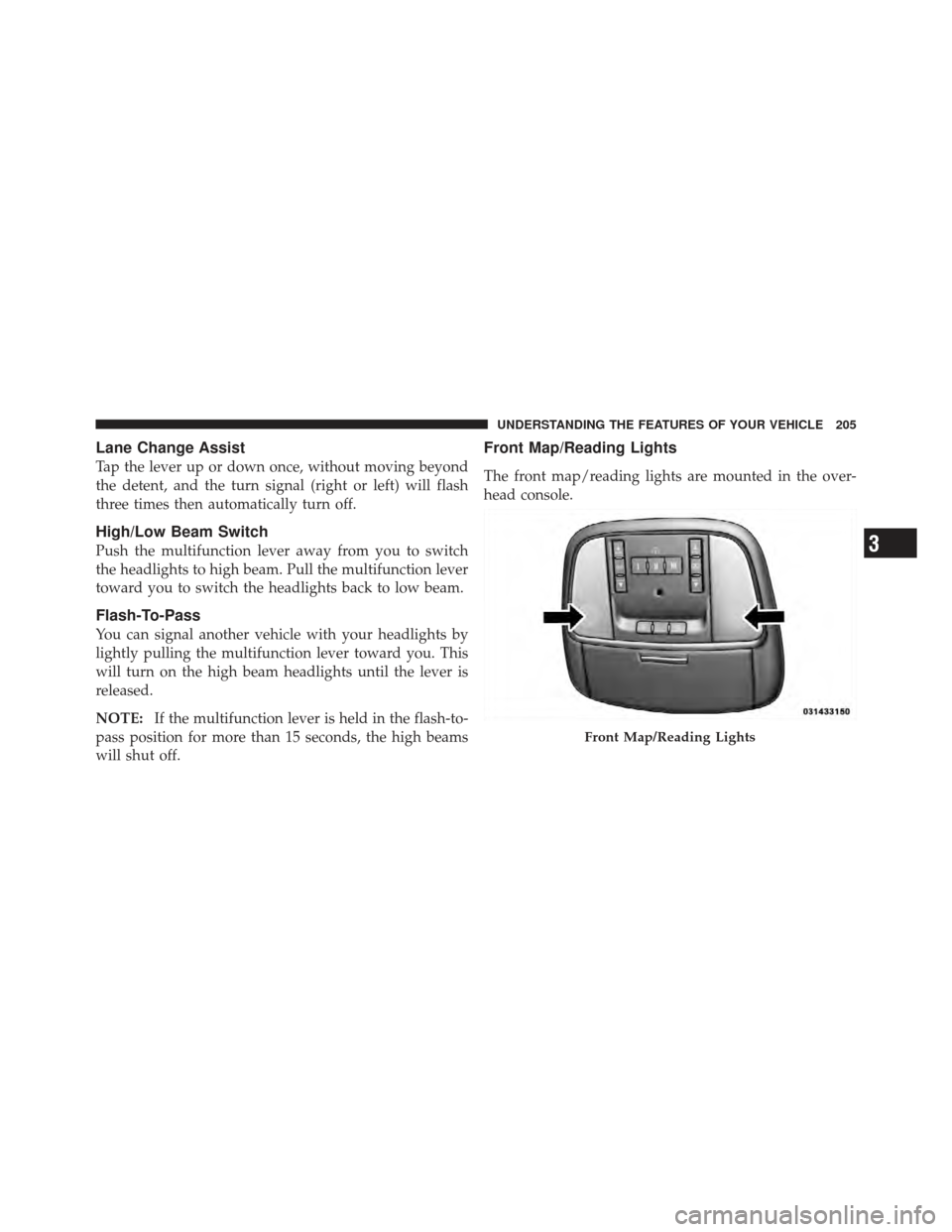
Front Map/Reading Lights
The front map/reading lights are mounted in the over-
head console.
Front Map/Reading Lights
3
UNDERSTANDING THE FEATURES OF YOUR VEHICLE 205
Page 233 of 594
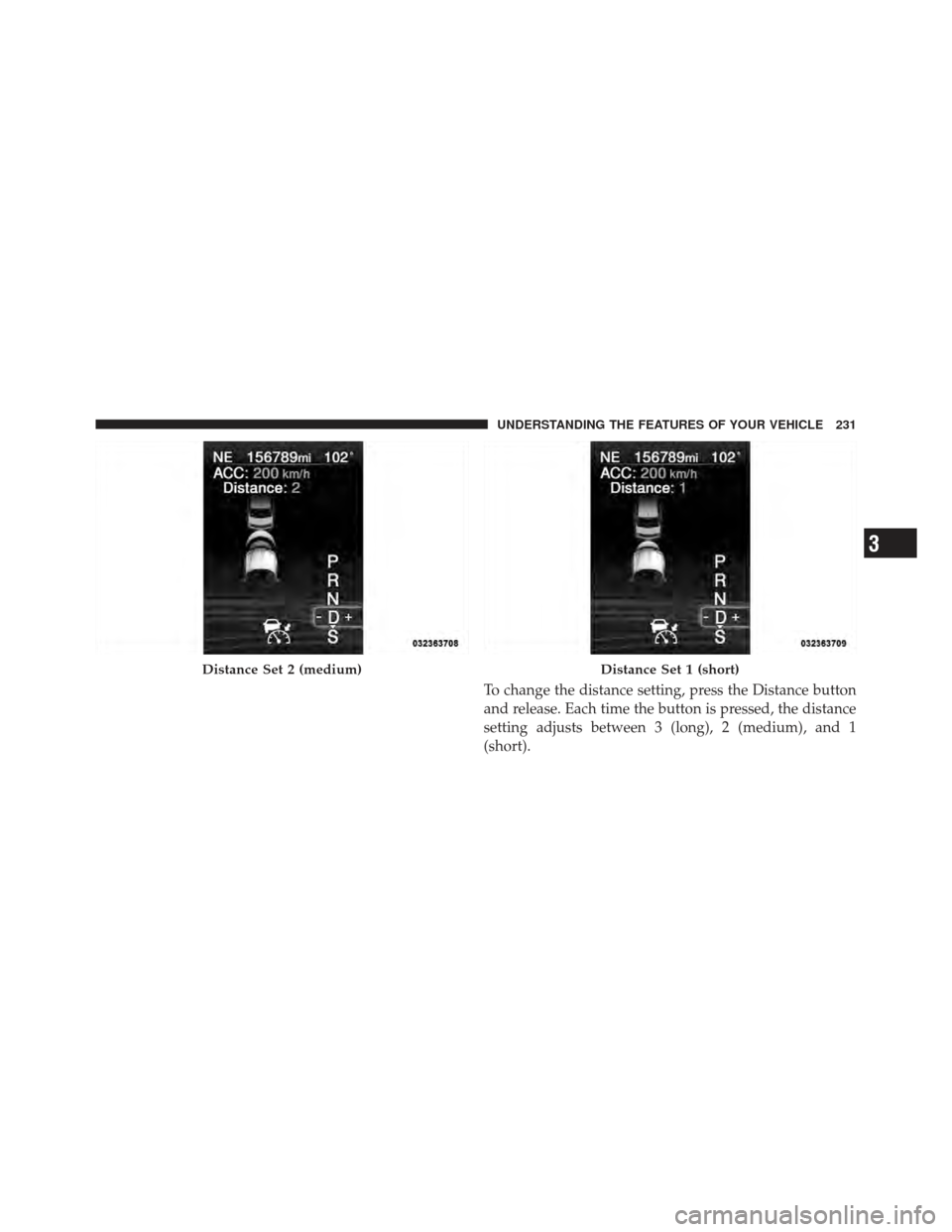
To change the distance setting, press the Distance button
and release. Each time the button is pressed, the distance
setting adjusts between 3 (long), 2 (medium), and 1
(short).
Distance Set 2 (medium)Distance Set 1 (short)
3
UNDERSTANDING THE FEATURES OF YOUR VEHICLE 231
Page 237 of 594
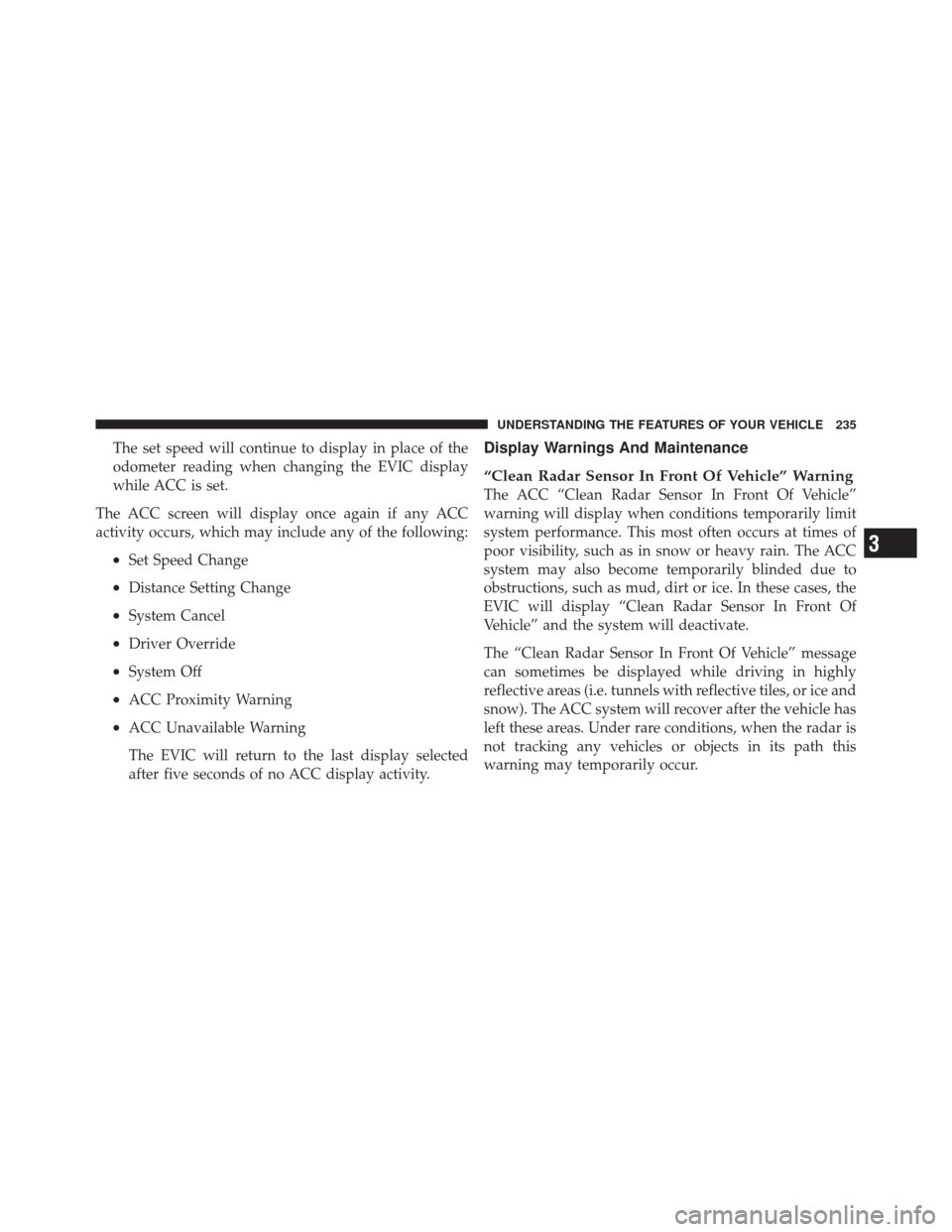
The set speed will continue to display in place of the
odometer reading when changing the EVIC display
while ACC is set.
The ACC screen will display once again if any ACC
activity occurs, which may include any of the following:
•Set Speed Change
•Distance Setting Change
•System Cancel
•Driver Override
•System Off
•ACC Proximity Warning
•ACC Unavailable Warning
The EVIC will return to the last display selected
after five seconds of no ACC display activity.
Display Warnings And Maintenance
“Clean Radar Sensor In Front Of Vehicle” Warning
The ACC “Clean Radar Sensor In Front Of Vehicle”
warning will display when conditions temporarily limit
system performance. This most often occurs at times of
poor visibility, such as in snow or heavy rain. The ACC
system may also become temporarily blinded due to
obstructions, such as mud, dirt or ice. In these cases, the
EVIC will display “Clean Radar Sensor In Front Of
Vehicle” and the system will deactivate.
The “Clean Radar Sensor In Front Of Vehicle” message
can sometimes be displayed while driving in highly
reflective areas (i.e. tunnels with reflective tiles, or ice and
snow). The ACC system will recover after the vehicle has
left these areas. Under rare conditions, when the radar is
not tracking any vehicles or objects in its path this
warning may temporarily occur.
3
UNDERSTANDING THE FEATURES OF YOUR VEHICLE 235
Page 243 of 594
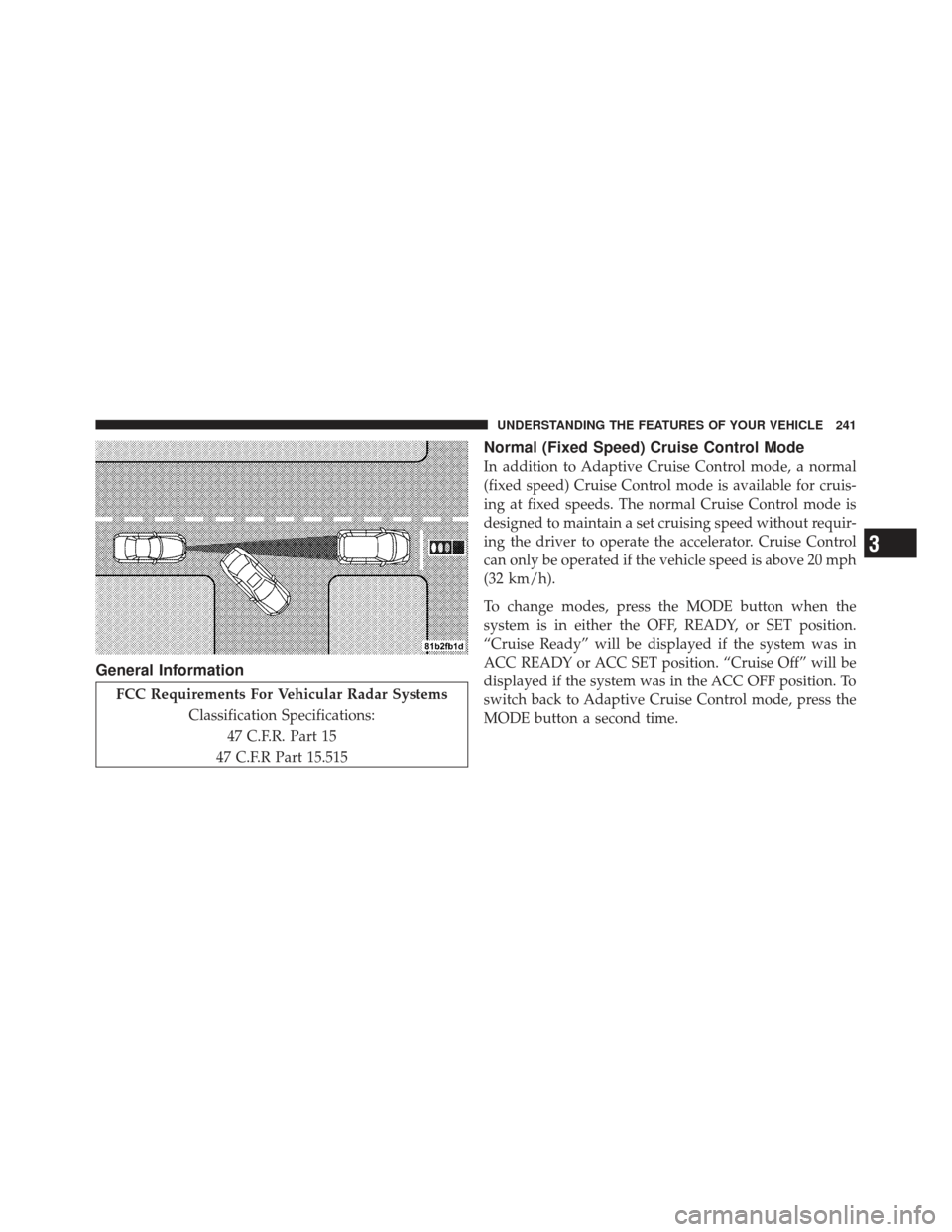
General Information
FCC Requirements For Vehicular Radar SystemsClassification Specifications:47 C.F.R. Part 15
47 C.F.R Part 15.515
Normal (Fixed Speed) Cruise Control Mode
In addition to Adaptive Cruise Control mode, a normal
(fixed speed) Cruise Control mode is available for cruis-
ing at fixed speeds. The normal Cruise Control mode is
designed to maintain a set cruising speed without requir-
ing the driver to operate the accelerator. Cruise Control
can only be operated if the vehicle speed is above 20 mph
(32 km/h).
To change modes, press the MODE button when the
system is in either the OFF, READY, or SET position.
“Cruise Ready” will be displayed if the system was in
ACC READY or ACC SET position. “Cruise Off” will be
displayed if the system was in the ACC OFF position. To
switch back to Adaptive Cruise Control mode, press the
MODE button a second time.
3
UNDERSTANDING THE FEATURES OF YOUR VEHICLE 241
Page 263 of 594
3. Simultaneously press and hold both the Homelink�
button you want to program and the hand-held transmit-
ter button.
4. Continue to hold both buttons and observe the indi-
cator light. The Homelink�indicator will flash slowly
and then rapidly after Homelink� has received the fre-
quency signal from the hand-held transmitter. Release
both buttons after the indicator light changes from slow
to rapid.
5. At the garage door opener motor (in the garage),
locate the “LEARN” or “TRAINING” button. This can
usually be found where the hanging antenna wire is
attached to the garage door opener/device motor. Firmly
press and release the “LEARN” or “TRAINING” button.
On some garage door openers/devices there may be a
light that blinks when the garage door opener/device is
in the LEARN/TRAIN mode. NOTE:
You have 30 seconds in which to initiate the next
step after the LEARN button has been pressed.
6. Return to the vehicle and press the programmed
HomeLink� button twice (holding the button for two
seconds each time). If the garage door opener/device
activates, programming is complete.
NOTE: If the garage door opener/device does not
activate, press the button a third time (for two seconds) to
complete the training.
To program the remaining two HomeLink� buttons,
repeat each step for each remaining button. DO NOT
erase the channels.
Reprogramming A Single HomeLink �Button
To reprogram a channel that has been previously trained,
follow these steps:
1. Turn the ignition switch to the ON/RUN position.
3
UNDERSTANDING THE FEATURES OF YOUR VEHICLE 261
Page 266 of 594
4. Watch for the HomeLink�indicator to change flash
rates. When it changes, it is programmed. It may take up
to 30 seconds or longer in rare cases. The garage door
may open and close while you are programming.
5. Press and hold the programmed HomeLink� button
and observe the indicator light.
•If the indicator light stays on constantly, program-
ming is complete and the garage door/device
should activate when the HomeLink� button is
pressed.
•To program the two remaining HomeLink� buttons,
repeat each step for each remaining button. DO
NOT erase the channels.
If you unplugged the garage door opener/device for
programming, plug it back in at this time.
Reprogramming A Single HomeLink �Button
To reprogram a channel that has been previously trained,
follow these steps:
1. Turn the ignition switch to the ON/RUN position.
2. Press and hold the desired HomeLink� button until
the indicator light begins to flash after 20 seconds. Do not
release the button.
3. Without releasing the button proceed with
“Canadian/Gate Operator Programming” Step 2 and
follow all remaining steps.
Using HomeLink�
To operate, press and release the programmed
HomeLink� button. Activation will now occur for the
programmed device (i.e., garage door opener, gate opera-
tor, security system, entry door lock, home/office light-
ing, etc.,). The hand-held transmitter of the device may
also be used at any time.
264 UNDERSTANDING THE FEATURES OF YOUR VEHICLE
Page 310 of 594
WARNING!
If the Transmission Temperature Warning Light is
illuminated and you continue operating the vehicle,
in some circumstances you could cause the fluid to
boil over, come in contact with hot engine or exhaust
components and cause a fire.
Oil Change Due
Your vehicle is equipped with an engine oil change
indicator system. The “Oil Change Due” message will
flash in the EVIC display for approximately 10 seconds
after a single chime has sounded to indicate the next
scheduled oil change interval. The engine oil change
indicator system is duty cycle based, which means the
engine oil change interval may fluctuate dependent upon
your personal driving style.Unless reset, this message will continue to display each
time you cycle the ignition to the ON/RUN position. To
turn off the message temporarily, press and release the
MENU button. To reset the oil change indicator system
(after performing the scheduled maintenance), perform
the following procedure:
1. Without pressing the brake pedal, push the ENGINE
START/STOP button and cycle the ignition to the ON/
RUN position (Do not start the engine.)
2. Fully depress the accelerator pedal, slowly, three times
within 10 seconds.
3. Without pressing the brake pedal, push the ENGINE
START/STOP button once to return the ignition to the
OFF/LOCK position.
NOTE:
If the indicator message illuminates when you
start the vehicle, the oil change indicator system did not
reset. If necessary, repeat this procedure.
308 UNDERSTANDING YOUR INSTRUMENT PANEL
Page 313 of 594
Miles Per Gallon (MPG)
The Miles Per Gallon (MPG) feature displays instanta-
neous fuel economy in a bar graph below the DTE, this
function cannot be reset. Press the BACK button to return
to the main menu.
Vehicle Speed
Press and release the UP or DOWN button until “Vehicle
Speed” displays highlighted in the EVIC and press the
SELECT button. Press the SELECT button to display the
current speed in mph or km/h. Pressing the SELECT
button a second time will toggle the unit of measure
between mph or km/h.
NOTE:Changing the unit of measure in the Vehicle
Speed menu will not change the unit of measure in the
EVIC.
Trip Info
Press and release the UP or DOWN button until “Trip
Info” displays highlighted in the EVIC and press the SELECT button. Press and release the UP/DOWN but-
tons until one of the following Trip functions displays in
the EVIC:
•Trip A
•Trip B
•Elapsed Time
Press the UP/DOWN buttons to cycle through all the
Trip Computer functions.
The Trip Functions mode displays the following informa-
tion:
Trip A
Shows the total distance traveled for Trip A since the last
reset.
Trip B
Shows the total distance traveled for Trip B since the last
reset.
4
UNDERSTANDING YOUR INSTRUMENT PANEL 311