Page 356 of 643
2. After the�Ready�prompt and the following beep, say
�Setup�, then �Select Audio Devices�.
3. Say the name of the audio device or ask the
Uconnect™ phone system to list audio devices.
Next Track
Use the SEEK UP button, or press the VR button on the
radio and say “Next Track” to jump to the next track
music on your cellular phone.
Previous Track
Use the SEEK DOWN button, or press the VR button on
the radio and say “Previous Track” to jump to the
previous track music on your cellular phone.
Browse
Browsing is not available on a BTSA device. Only the
current song that is playing will display info.
UCONNECT™ MULTIMEDIA VIDEO
ENTERTAINMENT SYSTEM (VES)™ — IF EQUIPPED
Getting Started
•
Screen(s) located in the overhead console : Unfold the
overhead LCD screen(s) by pushing the button on the
overhead console behind the screen(s).
Video Entertainment System (VES)™
4
UNDERSTANDING YOUR INSTRUMENT PANEL 353
ProCarManuals.com
Page 363 of 643
Using The Remote Control
1. Press the MODE button on the Remote Control.
2. While looking at Screen 1 or 2, highlight DISC by
either pressing Up/Down/Left/Right buttons or by re-
peatedly pressing the MODE button, then press ENTER.NOTE:•Channel/Screen 1 select mode information is shown
on the left side of the screen.
•Channel/Screen 2 select mode information is shown
on the right side of the screen.
•The VES™ will retain the last setting when turned off.
Using The Touch-Screen Radio Controls
1. Press the MENU hard-key on the radio faceplate.
2. Touch the Rear VES soft-key to display the Rear VES
Controls. If a channel list is displayed, press the HIDE
LIST soft-key to display the Rear VES Controls screen.
Select DISC Mode On The VES Screen
360 UNDERSTANDING YOUR INSTRUMENT PANEL
ProCarManuals.com
Page 372 of 643
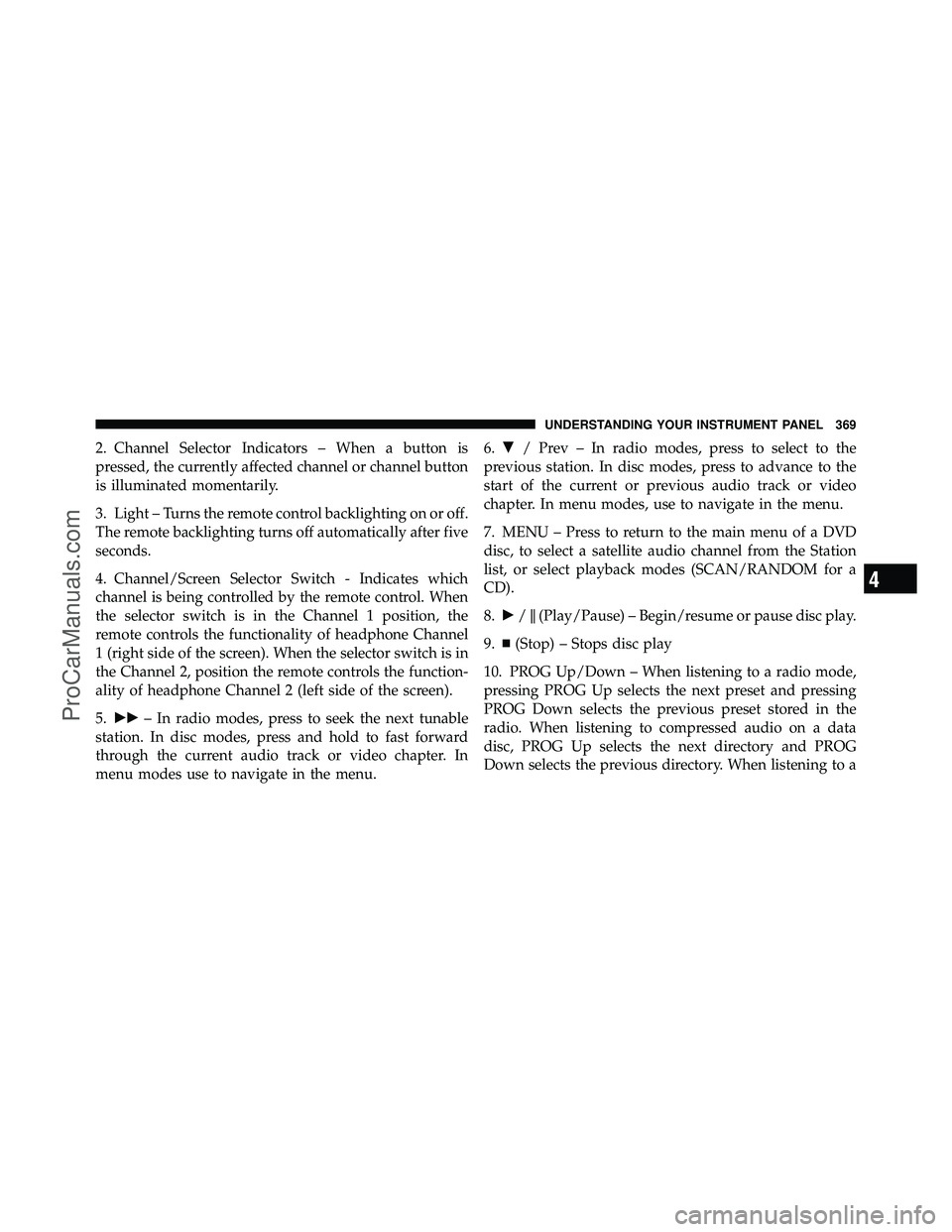
2. Channel Selector Indicators – When a button is
pressed, the currently affected channel or channel button
is illuminated momentarily.
3. Light – Turns the remote control backlighting on or off.
The remote backlighting turns off automatically after five
seconds.
4. Channel/Screen Selector Switch - Indicates which
channel is being controlled by the remote control. When
the selector switch is in the Channel 1 position, the
remote controls the functionality of headphone Channel
1 (right side of the screen). When the selector switch is in
the Channel 2, position the remote controls the function-
ality of headphone Channel 2 (left side of the screen).
5.�� – In radio modes, press to seek the next tunable
station. In disc modes, press and hold to fast forward
through the current audio track or video chapter. In
menu modes use to navigate in the menu. 6.
� / Prev – In radio modes, press to select to the
previous station. In disc modes, press to advance to the
start of the current or previous audio track or video
chapter. In menu modes, use to navigate in the menu.
7. MENU – Press to return to the main menu of a DVD
disc, to select a satellite audio channel from the Station
list, or select playback modes (SCAN/RANDOM for a
CD).
8. �/ (Play/Pause) – Begin/resume or pause disc play.
9.
(Stop) – Stops disc play
10. PROG Up/Down – When listening to a radio mode,
pressing PROG Up selects the next preset and pressing
PROG Down selects the previous preset stored in the
radio. When listening to compressed audio on a data
disc, PROG Up selects the next directory and PROG
Down selects the previous directory. When listening to a
4
UNDERSTANDING YOUR INSTRUMENT PANEL 369
ProCarManuals.com
Page 373 of 643

disc in a radio with a multiple-disc changer, PROG Up
selects the next disc and PROG Down selects the previ-
ous disc.
11. MUTE – Press to mute the headphone audio output
for the selected channel.
12. SLOW – Press to slow playback of a DVD disc. Press
play (�) to resume normal play.
13. STATUS – Press to display the current status.
14. MODE – Press to change the mode of the selected
channel. See the Mode Selection section of this manual
for details on changing modes.
15. SETUP – When in a video mode, press the SETUP
button to access the display settings (see the display
settings section) to access the DVD setup menu, select the
menu button on the radio. When a disc is loaded in the
DVD player (if equipped) and the VES™ mode is selectedand the disc is stopped, press the SETUP button to access
the DVD Setup menu. (see the DVD Setup Menu of this
manual.)
16. BACK – When navigating in menu mode, press to
return to the previous screen. When navigating a DVDs
disc menu, the operation depends on the disc’s contents.
17.
�� – In radio modes, press to seek to the previous
tunable station. In disc modes, press and hold to fast
rewind through the current audio track or video chapter.
In menu modes use to navigate in the menu.
18. ENTER – Press to select the highlighted option in a
menu.
19. �/ NEXT – In radio modes, press to select to the
next station. In disc modes, press to advance to the next
audio track or video chapter. In menu modes, use to
navigate in the menu.
370 UNDERSTANDING YOUR INSTRUMENT PANEL
ProCarManuals.com
Page 379 of 643
You may register your Unwired�wireless headphones
online at www.unwiredtechnology.com or by phone at
1-888-293-3332.
System Information
Shared Modes
This allows the VES™ to output radio sources to the
headphones and the radio to output VES™ sources to the
vehicle speakers. When the radio and VES™ channel 1 or
2 are in the same (shared) mode, a VES™ icon will be
visible on the radio’s display for that channel, and the
shared icon will be visible on the VES™ screen. When in
shared mode, the same audio source is heard in the
shared headphone channel 1 or channel 2.
If the radio functions (FM, AM, or SAT) are in the shared
mode with the VES™, only the radio is able to control the
radio functions. In this case, VES™ can share the radio
mode, but not change stations until the radio mode is
changed to a mode that is different from the VES™ selected radio mode. When shared, the radio has priority
over the VES™ or all radio modes (FM, AM, and SAT).
The VES™ has the ability to switch tuner (AM/FM),
SEEK, SCAN, TUNE, and recall presets in radio modes as
long as it is not in shared mode.
When in shared disc mode both the radio and the VES™
have control of the video functions. The VES™ has the
ability to control the following video modes:
1. CD: Ability to Fast Forward, Rewind, Scan, and Track
Up/Down.
2. CD Changer (in radio): Ability to Disk Up/Down and
program all listed CD controls (Fast Forward, Rewind,
Scan, and Track Up/Down).
The VES™ can even control radio modes or video modes
while the radio is turned off. The VES™ can access the
radio modes or disc modes by navigating to those modes
on the VES™ and activating a radio mode or disc mode.
376 UNDERSTANDING YOUR INSTRUMENT PANEL
ProCarManuals.com
Page 388 of 643
Display
Other Language SetupAll of the Language settings have a special
�Other�setting
to accommodate languages other than Japanese or Eng-
lish. These languages are selected using a special four-
digit code.
To enter a new language code, activate the DVD Setup
Menu. To enter DVD Setup Menu stop the DVD, enter
radio disc mode, then DVD setup and follow these
additional instructions:
•Using the remote control Up and Down cursor but-
tons, highlight the Language item you want to edit,
and then press the remote control ENTER button.
•Using the remote control Down cursor button, select
the �Other� setting, then press the remote control’s
Right cursor button to begin editing the setting.
DVD Player Language Menu
4
UNDERSTANDING YOUR INSTRUMENT PANEL 385
ProCarManuals.com
Page 394 of 643
The right-hand rocker switch has a pushbutton in the
center, and controls the volume and mode of the sound
system. Pressing the top of the rocker switch will increase
the volume. Pressing the bottom of the rocker switch will
decrease the volume. Pressing the center button changes
the operation of the radio from AM to FM, or to CD
mode, depending on which radio is in the vehicle.
The left-hand rocker switch has a pushbutton in the
center. The function of the left-hand switch is different,
depending on which mode you are in.
The following describes the left-hand rocker switch op-
eration in each mode.Radio Operation
Pressing the top of the switch will SEEK up for the next
listenable station, and pressing the bottom of the switch
will SEEK down for the next listenable station.
The button located in the center of the left-hand switch
will tune to the next preset station that you have pro-
grammed in the radio preset pushbutton.
CD Player
Pressing the top of the switch once will go to the next
track on the CD. Pressing the bottom of the switch once
will go to the beginning of the current track, or to the
beginning of the previous track if it is within one second
after the current track begins to play.
If you press the switch up or down twice it plays the
second track; three times, it will play the third, etc.
The button in the center of the left-hand switch has no
function in this mode.
4
UNDERSTANDING YOUR INSTRUMENT PANEL 391
ProCarManuals.com
Page 396 of 643

CLIMATE CONTROLS
The Climate Control system allows you to regulate the
temperature, amount, and direction of air circulating
throughout the vehicle. The controls are located on the
instrument panel, below the radio.
Manual Heating And Air Conditioning System —
If Equipped
The controls for the manual system in this vehicle contain
a series of outer rotary dials and inner push knobs. These
comfort controls can be set to obtain desired interior
conditions.
With the Three-Zone Temperature Control system, each
front seat occupant can independently control the Heat-
ing, Ventilation, and Air Conditioning operations coming
from the outlets on their side of the vehicle.
The primary control for the rear blower is on the front
climate control unit located on the instrument panel.
When the front control is in any position other than rear,
the front control operates all the rear functions.The rear airflow modes will mirror the front unit opera-
tion. Rear Panel mode is automatically selected when the
front control is in the Panel mode. When the front unit is
in Bi-Level mode, airflow will be emitted from both the
upper and lower rear outlets. When the front control is in
Floor, Defrost, or Mix modes, airflow will be directed out
of the rear floor outlets.
Manual Temperature Control
4
UNDERSTANDING YOUR INSTRUMENT PANEL 393
ProCarManuals.com


