Page 167 of 514
NOTE:HomeLink� is disabled when the Vehicle Secu-
rity Alarm is active.
Before You Begin Programming HomeLink �
Be sure that your vehicle is parked outside of the garage
before you begin programming. For more efficient programming and accurate transmis-
sion of the radio-frequency signal it is recommended that
a new battery be placed in the hand-held transmitter of
the device that is being programmed to the HomeLink
�
system.
Erase all channels before you begin programming. To
erase the channels place the ignition in the ON/RUN
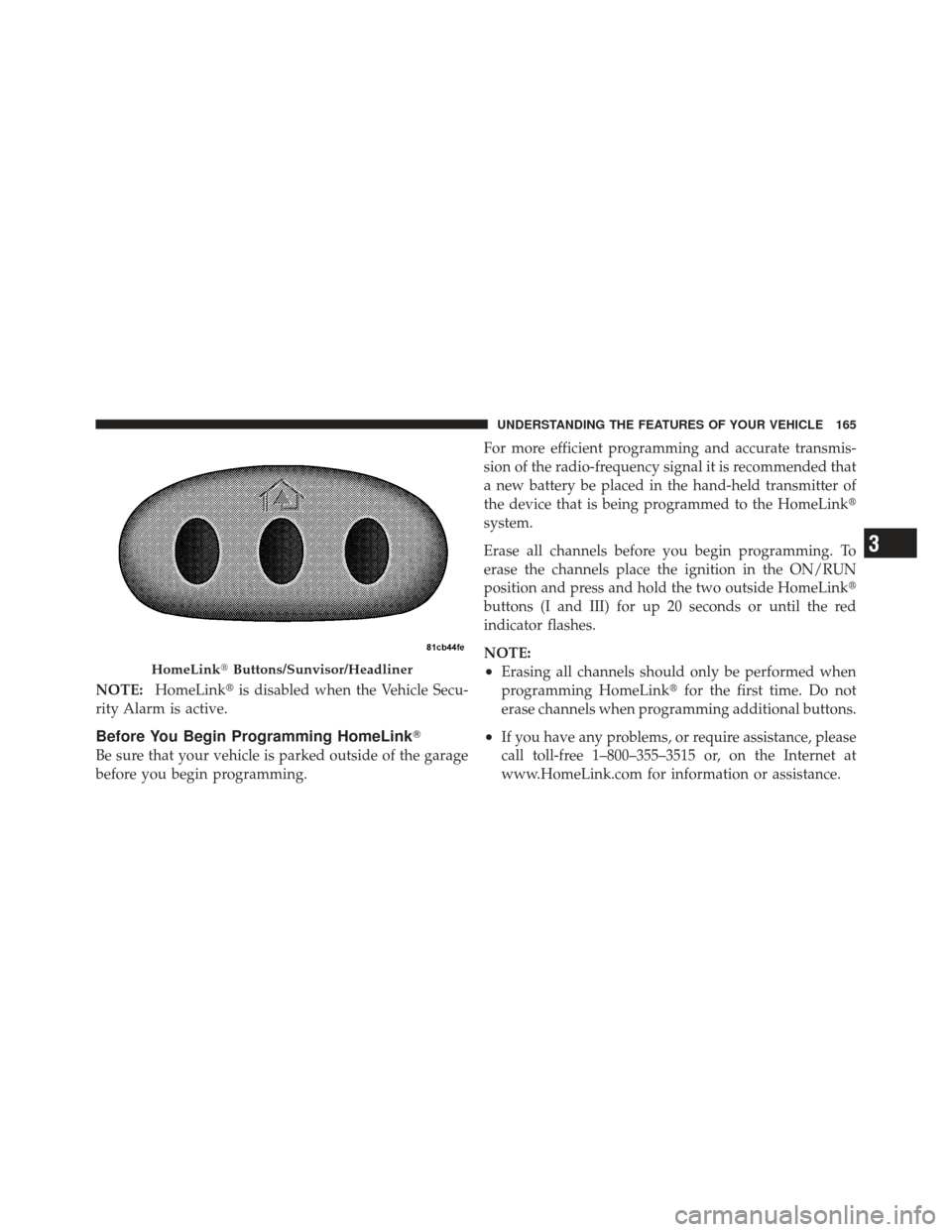
position and press and hold the two outside HomeLink �
buttons (I and III) for up 20 seconds or until the red
indicator flashes.
NOTE:
•Erasing all channels should only be performed when
programming HomeLink� for the first time. Do not
erase channels when programming additional buttons.
•If you have any problems, or require assistance, please
call toll-free 1–800–355–3515 or, on the Internet at
www.HomeLink.com for information or assistance.
HomeLink� Buttons/Sunvisor/Headliner
3
UNDERSTANDING THE FEATURES OF YOUR VEHICLE 165
Page 169 of 514
3. Simultaneously press and hold both the Homelink�
button you want to program and the hand-held transmit-
ter button.
4. Continue to hold both buttons and observe the indi-
cator light. The Homelink�indicator will flash slowly
and then rapidly after Homelink� has received the fre-
quency signal from the hand-held transmitter. Release
both buttons after the indicator light changes from slow
to rapid.
5. At the garage door opener motor (in the garage),
locate the “LEARN” or “TRAINING” button. This can
usually be found where the hanging antenna wire is
attached to the garage door opener/device motor. Firmly
press and release the “LEARN” or “TRAINING” button.
On some garage door openers/devices there may be a
light that blinks when the garage door opener/device is
in the LEARN/TRAIN mode. NOTE:
You have 30 seconds in which to initiate the next
step after the LEARN button has been pressed.
6. Return to the vehicle and press the programmed
HomeLink� button twice (holding the button for two
seconds each time). If the garage door opener/device
activates, programming is complete.
NOTE: If the garage door opener/device does not
activate, press the button a third time (for two seconds) to
complete the training.
To program the remaining two HomeLink� buttons,
repeat each step for each remaining button. DO NOT
erase the channels.
Reprogramming A Single HomeLink �Button
To reprogram a channel that has been previously trained,
follow these steps:
1. Turn the ignition switch to the ON/RUN position.
3
UNDERSTANDING THE FEATURES OF YOUR VEHICLE 167
Page 170 of 514
2. Press and hold the desired HomeLink�button until
the indicator light begins to flash after 20 seconds. Do not
release the button.
3. Without releasing the button proceed with “Program-
ming A Rolling Code” Step 2 and follow all remaining
steps.
Programming A Non-Rolling Code
For programming Garage Door Openers manufactured
before 1995.
1. Turn the ignition switch to the ON/RUN position.
2. Place the hand-held transmitter 1 to 3 in (3 to 8 cm)
away from the HomeLink� button you wish to program
while keeping the HomeLink� indicator light in view.
3. Simultaneously press and hold both the Homelink�
button you want to program and the hand-held transmit-
ter button. 4. Continue to hold both buttons and observe the indi-
cator light. The Homelink�
indicator will flash slowly
and then rapidly after Homelink� has received the fre-
quency signal from the hand-held transmitter. Release
both buttons after the indicator light changes from slow
to rapid.
5. Press and hold the programmed HomeLink� button
and observe the indicator light.
•If the indicator light stays on constantly, program-
ming is complete and the garage door/device
should activate when the HomeLink� button is
pressed.
•To program the two remaining HomeLink� buttons,
repeat each step for each remaining button. DO
NOT erase the channels.
168 UNDERSTANDING THE FEATURES OF YOUR VEHICLE
Page 172 of 514
4. Watch for the HomeLink�indicator to change flash
rates. When it changes, it is programmed. It may take up
to 30 seconds or longer in rare cases. The garage door
may open and close while you are programming.
5. Press and hold the programmed HomeLink� button
and observe the indicator light.
•If the indicator light stays on constantly, program-
ming is complete and the garage door/device
should activate when the HomeLink� button is
pressed.
•To program the two remaining HomeLink� buttons,
repeat each step for each remaining button. DO
NOT erase the channels.
If you unplugged the garage door opener/device for
programming, plug it back in at this time.
Reprogramming A Single HomeLink �Button
To reprogram a channel that has been previously trained,
follow these steps:
1. Turn the ignition switch to the ON/RUN position.
2. Press and hold the desired HomeLink� button until
the indicator light begins to flash after 20 seconds. Do not
release the button.
3. Without releasing the button proceed with
“Canadian/Gate Operator Programming” Step 2 and
follow all remaining steps.
Using HomeLink�
To operate, press and release the programmed
HomeLink� button. Activation will now occur for the
programmed device (i.e., garage door opener, gate opera-
tor, security system, entry door lock, home/office light-
ing, etc.,). The hand-held transmitter of the device may
also be used at any time.
170 UNDERSTANDING THE FEATURES OF YOUR VEHICLE
Page 173 of 514
Security
It is advised to erase all channels before you sell or turn
in your vehicle.
To do this, press and hold the two outside buttons for
20 seconds until the red indicator flashes. Note that all
channels will be erased. Individual channels cannot be
erased.
The HomeLink�Universal Transceiver is disabled when
the Vehicle Security Alarm is active.
Troubleshooting Tips
If you are having trouble programming HomeLink�, here
are some of the most common solutions:
•Replace the battery in the original hand-held transmit-
ter.
•Press the LEARN button on the Garage Door Opener
to complete the training for a Rolling Code.
•Did you unplug the device for programming and
remember to plug it back in?
If you have any problems, or require assistance, please
call toll-free 1–800–355–3515 or, on the Internet at
www.HomeLink.com for information or assistance.
3
UNDERSTANDING THE FEATURES OF YOUR VEHICLE 171
Page 191 of 514
UNDERSTANDING YOUR INSTRUMENT PANEL
CONTENTS
�Instrument Panel Features ............... 193
� Instrument Cluster .................... 194
� Instrument Cluster — R/T ............... 195
� Instrument Cluster Descriptions ........... 196
� Mini-Trip Computer — If Equipped ........ 210
▫ Control Buttons ..................... 210
� Electronic Vehicle Information Center (EVIC) —
If Equipped .......................... 211
▫ Electronic Vehicle Information Center (EVIC)
Displays ........................... 213 ▫
Oil Change Required — If Equipped ...... 215
▫ EVIC Main Menu .................... 215
▫ Compass Display .................... 216
▫ Average Fuel Economy ................ 219
▫ Distance To Empty (DTE) .............. 219
▫ TirePSI ........................... 220
▫ Elapsed Time ....................... 220
▫ EVIC Units Selection (Units In Display) .... 220
▫ System Status ....................... 221
4
Page 193 of 514

�Media Center 130 With Satellite Radio
(Sales Code RES+RSC) ................... 253
▫ Operating Instructions — Radio Mode ..... 253
▫ Operation Instructions — CD Mode For CD
And MP3 Audio Play ................. 259
▫ Notes On Playing MP3 Files ............ 261
▫ List Button (CD Mode For MP3 Play) ...... 263
▫ Info Button (CD Mode For MP3 Play) ...... 264
▫ Uconnect™ Multimedia (Satellite Radio) —
If Equipped ........................ 265
� iPod�/USB/MP3 Control — If Equipped ..... 269
▫ Connecting The iPod� Or External USB
Device ............................ 270
▫ Using This Feature ................... 270 ▫
Controlling The iPod� Or External USB
Device Using Radio Buttons ............. 271
▫ Play Mode ......................... 271
▫ List Or Browse Mode ................. 273
▫ Bluetooth Streaming Audio (BTSA) ........ 275
� Steering Wheel Audio Controls —
If Equipped .......................... 276
▫ Right-Hand Switch Functions ............ 277
▫ Left-Hand Switch Functions For Radio
Operation .......................... 277
▫ Left-Hand Switch Functions For
Media (i.e., CD) Operation .............. 277
� CD/DVD Disc Maintenance .............. 278
� Radio Operation And Mobile Phones ....... 278
4
UNDERSTANDING YOUR INSTRUMENT PANEL 191
Page 212 of 514
MINI-TRIP COMPUTER — IF EQUIPPED
The Mini-Trip Computer is located in the instrument
cluster and features a driver-interactive trip information
and temperature display.
NOTE:The system will display the last known outside
temperature when starting the vehicle and may need to
be driven several minutes before the updated tempera-
ture is displayed. Engine temperature can also affect the
displayed temperature; therefore, temperature readings
are not updated when the vehicle is not moving.
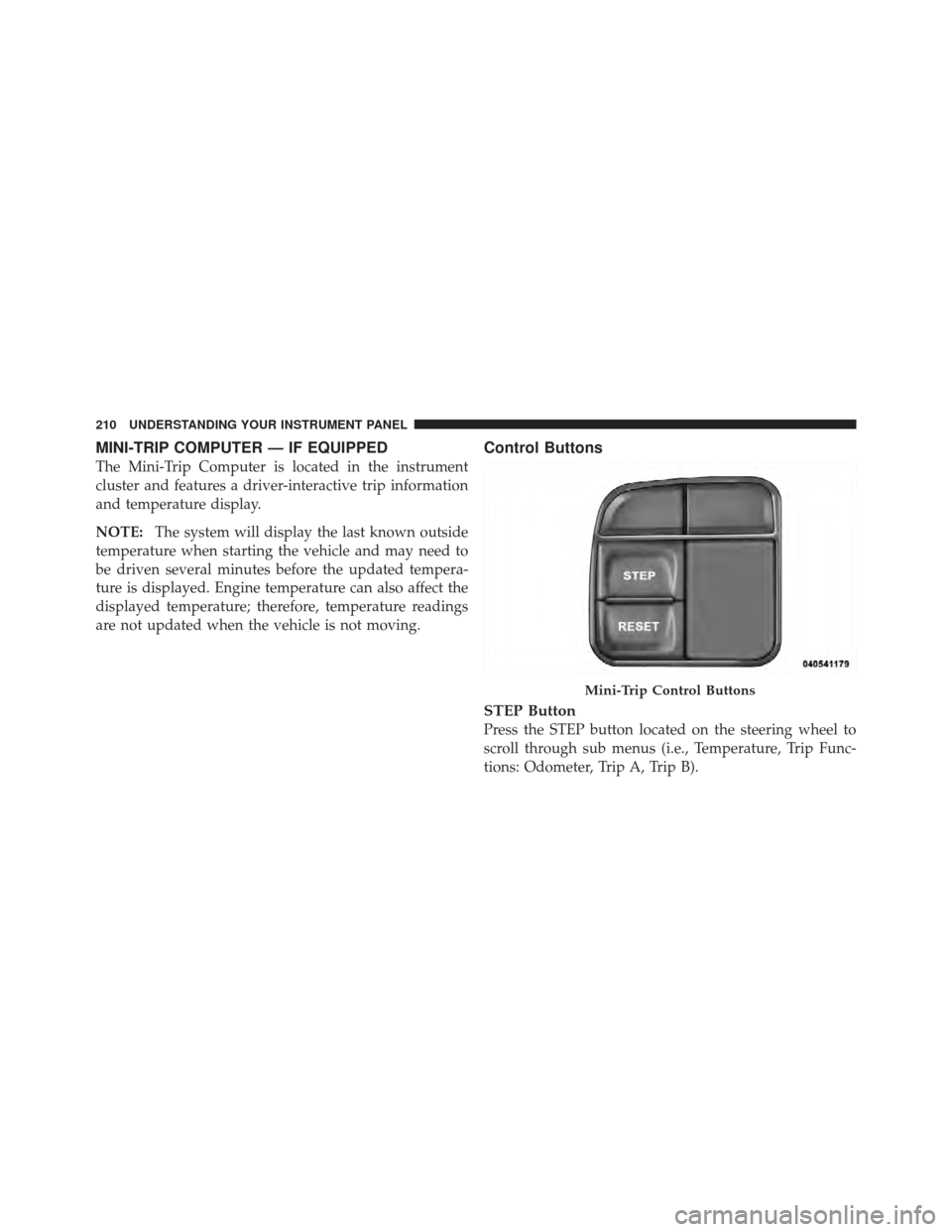
Control Buttons
STEP Button
Press the STEP button located on the steering wheel to
scroll through sub menus (i.e., Temperature, Trip Func-
tions: Odometer, Trip A, Trip B).
Mini-Trip Control Buttons
210 UNDERSTANDING YOUR INSTRUMENT PANEL