Page 258 of 324
256
1
2
3
1
2
3
4
5
06
Press PHONE
twice.
Select " List of the paired peripherals
"
and confi rm.
It is possible to:
- " Connect
" or " Disconnect
" the
selected telephone,
- delete the pairing of the selected
telephone.
It is also possible to select all pairings.
USING THE TELEPHONE
MANAGING PAIRED TELEPHONES
CHANGING THE RING TONE
Press PHONE
twice.
Select " Phone functions
" and confi rm.
Select " Ring options
" and confi rm.
You can adjust the volume and the type
of ring tone.
Select " Bluetooth functions
".
Select " OK
" and confi rm to save
the changes.
Page 266 of 324

264
1
2
1
2
08
AUDIO STREAMING
Streaming allows audio fi les on your telephone to be played via the
vehicle's speakers.
Connect the telephone: see "USING THE TELEPHONE".
Select " Audio
" or " All
" profi le.
If play does not start automatically, it may be necessary to start the
audio playback from the telephone.
Control is from the peripheral device or by using the audio system
buttons.
Once connected in streaming mode, the telephone is considered to be
a media source.
It is recommended that you activate " Repeat
" on the Bluetooth
peripheral.
MUSIC MEDIA PLAYERS
IPOD/IPHONE
Connect the iPod or iPhone to the USB port using a suitable cable
(not supplied).
Play starts automatically.
Control is via the audio system.
The classifi cations available are those of the portable device
connected (artists/albums/genres/playlists/audiobooks/podcasts).
The default classifi cation used is by artist. To modify the classifi cation
used, return to the fi rst level of the menu then select the desired
classifi cation (playlists for example) and confi rm to go down through
the menu to the desired track.
The version of software in the audio system may not be compatible
with the generation of your iPod
® or iPhone.
The list of devices compatible with software versions is available from
CITROËN dealers.
Page 271 of 324
269
11SCREEN MENU MAP
Following waveband
Guidance options
Activate/Deactivate TA
Activate/Deactivate RDS
Dial
Directory of contacts
Bluetooth functions
List of the paired peripherals
Call
Open
Import
Phone MENU
Connect
Disconnect
"RADIO" MENU
Delete
Contacts management
New contact
Delete all contacts
Import all the entries
Synchronizing contacts
No synchronization
Display telephone contacts
Display SIM card contacts
Display all phone contacts
Contact mem. status
Phone functions
Ring options
Delete calls log
Delete
Delete all
Hang up
Peripherals search
Rename radiotelephone
1
2
2
1
2
2
2
1
1
2
3
3
1
2
2
2
2
1
2
3
3
3
3
2
2
2
1
3
3
1
2
2
Page 274 of 324

272
FREQUENTLY ASKED QUESTIONS
QUESTION
ANSWER
SOLUTION
The altitude is not
displayed. On starting, the initialisation of the GPS may take up to 3 minutes to
receive more than 4 satellites correctly. Wait until the system has started up completely.
Check that there is a GPS coverage of at least
4 satellites (long press on the SETUP button,
then select "GPS coverage").
Depending on the geographical environment (tunnel...) or the weather,
the conditions of reception of the GPS signal may vary. This phenomenon is normal. The system
is dependent on the GPS signal reception
conditions.
I cannot connect my
Bluetooth telephone. The telephone's Bluetooth function may be switched off or the telephone
may not be visible.
- Check that your telephone's Bluetooth
function is switched on.
- Check in the telephone settings that it is
"visible to all".
The Bluetooth telephone is not compatible with the system. A list of compatible Bluetooth mobile telephones
is available from the dealer network.
The volume of the
telephone connected
in Bluetooth mode is
inaudible. The volume depends both on the system and on the telephone. Increase the volume of the audio system, to
maximum if required, and increase the volume of
the telephone if necessary.
The ambient noise level has an infl uence on the quality of telephone
communication. Reduce the ambient noise level (close the windows,
reduce the booster fan speed, slow down, ...).
Some contacts are
duplicated in the list. The options for synchronizing contacts are synchronizing the contacts
on the SIM card, the contacts on the telephone, or both. When both
synchronizations are selected, some contacts may be duplicated. Select "Display SIM card contacts" or "Display
telephone contacts".
Contacts are not shown in
alphabetical order. Some telephones offer display options. Depending on the settings
chosen, contacts can be transferred in a specifi c order. Modify the display setting in the telephone
directory.
Page 278 of 324
276
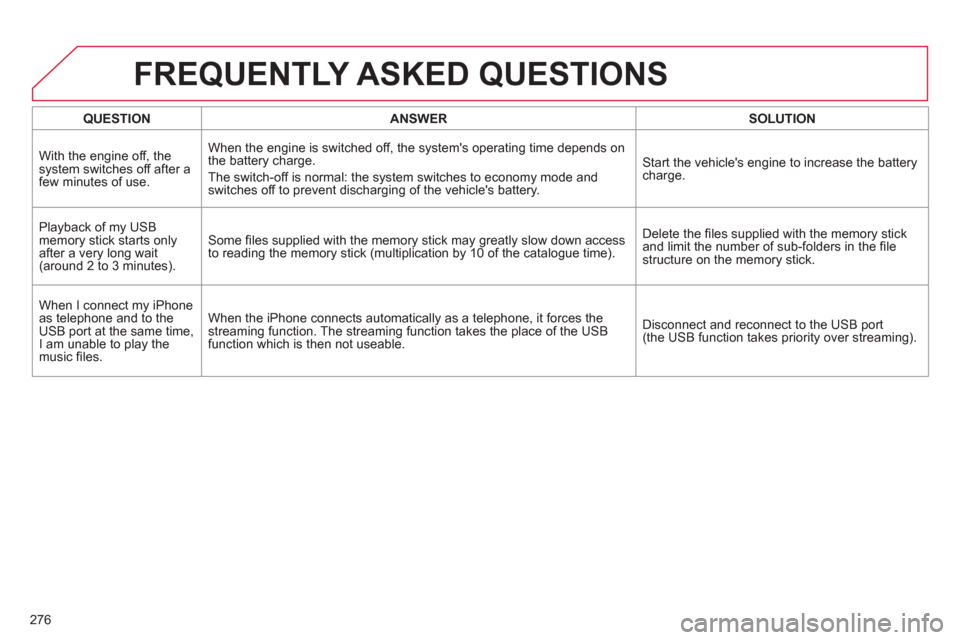
QUESTION
ANSWER
SOLUTION
With the engine off, the
system switches off after a
few minutes of use. When the engine is switched off, the system's operating time depends on
the battery charge.
The switch-off is normal: the system switches to economy mode and
switches off to prevent discharging of the vehicle's battery. Start the vehicle's engine to increase the battery
charge.
Playback of my USB
memory stick starts only
after a very long wait
(around 2 to 3 minutes). Some fi les supplied with the memory stick may greatly slow down access
to reading the memory stick (multiplication by 10 of the catalogue time). Delete the fi les supplied with the memory stick
and limit the number of sub-folders in the fi le
structure on the memory stick.
When I connect my iPhone
as telephone and to the
USB port at the same time,
I am unable to play the
music fi les. When the iPhone connects automatically as a telephone, it forces the
streaming function. The streaming function takes the place of the USB
function which is then not useable. Disconnect and reconnect to the USB port
(the USB function takes priority over streaming).
FREQUENTLY ASKED QUESTIONS
Page 279 of 324
277
The system is coded in such a way that it will only
operate in your vehicle. If it is to be installed in another
vehicle, contact your CITROËN dealer for confi guration
of the system.
AUDIO SYSTEM/BLUETOOTH
01 First steps
For safety reasons, the driver must only carry out
operations which require prolonged attention while the
vehicle is stationary.
When the engine is switched off and to prevent
discharging of the battery, the audio system may switch
off after a few minutes.
CONTENTS
02 Steering mounted controls
03 Main menu
04 Audio
05 Using the telephone
06 Audio settings
07 Configuration
08 Trip computer
09 Screen menu map
Frequently asked questions p.
p.
p.
p.
p.
p.
p.
p.
p.
p.
278
279
280
281
291
300
302
303
304
307
Page 280 of 324

278
01
1
2
7
45
6
3
8
9
10
13
1112
14
FIRST STEPS
1. On/Off and volume adjustment.
2. CD eject.
3. Selection of the display on the screen from
the following modes:
Full screen: Audio (or if a telephone call is in
progress)/
New window: Audio (or telephone if a call is
in progress) - Time or Trip computer.
Long press: black screen (DARK).
4. Selection of source:
Radio, CD, AUX, USB, Streaming.
Accept an incoming call.
5.
Selection of FM1, FM2, DAB and AM wavebands.
6. Buttons 1 to 6:
Selection of a preset radio station.
Long press: preset a station.
7. Display the list of stations received, the
CD/MP3 tracks or folders.
Long press: MP3/WMA fi le order/update the
list of stations received.
8. TA (Traffi c Announcement) function on/off.
Long press: access to the type of
information.
9. Confi rmation or display of contextual menu.
10. Abandon current operation.
Up one level (menu or folder).
11 . Automatic search for a lower/higher radio
frequency.
Selection of previous/next CD, USB,
streaming track.
Navigation in a list.
12. Manual step by step search for a lower/
higher radio frequency.
Selection of the previous/next MP3 folder.
Selection of the previous/next USB device
folder/genre/artist/playlist.
Navigation in a list.
13. Main menu.
14. Audio settings:
equalizer, treble, bass, loudness,
distribution, left/right balance, front/rear,
automatic volume.
Page 281 of 324
02
279
STEERING MOUNTED CONTROLS
- Change the audio source.
Long press: mute.
- Increase volume.
- Decrease volume.
- Radio: display the list of stations.
Media: display the list of tracks.
Long press: update the list of
stations received.
- Rotation:
Radio: search for the previous/next
station.
Media: previous/next track.
Press: confi rmation.
- Access to telephone menu:
Dial/Directory/Calls list/Voice mail
box.
- Move in the menus.
Press: confi rmation.
- Abandon the current operation.


