Page 182 of 252

180
EMERGENCY OR ASSISTANCE CALL
CITROËN LOCALISED EMERGENCY CALL
In an emergency, press this button for more than 2 seconds.Flashing of the green LED and a voice message confi rm thatthe call has been made to the CITROËN Emergency team * . gg g
Pressing this button again immediately cancels the request. The green LED goes off.
A press
(at any time) of more than 8 seconds on this button, cancels
the request.
CITROËN LOCALISED ASSISTANCE CALL
When the ignition is switched on,
the green LED comes on for 3 seconds
indicating that the system is operating correctly.
If the oran
ge LED fl ashes: there is
a system fault.
If the oran
ge LED is on continuously:
the backup battery must be replaced.
In either case, contact a CITRO
ËN. Pressin
g this button again immediately cancels the request.
The cancellation is confi rmed b
y a voice message.
Press this button for more than 2 seconds to request
assistance if the vehicle breaks down.
A voice message confi rms that the call has been made *
.
OPERATION OF THE SYSTEM
The green LED remains on (without fl ashing) when communication is established. It goes off at the end of communication.
This call is dealt with b
y the CITROËN Emergency team which receiveslocating information from the vehicle and can send a detailed alert to theappropriate emergency services. In countries in which the team is not
operational, or when the locating service has been expressly declined,
the call is dealt with directl
y by the emergency services (11 2) without
the vehicle location.
If an impact is detected b
y the airbag ECU, and independentlyof the deployment of any airbags, an emergency call is made
automatically.
*
These services are subject to conditions and availability.
Consult a CITROËN dealer.If you purchased your vehicle outside the CITROËN dealer network,
we invite
you to have a dealer check the confi guration of these servicesand, if desired, modifi ed to suit your wishes. In a multi-lingual country, confi guration is possible in the offi cial national language of your choice.
For technical reasons, particularl
y to improve the quality of Telematic services to customers, the manufacturer reserves the right to carry out
updates to the vehicle's on-board telematic system.
If you benefi t from the CITROËN eTouch offer, you also have availableadditional services in your MyCITROËN personal space, via the CITROËN y,y
Internet website www.citroen.co.uk.
Page 183 of 252
181
The MyWay is protected in such a way that it will onlyoperate in your vehicle. If it is to be installed in another vehicle, contact a CITROËN dealer for confi guration of py
the system.
Certain functions described in this handbook will
become available during the year.
MyWay
For safety reasons, the driver must carry out operations which require prolonged attention while the vehicle is stationary.
When the en
gine is switched off and to prevent
discharging of the battery, the MyWay switches off
following the activation of the Energy Economy mode.
MULTIMEDIA AUDIO SYSTEM/BLUETOOTH TELEPHONE
SATELLITE NAVIGATION SYSTEM FOR EUROPE BY SD CARD
01 First steps
CONTENTS
02 Steering mounted controls
03 General operation
04 Navigation - Guidance
05 Traffic information
06 Radio
07 Music media players
08 Bluetooth telephone
09 Configuration
10 Screen menu map p.
p.
p.
p.
p.
p.
p.
p.
p.
p.
Frequently asked questions p. 182
183
184
187
195
197
198
201
204
205
209
Page 184 of 252

182
01 FIRST STEPS
MyWay CONTROL PANEL
Engine not running:
-
Short press: on/off.
- Long press: pause with
CD play, mute for radio.
Engine running:
- Short
press: pause with CD play, mute for radio.
-
Long press: reinitialise thesystem.
Access to
the Radio Menu. Display the list of stations.
Access to
the Music Menu.Display tracks. Lon
g press: audio settings: front/rear fader, left/right balance, bass/treble,
musical ambience, loudness, automatic
volume, reinitialise settings.
Selection dial for the
screen display and according to the menu.
Short press: contextual
menu or confi rm.
Long press: contextual
menu specifi c to the list
displayed.
A
ccess to the"SETUP" menu.
Lon
g press: GPS coverage anddemonstration
mode.
Access to the PhoneMenu. Display the list of calls.
E
ject CD.
Select previous/next radio station.
Select previous CD or MP3
track.
Select previous/next line in a list.
Select
previous/next radio station in the list.
Select previous/next MP3
folder.
Select previous/next page in a list.
E
SC: abandon current operation.
Access to theTraffi c Menu. Display the current
traffi c alerts. R
eader for navigation SDcard only.
A
ccess to theNavigation Menu. Displayrecent destinations.
A
ccess to the "MODE" menu.
Select successive display of:
Radio, Map, NAV (if navigation in progress),
Telephone (if conversation in progress), Tripcomputer.
Long press: Black screen (DARK). Buttons 1 to
6:
Select a pre-set radiostation.
Long press: pre-set the current station.
Ad
just volume (each source
is independent, including
navigation messages andalerts).
Page 186 of 252
184
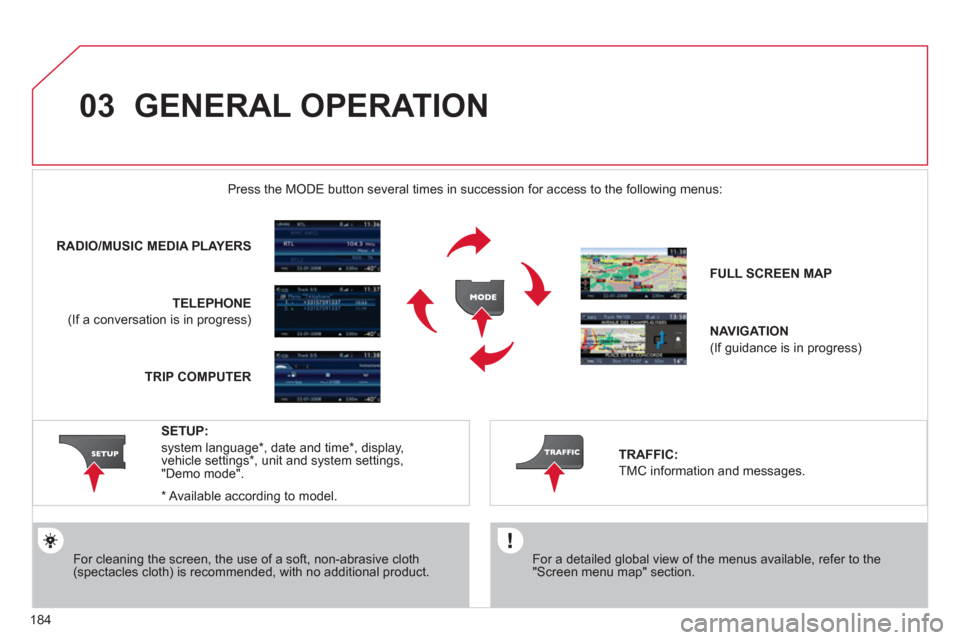
03 GENERAL OPERATION
For a detailed global view of the menus available, refer to the"Screen menu map" section.
Press the M
ODE button several times in succession for access to the following menus:
For cleaning the screen, the use of a soft, non-abrasive cloth (spectacles cloth) is recommended, with no additional product. RADIO/MU
SIC MEDIA PLAYERS
TELEPHONE
(If a conversation is in progress)
FULL SCREEN MA
P
NAVIGATION
(If guidance is in progress)
SETUP:
system language *
, date and time *
, display,
vehicle settings * , unit and system settings,
"Demo mode".
TRAFFIC:
TMC information and messages.
*
Available accordin
g to model. TRIP COMPUTE
R
Page 187 of 252
185
03
A press on the OK dial gives access to short-cut menus according to the displayon the screen.
DISPLAY ACCORDING TO THE CONTEXT
NAVIGATION (IF GUIDANCE IS IN PROGRESS):TRIP COMPUTER:
Abort
guidance
Repeat advice
Block road
Route info
Show destination
Tri
p info
Route t
ype
Avoid
Satellites
Zoom
/Scroll
Voice advice
Route options
Alert log
Status of functions
1
2
3
3
2
1
1
1
3
1
1
1
1
2
TELEPHONE:
End call
Hold call
Dial
DTMF-Tones
Private mode
Micro off
1
1
1
1
1
1
Page 191 of 252
189
04
1
2
3
5
4
NAVIGATION - GUIDANCE
SETTING AND NAVIGATING TO
MY "HOME ADDRESS"
Press the NAV button twice to display
the Navigation Menu.
To be set as the "Home address"
, an address must fi rst be entered in the address book, for example from "Destination
input"/"Address input" then "Save to address book".
Select "Address book" and confi rm.
Then select "Search entry (complete address book)" and confi rm. Select "Destination in
put" and confi rm.
Then select "Choose from addressbook" and confi rm.
Select "Set as home address" andconfi rm to save.
Select
your home address and confi rm.
Then select "Edit entry" and confi rm.
To start navi
gation towards "Home address", press NAV twice
to display the Navigation Menu, select "Destination input" and confi rm.
Then select "Navi
gate HOME" and confi rm to start guidance.
Navigation Menu
Destination input
Address book
Edit entry
Set as "Home address"
Page 192 of 252
190
04
4
3
2
1
7
6
5
NAVIGATION - GUIDANCE
ROUTE OPTIONS
Select the "Route dynamics"function.
This
function gives access to the "Traffi c independent" or "Semi-
dynamic" options.
Select the "Avoidance criteria"function. This function provides
access to the AVOID options (motorways, toll roads, ferries).
T
urn the dial and select the "Recalculate" function to take intoaccount the route options selected.
Press the dial to confi rm. Pr
ess the NAV button.
Press the NAV button a
gain or select
the Navigation Menu function andpress the dial to confi rm.
Select the "Route type" functionand press the dial to confi rm. Thisfunction allows you to change theroute type.
Select the "Route options" functionand press the dial to confi rm.
Recalculate
Avoidance criteria
Route dynamics
Route type
Route options
Navigation MenuThe route selected b
y the MyWay system depends directly on the route
options.
Chan
ging these options may change the route completely.
Page 193 of 252
191
04
7
6
5
4
3
2
1
ADDING A STOPOVER
Enter a new address, for example.
Once the new address has been entered, select OK and press the dial
to confi rm.
Select "Recalculate" and press thedial to confi rm. Pr
ess the NAV button.
Press the NAV button again or select
the Navi
gation Menu function and
press the dial to confi rm.
Select the "Add stopover" function(5 stopovers maximum) and press
the dial to confi rm.
Select the "Stopovers" function and
press the dial to confi rm.
OK Address in
put
Add stopover Sto
povers Navi
gation Menu
Recalculate
The stopover must be completed or deleted in order for
the guidance to continue to the next destination. Otherwise,
the MyWay will always return you to the previous stopover.
Stopovers can be added to the route once the destination has been selected.
NAVIGATION - GUIDANCE