Page 144 of 652
•After the ignition key is switched to OFF, a call can
continue on the Uconnect™ Phone for a certain dura-
tion, after which the call is automatically transferred
from the Uconnect™ Phone to the mobile phone.
•An active call is automatically transferred to the
mobile phone after the ignition key is switched to OFF.
Uconnect™ Phone Features
Language Selection
To change the language that the Uconnect™ Phone is
using:
•Press thebutton to begin.
•After the “Ready” prompt and the following beep, say
the name of the language you wish to switch to
English, Espanol, or Francais.
•Continue to follow the system prompts to complete
the language selection.After selecting one of the languages, all prompts and
voice commands will be in that language.
NOTE:
After every Uconnect™ Phone language change
operation, only the language-specific 32-name phone-
book is usable. The paired phone name is not language-
specific and is usable across all languages.
Emergency Assistance
If you are in an emergency and the mobile phone is
reachable:
•Pick up the phone and manually dial the emergency
number for your area.
If the phone is not reachable and the Uconnect™ Phone is
operational, you may reach the emergency number as
follows:
•Press thebutton to begin.
142 UNDERSTANDING THE FEATURES OF YOUR VEHICLE
Page 146 of 652
Mexico City in Mexico). Please refer to the 24-Hour
“Towing Assistance” coverage details on the DVD in
the Warranty Information Booklet and the 24-Hour
Towing Assistance references.
•If supported, this number may be programmable on
some systems. To do this, press the
button and say
“Setup”, followed by “Towing Assistance”.
Paging
To learn how to page, refer to “Working with Automated
Systems”. Paging works properly except for pagers of
certain companies, which time out a little too soon to
work properly with the Uconnect™ Phone.
Voice Mail Calling
To learn how to access your voice mail, refer to “Working
with Automated Systems”.
Working With Automated Systems
This method is used in instances where one generally has
to press numbers on the mobile phone keypad while
navigating through an automated telephone system.
You can use your Uconnect™ Phone to access a voice
mail system or an automated service, such as a paging
service or automated customer service line. Some ser-
vices require immediate response selection. In some
instances, that may be too quick for use of the
Uconnect™ Phone.
When calling a number with your Uconnect™ Phone that
normally requires you to enter in a touch-tone sequence
on your mobile phone keypad, you can press the
button and say the sequence you wish to enter, followed
by the word “Send”. For example, if required to enter
your PIN followed with a pound, (3746#),youcan
press the
button and say, “3746#Send”. Saying
a number, or sequence of numbers, followed by “Send”,
144 UNDERSTANDING THE FEATURES OF YOUR VEHICLE
Page 147 of 652
is also to be used for navigating through an automated
customer service center menu structure, and to leave a
number on a pager.
You can also send stored Uconnect™ phonebook entries
as tones for fast and easy access to voice mail and pager
entries. To use this feature, dial the number you wish to
call and then press the
button and say, “Send.” The
system will prompt you to enter the name or number and
say the name of the phonebook entry you wish to send.
The Uconnect™ Phone will then send the corresponding
phone number associated with the phonebook entry, as
tones over the phone.
NOTE:
•You may not hear all of the tones due to mobile phone
network configurations. This is normal.
•Some paging and voice mail systems have system time
out settings that are too short and may not allow the
use of this feature.
Barge In — Overriding Prompts
The “Voice Command” button can be used when you
wish to skip part of a prompt and issue your voice
command immediately. For example, if a prompt is
asking “Would you like to pair a phone, clear a...,” you
could press the
button and say, “Pair a Phone” to
select that option without having to listen to the rest of
the voice prompt.
Turning Confirmation Prompts ON/OFF
Turning confirmation prompts off will stop the system
from confirming your choices (e.g., the Uconnect™
Phone will not repeat a phone number before you dial it).
•Press thebutton to begin.
•After the “Ready” prompt and the following beep, say
one of the following:
“Setup Confirmation Prompts On”
“Setup Confirmation Prompts Off”
3
UNDERSTANDING THE FEATURES OF YOUR VEHICLE 145
Page 159 of 652
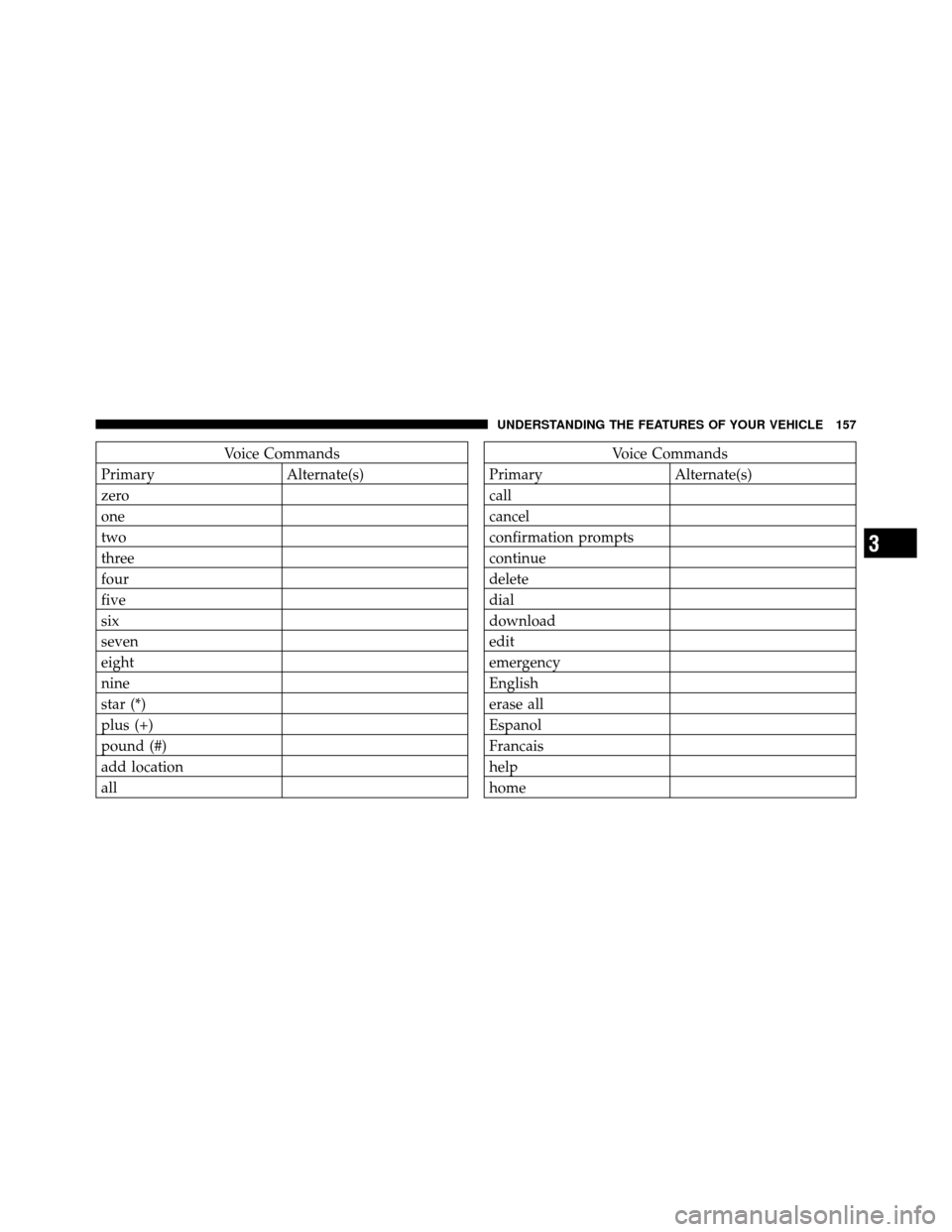
Voice Commands
Primary Alternate(s)
zero
one
two
three
four
five
six
seven
eight
nine
star (*)
plus (+)
pound (#)
add location
allVoice Commands
Primary Alternate(s)
call
cancel
confirmation prompts
continue
delete
dial
download
edit
emergency
English
erase all
Espanol
Francais
help
home
3
UNDERSTANDING THE FEATURES OF YOUR VEHICLE 157
Page 161 of 652
General Information
This device complies with Part 15 of the FCC rules and
RSS 210 of Industry Canada. Operation is subject to the
following conditions:
•Changes or modifications not expressly approved by
the party responsible for compliance could void the
user’s authority to operate the equipment.
•This device may not cause harmful interference.
•This device must accept any interference received,
including interference that may cause undesired
operation.
VOICE COMMAND — IF EQUIPPED
Voice Command System Operation
This Voice Command system allows you to
control your AM, FM radio, satellite radio, disc
player, and a memo recorder.NOTE:
Take care to speak into the Voice Interface
System as calmly and normally as possible. The ability of
the Voice Interface System to recognize user voice com-
mands may be negatively affected by rapid speaking or a
raised voice level.
WARNING!
Any voice commanded system should be used only
in safe driving conditions following local laws. All
attention should be kept on the roadway ahead.
Failure to do so may result in a collision causing
serious injury or death.
When you press the Voice Command
button, you
will hear a beep. The beep is your signal to give a
command.
NOTE:
If you do not say a command within a few
seconds, the system will present you with a list of options.
3
UNDERSTANDING THE FEATURES OF YOUR VEHICLE 159
Page 169 of 652
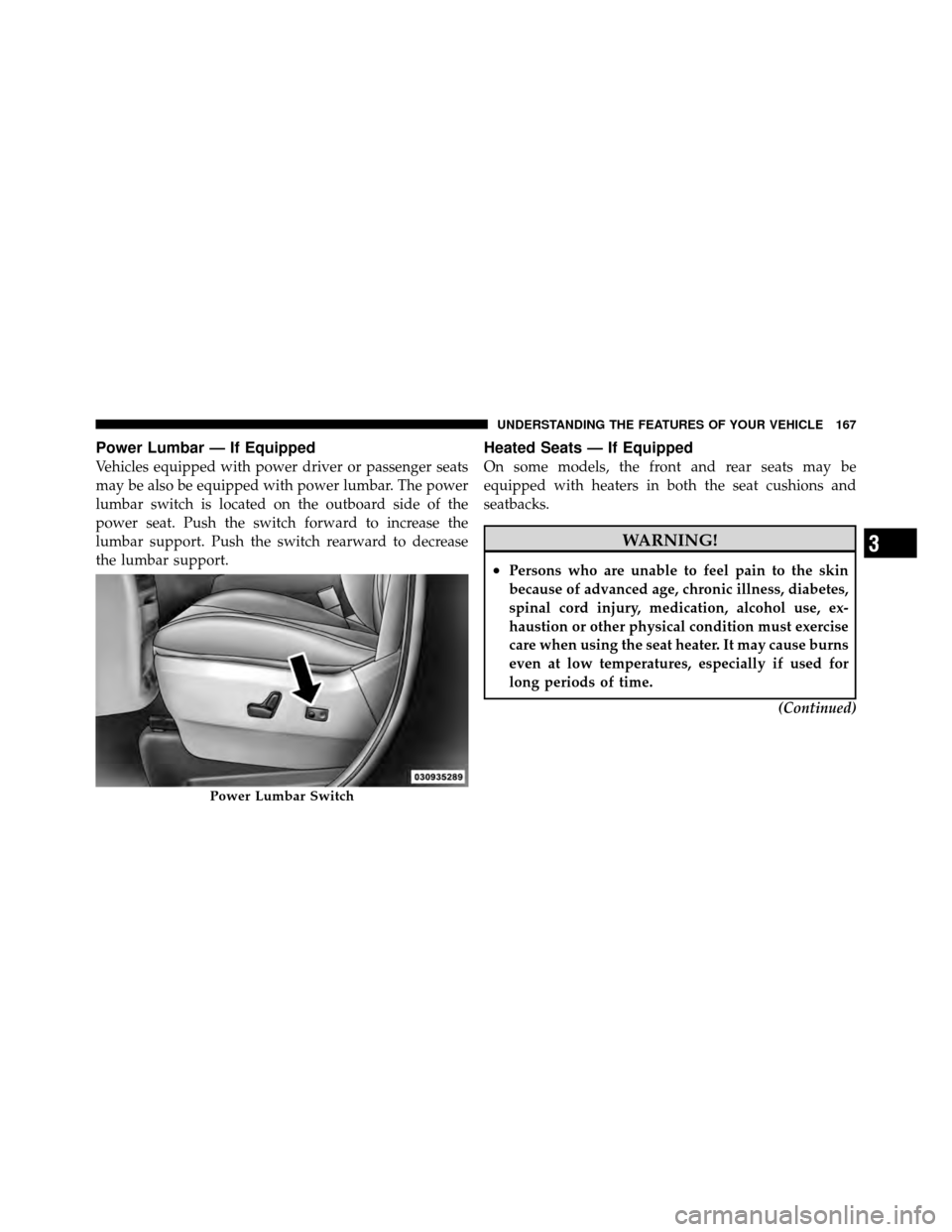
Power Lumbar — If Equipped
Vehicles equipped with power driver or passenger seats
may be also be equipped with power lumbar. The power
lumbar switch is located on the outboard side of the
power seat. Push the switch forward to increase the
lumbar support. Push the switch rearward to decrease
the lumbar support.
Heated Seats — If Equipped
On some models, the front and rear seats may be
equipped with heaters in both the seat cushions and
seatbacks.
WARNING!
•Persons who are unable to feel pain to the skin
because of advanced age, chronic illness, diabetes,
spinal cord injury, medication, alcohol use, ex-
haustion or other physical condition must exercise
care when using the seat heater. It may cause burns
even at low temperatures, especially if used for
long periods of time.(Continued)
Power Lumbar Switch
3
UNDERSTANDING THE FEATURES OF YOUR VEHICLE 167
Page 214 of 652

WARNING!
Sudden loss of visibility through the windshield
could lead to a collision. You might not see other
vehicles or other obstacles. To avoid sudden icing of
the windshield during freezing weather, warm the
windshield with defroster before and during wind-
shield washer use.
Rain Sensing Wipers — If Equipped
This feature senses moisture on the windshield and
automatically activates the wipers for the driver. This
feature is especially useful for road splash or overspray
from the windshield washers of the vehicle ahead. Rotate
the end of the multifunction lever to one of the five
intermittent wiper sensitivity settings to activate this
feature.The sensitivity of the system is adjustable from the
multifunction lever. Wiper sensitivity position 3 has been
calibrated for best overall wiping sensitivity. If the opera-
tor desires more wiping sensitivity, they may select
sensitivity positions 4 or 5. If the operator desires less
wiping sensitivity, they may select sensitivity positions 2
or 1. Place the multifunction lever in the OFF position
when not using the system.
NOTE:•The Rain Sensing feature will not operate when the
wiper speed is in the low or high position.
•The Rain Sensing feature may not function properly
when ice or dried saltwater is present on the wind-
shield.
•Use of Rain-X�
or products containing wax or silicone
may reduce rain sensor performance.
212 UNDERSTANDING THE FEATURES OF YOUR VEHICLE
Page 217 of 652
HEATED STEERING WHEEL — IF EQUIPPED
The steering wheel contains a heating element that helps
warm your hands in cold weather. The heated steering
wheel has only one temperature setting. Once the heated
steering wheel has been turned on it will operate for
approximately 58 to 70 minutes before automatically
shutting off. The heated steering wheel can shut off early
or may not turn on when the steering wheel is already
warm.
The heated steering wheel switch is located on the switch
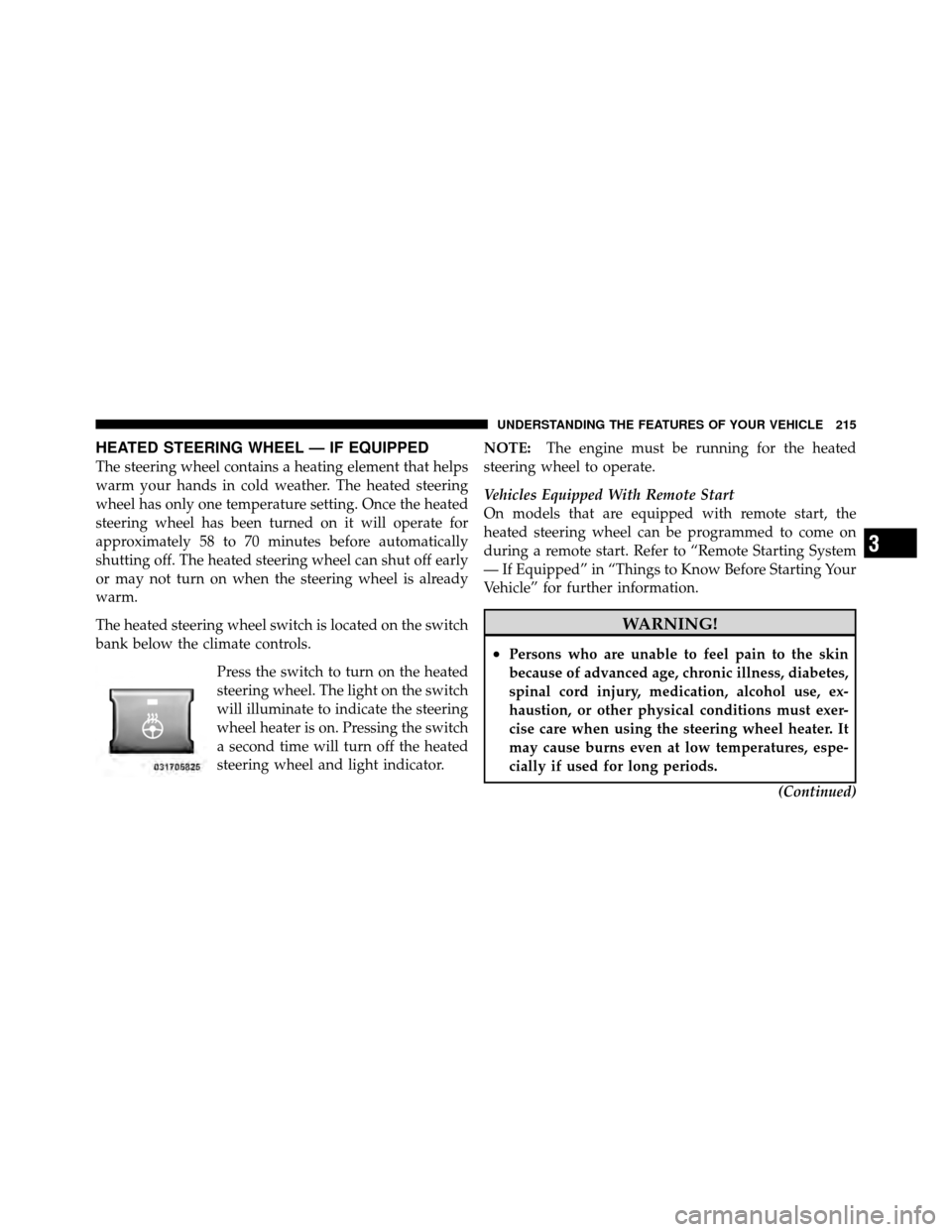
bank below the climate controls.Press the switch to turn on the heated
steering wheel. The light on the switch
will illuminate to indicate the steering
wheel heater is on. Pressing the switch
a second time will turn off the heated
steering wheel and light indicator. NOTE:
The engine must be running for the heated
steering wheel to operate.
Vehicles Equipped With Remote Start
On models that are equipped with remote start, the
heated steering wheel can be programmed to come on
during a remote start. Refer to “Remote Starting System
— If Equipped” in “Things to Know Before Starting Your
Vehicle” for further information.
WARNING!
•Persons who are unable to feel pain to the skin
because of advanced age, chronic illness, diabetes,
spinal cord injury, medication, alcohol use, ex-
haustion, or other physical conditions must exer-
cise care when using the steering wheel heater. It
may cause burns even at low temperatures, espe-
cially if used for long periods.
(Continued)
3
UNDERSTANDING THE FEATURES OF YOUR VEHICLE 215