Page 146 of 576
Natural Speech
Natural speech allows the user to speak commands in
phrases or complete sentences. The system filters out
certain non-word utterances and sounds such as “ah”
and “eh”. The system handles fill-in words such as “I
would like to”.
The system handles multiple inputs in the same phrase
or sentence such as “make a phone call” and “to Kelly
Smith”. For multiple inputs in the same phrase or sen-
tence, the system identifies the topic or context and
provides the associated follow-up prompt such as “Who
do you want to call?” in the case where a phone call was
requested but the specific name was not recognized.
The system utilizes continuous dialog; when the system
requires more information from the user it will ask a
question to which the user can respond without pressing
the Uconnect™ Voice Command
button.
Uconnect™ Voice Commands
The Uconnect™ Voice Command system understands
two types of commands. Universal commands are avail-
able at all times. Local commands are available if the
supported radio mode is active.
Start a dialogue by pressing the Uconnect™ Voice Com-
mand
button.
Changing the Volume
1. Start a dialogue by pressing the Voice Command
button.
2. Say a command (e.g., “Help”).
3. Use the ON/OFF VOLUME rotary knob to adjust the
volume to a comfortable level while the Voice Command
system is speaking. Please note the volume setting for
Voice Command is different than the audio system.
144 UNDERSTANDING THE FEATURES OF YOUR VEHICLE
Page 155 of 576
NOTE:
1. Only available with Navigation equipped vehicles.
2. You can replace “Player” with “Radio”, “Navigation”,
“Phone”, “Climate”, “More” or “Settings”.
3. Navigation commands only work if equipped with
Navigation.
4. Available Voice Commands are shown in bold face
and shaded grey.
3
UNDERSTANDING THE FEATURES OF YOUR VEHICLE 153
Page 260 of 576
CAUTION!
•Many accessories that can be plugged in draw
power from the vehicle’s battery even when not in
use (i.e., cellular phones, etc.). Eventually, if
plugged in long enough, the vehicle’s battery will
discharge sufficiently to degrade battery life
and/or prevent the engine from starting.
•Accessories that draw higher power (i.e., coolers,
vacuum cleaners, lights, etc.) will degrade the
battery even more quickly. Only use these inter-
mittently and with greater caution.
(Continued)
CAUTION! (Continued)
•After the use of high power draw accessories or
long periods of the vehicle not being started (with
accessories still plugged in), the vehicle must be
driven a sufficient length of time to allow the
alternator to recharge the vehicle’s battery.
•Power outlets are designed for accessory plugs
only. Do not hang any type of accessory or acces-
sory bracket from the plug. Improper use of the
power outlet can cause damage.
258 UNDERSTANDING THE FEATURES OF YOUR VEHICLE
Page 265 of 576
Two separate storage compartments are also located
underneath the center console armrest.Inside the center console armrest, there is a removable
upper storage tray that can be slid forward/rearward on
rails for access to the lower storage area. This tray has an
integrated coin holder, along with additional area for
small items like an ipod or phone. Below the upper tray,
the lower storage compartment is made for larger items,
like CDs and tissue boxes. In addition, the 12 volt power
outlet, USB and Aux jack are located here.
WARNING!
Do not operate this vehicle with a console compart-
ment lid in the open position. Cellular phones, music
players, and other handheld electronic devices
should be stowed while driving. Use of these devices
while driving can cause an accident due to distrac-
tion, resulting in death or injury.
Center Console
3
UNDERSTANDING THE FEATURES OF YOUR VEHICLE 263
Page 274 of 576

▫Messages #......................... 299
▫Turn Menu Off...................... 299
�Uconnect Touch™ Settings............... 299
▫Hard-Keys......................... 299
▫Soft-Keys.......................... 299
▫Customer Programmable Features —
Uconnect Touch™ 4.3 Settings
(If Equipped)....................... 300
▫Customer Programmable Features —
Uconnect Touch™ System 8.4 Settings
(If Equipped)....................... 313
�Setting The Analog Clock................ 328
�iPod�/USB/MP3 Control — If Equipped..... 328�Harman Kardon�Logic7�High Performance
Multichannel Surround Sound System With
Driver-Selectable Surround (DSS) —
If Equipped.......................... 328
�Steering Wheel Audio Controls............ 330
▫Radio Operation..................... 330
▫CD Player......................... 331
�CD/DVD Disc Maintenance.............. 331
�Radio Operation And Mobile Phones....... 332
�Climate Controls...................... 332
▫General Overview.................... 333
▫Climate Control Functions.............. 339
▫Automatic Temperature Control (ATC)..... 340
▫Operating Tips...................... 341
272 UNDERSTANDING YOUR INSTRUMENT PANEL
Page 302 of 576
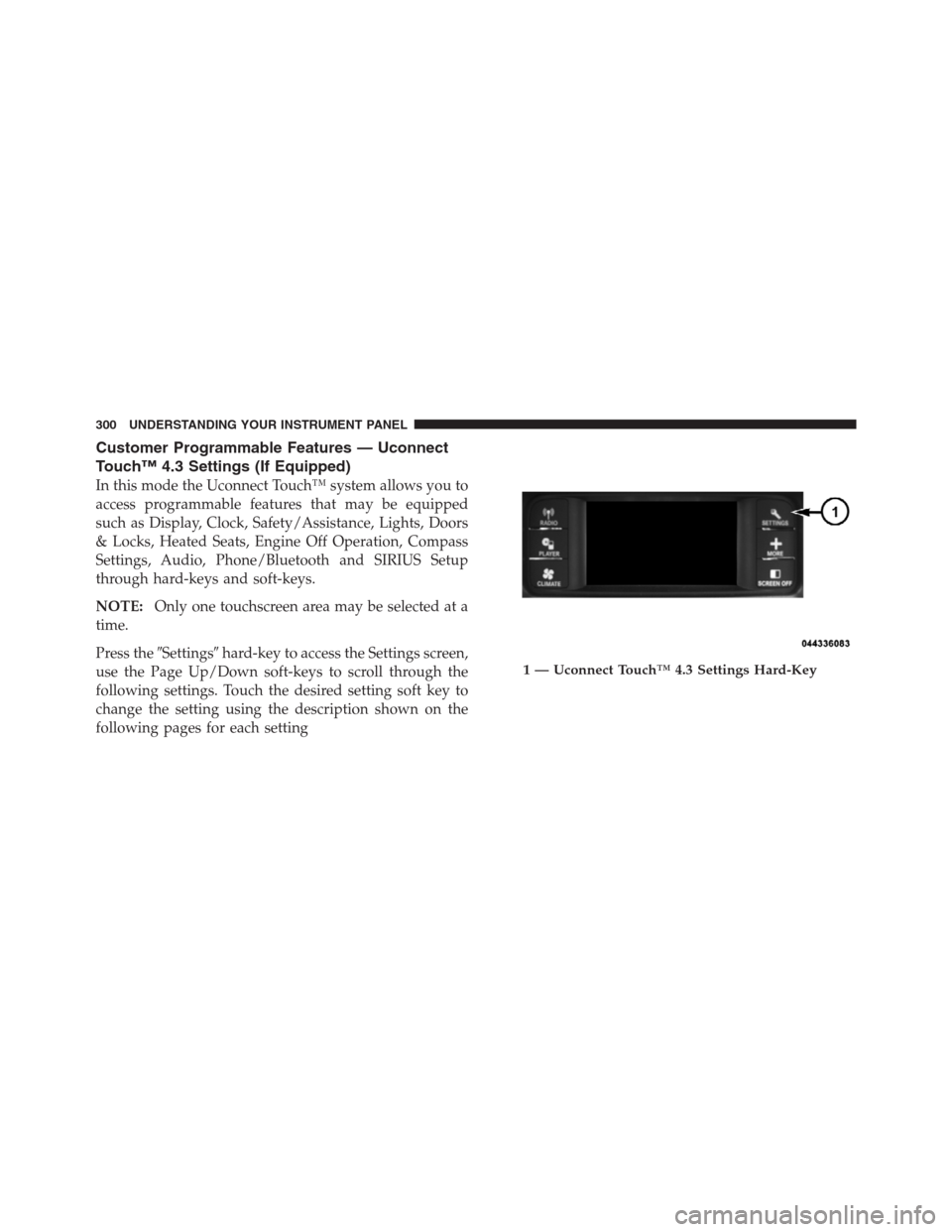
Customer Programmable Features — Uconnect
Touch™ 4.3 Settings (If Equipped)
In this mode the Uconnect Touch™ system allows you to
access programmable features that may be equipped
such as Display, Clock, Safety/Assistance, Lights, Doors
& Locks, Heated Seats, Engine Off Operation, Compass
Settings, Audio, Phone/Bluetooth and SIRIUS Setup
through hard-keys and soft-keys.
NOTE:Only one touchscreen area may be selected at a
time.
Press the�Settings�hard-key to access the Settings screen,
use the Page Up/Down soft-keys to scroll through the
following settings. Touch the desired setting soft key to
change the setting using the description shown on the
following pages for each setting
1 — Uconnect Touch™ 4.3 Settings Hard-Key
300 UNDERSTANDING YOUR INSTRUMENT PANEL
Page 312 of 576

•Engine Off Power Delay
Touch the Engine Off Power Delay soft-key to change this
display. When this feature is selected, the power window
switches, radio, Uconnect™ phone system (if equipped),
DVD video system (if equipped), power sunroof (if
equipped), and power outlets will remain active for up to
10 minutes after the ignition is cycled to OFF. Opening
either front door will cancel this feature. To change the
Engine Off Power Delay status, touch the 0 seconds,
45 seconds, 5 minutes or 10 minutes soft-key. Then touch
the arrow back soft-key.Compass Settings
•
Variance
Touch the Variance soft-key to change this display. Com-
pass Variance is the difference between Magnetic North
and Geographic North. To compensate for the differences,
the variance should be set for the zone where the vehicle is
driven, per the zone map. Once properly set, the compass
will automatically compensate for the differences, and
provide the most accurate compass heading.
NOTE:Keep magnetic materials away from the top of
the instrument panel, such as iPod’s, Mobile Phones,
Laptops and Radar Detectors. This is where the compass
module is located, and it can cause interference with the
compass sensor, and it may give false readings.
310 UNDERSTANDING YOUR INSTRUMENT PANEL
Page 314 of 576
Audio
•
Equalizer
Touch the Equalizer soft-key to change this display.
When in this display, you may adjust the Bass, Mid and
Treble settings. Adjust the settings with the + and –
setting soft-keys or by selecting any point on the scale
between the + and – soft-keys. Then touch the arrow back
soft-key.
NOTE:Bass/Mid/Treble allow you to simply slide your
finger up or down to change the setting as well as press
directly on the desired setting.
•Balance / Fade
Touch the Balance / Fade soft-key to change this display.
When in this display, you may adjust the Balance and
Fade settings.
•Speed Adjusted Volume
Touch the Speed Adjusted Volume soft-key to change this
display. This feature increases or decreases volume rela-
tive to vehicle speed. To change the Speed Adjusted
Volume, press the OFF, 1, 2 or 3 soft-key. Then touch the
arrow back soft-key.
•Surround Sound
Touch the Surround Sound soft-key to change this dis-
play. This feature provides simulated surround sound
mode. To make your selection, press the Surround Sound
soft-key and select ON or OFF. Then touch the arrow
back soft-key.
Phone / Bluetooth
•
Paired Devices
This feature shows which phones are paired to the
Phone/Bluetooth system. For further information, refer
to the Uconnect Touch™ Supplement.
312 UNDERSTANDING YOUR INSTRUMENT PANEL