2012 CHRYSLER 300 headlights
[x] Cancel search: headlightsPage 303 of 576

Display
•
Brightness
Touch the Brightness soft-key to change this display.
When in this display, you may select display brightness
with the headlights on and the headlights off. Adjust the
brightness with the + and – setting soft-keys or byselecting any point on the scale between the + and –
soft-keys. Then touch the arrow back soft-key.
•Mode
Touch the Mode soft-key to change this display. When in
this display, you may select one of the auto display
settings. To change Mode status press and release the
Day, Night or Auto soft-key, then by touch the arrow back
soft-key.
•Language
Touch the Language soft-key to change this display.
When in this display, you may select one of three
languages for all display nomenclature, including the trip
functions and the navigation system (if equipped). Touch
the English, French (Français) or Spanish (Español) soft-
key to select the language preferred. Then touch the
arrow back soft-key. As you continue, the information
will display in the selected language.
Uconnect Touch™ 4.3 Soft-Keys
4
UNDERSTANDING YOUR INSTRUMENT PANEL 301
Page 307 of 576

•Rain Sensing
Touch the Rain Sensing soft-key to change this display.
When this feature is selected, the system will automati-
cally activate the windshield wipers if it senses moisture
on the windshield. To make your selection, touch the
Rain Sensing soft-key and select ON or OFF. Then touch
the arrow back soft-key.
•Hill Start Assist — If Equipped
Touch the Hill Start Assist soft-key to change this display.
When this feature is selected, the Hill Start Assist (HSA)
system is active. Refer to “Electronic Brake Control
System” in “Starting And Operating” for system function
and operating information. To make your selection, touch
the Hill Start Assist soft-key and select ON or OFF. Then
touch the arrow back soft-key.
Lights
•
Illuminated Approach
Touch the Illuminated Approach soft-key to change this
display. When this feature is selected, the headlights will
activate and remain on for 0, 30, 60, or 90 seconds when
the doors are unlocked with the Remote Keyless Entry
(RKE) transmitter. To change the Illuminated Approach
status, touch the 0, 30, 60 or 90 soft-key. Then touch the
arrow back soft-key.
•Headlights With Wipers
Touch the Headlights With Wipers soft-key to change this
display. When this feature is selected, and the headlight
switch is in the AUTO position, the headlights will turn on
approximately 10 seconds after the wipers are turned on.
The headlights will also turn off when the wipers are
turned off if they were turned on by this feature. To make
your selection, touch the Headlights With Wipers soft-key
and select ON or OFF. Then touch the arrow back soft-key.
4
UNDERSTANDING YOUR INSTRUMENT PANEL 305
Page 308 of 576
•Auto High Beams “SmartBeam™”
Touch the Auto High Beams soft-key to change this
display. When this feature is selected, the high beam
headlights will deactivate automatically under certain
conditions. To make your selection, touch the Auto High
Beams soft-key and select ON or OFF. Then touch the
arrow back soft-key. Refer to “Lights/SmartBeam™ — If
Equipped” in “Understanding The Features Of Your
Vehicle” for further information.
•Daytime Running Lights
Touch the Daytime Running Lights soft-key to change
this display. When this feature is selected, the headlights
will turn on whenever the engine is running. To make
your selection, touch the Daytime Running Lights soft-
key and select ON or OFF. Then touch the arrow back
soft-key.
•Steering Directed Lights
Touch the Steering Directed Lights soft-key to change this
display. When this feature is selected, the headlights turn
relative to a change in direction of the steering wheel. To
make your selection, touch the Steering Directed Lights
soft-key and select ON or OFF. Then touch the arrow
back soft-key.
•Flash Headlights With Lock
Touch the Flash Headlights With Lock soft-key to change
this display. When this feature is selected, the headlights
will flash when the doors are locked or unlocked with the
Remote Keyless Entry (RKE) transmitter. This feature
may be selected with or without the sound horn on lock
feature selected. To make your selection, touch the Flash
Headlights With Lock soft-key and select ON or OFF.
Then touch the arrow back soft-key.
306 UNDERSTANDING YOUR INSTRUMENT PANEL
Page 311 of 576
•Passive Entry (Keyless Enter-N-Go)
Touch the Passive Entry soft-key to change this display.
This feature allows you to lock and unlock the vehicle’s
door(s) without having to press the RKE transmitter lock
or unlock buttons. To make your selection, touch the
Passive Entry soft-key and select ON or OFF. Then touch
the arrow back soft-key. Refer to “Keyless Enter-N-Go” in
“Things To Know Before Starting Your Vehicle”.
Heated Seats
•
Auto Heated Seats
Touch the Auto Heated Seats soft-key to change this
display. When this feature is selected, the driver’s heated
seat will automatically turn on when temperatures are
below 40° F (4.4° C). To make your selection, touch the
Auto Heated Seats soft-key and select ON or OFF. Then
touch the arrow back soft-key.
Engine Off Options
•
Easy Exit Seats — If Equipped
Touch the Easy Exit Seats soft-key to change this display.
This feature provides automatic driver seat positioning to
enhance driver mobility when entering and exiting the
vehicle. To make your selection, touch the Easy Exit Seats
soft-key, and select ON or OFF. Then touch the arrow
back soft-key. Refer to “Driver Memory Seat” in “Under-
standing The Features Of Your Vehicle” for further infor-
mation.
•Headlight Off Delay
Touch the Headlight Off Delay soft-key to change this
display. When this feature is selected, the driver can
choose to have the headlights remain on for 0, 30, 60, or
90 seconds when exiting the vehicle. To change the
Headlight Off Delay status, touch the 0, 30, 60 or 90
soft-key. Then touch the arrow back soft-key.
4
UNDERSTANDING YOUR INSTRUMENT PANEL 309
Page 316 of 576
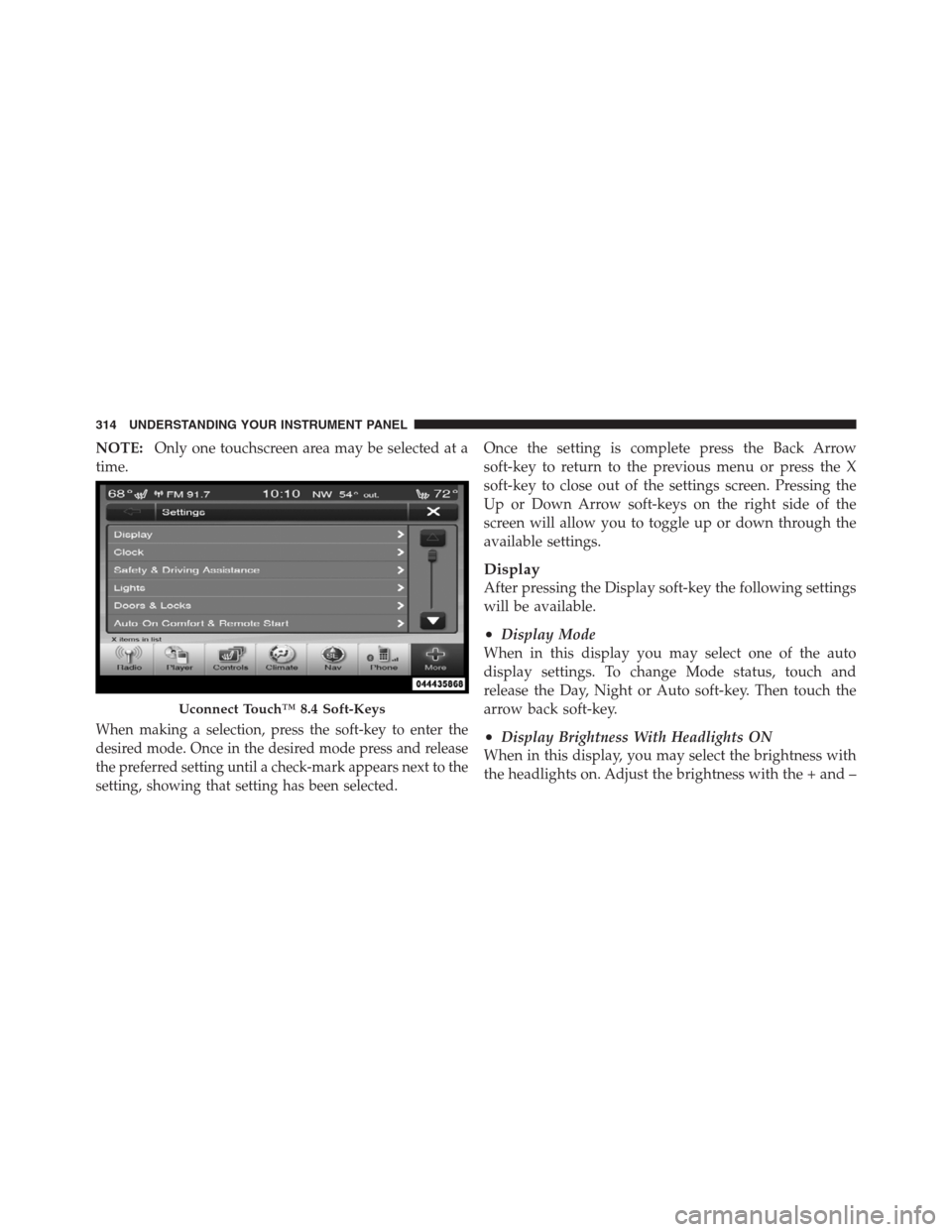
NOTE:Only one touchscreen area may be selected at a
time.
When making a selection, press the soft-key to enter the
desired mode. Once in the desired mode press and release
the preferred setting until a check-mark appears next to the
setting, showing that setting has been selected.
Once the setting is complete press the Back Arrow
soft-key to return to the previous menu or press the X
soft-key to close out of the settings screen. Pressing the
Up or Down Arrow soft-keys on the right side of the
screen will allow you to toggle up or down through the
available settings.
Display
After pressing the Display soft-key the following settings
will be available.
•Display Mode
When in this display you may select one of the auto
display settings. To change Mode status, touch and
release the Day, Night or Auto soft-key. Then touch the
arrow back soft-key.
•Display Brightness With Headlights ON
When in this display, you may select the brightness with
the headlights on. Adjust the brightness with the + and –
Uconnect Touch™ 8.4 Soft-Keys
314 UNDERSTANDING YOUR INSTRUMENT PANEL
Page 317 of 576

setting soft-keys or by selecting any point on the scale
between the + and – soft-keys. Then touch the arrow back
soft-key.
•Display Brightness With Headlights OFF
When in this display, you may select the brightness with
the headlights off. Adjust the brightness with the + and –
setting soft-keys or by selecting any point on the scale
between the + and – soft-keys. Then touch the arrow back
soft-key.
•Set Language
When in this display, you may select one of three
languages for all display nomenclature, including the trip
functions and the navigation system (if equipped). Touch
the Set Language soft-key and then touch the desired
language soft-key until a check-mark appears next to the
language, showing that setting has been selected. Touch
the back arrow soft-key to return to the previous menu.
•Units
When in this display, you may select to have the EVIC,
odometer, and navigation system (if equipped) changed
between US and Metric units of measure. Touch US or
Metric until a check-mark appears next to the setting,
showing that setting has been selected. Touch the back
arrow soft-key to return to the previous menu.
•Voice Response Length
When in this display, you may change the Voice Re-
sponse Length settings. To change the Voice Response
Length, touch the Brief or Detailed soft-key until a
check-mark appears next to the setting, showing that
setting has been selected. Touch the back arrow soft-key
to return to the previous menu.
•Touchscreen Beep
When in this display, you may turn on or shut off the
sound heard when a touch screen button (soft-key) is
pressed. Touch the Touchscreen Beep soft-key until a
4
UNDERSTANDING YOUR INSTRUMENT PANEL 315
Page 322 of 576
and operating information. To make your selection, touch
the Hill Start Assist soft-key, until a check-mark appears
next to setting, showing that setting has been selected.
Touch the back arrow soft-key to return to the previous
menu.
Lights
After pressing the Lights soft-key the following settings
will be available.
•Headlight Illumination On Approach
When this feature is selected, the headlights will activate
and remain on for 0, 30, 60, or 90 seconds when the doors
are unlocked with the Remote Keyless Entry (RKE)
transmitter. To change the Illuminated Approach status,
touch the + or - soft-key to select your desired time
interval. Touch the back arrow soft-key to return to the
previous menu.
•Headlights With Wipers — If Equipped
When this feature is selected, and the headlight switch is
in the AUTO position, the headlights will turn on ap-
proximately 10 seconds after the wipers are turned on.
The headlights will also turn off when the wipers are
turned off if they were turned on by this feature. To make
your selection, touch the Headlights With Wipers soft-
key, until a check-mark appears next to setting, showing
that setting has been selected. Touch the back arrow
soft-key to return to the previous menu.
•Auto Dim High Beams “SmartBeam™” — If Equipped
When this feature is selected, the high beam headlights
will deactivate automatically under certain conditions. To
make your selection, touch the Auto High Beams soft-
key, until a check-mark appears next to setting, showing
that setting has been selected. Touch the back arrow
soft-key to return to the previous menu. Refer to “Lights/
SmartBeam™ — If Equipped” in “Understanding The
Features Of Your Vehicle” for further information.
320 UNDERSTANDING YOUR INSTRUMENT PANEL
Page 323 of 576

•Daytime Running Lights
When this feature is selected, the headlights will turn on
whenever the engine is running. To make your selection,
touch the Daytime Running Lights soft-key, until a
check-mark appears next to setting, showing that setting
has been selected. Touch the back arrow soft-key to
return to the previous menu.
•Steering Directed Lights
When this feature is selected, the headlights turn relative
to a change in direction of the steering wheel. To make
your selection, touch the Steering Directed Lights soft-
key, until a check-mark appears next to setting, showing
that setting has been selected. Touch the back arrow
soft-key to return to the previous menu.
•Flash Headlights With Lock
When this feature is selected, the headlights will flash
when the doors are locked or unlocked with the Remote
Keyless Entry (RKE) transmitter. This feature may beselected with or without the sound horn on lock feature
selected. To make your selection, touch the Flash Head-
lights with Lock soft-key, until a check-mark appears
next to setting, showing that setting has been selected.
Touch the back arrow soft-key to return to the previous
menu.
Doors & Locks
After pressing the Doors & Locks soft-key the following
settings will be available.
•Auto Unlock On Exit
When this feature is selected, all doors will unlock when
the vehicle is stopped and the transmission is in the
PARK or NEUTRAL position and the driver’s door is
opened. To make your selection, touch the Auto Unlock
On Exit soft-key, until a check-mark appears next to
setting, showing that setting has been selected. Touch the
back arrow soft-key to return to the previous menu.
4
UNDERSTANDING YOUR INSTRUMENT PANEL 321