Page 318 of 576
check-mark appears next to the setting, showing that
setting has been selected. Touch the back arrow soft-key
to return to the previous menu.
•Navigation Turn-By-Turn In Cluster
When this feature is selected, the turn-by-turn directions
will appear in the display as the vehicle approaches a
designated turn within a programmed route. To make
your selection, touch the Navigation Turn-By-Turn In
Cluster soft-key, until a check-mark appears next to the
setting, showing that setting has been selected. Touch the
back arrow soft-key to return to the previous menu.
•Fuel Saver Display In Cluster
The “ECO” message is located in the instrument cluster
display, this message can be turned on or off. To make
your selection, touch the Fuel Saver Display soft-key,
until a check-mark appears next to the setting, showing
that setting has been selected. Touch the back arrow
soft-key to return to the previous menu.
Clock
After pressing the Clock soft-key the following settings
will be available.
•Sync Time With GPS
When in this display, you may automatically have the
radio set the time. To change the Sync Time setting touch
the Sync with GPS Time soft-key until a check-mark
appears next to the setting, showing that setting has been
selected. Touch the back arrow soft-key to return to the
previous menu.
•Set Time Hours
When in this display, you may adjust the hours. The Sync
with GPS Time soft-key must be unchecked. To make
your selection touch the + or - soft-keys to adjust the
hours up or down. Touch the back arrow soft-key to
return to the previous menu or touch the X soft-key to
close out of the settings screen.
316 UNDERSTANDING YOUR INSTRUMENT PANEL
Page 319 of 576
•Set Time Minutes
When in this display, you may adjust the minutes. The
Sync with GPS Time soft-key must be unchecked. To
make your selection touch the + or - soft-keys to adjust
the minutes up or down. Touch the back arrow soft-key
to return to the previous menu or touch the X soft-key to
close out of the settings screen.
•Time Format
When in this display, you may select the time format
display setting. Touch the Time Format soft-key until a
check-mark appears next to the 12hrs or 24hrs setting,
showing that setting has been selected. Touch the back
arrow soft-key to return to the previous menu.
•Show Time In Status Bar
When in this display, you may turn on or shut off the
digital clock in the status bar. To change the Show Time
Status setting touch the Show Time in Status Bar soft-keyuntil a check-mark appears next to setting, showing that
setting has been selected. Touch the back arrow soft-key
to return to the previous menu.
Safety / Assistance
After pressing the Safety / Assistance soft-key the fol-
lowing settings will be available.
•Front Collision Sensitivity — If Equipped
The Front Collision Warning (FCW) feature can be can be
set to Far, set to Near or turned Off. The default status of
FCW is the Far setting. This means the system will warn
you of a possible collision with the vehicle in front of you
when you are farther away. This gives you the most
reaction time. To change the setting for more dynamic
driving, select the Near setting. This warns you of a
possible collision when you are much closer to the
vehicle in front of you. This allows for a more dynamic4
UNDERSTANDING YOUR INSTRUMENT PANEL 317
Page 330 of 576
SETTING THE ANALOG CLOCK
To set the analog clock at the top center of the instrument
panel, press and hold the button until the setting is
correct.
iPod�/USB/MP3 CONTROL — IF EQUIPPED
This feature allows an iPod�or external USB device to be
plugged into the USB port.
iPod�control supports Mini, 4G, Photo, Nano, 5G iPod�
and iPhone�devices. Some iPod�software versions may
not fully support the iPod�control features. Please visit
Apple’s website for software updates.
For further information, refer to the Uconnect Touch™
User ’s Manual.
HARMAN KARDON�Logic7�HIGH
PERFORMANCE MULTICHANNEL SURROUND
SOUND SYSTEM WITH DRIVER-SELECTABLE
SURROUND (DSS) — IF EQUIPPED
Your vehicle is equipped with a Harman Kardon�audio
system with GreenEdge™ technology that offers superior
sound quality, higher Sound Pressure Levels (SPL) and
reduced energy consumption. The new system utilizes
Setting The Analog Clock
328 UNDERSTANDING YOUR INSTRUMENT PANEL
Page 332 of 576

STEERING WHEEL AUDIO CONTROLS
The remote sound system controls are located on the
surface of the steering wheel at the three and nine o’clock
positions.The right-hand control is a rocker-type switch with a
pushbutton in the center and controls the volume and
mode of the sound system. Pressing the top of the rocker
switch will increase the volume, and pressing the bottom
of the rocker switch will decrease the volume.
Pressing the center button will make the radio switch
between the various modes available (AM/FM/CD, etc.).
The left-hand control is a rocker-type switch with a
pushbutton in the center. The function of the left-hand
control is different depending on which mode you are in.
The following describes the left-hand control operation in
each mode.
Radio Operation
Pressing the top of the switch will “Seek” up for the next
listenable station and pressing the bottom of the switch
will “Seek” down for the next listenable station.
Remote Sound System Controls
(Back View Of Steering Wheel)
330 UNDERSTANDING YOUR INSTRUMENT PANEL
Page 337 of 576

Performing this function will cause the automatic opera-
tion to switch into manual mode and the AUTO indicator
will turn off.
2. Recirculation Button
Press and release to change the current setting, the
indicator illuminates when ON.
3. Blower Control
Blower control is used to regulate the amount of air
forced through the climate system. There are seven
blower speeds available. Adjusting the blower will cause
automatic mode to switch to manual operation. The
speeds can be selected using either hard-keys or soft-keys
as follows:
NOTE:For vehicles equipped with Remote Start, the
climate controls will not function during Remote Start
operation if the blower control is left in the “O” (Off)position. Blower control should be left in the “ON”
position to allow the climate control to either warm or
cool the vehicle
Hard-key
The blower speed increases as you turn the control
clockwise from the lowest blower setting. The blower
speed decreases as you turn the knob counter-clockwise.
Soft-key — Uconnect Touch™ System 4.3 (If Equipped)
Press the blower soft-key to enter the blower setting
screen. Once in the blower settings screen use the UP and
DOWN arrows to adjust the blower speed setting, or
directly select the speed setting by pressing the blower
bar area around the blower icon. The blower speed
increases as you press the UP arrow or move clockwise
on the setting scale and decreases when press the DOWN
arrow or move counter-clockwise on the setting scale.
4
UNDERSTANDING YOUR INSTRUMENT PANEL 335
Page 456 of 576
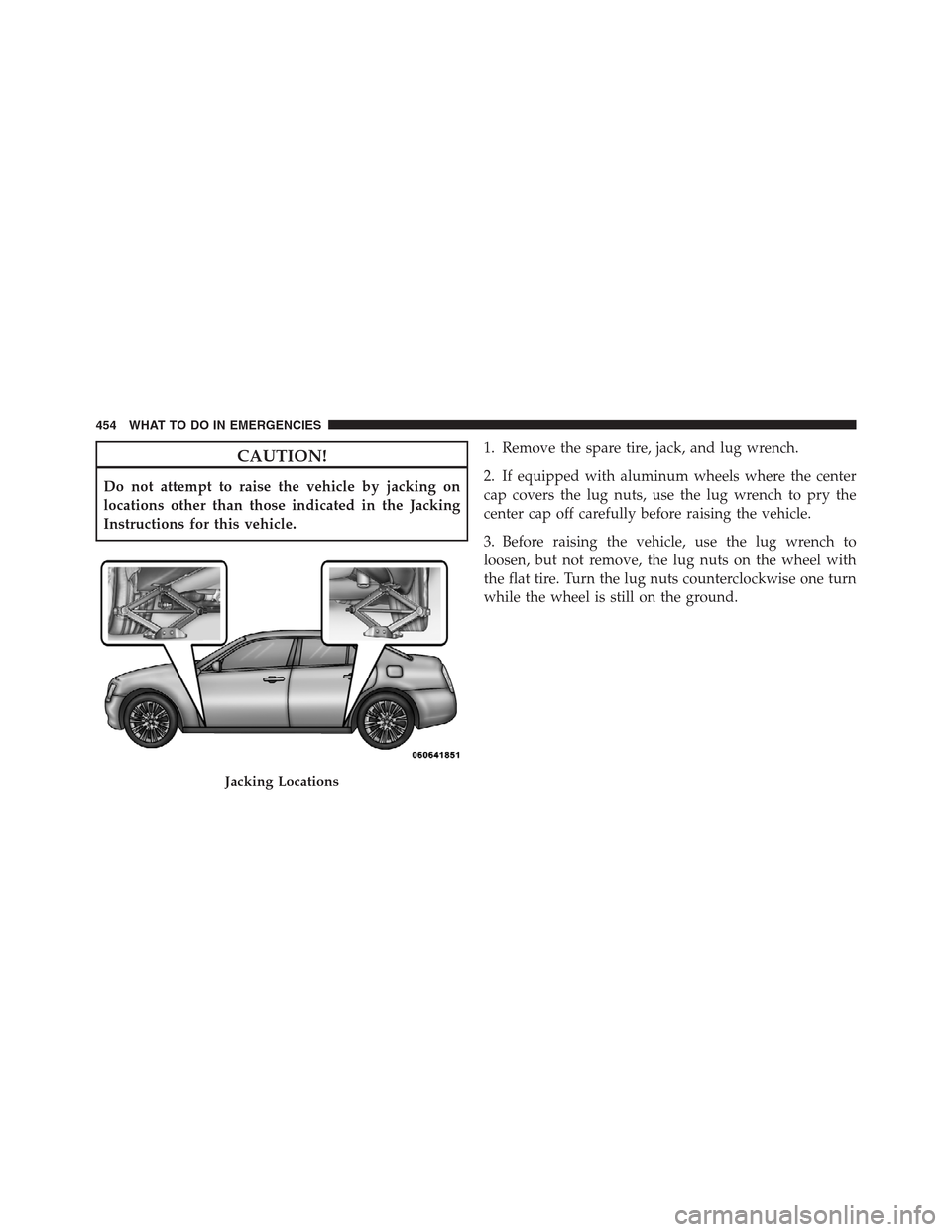
CAUTION!
Do not attempt to raise the vehicle by jacking on
locations other than those indicated in the Jacking
Instructions for this vehicle.1. Remove the spare tire, jack, and lug wrench.
2. If equipped with aluminum wheels where the center
cap covers the lug nuts, use the lug wrench to pry the
center cap off carefully before raising the vehicle.
3. Before raising the vehicle, use the lug wrench to
loosen, but not remove, the lug nuts on the wheel with
the flat tire. Turn the lug nuts counterclockwise one turn
while the wheel is still on the ground.
Jacking Locations
454 WHAT TO DO IN EMERGENCIES
Page 457 of 576
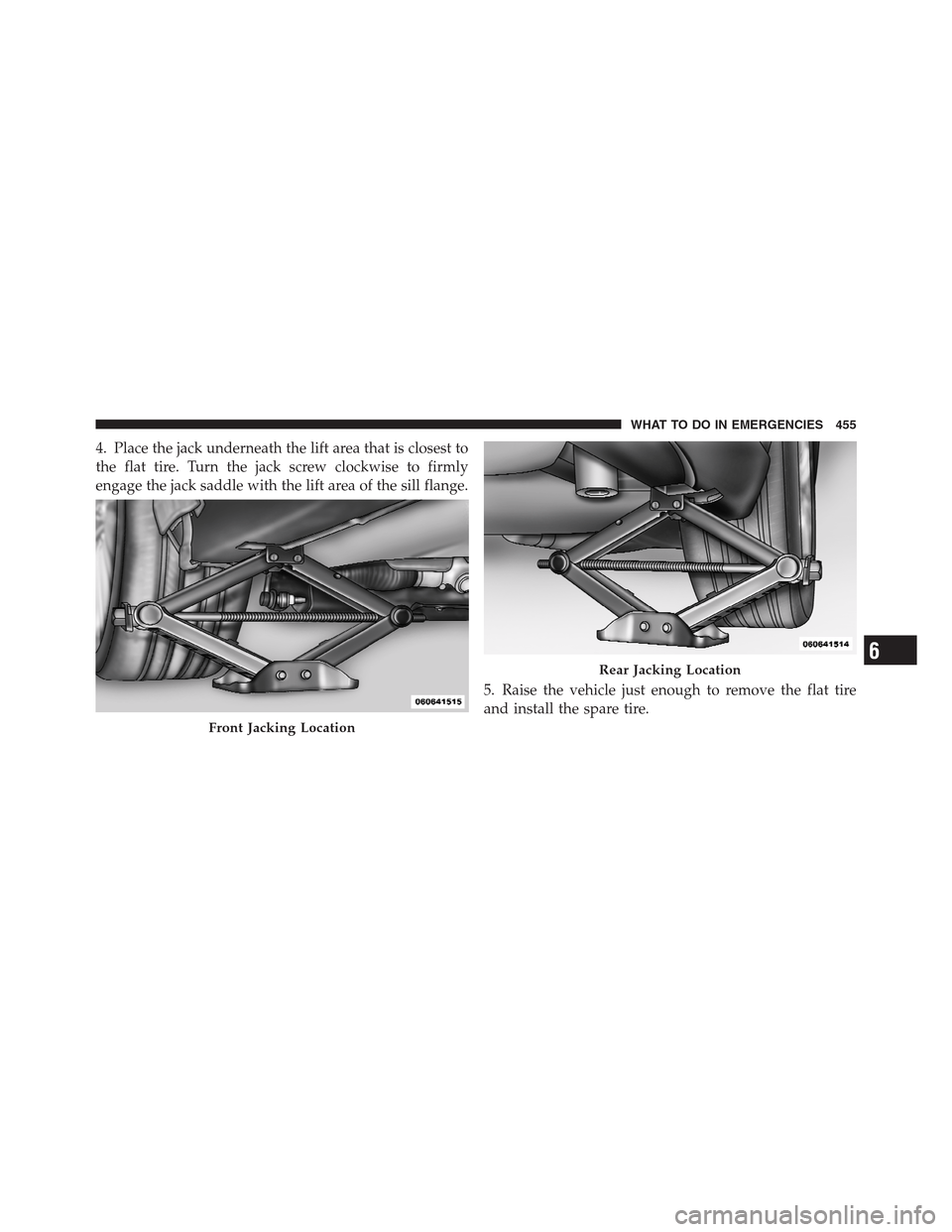
4. Place the jack underneath the lift area that is closest to
the flat tire. Turn the jack screw clockwise to firmly
engage the jack saddle with the lift area of the sill flange.
5. Raise the vehicle just enough to remove the flat tire
and install the spare tire.
Front Jacking Location
Rear Jacking Location6
WHAT TO DO IN EMERGENCIES 455
Page 459 of 576

•Refer to “Compact Spare Tire” and to “Limited-Use
Spare” under “Tires—General Information” in “Start-
ing and Operating” for additional warnings, cautions,
and information about the spare tire, its use, and
operation.
8. Install the lug nuts with the cone shaped end of the lug
nut toward the wheel. Lightly tighten the lug nuts.
WARNING!
To avoid the risk of forcing the vehicle off the jack,
do not tighten the wheel nuts fully until the vehicle
has been lowered. Failure to follow this warning may
result in personal injury.
9. Lower the vehicle to the ground by turning the jack
handle counterclockwise.
10. Finish tightening the lug nuts. Push down on the
wrench while at the end of the handle for increasedleverage. Tighten the lug nuts in a star pattern until each
nut has been tightened twice. The correct tightness of
each lug nut is 110 ft/lb. (150 N·m). If in doubt about the
correct tightness, have them checked with a torque
wrench by your authorized dealer or at a service station.
11. Stow the jack, tools and flat tire. Make sure the base
of the jack faces the front of the vehicle before tightening
down the fastener.WARNING!
•A loose tire or jack thrown forward in a collision
or hard stop could endanger the occupants of the
vehicle. Always stow the jack parts and the spare
tire in the places provided.
•Have the deflated (flat) tire repaired or replaced
immediately.
6
WHAT TO DO IN EMERGENCIES 457