Page 193 of 508

▫Operation Instructions — CD Mode For CD
And MP3 Audio Play ................. 256
▫ Notes On Playing MP3 Files ............ 258
▫ List Button (CD Mode For MP3 Play) ...... 260
▫ Info Button (CD Mode For MP3 Play) ...... 260
▫ Uconnect™ Multimedia (Satellite Radio) — If
Equipped .......................... 261
� iPod�/USB/MP3 Control — If Equipped ..... 265
▫ Connecting The iPod� Or External USB
Device ............................ 266
▫ Using This Feature ................... 267
▫ Controlling The iPod� Or External USB
Device Using Radio Buttons ............. 267
▫ Play Mode ......................... 267 ▫
List Or Browse Mode ................. 269
▫ Bluetooth Streaming Audio (BTSA) ........ 271
� Steering Wheel Audio Controls —
If Equipped .......................... 272
▫ Radio Operation ..................... 273
▫ CD Player ......................... 273
� CD/DVD Disc Maintenance .............. 274
� Radio Operation And Mobile Phones ....... 274
� Climate Controls ...................... 274
▫ Manual Heating And Air Conditioning ..... 275
▫ Automatic Temperature Control (ATC) — If
Equipped .......................... 279
▫ Operating Tips ...................... 285
4
UNDERSTANDING YOUR INSTRUMENT PANEL 191
Page 211 of 508
ELECTRONIC VEHICLE INFORMATION CENTER
(EVIC) — IF EQUIPPED
The Electronic Vehicle Information Center (EVIC) fea-
tures a driver-interactive display that is located in the
instrument cluster.The EVIC consists of the following:•Compass Heading Display (N, S, E, W, NE, NW, SE,
SW)
•Mileage (Avg/MPG)
•Miles To Empty
•Low Tire Information (Tire Pressure Monitor System
(TPMS) Displays) — if equipped
•Timer
•Units
•System Warnings (Door Ajar, etc.)
•Personal Settings (Customer-Programmable Features)
•Outside Temperature Display (°F or °C)
•Audio Mode Displays – 12 preset Radio Stations or CD
Title and Track number when playingElectronic Vehicle Information Center (EVIC)
4
UNDERSTANDING YOUR INSTRUMENT PANEL 209
Page 212 of 508
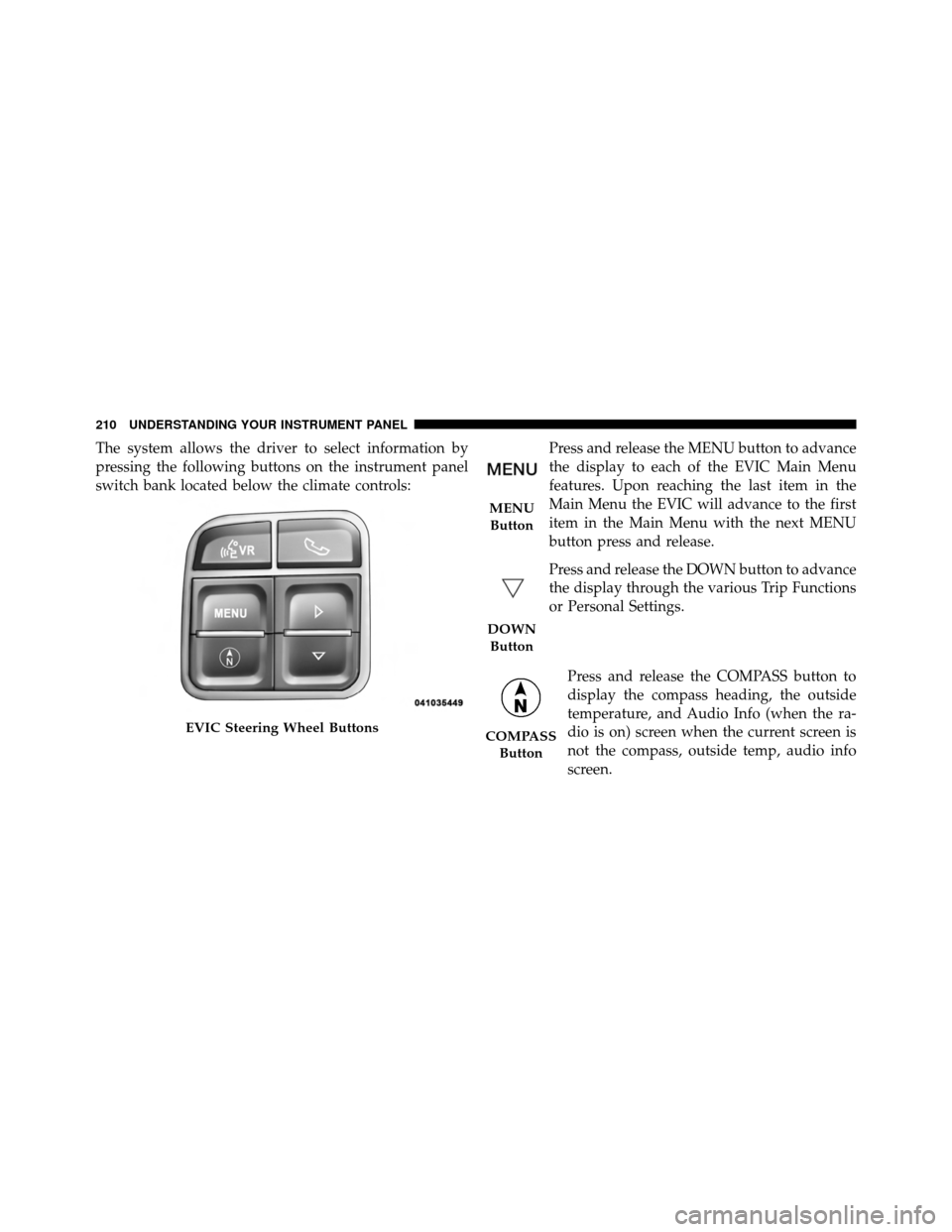
The system allows the driver to select information by
pressing the following buttons on the instrument panel
switch bank located below the climate controls:Press and release the MENU button to advance
the display to each of the EVIC Main Menu
features. Upon reaching the last item in the
Main Menu the EVIC will advance to the first
item in the Main Menu with the next MENU
button press and release.
Press and release the DOWN button to advance
the display through the various Trip Functions
or Personal Settings.
Press and release the COMPASS button to
display the compass heading, the outside
temperature, and Audio Info (when the ra-
dio is on) screen when the current screen is
not the compass, outside temp, audio info
screen.
EVIC Steering Wheel Buttons
MENUButton
DOWN Button
COMPASS Button
210 UNDERSTANDING YOUR INSTRUMENT PANEL
Page 215 of 508
2. Fully depress the accelerator pedal slowly three times
within 10 seconds.
3. Turn the ignition switch to the LOCK position.
NOTE:If the indicator message illuminates when you
start the vehicle, the oil change indicator system did not
reset. If necessary repeat this procedure.
EVIC Main Menu
To step to each main menu feature press and release the
MENU button once for each step. A step from the last
item in the list will cause the first item in the feature list
to be displayed. The following features are in the Main
menu:
•Compass
•Outside Temperature
•Audio Information (if radio is on) display
•Average Fuel Economy
•Distance to Empty
•Tire Pressure Status display
•Elapsed Time
•EVIC Units Selection
•System Status
•Personal Settings
NOTE: For features in the EVIC that can be reset
(Average Fuel Economy and Elapsed Time), the EVIC
prompts a reset with a SELECT button graphic and the
word RESET next to it.
When the SELECT button is pressed, the selected feature
will reset and RESET ALL will display next to the
SELECT button graphic. Pressing SELECT a second time
will reset both Average Fuel Economy and Elapsed Time.4
UNDERSTANDING YOUR INSTRUMENT PANEL 213
Page 216 of 508

After three seconds without pressing SELECT, RESET
ALL will return to RESET and only the selected feature
will have been reset.
Compass Display
The compass heading indicates the direction
the vehicle is facing. Press and release the
compass button to display one of eight
compass headings, the outside temperature,
and audio information (if the radio is on) if
the EVIC display is not already displaying
this screen.
NOTE: The system will display the last known outside
temperature when starting the vehicle and may need to
be driven several minutes before the updated tempera-
ture is displayed. Engine temperature can also affect the
displayed temperature; therefore, temperature readings
are not updated when the vehicle is not moving.
Automatic Compass Calibration
This compass is self-calibrating, which eliminates the
need to calibrate the compass manually. When the ve-
hicle is new, the compass may appear erratic and the
EVIC will flash the “CAL” indicator until the compass is
calibrated. You may calibrate the compass by completing
one or more 360–degree turns (in an area free from large
metal or metallic objects) until the CAL indicator in the
EVIC turns off. The compass will now function normally.
NOTE: A good calibration requires a level surface and
an environment free from large metallic objects such as
buildings, bridges, underground cables, railroad tracks,
etc.
COMPASS
Button
214 UNDERSTANDING YOUR INSTRUMENT PANEL
Page 224 of 508
MEDIA CENTER 230 (REQ) — AM/FM STEREO
RADIO AND 6–DISC CD/DVD CHANGER
(MP3/WMA AUX JACK)
NOTE:The radio sales code is located on the lower right
side of the radio faceplate.
Operating Instructions - Radio Mode
NOTE: The ignition switch must be in the ON or ACC
position to operate the radio.
Power Switch/Volume Control (Rotary)
Push the ON/VOLUME control knob to turn on the
radio. Press the ON/VOLUME control knob a second
time to turn off the radio.
Electronic Volume Control
The electronic volume control turns continuously (360
degrees) in either direction without stopping. Turning the
ON/VOLUME control knob to the right increases the
volume and to the left decreases it.
When the audio system is turned ON, the sound will be
set at the same volume level as last played.
SEEK Buttons
Press and release the SEEK buttons to search for the next
listenable station in AM/FM mode. Press the right switchMedia Center 230 (REQ)
222 UNDERSTANDING YOUR INSTRUMENT PANEL
Page 228 of 508

Program Type 16-Digit Character DisplayInformation Inform
Jazz Jazz
News News
Nostalgia Nostalga
Oldies Oldies
Personality Persnlty
Public Public
Rhythm and Blues R & B
Religious Music Rel Musc
Religious Talk Rel Talk
Rock Rock
Soft Soft
Soft Rock Soft Rck
Soft Rhythm and Blues SoftR&B Sports Sports
Talk TalkProgram Type 16-Digit Character Display
Top 40 Top 40
Weather Weather
By pressing the SEEK button when the Music Type icon
is displayed, the radio will be tuned to the next frequency
station with the same selected Music Type name. The
Music Type function only operates when in the FM
mode.
If a preset button is activated while in the Music Type
(Program Type) mode, the Music Type mode will be
exited and the radio will tune to the preset station.
SETUP Button
Pressing the SETUP button allows you to select between
the following items:
NOTE: Turn the TUNE/SCROLL control knob to scroll
through the entries. Push the AUDIO/SELECT button to
select an entry and make changes.
226 UNDERSTANDING YOUR INSTRUMENT PANEL
Page 229 of 508

•DVD Enter -When the disc is in DVD Menu mode,
selecting DVD Enter will allow you to play the current
highlighted selection. Use the remote control to scroll
up and down the menu (if equipped).
•DISC Play/Pause - You can toggle between
playing the DVD and pausing the DVD by
pushing the SELECT button (if equipped).
•DVD Play Options - Selecting the DVD Play Options
will display the following:
•Subtitle – Repeatedly pressing SELECT will switch
subtitles to different subtitle languages that are
available on the disc (if equipped).
•Audio Stream – Repeatedly pressing SELECT will
switch to different audio languages (if supported on
the disc) (if equipped).
•Angle – Repeatedly pressing SELECT will change
the viewing angle if supported by the DVD disc (if
equipped).
NOTE:
•The available selections for each of the above entries
varies depending upon the disc.
•These selections can only be made while playing a
DVD.
•VES™ Power - Allows you to turn VES™ ON and
OFF (if equipped).
•VES™ Lock - Locks out rear VES™ remote controls (if
equipped).
•VES™ CH1/CH2 - Allows the user to change the
mode of either the IR1 or IR2 wireless headphones by
pressing the AUDIO/SELECT button (if equipped).
4
UNDERSTANDING YOUR INSTRUMENT PANEL 227