2012 CHEVROLET VOLT buttons
[x] Cancel search: buttonsPage 160 of 454
Black plate (44,1)Chevrolet Volt Owner Manual - 2012
5-44 Instruments and Controls
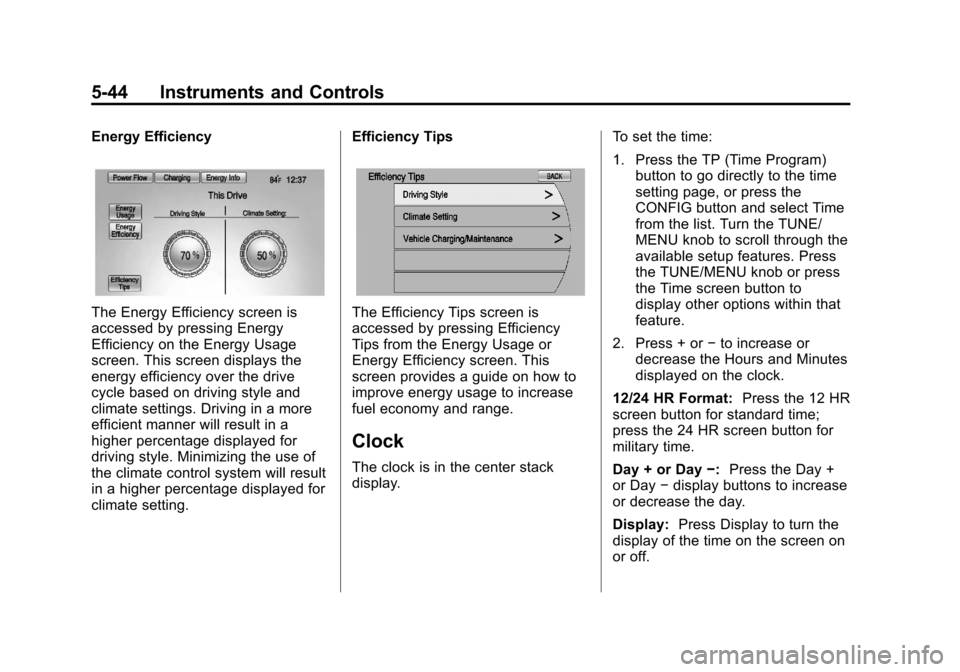
Energy Efficiency
The Energy Efficiency screen is
accessed by pressing Energy
Efficiency on the Energy Usage
screen. This screen displays the
energy efficiency over the drive
cycle based on driving style and
climate settings. Driving in a more
efficient manner will result in a
higher percentage displayed for
driving style. Minimizing the use of
the climate control system will result
in a higher percentage displayed for
climate setting.Efficiency TipsThe Efficiency Tips screen is
accessed by pressing Efficiency
Tips from the Energy Usage or
Energy Efficiency screen. This
screen provides a guide on how to
improve energy usage to increase
fuel economy and range.
Clock
The clock is in the center stack
display.
To set the time:
1. Press the TP (Time Program)
button to go directly to the time
setting page, or press the
CONFIG button and select Time
from the list. Turn the TUNE/
MENU knob to scroll through the
available setup features. Press
the TUNE/MENU knob or press
the Time screen button to
display other options within that
feature.
2. Press + or −to increase or
decrease the Hours and Minutes
displayed on the clock.
12/24 HR Format: Press the 12 HR
screen button for standard time;
press the 24 HR screen button for
military time.
Day + or Day −:Press the Day +
or Day −display buttons to increase
or decrease the day.
Display: Press Display to turn the
display of the time on the screen on
or off.
Page 161 of 454

Black plate (45,1)Chevrolet Volt Owner Manual - 2012
Instruments and Controls 5-45
Driver Information
Center (DIC)
The Driver Information Center (DIC)
display is in the instrument cluster.
The DIC displays information about
the vehicle. It also displays warning
messages if a system problem is
detected. SeeVehicle Messages on
page 5‑47 for more information.
DIC Operation and Displays
View the DIC displays by pressing
the DIC buttons located to the left of
the steering wheel. The DIC
displays trip, fuel, and warning
messages if a system problem is
detected. DIC Controls
CONFIG:
Press to select either the
Simple or Enhanced instrument
cluster configuration display.
}BACK: Press to return to the
previous screen, exit a screen,
or return to the main menu.
Press
}BACK to minimize the DIC
menu display.
SELECT: Press the center of the
knob to select the highlighted item.
Turn the knob to scroll through the
menu items.
DIC Menu Items
At the main DIC menu:
1. Turn the SELECT knob to scroll through the possible DIC menus.
2. Press the center of the SELECT knob when a menu item is
highlighted to enter that menu.
3. Continue to turn and press the SELECT knob to scroll through
and select the available menu
items:
}:Trip A
x:Trip B
:: Oil Life
v:Tire Pressure
{:Vehicle Messages
z:Units
y: Tutorial Mode
u:Turn-by-Turn
Page 172 of 454

Black plate (56,1)Chevrolet Volt Owner Manual - 2012
5-56 Instruments and Controls
Vehicle
Personalization
The Vehicle Personalization
features can be accessed by using
either the infotainment controls or
the touch screen in the center stack
display. SeeOverview on page 7‑2
under “Infotainment System” for
more information.
Using the Infotainment
Controls
Use the CONFIG, TUNE/MENU
knob, and
}BACK buttons on the
center stack to select
personalization features.
CONFIG (Configure): Press to
scroll through the available menus
across the top of the touch screen
display. TUNE/MENU Knob
.Press to enter, select, or activate
a highlighted menu option.
.Turn to highlight a menu option.
.Press to turn a system setting on
or off.
}BACK
.Press to exit a menu.
.Press to return to a previous
screen.
Submenus
An arrow on the right‐hand edge of
the menu indicates that it has a
submenu with other options.
Selecting a Menu Option
1. Turn the TUNE/MENU knob to highlight the function.
2. Press the TUNE/MENU knob to select the highlighted option.
A checkmark next to the option
indicates the selected option. Turning a Function On or Off
1. Turn the TUNE/MENU knob to
highlight the function.
2. Press the TUNE/MENU knob to turn the function on or off.
A checkmark next to the function
indicates that the function is on.
Using the Touch Screen
Use the touch screen icons and
menus on the center stack display
to select personalization features.
w:Touch to scroll up.
x:Touch to scroll down.
Back: Touch Back in the upper
right corner of the display to return
to the previous menu.
Submenus
An arrow on the right‐hand edge of
the menu indicates that it has a
submenu with other options.
Page 174 of 454

Black plate (58,1)Chevrolet Volt Owner Manual - 2012
5-58 Instruments and Controls
Auto Fan Speed
This feature sets the automatic fan
speed to maintain the desired
interior temperature. This selection
is available on vehicles with the
automatic climate control system.
Choose a blower setting:
High:Increased speed.
Medium: Moderate speed.
Low: Reduced speed.
To select the auto fan speed:
1. Press the Vehicle Settings menu.
2. Select Climate and Air Quality.
3. Select Auto Fan Speed.
4. Select the fan speed.
5. Press Back to return to the previous menu. Auto Heated Seats
When enabled, the auto heated seat
buttons on the touch screen will be
highlighted. This feature will
automatically activate heated seats
at the level required by the interior
temperature. The auto heated seats
can be turned off by using the
heated seat buttons on the center
stack.
To turn the auto heated seats on
or off:
1. Press the Vehicle
Settings menu.
2. Select Climate and Air Quality.
3. Turn the auto heated seats feature on or off.
4. Press Back to return to the previous menu. Remote Start Auto Heated Seats
When on, this feature will turn the
heated seats on when using remote
start.
To turn the remote start auto heated
seats on or off:
1. Press the Vehicle
Settings menu.
2. Select Climate and Air Quality.
3. Turn the remote start auto heated seats feature on or off.
4. Press Back to return to the previous menu.
Auto Defog
When on and high humidity is
detected, the climate control system
will adjust the outside air, air
conditioner, or heat to decrease
fogging. The fan speed may
increase. When high humidity is no
longer detected, the system will
return to previous operation.
Page 181 of 454

Black plate (65,1)Chevrolet Volt Owner Manual - 2012
Instruments and Controls 5-65
Return to Factory Settings
This returns all of the vehicle
personalization settings to the
factory settings.
1. Press the VehicleSettings menu.
2. Select Return to Factory Settings.
3. Select Yes or No.
4. Press Back to return to the previous menu.
Universal Remote
System
See Radio Frequency Statement on
page 13‑17 for information
regarding Part 15 of the Federal
Communications Commission (FCC)
rules and Industry Canada
Standards RSS-GEN/210/220/310.
Universal Remote System
Programming
If the vehicle has this feature, you
will see these buttons with one LED
indicator next to them in the
overhead console. This system provides a way to
replace up to three remote control
transmitters used to activate
devices such as garage door
openers, security systems, and
home automation devices.
Do not use the Universal Remote
system with any garage door opener
that does not have the stop and
reverse feature. This includes any
garage door opener model
manufactured before April 1,1982.
Read the instructions completely
before attempting to program the
Universal Remote system. Because
of the steps involved, it may be
helpful to have another person
available to assist with programming
the Universal Remote system.
Page 182 of 454

Black plate (66,1)Chevrolet Volt Owner Manual - 2012
5-66 Instruments and Controls
Keep the original hand-held
transmitter for use in other vehicles
as well as for future Universal
Remote system programming. It is
also recommended that upon the
sale of the vehicle, the programmed
Universal Remote system buttons
be erased for security purposes.
See“Erasing Universal Remote
System Buttons” later in this
section.
When programming a garage door,
park outside of the garage. Park
directly in line with and facing the
garage door opener motor-head or
gate motor-head. Be sure that
people and objects are clear of the
garage door or gate being
programmed.
It is recommended that a new
battery be installed in the hand-held
transmitter for quicker and more
accurate transmission of the
radio-frequency signal.Programming the Universal
Remote System
For questions or help programming
the Universal Remote system, call
1‐800‐355‐3515 or go to
www.homelink.com.
Programming a garage door opener
involves time-sensitive actions, so
read the entire procedure before
starting. Otherwise, the device will
time out and the procedure will have
to be repeated.
To program up to three devices:
1. Hold the end of the hand-held transmitter about 3 to 8 cm
(1 to 3 in) away from the
Universal Remote system
buttons while keeping the
indicator light in view. The
hand-held transmitter was
supplied by the manufacturer of
the garage door opener receiver
(motor-head unit). 2. At the same time, press and
hold both the hand-held
transmitter button and one of the
three Universal Remote system
buttons to be used to operate
the garage door. Do not release
the Universal Remote system
button or the hand-held
transmitter button until the
indicator light changes from a
slowly to a rapidly flashing light.
You now may release both
buttons.
Some entry gates and garage
door openers may require
substitution of Step 2 with the
procedure noted in “Gate
Operator and Canadian
Programming” later in this
section.
Page 183 of 454

Black plate (67,1)Chevrolet Volt Owner Manual - 2012
Instruments and Controls 5-67
3. Press and hold for five secondsthe newly trained Universal
Remote system button (the
button selected in Step 2) while
observing the indicator light and
garage door activation.
.If the indicator light stays on
continuously or the garage
door starts to move when
the Universal Remote
system button is pressed
and released, then the
programming is complete.
There is no need to
continue programming
Steps 4 through 6.
.If the Universal Remote
system indicator light blinks
rapidly for two seconds,
then turns to a constant
light and the garage door
does not move, continue
with programming Steps 4
through 6. It may be helpful to have
another person assist with
the remaining Steps 4
through 6.
“Learn”
or“Smart” Button
4. After Steps 1 through 3 have been completed, locate the
“Learn” or“Smart” button inside
the garage on the garage door
opener receiver (motor-head
unit). The name and color of the
button may vary by
manufacturer.
5. Firmly press and release the “Learn” or“Smart” button. After
pressing this button, you will
have 30 seconds to complete
Step 6. 6. Immediately return to the
vehicle. Firmly press and hold
for two seconds the Universal
Remote system button, selected
in Step 2 to control the garage
door, and then release it. If the
garage door does not move or
the lamp on the garage door
opener receiver (motor-head
unit) does not flash, press and
hold the same button a second
time for two seconds, and then
release it. Again, if the door
does not move or the garage
door lamp does not flash, press
and hold the same button a third
time for two seconds, and then
release.
The Universal Remote system
should now activate the
garage door.
To program the remaining two
Universal Remote system buttons,
begin with Step 1 of “Programming
the Universal Remote System.”
Page 185 of 454

Black plate (69,1)Chevrolet Volt Owner Manual - 2012
Instruments and Controls 5-69
Erasing Universal Remote
System Buttons
All programmed buttons should be
erased when the vehicle is sold or
the lease ends.
To erase all programmed buttons on
the Universal Remote system
device:
1. Press and hold down the twooutside buttons until the
indicator light begins to flash.
This should take about
10 seconds.
2. Release both buttons.
Reprogramming a Single
Universal Remote System
Button
To reprogram any of the three
Universal Remote system buttons:
1. Press and hold the desired Universal Remote system
button. Do not release the
button.
2. The indicator light will begin to flash after 20 seconds. Without
releasing the button, proceed
with Step 1 of the section
“Programming the Universal
Remote System.” If you have questions or need help
programming the Universal Remote
system, call 1‐800‐355‐3515 or go
to www.homelink.com. You may
also call the customer assistance
phone number under
Customer
Assistance Offices on page 13‑3.