2012 CHEVROLET SONIC audio
[x] Cancel search: audioPage 136 of 352

Black plate (2,1)Chevrolet Sonic Owner Manual - 2012
7-2 Infotainment System
To minimize taking your eyes off the
road while driving, do the following
while the vehicle is parked:
.Become familiar with the
operation and controls of the
audio system.
.Set up the tone, speaker
adjustments, and preset radio
stations.
For more information, see Defensive
Driving on page 9‑3. Notice:
Contact your dealer
before adding any equipment.
Adding audio or communication
equipment could interfere with
the operation of the engine, radio,
or other systems, and could
damage them. Follow federal
rules covering mobile radio and
telephone equipment.
Theft-Deterrent Feature
The theft-deterrent feature works by
learning a portion of the Vehicle
Identification Number (VIN) to the
infotainment system. The
infotainment system does not
operate if it is stolen or moved to a
different vehicle.
Page 138 of 352

Black plate (4,1)Chevrolet Sonic Owner Manual - 2012
7-4 Infotainment System
G. RADIO/BAND
.Changes the band while
listening to the radio.
.Selects the radio when
listening to a different
audio source.
H.
/BACK
.Menu: Moves one
level back.
.Character Input: Deletes
the last character. I. AUX
.Selects an external audio
source.
J.
HClock Menu
.Opens the Clock menu.
K.
5/>(Phone Mute)
.Opens the Phone
main menu.
.Mutes the audio system.
L. TONE
.Opens the Tone menu. M. INFO (Information)
.Shows available
information about the
current station.
N. CONFIG (Configuration)
.Opens the
Configuration menu.
O. AUX port
.3.5 mm (1/8 in) connection
for external devices.
Page 140 of 352
Black plate (6,1)Chevrolet Sonic Owner Manual - 2012
7-6 Infotainment System
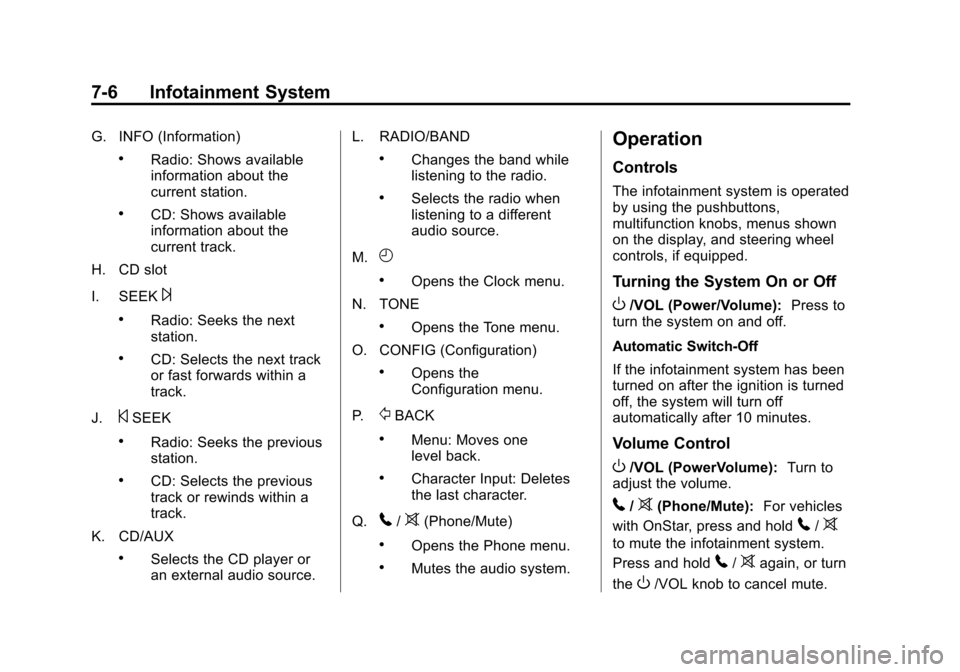
G. INFO (Information)
.Radio: Shows available
information about the
current station.
.CD: Shows available
information about the
current track.
H. CD slot
I. SEEK
¨
.Radio: Seeks the next
station.
.CD: Selects the next track
or fast forwards within a
track.
J.
©SEEK
.Radio: Seeks the previous
station.
.CD: Selects the previous
track or rewinds within a
track.
K. CD/AUX
.Selects the CD player or
an external audio source. L. RADIO/BAND
.Changes the band while
listening to the radio.
.Selects the radio when
listening to a different
audio source.
M.
H
.Opens the Clock menu.
N. TONE
.Opens the Tone menu.
O. CONFIG (Configuration)
.Opens the
Configuration menu.
P.
/BACK
.Menu: Moves one
level back.
.Character Input: Deletes
the last character.
Q.
5/>(Phone/Mute)
.Opens the Phone menu.
.Mutes the audio system.
Operation
Controls
The infotainment system is operated
by using the pushbuttons,
multifunction knobs, menus shown
on the display, and steering wheel
controls, if equipped.
Turning the System On or Off
O/VOL (Power/Volume): Press to
turn the system on and off.
Automatic Switch‐Off
If the infotainment system has been
turned on after the ignition is turned
off, the system will turn off
automatically after 10 minutes.
Volume Control
O/VOL (PowerVolume): Turn to
adjust the volume.
5/>(Phone/Mute): For vehicles
with OnStar, press and hold
5/>
to mute the infotainment system.
Press and hold
5/>again, or turn
the
O/VOL knob to cancel mute.
Page 142 of 352

Black plate (8,1)Chevrolet Sonic Owner Manual - 2012
7-8 Infotainment System
Entering a Character Sequence
1. Turn the MENU/TUNE knob tohighlight the setting.
2. Press the MENU/TUNE button to select the character.
Audio Settings
The audio settings can be set for
each radio band and each audio
player source.
To quickly reset an audio setting
value to 0:
1. Press the TONE button.
2. Select the audio setting. 3. Press and hold the MENU/
TUNE button until the value
changes to 0.
Press the
/BACK button to go
back to the Tone Settings menu.
Adjusting the Treble, Midrange,
and Bass
1. Press the TONE button.
2. Select Treble, Midrange, or Bass.
3. Turn the MENU/TUNE knob to select the value between
‐12 and +12.
Press the
/BACK button to go
back to the Tone Settings menu. Adjusting the Fader and Balance
1. Press the TONE button.
2. Select Fader or Balance.
3. Turn the MENU/TUNE knob
to select the value between
‐15 and +15.
Press the
/BACK button to go
back to the Tone Settings menu.
Adjusting the EQ (Equalizer)
For vehicles with an equalizer:
1. Press the TONE button.
2. Select EQ.
3. Select the setting between Pop, Rock, Classical, Talk,
or Country.
Press the
/BACK button to go
back to the Tone Settings menu.
Page 146 of 352
Black plate (12,1)Chevrolet Sonic Owner Manual - 2012
7-12 Infotainment System
MENU/TUNE:Turn to go to the
next XM channel.
Storing an XM Channel
Drivers are encouraged to set up
XM channel favorites while the
vehicle is not moving. Tune to
favorite stations using the
pushbuttons, favorites button, and
steering wheel controls. See
Defensive Driving on page 9‑3.
A maximum of 36 stations can be
programmed as favorites using the
six pushbuttons positioned below
the radio station frequency labels
and by using the radio favorites
page button (FAV 1‐2‐3 button).
Press the FAV 1‐2‐3 button to go
through up to six pages of favorites,
each having six favorite stations
available per page. If Automatic
Store is used, then four pages of
favorites are available. Each page
of favorites can contain any
combination of AM, FM, or XM
channels. To store an XM channel
as a favorite:
1. Tune in the desired channel. 2. Press and release the FAV 1‐2‐3
button to display the page where
the channel is to be stored.
3. Press and hold one of the six numbered pushbuttons until a
beep sounds. When the
pushbutton is pressed and
released, the channel that was
set will return.
4. Repeat Steps 1 through 3 for each XM channel to be stored
as a favorite.
To set up the number of favorites
pages:
1. Press and hold FAV 1‐2‐3 until the radio setup menu displays.
2. Select the desired number of favorites pages by pressing the
pushbutton located below the
displayed page numbers.
3. Press FAV 1‐2‐3 to return to the original main radio screen
showing the radio frequency
tabs and to begin the process of programming favorites for the
chosen number of numbered
pages.XM Radio Messages
UPDATING:
The encryption code
in the receiver is being updated, and
no action is required. This process
should take no longer than
30 seconds.
NO SIGNAL: The system is
functioning correctly, but the vehicle
is in a location that is blocking the
XM signal. When the vehicle is
moved into an open area, the signal
should return.
LOADING: The audio system is
acquiring and processing audio and
text data. No action is needed. This
message should disappear shortly.
OFF AIR: This channel is not
currently in service. Tune in to
another channel.
CH UNAVAILABLE: This
previously assigned channel is no
longer assigned. Tune to another
Page 148 of 352

Black plate (14,1)Chevrolet Sonic Owner Manual - 2012
7-14 Infotainment System
Fixed Mast Antenna
Vehicles without OnStar have a
fixed mast antenna that can
withstand most car washes without
being damaged. If the mast should
ever become slightly bent,
straighten it out by hand. If the
mast is badly bent, replace it.
Check occasionally to make sure
the mast is still tightened to the
antenna base located on the roof of
the vehicle. If tightening is required,
tighten by hand.
Satellite Radio Antenna
The XM Satellite Radio antenna is
located on the roof of the vehicle.
Keep the antenna clear of
obstructions for clear radio
reception.
If the vehicle has a sunroof, the
performance of the XM system
(if equipped) may be affected if
the sunroof is open.
Audio Players
CD Player
The CD player can play audio CDs
and MP3 CDs.
The CD player will not play 8 cm
(3 in) CDs.
Care of CDs
Sound quality can be reduced due
to disc quality, recording method,
quality of the music recorded, and
how the disc has been handled.
Handle discs carefully and store
them in their original cases or other
protective cases away from direct
sunlight and dust. If the bottom
surface of a disc is damaged, the
disc may not play properly or at all.
Do not touch the bottom surface of
a disc while handling it; this could
damage the surface. Pick up discs
by grasping the outer edges or the
edge of the hole and the outer edge.
If the bottom surface of a disc is
dirty, take a soft, lint‐free cloth,
or dampen a clean, soft cloth in amild neutral detergent solution
mixed with water, and clean it. Wipe
the disc from the center to the
outer edge.
Care of the CD Player
Do not add a label to a disc, as it
could get caught in the CD player.
If a label is needed, label the top of
the recorded disc with a
marking pen.
Do not use disc lens cleaners
because they could contaminate the
lens of the disc optics and damage
the CD player.
Notice:
If a label is added to a
CD, more than one CD is inserted
into the slot at a time, or an
attempt is made to play scratched
or damaged CDs, the CD player
could be damaged. While using
the CD player, use only CDs in
good condition without any label,
load one CD at a time, and keep
the CD player and the loading slot
free of foreign materials, liquids,
and debris.
Page 150 of 352

Black plate (16,1)Chevrolet Sonic Owner Manual - 2012
7-16 Infotainment System
Searching for MP3 Tracks
The search feature may take some
time to display the information after
reading the disc due to the amount
of information stored on the disc.
FM automatically plays while the
disc is being read.
Tracks can be searched by:
.Playlists
.Artists
.Albums
.Song Titles
.Genres
.Folder View
To search for tracks:
1. Turn the MENU/TUNE knob.
2. Select Search.
3. Select: Playlists, Artists, Albums, Song Titles, Genres,
or Folder View.
4. Select the track.
Auxiliary Devices
The optional AUX input allows
portable devices to connect to the
vehicle using the 3.5 mm (1/8 in)
input jack or the USB port. The AUX
input jack, if equipped, is located in
the storage area to the right of the
infotainment system. A second AUX
input is located on the front of the
infotainment system. See Overview
(Radio with CD) on page 7‑3 or
Overview (Radio with CD/USB) on
page 7‑5 for more information.
Portable devices are controlled by
using the menu system described in
Operation on page 7‑6.
A. 3.5 mm (1/8 in) Auxiliary Input Jack
B. USB Port
3.5 mm Jack
Connect a 3.5 mm (1/8 in) cable to
the auxiliary input jack to use a
portable audio player.
Playback of an audio device that is
connected to the 3.5 mm (1/8 in)
jack can only be controlled using
the controls on the device.
Page 151 of 352

Black plate (17,1)Chevrolet Sonic Owner Manual - 2012
Infotainment System 7-17
Adjusting the Volume
Turn the
O/VOL knob to adjust the
volume of the infotainment system
after the volume level has been set
on the portable audio device.
USB Port
For vehicles with a USB port, the
following devices may be connected
and controlled by the infotainment
system:
.iPods
.PlaysForSure Devices (PFDs)
.USB Drives
.Zunes™
Not all iPods, PFDs, USB Drives,
and Zunes are compatible with the
infotainment system.
Connecting and Controlling
an iPod®
Not all iPods can be controlled by
the infotainment system.
Connecting an iPod
Connect the iPod to the USB port.
Searching for a Track
Tracks can be searched for by:
.Playlists
.Artists
.Albums
.Song Titles
.Podcasts
.Genres
.Audiobooks
.Composers To search for tracks:
1. Turn the MENU/TUNE knob.
2. Select Search.
3. Select: Playlists, Artists, Albums,
Song Titles, Podcasts, Genres,
Audiobooks, or Composers.
4. Select the track.
Shuffle
Turn the MENU/TUNE knob and set
Shuffle Songs (Random) to On or
Off, then press the
/BACK button
to return to the main screen.
On: Plays tracks in the current
folder in random order.
Off: Plays tracks in the current
folder in sequential order.
Repeat
Turn the MENU/TUNE knob and set
Repeat to On or Off, then press the
/BACK button to return to the main
screen.
On: Repeats the current track.