Page 191 of 428
Black plate (31,1)Chevrolet Equinox Owner Manual - 2012
Infotainment System 7-31
USB MP3 Player and USB Drives
.The USB MP3 players and USB
drives connected must comply
with the USB Mass Storage
Class specification (USB MSC).
.Only USB MP3 players and USB
drives with a sector size or
512 bytes and a cluster size
smaller or equal to 32 kbytes in
the FAT32 file system are
supported.
.Hard disk drives are not
supported.
.The following restrictions apply
for the data stored on a USB
MP3 player or USB device:
‐Maximum folder structure
depth: 11 levels.
‐ Maximum number of MP3/
WMA files that can be
displayed: 1,000
.WMA with Digital Rights
Management (DRM) from online
music shops cannot be played.
WMA files can only be played
back safely if they were created
with Windows Media Player
version 8 or later.
‐Applicable playlist extensions
are: .m3u, .pls.
‐ Playlist entries must be in the
form of relative paths.
‐ The system attribute for
folders/files that contain audio
data must not be set.
To play a USB device, do one of the
following:
.Connect the USB and it begins
to play.
.Press the Now Playing screen
button on the Home Page, then
press the SOURCE button on
the faceplate repeatedly to cycle
through all of the available audio
source screens, until the USB
source screen is selected. While the USB source is active, use
the following to operate USB
function:
k(Play/Pause):
Press to start,
pause, or resume play of the current
media source.
gSEEK (Seek Down):
1. Press to seek to the beginning of the current or previous track.
If the track has been playing for
less than five seconds, the
previous track plays. If playing
longer than five seconds, the
current track restarts.
2. Press and hold to reverse quickly through playback.
3. Release to return to playing speed. Elapsed time displays.
lSEEK (Seek Up):
1. Press to seek to the next track.
2. Press and hold to advance quickly through playback.
Release to return to playing
speed. Elapsed time displays.
Page 192 of 428
Black plate (32,1)Chevrolet Equinox Owner Manual - 2012
7-32 Infotainment System
USB Menu
Press any of the following buttons
on the USB Menu:
Shuffle Songs:Press to play the
tracks randomly. Press again to stop
shuffle.
Playlists: Press to view the
playlists stored on the USB. Select
a playlist to view the list of all songs
in that playlist. There might be a
delay before the list displays. Select
a song from the list to begin
playback.
Artists: Press to view the list of
artists stored on the USB. Select an
artist name to view a list of all
albums by the artist. There might be
a delay before the list displays. To
select a song, touch All Songs then
select a song or touch an album
then select a song from the list to
begin playback.
Albums: Press to view the albums
on the USB. Select the album to
view a list of all songs on the album. There might be a delay before the
list displays. Select a song from the
list to begin playback.
Song Titles:
Press to display a list
of all songs on the USB. Songs are
displayed as stored on the disc.
There might be a delay before the
list displays. To begin playback,
select a song from the list.
Genres: Press to view the genres
on the USB. Select a genre to view
a list of all songs of that genre.
Select a song from the list to begin
playback.
Folders: Press to open a folder list
to access the files within the folder
structure.
File System and Naming
The song titles, artists, albums, and
genres are taken from the file's ID3
tag and are only displayed if present
in the tag. If a song title is not
present in the ID3 tag, the radio
displays the file name as the
track name.Playing from an iPod®
This feature supports the following
iPod models:
.iPod nano (1st, 2nd, 3rd, and 4th
generation)
.iPod with video (5.0 and 5.5
generation). Video is not shown;
only audio is supported.
.iPod classic (6th generation)
.iPod touch (1st and 2nd
generation)
There may be problems with
operation and function in the
following situations:
.When connecting an iPod on
which a more recent version of
the firmware is installed than is
supported by the infotainment
system.
.When connecting an iPod on
which firmware from other
providers is installed.
Page 193 of 428
Black plate (33,1)Chevrolet Equinox Owner Manual - 2012
Infotainment System 7-33
To connect and control an iPod,
connect one end of the standard
iPod USB cable to the iPod's dock
connector. Connect the other end to
the USB port in the center console.
iPod music information displays on
the radio’s display and begins
playing through the vehicle’s audio
system.
The iPod battery recharges
automatically while the vehicle is on.
When the vehicle is off while an
iPod is connected using the iPod
USB cable, the iPod battery stops
charging and the iPod automatically
turns off.
If the iPod is an unsupported model,
it can still be listened to in the
vehicle by connecting to the
auxiliary input jack using a standard
3.5 mm (1/8 in) stereo cable.
Shuffle Songs:Press to play the
tracks randomly. Press again to stop
shuffle. Press any of the following buttons
on the iPod Menu:
Playlists:
1. Press to view the playlists stored
on the iPod.
2. Select a playlist name to view a list of all songs in the playlist.
3. Select the desired song from the list to begin playback.
Artists:
1. Press to view the artists stored on the iPod.
2. Select an artist name to view a list of all songs by the artist.
3. Select the desired song from the list to begin playback. Albums:
1. Press to view the albums stored
on the iPod.
2. Select an album name to view a list of all songs on the album or
select All Songs to view all
songsby the artist.
3. Select the desired song from the list to begin playback.
Song Titles:
1. Press to view a list of all songs stored on the iPod.
2. Select the desired song from the list to begin playback.
Genres:
1. Press to view the genres stored on the iPod.
2. Select a genre name to view a list of artists of that genre.
3. Select an artist to view albums or All Songs to view all songs of
that genre.
Page 195 of 428
Black plate (35,1)Chevrolet Equinox Owner Manual - 2012
Infotainment System 7-35
Audio can be heard through wired
headphones (not included) plugged
into the jacks on the RSA. If the
vehicle has a Rear Seat
Entertainment system with wireless
headphones, audio can also be
heard on Channel 2 of the wireless
headphones.
To listen to a portable audio device
through the RSA, attach the
portable audio device to either the
front or rear auxiliary input,
if available. Turn the device on, then
choose the front auxiliary input with
the RSA SRCE button.
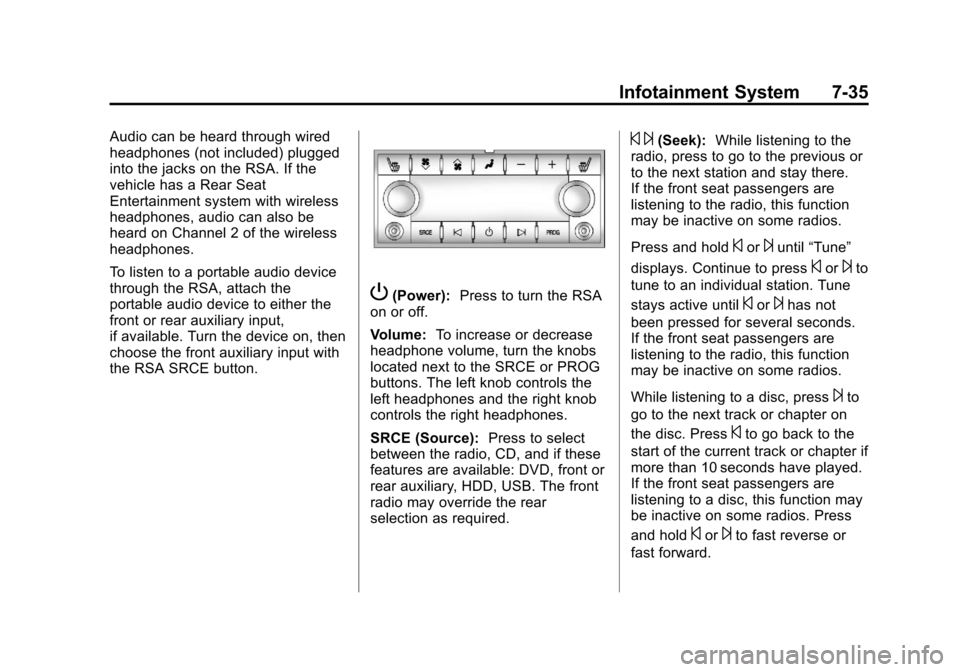
P(Power):Press to turn the RSA
on or off.
Volume: To increase or decrease
headphone volume, turn the knobs
located next to the SRCE or PROG
buttons. The left knob controls the
left headphones and the right knob
controls the right headphones.
SRCE (Source): Press to select
between the radio, CD, and if these
features are available: DVD, front or
rear auxiliary, HDD, USB. The front
radio may override the rear
selection as required.
© ¨(Seek): While listening to the
radio, press to go to the previous or
to the next station and stay there.
If the front seat passengers are
listening to the radio, this function
may be inactive on some radios.
Press and hold
©or¨until “Tune”
displays. Continue to press
©or¨to
tune to an individual station. Tune
stays active until
©or¨has not
been pressed for several seconds.
If the front seat passengers are
listening to the radio, this function
may be inactive on some radios.
While listening to a disc, press
¨to
go to the next track or chapter on
the disc. Press
©to go back to the
start of the current track or chapter if
more than 10 seconds have played.
If the front seat passengers are
listening to a disc, this function may
be inactive on some radios. Press
and hold
©or¨to fast reverse or
fast forward.