2012 CHEVROLET EQUINOX CD player
[x] Cancel search: CD playerPage 167 of 428
Black plate (7,1)Chevrolet Equinox Owner Manual - 2012
Infotainment System 7-7
Infotainment Control Buttons
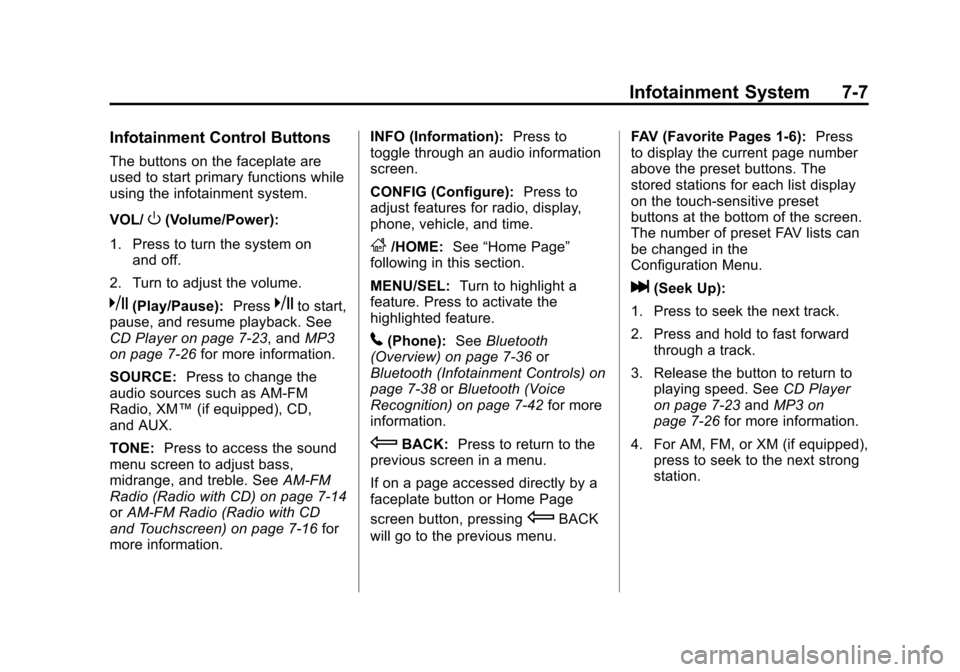
The buttons on the faceplate are
used to start primary functions while
using the infotainment system.
VOL/
O(Volume/Power):
1. Press to turn the system on and off.
2. Turn to adjust the volume.
k(Play/Pause): Presskto start,
pause, and resume playback. See
CD Player on page 7‑23, and MP3
on page 7‑26 for more information.
SOURCE: Press to change the
audio sources such as AM-FM
Radio, XM™ (if equipped), CD,
and AUX.
TONE: Press to access the sound
menu screen to adjust bass,
midrange, and treble. See AM-FM
Radio (Radio with CD) on page 7‑14
or AM-FM Radio (Radio with CD
and Touchscreen) on page 7‑16 for
more information. INFO (Information):
Press to
toggle through an audio information
screen.
CONFIG (Configure): Press to
adjust features for radio, display,
phone, vehicle, and time.
F/HOME: See“Home Page”
following in this section.
MENU/SEL: Turn to highlight a
feature. Press to activate the
highlighted feature.
5(Phone): SeeBluetooth
(Overview) on page 7‑36 or
Bluetooth (Infotainment Controls) on
page 7‑38 orBluetooth (Voice
Recognition) on page 7‑42 for more
information.
EBACK: Press to return to the
previous screen in a menu.
If on a page accessed directly by a
faceplate button or Home Page
screen button, pressing
EBACK
will go to the previous menu. FAV (Favorite Pages 1-6):
Press
to display the current page number
above the preset buttons. The
stored stations for each list display
on the touch-sensitive preset
buttons at the bottom of the screen.
The number of preset FAV lists can
be changed in the
Configuration Menu.
l(Seek Up):
1. Press to seek the next track.
2. Press and hold to fast forward through a track.
3. Release the button to return to playing speed. See CD Player
on page 7‑23 andMP3 on
page 7‑26 for more information.
4. For AM, FM, or XM (if equipped), press to seek to the next strong
station.
Page 168 of 428
Black plate (8,1)Chevrolet Equinox Owner Manual - 2012
7-8 Infotainment System
g(Seek Down):
1. Press to seek to the beginning of the current or previous track.
If the track has been playing for
less than five seconds, it seeks
the previous track. If longer than
five seconds, the current track
starts from the beginning.
2. Press and hold to quickly reverse through a track. Release
the button to return to playing
speed. See CD Player on
page 7‑23 andMP3 on
page 7‑26 for more information.
3. For AM, FM, or XM (if equipped), press to seek to the previous
strong station.
Preset Buttons (1-6): The preset
buttons numbered one through six
can be used to select stored AM,
FM, and XM (if equipped) stations.
H: Press to set the time.
X(Eject): Press to eject a disc
from the CD player. See CD Player
on page 7‑23.
Touch Screen Buttons
Touch screen buttons are on the
screen and highlighted when a
feature is available. Some toggle
screen buttons highlight when active
and gray out when inactive.
Home Page
The infotainment system displays a
home page that makes accessing
many of the features an easy
process.
Back: If on page two of the Home
Page, press Back to return to page
one of the Home Page. If on page
one, Back serves no function.
Home: While navigating through
other menus, press to go back to
the Home Page to start a different
feature.
FAV: Press to display a page of
stored (favorite) AM, FM, or XM (if
equipped) stations. Keep pressing
FAV to scroll through the favorite
pages. Info:
Press to toggle through an
audio information screen.
The Home Page Menu lists the
options Customize Home Page and
Restore Home Page Defaults.
Out of all available Home Page
icons, up to eight icons can be
selected and sorted for the first
Home Page screen.
Home Page Features
Various functions are disabled when
the vehicle is moving.
Press the Now Playing screen
button to display the active source
page. The sources available are
AM, FM, XM (if equipped), CD,
USB/iPod, and AUX.
See AM-FM Radio (Radio with CD)
on page 7‑14 orAM-FM Radio
(Radio with CD and Touchscreen)
on page 7‑16, Satellite Radio on
page 7‑19, CD Player on page 7‑23,
and Auxiliary Devices on page 7‑28.
Page 169 of 428
Black plate (9,1)Chevrolet Equinox Owner Manual - 2012
Infotainment System 7-9
Press the Phone screen button to
display the Phone main page. See
Bluetooth (Overview) on page 7‑36
orBluetooth (Infotainment Controls)
on page 7‑38 orBluetooth (Voice
Recognition) on page 7‑42.
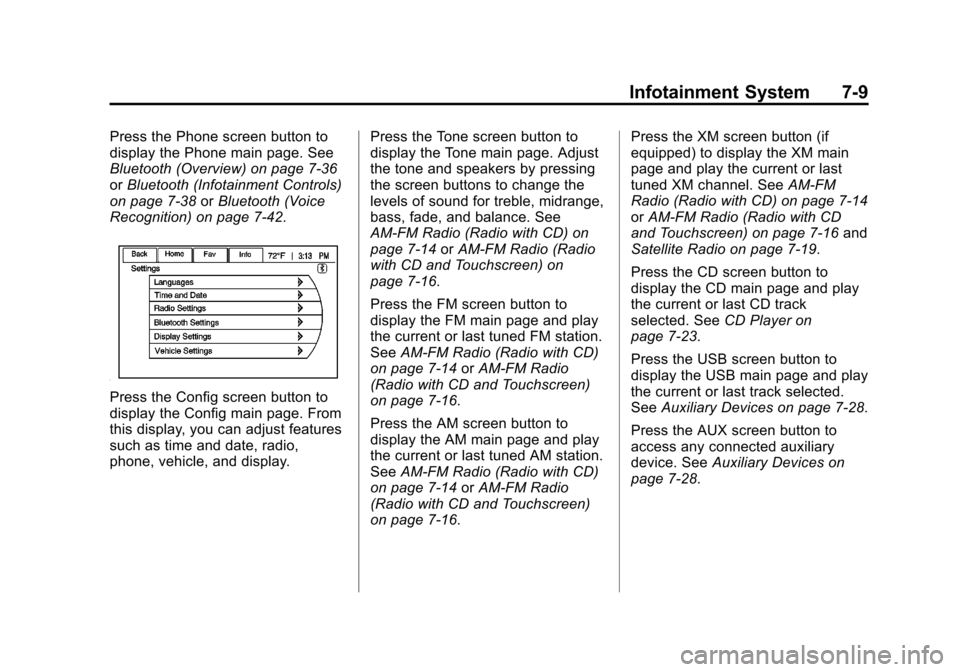
Press the Config screen button to
display the Config main page. From
this display, you can adjust features
such as time and date, radio,
phone, vehicle, and display. Press the Tone screen button to
display the Tone main page. Adjust
the tone and speakers by pressing
the screen buttons to change the
levels of sound for treble, midrange,
bass, fade, and balance. See
AM-FM Radio (Radio with CD) on
page 7‑14
orAM-FM Radio (Radio
with CD and Touchscreen) on
page 7‑16.
Press the FM screen button to
display the FM main page and play
the current or last tuned FM station.
See AM-FM Radio (Radio with CD)
on page 7‑14 orAM-FM Radio
(Radio with CD and Touchscreen)
on page 7‑16.
Press the AM screen button to
display the AM main page and play
the current or last tuned AM station.
See AM-FM Radio (Radio with CD)
on page 7‑14 orAM-FM Radio
(Radio with CD and Touchscreen)
on page 7‑16. Press the XM screen button (if
equipped) to display the XM main
page and play the current or last
tuned XM channel. See
AM-FM
Radio (Radio with CD) on page 7‑14
or AM-FM Radio (Radio with CD
and Touchscreen) on page 7‑16 and
Satellite Radio on page 7‑19.
Press the CD screen button to
display the CD main page and play
the current or last CD track
selected. See CD Player on
page 7‑23.
Press the USB screen button to
display the USB main page and play
the current or last track selected.
See Auxiliary Devices on page 7‑28.
Press the AUX screen button to
access any connected auxiliary
device. See Auxiliary Devices on
page 7‑28.
Page 172 of 428
Black plate (12,1)Chevrolet Equinox Owner Manual - 2012
7-12 Infotainment System
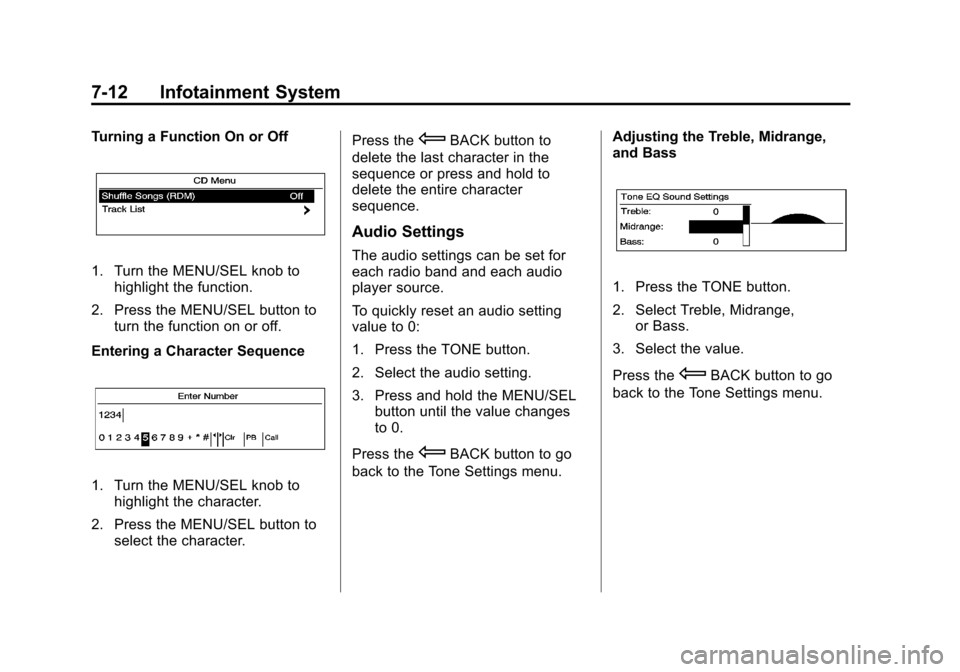
Turning a Function On or Off
1. Turn the MENU/SEL knob tohighlight the function.
2. Press the MENU/SEL button to turn the function on or off.
Entering a Character Sequence
1. Turn the MENU/SEL knob to highlight the character.
2. Press the MENU/SEL button to select the character. Press the
EBACK button to
delete the last character in the
sequence or press and hold to
delete the entire character
sequence.
Audio Settings
The audio settings can be set for
each radio band and each audio
player source.
To quickly reset an audio setting
value to 0:
1. Press the TONE button.
2. Select the audio setting.
3. Press and hold the MENU/SEL button until the value changes
to 0.
Press the
EBACK button to go
back to the Tone Settings menu. Adjusting the Treble, Midrange,
and Bass
1. Press the TONE button.
2. Select Treble, Midrange,
or Bass.
3. Select the value.
Press the
EBACK button to go
back to the Tone Settings menu.
Page 183 of 428
Black plate (23,1)Chevrolet Equinox Owner Manual - 2012
Infotainment System 7-23
FM
FM signals only reach about 16 to
65 km (10 to 40 mi). Although the
radio has a built-in electronic circuit
that automatically works to reduce
interference, some static can occur,
especially around tall buildings or
hills, causing the sound to fade in
and out.
AM
The range for most AM stations is
greater than for FM, especially at
night. The longer range can cause
station frequencies to interfere with
each other. Static can occur when
things like storms and power lines
interfere with radio reception. When
this happens, try reducing the treble
on the radio.
XM™Satellite Radio Service
XM Satellite Radio Service gives
digital radio reception from coast to
coast in the 48 contiguous United
States, and in Canada. Just as with
FM, tall buildings or hills can
interfere with satellite radio signals, causing the sound to fade in and
out. In addition, traveling or standing
under heavy foliage, bridges,
garages, or tunnels may cause loss
of the XM signal for a period of time.
Cellular Phone Usage
Cellular phone usage can cause
interference with the vehicle's radio.
Multi-Band Antenna
The multi-band antenna is on the
roof of the vehicle. The antenna is
used for the AM‐FM radio, OnStar,
the XM Satellite Radio Service
System, and GPS (Global
Positioning System), if the vehicle
has these features. Keep the
antenna clear of obstructions for
clear reception.
Audio Players
CD Player
For vehicles equipped with the
MyLink or IntelliLink infotainment
system, see the separate MyLink/
IntelliLink Features and Functions
Guide for more information.
The player can be used for CD and
MP3 audio.
With the vehicle on, insert a disc
into the slot, label side up. The
player pulls it in and begins playing.
While playing, the navigation
system is available.
The system is capable of playing:
.Most audio CDs
.CD-R
.CD-RW
.MP3 or unprotected WMA
formats
Page 184 of 428
Black plate (24,1)Chevrolet Equinox Owner Manual - 2012
7-24 Infotainment System
When playing any compatible
recordable disc, the sound quality
can be reduced due to disc quality,
the method of recording, the quality
of the music that has been
recorded, or the way the disc has
been handled.
There can be increased skipping,
difficulty in recording tracks,
difficulty in finding tracks, and/or
difficulty in loading and ejecting.
If these problems occur, check the
disc for damage or try a known
good disc.
To avoid damage to the CD player:
.Do not use scratched or
damaged discs.
.Do not apply labels to discs. The
labels could get caught in the
player.
.Insert only one disc at a time.
.Keep the loading slot free of
foreign materials, liquids, and
debris.
.Use a marking pen to label the
top of the disc.
Loading and Ejecting Discs
To load a disc:
1. Turn the vehicle on.
2. Insert a disc into the slot, labelside up. The player pulls it in the
rest of the way. If the disc is
damaged or improperly loaded,
there is an error and the disc
ejects.
The disc automatically plays once
loaded.
Press
Xto eject a disc from the
CD player. If the disc is not removed
within a short period of time, it is
automatically pulled back into the
player.
Control Buttons
The buttons used to control the CD
player are:
CD: Press to choose between the
CD and AUX player.
lSEEK orgSEEK: Press to
select tracks or to fast forward or
rewind within a track. INFO:
Press to display additional
information about the CD that may
be available.
MENU/SEL: Turn to select tracks.
X(Eject):Press to remove
the CD.
k: Press to pause a CD or MP3
track; press again to resume
playback.
Playing an Audio CD (Radio
with CD)
Press the CD button. If there is a
disc in the player it begins playing.
Information about the disc and
current track is shown on the
display depending on the data
stored.
Selecting a CD Track
Using the control buttons:
.PressgSEEK orlSEEK to
select the previous or next track.
.Turn the MENU/SEL knob.
Page 186 of 428
Black plate (26,1)Chevrolet Equinox Owner Manual - 2012
7-26 Infotainment System
Use the following controls to play
the disc:
k(Play/Pause):Use to start,
pause, or resume play.
gSEEK (Seek Down):
.Press to seek to the beginning of
the current or previous track.
If the track has been playing for
less than five seconds, it seeks
to the previous track. If longer
than five seconds, the current
track starts from the beginning.
.Press and hold to fast reverse
through a track. Release the
button to return to playing
speed. Elapsed time displays.
lSEEK (Seek Up):
.Press to seek to the next track.
.Press and hold to fast forward
through a track. Release the
button to return to playing
speed. Elapsed time displays. MENU/SEL:
Turn to the right or left
to select the next or previous track.
Press this knob to select the menu.
If a track is selected from the list,
the system plays the track and
returns to the CD screen.
Error Messages
If Disc Error displays and/or the disc
comes out, it could be for one of the
following reasons:
.The disc has an invalid or
unknown format.
.The disc is very hot. Try the disc
again when the temperature
returns to normal.
.The road is very rough. Try the
disc again when the road is
smoother.
.The disc is dirty, scratched, wet,
or upside down.
.The air is very humid. Try the
disc again later.
.There was a problem while
burning the disc.
.The label is caught in the CD
player.
If the CD is not playing correctly, for
any other reason, try a known
good CD.
If any error continues, contact your
dealer.
MP3
Playing an MP3 CD
For vehicles equipped with the
MyLink or IntelliLink infotainment
system, see the separate MyLink/
IntelliLink Features and Functions
Guide for more information.
To play an MP3 CD, follow the same
instructions as “Playing an
Audio CD.”
Page 188 of 428
Black plate (28,1)Chevrolet Equinox Owner Manual - 2012
7-28 Infotainment System
Empty Folders
If a root directory or folder is empty
or contains only folders, the player
advances to the next folder in the
file structure that contains a
compressed audio file. The empty
folder(s) are not displayed or
numbered.
No Folder
When the CD only contains
compressed audio files without any
folders or playlists, all files are
under the root folder.
File System and Naming
The song titles, artists, albums, and
genres are taken from the file's ID3
tag and are only displayed if present
in the tag. If a song title is not
present in the ID3 tag, the radio
displays the file name as the
track name.Preprogrammed Playlists
The radio recognizes
preprogrammed playlists; however,
there is no editing capability. These
playlists are treated as special
folders containing compressed
audio song files.
Auxiliary Devices
For vehicles equipped with the
MyLink or IntelliLink infotainment
system, see the separate MyLink/
IntelliLink Features and Functions
Guide for more information.
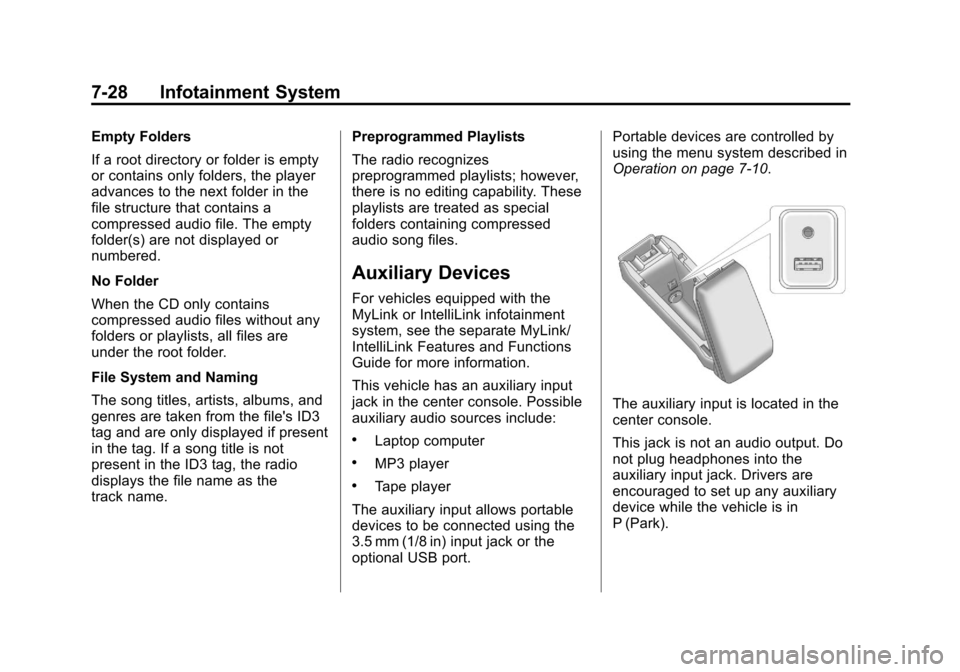
This vehicle has an auxiliary input
jack in the center console. Possible
auxiliary audio sources include:
.Laptop computer
.MP3 player
.Tape player
The auxiliary input allows portable
devices to be connected using the
3.5 mm (1/8 in) input jack or the
optional USB port. Portable devices are controlled by
using the menu system described in
Operation on page 7‑10.
The auxiliary input is located in the
center console.
This jack is not an audio output. Do
not plug headphones into the
auxiliary input jack. Drivers are
encouraged to set up any auxiliary
device while the vehicle is in
P (Park).