2012 CADILLAC SRX change
[x] Cancel search: changePage 196 of 502

Black plate (6,1)Cadillac SRX Owner Manual (Include Mex) - 2012
7-6 Infotainment System
D. FAV
.Radio: Opens the
favorites list.
.MEM: Opens the
favorites list.
E.
lSEEK
.Radio: Seeks the next
station.
.CD/DVD: Selects the
next track or fast forwards
within a track.
.MEM: Selects the next
track or fast forwards
within a track.
F.
gSEEK
.Radio: Seeks the previous
station.
.CD/DVD: Selects the
previous track or rewinds
within a track.
.MEM: Selects the previous
track or rewinds within a
track. G.
Y(CD Eject)
.Removes a disc from
the CD slot.
H. RADIO/BAND
.Changes the band while
listening to the radio.
.Selects the radio when
listening to a different
audio source.
I. MEM/CD/AUX
.Selects MEM, CD/DVD,
USB, or a connected
auxiliary audio or auxiliary
audio/video source.
J.
k
.Radio: Pauses time shifted
content.
.CD/DVD: Pauses CD/
DVD‐A and DVD‐V
playback.
.MEM: Pauses MEM
playback. K. CD/DVD Slot
.Insert a disc.
L. MENU/SELECT
.Press: Selects menu items.
.Turn: Open menus,
highlights menu items,
or sets numeric values
while in a menu.
M. TONE
.Opens the tone menu.
N.
/BACK
.Menu: Moves one
level back.
.Character Input: Deletes
the last character.
O. CONFIG
.Opens the settings menu.
P. DEL
.MEM: Deletes the current
track from MEM.
Page 198 of 502
Black plate (8,1)Cadillac SRX Owner Manual (Include Mex) - 2012
7-8 Infotainment System
BACK/:Press to:
.Exit a menu.
.Return from a submenu screen
to the previous menu screen.
.Delete the last character in a
sequence.
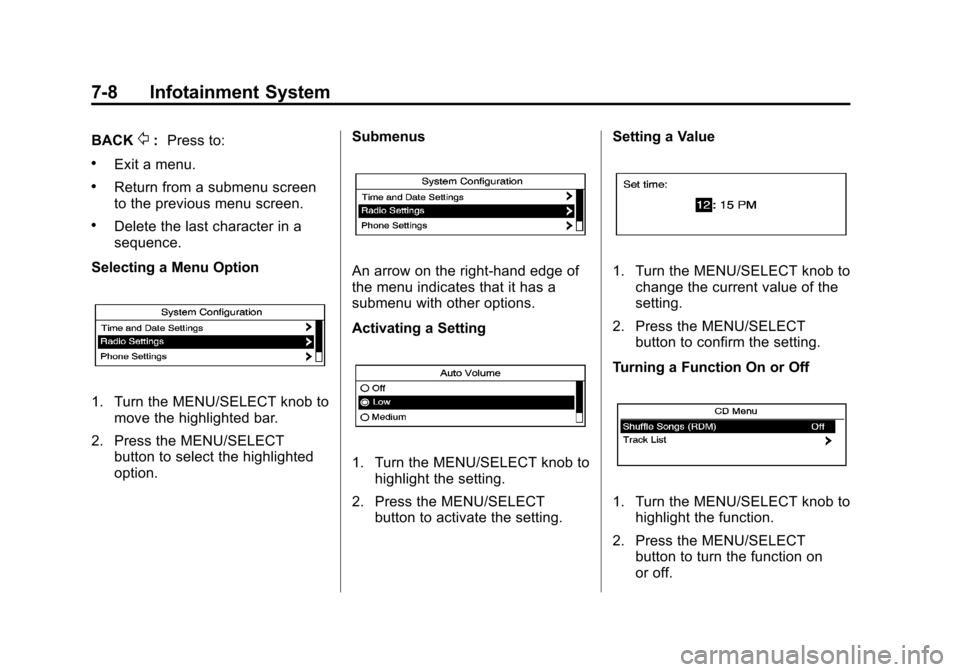
Selecting a Menu Option
1. Turn the MENU/SELECT knob to move the highlighted bar.
2. Press the MENU/SELECT button to select the highlighted
option. Submenus
An arrow on the right‐hand edge of
the menu indicates that it has a
submenu with other options.
Activating a Setting
1. Turn the MENU/SELECT knob to
highlight the setting.
2. Press the MENU/SELECT button to activate the setting. Setting a Value
1. Turn the MENU/SELECT knob to
change the current value of the
setting.
2. Press the MENU/SELECT button to confirm the setting.
Turning a Function On or Off
1. Turn the MENU/SELECT knob to highlight the function.
2. Press the MENU/SELECT button to turn the function on
or off.
Page 199 of 502

Black plate (9,1)Cadillac SRX Owner Manual (Include Mex) - 2012
Infotainment System 7-9
Entering a Character Sequence
1. Turn the MENU/SELECT knob tohighlight the character.
2. Press the MENU/SELECT button to select the character.
Press the BACK
/button to delete
the last character in the sequence
or press and hold to delete the
entire character sequence.
Audio Settings
The audio settings can be set for
each radio band and each audio
player source.
To quickly reset an audio setting
value to 0:
1. Press the TONE button.
2. Select the audio setting. 3. Press and hold the MENU/
SELECT button until the value
changes to 0.
Press the BACK
/button to go
back to the Tone Settings menu.
Adjusting the Treble, Midrange,
and Bass
1. Press the TONE button.
2. Select Treble, Midrange, or Bass.
3. Select the value.
Press the BACK
/button to go
back to the Tone Settings menu. Adjusting the Fader and Balance
1. Press the TONE button.
2. Select Fader or Balance.
3. Select the value.
Press the BACK
/button to go
back to the Tone Settings menu.
Adjusting the EQ (Equalizer)
For vehicles that have an equalizer:
1. Press the TONE button.
2. Select EQ.
3. Select the setting.
Press the BACK
/button to go
back to the Tone Settings menu.
Page 203 of 502

Black plate (13,1)Cadillac SRX Owner Manual (Include Mex) - 2012
Infotainment System 7-13
Station Lists
1. Turn the MENU/SELECT knob.
2. Select AM or FM Station List. Allreceivable stations in the current
reception area are displayed. If a
station list has not been created,
an automatic station search
is done.
3. Select the station.
Category Lists
Most stations that broadcast an
RDS program type code specify the
type of programming transmitted.
Some stations change the program
type code depending on the
content. The system stores the
RDS stations sorted by program
type in the FM category list.
To search for a programming type
determined by station:
1. Turn the MENU/SELECT knob.
2. Select FM category list. A list of all programing types available
displays. 3. Select the programming type.
A list of stations that transmit
programming of the selected
type displays.
4. Select the station. The category lists are updated
when the station lists are
updated.
Updating Station & Category Lists
If stations stored in the station list
can no longer be received:
1. Turn the MENU/SELECT knob.
2. Select Update AM or FM Station List, if the stations stored in the
station list are no longer
received. A station search will be
completed and the first station in
the updated list will play.
To cancel the station search, press
the MENU/SELECT knob.Storing a Station as a Favorite
Stations from all bands can be
stored in any order in the favorite
pages.
Up to six stations can be stored in
each favorite page and the number
of available favorite pages can
be set.
Storing Stations
To store the station to a position in
the list, press the corresponding
button 1 to 6 until a beep is heard.
Retrieving Stations
Press the FAV button to open a
favorite page or to switch to another
favorite page. Briefly press one of
the 1 to 6 buttons to retrieve
the station.
Page 204 of 502

Black plate (14,1)Cadillac SRX Owner Manual (Include Mex) - 2012
7-14 Infotainment System
Time Shifting (Radio with CD/
DVD and MEM)
The radio with MEM time shift
feature can rewind 20 minutes of
FM/AM content. While listening to
the radio, the content from the
current station is always being
buffered.
Press
kto pause the radio. The
radio displays the time shift status
bar. The status bar shows the
amount of content stored in the
buffer and the current pause point.
To resume playback from the
current pause point, press
kagain.
The radio is no longer live, but
played from the time shift buffer.
A status bar displays below the
station number.
Press and hold
gSEEK or
lSEEK to fast forward or
rewind through the time shift buffer.
Hold
lSEEK until the end of the
recorded buffer resumes live
playback. Press and release
gSEEK or
lSEEK to jump forward or back
30 seconds in the time shift buffer.
When the radio station is changed,
the buffer is cleared and
automatically restarted for the
current station. Content from a
previously tuned station is no
longer available.
The time shift feature is not
available while recording or with
other sources of playback.
Pausing AM/FM with the Vehicle
Turned Off
If AM/FM is paused when the
vehicle is turned off, the radio
continues to buffer the current radio
station for up to 20 minutes. If the
vehicle is turned back on within
20 minutes, the radio resumes
playback from the paused point.
Satellite Radio
Vehicles with an XM™ Satellite
Radio tuner and a valid XM Satellite
Radio subscription can receive
XM programming.
XM Satellite Radio Service
XM is a satellite radio service based
in the 48 contiguous United States
and 10 Canadian provinces. XM
Satellite Radio has a wide variety of
programming and commercial-free
music, coast to coast, and in
digital-quality sound. If XM service
needs to be reactivated, the radio
will display “No Subscription Please
Renew on channel XM1.” A service
fee is required to receive the
XM service. For more information,
contact XM at www.xmradio.com or
1-800-929-2100 in the U.S. and
www.xmradio.ca or
1-877-438-9677 in Canada.
Page 206 of 502

Black plate (16,1)Cadillac SRX Owner Manual (Include Mex) - 2012
7-16 Infotainment System
To select a channel using the menu:
1. Turn the MENU/Select knob andselect Channel List.
2. Select the desired channel.
Selecting a Channel Using the
Menu System
1. Turn the MENU/SELECT knob.
2. Select XM Category List.
3. Select the category.
4. Select the channel.
Storing an XM Channel as a
Favorite
Channels from all bands can be
stored in any order in the favorite
pages.
Up to six channels can be stored in
each favorite page and the number
of available favorite pages can
be set. Storing a Channel as a Favorite
To store the channel to a position
in the list, press and hold the
corresponding 1 to 6 button until
the channel can be heard again.
Retrieving Channels
Press the FAV button to open a
favorite page or to change to
another favorite page. Briefly press
one of the 1 to 6 buttons to retrieve
the channel.
Time Shifting (Radio with CD/
DVD and MEM)
The radio with the MEM time shift
feature can rewind 20 minutes of
XM content. While listening to the
radio, the content from the current
channel is always being buffered.
Press
kto pause the radio. The
radio displays the time shift status
bar. The status bar shows the
amount of content stored in the
buffer and the current pause point. To resume playback from the
current pause point, press
kagain.
The radio is no longer live, but
played from the time shift buffer.
A status bar displays below the
channel number.
Press and hold
gSEEK or
lSEEK to fast forward or rewind
through the time shift buffer. Hold
lSEEK until the end of the
recorded buffer resumes live
playback.
Press and release
gSEEK or
lSEEK to go to the next or
previous song in the time shift
buffer.
When the channel is changed, the
buffer is cleared and automatically
restarted for the current channel.
Content from a previously tuned
station is no longer available.
The time shift feature is not
available while recording or with
other sources of playback.
Page 214 of 502

Black plate (24,1)Cadillac SRX Owner Manual (Include Mex) - 2012
7-24 Infotainment System
Changing the Audio Stream
1. Turn the MENU/SELECT knob.
2. Select Audio Stream.
3. Select Change Audio Stream.
4. Press MENU/SELECT to changethe selection.
Select Cancel to exit the menu.
Pausing a DVD
1. Turn the MENU/SELECT knob.
2. Select Pause to pause the disc. Select unpause to start
playback.
Navigating the DVD‐V Disc Menu
Use the following actions to
navigate the title menu on a
DVD‐V Disc.
.Select/Enter
.Cursor UP
.Cursor DOWN
.Cursor RIGHT
.Cursor LEFT
.Up Menu
Use the following actions to
navigate the menu on a DVD‐V Disc
while playing chapters.
.Pause (Play)
.Chapter List
.Title List
.DVD/DVD —DVD on both video
screens
.DVD/AUX —Left video screen/
Right AUX input
.AUX/DVD —Left AUX input/
Right video screen
.AUX/AUX —AUX input on both
video screens
To navigate the menu:
1. Turn the MENU/SELECT knob.
2. Select the action.
Mass Storage
Media (MEM)
Infotainment systems with MEM
storage are able to record up to
1.1 GB (gigabyte) of music from
Audio CDs, MP3/WMA/AAC discs,
and USB storage devices. The MEM
player can also time shift audio from
AM, FM, and XM radio.
Music or content stored in MEM that
you did not create, or have the right
to distribute, must be deleted before
the sale or end of lease of the
vehicle.
Control Buttons
The buttons used to control the
MEM player are:
MEM/CD/AUX: Press to select the
MEM player.
lSEEK/gSEEK: Press to
select tracks or to fast forward or
rewind within a track.
Page 217 of 502
Black plate (27,1)Cadillac SRX Owner Manual (Include Mex) - 2012
Infotainment System 7-27
Shuffle Songs
Select the Shuffle Songs option
from the MEM menu to randomly
play back tracks stored in MEM.
Configuring MEM Favorites
During MEM playback, press the
FAV button to change between
favorite categories. The favorite
categories are:
.Playlists
.Artists
.Albums
.Genres
To remove MEM favorites
categories:
1. Press the CONFIG button.
2. Select Radio Settings. 3. Select MEM Favorites.
4. Remove the checkmark from
the box to remove that MEM
favorites category.
Replace the checkmark to re-add
the removed category.
Saving MEM Tracks as
Favorites
Favorites can be saved by
pressing and holding one of the 1 to
6 buttons. Favorites can be stored
according to the following list:
Playlist: Adds the currently playing
track to the playlist selected.
Artist: Saves the artist associated
with the currently playing track in
the indicated favorites position.
Album: Saves the album
associated with the currently playing
track in the indicated favorites
position. Genre:
Saves the genre associated
with the currently playing track in
the indicated favorites position.
Creating Playlists
To create a playlist using tracks
stored in MEM:
1. Select Playlist from the
MEM favorites.
2. Select the track to be stored in the playlist.
3. Press and hold one of the 1 to 6 buttons until the track can be
heard again to store the track.
4. Repeat Steps 1 though 3 to store additional tracks in the
playlist.