2012 BUICK LACROSSE manual radio set
[x] Cancel search: manual radio setPage 205 of 512
Black plate (25,1)Buick LaCrosse Owner Manual - 2012
Infotainment System 7-25
XM Categories (Radio with CD
and Touchscreen)
Adding or Removing Categories
1. From the Home Page press theConfig screen button or the
CONFIG button on the
infotainment system.
2. Select Radio Settings from the Config Menu list.
3. Select Add/Remove XM Categories.
4. From the Add/Remove XM Categories screen, select or
deselect any category to be
used in XM mode. A checkmark
will indicate that the category is
selected. Turning XM Album Art On or Off
1. From the Home Page press the
Config screen button or the
CONFIG button on the
infotainment system.
2. Select Radio Settings from the Config Menu list.
3. Select XM Album Art to turn on or off.
XM Messages
XL (Explicit Language
Channels): These channels, or any
others, can be blocked by request,
by calling 1-800-929-2100 in the
U.S., and 1-877-438-9677 in
Canada.
XM Updating: The encryption code
in the receiver is being updated. No
action is required. This process
should take no longer than
30 seconds. Loading XM:
The audio system is
acquiring and processing audio and
text data. No action is needed. This
message should disappear shortly.
Channel Off Air: This channel is
not currently in service. Tune in to
another channel.
Channel Unauth: This channel is
blocked or cannot be received with
your XM subscription package.
Channel Unavailable: This
previously assigned channel is no
longer assigned. Tune to another
station.
No Artist Info: The system is
working properly. No artist
information is available at this time
on this channel.
No Title Info: The system is
working properly. No song title
information is available at this time
on this channel.
Page 218 of 512
Black plate (38,1)Buick LaCrosse Owner Manual - 2012
7-38 Infotainment System
Playing from MEM
Playing Back a Previously
Recorded CD
Turn the TUNE knob to select a
track if MEM is already playing from
the previously recorded disc.
1. Select Recorded Disc List.
2. Select the disc.
3. Select the track.
Searching for a Track
Tracks can be searched for by:
.Playlists
.Artists
.Albums
.Song Titles
.Genres
The number of objects in each
category is shown in parentheses
after the category. To search for tracks:
1. Turn the Menu knob.
2. Select Search.
3. Select: Playlists, Artists, Albums,
Song Titles, or Genres.
4. Select the track. The search rate increases if the Menu knob is
continuously turned while
searching in a list.
Shuffle Songs
Select the Shuffle Songs option
from the MEM menu to randomly
play back tracks stored in MEM.
Configuring MEM Favorites
During MEM playback, press the
FAV button to change between
favorite categories. The favorite
categories are:
.Playlists
.Artists
.Albums
.Genres To remove MEM favorites
categories:
1. Press the CONFIG button.
2. Select Radio Settings.
3. Select MEM Favorites.
4. Remove the checkmark from the
box to remove that MEM
favorites category.
Replace the checkmark to re-add
the removed category.
Saving MEM Tracks as
Favorites
Favorites can be saved by pressing
and holding one of the 1 to
6 buttons. Favorites can be stored
according to the following list:
Playlist: Adds the currently playing
track to the playlist selected.
Artist: Saves the artist associated
with the currently playing track in
the indicated favorites position.
Page 219 of 512
Black plate (39,1)Buick LaCrosse Owner Manual - 2012
Infotainment System 7-39
Album:Saves the album
associated with the currently playing
track in the indicated favorites
position.
Genre: Saves the genre associated
with the currently playing track in
the indicated favorites position.
Creating Playlists
To create a playlist using tracks
stored in MEM:
1. Select Playlist from the MEM
favorites.
2. Select the track to be stored in the playlist.
3. Press and hold one of the 1 to 6 buttons until the track can be
heard again to store the track.
4. Repeat Steps 1 through 3 to store additional tracks in the
playlist.Auxiliary Devices (Radio
with CD and
Touchscreen)
For vehicles equipped with the
MyLink or IntelliLink infotainment
system, see the separate MyLink/
IntelliLink Features and Functions
Guide for more information.
The optional AUX input allows
portable devices to connect to the
vehicle using the 3.5 mm (1/8 in)
input jack or the USB port.
Portable devices are controlled by
using the menu system described in
Overview (Radio with CD) on
page 7‑3 orOverview (Radio with
CD/DVD and MEM) on page 7‑5 or
Overview (Radio with CD and
Touchscreen) on page 7‑7 and
Operation on page 7‑13.
This jack is not an audio output. Do
not plug headphones into the
auxiliary input jack. Drivers are
encouraged to set up any auxiliary
device while the vehicle is in
P (Park). Possible auxiliary audio sources
include:
.Laptop computer
.MP3 player
.Tape player
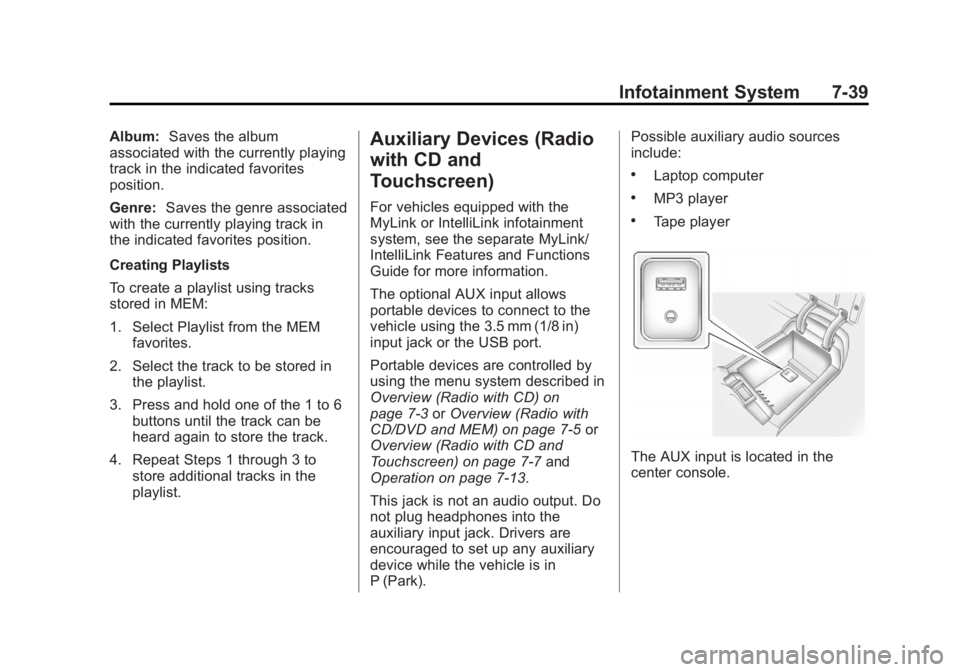
The AUX input is located in the
center console.
Page 220 of 512
Black plate (40,1)Buick LaCrosse Owner Manual - 2012
7-40 Infotainment System
3.5 mm Jack
Connect a 3.5 mm (1/8 in) cable to
the auxiliary input jack to use a
portable audio player.
Playback of an audio device that is
connected to the 3.5 mm jack can
only be controlled using the controls
on the device.
If an auxiliary device has already
been connected on vehicles with a
touchscreen, but a different source
is currently active, press the Now
Playing screen button on the Home
Page, then press Source repeatedly
to cycle through all of the available
audio source screens, until the AUX
source screen is selected.
Adjusting the Volume
Turn the VOL/
Oknob to adjust the
volume of the infotainment system
after the volume level has been set
on the portable audio device.
USB Port
For vehicles with a USB port, the
following devices may be connected
and controlled by the infotainment
system.
.iPods
.PlaysForSure Devices (PFDs)
.USB Drives
.Zunes™
.USB mass storage device
.Microsoft Transfer
Protocal (MTP)
Not all iPods, PFDs, USB Drives,
and Zunes are compatible with the
infotainment system.
Connecting and Controlling an
iPod®(Radio with CD and
Radio with CD/DVD/MEM)
Not all iPods can be controlled by
the infotainment system.
Connecting an iPod
Connect the iPod to the USB port.
Selecting a Track
Using the control buttons:
.Pressgorlto select the
previous or next track.
.Turn the TUNE knob to select a
track in the current submenu.
The track will start to play.
Page 221 of 512
Black plate (41,1)Buick LaCrosse Owner Manual - 2012
Infotainment System 7-41
Searching for a Track
Tracks can be searched for by:
.Playlists
.Artists
.Albums
.Song Titles
.Podcasts
.Genres
.Audiobooks
.Composers
To search for tracks:
1. Turn the Menu knob.
2. Select Search.
3. Select: Playlists, Artists, Albums, Song Titles, Podcasts, Genres,
Audiobooks, or Composers.
4. Select the track.
Shuffle (Radio with CD)
Turn the Menu knob and set Shuffle
Songs (Random) to On or Off, then
press the
/BACK button to return
the main screen.
On: Plays tracks in the current
folder in random order.
Off: Plays tracks in the current
folder in sequential order.
Repeat
Turn the Menu knob and set Repeat
to On or Off, then press the
/
BACK button to return the main
screen.
On: Repeats the current track.
Off: Playback starts from the
beginning of the current track after
the last track finishes.
Shuffle (Radio with CD/
DVD/MEM)
Turn the Menu knob and set Shuffle
Songs to On or Off.
Shuffle On: Plays current tracks in
random order.
Shuffle Off: Plays current tracks in
sequential order.
Connecting and Controlling a
PlaysForSure Device (PFD) or
Zune (Radio with CD)
Connecting a PFD or Zune
Connect the PFD or Zune to the
USB port.
Page 222 of 512

Black plate (42,1)Buick LaCrosse Owner Manual - 2012
7-42 Infotainment System
Searching for a Track
Tracks can be searched for by:
.Playlists
.Artists
.Albums
.Song Titles
.Podcasts
.Genres
To search for tracks:
1. Turn the Menu knob.
2. Select Search.
3. Select: Playlists, Artists, Albums, Song Titles, Podcasts,
or Genres.
4. Select the track. Shuffle Functionality
Turn the Menu knob and set Shuffle
Songs (Random) to On or Off.
On:
Plays current tracks in random
order.
Off: Plays current tracks in
sequential order.
Repeat Functionality
Turn the Menu knob and set Repeat
to On or Off.
Repeat On: Repeats the current
track.
Repeat Off: Playback starts from
the beginning of the current track
after the last track finishes.
Connecting and Controlling a
USB Drive (Radio with CD and
Radio with CD/DVD/MEM)
The infotainment system can only
play back .mp3 and .wma files from
a USB drive.
Only the first 2,500 songs are
recognized on the device.
When a device is not supported, the
message “No supported data found.
You can safely disconnect the
device” appears.
Connecting a USB Drive
Connect the USB drive to the
USB port.
Searching for a Track
It is normal for the search feature to
take some time to display the
information after reading the device
due to the amount of information
stored.
Page 223 of 512
Black plate (43,1)Buick LaCrosse Owner Manual - 2012
Infotainment System 7-43
Files that do not have any meta
data stored in the ID3 tag display as
Unknown.
Tracks can be searched for by:
.Playlists*
.Artists
.Albums
.Song Titles
.Genres
.Folder View
*This only displays if a playlist is
found on the device.
To search for tracks:
1. Turn the Menu knob.
2. Select Search.
3. Select: Playlists, Artists, Albums, Song Titles, Genres,
or Folder View.
4. Select the track. Shuffle Functionality
Turn the Menu knob and set Shuffle
Songs (Random) to On or Off.
On:
Plays current tracks in random
order.
Off: Plays current tracks in
sequential order.
Repeat Functionality
Turn the Menu knob and set Repeat
to On or Off.
Repeat On: Repeats the current
track.
Repeat Off: Playback starts from
the beginning of the current track
after the last track finishes.
Recording Tracks to MEM
(Radio with CD/DVD/MEM)
See Mass Storage Media (MEM) on
page 7‑36 for more information.
Playing from a USB (Radio
with CD and Touchscreen)
A USB mass storage device or
Microsoft Transfer Protocal (MTP)
device can be connected to the
USB port.
The USB port is in the center
console.
The USB icon displays when the
USB device is connected.
USB MP3 Player and USB Drives
.The USB MP3 players and USB
drives connected must comply
with the USB Mass Storage
Class specification (USB MSC).
.Only USB MP3 players and USB
drives with a sector size or
512 bytes and a cluster size
smaller or equal to 32 kbytes in
the FAT32 file system are
supported.
.Hard disk drives are not
supported.
Page 230 of 512
Black plate (50,1)Buick LaCrosse Owner Manual - 2012
7-50 Infotainment System
Audio/Video (A/V) Jacks
If available, the A/V jacks are
located on the rear of the floor
console. They allow audio or video
cables to be connected from an
auxiliary device such as a
camcorder or a video game system.
The A/V jacks are color coded:
.Yellow for video input.
.White for left audio input.
.Red for right audio input.
Power for auxiliary devices is not
supplied by the radio system.
To use the auxiliary inputs of the
RSE system:
1. Connect the auxiliary device cables to the A/V jacks.
2. Power on both the auxiliary device and the RSE video
screen. Changing the Source on the Video
Display Screens
The image from the auxiliary device
can be switched between the video
display screens.
To change the display:
1. Press the AUX button on the
remote control to change the
source of both video screens
from the DVD player to the
auxiliary device.
2. Press the AUX button a second time to change the left video
screen source to the DVD player
and the right video screen to the
auxiliary device.
3. Press the AUX button a third time to change the left video
screen source to the auxiliary
device and the right video
screen to the DVD player. 4. Press the AUX button a fourth
time to change the source of
both video screens to the DVD
player.
Changing the RSE Video Screen
Settings
The screen display mode,
brightness, and language can be
changed from the setup menu using
the remote control. To change a
setting:
1. Pressz.
2. Use
n,q,p,o, andrto
select the settings.
3. Press
zagain to exit the
setup menu.