2012 BMW X6 ACC
[x] Cancel search: ACCPage 271 of 312

Mobility
269Reference
At a glance
Controls
Driving tips
Communications
Navigation
Entertainment
it from extending to its full support height and
reduce its load-carrying capacity.
To avoid serious or fatal injury: never lie under
the vehicle, and never start the engine while it is
supported by the jack.<
What you will need
To avoid rattling noises later on, note the posi-
tions of the tools before removing them, then
return them to their initial positions after com-
pleting work.
The tools are located in the mount under the
floor panel flap.
1Vehicle jack
*
2Vehicle jack crank*
3Lug wrench*
Removing compact wheel
The compact wheel is located in the cargo area
under the floor panel.
1.Remove the tool mount.
2.Unscrew the wing nut 1.
3.Remove the washer 2 laterally.
4.Remove the compact wheel.
Preparing wheel change
1.Observe the safety precautions above.
2.Loosen the lug bolts a half turn.
Jacking up vehicle
1.Position the vehicle jack at the jacking point
closest to the wheel so that the entire sur-
face of the jack base rests on the ground
perpendicularly beneath the jacking point.
The vehicle jack is designed for
changing wheels only. Do not attempt
to raise another vehicle model with it or to
raise any load of any kind. To do so could
cause accidents and personal injury.<
2.Guide the jack head into the rectangular
recess of the jacking point when cranking
up, refer to illustration detail.
3.Jack the vehicle up until the wheel you are
changing is raised from the ground.
Mounting a wheel
1.Unscrew the lug bolts and remove the
wheel.
2.Remove accumulations of mud or dirt from
the mounting surfaces of the wheel and
hub. Also clean the lug bolts.
Page 275 of 312

Mobility
273Reference
At a glance
Controls
Driving tips
Communications
Navigation
Entertainment
Giving and receiving assistance
Emergency request
Conditions for an emergency request:
>Full preparation package mobile phone.
With this equipment, an emergency request
is still possible when no mobile phone is
paired in the vehicle.
>BMW Assist is activated.
Activating BMW Assist, refer to page228.
>Radio readiness is switched on.
>The BMW Assist system is logged in on a
wireless communications network.
>The emergency request system is opera-
ble.
When the contract of participation with BMW
Assist expires, the BMW Assist system can be
deactivated by a BMW Sports Activity Vehicle
Center without having to visit a workshop. Once
the BMW Assist system has been deactivated,
emergency requests are not possible. The
BMW Assist system be reactivated by a BMW
Sports Activity Vehicle Center after signing a
new contract.
Initiating an emergency request
1.Briefly press protective cover to open.
Depending on the vehicle's equipment, the
arrangement of the switches and indicator
lamps may differ somewhat.
2.Press the SOS button until the LED in the
button lights up.As soon as the voice connection to the BMW
Assist Response Center has been established,
the LED flashes.
When the emergency request is received at the
BMW Assist Response Center, the BMW Assist
Response Center contacts you and takes fur-
ther steps to help you. Even if you are unable to
answer, the BMW Assist Response Center can
take further steps to help you under certain
conditions.
If conditions allow, remain in the vehicle until
the connection has been established. You will
then be able to provide a detailed description of
the situation.
Information for determining the required rescue
measures is transmitted to the BMW Assist
Response Center, e.g. the current position of
your vehicle, if this can be determined.
If the LED flashes, but you are unable to hear
the BMW Assist Response Center through the
hands-free system, this could indicate, for
instance, that the hands-free system is no
longer operational. The BMW Assist Response
Center may still be able to hear you, however.
Under certain conditions, an emergency
request is automatically initiated immediately
after a severe accident. An automatic collision
notification is not affected by the button being
pressed.
For technical reasons, the emergency
request cannot be guaranteed under
unfavorable conditions.<
Warning triangle*
The warning triangle is located in the cargo
area.
First-aid kit*
Some of the articles contained in the first-aid kit
have a limited service life. Therefore, check the
Page 278 of 312
Giving and receiving assistance
276 >Switch on the hazard warning flashers
depending on the local regulations.
>If the electrical system fails, mark the vehi-
cle to be towed, e.g. with a sign or warning
triangle in the rear window.
Towing methods when towing other
vehicles
Tow bar
The tow fittings used should be on the same
side on both vehicles.
Should it prove impossible to avoid mounting
the tow bar at an offset angle, observe the fol-
lowing:
>Clearance and maneuvering capability will
be sharply limited during cornering.
>When mounted at an angle, the tow bar will
exert lateral forces, tending to push the
vehicle sideways.
Only attach the tow bar to the tow fittings,
as attachment to other vehicle parts can
lead to damage.<
Tow rope
When starting off in the towing vehicle, make
sure that the tow rope is taut.
To avoid jerking and the associated stresses on
vehicle components when towing, always use
nylon ropes or nylon straps.
Only secure the tow rope on the tow fit-
ting; connecting it to other vehicle parts
may cause damage.<
Tow fitting
The screw-on tow-fitting must always be car-
ried in the vehicle. It can be screwed in at the
front or rear of the BMW.
It is located in the toolkit under the floor panel
flap in the cargo area, refer to page262.
Use only the tow fitting provided with the
vehicle and screw it all the way in. Use the
tow fitting for towing only on roads. Use the tow
fitting screwed in at the front for maneuvering
the vehicle only. Avoid lateral loading of the tow fitting, e.g. do not lift the vehicle by the tow fit-
ting. Otherwise damage to the tow fitting and
the vehicle can occur.<
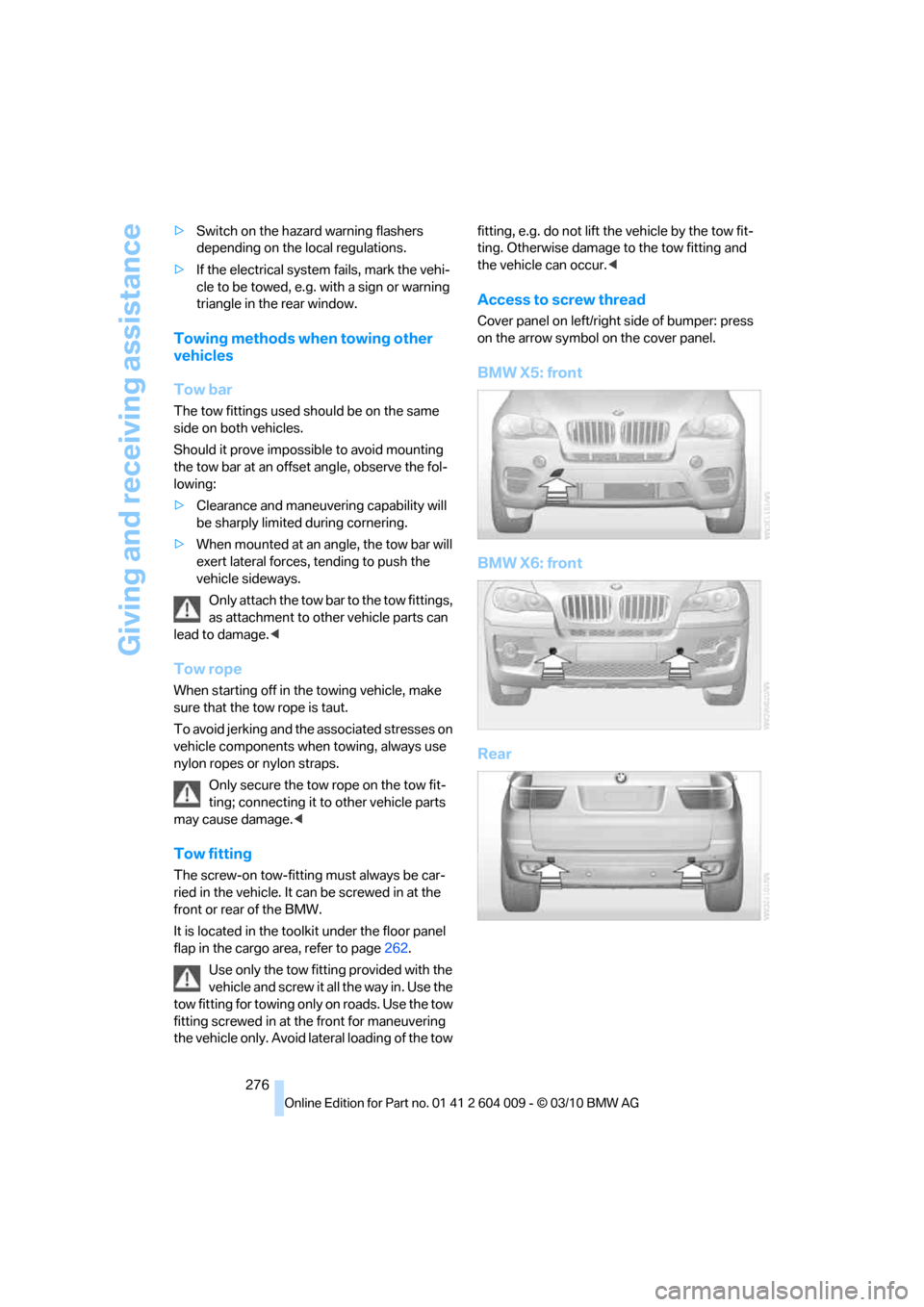
Access to screw thread
Cover panel on left/right side of bumper: press
on the arrow symbol on the cover panel.
BMW X5: front
BMW X6: front
Rear
Page 287 of 312

Reference 285
At a glance
Controls
Driving tips
Communications
Navigation
Entertainment
Mobility
Short commands of voice activation
system
With short commands you can carry out certain
functions directly, regardless of which menu item is selected. Here are the important short
commands for the voice activation system.
Useful short commands
CD/Multimedia
CD/DVD drive
Music collection
*
FunctionCommand
Accessing a music collection{Music collection}
Accessing tone control{Tone}
Accessing settings{Settings}
Accessing the computer{Onboard info}
Accessing contacts
*{Contacts}
Displaying the phone book
*{Phonebook}
Accessing BMW Assist
*{B M W Assist}
Retrieving home address
*{Home address}
Selecting destination entry
*{Enter address}
FunctionCommand
Playing a CD{C D on}
Selecting a CD{Select C D}
Selecting a CD and track{C D … track …} e.g. CD 3 track 5
Selecting a track{C D track …} e.g. track 5
Opening the CD and Multimedia menu{C D and multimedia}
CD and DVD
*{C D}
Displaying entertainment details in split screen
*{Entertainment details}
FunctionCommand
Displaying current playback{Current playback}
Accessing a music collection{Music collection}
Playing a music collection{Music collection on}
Page 288 of 312
Short commands of voice activation system
286
External devices
Tone control
Radio
FM
AM
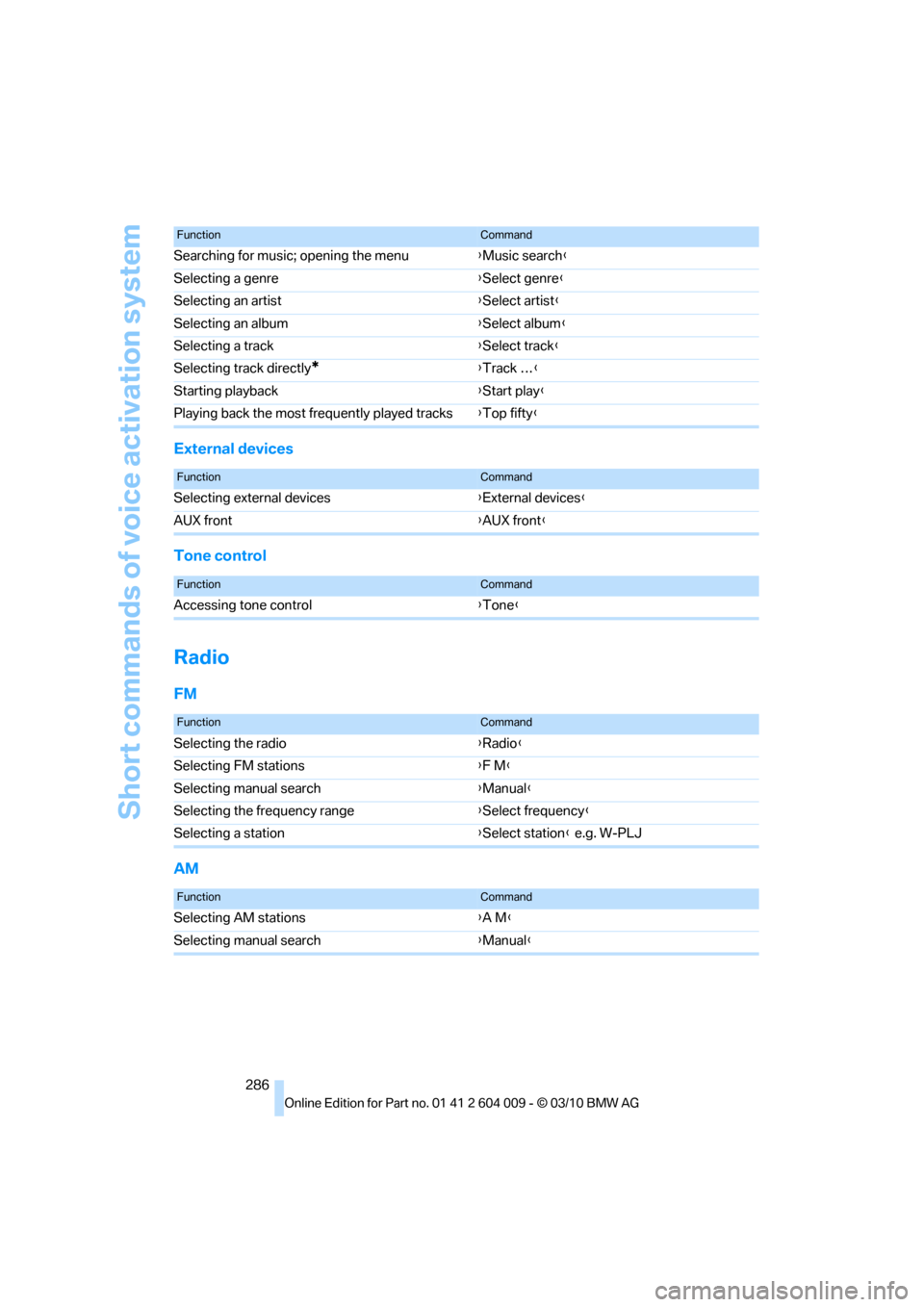
Searching for music; opening the menu{Music search}
Selecting a genre{Select genre}
Selecting an artist{Select artist}
Selecting an album{Select album}
Selecting a track{Select track}
Selecting track directly
*{Track …}
Starting playback{Start play}
Playing back the most frequently played tracks{Top fifty}
FunctionCommand
FunctionCommand
Selecting external devices{External devices}
AUX front{AUX front}
FunctionCommand
Accessing tone control{Tone}
FunctionCommand
Selecting the radio{Radio}
Selecting FM stations{F M}
Selecting manual search{Manual}
Selecting the frequency range{Select frequency}
Selecting a station{Select station} e.g. W-PLJ
FunctionCommand
Selecting AM stations{A M}
Selecting manual search{Manual}
Page 289 of 312

Reference 287
At a glance
Controls
Driving tips
Communications
Navigation
Entertainment
Mobility
Satellite radio
Stored stations
Telephone
Navigation
General information
FunctionCommand
Selecting the satellite radio{Satellite radio}
Switching on the satellite radio{Satellite radio on}
Selecting a satellite radio channel{Select satellite radio} e.g. channel 2
FunctionCommand
Selecting stored stations{Presets}
Choosing a stored station{Select preset}
Selecting a stored station{Preset …} e.g. stored station 2
FunctionCommand
Opening the Telephone menu{Telephone}
Displaying the phone book{Phonebook}
Redialing{Redial}
Displaying accepted calls{Received calls}
Dialing a phone number{Dial number}
Displaying the list of messages{Messages}
Displaying Bluetooth devices{Bluetooth}
FunctionCommand
Navigation menu{Navigation}
Selecting destination entry{Enter address}
Entering an address{Enter address}
Selecting destination guidance{Guidance}
Starting destination guidance{Start guidance}
Ending destination guidance{Stop guidance}
Retrieving home address{Home address}
Selecting route criteria{Route preference}
Selecting route{Route information}
Switching on the voice instructions{Switch on voice instructions}
Page 290 of 312

Short commands of voice activation system
288
Map
Split screen settings*
Destination guidance with intermediate destinations
Repeating a voice instruction{Repeat voice instructions}
Switching off the voice instructions{Switch off voice instructions}
Displaying the address book{Address book}
Displaying the last destinations{Last destinations}
Accessing traffic bulletins{Traffic Info}
Special destinations{Points of interest}
FunctionCommand
FunctionCommand
Displaying the map{Map}
Map facing north{Map facing north}
Map in the direction of travel{Map in direction of travel}
Perspective map{Map perspective view}
Automatic scaling of the map
*{Map with automatic scaling}
Changing the scale{Map scale}
FunctionCommand
Split screen{Switch on splitscreen}
Switching off the split screen{Turn off split screen}
Adapting the split screen{Split screen content}
Split screen current position{Split screen current position}
Split screen map facing north{Split screen map facing north}
Split screen direction of travel{Split screen map in direction of travel}
Split screen perspective{Split screen perspective}
Automatically scaling the split screen{Split screen automatic scaling}
Split screen enlarged intersection zoom{Splitscreen Exit ramp view}
Highlighting split screen traffic info{Split screen, Traffic conditions}
Split screen, computer{Split screen on board info}
Split screen, trip computer{Splitscreen trip computer}
FunctionCommand
Entering a new destination{Enter address}
Trip list{Stored trips}
Page 291 of 312

Reference 289
At a glance
Controls
Driving tips
Communications
Navigation
Entertainment
Mobility
Contacts
BMW Assist
Vehicle information
Settings
Vehicle
FunctionCommand
Accessing contacts{Contacts}
My contacts{My contacts}
New contact{New contact}
FunctionCommand
Accessing BMW Assist*{B M W Assist}
Accessing the Internet
*{Internet}
FunctionCommand
Accessing the computer{Onboard info}
Accessing the trip computer{Trip computer}
Accessing vehicle information{Vehicle info}
Accessing vehicle status{Vehicle status}
FunctionCommand
Opening the main menu{Main menu}
Accessing settings{Settings}
Accessing options{Options}
Settings on the Control Display{Control display}
Accessing time and date settings{Time and date}
Accessing language and unit settings{Language and units}
Accessing speed limit settings{Speed}
Activating lighting{Lighting}
Selecting the door lock{Door locks}