2012 BMW X6 M tire
[x] Cancel search: tirePage 164 of 317

Planned route
After destination guidance is started, the plan‐
ned route is displayed on the map.
Status fields
Show/hide: press the controller.
▷
Upper status field: time, telephone, and en‐
tertainment details.
▷ Lower status field: symbol for active desti‐
nation guidance, status of traffic bulletins,
time of arrival, and distance to destination.
Function bar
The following functions are available in the func‐
tion bar: Symbol Function
Start/end destination guidance.
Switch spoken instructions on/
off. Change the route criteria.
Search for a special destination. Display traffic bulletins.
Open the interactive map. Set the map view.
Change the scale. To change to the function bar, move the con‐
troller to the left.
Changing the map section
"Interactive map"
▷ To shift the map: move the controller in the
required direction.
▷ To shift the map diagonally: move the con‐
troller in the required direction and turn it.
Changing the scale
1. Select the symbol.
2. To change the scale: turn the controller. Automatically scaled map scale
In the map view facing north, turn the controller
in any direction until the AUTO scale is dis‐
played.
The entire route between the current lo‐
cation and the destination is displayed on the
map.
Settings for the map view
The settings are stored for the remote control
currently in use.
1. "Navigation"
2. "Map"
3. Open "Options".
4. "Settings"
5. To set the map view:
▷ "Day/night mode"
Select and create the necessary settings
depending on the light conditions.
"Traffic conditions/gray map" active: the
setting is disregarded.
▷ "Satellite images"
Depending on availability and resolution,
satellite images* are displayed at scales of
approx. 1 mile to 600 miles/2 km to
1,000 km.
▷ "Perspective view in 3D"
Prominent areas that are contained in the
navigation data are displayed on the map in
3D.
▷ "Traffic conditions/gray map"
The map is optimized for displaying traffic
bulletins, refer to page 166.
Symbols for the special destinations are no
longer displayed.
Split screen map view
The map view can be selected for the split
screen independently from the main screen.
1. Open "Options".
2. "Split screen"
3. Move the controller to the right repeatedly
until the split screen is selected.
Seite 164
164 Online Edition for Part no. 01 40 2 606 735 - 03 11 500
Destination guidance
Page 184 of 317
2. "DVD menu"
The
DVD menu is displayed. The display de‐
pends on the contents of the DVD.
3. To select menu items: move the controller
and press it.
To change to the video menu: turn the controller
and press it.
DVD/VCD settings
For some DVDs, settings can only be made via
the DVD menu; refer also to the information on
the DVD.
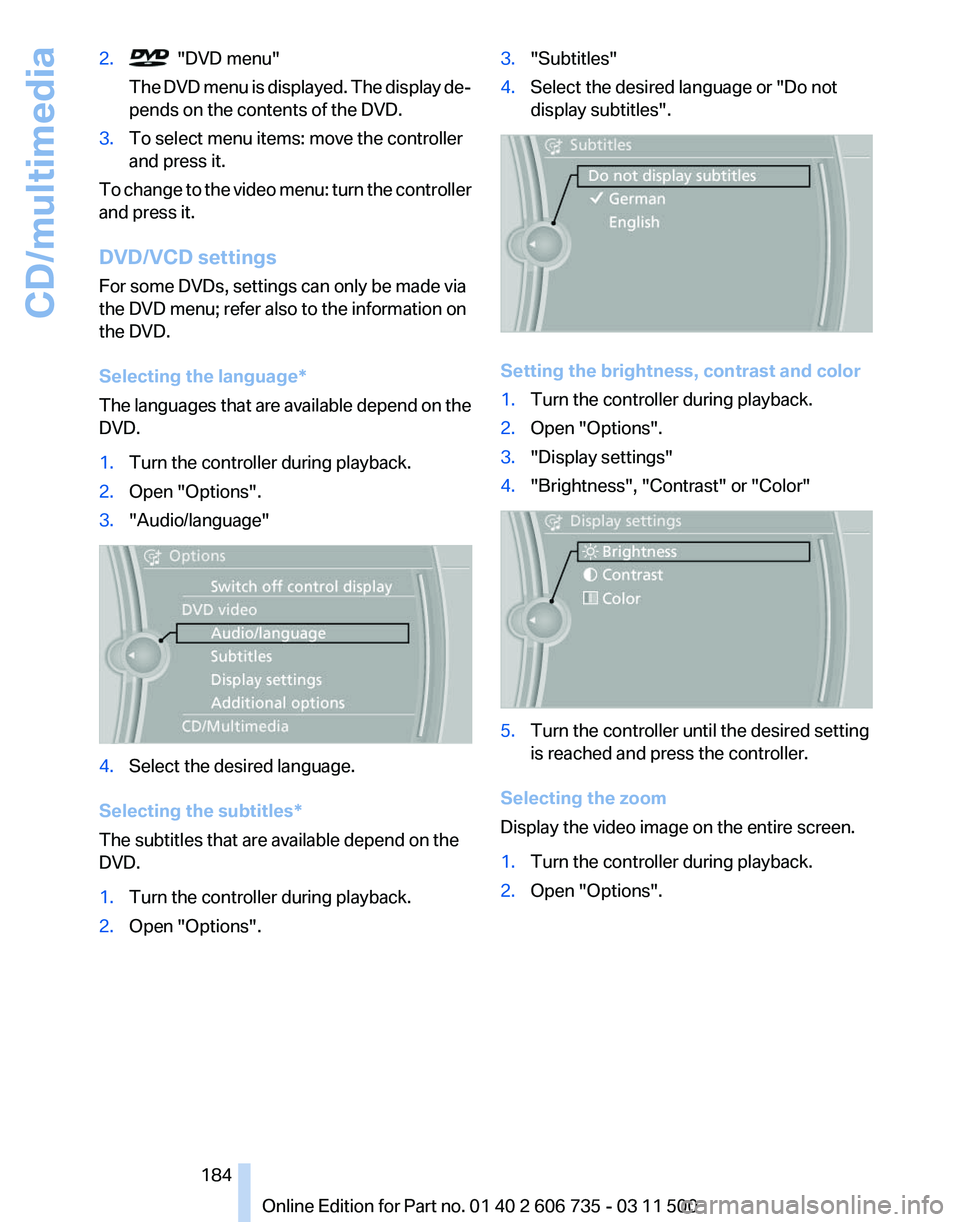
Selecting the language
*
The languages that are available depend on the
DVD.
1. Turn the controller during playback.
2. Open "Options".
3. "Audio/language" 4.
Select the desired language.
Selecting the subtitles*
The subtitles that are available depend on the
DVD.
1. Turn the controller during playback.
2. Open "Options". 3.
"Subtitles"
4. Select the desired language or "Do not
display subtitles". Setting the brightness, contrast and color
1.
Turn the controller during playback.
2. Open "Options".
3. "Display settings"
4. "Brightness", "Contrast" or "Color" 5.
Turn the controller until the desired setting
is reached and press the controller.
Selecting the zoom
Display the video image on the entire screen.
1. Turn the controller during playback.
2. Open "Options".
Seite 184
184 Online Edition for Part no. 01 40 2 606 735 - 03 11 500
CD/multimedia
Page 188 of 317
DTS Digital Surround™
Manufactured under license under U.S.
Patent Numbers: 5,451,942; 5,956,674;
5,974,380; 5,978,762; 6,487,535 & and other
patents granted and registered in the USA and
worldwide. DTS and the logo are registered
trademarks
& DTS Digital Surround and the DTS
logos are trademarks of DTS Inc. © DTS, Inc. All
rights reserved.
Music collection*
Storing music
General information
Music tracks from CDs/DVDs and USB devices
can be stored in the music collection on a hard
disc in the vehicle and played from there.
▷ Audio CD: tracks are converted into a com‐
pressed audio format. If available, informa‐
tion on the album, such as the artist, is
stored as well.
▷ CD/DVD or USB device with compressed
audio
files: the entire content of the CD/DVD
or the USB device is stored in the vehicle as
an album. The WMA, MP3, M4A*, and
AAC* formats are stored. Individual tracks
and directories can be deleted later, Delet‐
ing a track and directory, refer to page 191.
Tracks with DRM copy protection can be
stored but cannot be played back.
Backing up music data
Regularly back up the music data; other‐
wise,
it could be lost if there is a fault on the hard
disc.◀
Music recognition technology and re‐
lated data are provided by Gracenote®.
Gracenote is the industry standard in music rec‐
ognition technology and related content deliv‐
ery. For more information, please visit
www.gracenote.com.
CD and music-related data from Gracenote, Inc.,
copyright © 2000-2010 Gracenote. Gracenote
Software, copyright © 2000-2010 Gracenote. This product and service may practice one or
more
of the following U.S. Patents: #5,987,525;
#6,061,680; #6,154,773, #6,161,132,
#6,230,192, #6,230,207, #6,240,459,
#6,330,593, and other patents issued or pend‐
ing. Some services supplied under license from
Open Globe, Inc. for U.S. Patent: #6,304,523.
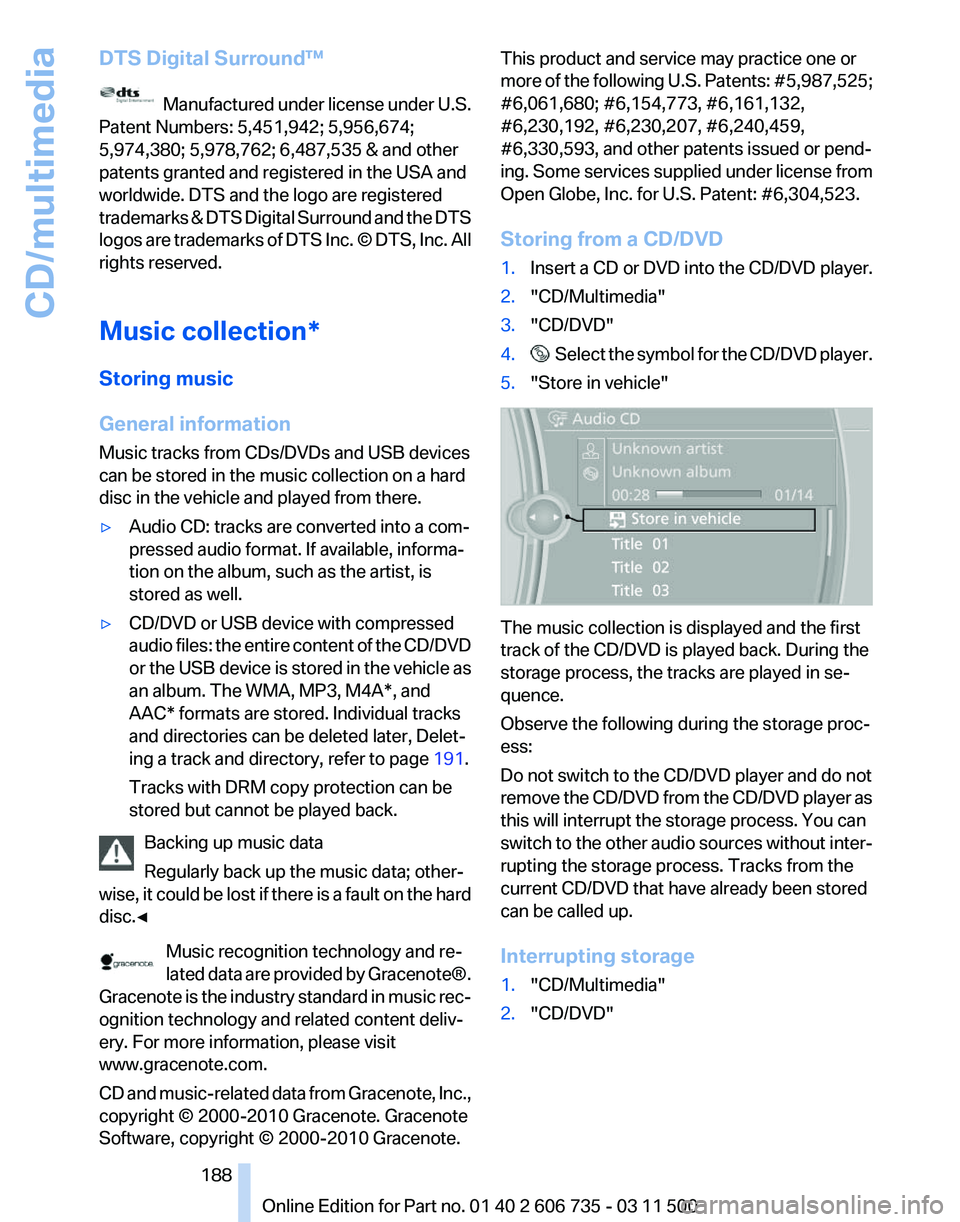
Storing from a CD/DVD
1. Insert a CD or DVD into the CD/DVD player.
2. "CD/Multimedia"
3. "CD/DVD"
4. Select the symbol for the CD/DVD player.
5. "Store in vehicle" The music collection is displayed and the first
track of the CD/DVD is played back. During the
storage process, the tracks are played in se‐
quence.
Observe the following during the storage proc‐
ess:
Do not switch to the CD/DVD player and do not
remove
the CD/DVD from the CD/DVD player as
this will interrupt the storage process. You can
switch to the other audio sources without inter‐
rupting the storage process. Tracks from the
current CD/DVD that have already been stored
can be called up.
Interrupting storage
1. "CD/Multimedia"
2. "CD/DVD"
Seite 188
188 Online Edition for Part no. 01 40 2 606 735 - 03 11 500
CD/multimedia
Page 192 of 317
Music collection
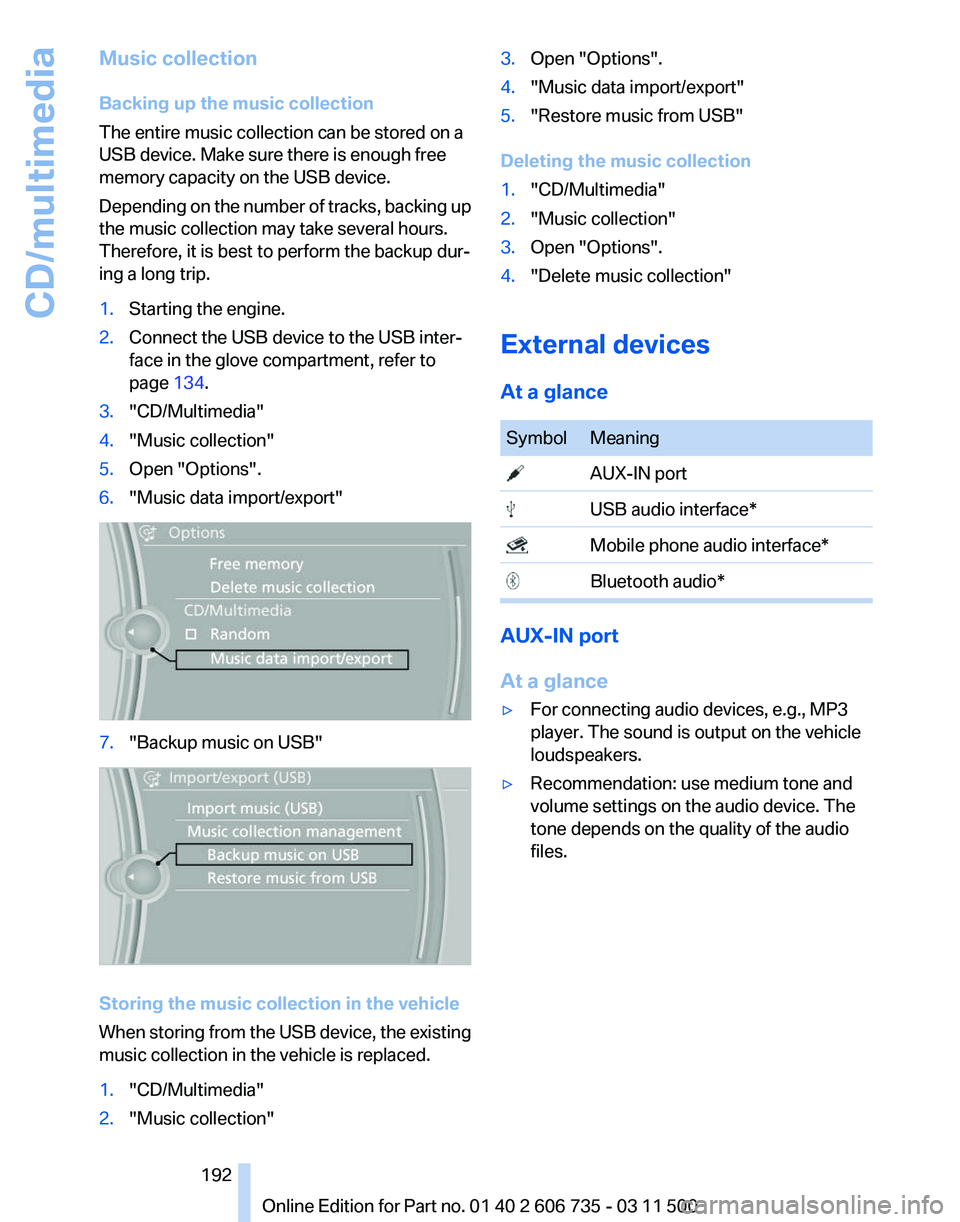
Backing up the music collection
The entire music collection can be stored on a
USB device. Make sure there is enough free
memory capacity on the USB device.
Depending
on the number of tracks, backing up
the music collection may take several hours.
Therefore, it is best to perform the backup dur‐
ing a long trip.
1. Starting the engine.
2. Connect the USB device to the USB inter‐
face in the glove compartment, refer to
page 134.
3. "CD/Multimedia"
4. "Music collection"
5. Open "Options".
6. "Music data import/export" 7.
"Backup music on USB" Storing the music collection in the vehicle
When
storing from the USB device, the existing
music collection in the vehicle is replaced.
1. "CD/Multimedia"
2. "Music collection" 3.
Open "Options".
4. "Music data import/export"
5. "Restore music from USB"
Deleting the music collection
1. "CD/Multimedia"
2. "Music collection"
3. Open "Options".
4. "Delete music collection"
External devices
At a glance Symbol Meaning
AUX-IN port
USB audio interface*
Mobile phone audio interface*
Bluetooth audio*
AUX-IN port
At a glance
▷
For connecting audio devices, e.g., MP3
player. The sound is output on the vehicle
loudspeakers.
▷ Recommendation: use medium tone and
volume settings on the audio device. The
tone depends on the quality of the audio
files.
Seite 192
192 Online Edition for Part no. 01 40 2 606 735 - 03 11 500
CD/multimedia
Page 203 of 317
Code Region
3 Southeast Asia
4 Australia, Central and South America,
New Zealand
5 Northwest Asia, North Africa
6 China DVDs with the code 0 can be played on all devi‐
ces.
Starting playback
1.
Push the CD/DVD into the drive with the la‐
beled side facing upward. The CD/DVD is
automatically pulled in.
▷Playback begins automatically after a
few seconds.
▷ Otherwise: select "DVD".
2. If the DVD control or the DVD-specific menu
is
displayed when a DVD is inserted, use the
remote control buttons for menu navigation
to select the desired option.
Or: Press the button on the CD/DVD player.
You can control the playback with the buttons
on the CD/DVD player or the DVD control.
Video CDs (VCDs) and Super Video CDs
(SVCDs) can only be played if they do not have
a DVD-specific menu.
Eject CD/DVD Press
the button on the CD/DVD player. The
DVD emerges slightly from the drive.
DVD control
With the DVD control, you can select the title and
chapter, open the DVD-specific menu, and op‐
erate functions such as Language, Fast forward
and Reverse or Freeze frame.
A DVD can briefly deactivate functions of the
DVD control, under certain circumstances while
the entire DVD is being played. It is not possible
to operate the DVD control under these circum‐ stances. In this case, try to make the selection
using the DVD-specific menu.
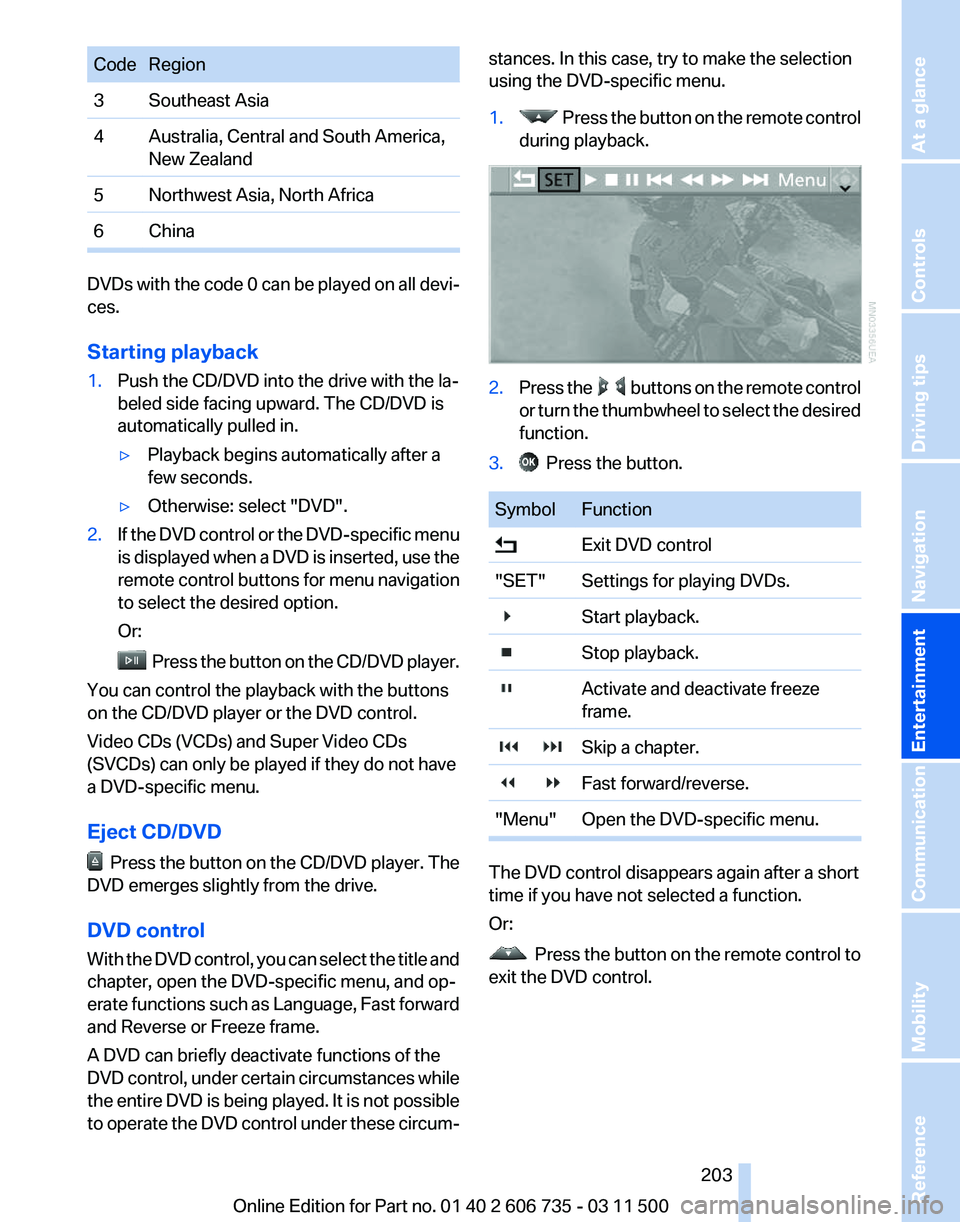
1. Press the button on the remote control
during playback. 2.
Press the buttons on the remote control
or
turn the thumbwheel to select the desired
function.
3. Press the button.
Symbol Function
Exit DVD control
"SET" Settings for playing DVDs.
Start playback.
Stop playback.
Activate and deactivate freeze
frame.
Skip a chapter.
Fast forward/reverse.
"Menu" Open the DVD-specific menu. The DVD control disappears again after a short
time if you have not selected a function.
Or:
Press
the button on the remote control to
exit the DVD control.
Seite 203
203Online Edition for Part no. 01 40 2 606 735 - 03 11 500
Reference Mobility Communication
Entertainment Navigation Driving tips Controls At a glance
Page 245 of 317
Mobility
In order to always ensure your mobility, you will find important information on operating fluids,wheels and tires, maintenance and Roadside Assistance in the following.
Online Edition for Part no. 01 40 2 606 735 - 03 11 500
Page 252 of 317
Wheels and tires
Tire inflation pressure
Safety information
It is not merely the tires' service life, but also
driving comfort and, to a great extent, driving
safety that depend on the condition of the tires
and the maintenance of the specified tire pres‐
sure.
Checking the pressure
Only check the tire inflation pressure when the
tires are cold. This means after a maximum of
1.25
miles/2 km driving or when the vehicle has
been parked for at least 2 hours. When the tires
are warm, the tire inflation pressure is higher.
Check the tire inflation pressure regularly
Check the tire inflation pressure regularly
and correct it if necessary, even in the compact
wheel*: usually twice monthly or before embark‐
ing on a long trip. If you fail to observe this pre‐
caution, you may be driving on tires with incor‐
rect tire pressures, a condition that may not only
compromise your vehicle's driving stability, but
also lead to tire damage and the risk of an acci‐
dent.
Do not drive with depressurized or flat tires, ex‐
cept for run-flat tires. A flat tire will seriously im‐
pair your vehicle's handling and braking re‐
sponse. Attempts to drive on a flat tire can lead
to a loss of control over the vehicle.◀
After adjusting the tire inflation pressure, reset
the Tire Pressure Monitor, refer to page 90, or
reinitialize the Flat Tire Monitor, refer to
page 88.
Pressure specifications
The tables below provide all the correct inflation
pressures for the specified tire sizes at ambient
temperature.
The inflation pressures apply to the tire sizes
approved and tire brands recommended by BMW; a list of these is available from your serv‐
ice center.
For
correct identification of the right tire inflation
pressures, observe the following:
▷ Tire sizes of your vehicle.
▷ Maximum allowable driving speed.
Tire inflation pressures for driving up to
100 mph or 160 km/h
For
normal driving up to 100 mph/160 km/h, ad‐
just pressures to the respective tire inflation
pressures listed on the following pages in the
column for traveling speeds up to 100 mph/
160 km/h to achieve optimum driving comfort.
These tire inflation pressures can also be found
on the driver's side door pillar when the driver's
door is open. Do not exceed the maximum permissible
speed
The maximum permissible speed for these tire
pressures is 100 mph/160 km/h Do not exceed
this speed; otherwise, tire damage and acci‐
dents could occur.◀
Tire inflation pressures for driving
above 100 mph or 160 km/h
Adjust the tire inflation pressures
To drive at maximum speeds in excess of
100 mph/160 km/h, adjust pressures to the re‐
spective
tire inflation pressures listed on the fol‐
lowing pages in the column for traveling speeds
including those exceeding 100 mph or 160 km/ Seite 252
252 Online Edition for Part no. 01 40 2 606 735 - 03 11 500
Wheels and tires
Page 253 of 317
h. Otherwise, tire damage and accidents could
occur.◀
Observe all national and local maximum speed
limits;
otherwise, violations of the laws could oc‐
cur.
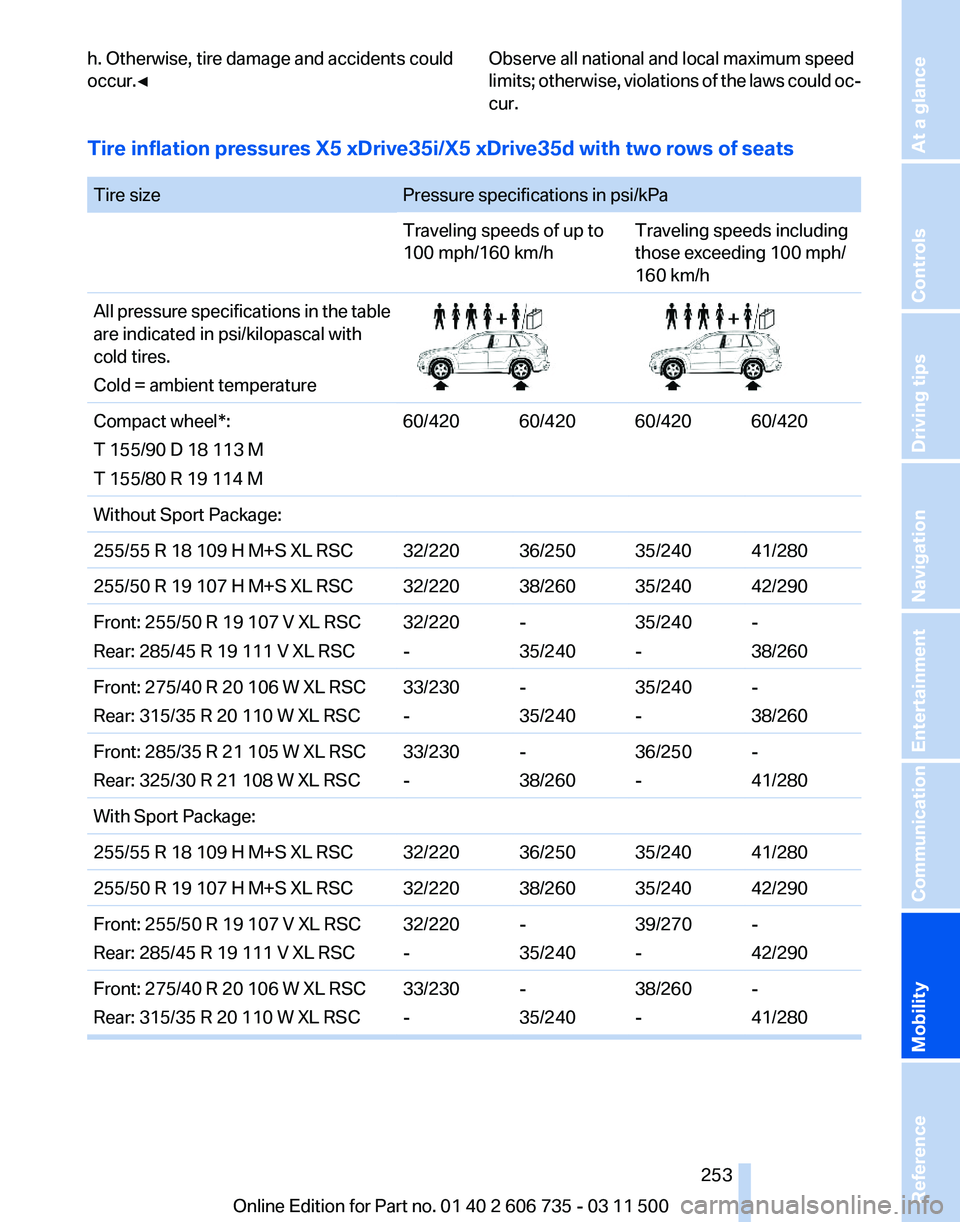
Tire inflation pressures X5 xDrive35i/X5 xDrive35d with two rows of seats
Tire size
Pressure specifications in psi/kPa
Traveling speeds of up to
100 mph/160 km/hTraveling speeds including
those exceeding 100 mph/
160 km/h
All pressure specifications in the table
are indicated in psi/kilopascal with
cold tires.
Cold = ambient temperature Compact wheel*:
T 155/90 D 18 113 M
T 155/80 R 19 114 M
60/420 60/420 60/420 60/420
Without Sport Package:
255/55 R 18 109 H M+S XL RSC 32/220 36/250 35/240 41/280
255/50 R 19 107 H M+S XL RSC 32/220 38/260 35/240 42/290
Front: 255/50 R 19 107 V XL RSC
Rear: 285/45 R 19 111 V XL RSC 32/220
--
35/24035/240
--
38/260
Front: 275/40 R 20 106 W XL RSC
Rear: 315/35 R 20 110 W XL RSC 33/230
--
35/24035/240
--
38/260
Front: 285/35 R 21 105 W XL RSC
Rear: 325/30 R 21 108 W XL RSC 33/230
--
38/26036/250
--
41/280
With Sport Package:
255/55 R 18 109 H M+S XL RSC 32/220 36/250 35/240 41/280
255/50 R 19 107 H M+S XL RSC 32/220 38/260 35/240 42/290
Front: 255/50 R 19 107 V XL RSC
Rear: 285/45 R 19 111 V XL RSC 32/220
--
35/24039/270
--
42/290
Front: 275/40 R 20 106 W XL RSC
Rear: 315/35 R 20 110 W XL RSC 33/230
--
35/24038/260
--
41/280 Seite 253
253Online Edition for Part no. 01 40 2 606 735 - 03 11 500
Reference
Mobility Communication Entertainment Navigation Driving tips Controls At a glance